Automation
An automation runs without an external request. Use it for periodic data synchronization, batch processing, report generation, and other recurring tasks that execute on a timer or on demand. Periodic invocation is scheduled in an external system such as a cron job, Kubernetes, or WSO2 Integration Platform.
Only one automation can be configured per integration.
Creating an automation
- Visual Designer
- Ballerina Code
-
Select the + Add Artifact button in the canvas, or select + next to Entry Points in the sidebar.
-
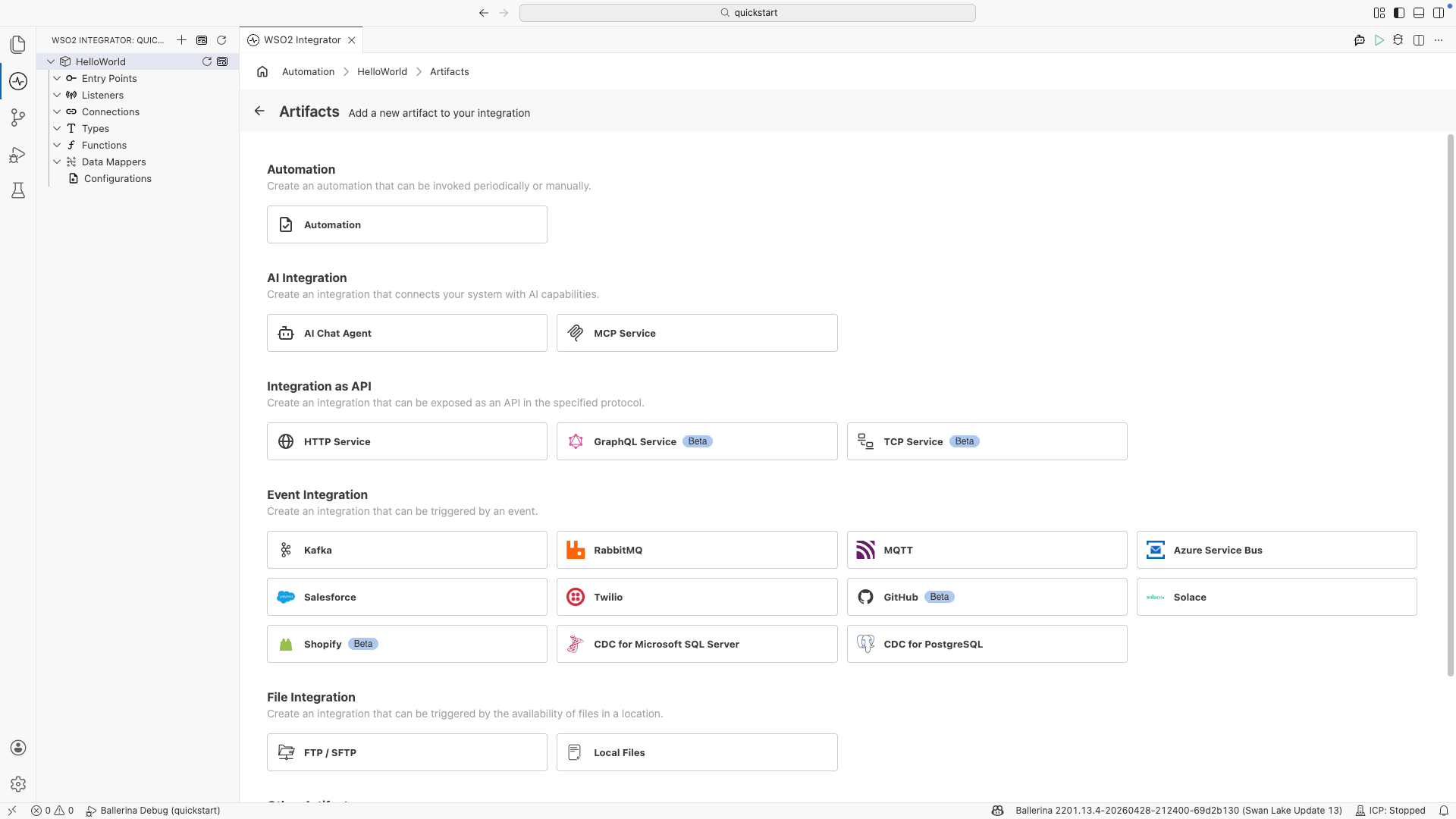
In the Artifacts panel, select Automation under Automation.
-
In the creation form, configure the following fields.
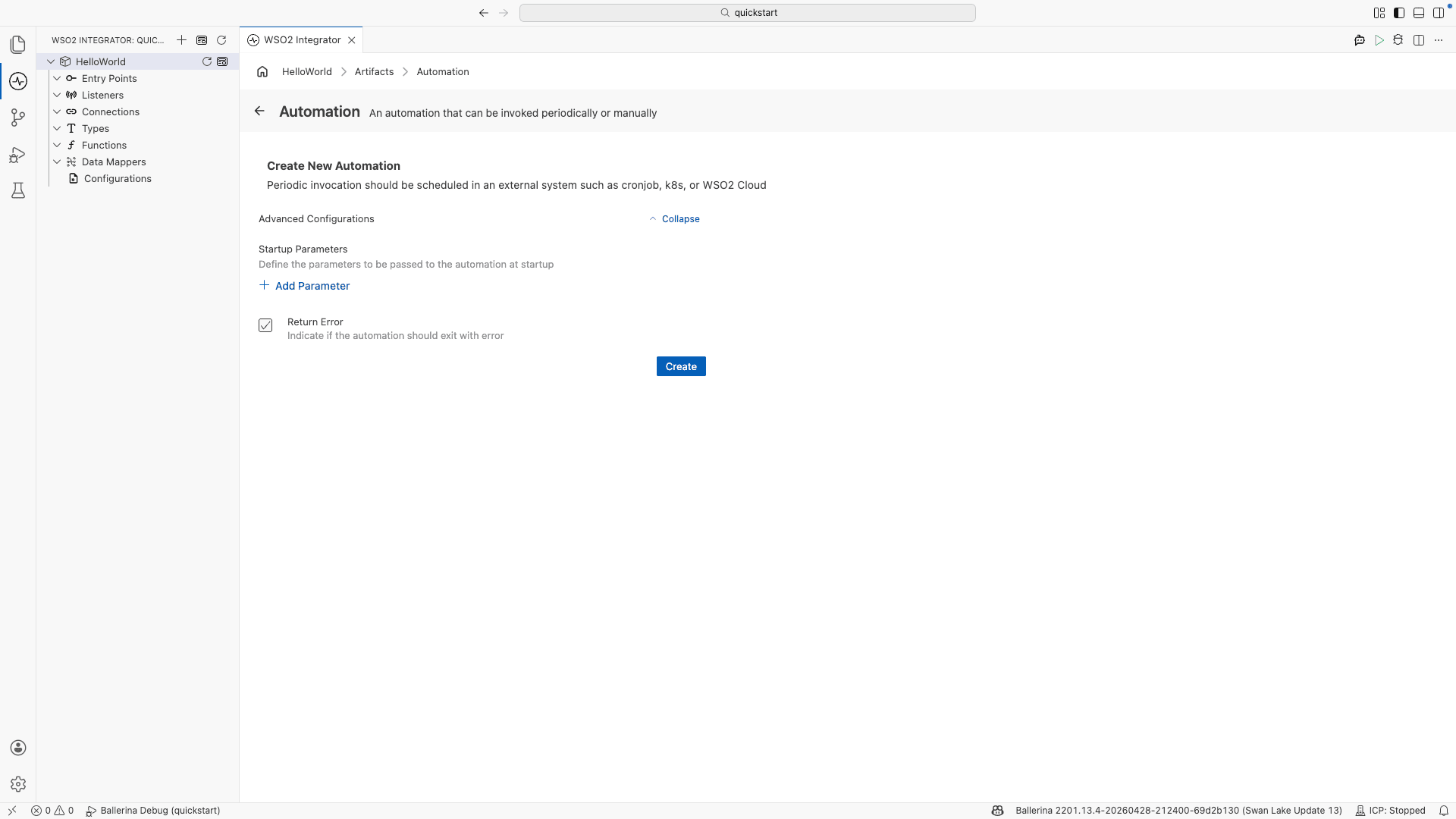
Advanced Configurations
Field Description Startup Parameters Parameters passed to the automation at startup. Select + Add Parameter to add each parameter. Return Error When selected, the automation exits with an error if execution fails. -
Select Create.
-
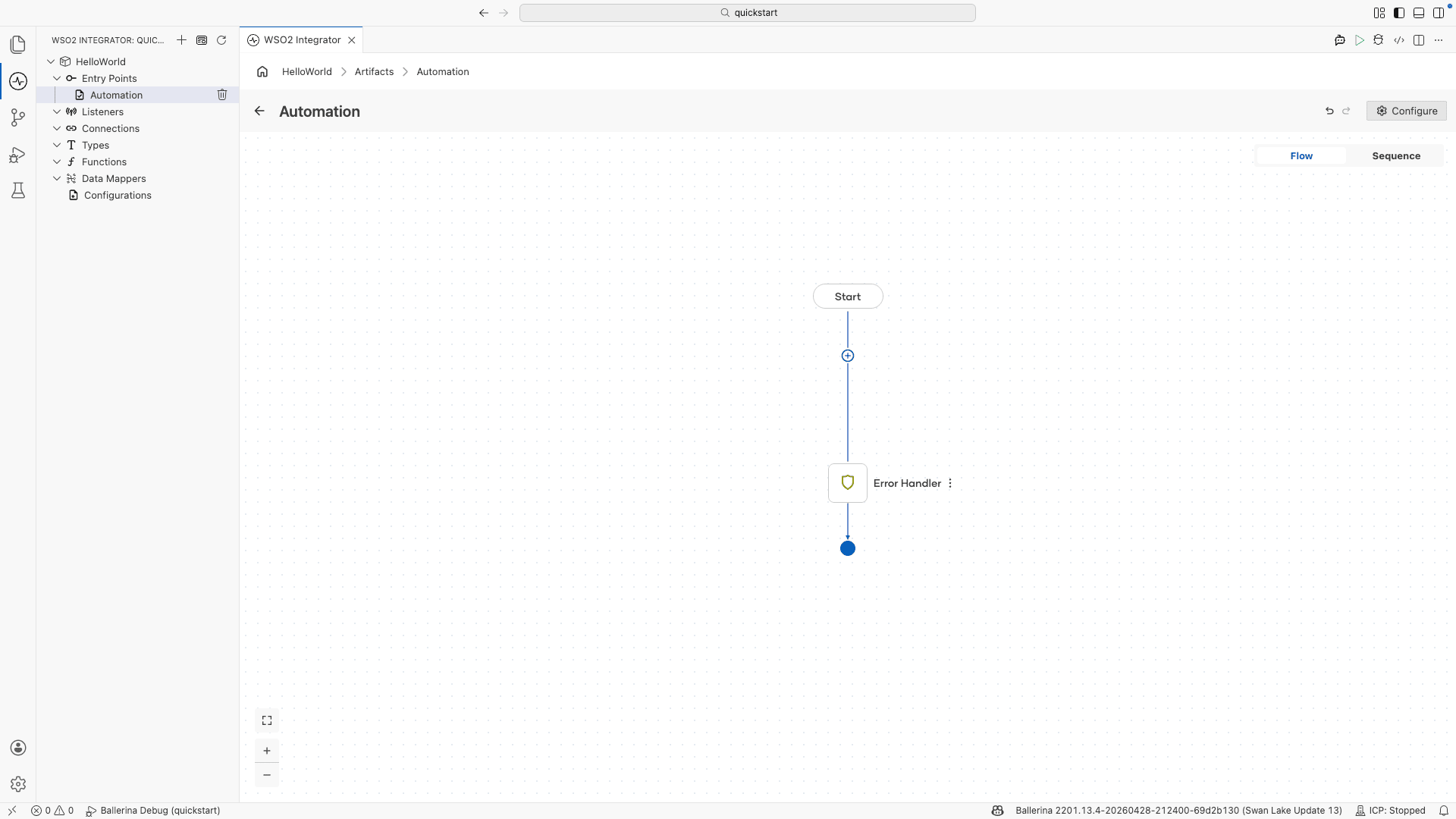
WSO2 Integrator opens the automation in the flow designer. The canvas shows a Start node, a + button to add steps, and an Error Handler node.
-
Select + to open the node panel and add integration steps such as function calls, connections, and control flow.
WSO2 Integrator generates an automation.bal file with the following starter structure:
import ballerina/log;

public function main() returns error? {
    do {
    } on fail error e {
        log:printError("Error occurred", 'error = e);
        return e;
    }
}
Add your integration logic inside the do block. The on fail block handles any errors that occur during execution.
Automation configuration
Automation configuration controls the startup parameters for the automation function and whether execution failures are returned as errors.
- Visual Designer
- Ballerina Code
In the flow designer, select Configure in the header to open the Edit Automation panel.
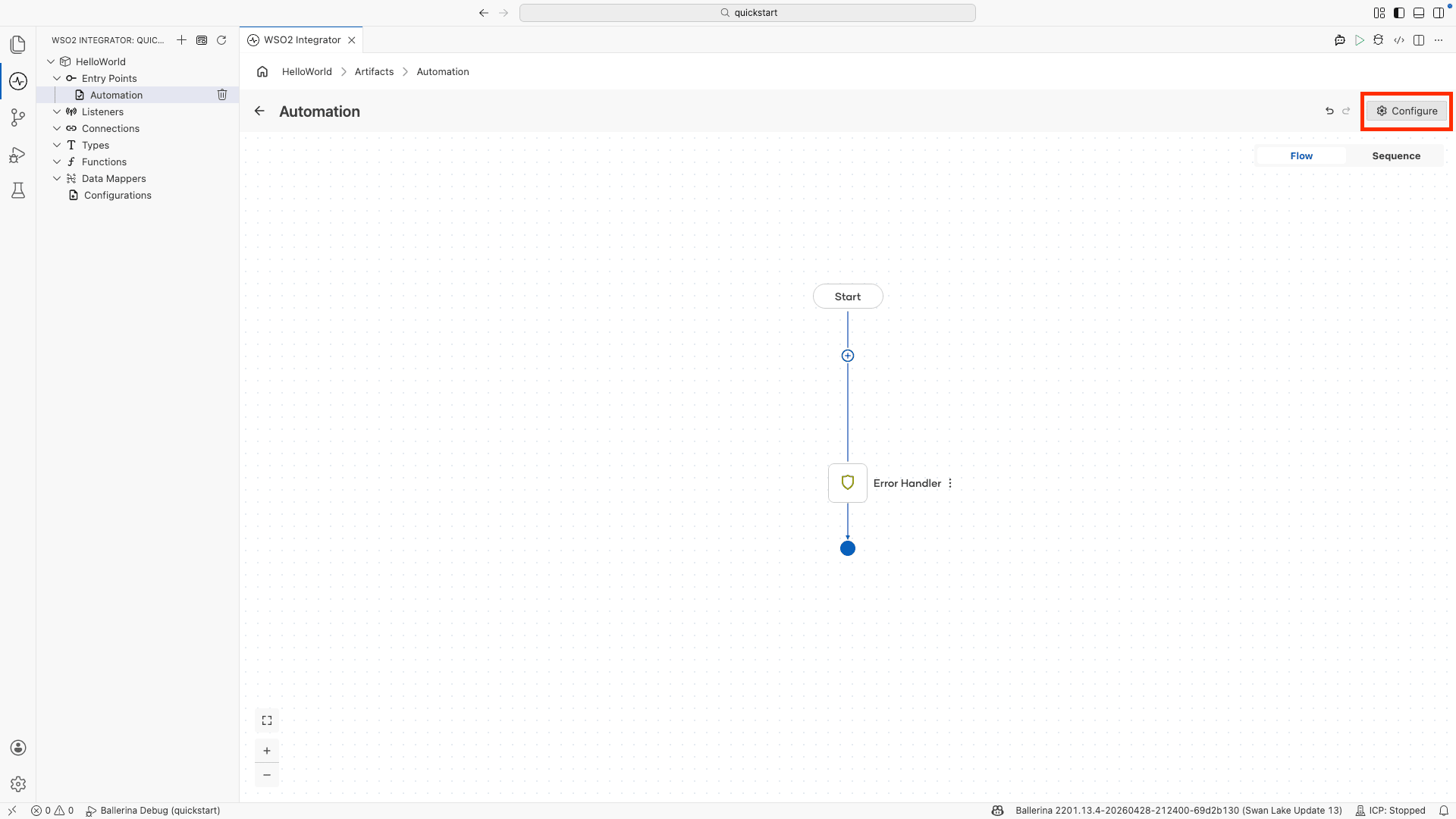
Configuration maps to the main function signature. Add parameters directly to the function signature to define startup parameters:
import ballerina/log;

public function main(string param1 = "", int param2 = 0) returns error? {
    do {
        // Integration logic here
    } on fail error e {
        log:printError("Error occurred", 'error = e);
        return e;
    }
}
What's next
- HTTP service — expose your integration as a REST API
- Error handling — handle automation failures
- Connections — call external services from your automation