Configure Editor
The Configure editor is the side panel you open whenever you select Configure in the IDE. It groups the settings that apply to the current artifact (an integration, a service, or a function) into a single form, so you can review and update them without editing source code. The editor adapts its content to the level you opened it from.
Where to open it
The Configure editor can be reached from many places in the IDE. The level you open it from determines which configuration the editor loads:
- Integration level: open from the Integrator view toolbar, the project explorer, or any artifact that does not have its own configuration scope. This level is reachable from anywhere in the integration.
- Service level: open from the Configure action in the Service Design editor header, or from the service's three-dot menu in the project explorer.
- Function level: open from the Configure action on a function.
- Data mapper level: open from the Configure action on a data mapper. Data mappers use the same form as functions.
Configuration levels
The editor exposes configuration at four levels. Each level scopes the settings to the artifact you opened it from.
Integration-level configurations
Apply to the entire integration and are available from every place in the IDE that can open the Configure editor. Use this level for values that should be shared across all services, automations, and functions in the integration, such as configurable variables sourced from Config.toml, runtime defaults, and integration-wide environment settings.
Service-level configurations
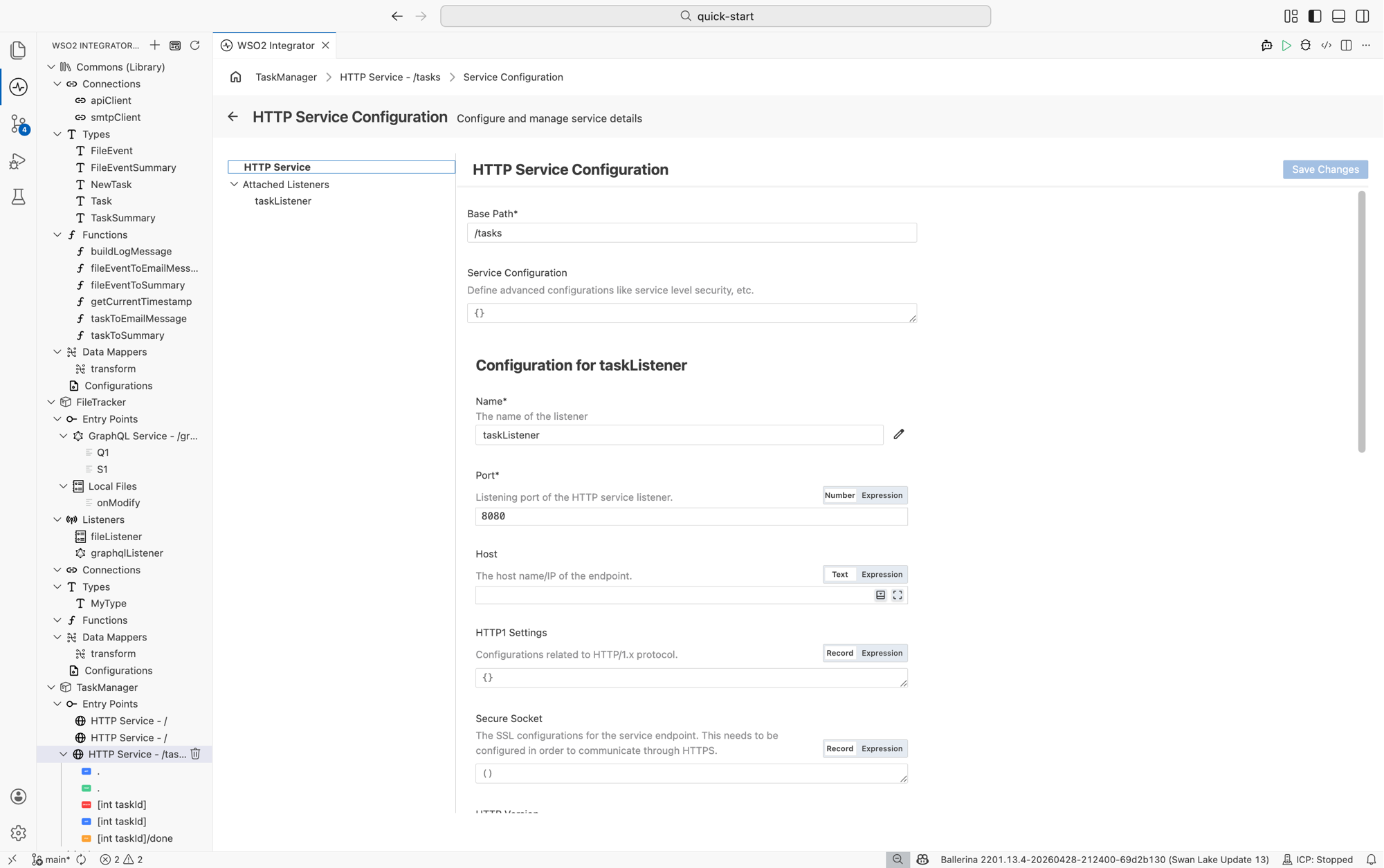
Apply only to the selected service and override or extend the integration-level settings for that service. The form is split into the service's own settings and the configuration of every listener attached to it. For an HTTP service, this includes:
- Base Path: the path the service is exposed on.
- Service Configuration: advanced service-level options such as service-level security.
- Configuration for
<listener>: the listener's own settings (for example, Name, Port, Host, HTTP1 Settings, Secure Socket, and HTTP Version for an HTTP listener), one block per attached listener.
The left pane of the editor lists the service and its Attached Listeners so you can jump straight to the block you want to edit.
Function-level configurations
Use the same form you saw when you created the function. The form exposes:
- Name of the function.
- Description of the function.
- Public toggle, to make the function visible across the project.
- Parameters, with + Add Parameter to add new ones.
- Return Type and a Description for the return value.
Data mapper configurations
Use the same form as the function-level configuration, which is also identical to the form you saw when you created the data mapper. The fields map one-to-one (Name, Public, Inputs instead of Parameters, and Output instead of Return Type), so any change you make here updates the same metadata that you set during creation.
Saving changes
The editor stages your edits until you select Save Changes at the top right. Save Changes stays disabled until at least one field has been modified, so you can open the editor to inspect a configuration without risk of changing it.
What's next
- Service Design editor: return to the service designer to manage resources and handlers.
- Expression editor: use configurable variables in expressions.