Expression Editor
The Expression editor is the inline value-input surface used throughout the WSO2 Integrator IDE wherever a field accepts an expression. It provides syntax highlighting, inline validation, and a UI that adapts to the type expected at the cursor, so you can supply values without remembering the full Ballerina syntax for each context.
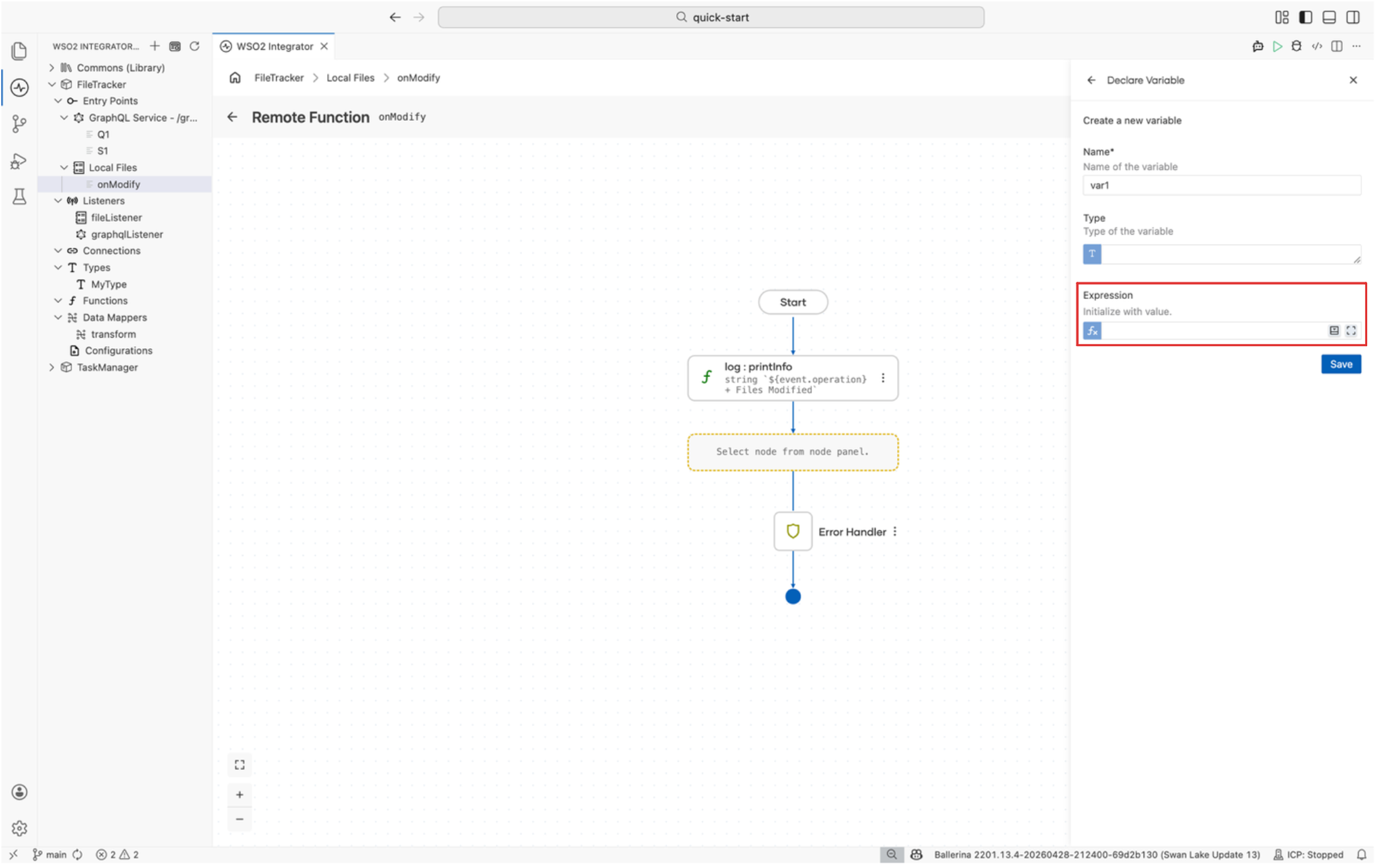
You can recognize the editor by the fx icon next to a field. Selecting it opens the inline editor. The expand control opens the same editor in a larger view for longer expressions.
Where the expression editor appears
The Expression editor appears in every side panel and form that takes a value, including:
- Variable initializers in the Declare Variable panel.
- Arguments to function calls and connector remote functions.
- Conditions in If and While nodes.
- Default values for configurable variables.
- Any field marked with the
fxicon.
Helper pane
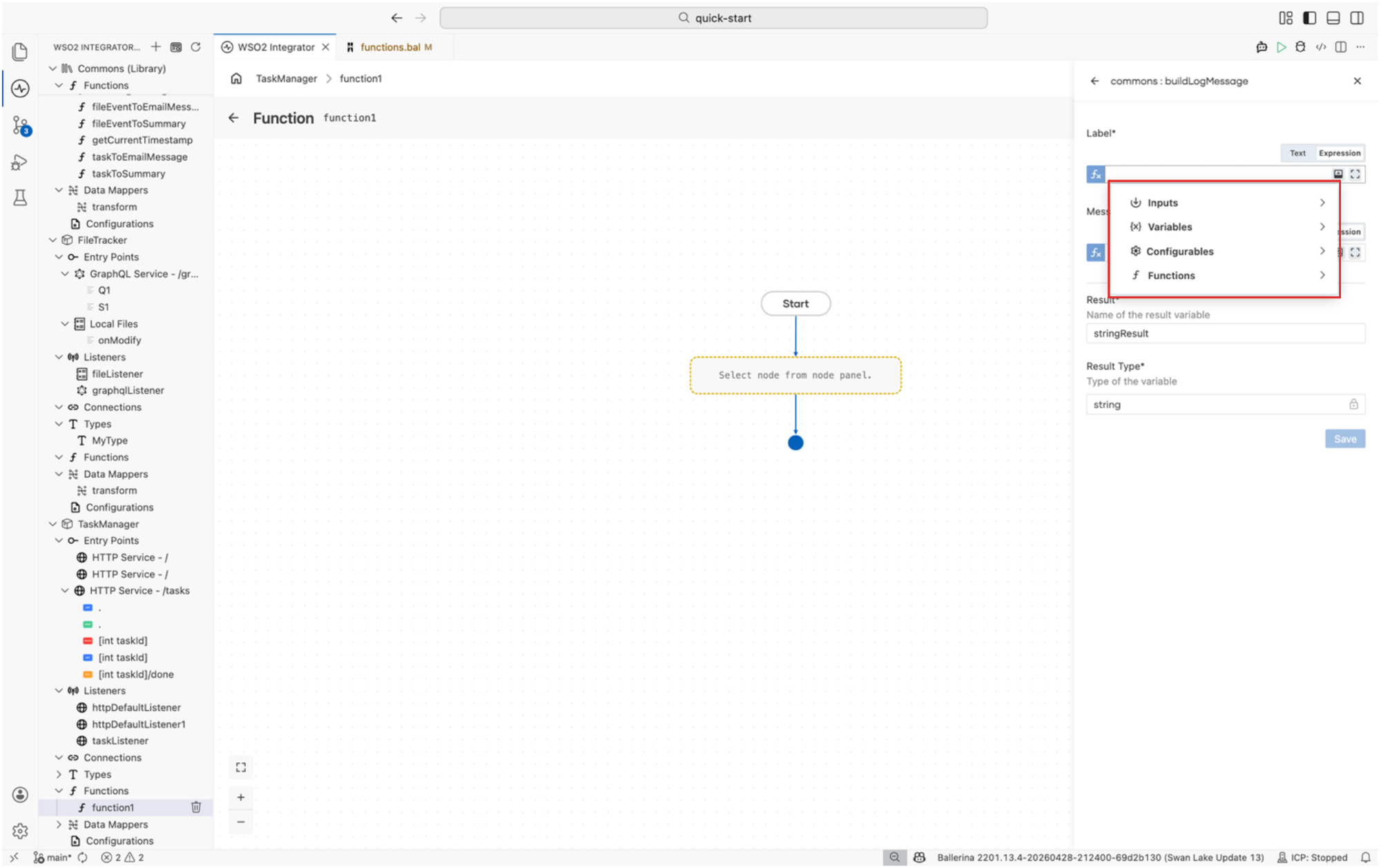
The helper pane is a side menu that lists everything you can drop into the current expression. It opens automatically when you start typing in the Expression editor, and you can also open or close it manually using the helper pane toggle next to the field. The pane groups available items into four categories: Inputs, Variables, Configurables, and Functions. This grouping helps you locate the right reference without leaving the editor.
Inputs
Lists the parameters and inputs available to the current scope, such as service path parameters, payload fields, and function arguments. Selecting an input inserts a reference to it at the cursor.
Variables
Lists every variable that is in scope at the cursor, together with its type. Use this category to insert a reference to a variable you have already declared in the flow.
Configurables
Lists configurable variables defined for the integration. Use this category when an expression should read a value supplied through Config.toml or the runtime configuration, instead of being hardcoded.
Functions
Lists standard library functions and user-defined functions available for the current package. Selecting a function inserts a call template with placeholders for each parameter.
User experience
Suggestions
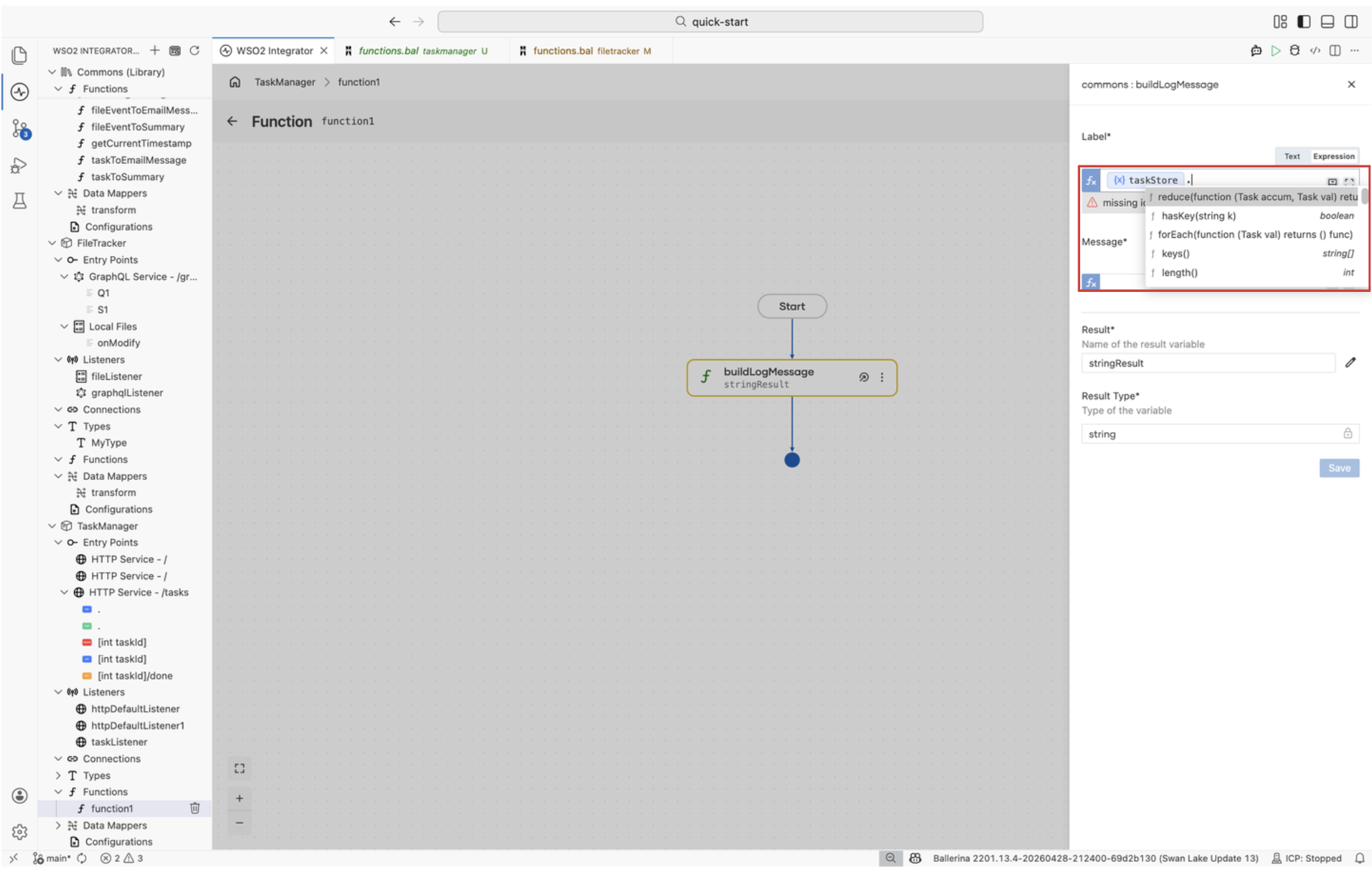
The Expression editor offers context-aware suggestions as you type. Typing . after a variable opens a list of the methods, fields, and remote functions available on that variable's type. Selecting one inserts the call at the cursor. Suggestions are filtered by the expected type at the cursor, so only compatible options appear first.
Chips
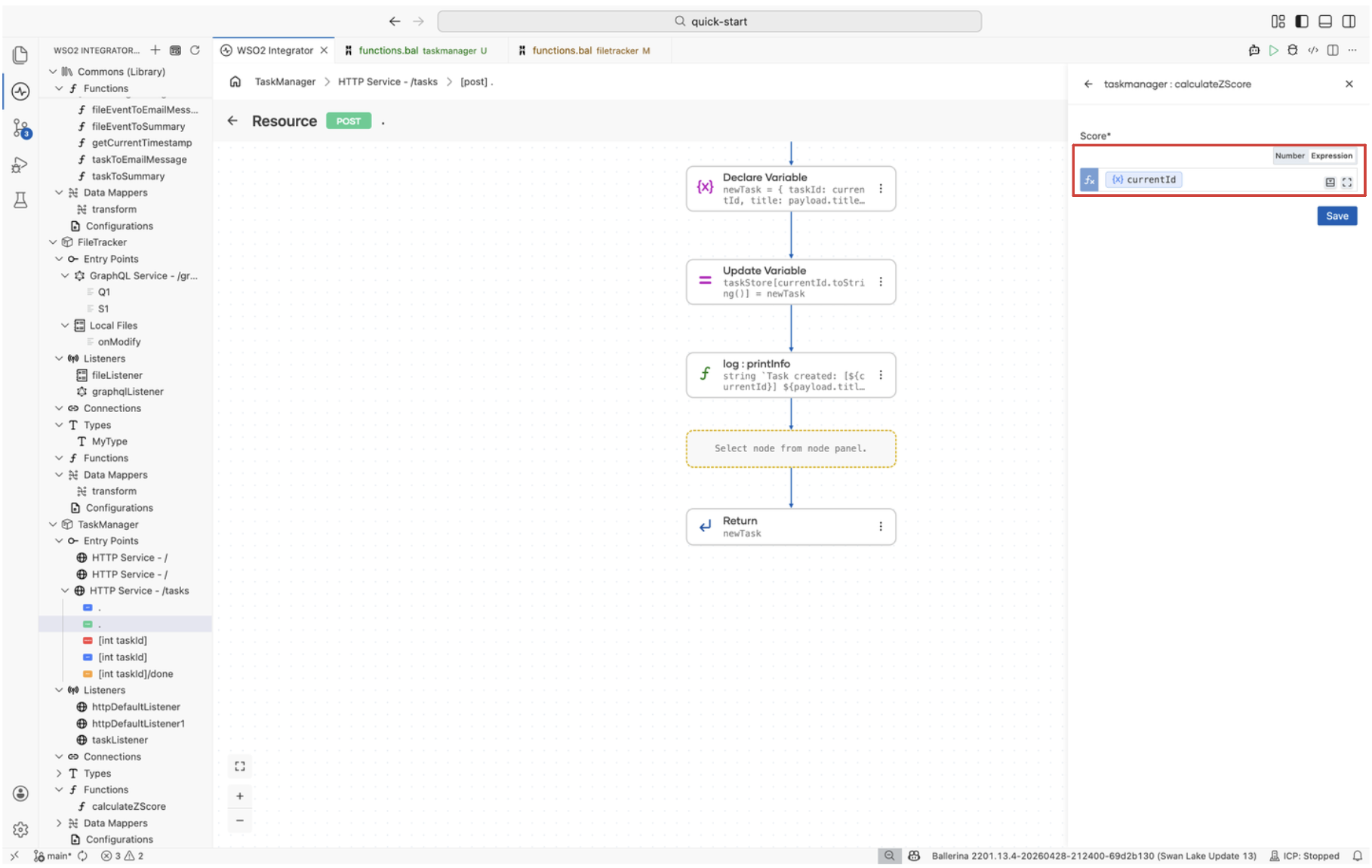
Variables render as compact chips inside the expression, whether they are variables you declared, service inputs, configurables, or function parameters. Chips keep long expressions readable and let you click a reference to inspect or replace it without editing the surrounding text.
Function parameter type suggestions
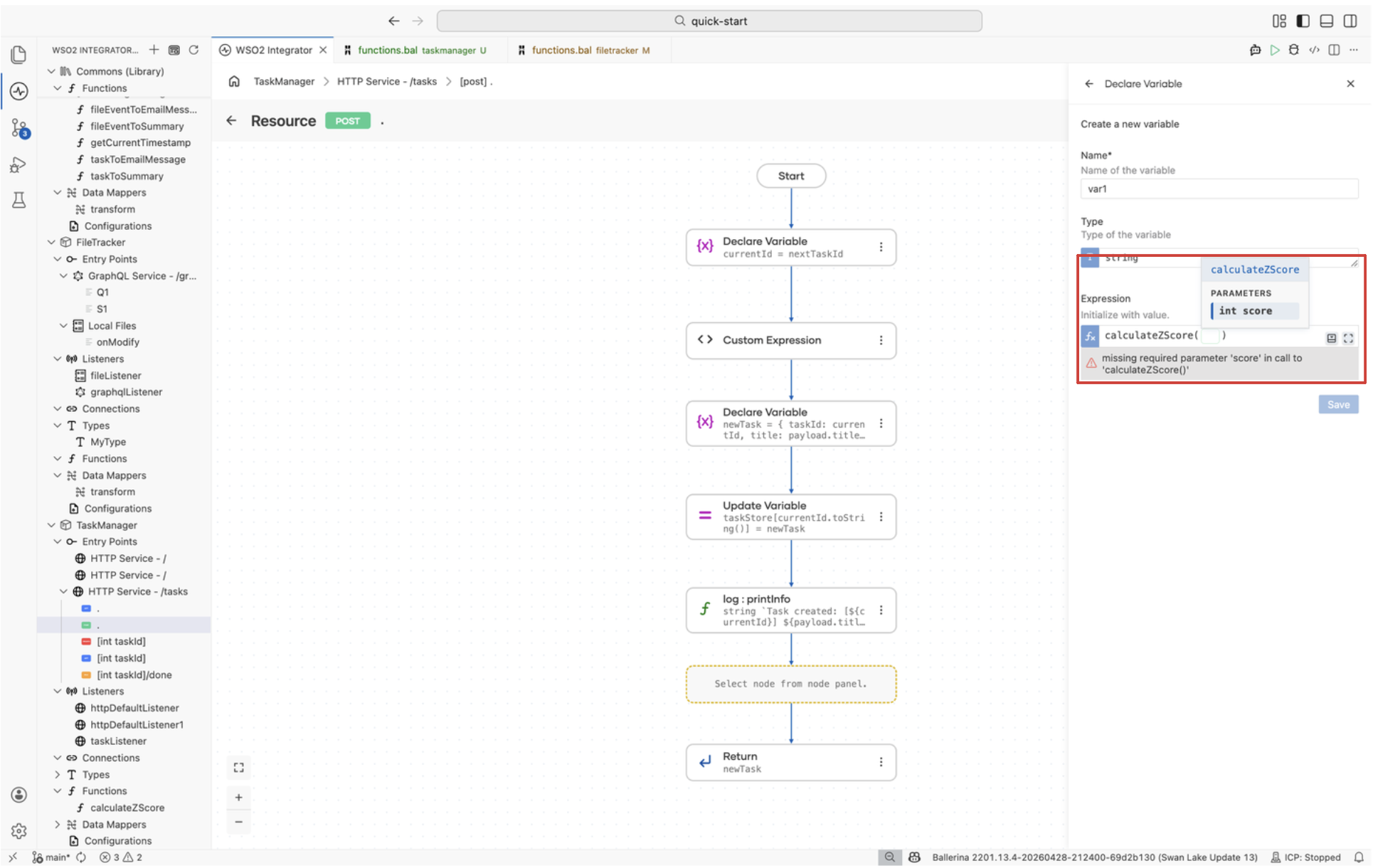
While filling a function call, the editor surfaces the expected type for the current parameter and offers values that match it. The suggestion popup also shows the function name and the parameter list, so you can see which argument you are filling without leaving the editor.
Diagnostics
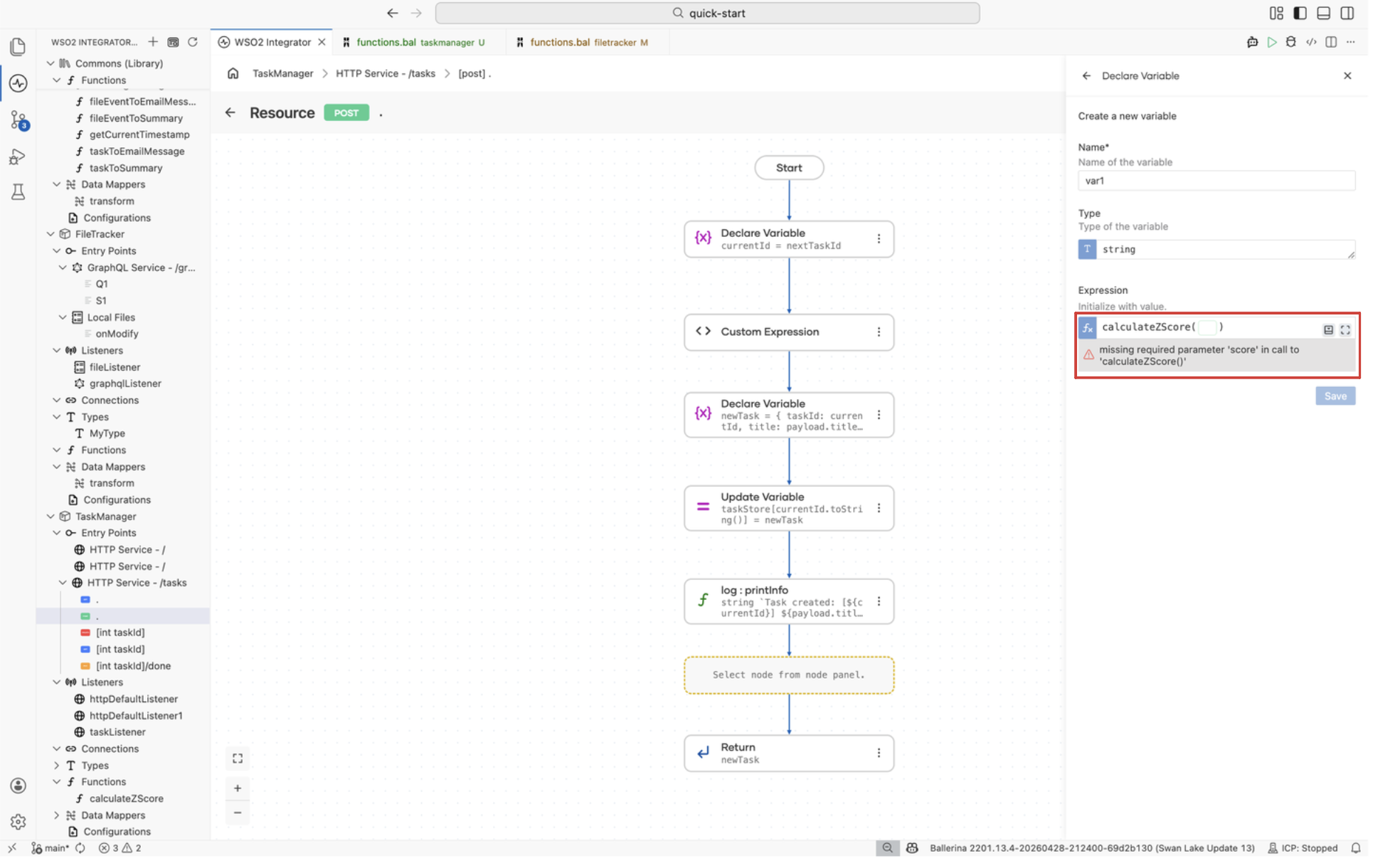
The editor validates the expression as you type and reports problems inline beneath the field. Diagnostics cover issues such as missing required arguments, incompatible types, undefined references, and syntax errors, so you can correct the value before saving the form.
Variations
The Expression editor adapts its UI to the type expected at the cursor. The following variations cover the common cases.
How a variation produces its value
Each variation contributes its value to the underlying integration in a slightly different way:
- Text mode wraps the value in a Ballerina template string (
string `...`) and inserts variables as${variable}interpolations. - SQL mode wraps the value in a SQL template (
sql `...`) and likewise inserts variables as${variable}interpolations so they bind as parameters. - Number, Boolean, Array, Record, Union, Nested, Select, and Prompt insert the value exactly as shown in the editor, with no template wrapping.
Avoid switching the field between Text and Expression while you have a value in progress. The helper pane suggestions are tuned to the current mode, so values that were inserted in one mode (for example, an interpolated chip from Text mode) can produce unexpected output once the mode changes. Pick the mode first, then fill the value.
If you change the field's type after the expression has already been filled, the existing value can cause a validation failure because the editor still holds the previous variation's content. Update the value to match the new type, or clear the field to reset the editor and pick up the variation and helper pane suggestions for the new type.
Switching the variation
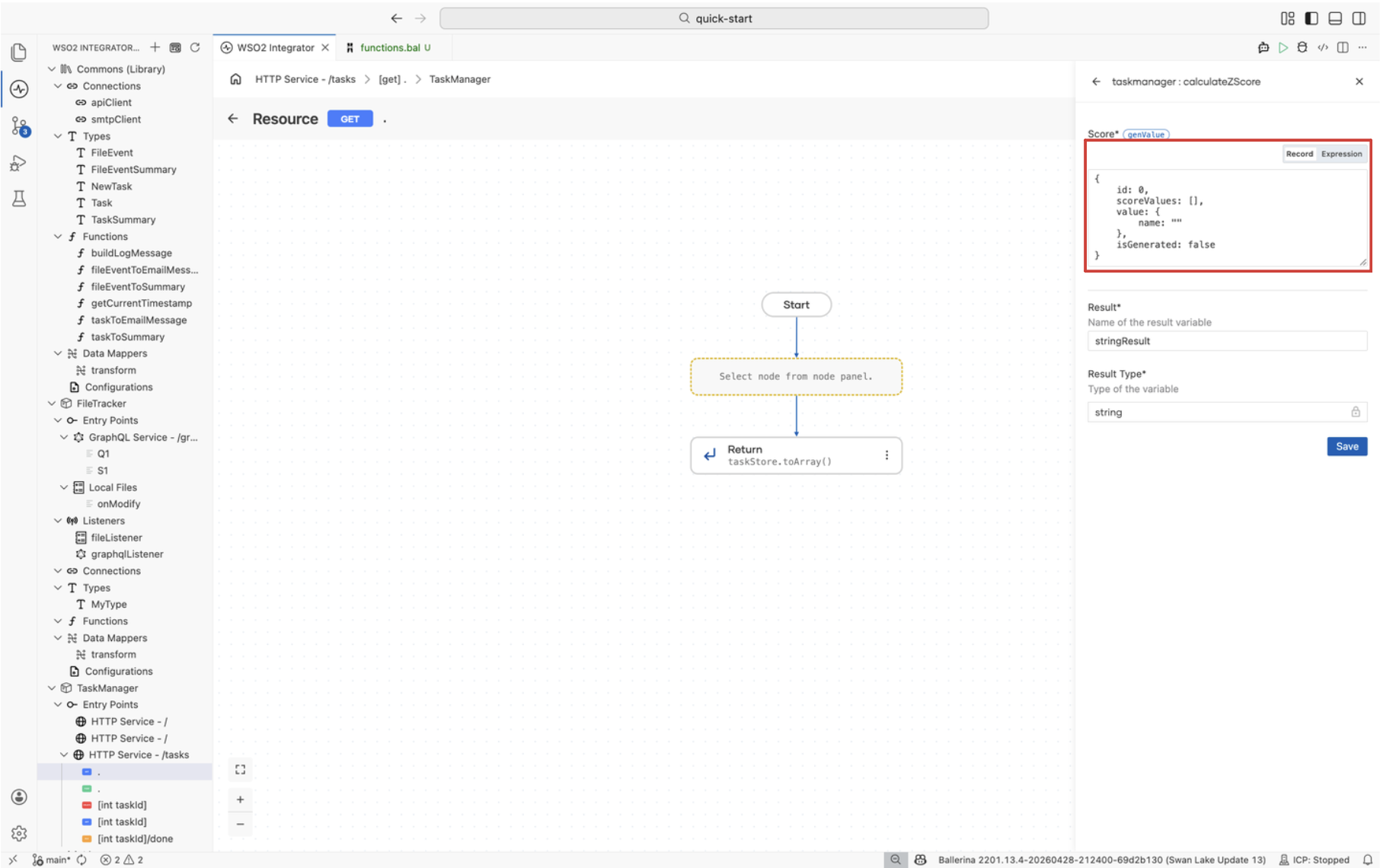
Most fields support more than one variation. The current variation is shown by the toggle at the top right of the field (for example, Record / Expression for a record-typed field, or Text / Expression for a string-typed field). Select the toggle to switch between the form-style variation and free-form expression entry. For instance, a record field can be filled through the Record Configuration form, or, after switching to Expression, written directly as a record literal.
Text mode
Appears when the expected type is string. Provides string-literal entry with support for template strings and variable interpolation. When you insert a variable from the helper pane, it is added as ${variable} so the value is interpolated into the surrounding text. Inserting the same variable from the Expression toggle drops the bare reference instead, with no ${ } wrapper.
Number
Appears for int, float, and decimal fields. Accepts numeric literals or numeric expressions and validates the value against the expected numeric type.
Boolean
Appears for boolean fields. The editor renders a dropdown listing true and false, so you can pick the value without typing it. Switch to the Expression toggle if you need to supply a boolean expression instead of a literal.
Array mode
Appears when the expected type is an array. You can add, reorder, and remove elements as discrete rows instead of editing one long literal, and each row uses the variation that matches the array's element type.
Record mode
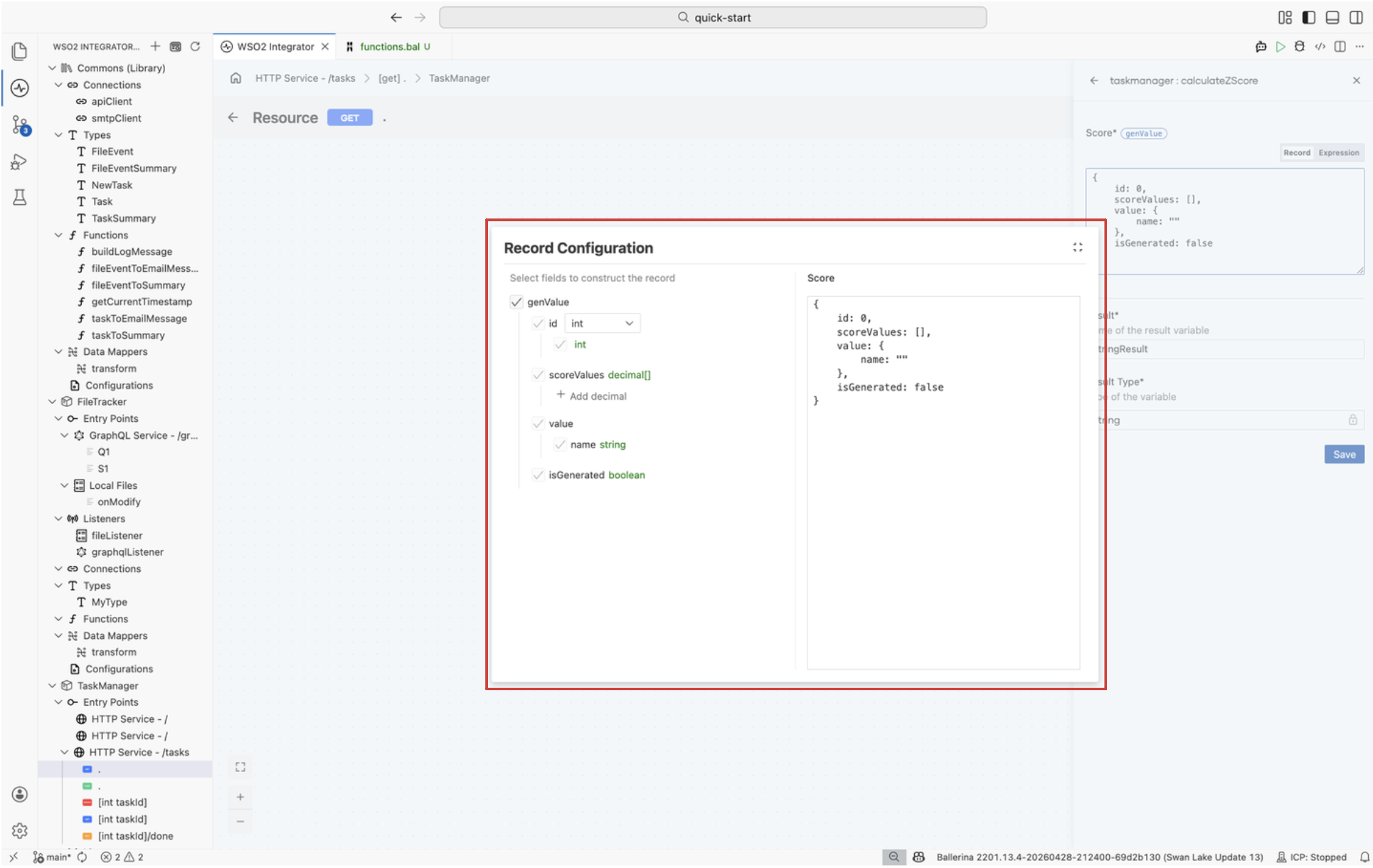
Appears when the expected type is a record. The editor opens a Record Configuration form that lists every field of the record on the left and shows a live preview of the resulting record literal on the right, so you can fill the record without writing braces or field names by hand. Each field uses the variation that matches its type, and any field can be excluded from the literal by clearing its checkbox.
For example, the following record type:
type genValue record {
    int|string id;
    decimal[] scoreValues;
    record {| string name; |} value;
    boolean isGenerated;
};
Renders in the Record Configuration editor as:
idis a union ofintandstring. The editor shows a dropdown so you can pick which member type to supply, then accepts a value using that member's variation.scoreValuesis adecimal[]array. The editor shows an inline list with an Add decimal action so you can add elements one at a time, each using the Number variation.valueis a nested record. The editor expands the inner record's fields directly inside the parent form, so thenamefield of the inner record appears as astringinput undervalue.isGeneratedis a boolean. The editor shows a dropdown you can toggle betweentrueandfalse.
Union mode
Appears when the expected type is a union. Prompts you to pick which member type to supply, then switches to that member's variation for the actual value.
Nested variations
When types compose, for example a union of arrays, the editor nests the matching variations. You first pick the union member, and the editor then opens the corresponding inner variation (such as Array mode) for the selected type.
Select
Appears for fields whose type is an enum or any other fixed set of values. The editor renders a dropdown listing every member of the type, so you can pick a valid value without recalling its exact spelling.
SQL
Appears when you author SQL queries, for example in database connector parameters. The editor provides SQL-aware highlighting and lets you bind integration variables as query parameters. Variables you insert from the helper pane are added as ${variable} interpolations inside the sql `...` template, which the database connector then binds as prepared-statement parameters. Inserting the same variable from the Expression toggle drops a bare reference instead.
Prompt
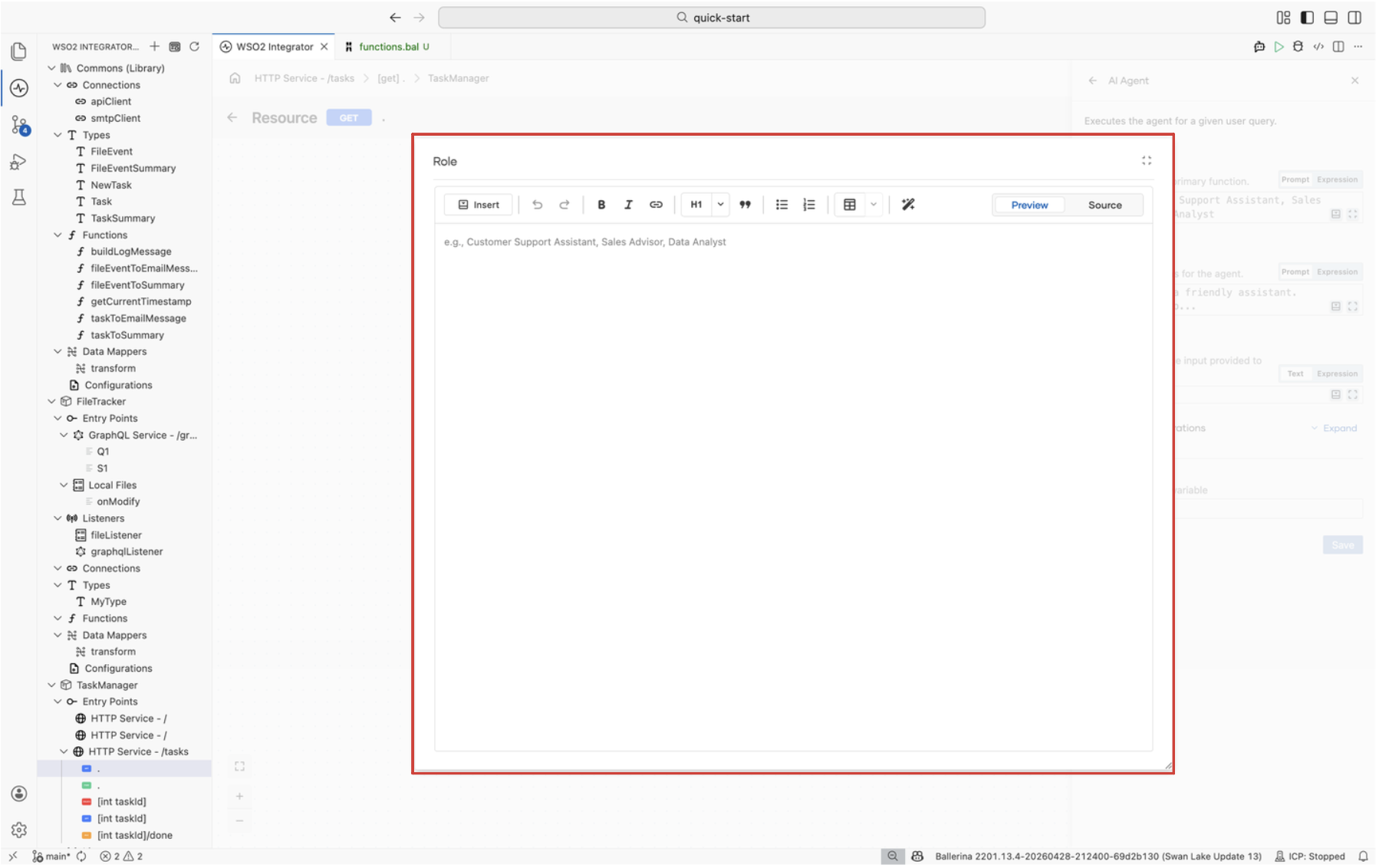
Appears when you author natural-language prompts for AI nodes. The editor is optimized for multi-line text and supports inserting variables as chips so prompt templates remain readable. It also accepts Markdown formatting (headings, bold, italics, lists, links, tables, and quotes) through a built-in toolbar, and you can switch between the rendered Preview and the raw Source view from the same toolbar.
What's next
- Flow Diagram editor: author expressions in flow nodes such as conditions, variable declarations, and function calls.
- Data Mapper editor: use expressions to transform and map individual fields.
- Type editor: define the types that determine which expression variation appears for a field.