Service Design Editor
The Service Design editor, also known as the service designer, is the editor you open for any service entry point in WSO2 Integrator. It lists every resource or handler the service exposes and gives you one place to add, edit, remove, try out, and export them.
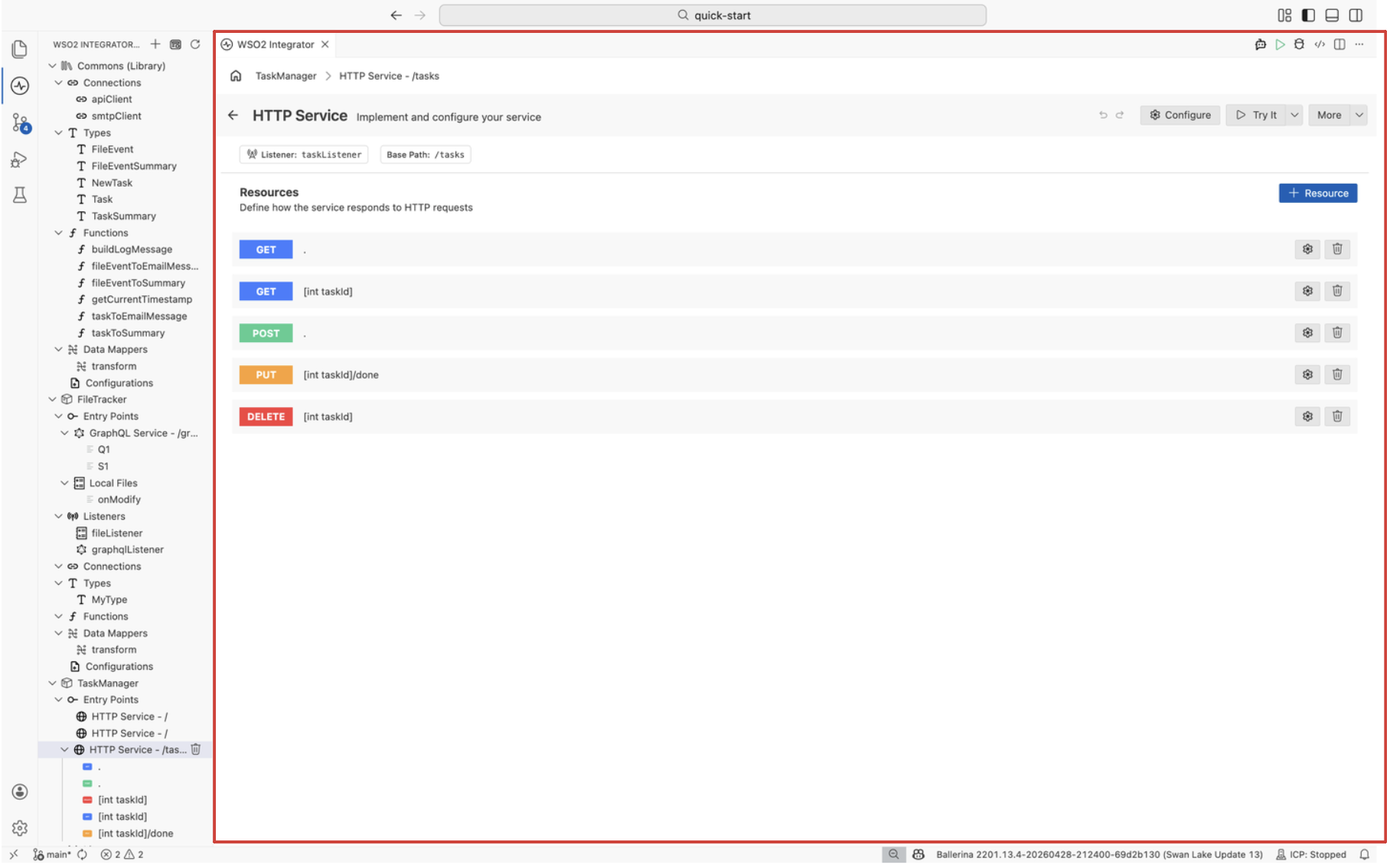
Open the editor
Select a service entry point under Entry points in the project explorer, or select the service node on the Integrator view design canvas. The editor opens with the resources or handlers the service exposes.
To create a new service before opening the editor, see Integration artifacts and choose the service type (HTTP, gRPC, TCP, WebSocket, WebSub Hub).
Header
The header shows the service type and a short tagline, together with the high-level actions for the service.
| Control | Description |
|---|---|
| Back | Returns to the previous view (typically the Integrator view). |
| Undo / Redo | Reverses or reapplies recent changes to the service. |
| Configure | Opens the service configuration panel so you can change the listener, base path, and other service-level settings. |
| Try It | Sends sample requests to the service from inside the IDE. Available for HTTP services only. |
| More | Opens additional actions for the service. For HTTP services, this includes Export OpenAPI to download the generated OpenAPI specification. |
Read-only metadata
Below the header, the editor displays read-only metadata that describes the service at a glance. The exact fields depend on the service type, and they are surfaced here so you can confirm the service binding without opening the Configure panel. To change any of these values, open the service configuration through Configure in the header.
Resources and handlers
The body of the editor lists every endpoint the service exposes. The label of this list depends on the service type:
- HTTP services show Resources, one row per resource function (
GET,POST,PUT,DELETE, and so on). - Event-driven and file-driven services (for example, Kafka, RabbitMQ, FTP, local files) show Handlers, one row per remote function the listener invokes.
For GraphQL services, use the GraphQL editor instead.
Each row identifies the resource or handler by its HTTP method (or event name) and its path or signature.
Add a resource or handler
Select + Resource (HTTP) or + Handler (event and file services) at the top right of the list to add a new endpoint. The editor opens a side panel where you choose the method or event, the path or signature, and the parameter and return types, then generates the resource or handler stub for you.
Edit a resource or handler
Select the settings icon on the row you want to change. The editor reopens the side panel populated with the current configuration, so you can rename the path, adjust parameters, or change the return type.
To edit the implementation (the flow that runs when the resource or handler is invoked), select the row itself. The editor opens the Flow Diagram editor for that resource or handler.
Delete a resource or handler
Select the delete icon on the row. The editor asks you to confirm before removing the resource or handler from the service.
Try It
For HTTP services, Try It in the header opens an in-IDE request console. Pick a resource, fill in path parameters, query parameters, headers, and a request body, then send the request to the running service and inspect the response. Use this to sanity-check a resource without leaving the IDE.
More menu
The More menu groups actions that are specific to the service type. For HTTP services it currently includes:
- Export OpenAPI: generates and downloads the OpenAPI specification for the service, derived from its resources, parameters, and types.
What's next
- Integration artifacts: browse the full set of services, automations, event handlers, and file processors you can build.
- Flow Diagram editor: edit the logic that runs when a resource or handler is invoked.
- Type editor: define the request and response types used by the service.