Array to Array
When both the input and the output are arrays, the data mapper offers three mapping styles. Pick the one that matches the relationship between the source and target arrays.
| Mapping style | Use it when |
|---|---|
| Map each element | Each output element is built from an input element. |
| Assign as is | The input and output arrays have the same type, so the whole array can be copied. |
| Map using custom function | The transformation needs logic that is easier to write as code. |
Map each element
To transform each item in an input array into an item in an output array, use Map Each Element. The data mapper opens a focused view scoped to the array element types, where you map the fields of one element and the same mapping applies to every element in the array.
Example: Turn a list of employees into a list of contacts.
[
  { "firstName": "Anna", "lastName": "Silva", "email": "[email protected]" },
  { "firstName": "Ben", "lastName": "Perera", "email": "[email protected]" }
]
[
  { "fullName": "Anna Silva", "email": "[email protected]" },
  { "fullName": "Ben Perera", "email": "[email protected]" }
]
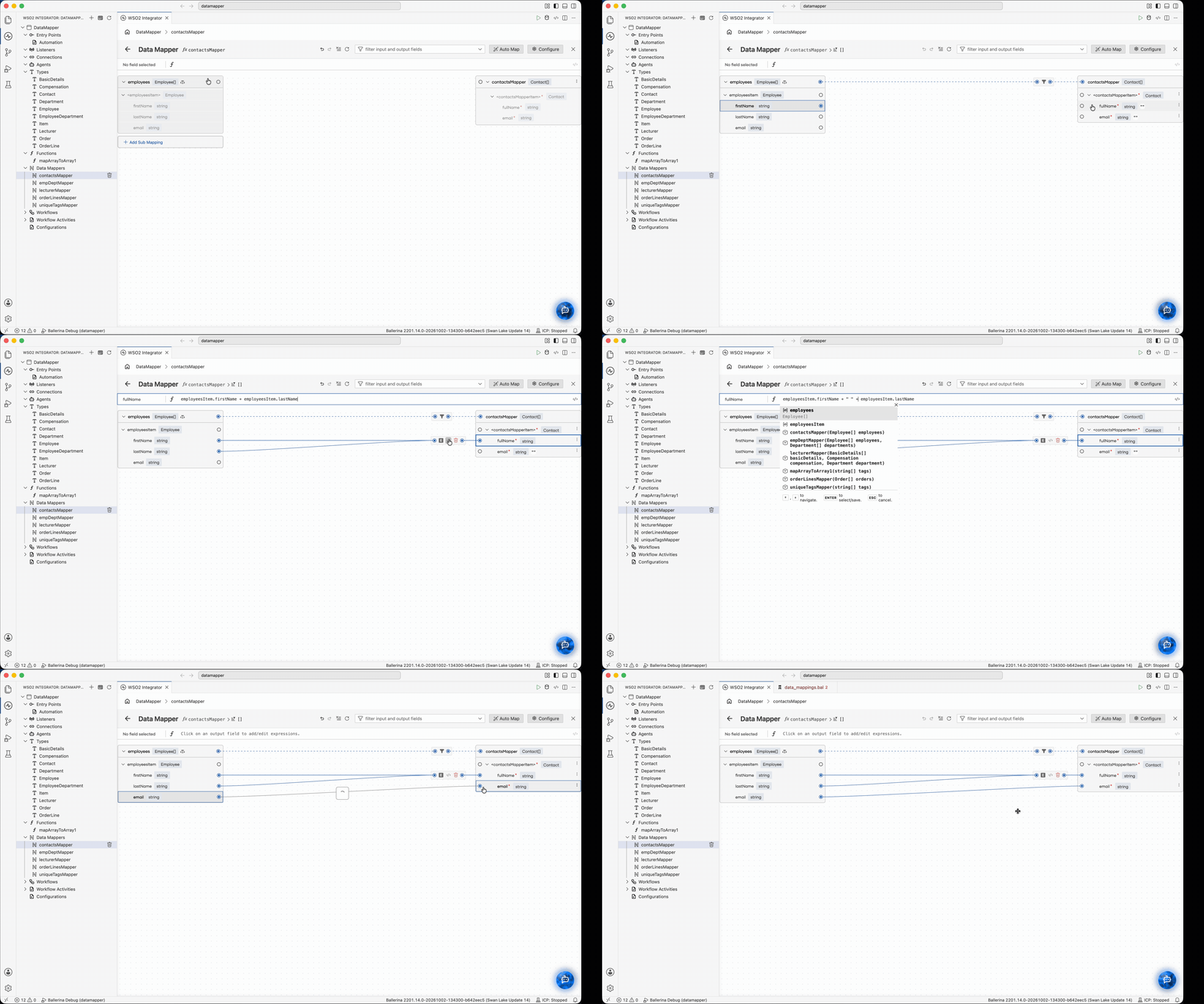
Within the focused view, refine the query using the available clauses:
| Clause Type | Purpose |
|---|---|
| Condition | Filter elements by a condition |
| Local variable | Define local variables for use in the projection |
| Sort by | Sort the result |
| Limit | Cap the number of output elements |
| From | Add another iteration source |
| Join | Combine elements from a second array |
| Group by | Group elements before projection |
When an output element needs data from a second array, map that array inside the focused view. The data mapper then offers two ways to bring it in: Nested iterate and Join with condition.
Nested iterate
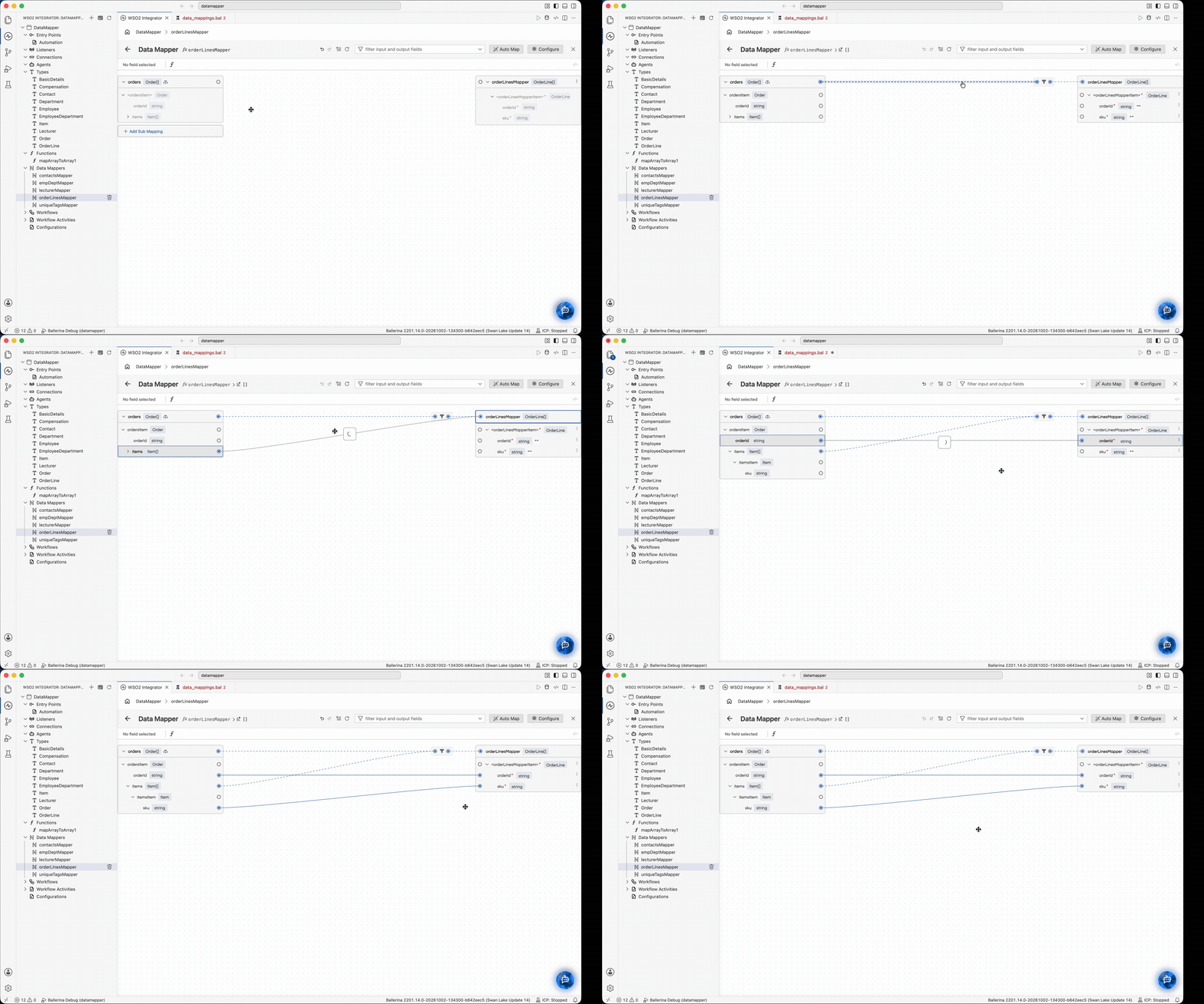
Use Nested Iterate when every element of the outer array must be combined with every element of a second array. A common case is flattening: each input element holds its own list, and you want one output element per item in that list.
Example: Each order contains several items. Produce one order line per item.
[
  { "orderId": "A1", "items": [ { "sku": "PEN" }, { "sku": "INK" } ] },
  { "orderId": "B2", "items": [ { "sku": "PAD" } ] }
]
[
  { "orderId": "A1", "sku": "PEN" },
  { "orderId": "A1", "sku": "INK" },
  { "orderId": "B2", "sku": "PAD" }
]
To set it up, map orders to orderLines using Map Each Element. In the focused view, map items to the output element and select Nested Iterate. The data mapper adds a From clause that iterates items for each order, so both the order fields and the item fields are available for mapping.
Join with condition
Use Join with Condition when two arrays are related by a matching value, such as an ID, and each output element should combine an element from the first array with its matching element from the second. Elements without a match are left out.
Example: Show each employee with their department name, matched on the department ID.
[
  { "name": "Anna", "deptId": 10 },
  { "name": "Ben", "deptId": 20 }
]
[
  { "id": 10, "name": "Finance" },
  { "id": 20, "name": "Sales" }
]
[
  { "name": "Anna", "department": "Finance" },
  { "name": "Ben", "department": "Sales" }
]
To set it up, map employees to staff using Map Each Element. In the focused view, map departments to the output element and select Join with Condition. In the side panel, define the condition that matches the two arrays (here, deptId equals id).
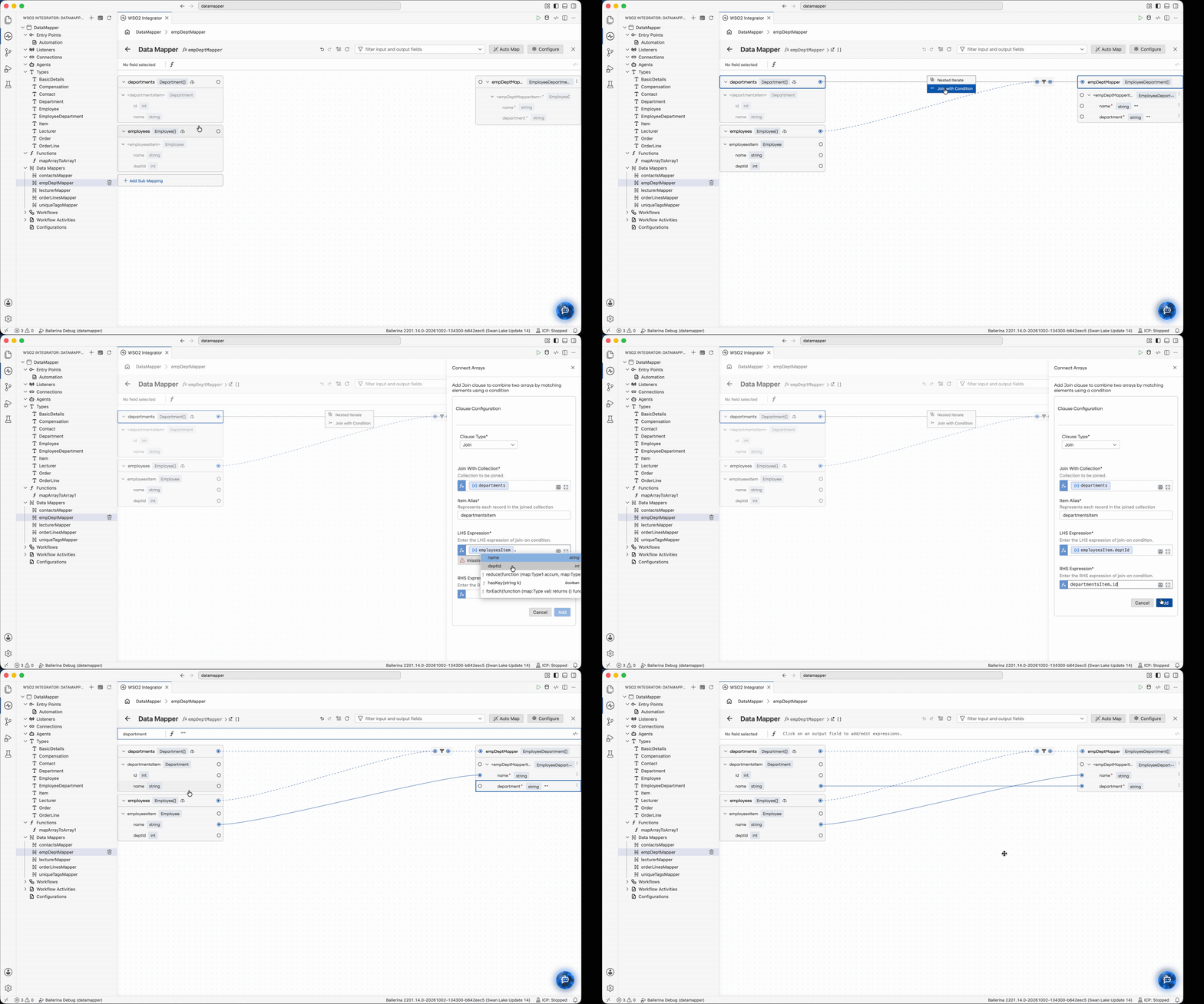
Nested iterate pairs every outer element with every inner element. Join pairs only the elements that match the condition. If you find yourself adding a filter condition after a nested iterate to match IDs, use a join instead.
Assign as is
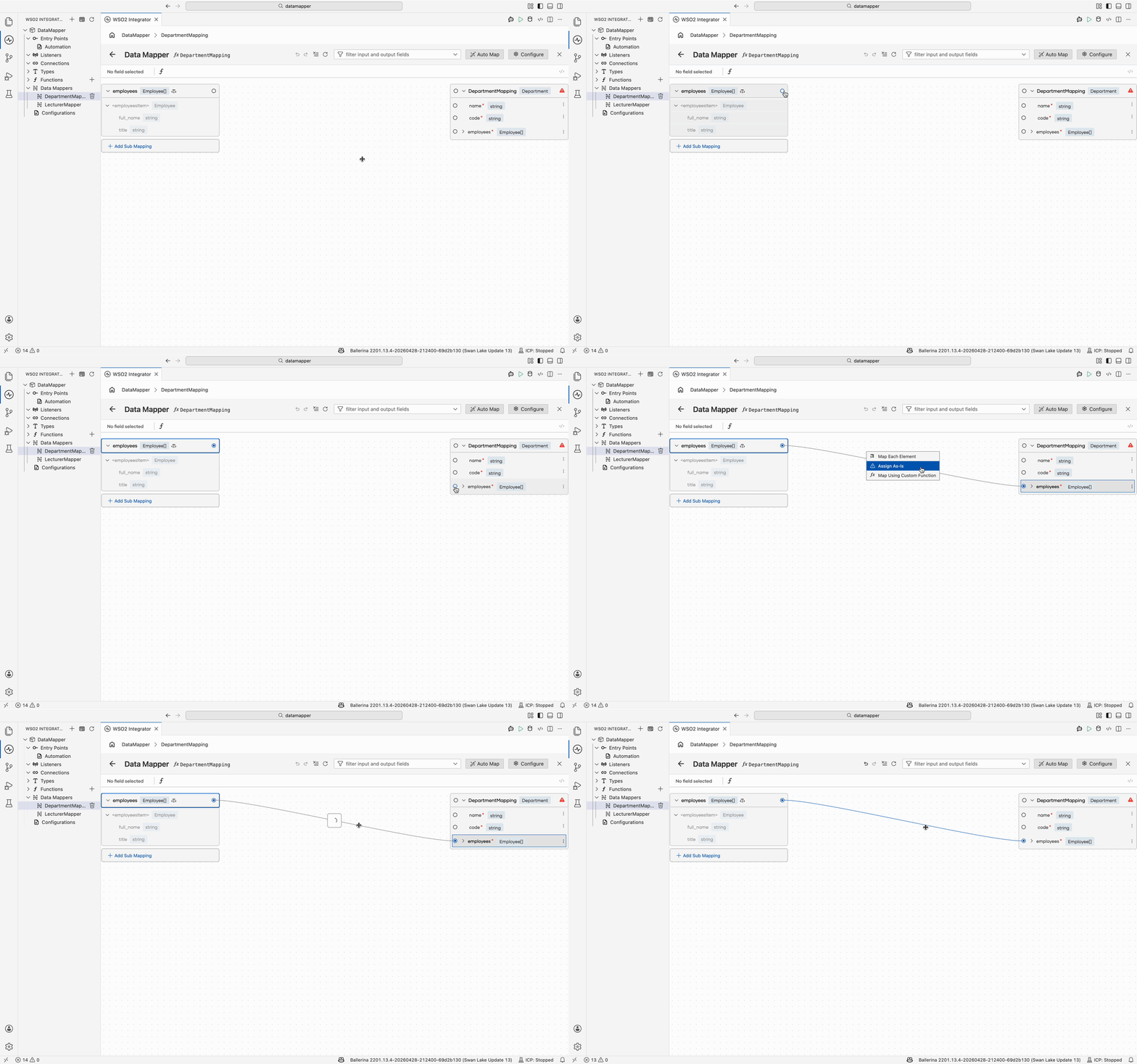
When the input and output array types are identical, use Assign as is to assign the array directly without iteration.
Example: Copy a list of tags into a list of labels.
["urgent", "billing", "urgent"]
["urgent", "billing", "urgent"]
Map using custom function
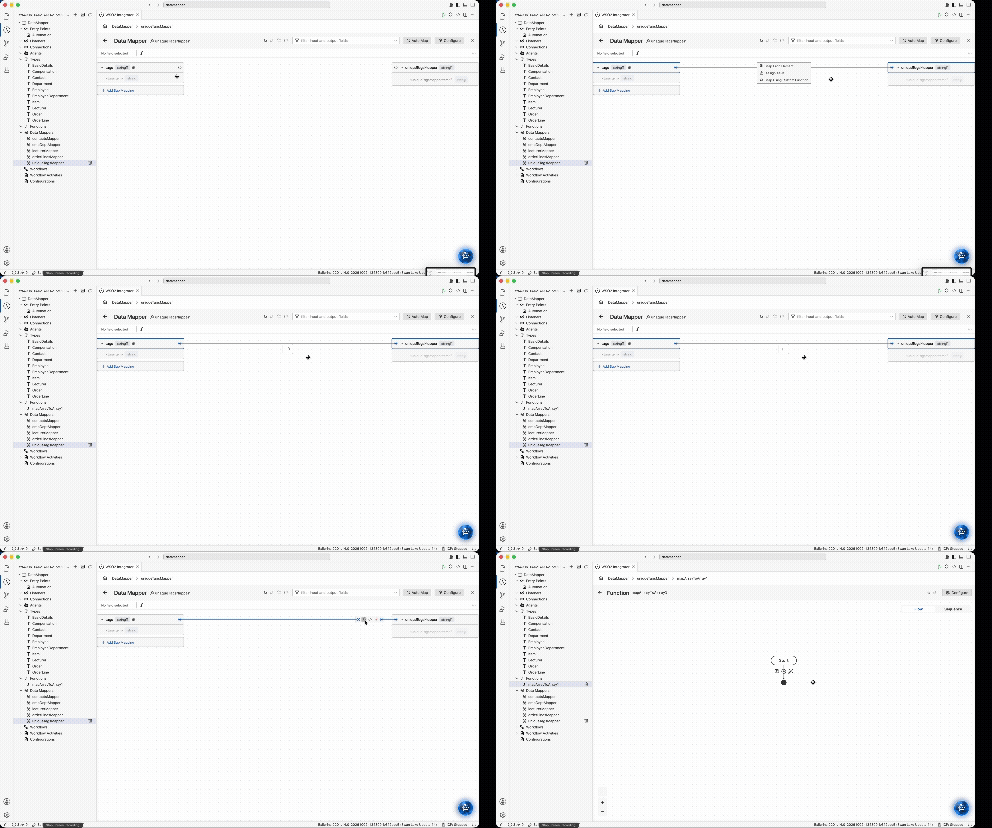
When the transformation works on the array as a whole rather than one element at a time, or the logic is easier to express in code, use Map Using Custom Function. The data mapper generates a function that takes the input array and returns the output array, and links it between the two fields. Navigate into the function to define the logic in the visual designer or pro-code view.
Example: Produce a list of unique tags, with duplicates removed.
["urgent", "billing", "urgent", "refund"]
["urgent", "billing", "refund"]
This option is available when the target array is a field inside the output, when you are inside a focused view, or when you are working in a reusable data mapper.
What's next
- Array to single value — Reduce an array to a single value.
- Generic type mappings — Generate types from a sample JSON or XML payload.
- Sub Mappings — Reuse mapping logic across multiple output fields.