Quick start guide
This guide puts an agent proxy between a sample Agent2Agent (A2A) agent and the agents that call it, so every call goes through the API Platform AI Gateway. You create, deploy, and secure the proxy from AI Workspace, the control plane for AI traffic.
Prerequisites
- Access to AI Workspace with the Admin or Developer role. See Get started with AI Workspace.
- An AI Gateway registered in AI Workspace and showing a status of Active. See Set up an AI Gateway and Install the gateway.
curl, to call the agent from your terminal.
The curl commands on this page use Bash syntax. On Windows, run them from Git Bash or Windows Subsystem for Linux (WSL). In PowerShell, use curl.exe instead of curl, and replace each line-ending \ with a backtick (`).
Create the agent proxy
First, create an agent proxy for a sample agent in AI Workspace.
- Navigate to Agents > Agent Proxies in the left navigation menu.
- If AI Workspace asks for a project, select it and click Go to Project Level.
- Click Create Agent Proxy.
-
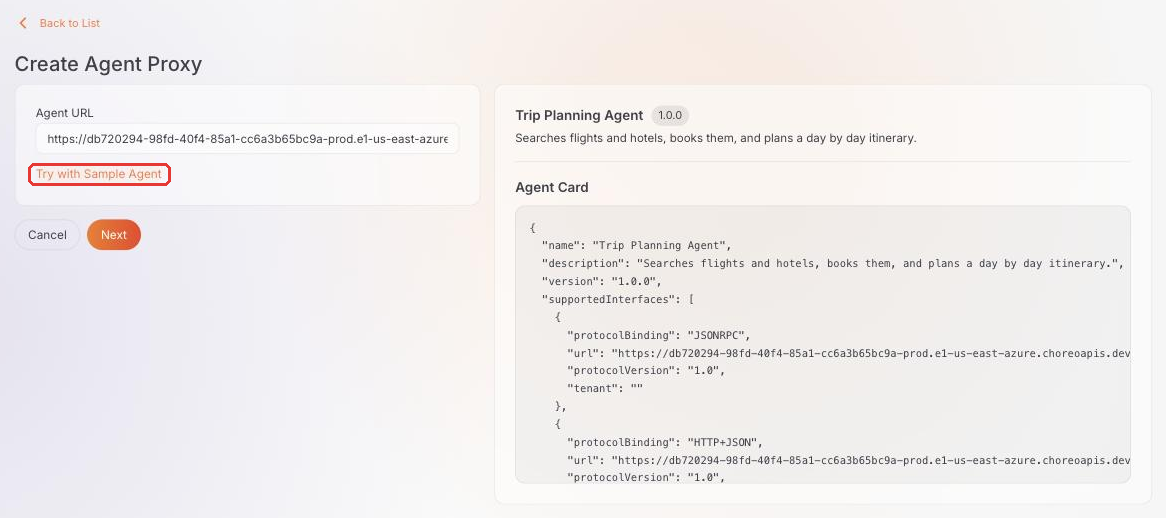
Click Try with Sample Agent to point the proxy at a public sample agent, so you don't need to run your own agent to follow along. The sample is a trip-planning agent that searches flights and hotels, books them, and plans itineraries.
AI Workspace fetches the agent's Agent Card and shows it next to the URL. Every A2A agent publishes an Agent Card, which lists its name, its skills, and the address to send messages to. Other agents read this card to learn how to call the agent.
Pointing at your own agent instead
Enter its base URL in the Agent URL field and click Fetch Agent Info instead of clicking Try with Sample Agent.
AI Workspace fetches the Agent Card from that URL, so the card appears only when AI Workspace can reach the agent. If it can't, you can still continue and create the proxy. Make sure the gateway can reach the agent's URL, because the gateway is what calls the agent.
-
Click Next, keep the details AI Workspace filled in from the Agent Card, and click Create.
Deploy the proxy to your gateway
Next, deploy the proxy to your gateway, so the gateway can accept calls for the agent.
- On the proxy page, click Deploy to Gateway.
- Click Deploy next to your gateway.
- Expand the gateway card and wait for Deployment Status to show Active.
- Click Back to Agent Proxy.
-
On the Overview tab, under Agent Proxy URL, select your gateway from the Gateways dropdown and copy the URL.

Export the URL in your terminal so the commands below can use it:
The commands below pass -k to curl, because a local gateway uses a self-signed certificate. When your gateway has a trusted certificate, leave out -k.
Check the Agent Card
Before calling your agent, other agents read its Agent Card to find where to send messages. Fetch the card through the gateway to see what they see:
Look at supportedInterfaces in the response. On the create page, the card listed the agent's own address. Through the gateway, the card lists the gateway's address instead:
"supportedInterfaces": [
  { "protocolBinding": "JSONRPC",   "url": "https://localhost:8443/default/trip-planning-agent/rpc",  ... },
  { "protocolBinding": "HTTP+JSON", "url": "https://localhost:8443/default/trip-planning-agent/rest", ... }
]
Any agent that reads this card sends its messages to the gateway, so the policies you attach to the proxy apply to every call.
Send a message over HTTP+JSON
Now send the agent a message through the gateway, the same way another agent would.
Ask the agent for flights. The SendMessage operation is a POST to /message:send below the HTTP+JSON path:
curl -sk -X POST "$AGENT_URL/rest/message:send" \
  -H 'Content-Type: application/json' \
  -H 'A2A-Version: 1.0' \
  -d '{"message":{"messageId":"m1","role":"ROLE_USER",
       "parts":[{"text":"flights LHR CMB"}]}}'
The agent answers with a completed task. Its artifact lists the flights:
Flights LHR → CMB
  UL390  11:30 → 20:30   USD 970
  EK567  13:45 → 00:45+1   USD 587
  QR744  15:00 → 18:00   USD 884
A2A-Version is mandatory
Every operation request states its protocol version, in an A2A-Version header or an A2A-Version query parameter. The gateway validates the value and returns 400 Bad Request for a request that doesn't state a supported version.
Agent Card requests are exempt. A client reads the card to learn the version to state.
Send a message over JSON-RPC
A2A agents accept messages in more than one format, called bindings. Send the same kind of message in the JSON-RPC format.
The JSON-RPC binding carries every operation on one endpoint, with the operation in the method field:
curl -sk -X POST "$AGENT_URL/rpc" \
  -H 'Content-Type: application/json' \
  -H 'A2A-Version: 1.0' \
  -d '{"jsonrpc":"2.0","id":"1","method":"SendMessage",
       "params":{"message":{"messageId":"m2","role":"ROLE_USER",
       "parts":[{"text":"hotels Colombo"}]}}}'
The agent answers with a JSON-RPC result that carries a completed task.
Both requests resolve to the same SendMessage operation and run the same policies. You govern the agent once, and the rules apply on either binding.
Secure the agent with an API key
So far, any agent that can reach your gateway can call the trip planner. Because every call passes through the gateway, you can decide who gets in without changing the agent itself. Add an API key, so only callers that hold the key get through.
- On the proxy page, open the Guardrails & Policies tab.
- Under Global Operation Policies, click Add Policy and select API Key Auth.
-
Keep the defaults, which read the key from a header named
API-Key, and click Add.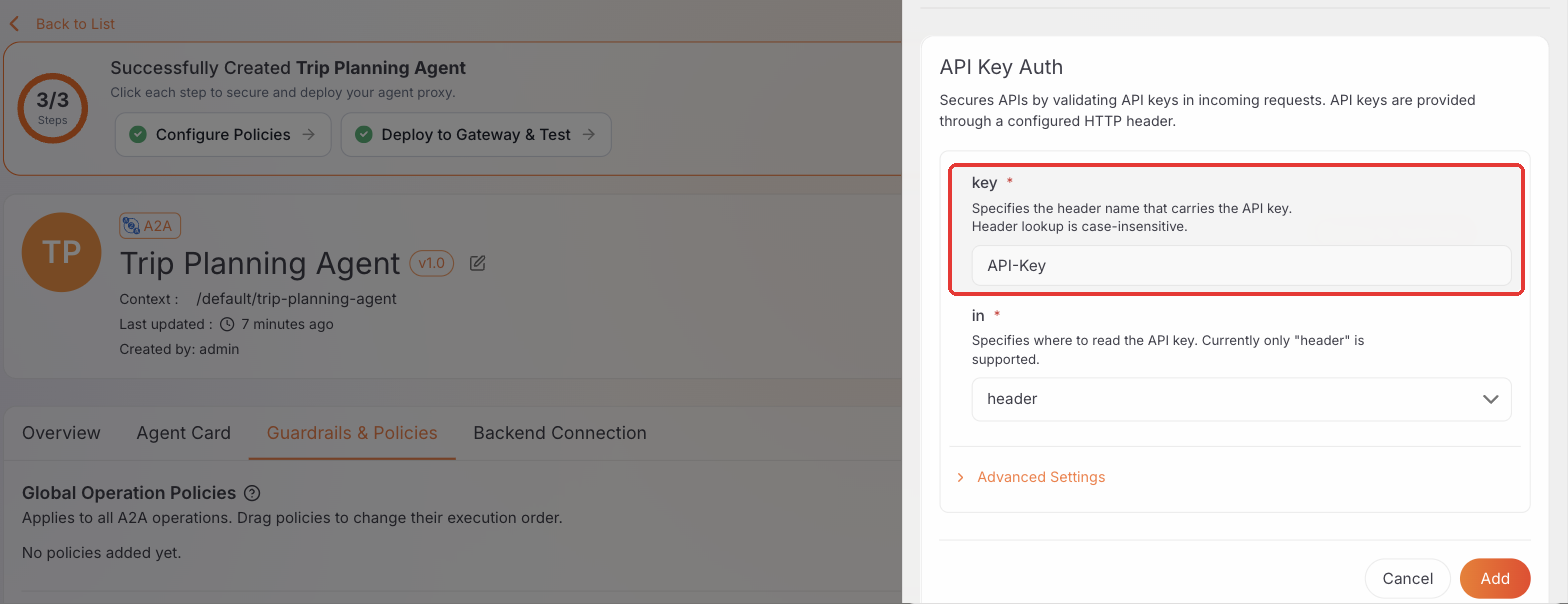
-
Click Save.
- Click Deploy to Gateway, then click Deploy next to your gateway to roll out the change.
- Return to the proxy page. On the Overview tab, under API Keys, click Generate API Key.
- Enter a Key Name, for example
quick-start-key, and click Generate.
Copy the key
AI Workspace shows the key only once. Copy it before you close the dialog.
Export the key in your terminal:
Check that the gateway enforces the key. Send the HTTP+JSON request again without it. The gateway returns 401 Unauthorized with Valid API key required:
curl -sk -X POST "$AGENT_URL/rest/message:send" \
  -H 'Content-Type: application/json' \
  -H 'A2A-Version: 1.0' \
  -d '{"message":{"messageId":"m3","role":"ROLE_USER",
       "parts":[{"text":"flights LHR CMB"}]}}'
Now send it with the key. The agent answers as before:
curl -sk -X POST "$AGENT_URL/rest/message:send" \
  -H 'Content-Type: application/json' \
  -H 'A2A-Version: 1.0' \
  -H "API-Key: $API_KEY" \
  -d '{"message":{"messageId":"m4","role":"ROLE_USER",
       "parts":[{"text":"flights LHR CMB"}]}}'
The Agent Card stays readable without a key, so other agents can still find your agent. To protect the card too, use Public Agent Card Policies on the same tab.
Clean up
When you're done, remove the proxy.
To remove the proxy from your gateway:
- On the proxy page, click Deploy to Gateway.
- Expand your gateway's card and click Stop.
To delete the proxy, click the delete icon on the proxy page.
Next steps
- Serve an Agent Card the gateway holds, and guard the extended card: Agent Card
- Rate limit one operation without limiting the rest: Apply policies
- Understand the routes an agent proxy generates: Expose an agent