RAG Ingestion
The ingestion integration converts raw documents into vectors that the RAG query integration can retrieve. It runs once (or on a schedule) to populate your vector knowledge base. The query integration then searches that knowledge base at runtime.
This page covers building the ingestion integration in WSO2 Integrator: creating an automation, wiring up a data loader, a knowledge base, and running the integration. For retrieval and query, see RAG query.
What the RAG ingestion does
The ingest action on the Knowledge Base handles everything after document loading: it chunks each document, calls the embedding provider to produce vectors, and persists the resulting entries in the vector store.
- A document to ingest (Markdown, plain text, or other supported format).
- A configured embedding provider. The default WSO2 provider works out of the box. Run the WSO2 Integrator command
Ballerina: Configure default WSO2 model providerif you haven't already.
Step 1: Create an automation artifact
An Automation runs on integration startup. It is the right artifact type for a one-shot ingestion job.
-
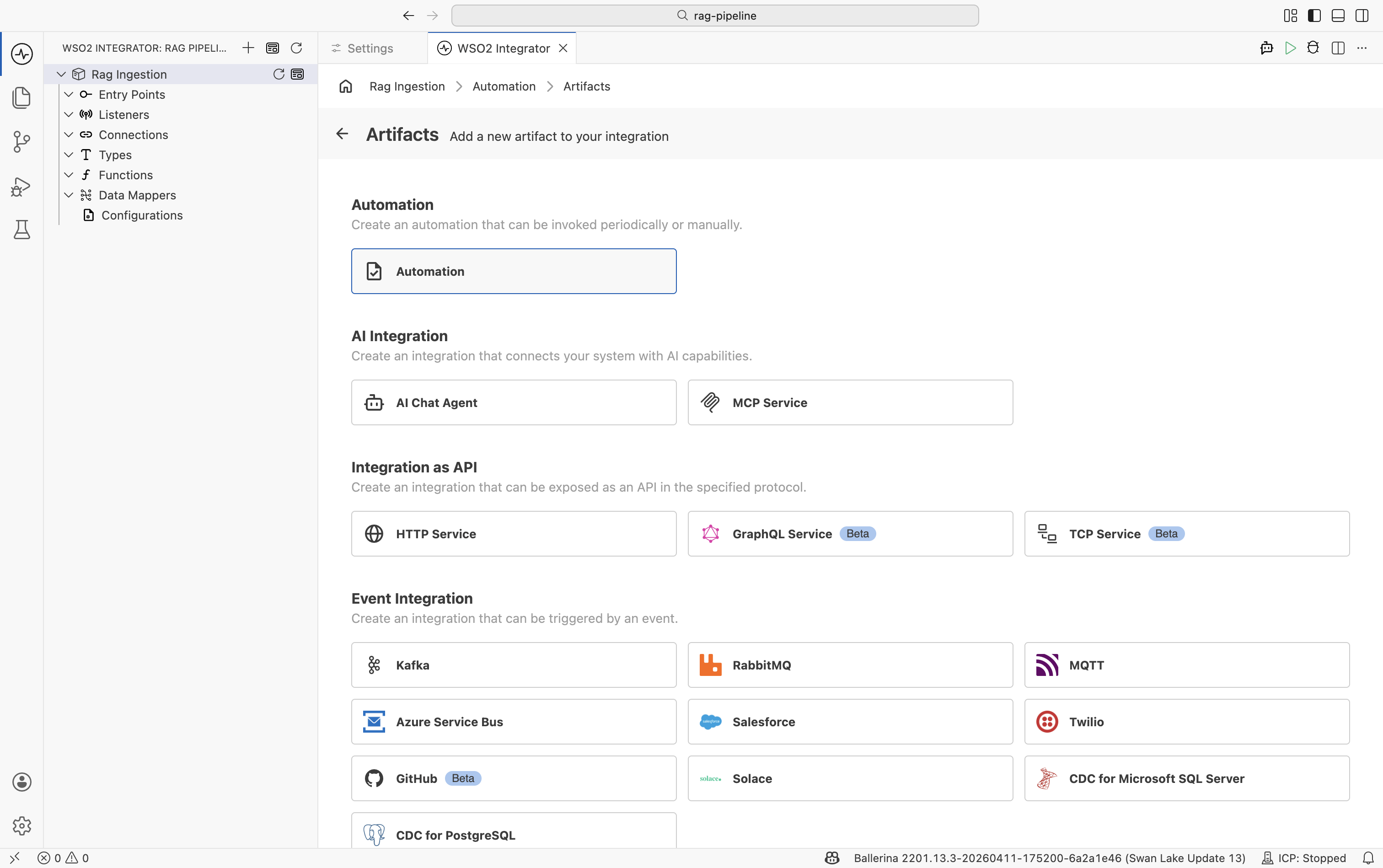
In the design view, select + Add Artifact.
-
On the Artifacts page, select Automation and click Create.
Step 2: Add a text data loader
A Text Data Loader reads a file from disk and wraps its content as an ai:Document.
-
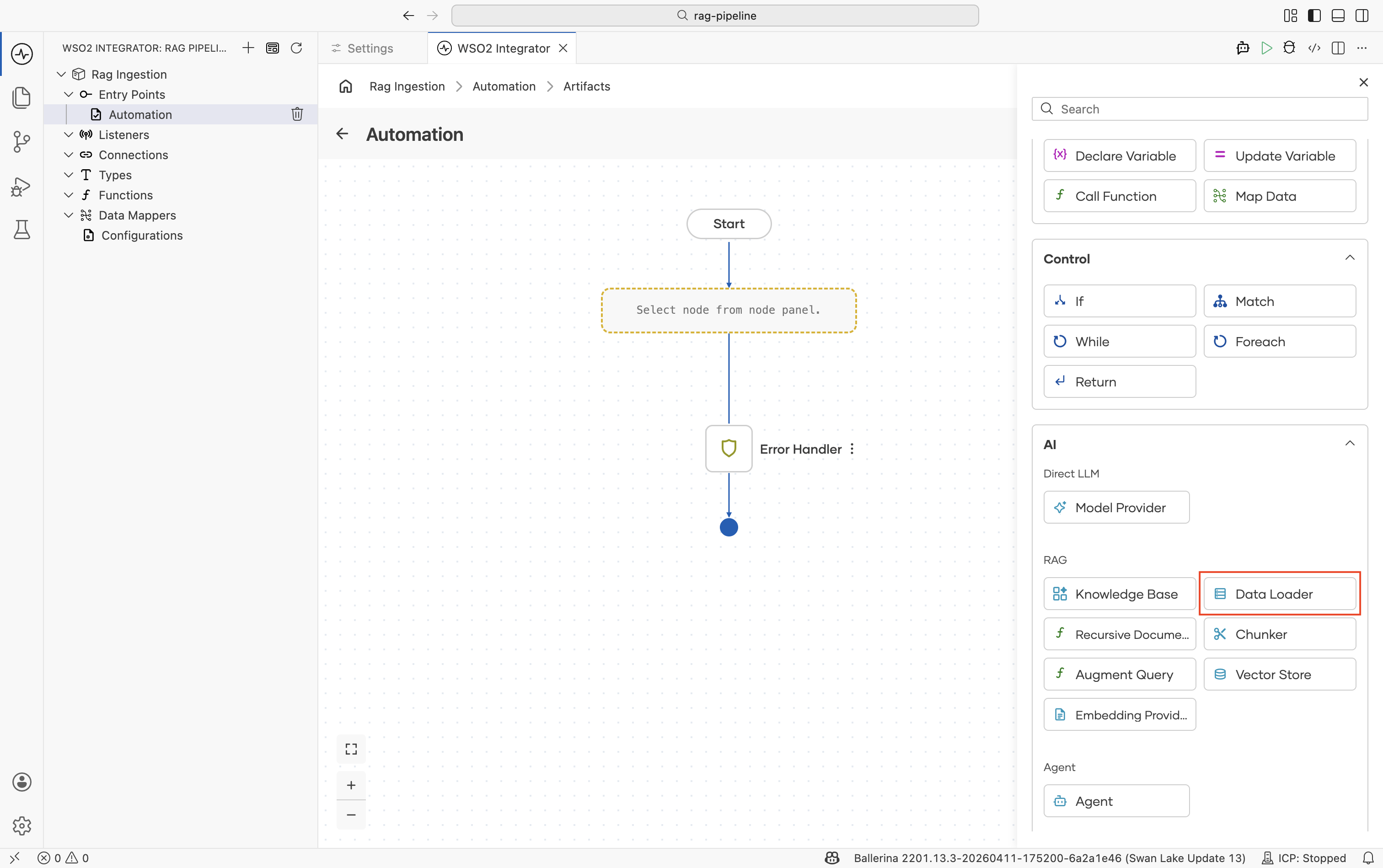
In the flow editor, click + to open the Add Node panel.
-
Go to AI > RAG > Data Loader.
-
Click Add Data Loader and select Text Data Loader.
-
In the configuration panel:
Field Value Paths Path to the file you want to ingest, for example /resources/knowledge.pdfName A variable name for the loader, for example loaderResult Type The variable type, set to ai:TextDataLoader.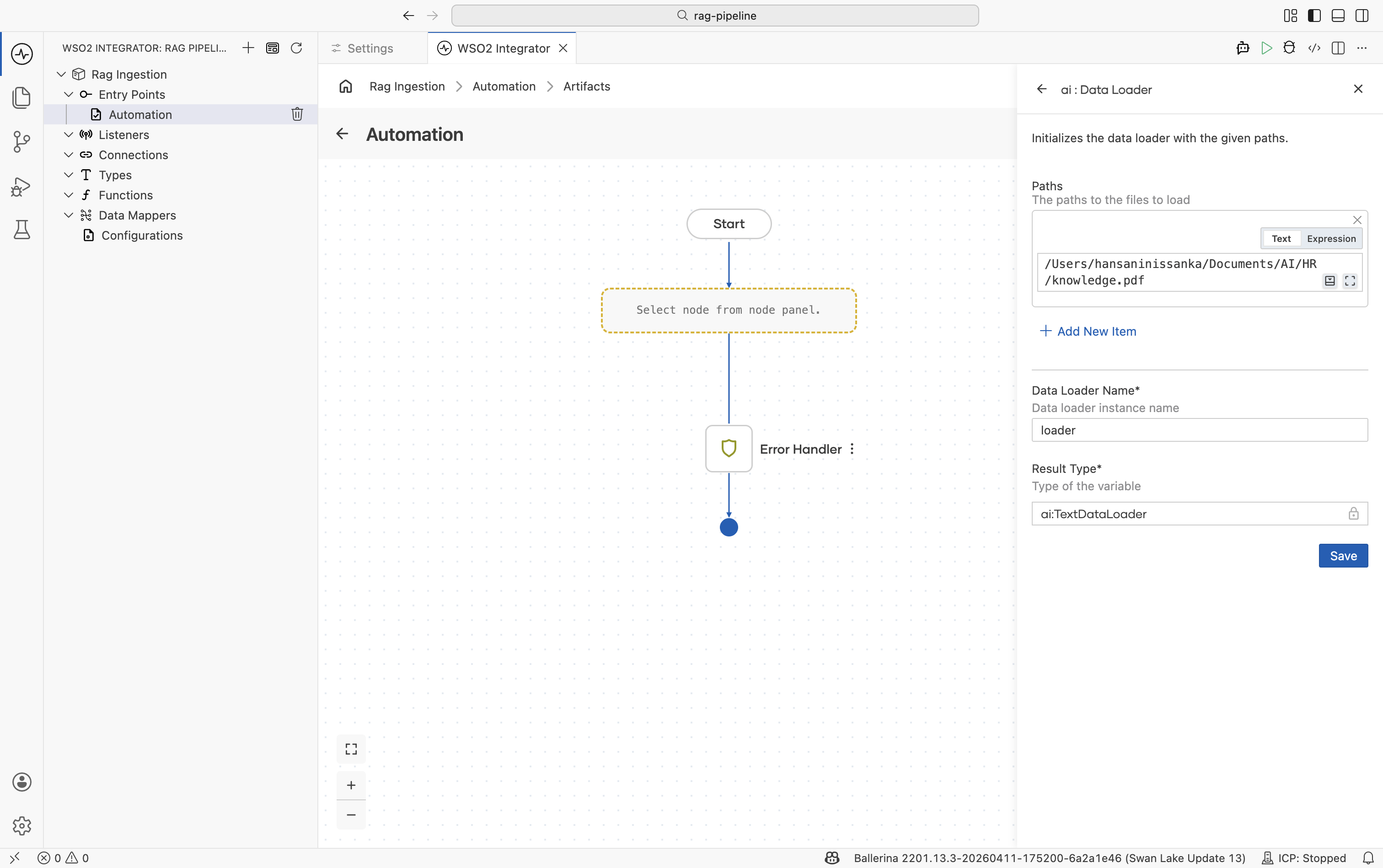
-
Click Save.
The node appears on the right panel. It does not load yet. You call its load function next.
Step 3: Load the documents
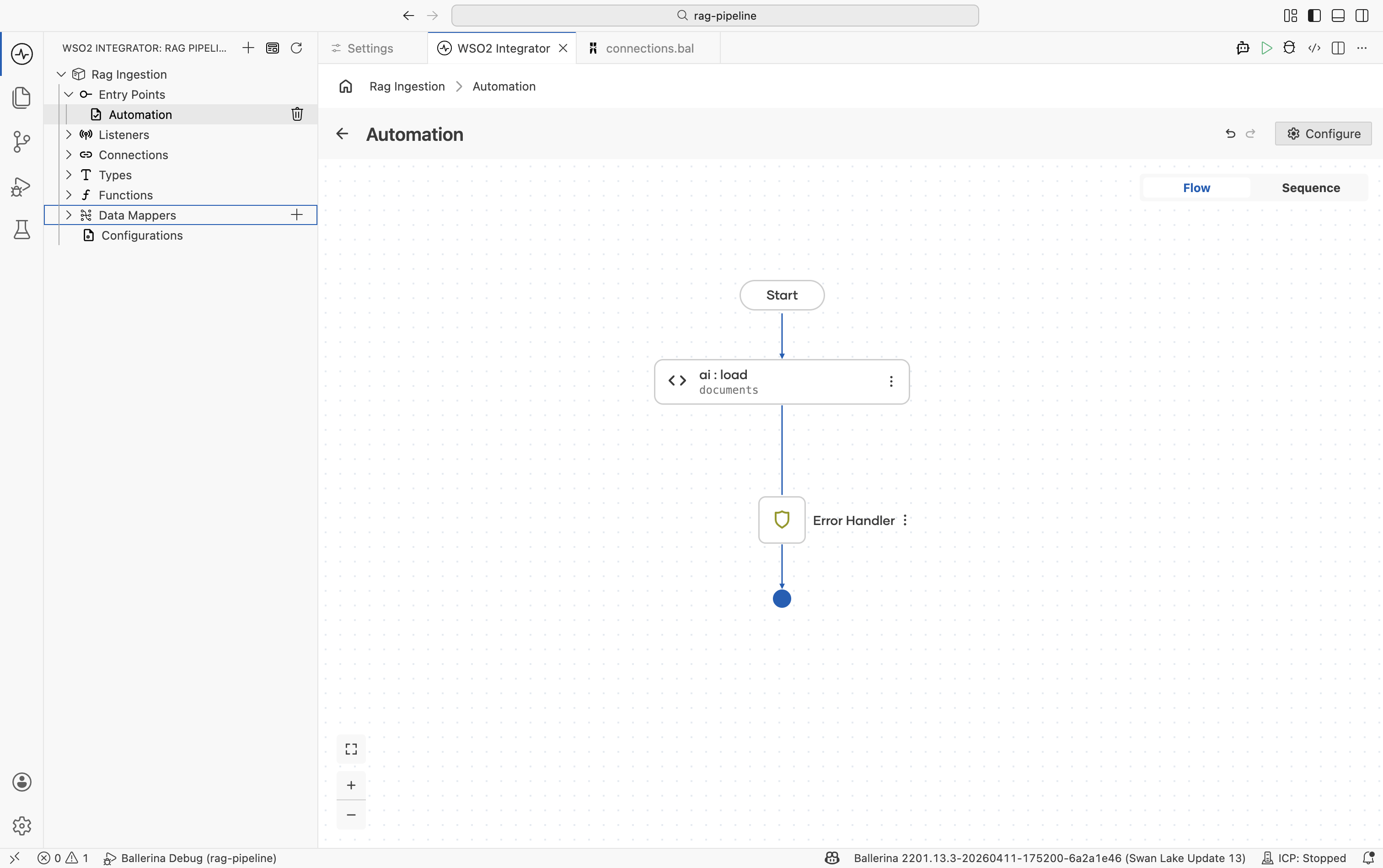
Call the loader's load function to execute the read and get back an ai:Document[].
-
Click on the
loadernode and select theloadaction call.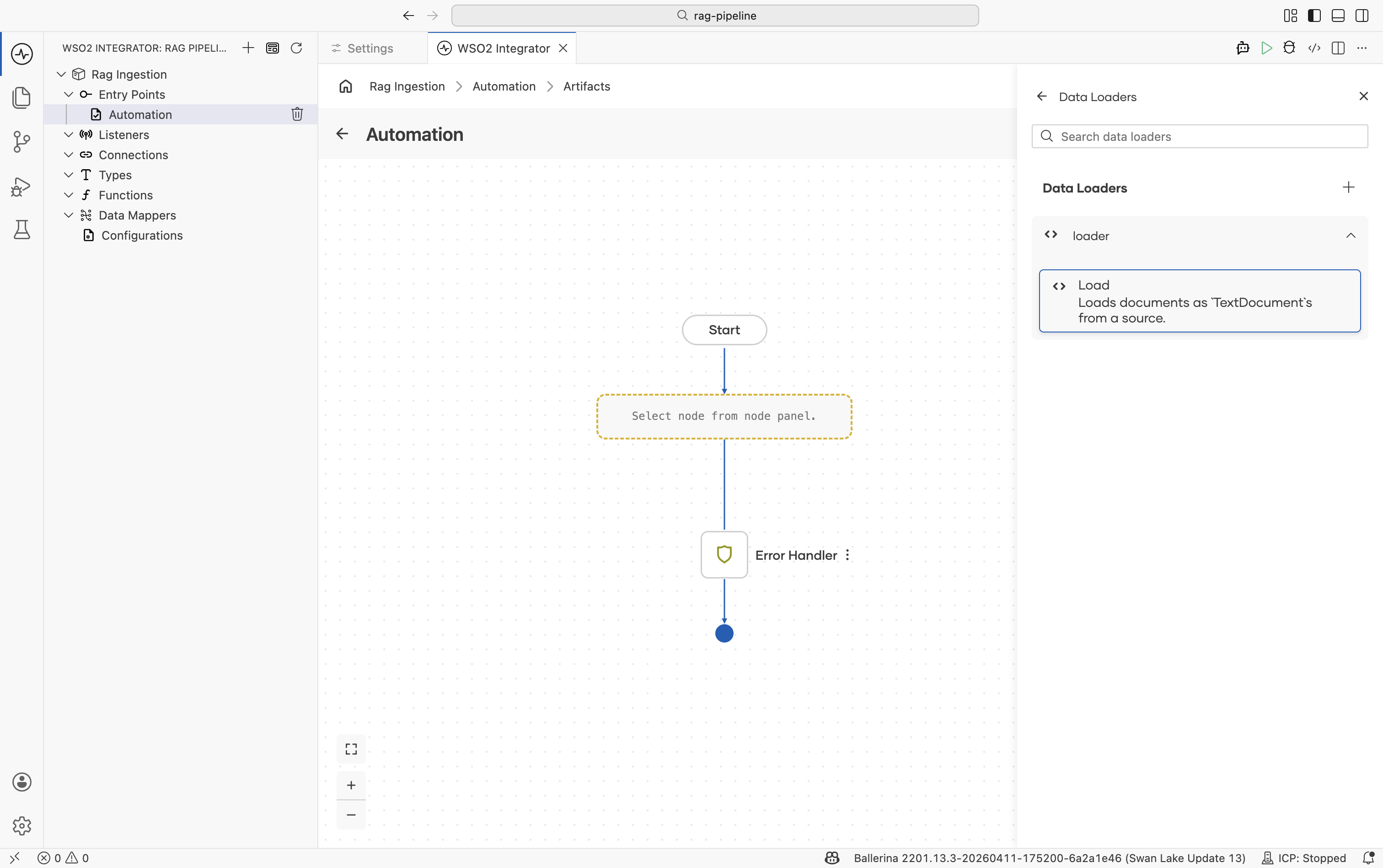
-
In the form that appears, set the result variable name, for example
documents.ai:Documentis a generic content container. It holds the raw text from the source plus optional metadata (file name, URL, category) that you can use to filter results during retrieval.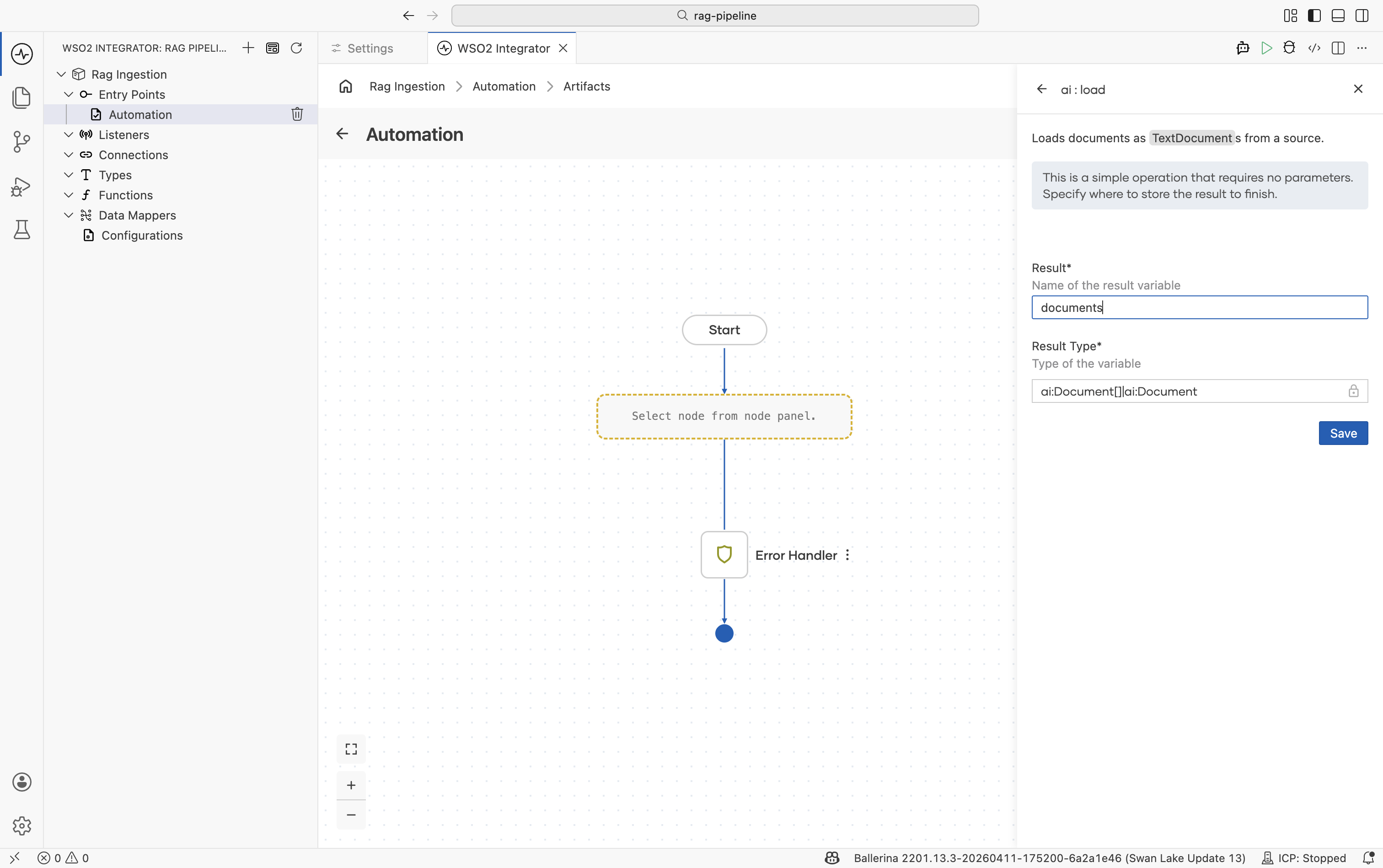
-
Click Save.
Step 4: Create a vector knowledge base
The Vector Knowledge Base owns the three pluggable parts of a RAG store: a vector store, an embedding provider, and a chunker.
-
Click + to add a node.
-
Go to AI > RAG > Knowledge Base.
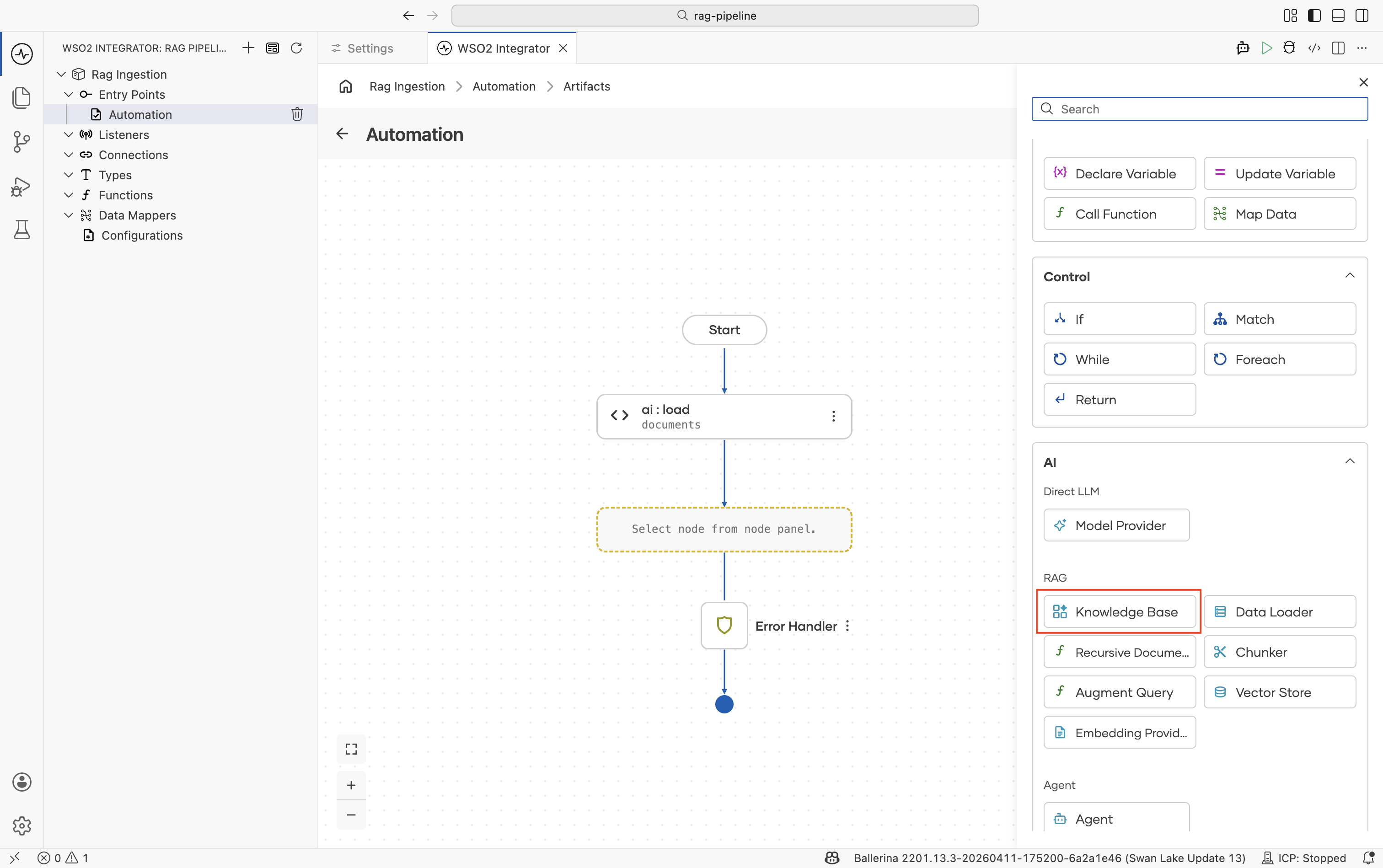
-
Click Add Knowledge Base and select Vector Knowledge Base.
-
Fill in the form:
Field Required Values Vector Store Yes In-Memory Vector Store, Pinecone, pgvector, Weaviate, or Milvus. Embedding Model Yes Default Embedding Provider (WSO2) or any other listed embedding provider. Produces 1536-dimensional dense vectors. Chunker No ai:AUTOis the default and works for most cases. Switch to a specific chunker if retrieval quality degrades: use Markdown for.mdfiles, HTML for web pages, or Generic Recursive for plain text.Knowledge Base Name — For example, knowledgeBase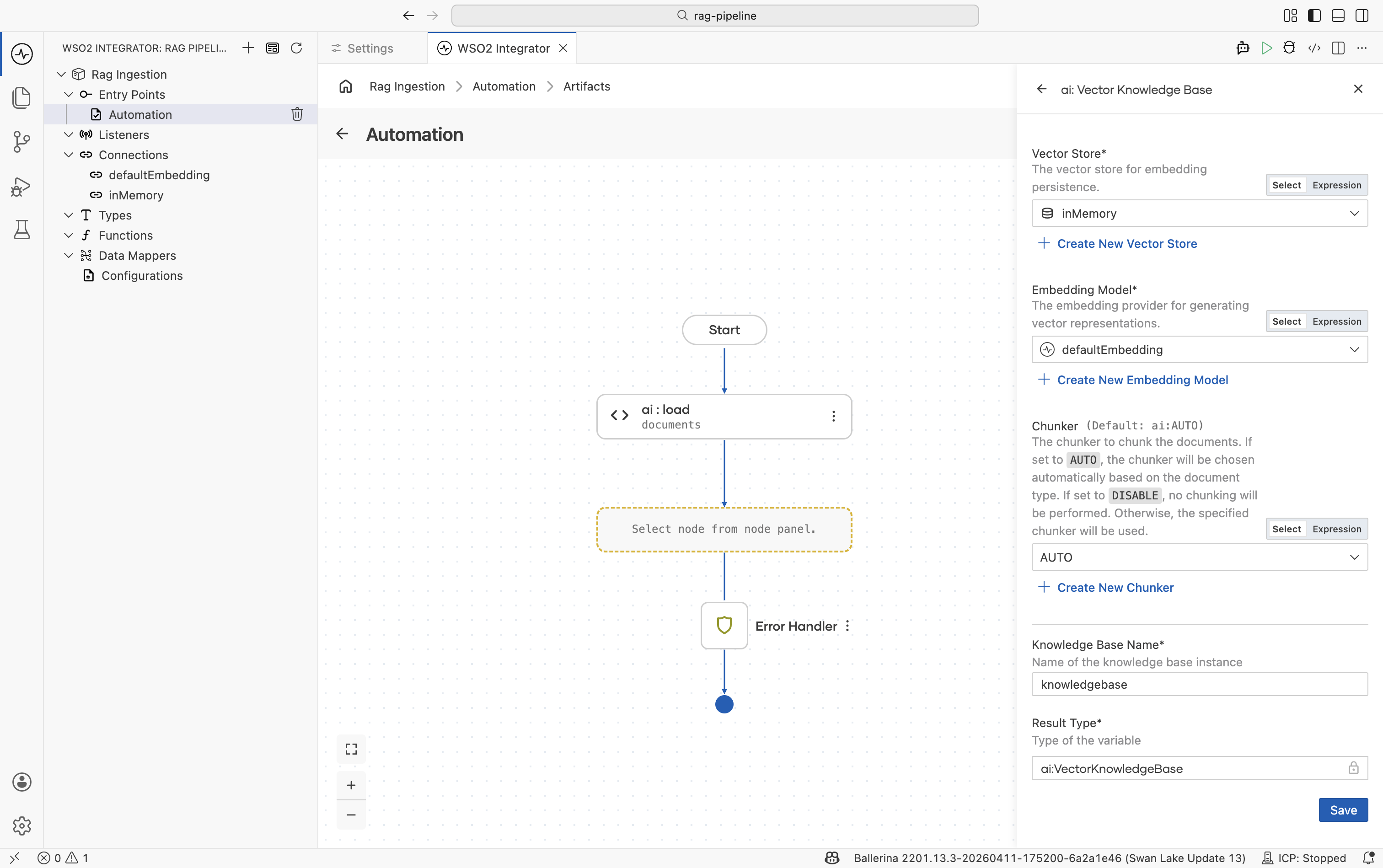
-
Click Save.
In-memory storage is not durable and is local to the current integration runtime. All vectors are lost when the integration stops. Use In-Memory Vector Store only when ingestion and query run in the same integration runtime/process for local development or testing. If ingestion and query run as separate integrations or processes, configure an external vector store such as Pinecone, pgvector, Weaviate, or Milvus, and set vectorDimension: 1536 to match the WSO2 embedding provider's output.
Use the same embedding provider for ingestion and retrieval. Vectors produced by different providers are not comparable. If you ingest with the WSO2 default provider and retrieve with OpenAI (or vice versa), the similarity search returns no useful results.
See Vector Stores and Knowledge Bases for the full configuration reference.
Step 5: Ingest the documents
Call ingest on the knowledge base to chunk, embed, and persist the loaded documents.
-
Click + after the knowledge base creation node.
-
Select the
knowledgeBasevariable and choose the Ingest action.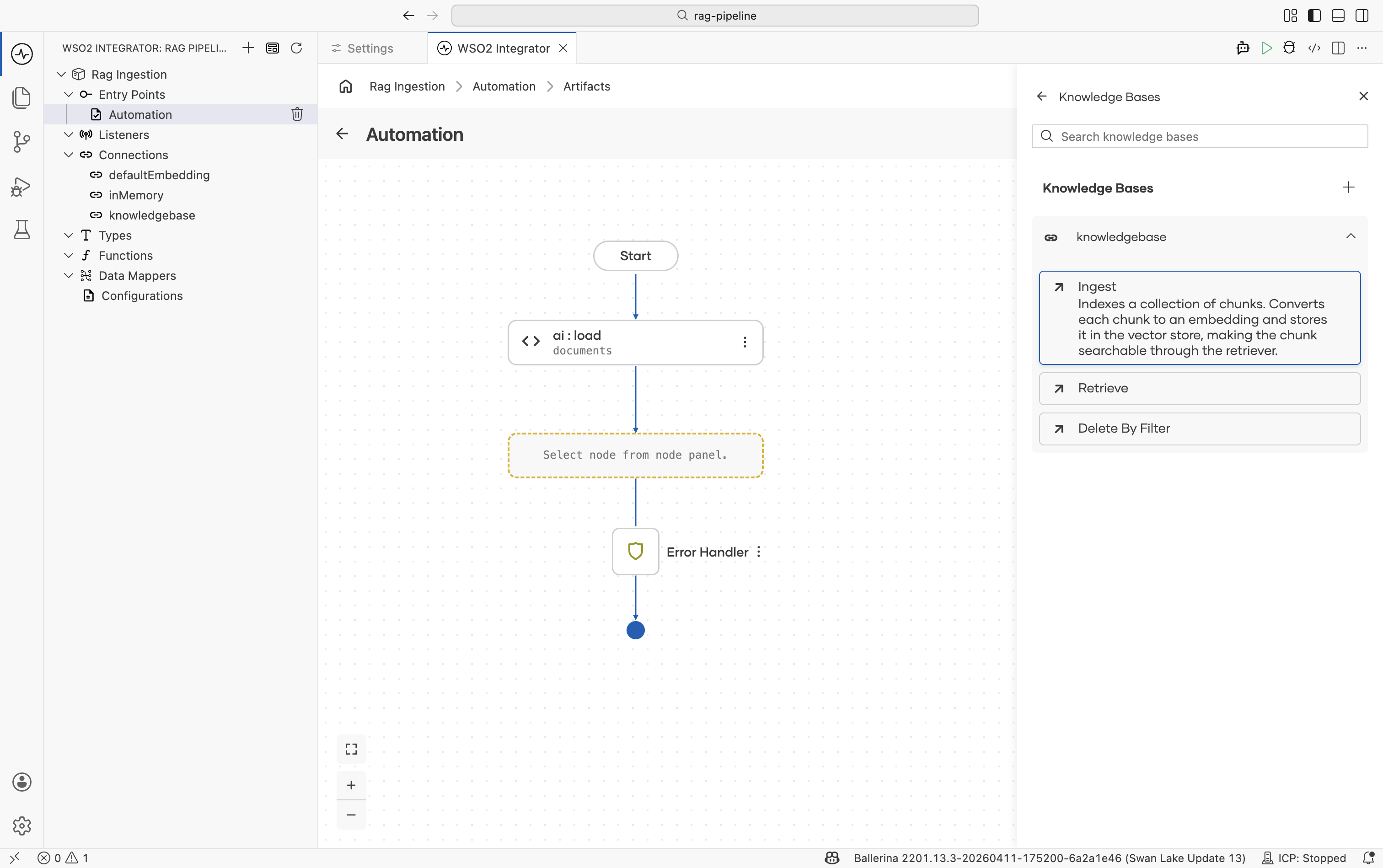
-
Set Documents to the
documentsvariable from Step 3.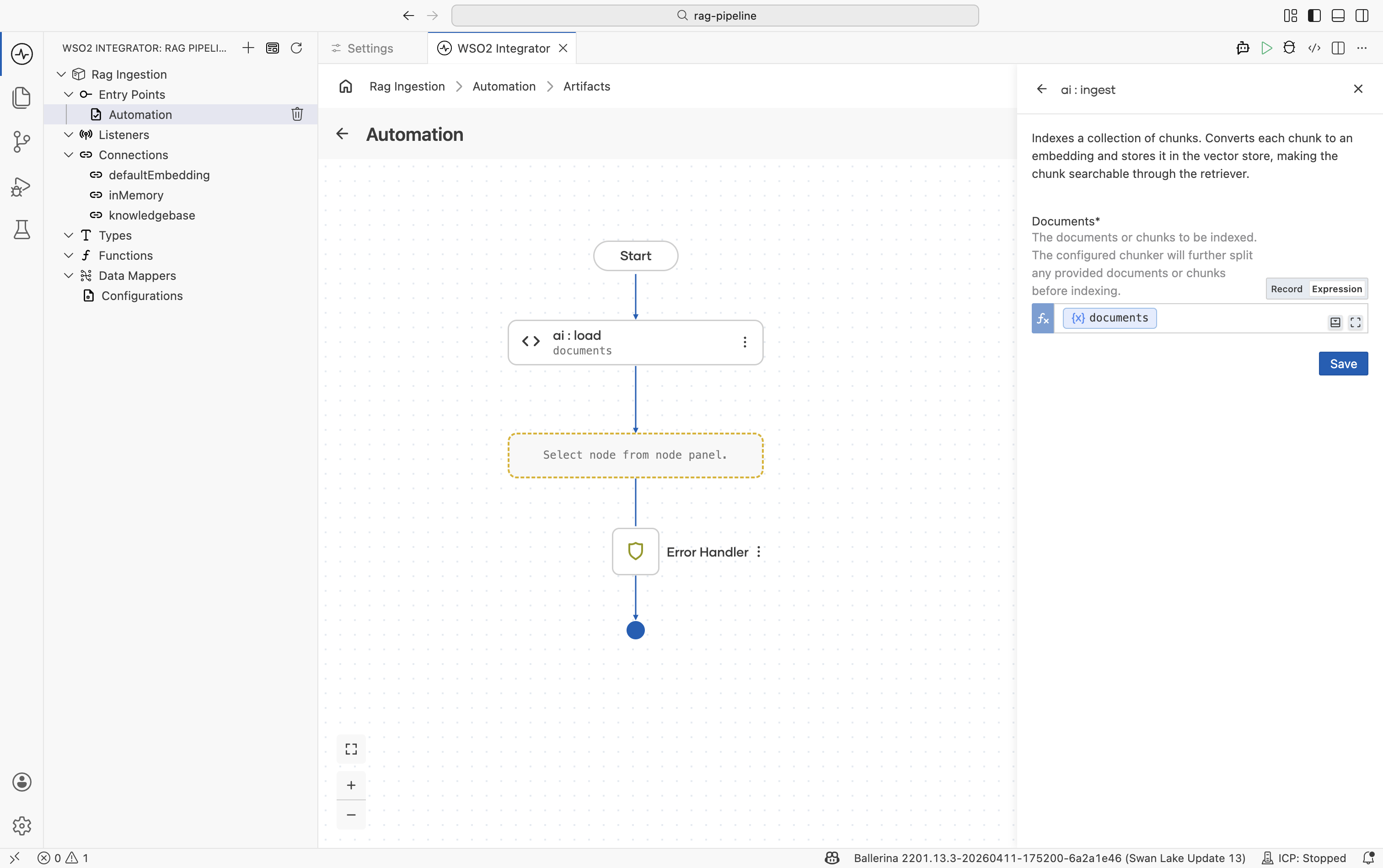
-
Click Save.
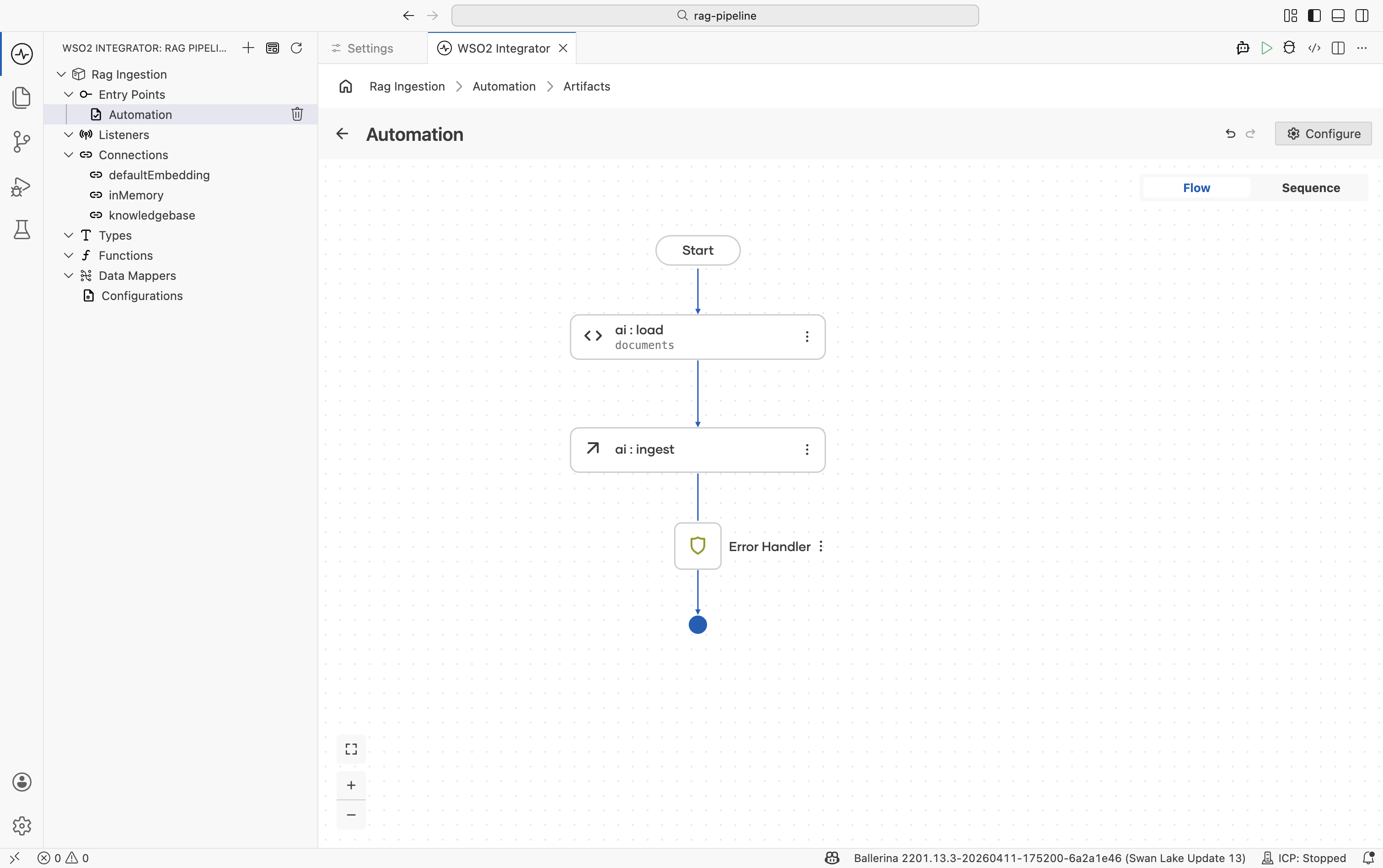
The ingest action:
- Passes each
ai:Documentthrough the configured Chunker. - Sends each chunk to the Embedding Provider to produce a vector.
- Persists the vector + chunk content in the Vector Store.
Step 6: Add a completion log
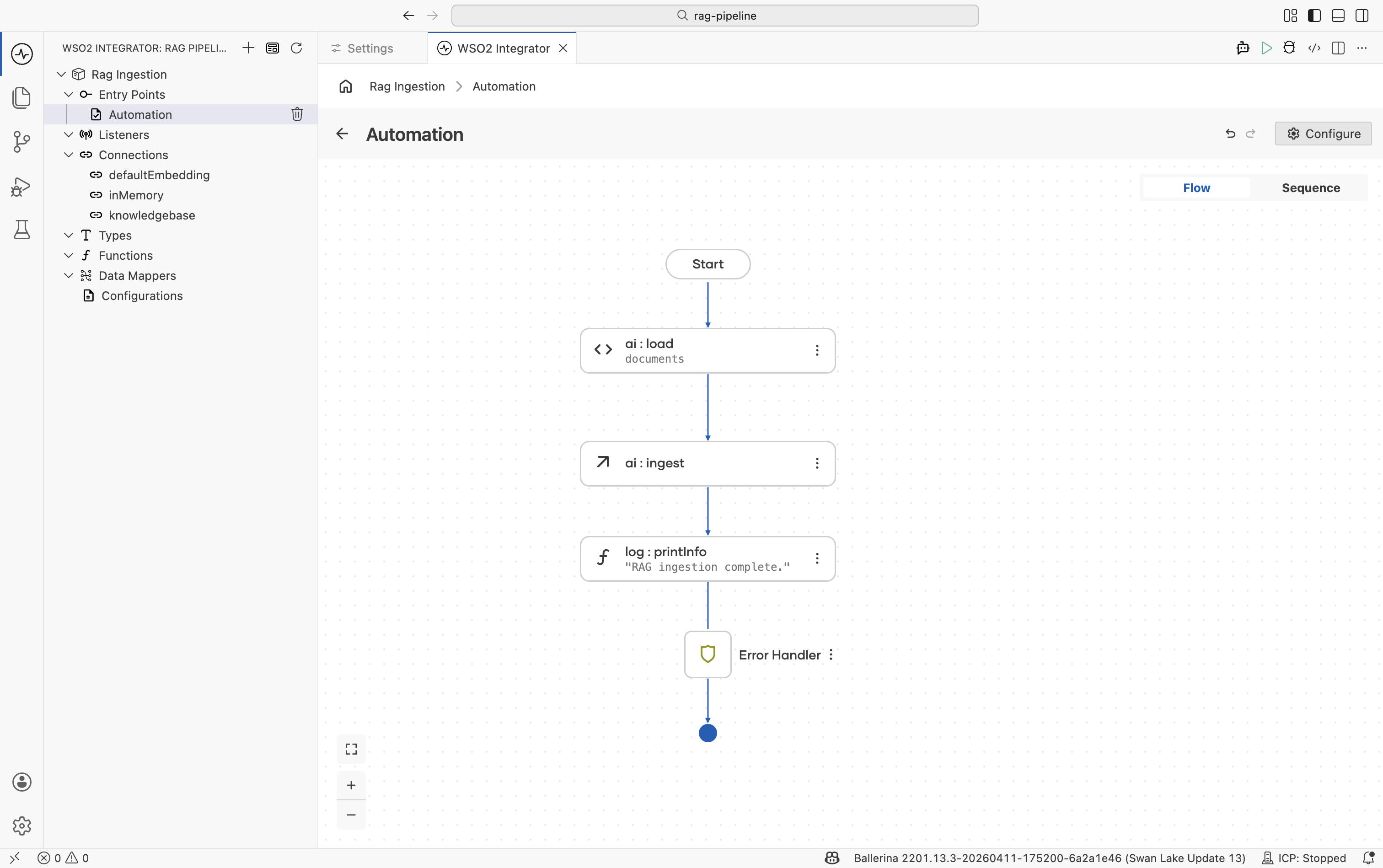
Add a Log Info node after the ingest call to confirm the integration finished.
| Field | Value |
|---|---|
| Message | For example, "RAG ingestion complete." |
This is optional but useful during development and when the automation runs on a schedule.
Running the integration
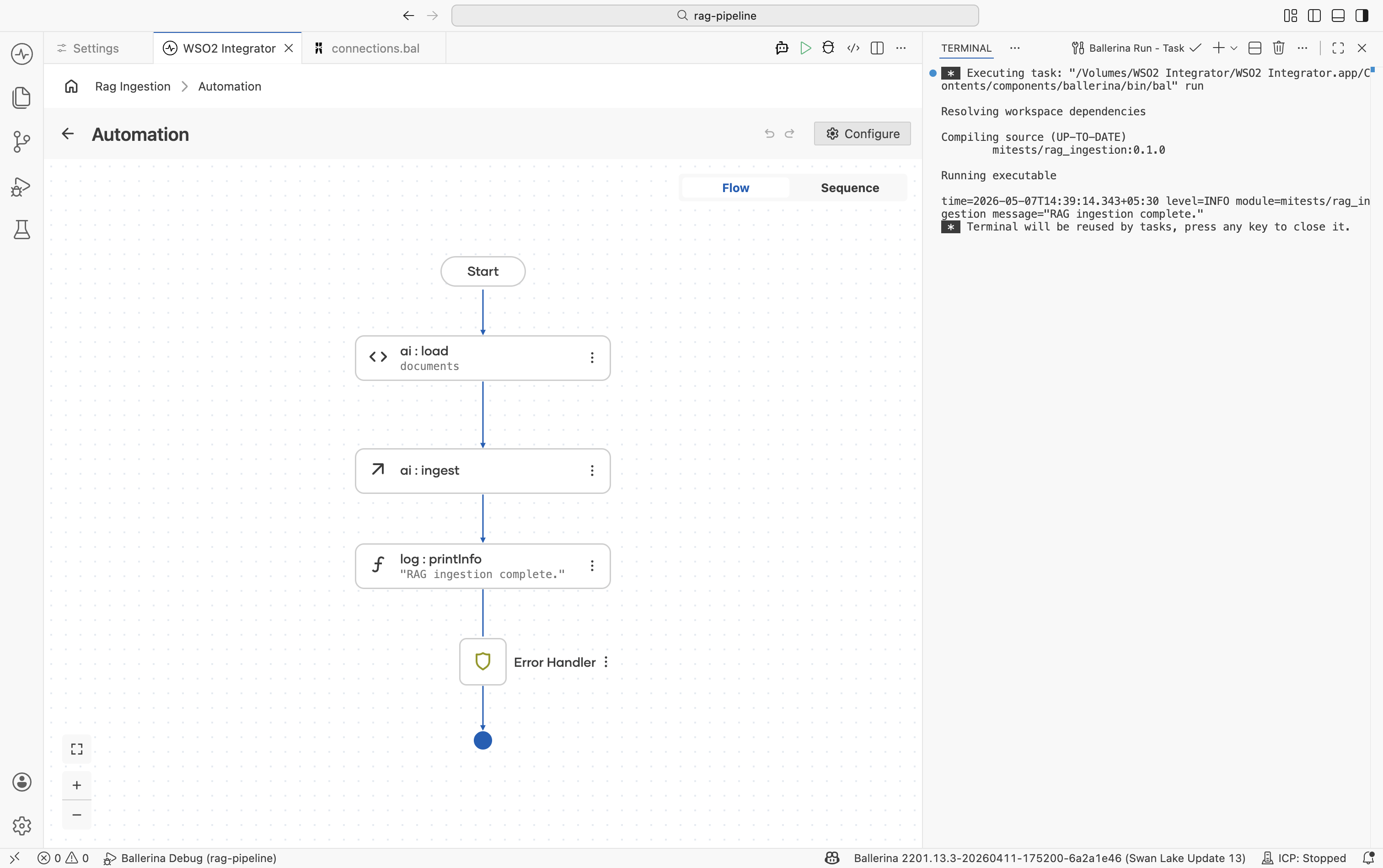
Click Run at the top right of the project view. WSO2 Integrator compiles and starts the integration. Because the artifact is an Automation, the ingestion function executes immediately on startup.
Watch the Run panel output for the log message. If the run fails, check:
-
The file path is correct relative to the project root.
-
The WSO2 model provider is configured (
Ballerina: Configure default WSO2 model provider). -
The embedding provider and vector store are reachable (for external stores).
Keeping the knowledge base up to date
The in-memory store is rebuilt on every restart, so re-running the integration re-ingests automatically. For durable stores:
- Use Delete By Filter before re-ingesting a document to avoid duplicates. Filter by a metadata field like
sourceorversion. - Schedule the automation with a trigger (for example, an HTTP call, a cron, or a file-watch event) rather than running it once.
See Knowledge Bases — delete by filter for details.
What's next
- RAG query — retrieve chunks at runtime and generate grounded responses.
- Knowledge Bases — ingest, retrieve, and delete-by-filter reference.
- Vector Stores — picking and configuring a production store.
- Embedding Providers — available providers and dimension requirements.
- Chunkers — controlling how documents are split before ingest.