RAG Query
The query integration runs on every user request. It retrieves relevant chunks from the vector knowledge base populated during ingestion, combines them with the user's question, and calls the LLM to produce a grounded response.
This page covers building the query integration in WSO2 Integrator: wiring up retrieve, augment, and generate nodes, and testing the endpoint.
Complete RAG ingestion before starting this page. The query integration reads from the same Knowledge Base that ingestion writes to.
What the RAG query does
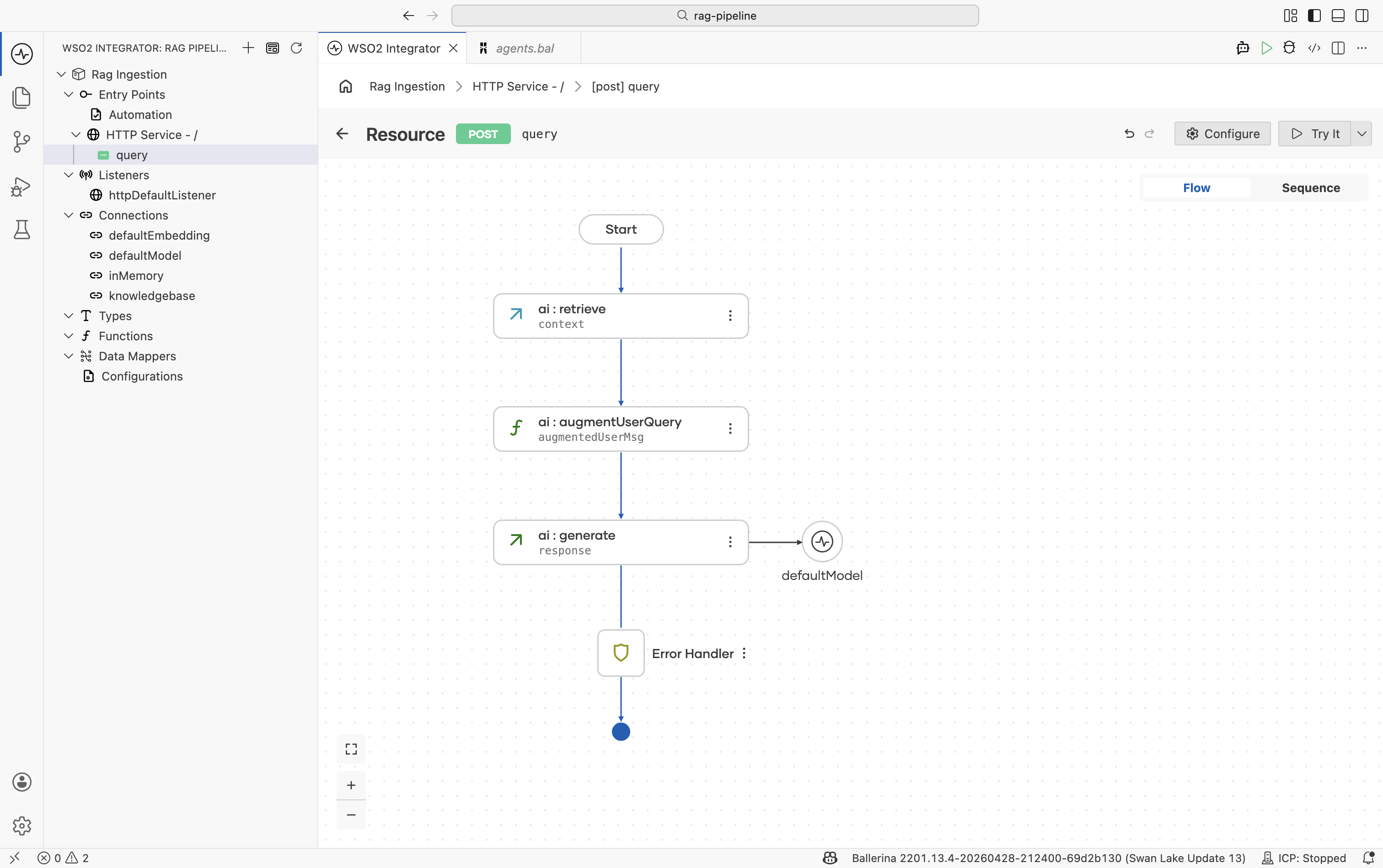
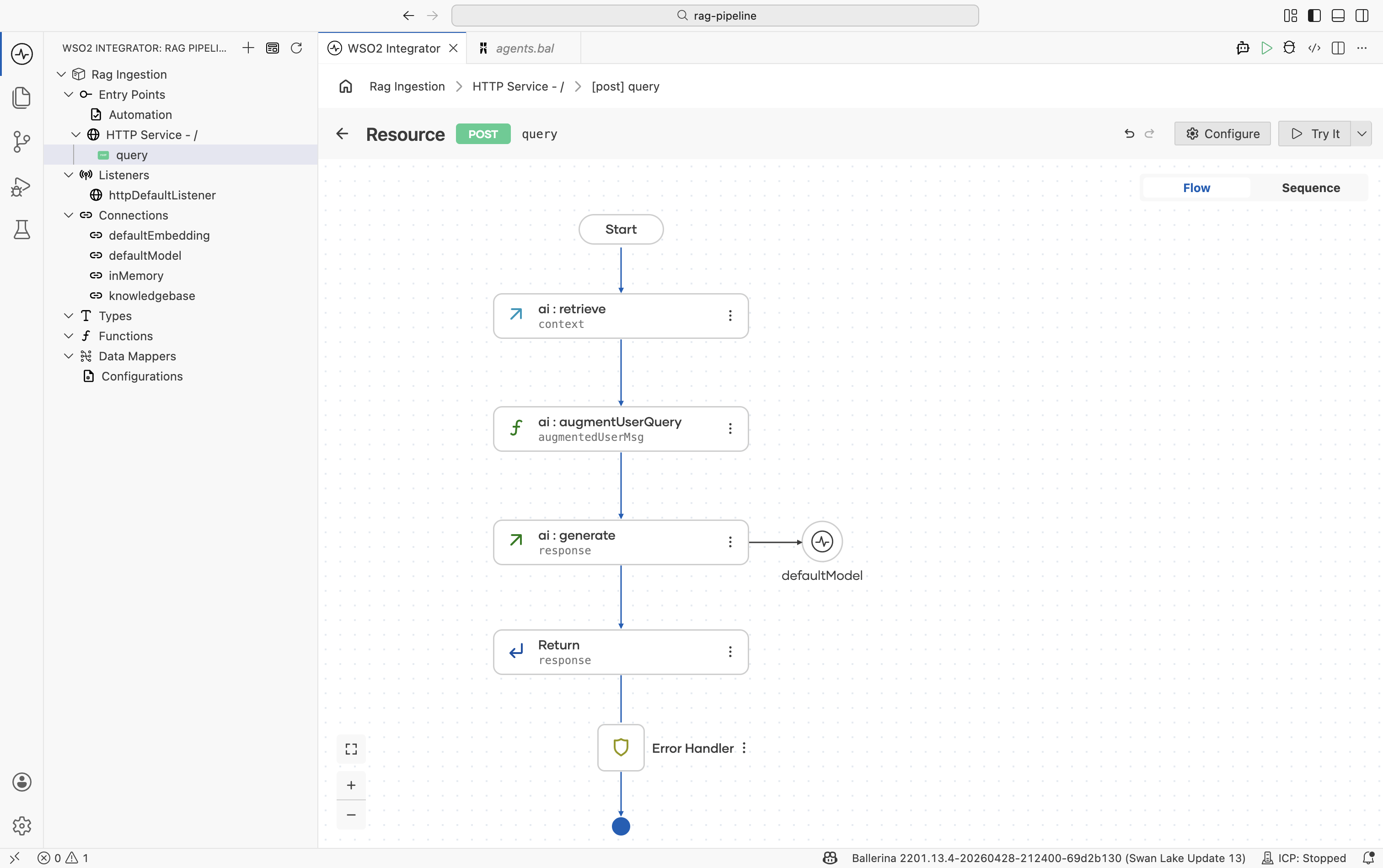
The four nodes — Retrieve, Augment User Query, Generate, and Return — map directly to Steps 2–6 below.
- The ingestion integration from RAG ingestion has been run at least once so the Knowledge Base contains vectors.
- The same Knowledge Base and Embedding Provider used during ingestion are available in this project.
- A configured model provider. The default WSO2 provider works out of the box. Run
Ballerina: Configure default WSO2 model providerif you haven't already. - An HTTP service with a
POST /queryresource and auserQuerystring payload parameter. See Step 2 below.
Step 1: Create an HTTP service
-
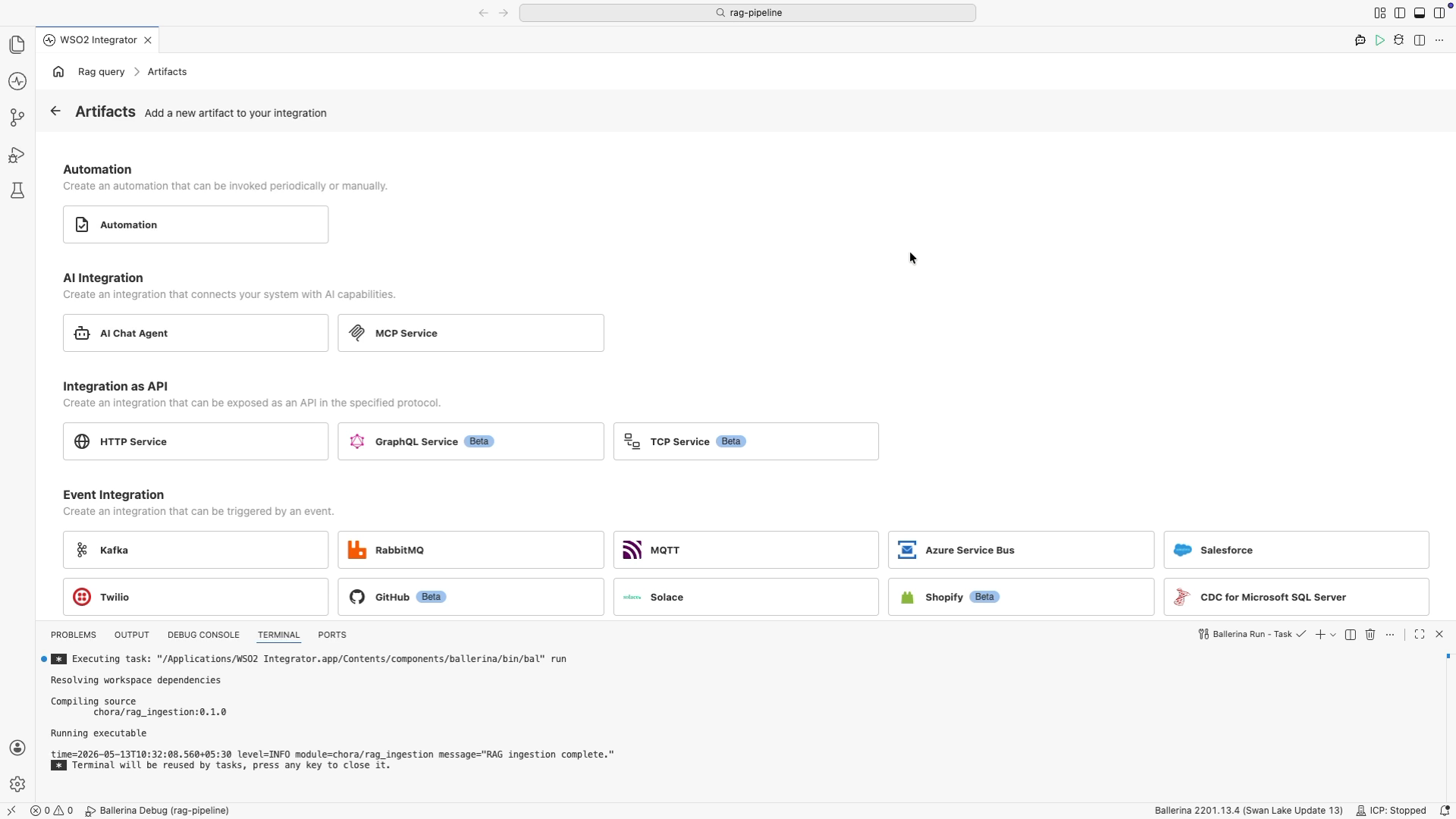
In the design view, select + Add Artifact.
-
Under Integration as API, select HTTP Service.
-
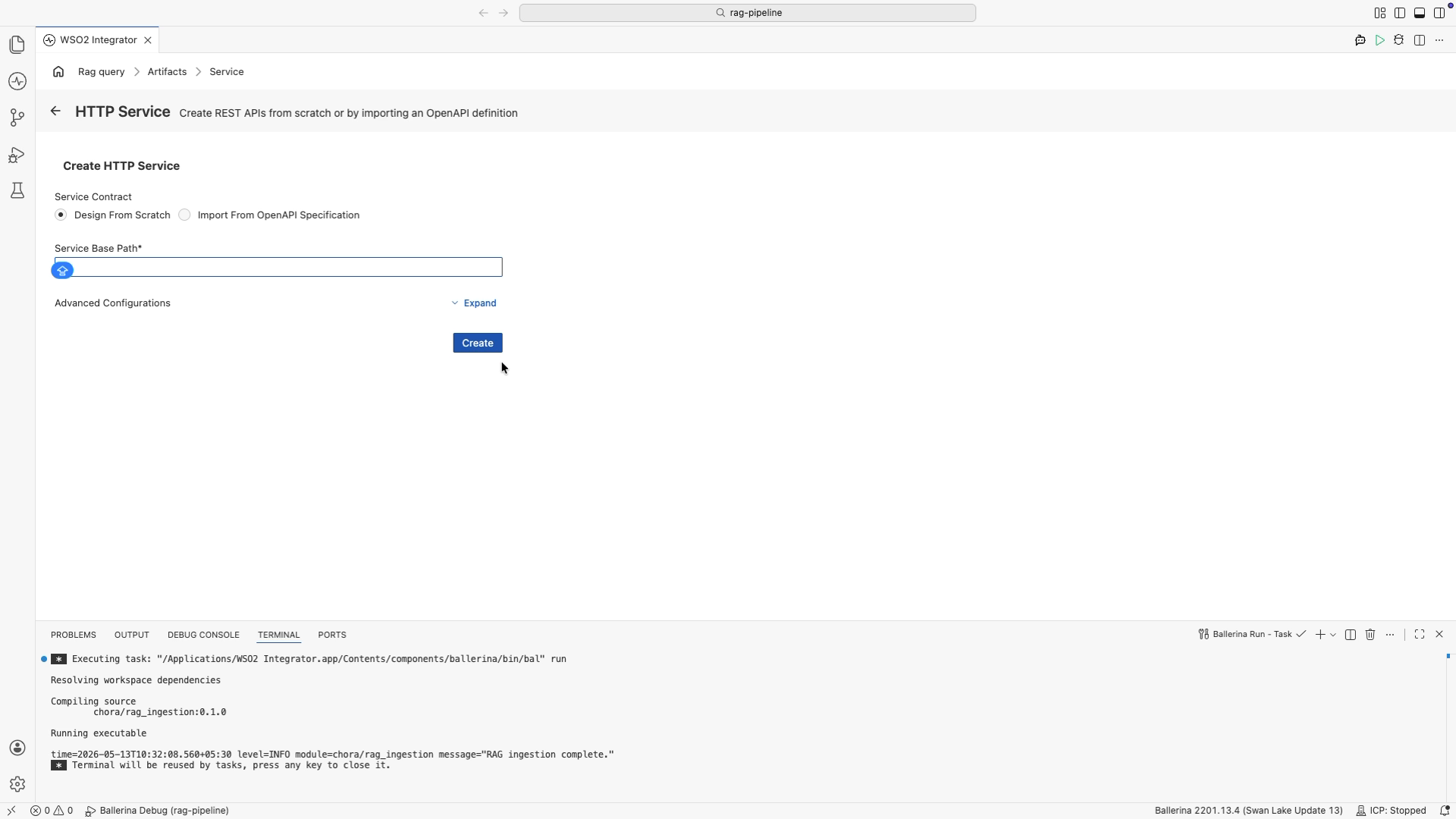
Leave Design From Scratch selected, leave the base path as
/, and select Create. -
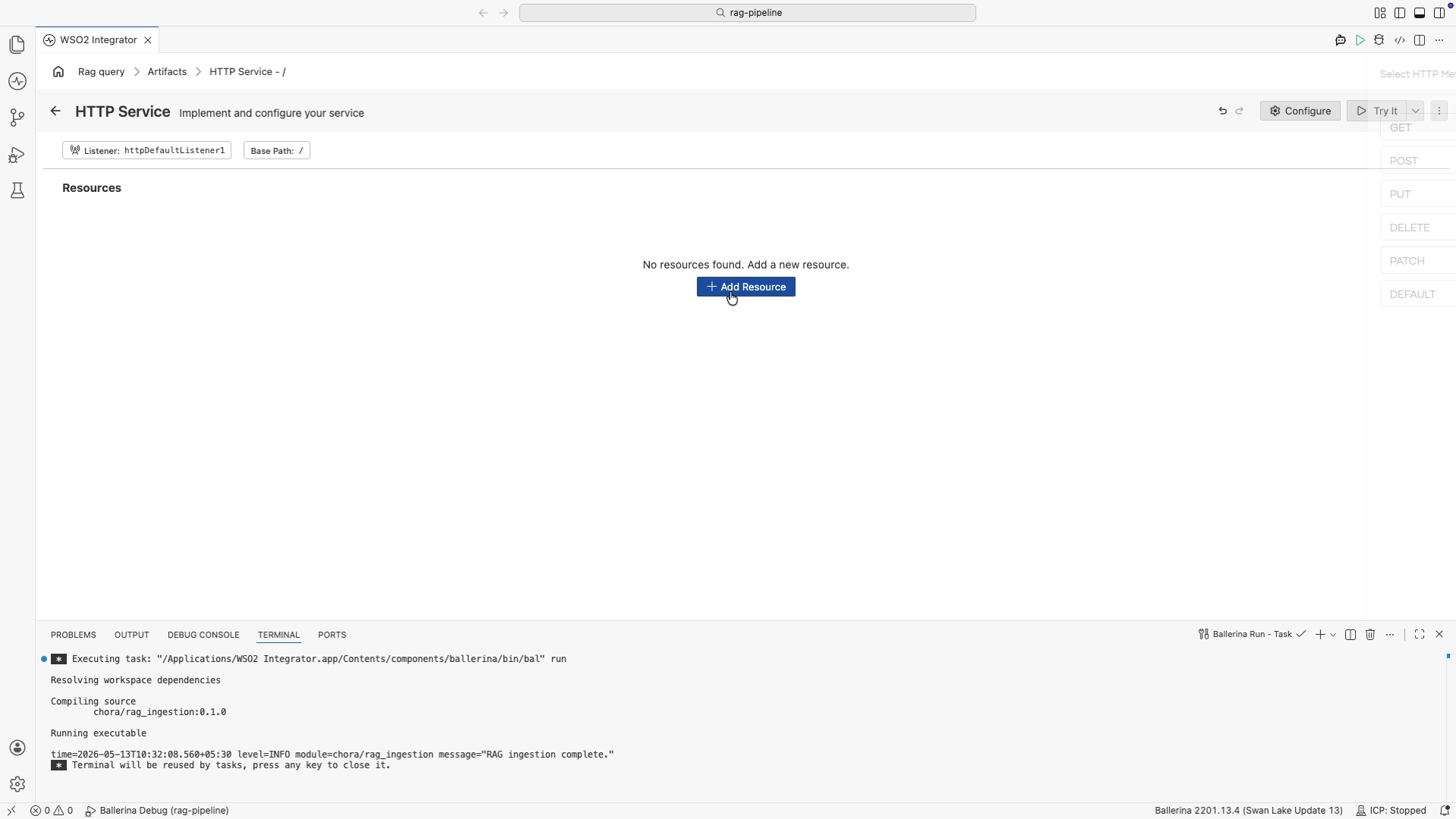
In the HTTP Service editor, select + Add Resource. A method selection panel opens on the right.
-
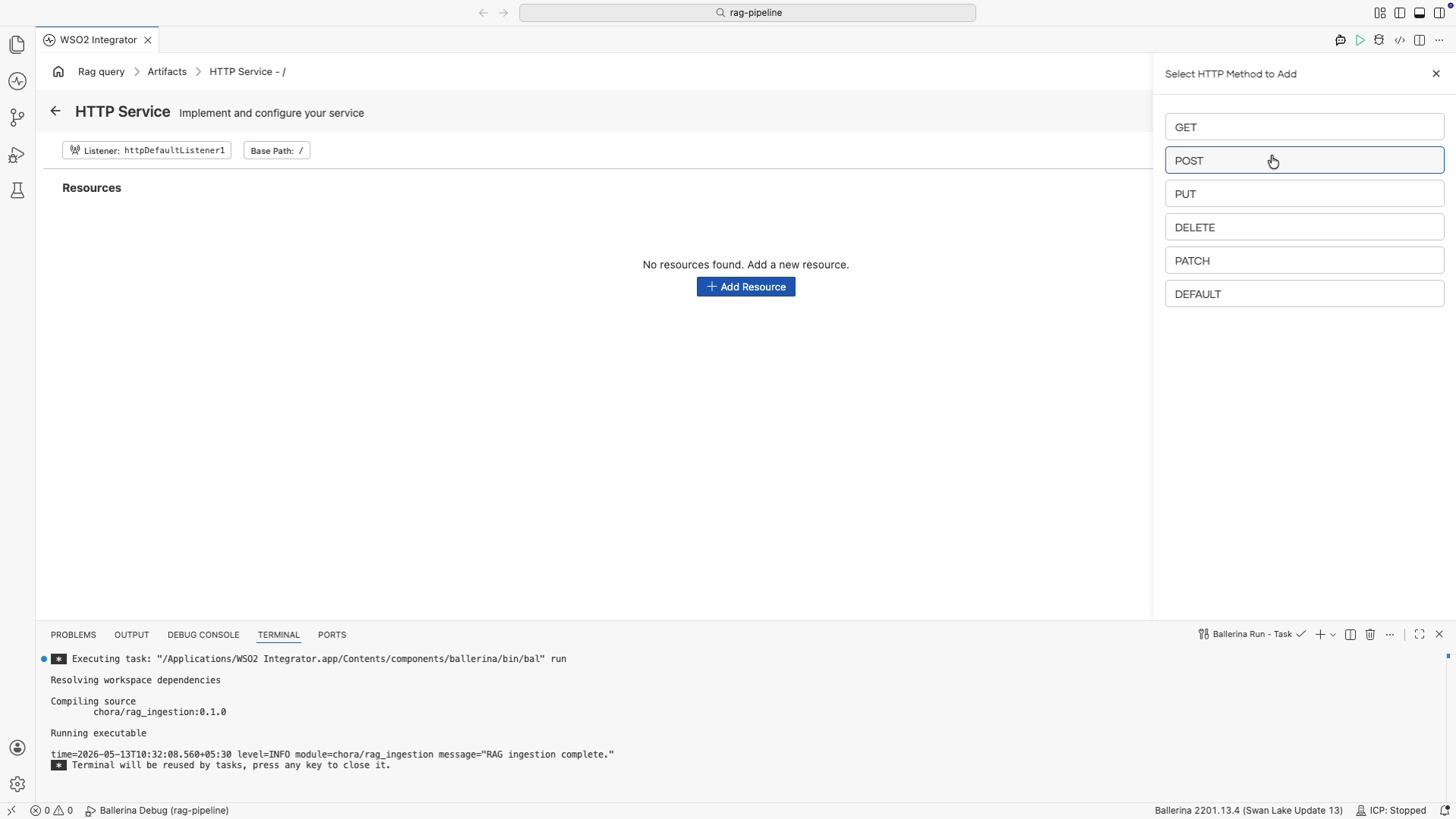
Select POST from the method list.
-
In the New Resource Configuration panel, set Resource Path to
query. -
Select + Define Payload, add a parameter named
userQueryof typestring, then select Save.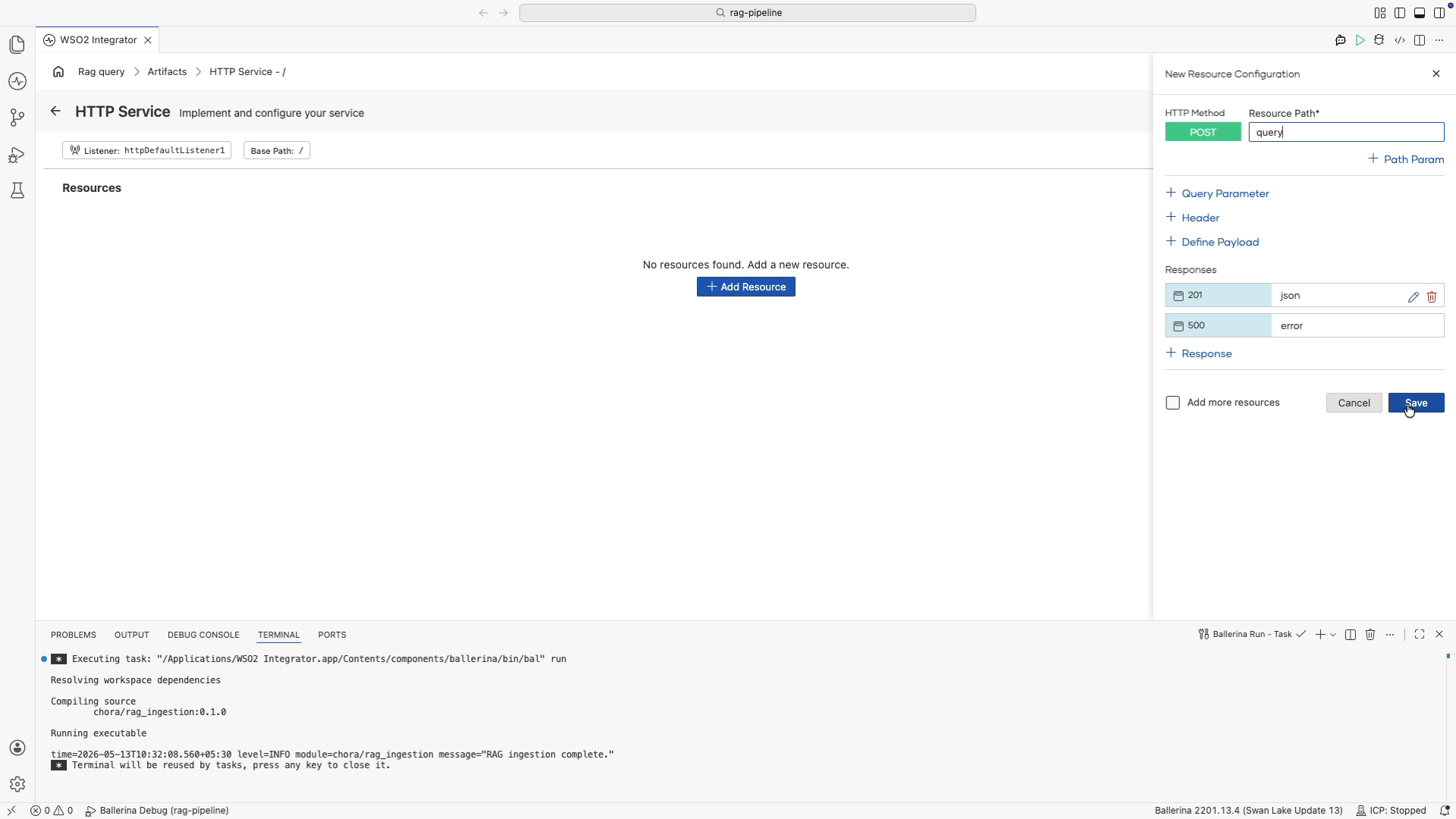
Step 2: Retrieve from the knowledge base
The Retrieve action queries the Knowledge Base for chunks most similar to the user's question.
-
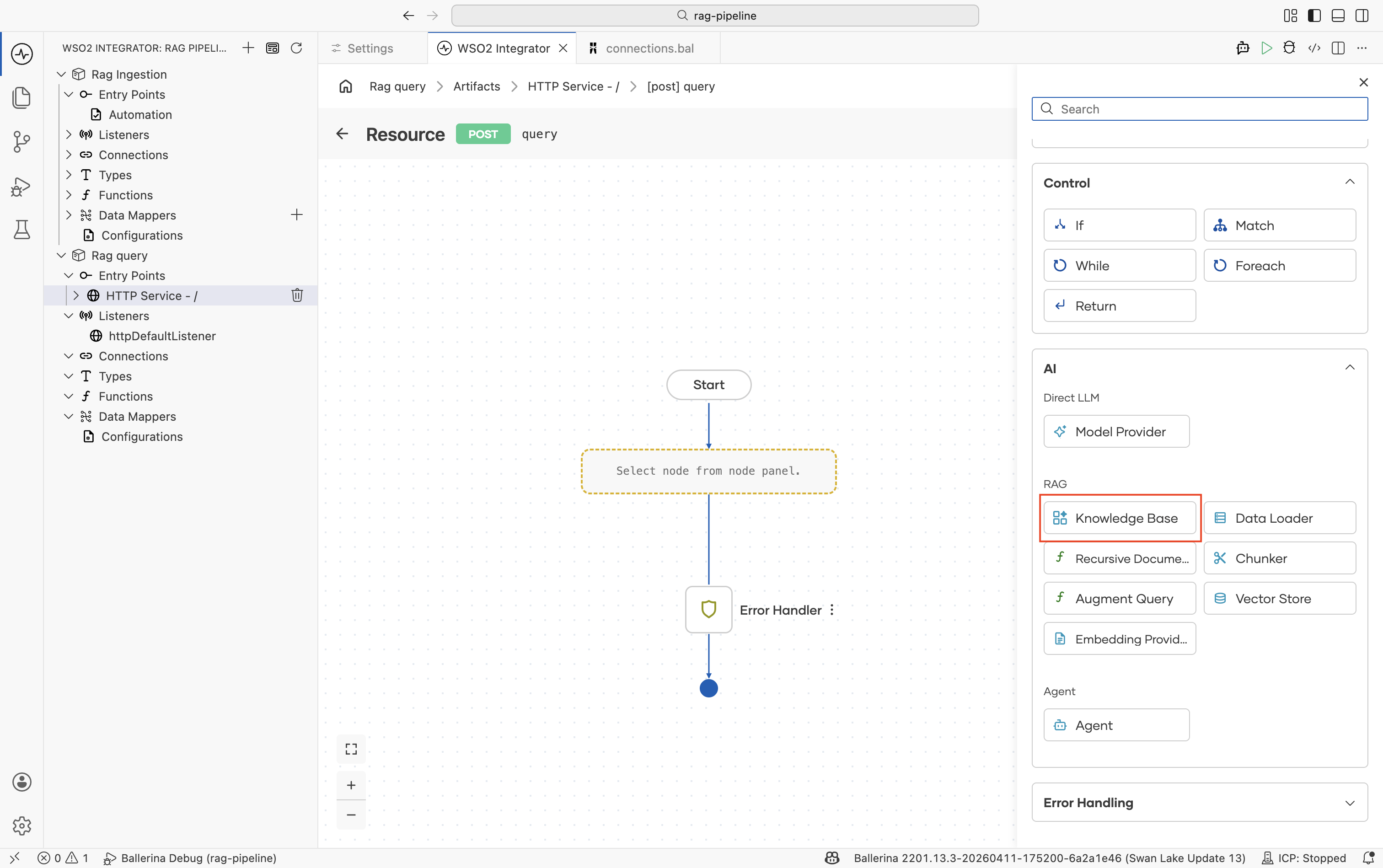
In the flow editor, click + to open the Add Node panel.
-
Go to AI > RAG > Knowledge Base and select the Retrieve action.
infoIf you don't have a Knowledge Base yet, create one first by following Knowledge Bases. Use the same Knowledge Base as ingestion. For the in-memory knowledge base, both ingestion and querying must be done in the same integration.
-
Configure the node:
Field Required Value Knowledge Base Yes The same Knowledge Base created during ingestion, for example knowledgeBase.Query Yes Bind to the incoming user question, for example userQuery.Top K No Number of chunks to return. Default is 10. Increase if relevant content is being missed; use-1to return all.Filters No Metadata filters to restrict results. Useful for multi-tenant scenarios where users should only see their own documents. Result variable — For example, context -
Click Save.
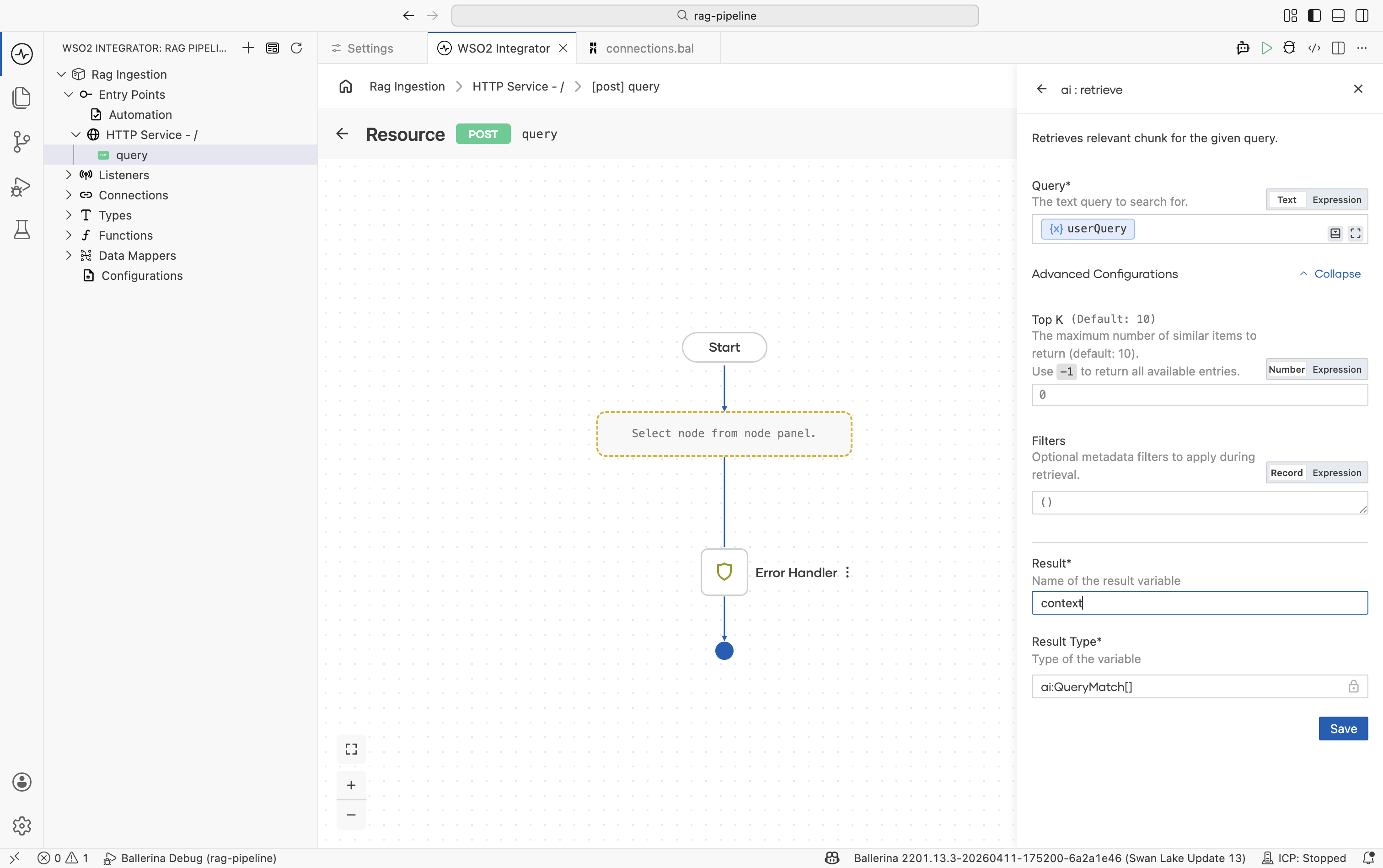
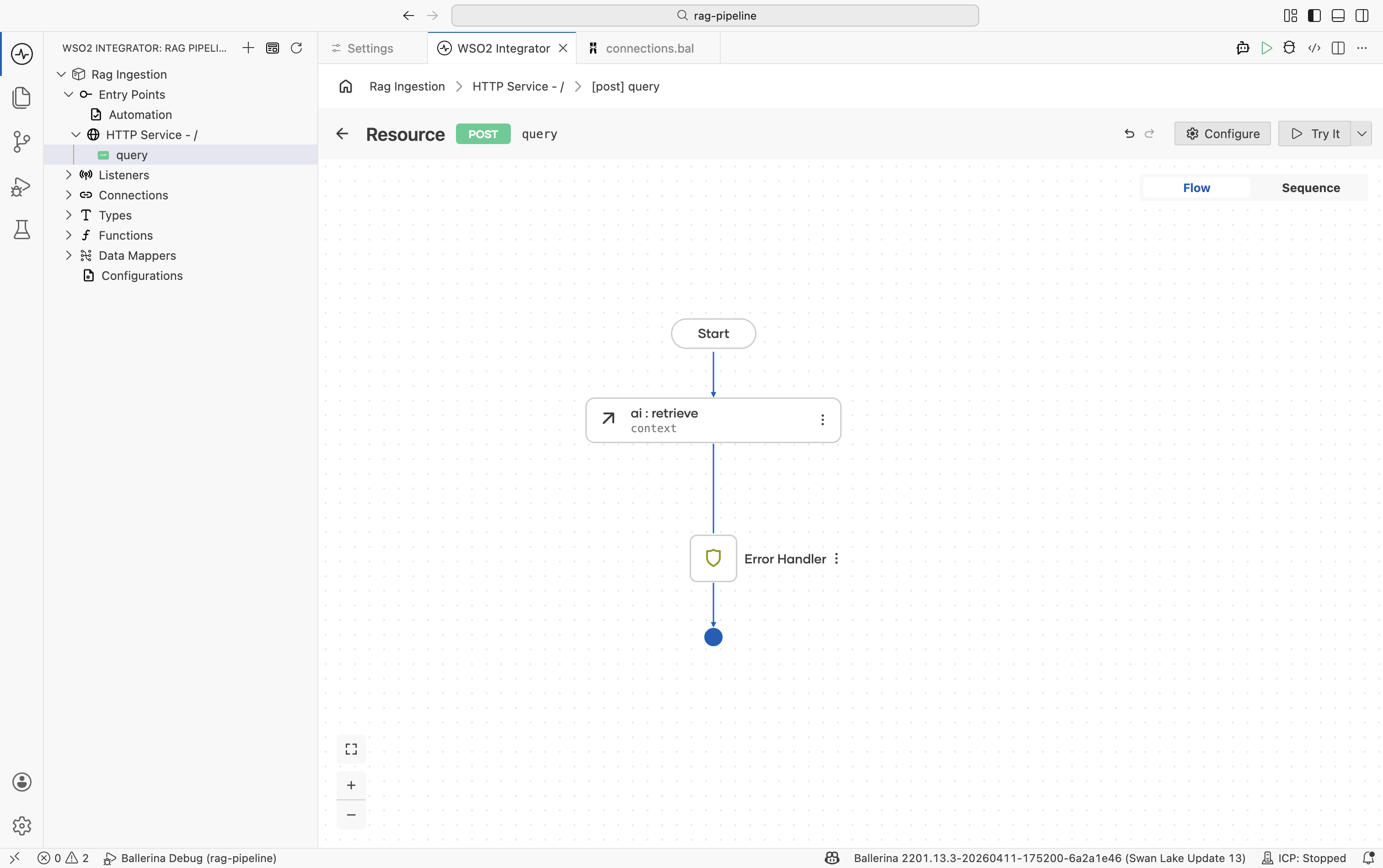
The result is an array of ai:QueryMatch values. Each entry contains a chunk and its similarity score against the query.
Retrieve is the read-side counterpart to Ingest. It must point to the same Knowledge Base and the same Embedding Provider. Pointing to a different one returns no useful results.
Step 3: Augment the user query
The Augment User Query node combines the retrieved chunks with the original question into a single formatted ai:ChatUserMessage ready for the LLM.
-
Click + after the Retrieve node.
-
Go to AI > RAG > Augment Query.
-
Configure the node:
Field Required Value Context Yes The retrieval results, for example context.Query Yes The original user question, for example userQuery.Result variable — For example, augmentedUserMsg -
Click Save.
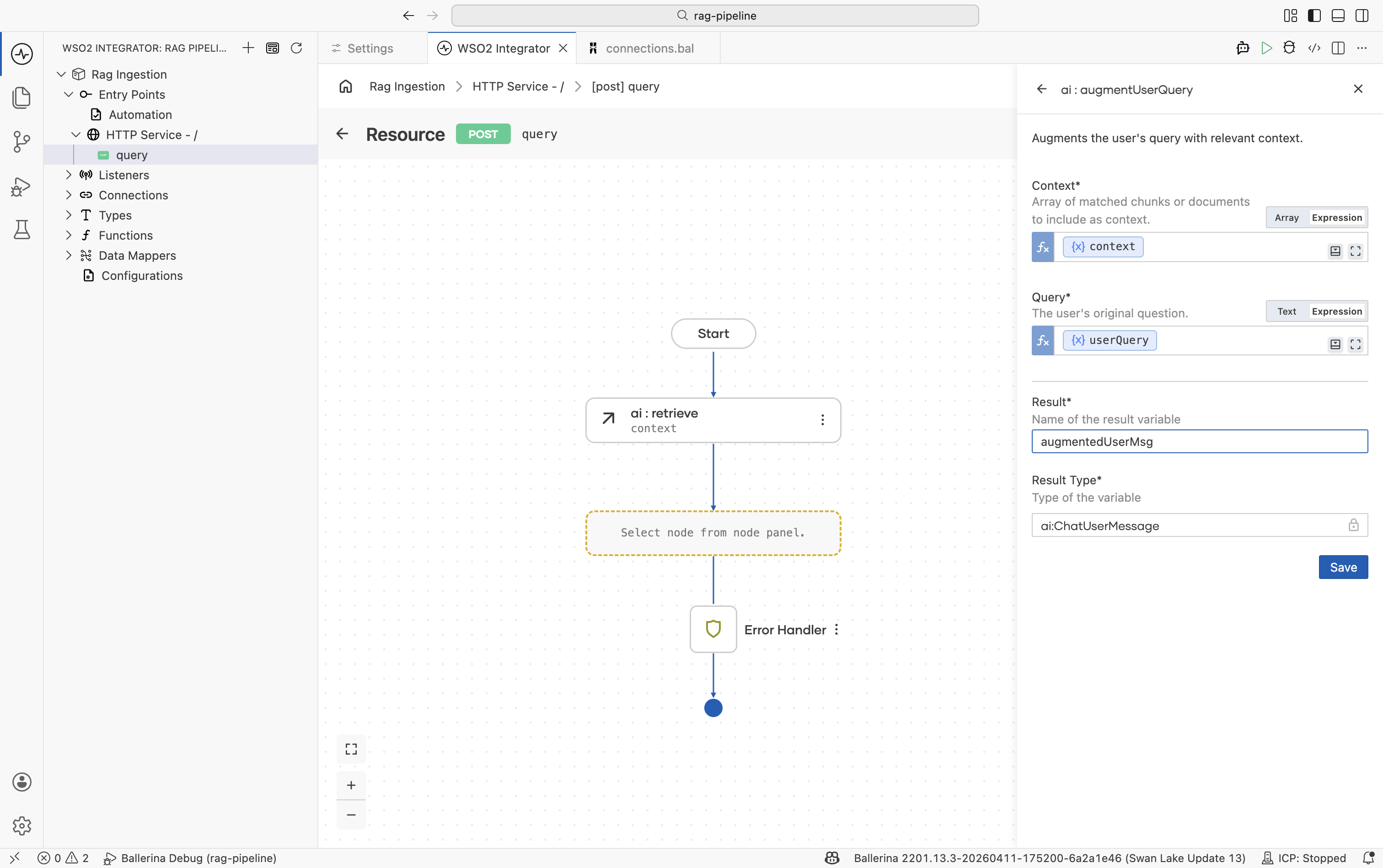
This step handles prompt construction automatically. You do not need to manually interleave chunks and questions.
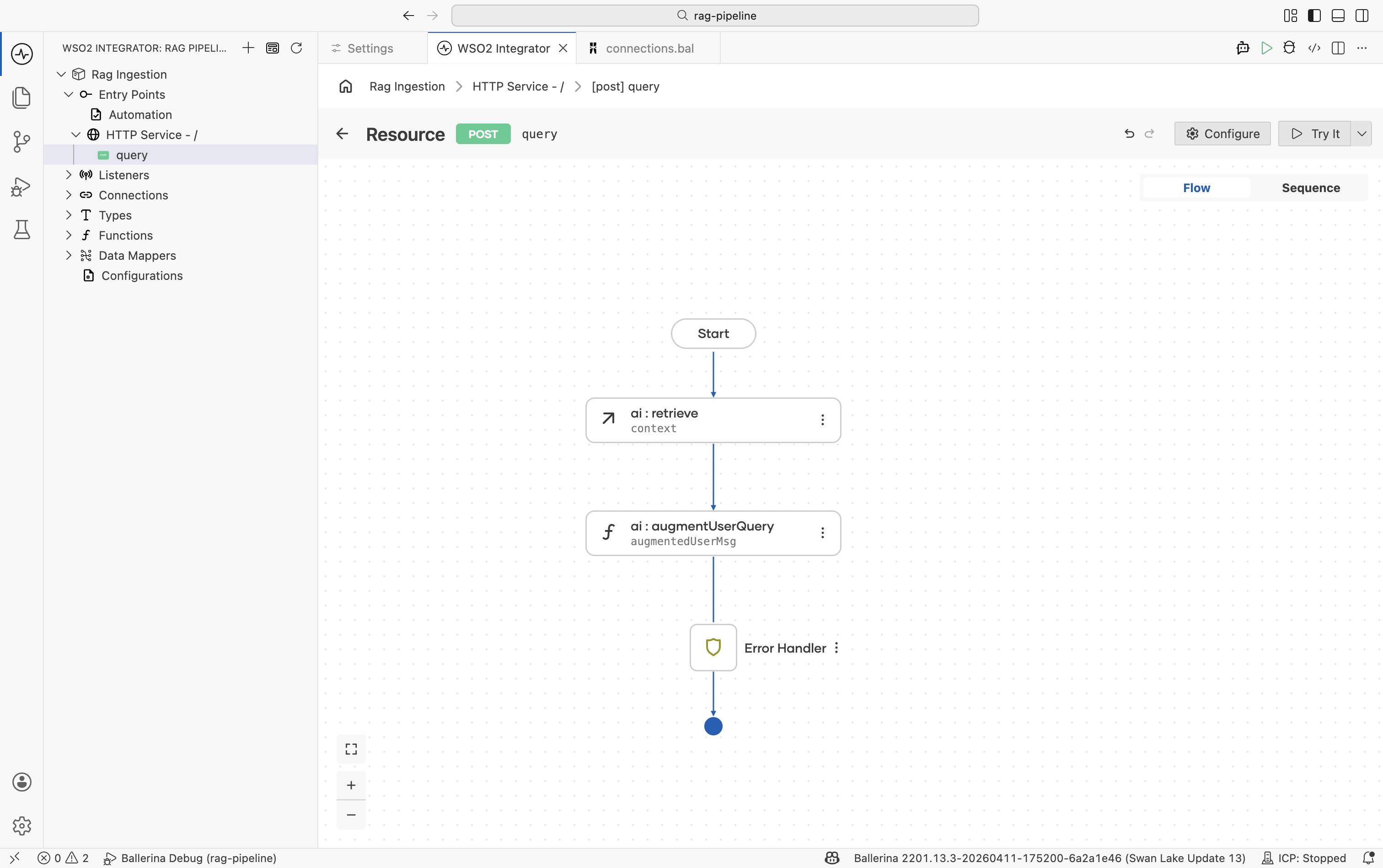
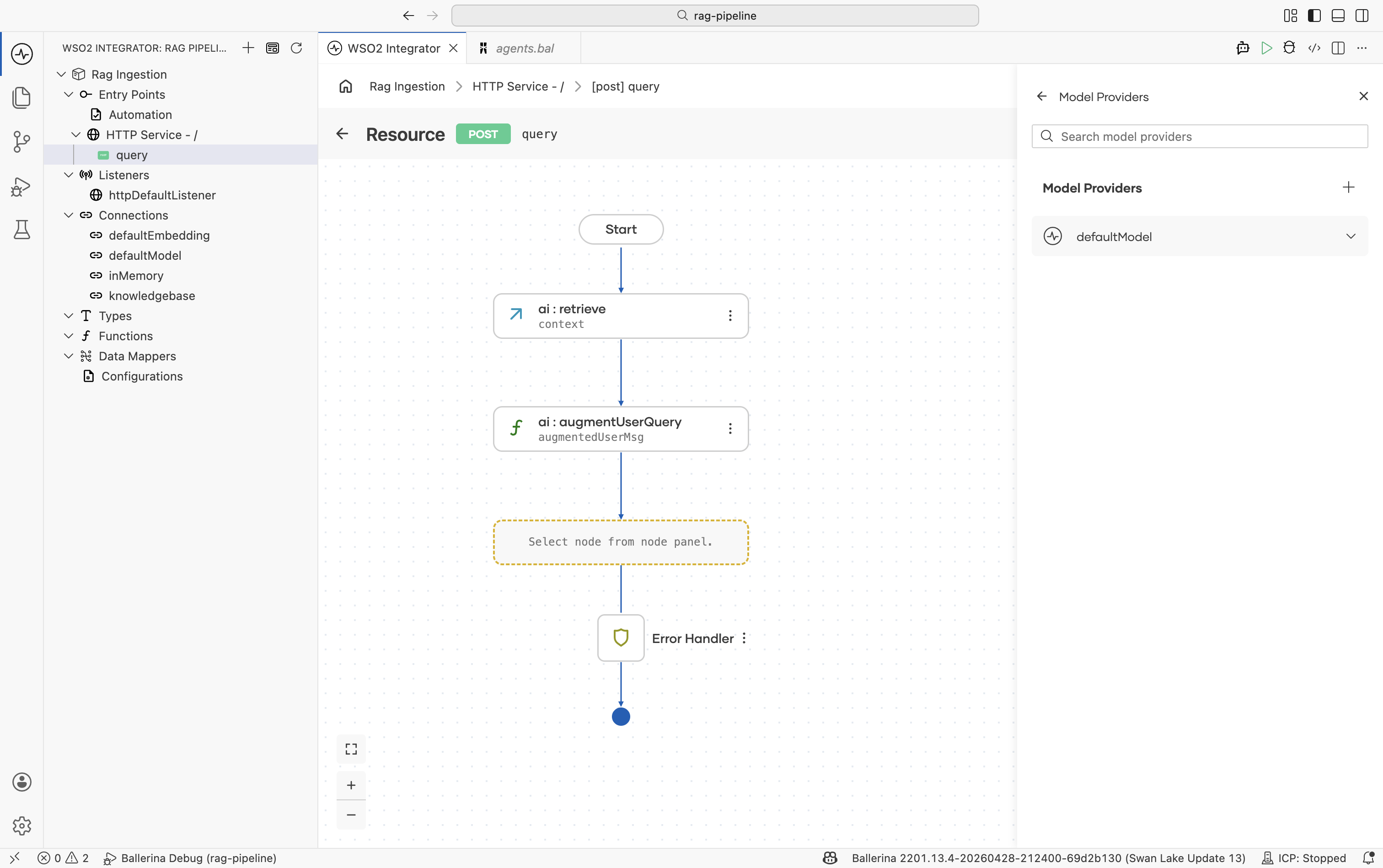
Step 4: Add a model provider
- Click + after the Augment node.
- Go to AI > Model Provider.
- Select a model provider, for example Default Model Provider (WSO2), and set the name to
defaultModel. - Click Save.
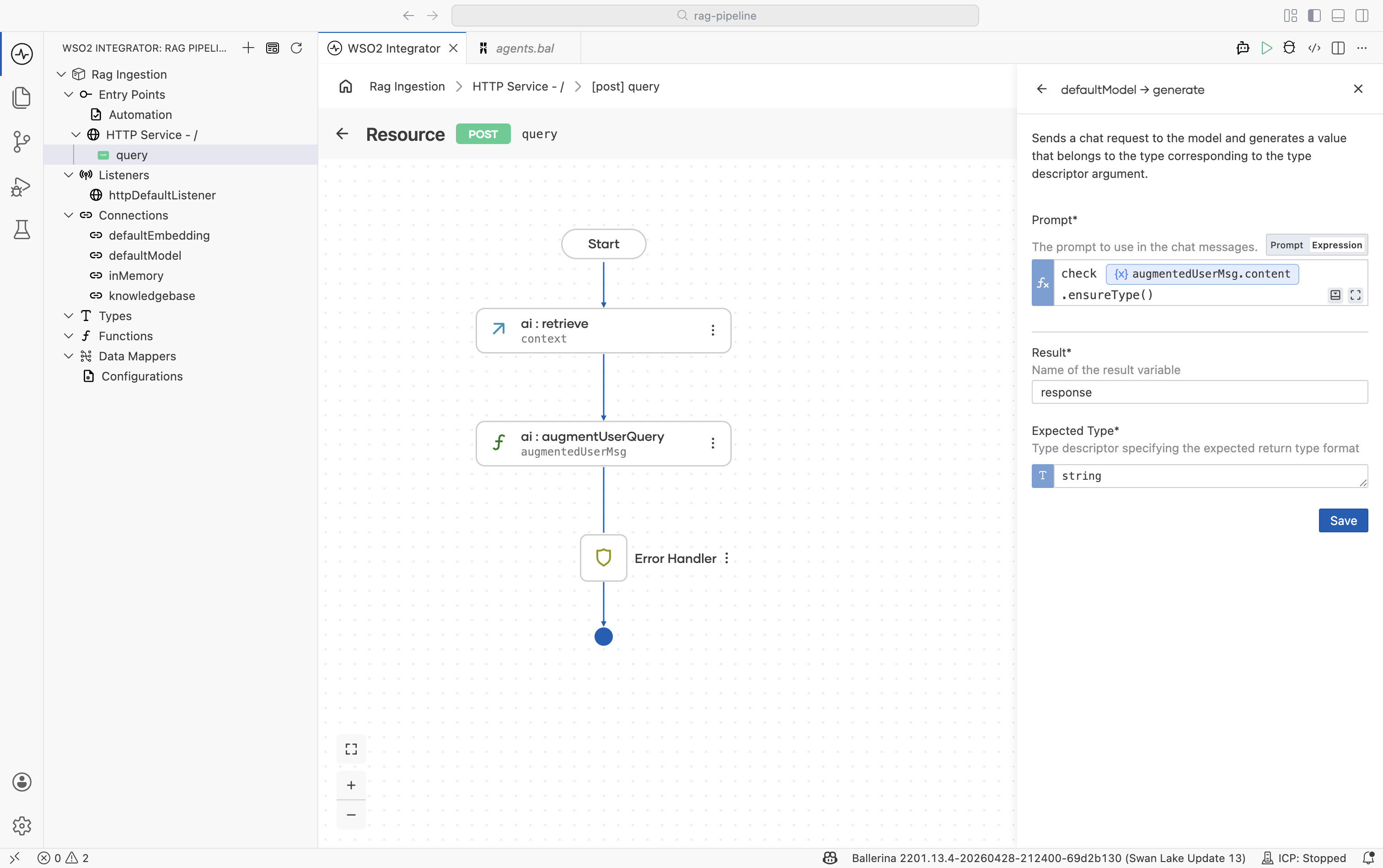
Step 5: Generate the response
The Generate action calls the LLM with the augmented message and returns the model's answer.
-
Click + after the model provider node.
-
Select the
defaultModelvariable and choose the Generate action.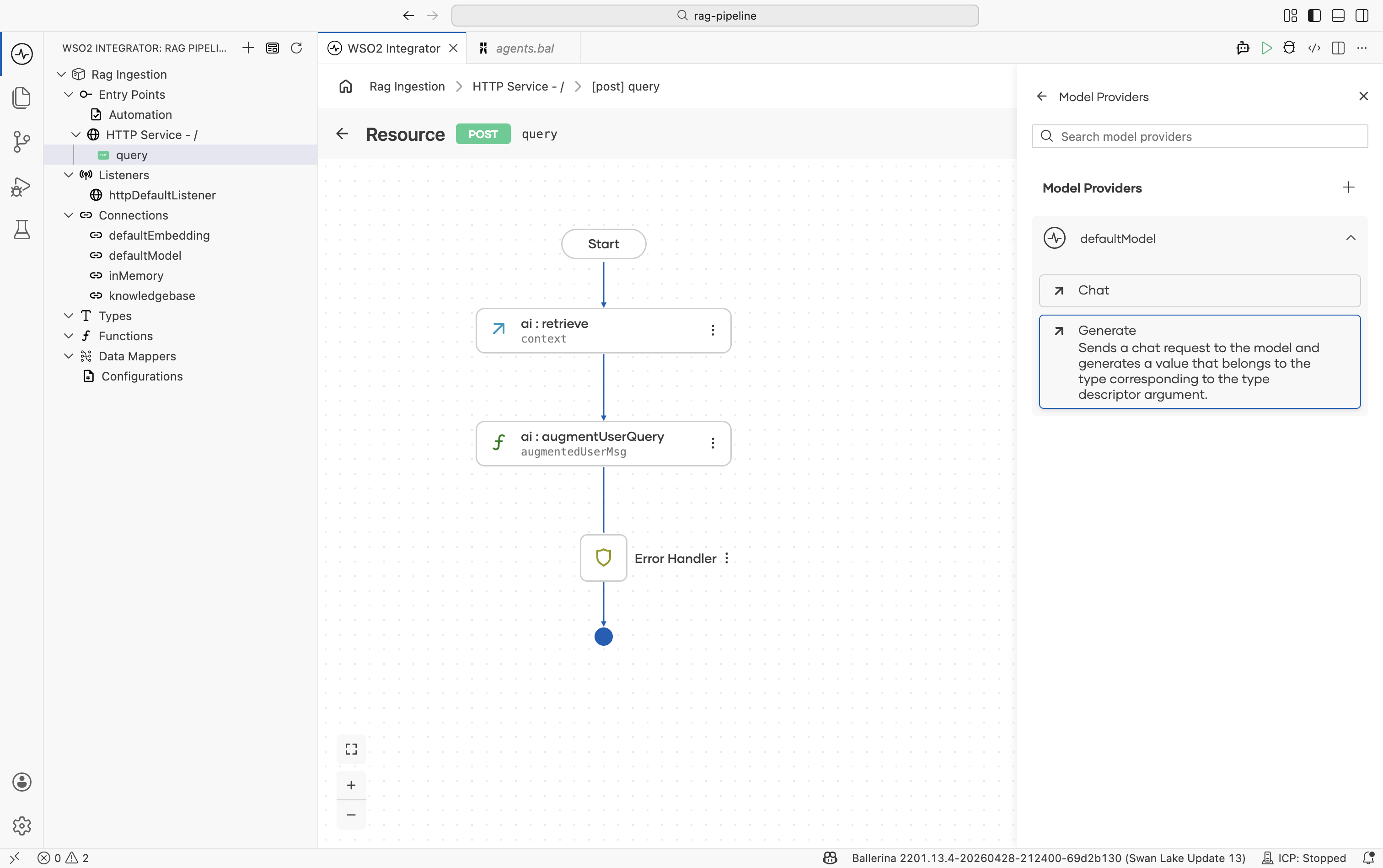
-
Configure the node:
Field Required Value Prompt Yes The augmented message content, for example check augmentedUserMsg.content.ensureType().Expected type No Set to stringfor plain-text responses. Use a record type to get a structured response.Result variable — For example, response -
Click Save.
Step 6: Return the response
- Click + after the Generate node.
- Select Return.
- Set the expression to
response. - Click Save.
Running and testing
Click Run at the top right. Once the integration starts, test the endpoint:
curl -X POST http://localhost:9090/query \
  -H "Content-Type: application/json" \
  -d '"<your question>"'
The response will be grounded in the documents you ingested.
Tuning retrieval quality
| Parameter | Where | What it does |
|---|---|---|
| Top K | Retrieve node | Controls how many chunks are passed to the LLM. Too few and relevant content is missed; too many and the model gets noisy context. Start at 5–10. |
| Filters | Retrieve node | Restrict results by metadata. Use a source or tenantId field to isolate results per user or document set. |
| Chunker | Knowledge Base (ingestion) | Affects chunk boundaries and size. Switch from ai:AUTO to a structure-aware chunker (Markdown, HTML) if retrieval quality is poor. Re-ingest after changing. |
What's next
- RAG ingestion — populate the knowledge base the query integration reads from.
- Knowledge Bases — retrieve, delete-by-filter, and tuning reference.
- Embedding Providers — available providers and dimension requirements.
- Chunkers — controlling how documents are split for better retrieval.