Google Chat
Google Chat event integrations receive interaction events directly from Google Chat over HTTP and trigger handler functions as users message, add, or interact with your Chat app. Use them to build Chat apps, bots, and interactive cards without polling any API.
The Google Chat listener must be reachable over a public HTTPS URL. For local development, use a tunneling tool such as ngrok to create a public URL for your local port.
After starting the integration, configure your Chat app in the Google Cloud Console under Google Chat API → Configuration: set the HTTP endpoint URL to your listener's public URL and choose an Authentication audience that matches your service's configuration. See the setup guide for details.
Creating a Google Chat listener
- Visual Designer
- Ballerina Code
-
Click + Add Artifact in the canvas or click + next to Entry Points in the sidebar.
-
In the Artifacts panel, select Google Chat under Event Integration.
-
In the creation form, fill in the following fields:
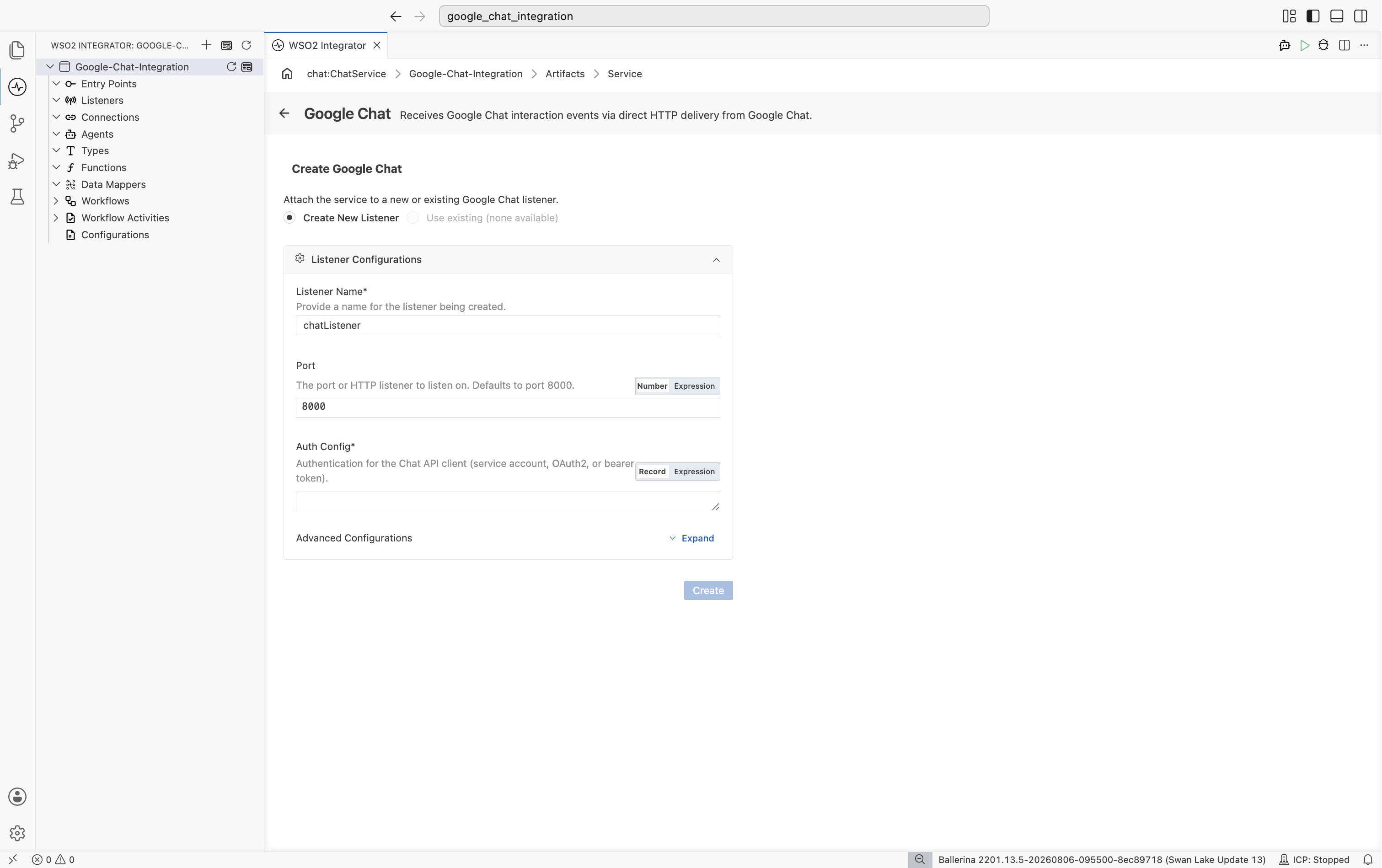
Field Description Default Listener Name Identifier for the listener created with this service. chatListenerPort The port or HTTP listener to listen on. 8000Auth Config Authentication for the Chat API client: a service account, OAuth 2.0, or bearer token config. Required HTTP Listener Config Optional inbound HTTP listener settings. {} -
Click Create.
-
WSO2 Integrator opens the service in the Service Designer. The canvas shows the attached listener pill and an empty Event Handlers section.
-
Click + Add Handler to define how incoming events are processed.
import ballerinax/googleapis.chat;
import ballerina/log;

configurable chat:ServiceAccountFileConfig authConfig = ?;
configurable string endpointUrl = ?;
configurable int listenerPort = 8000;

listener chat:Listener chatListener = new (listenerPort, {auth: authConfig});

@chat:ServiceConfig {
    endpointUrl: endpointUrl
}
service chat:ChatService on chatListener {

    remote function onMessage(chat:MessageEvent event, chat:MessageCaller caller) returns error? {
        string text = event.message.text ?: "";
        log:printInfo("Google Chat message received", text = text);
        check caller->respond({text: "Echo: " + text});
    }
}
Save this as main.bal and run bal run from the project directory. Configure your Chat app's HTTP endpoint URL to point at the listener and make sure Authentication audience matches the @chat:ServiceConfig annotation.
Service configuration
Service configuration controls the Google Chat trigger's audience validation, and the name, port, and auth settings of each attached listener.
- Visual Designer
- Ballerina Code
In the Service Designer, click Configure to open the Google Chat Configuration panel.
The left panel shows Attached Listeners. Pick a listener under Attached Listeners to configure its connection settings in the main configuration panel.
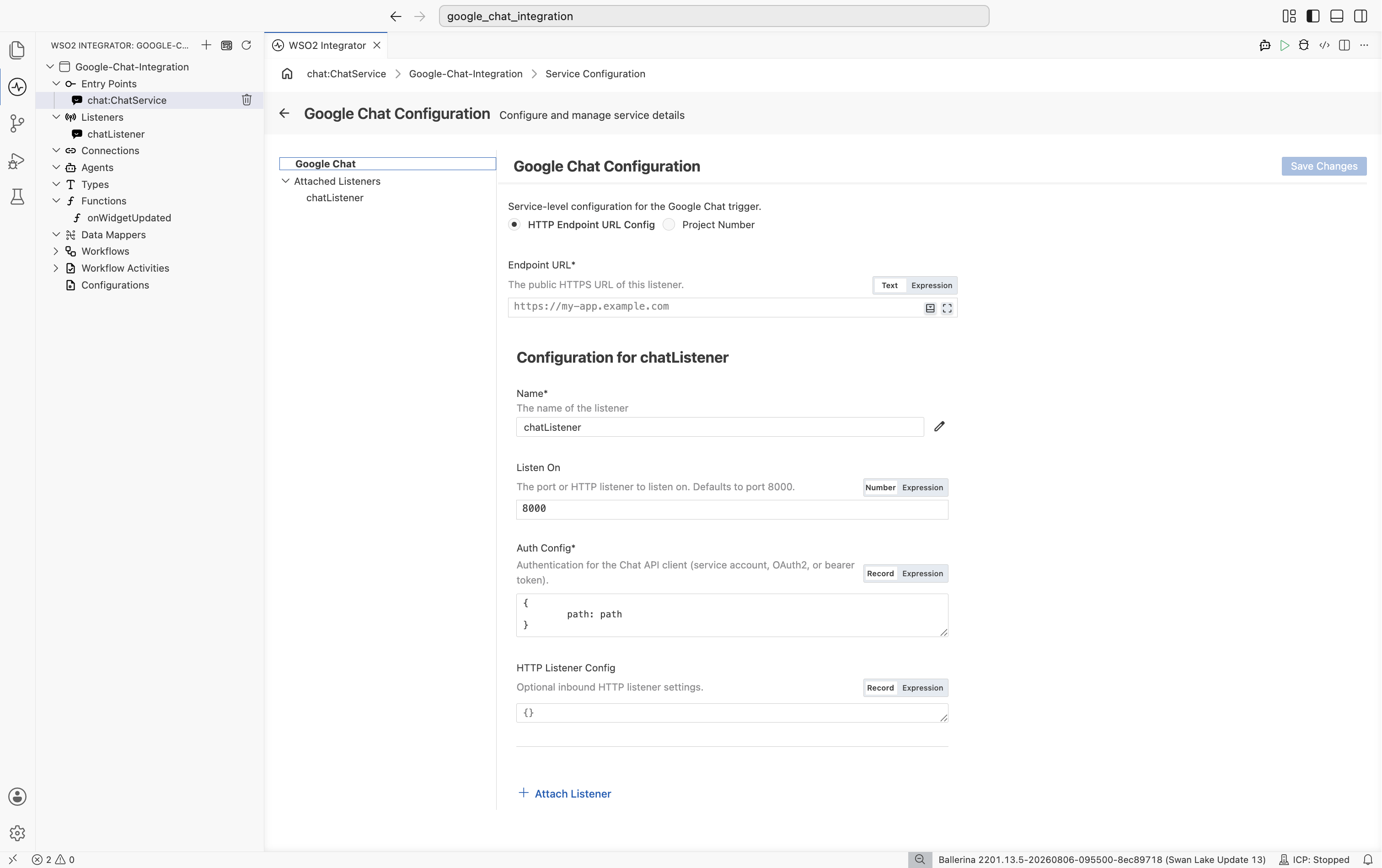
Main configurations
| Field | Description |
|---|---|
| HTTP Endpoint URL Config or Project Number | The audience the listener validates incoming bearer tokens against. Must match the Authentication audience configured for your Chat app. Required. |
Listener configurations
| Field | Description |
|---|---|
| Name | The name of the listener. Required. |
| Listen On | The port or HTTP listener to listen on. Defaults to 8000. |
| Auth Config | Authentication for the Chat API client: a service account, OAuth 2.0, or bearer token config. Required. |
| HTTP Listener Config | Optional inbound HTTP listener settings. |
Click Attach Listener to attach an additional listener to the same service.
Click Save Changes to apply updates.
The service-level @chat:ServiceConfig annotation configures which bearer-token audience the listener validates:
@chat:ServiceConfig {
    endpointUrl: "https://my-app.example.com"
}
service chat:ChatService on chatListener {
    // handlers
}
Use projectNumber instead of endpointUrl if your Chat app's Authentication audience is set to Project Number.
Listener configuration maps to the chat:ListenerConfig passed when constructing the listener:
listener chat:Listener chatListener = new (listenerPort, {auth: authConfig});
| Field | Type | Default | Description |
|---|---|---|---|
auth | ServiceAccountAuthConfig|OAuth2Config|http:BearerTokenConfig | Required | Authentication for the internal Chat API client (service account, OAuth2, or bearer token). |
httpListenerConfig | http:ListenerConfiguration | {} | Optional inbound HTTP listener settings. |
Event handlers
An event handler is a remote function that WSO2 Integrator calls for each Google Chat interaction event received.
Adding an event handler
- Visual Designer
- Ballerina Code
In the Service Designer, click + Add Handler. A Select Handler to Add panel opens on the right listing the available event types.
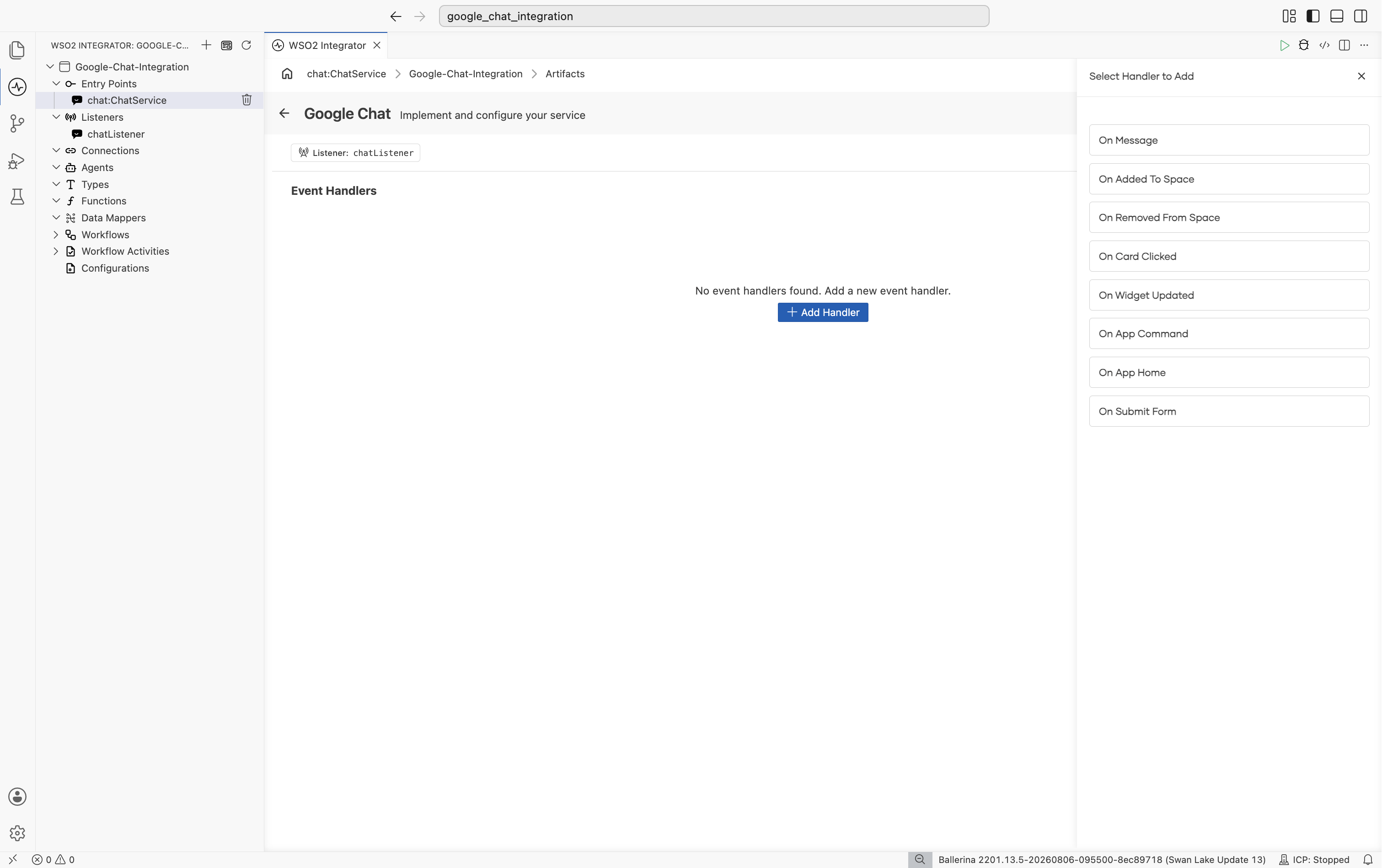
Pick On Message, then click Save. This opens the Flow Designer for onMessage.
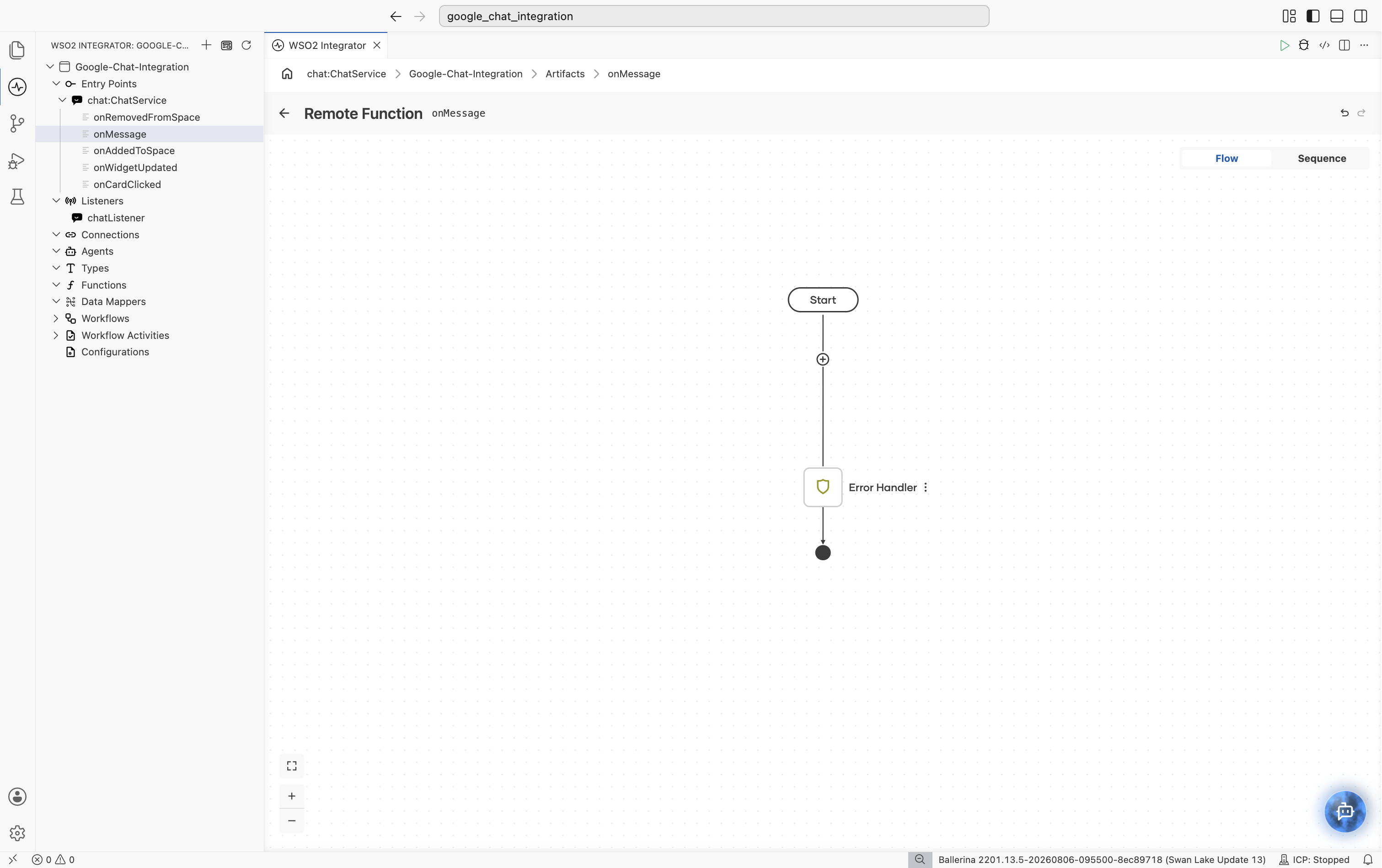
Every handler is scaffolded with a built-in Error Handler block. Use the flow canvas to add integration steps such as database writes, HTTP calls, and transformations, and edit the Error Handler block to define recovery logic for errors raised in the flow. Repeat these steps to add the other handlers you need.
onMessage handler — called when a user sends a message, @mentions the app, or invokes a slash command:
service chat:ChatService on chatListener {

    remote function onMessage(chat:MessageEvent event, chat:MessageCaller caller) returns error? {
        do {
            check caller->respond({text: "Echo: " + (event.message.text ?: "")});
        } on fail error err {
            log:printError("Failed to handle onMessage event", err);
        }
    }
}
Return error? from a handler to allow unhandled errors to propagate to the listener, which logs them. Return () to suppress them.
Handler types
chat:ChatService exposes one optional handler per Chat event type. Implement only the ones you need.
| Handler | Triggered when |
|---|---|
onMessage | A user sends a message, @mentions the app, or invokes a slash command. |
onAddedToSpace | The app is added to a space. |
onRemovedFromSpace | The app is removed from a space. |
onCardClicked | A user clicks a button or interactive element on a card. |
onWidgetUpdated | A widget requests an autocomplete or similar update. |
onAppCommand | A user invokes a Chat app command. |
onAppHome | A user opens the app's home page. |
onSubmitForm | A user submits a form from the app's home page. |
Each handler receives the event and, for most event types, an event-specific caller (chat:MessageCaller, chat:CardClickedCaller, chat:WidgetUpdatedCaller, chat:AppHomeCaller, or chat:SubmitFormCaller) pre-configured with the event's space context. Use the caller to respond synchronously within the event window. chat:MessageCaller and chat:CardClickedCaller can also call Chat APIs asynchronously (sendMessage, updateMessage, deleteMessage, getSpace).
What's next
- WhatsApp Business — react to WhatsApp Business Cloud webhook events
- Telegram — react to Telegram Bot API webhook updates
- Connections — reuse Google Chat credentials across services
- Google Chat connector reference — full connector API reference
- Google Chat setup guide — create a GCP project and configure the Chat app