Autoscale Integrations with Scale-to-Zero
Devant provides the scale-to-zero capability for HTTP applications you deploy in the data plane. This lets you run your integrations in a serverless mode.
Scale to zero is very useful in lower environments, where you can significantly reduce infrastructure costs by scaling down idle workloads. In production environments, you can also use scale-to-zero capability if your application's behavior aligns with this feature behavior. In the paid tier, if you want to run your application with more guaranteed high availability, it is recommended to choose HPA (Horizontal Pod Autoscaler) scaling method and configure a minimum replica count of 2 or higher.
How Scale to Zero works in Devant
Scale-to-Zero automatically scales your apps down to zero unless they receive HTTP traffic. Upon receiving an HTTP request, your workload quickly scales up from zero to handle the request. New requests trigger scale-up to one replica to serve the request. After remaining idle for approximately 5 minutes, the deployment automatically scales back to zero until the next request arrives.
When Scale to Zero is enabled, you can set the maximum number of replicas for deployments with this capability. Devant dynamically scales deployments up to meet high HTTP traffic demand, up to the specified number of replicas. If the pending requests surpass the defined threshold under Number of pending requests to spawn a new pod, Devant automatically adds a new replica to handle the increased load.
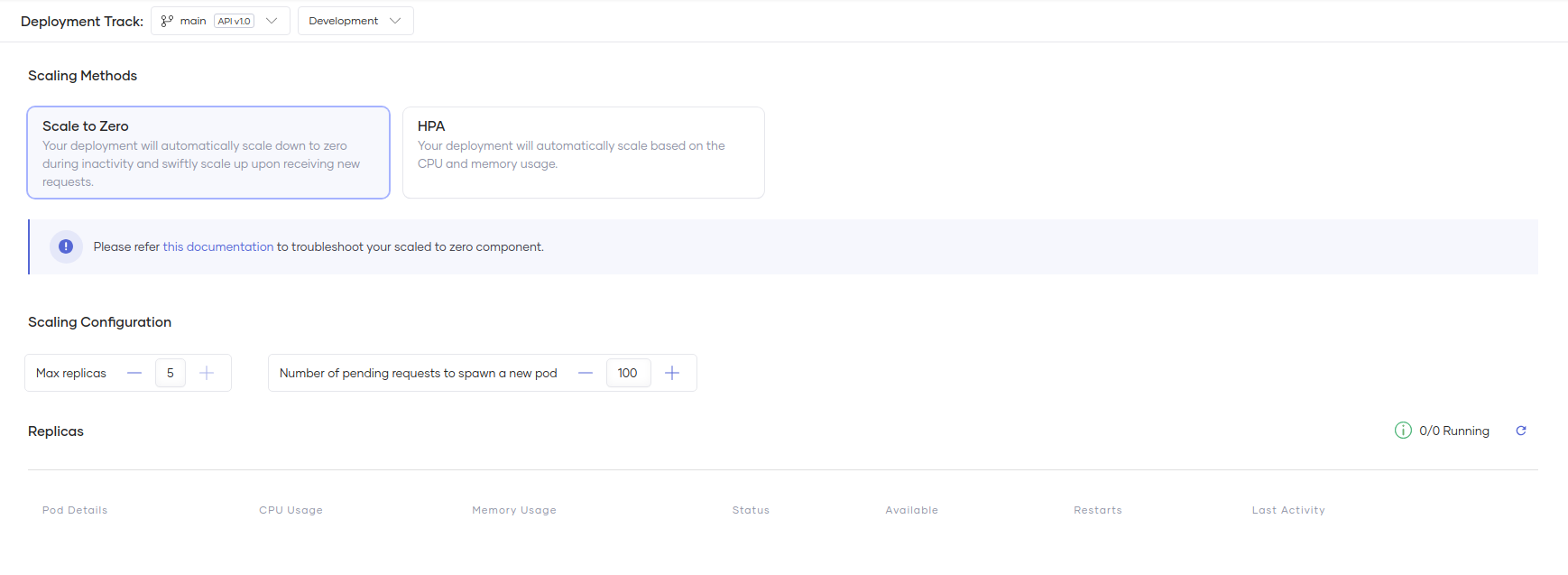
Enable scale to zero
For integrations as APIs you create, Devant enables the scale-to-zero feature by default. When deploying or promoting the integration, the deployment will automatically scale-to-zero. Upon the next request to the deployed service, a replica will be created to serve the request.
Note
- For the integrations as APIs which contain at least one endpoint with the network visibility as Project, Devant will not automatically scale-to-zero those integrations when you deploy or promote them.
- HTTP services that run on a port other than the below list of ports will not automatically scale-to-zero your integration when deploying or promoting: 5000, 6000, 7000, 8000, 9000, 7070 to 7079, 8080 to 8089, and 9090 to 9099 or 8290.
To enable scale-to-zero for integrations as APIs created before February 23, 2024, follow the steps given below:
- Sign in to the Devant Console.
- In the Integration Listing pane, click on the integration you want to scale-to-zero.
- Make sure the integration is deployed to an environment and is ready to receive traffic.
-
In the left navigation menu, click Admin and then click Scaling.
-
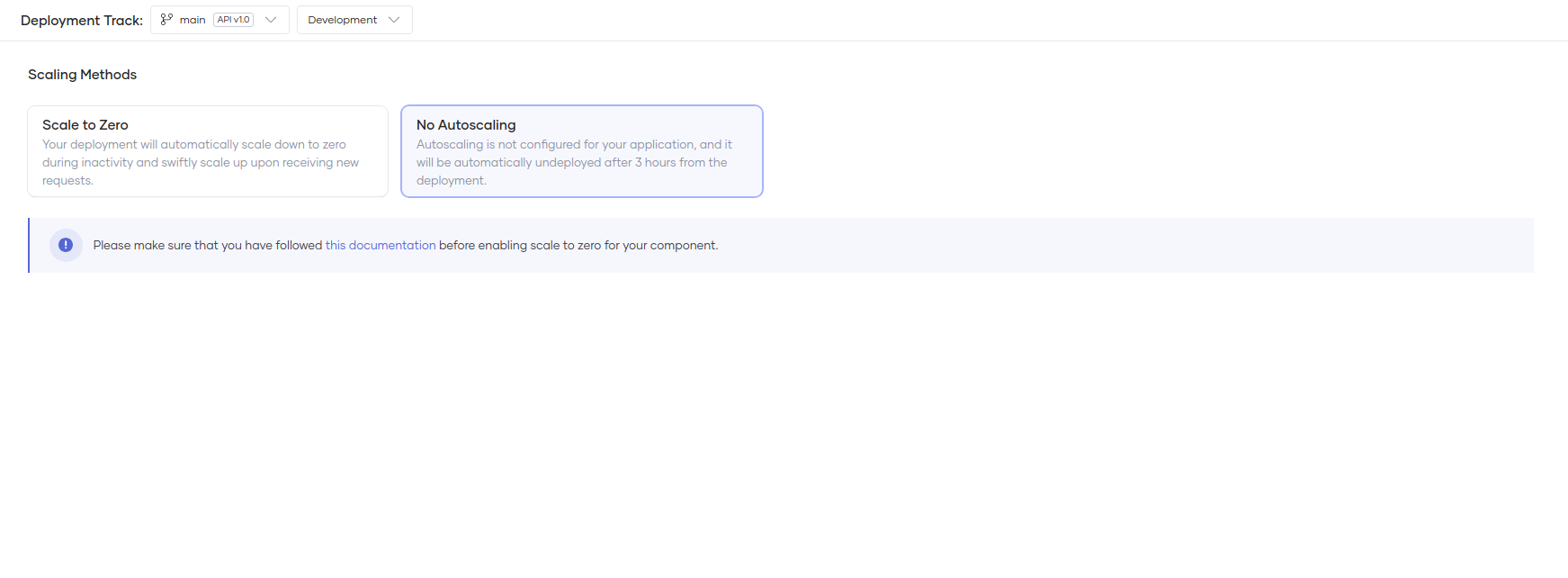
If you are a free user, you will see a view similar to the one below. You can click the scale-to-zero card to enable scale-to-zero for your integration.
-
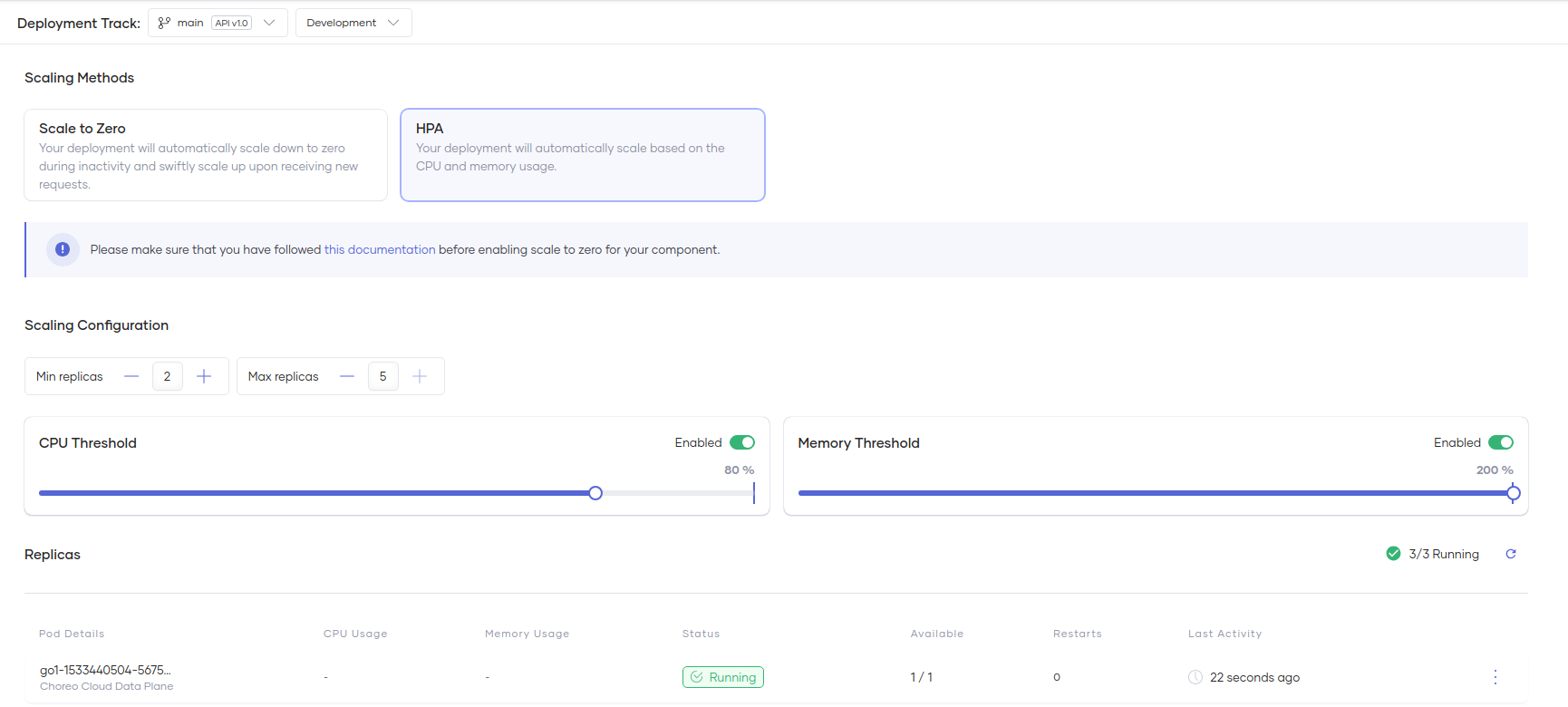
If you are a paid user or you are running your applications in your own private data plane, you will see a view similar to the one below. You can click the scale-to-zero card to enable scale-to-zero for your integration.
Note
The scale-to-zero service should start within 60 seconds. If it doesn’t, the gateway will timeout the request.
-
You can independently scale Devant integrations in both the Development and Production environments. The deployment card indicates the scaling status of each environment. To configure the scale-to-zero feature for a specific environment, click on the scale-to-zero link, which redirects to the Admin → Scaling page.
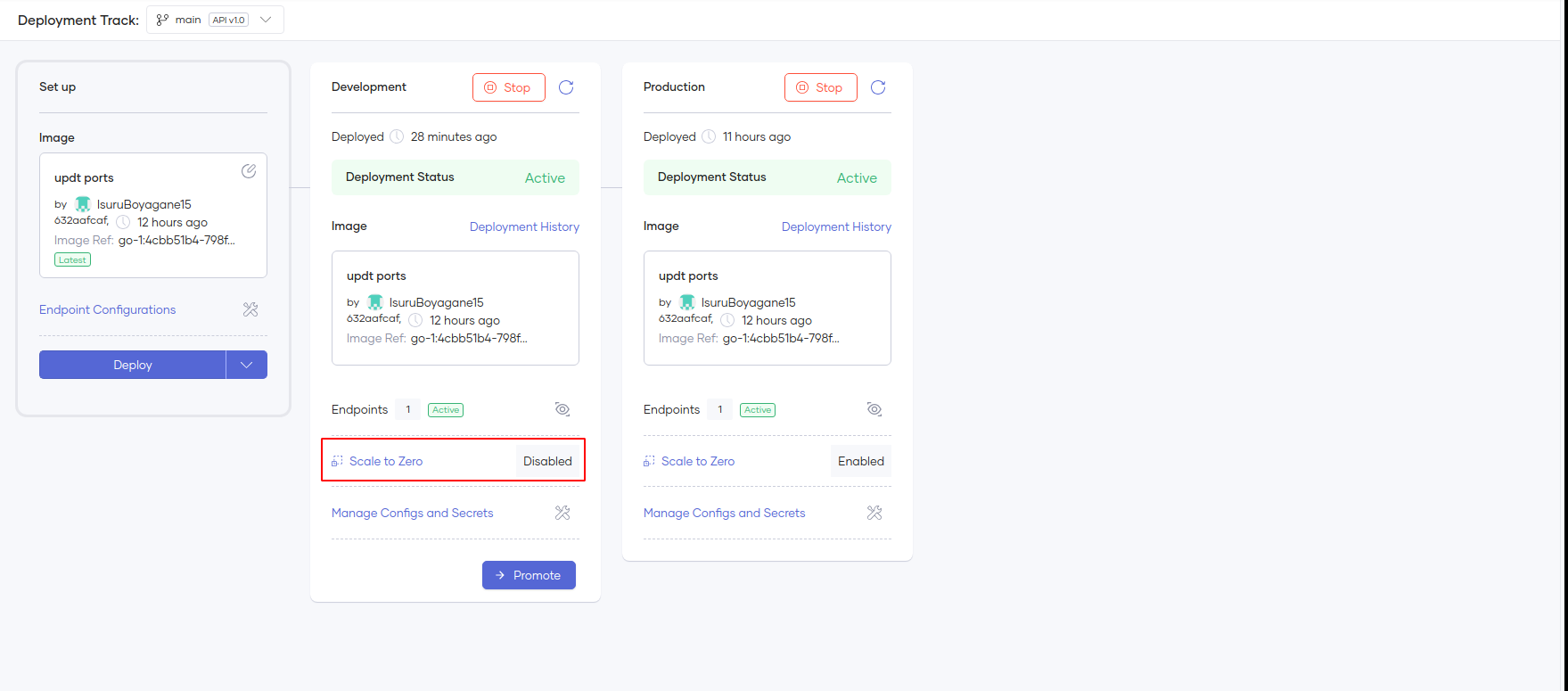
When you turn on the scale-to-zero for your application, the minimum replicas for your app will be set to zero. However, you can still select an appropriate maximum number of replicas.
Limitations
- The scale-to-zero feature exclusively supports HTTP services. TCP and HTTPS services are not supported to be scaled to zero.
- To scale to zero, your HTTP service must run on one of the specified ports: 5000, 6000, 7000, 8000, 9000, 7070 to 7079, 8080 to 8089, and 9090 to 9099 or 8290. If you have an endpoint in your integration running in any other port, your integration will not automatically scale-to-zero when deploying or promoting. Also, if you try to switch to the “scale-to-zero” option in the “Admin” → “Scaling” view, it will fail.
-
Automations cannot connect to a service on a project scope if scale-to-zero is enabled. Attempting to do so results in the following error:
Host not found, not forwarding request.To allow a automations to invoke a project-level service, set it to HPA mode if you are on a paid plan, or to no scaling if you are on the Developer plan.
Architecture
When your Devant application scales down to zero, an intermediary proxy service intercepts incoming requests. If a request is directed at your application, this service initiates a scale-up. Requests are held in the proxy's queue until your application becomes active. After scaling up, the proxy forwards the queued requests to your application.
If your application remains without HTTP traffic for an extended period (default idle time is 5 minutes), it will be scaled down to zero until more HTTP requests arrive. Conversely, if there's a surge in HTTP traffic to your scaled-up application, Devant will further increase its scale to manage the demand. Devant considers adding additional replicas if the number of queued requests surpasses the 'Target Pending Requests' threshold, which is set to 100 by default. You can adjust this threshold in the user interface.
Note
The initial request after a long period of inactivity experiences a delay because the application must first scale up from zero. If your API operates in a service-chain sequence (e.g., service-1 activates service-2, which in turn calls service-3), this waiting time may extend further. If your application or its chain takes a considerable time to scale up, be aware that the first request might face a timeout.
Troubleshooting
When Devant enables scale-to-zero by default, it will configure the readiness probe with some default values. However, in some cases, you may observe that your first request responds with a 503 status code. To overcome these behaviors, fine-tune the readiness probe in the Admin → Health Checks view to match your application's needs.