Manage Configurations and Secrets
Devant allows you to easily manage and version your component's configurations and secrets as file mounts or environment variables.
Note
All configurations and secrets are stored in an encrypted secret vault in the cloud data plane managed by WSO2. For private data planes, configurations and secrets are stored in your cloud environment's attached secret manager.
The difference between configurations and secrets
Devant treats all configurations and secrets as sensitive content, but lets you choose between a secret or a configuration when creating environment variables or file mounts.
- Secrets are write-only. Once created, you cannot view or retrieve their content via Devant, but you can overwrite them at any time.
-
Configurations can be read and updated via Devant after creation.
Note
For sensitive data such as database passwords, cloud credentials, or service accounts, it is recommended to use secrets rather than configurations.
Managing environment variables and file mounts on Devant
Navigating to the Configs & Secrets page
- Sign in to Devant.
- Navigate to your project, and select your integration.
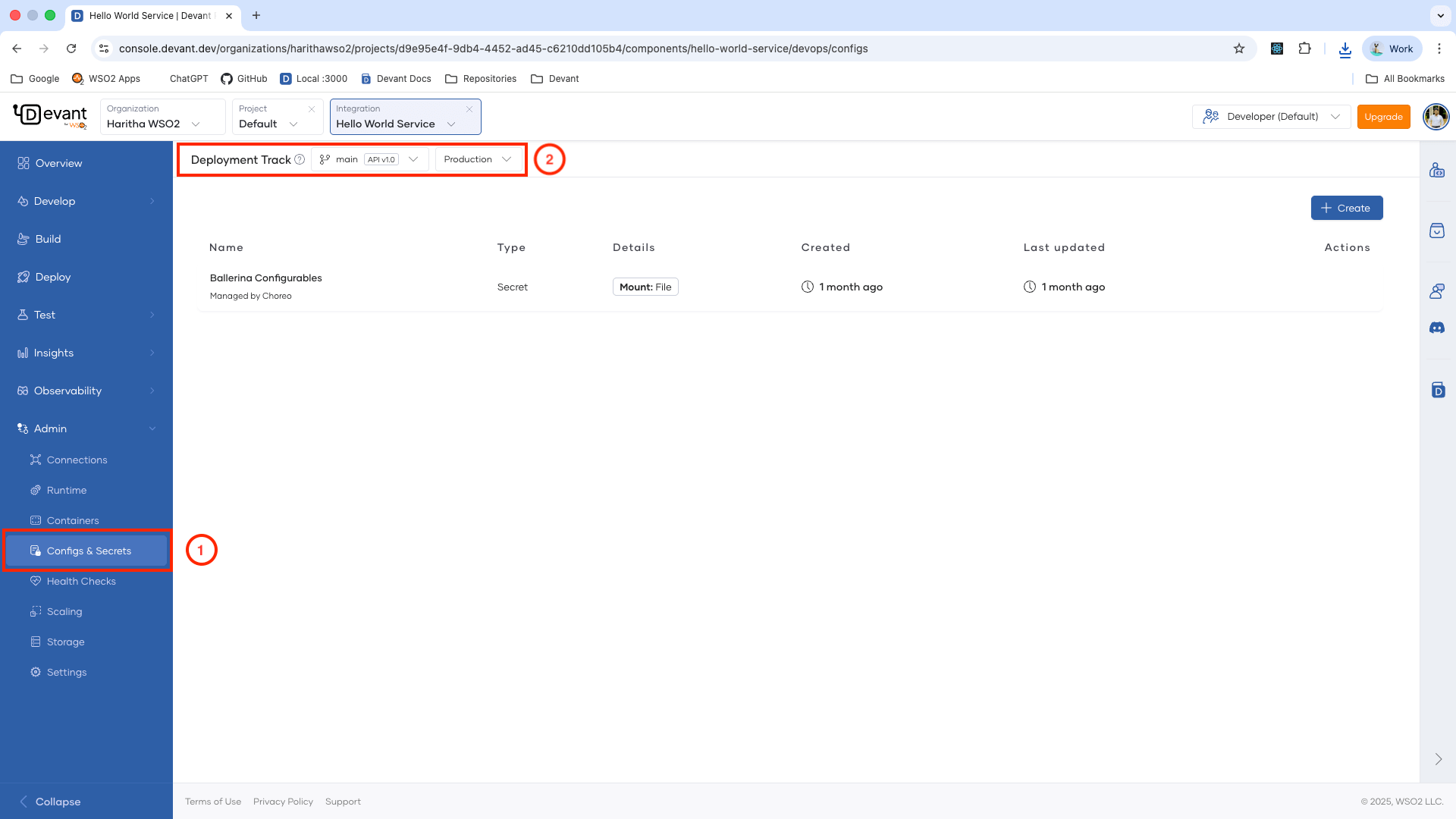
- Under Admin, select the Configs & Secrets page in the left navigation menu.
-
Make sure you are on the correct Deployment Track and the Environment for which you want to manage configurations and secrets.
Add an environment variable to your container
To add environment variables:
- Navigate to the Configs & Secrets page.
- Click + Create.
- Select Environment Variables in the Create a Config or Secret pane.
-
Select Mark as a Secret if the values contain sensitive information.
Note
Secret environment variables cannot be read after creation, but you can overwrite them at any time.
-
Enter a Display Name to identify this configuration.
Tip
The display name is for identification only and doesn't affect the actual environment variables.
-
Enter your environment variables as key-value pairs, then click Add. You can add multiple variables this way.
Tip
You can optionally import environment variables from a
.envfile by clicking Import from .env file. -
Click Create.
Add a file mount to your container
To add a file mount to your component:
- Navigate to the Configs & Secrets page.
- Click + Create.
- Select File Mount in the Create a Config or Secret pane.
-
Select Mark as a Secret if the file contains sensitive information.
Note
Secret file mounts cannot be viewed or read after creation.
-
Enter a Display Name to identify this file mount.
Tip
The display name is for identification only and doesn't affect the file mount or its content.
-
Specify the File Mount Path where the file should be mounted inside the container. Use an absolute path including filename and extension.
Tip
The mount path filename doesn't need to match your configuration name or uploaded filename.
-
Either upload a configuration file by clicking Upload File or paste content directly into the editor.
-
Click Create.
Note
Configurations and secrets apply immediately. The running replicas of your container will undergo a rolling restart to apply the changes.
Update an existing configuration or secret
To update a configuration or secret:
- Navigate to the Configs & Secrets page.
- Click the edit icon next to the configuration or secret you want to update.
- Make your changes and click Save.
Delete an existing configuration or a secret
To delete a configuration or secret:
- Navigate to the Configs & Secrets page.
- Click the delete icon next to the configuration or secret you want to delete.
- Type the name to confirm deletion.
- Click Delete.
Managing Ballerina configurables
Devant manages Ballerina configurables for your Ballerina integrations.
You can modify Ballerina configurables via the Integration Overview page when deploying or promoting a Ballerina integration by clicking the Configure button in the relevant environment card. If it is the initial build, you will see a Configure to Continue button to perform the same action.