Alerts Overview
This section explains how you can configure alerts for your Devant integrations. Setting up alerts allows you to proactively monitor your integrations and take corrective measures when necessary.
Note
Setting up alerts is only available at the integration level.
Alert types
Devant supports the following types of alerts to help you monitor and manage your integrations effectively:
Latency alerts
Latency alerts notify you when the response latency of an integration exceeds a predefined threshold within a specified time period. This is useful for integrations that need to meet specific SLAs and proactively identify slow integrations.
Configurable parameters
| Parameter | Description |
|---|---|
| Metric | 99th, 95th, 90th, or 50th percentile. |
| Threshold | Latency in milliseconds (e.g., 1800). |
| Period | Duration the threshold must be exceeded (e.g., 5 minutes). |
Traffic alerts
Traffic alerts notify you when the request count of an integration exceeds a predefined threshold. This is useful for managing integrations with backend traffic limits or monetized backends that require proactive scaling based on incoming traffic.
Configurable parameters
| Parameter | Description |
|---|---|
| Threshold | Requests per minute (e.g., 200). |
| Period | Monitoring window (e.g., 5 minutes). |
Resource alerts
Resource alerts notify you when your integration’s CPU or memory usage exceeds predefined thresholds. This ensures that you can adjust the resource allocations early to avoid performance issues or downtime.
Configurable parameters
| Parameter | Description |
|---|---|
| Metric | CPU or Memory. |
| Threshold | mCPU for CPU and MiB for Memory (e.g., 1000). |
| Period | Duration the threshold must be exceeded (e.g., 5 minutes). |
Tip
- CPU: mCPU (milliCPU) measures CPU usage in fractions of a core, where 1000 mCPU = 1 full core.
- Memory: MiB (Mebibyte) measures memory in binary units, where 1 MiB = 220 bytes.
Log alerts
Log alerts trigger notifications when a given phrase appears a specific number of times in your integration logs within a defined time window. This helps to identify recurring issues or critical errors quickly, enabling faster troubleshooting.
Configurable parameters
| Parameter | Description |
|---|---|
| Search Phrase | Keyword or phrase that triggers the alert (e.g., failed). |
| Count | Minimum number of occurrences to trigger the alert (e.g., 10). |
| Interval | Time window for counting occurrences (e.g., 5 minutes). |
Build failure alerts
Build failure alerts inform you when a build failure occurs for your integration. This is essential for maintaining smooth development workflows.
Configure an alert
Follow these steps to configure an alert:
-
Navigate to the integration you wish to configure alerts for.
Info
You need to have a scope of Devant DevOps or Devant Platform Engineer in order to create alerts.
-
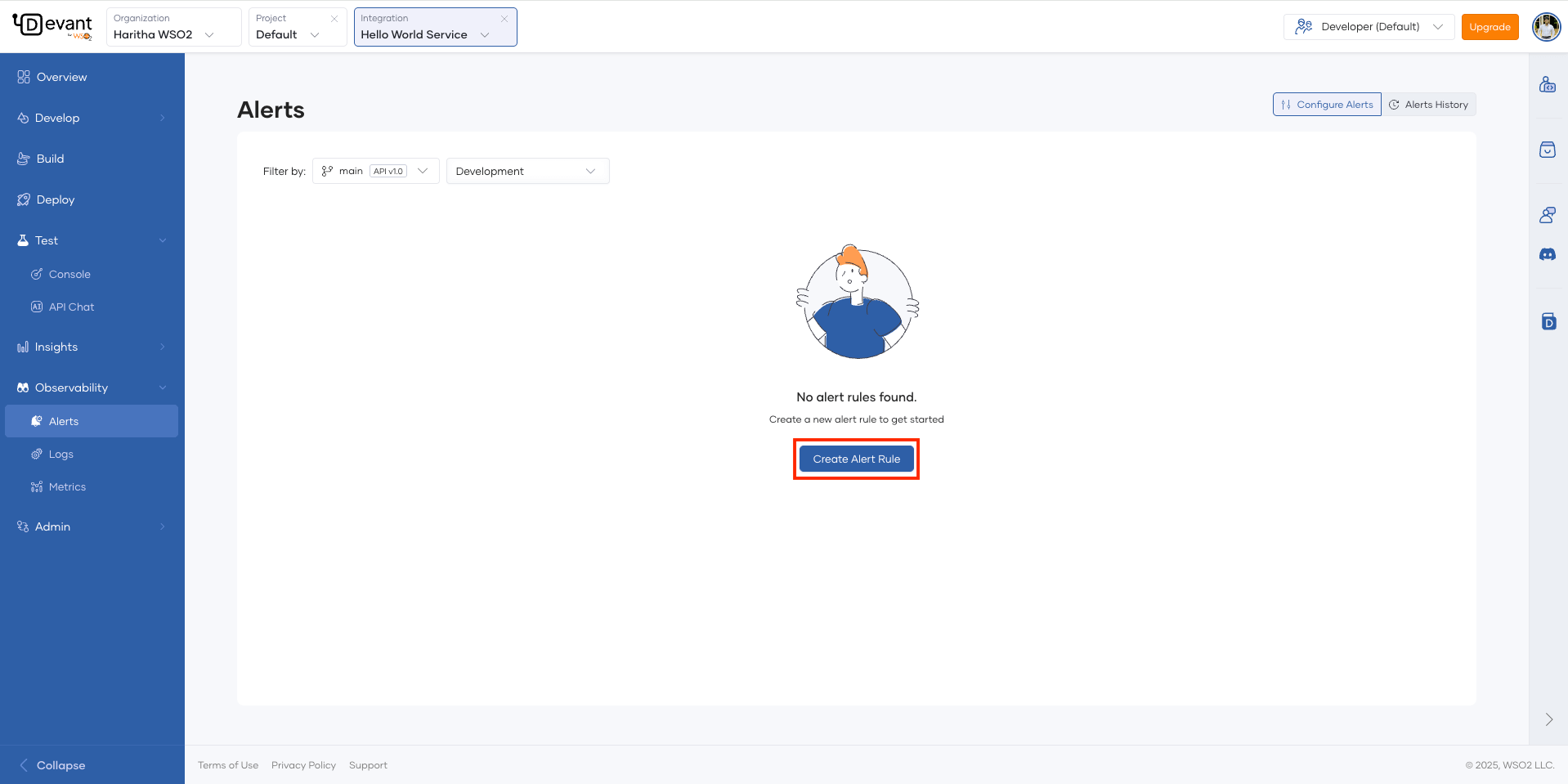
In the left navigation under Observability, click Alerts.
-
Click Create Alert Rule to create a new alert rule.
-
Select the Alert Type you want to create.
- Select the Environment you want to create the alert for.
- Select the Deployment Track or Version as required for the integration.
- Configure the remaining fields specific to your selected alert type.
-
In the Emails field, specify the email addresses that should be notified when the alert is triggered.
Note
- When adding an email, type the required address and press
Enterto add it. - You can add a maximum of 5 email addresses per alert.
- When adding an email, type the required address and press
-
You can configure additional parameters in the Advanced Configurations dropdown as needed, which vary based on alert type.
- The Explanation callout provides a summary of the configured alert.
-
Click Create to save and activate your alert rule.
Info
- You can configure a maximum of 10 alerts per integration.
-
Once successfully added, your alert will be listed in the Configure Alerts pane alongside any existing alerts for the integration.
-
Each alert can be edited, removed, and disabled or enabled via this pane.
Note
When editing an alert, Alert Type, Environment, and Deployment Track cannot be changed.
Alerts history & notifications
View alerts history
You can check the past alerts that have triggered for your integration in the Alerts History pane. You can filter the alerts history by Alert Type, Environment, Deployment Track or Version, and Time Range.
You can click on an alert to expand it to see more details about the alert.
Email notifications
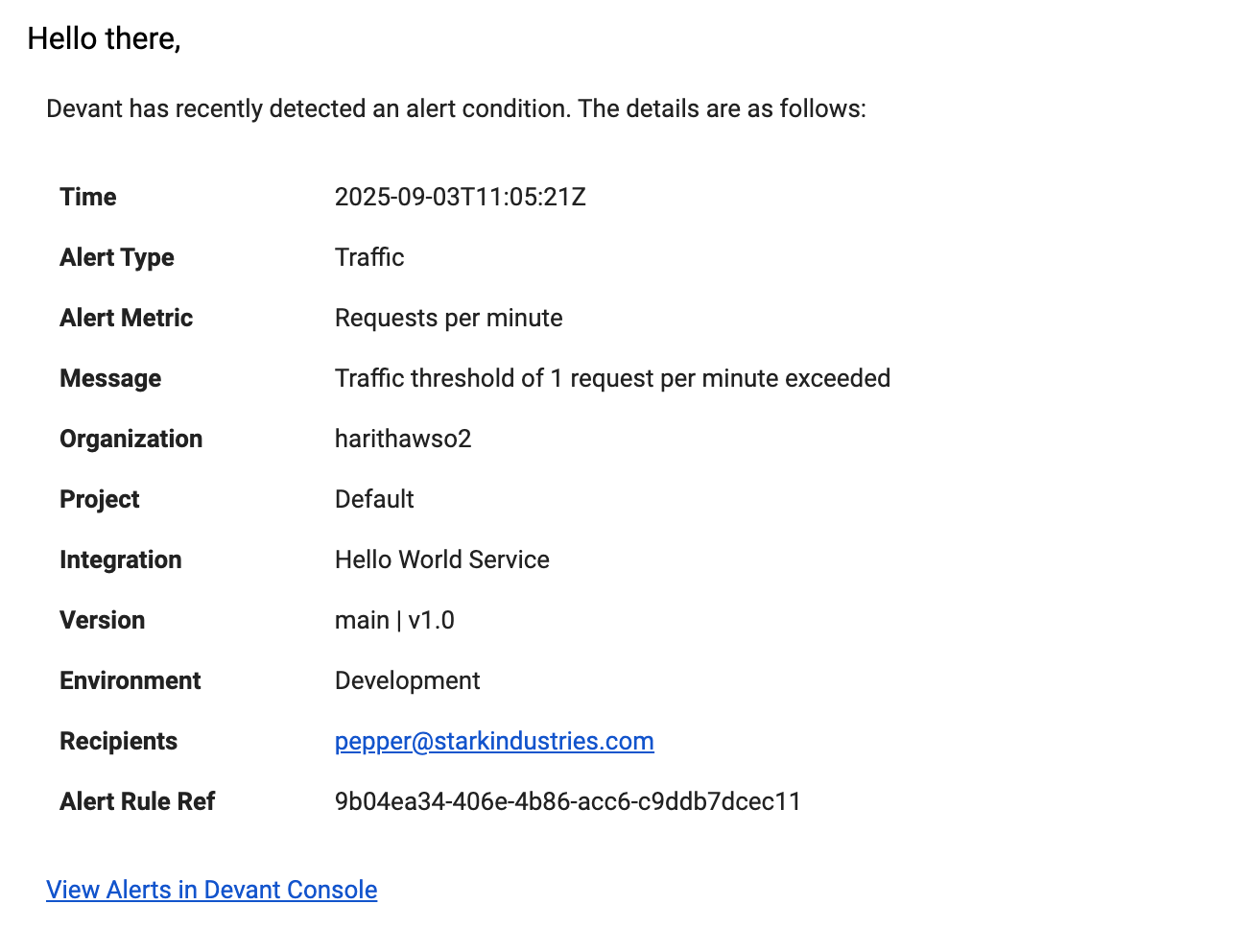
When an alert is triggered, recipients receive an email with details and a link to view the alert in Devant.