Develop Your First Integration as API
Overview
In this guide, you will:
- Create a simple Integration as an API that acts as a service that calls a third-party endpoint and returns its response to the client.
- The endpoint responds with a JSON, and the service deployed in Devant forwards this response to the client.
- Use WSO2 Integrator: BI to develop the API.
- Push the integration to Devant, which automatically builds and deploys the integration to the development environment.
- Test the integration.
Prerequisites
- GitHub account: Create a GitHub account if you don't have one already.
- If signing in to Devant for the first time, create an organization to begin with.
- VS Code: Install VS Code if you don't have it installed already.
Step 1: Create the new integration
- Import a new repository to begin your integration. Refer Import a Repository for more details.
- Select the Technology as
WSO2 Integrator: BI. - Choose the Integration Type as
Integration as APIand click Create.
This redirects you to the Create New Integration in VS Code page.
Step 2: Install the WSO2 Integrator: BI extension and open the integration
- Install WSO2 Integrator: BI extension. Refer Install and Set Up WSO2 Integrator: BI for more details.
- Click Develop in WSO2 Integrator: BI. This will clone your integration project and open it in BI.
Step 3: Develop the integration as an API in WSO2 Integrator: BI
Let’s build an API that calls the https://dev-tools.wso2.com/gs/helpers/v1.0/countries endpoint and returns its response.
- In the WSO2 Integrator: BI Design View, select Add Artifact.
- Choose HTTP Service. Because Integration as API was selected in the Devant console, other artifact types are disabled.
- Enter
countriesas the Service base path, then select Create. - Locate the
greetingresource function and select the Edit button. Change the Resource path todata. - Select the resource function to open it in the flow diagram view.
- In the flow diagram, select the + icon after the Start node to open the node panel.
- Choose + Add Connection, search for
HTTP, and select it. - In the configuration panel, enter the URL as
"https://dev-tools.wso2.com/gs/helpers/v1.0/"and select Save. - After saving, you’ll see
httpClientunder Connections. Selectgetto invoke the endpoint. -
Set the following values for
getoperation and click Save.Field Value Variable name responseTarget Type jsonPath "/countries" -
Select the + icon again, choose the Return node, select
responseas the return value, and select Save.
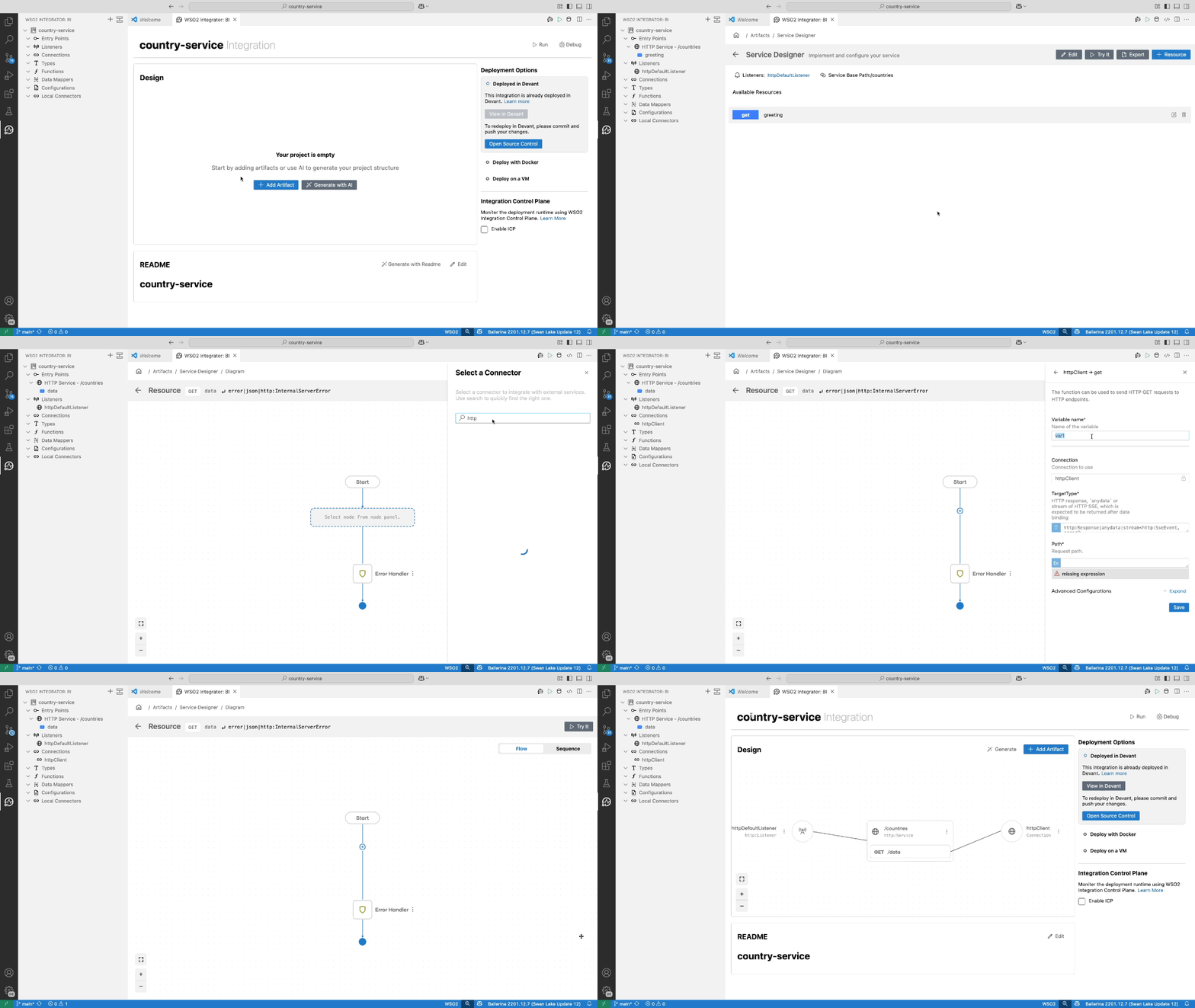
Step 4: Push to Devant
- Click the Source Control icon on the sidebar.
- Click + to stage all changes.
- Add an appropriate commit message and commit.
- Click Sync Changes to push the changes to remote.
- Go back to the Design view using the back arrow in the top left corner.
- From the right side panel, click the View in Devant to view this integration in Devant.
Step 5: Test the API
-
After you push, Devant detects the commit, builds it, and deploys the integration to the development environment, showing the status on the overview page.
Note
The build process may take some time. Once complete, the build status changes to Success. You can see the Build History by clicking Build in the left navigation.
-
Once the Build Status shows as
Build completed, click Test on the development environment card. This will bring you to the Console page. - Click Get Test Key to get a key for testing.
- You will have a single resource available GET /. Click to expand the resource.
- Click Try it out.
- Click Execute. You will see the response from the backend service as a JSON.
- After successfully testing, you can promote your event integration to production by clicking the Promote button.