Data Persistence
WSO2 Integrator lets you connect directly to a relational database, introspect its schema, and generate a type-safe client with ready-to-use CRUD methods — without writing any boilerplate. This walkthrough shows how to wire up a MySQL database connection and use it inside an automation.
The example uses an e-commerce order table. A scheduled automation picks up all newly placed orders and advances them to PROCESSING status, simulating the first step in warehouse fulfillment.
What this demonstrates
| Capability | Where it appears |
|---|---|
| Database connector | Orders DB (MySQL) |
| Automation trigger | main entry point — runs once per schedule invocation |
| Reading rows with a filter | Get orders where status = 'PLACED' |
| Updating a row | Advance each order status to PROCESSING |
| Iteration over results | foreach loop over the result set |
| Conditional early exit | Skip run when no PLACED orders exist |
| Logging | Per-order progress and final count |
Prerequisites
- WSO2 Integrator IDE installed. Refer to Install WSO2 Integrator for instructions.
- A running MySQL instance (version 8.0 or later) accessible on
localhost:3306.
Set up the database
Connect to your MySQL server and run the following scripts in order.
1. Create the database and user
CREATE DATABASE IF NOT EXISTS orders_db;

CREATE USER IF NOT EXISTS 'orders_user'@'localhost' IDENTIFIED BY 'orders_pass';
GRANT SELECT, UPDATE ON orders_db.* TO 'orders_user'@'localhost';
FLUSH PRIVILEGES;
2. Create the tables
USE orders_db;

CREATE TABLE IF NOT EXISTS customers (
    customer_id VARCHAR(36)  NOT NULL,
    name        VARCHAR(100) NOT NULL,
    email       VARCHAR(100) NOT NULL,
    address     VARCHAR(255) NOT NULL,
    PRIMARY KEY (customer_id)
);

CREATE TABLE IF NOT EXISTS products (
    product_id   VARCHAR(36)  NOT NULL,
    product_name VARCHAR(100) NOT NULL,
    category     VARCHAR(50)  NOT NULL,
    price        DECIMAL(10, 2) NOT NULL,
    PRIMARY KEY (product_id)
);

CREATE TABLE orders (
    order_id    VARCHAR(36)    NOT NULL,
    customer_id VARCHAR(36)    NOT NULL,
    product_id  VARCHAR(36)    NOT NULL,
    amount      DECIMAL(10, 2) NOT NULL,
    status      VARCHAR(20)    NOT NULL DEFAULT 'PLACED',
    placed_at   DATETIME       NOT NULL DEFAULT CURRENT_TIMESTAMP,
    PRIMARY KEY (order_id),
    FOREIGN KEY (customer_id) REFERENCES customers(customer_id),
    FOREIGN KEY (product_id) REFERENCES products(product_id)
);
The status column drives the automation lifecycle: PLACED → PROCESSING → SHIPPED → DELIVERED. This automation handles only the PLACED → PROCESSING transition.
3. Insert seed data
USE orders_db;

INSERT INTO customers (customer_id, name, email, address) VALUES
    ('CUST-001', 'John Smith',     '[email protected]',     '123 Main St, San Francisco, CA'),
    ('CUST-002', 'Sarah Johnson',  '[email protected]',  '456 Oak Ave, New York, NY'),
    ('CUST-003', 'Michael Brown',  '[email protected]',  '789 Pine Rd, Austin, TX'),
    ('CUST-004', 'Emma Davis',     '[email protected]',     '321 Elm St, Seattle, WA');

INSERT INTO products (product_id, product_name, category, price) VALUES
    ('PROD-001', 'Wireless Headphones', 'Electronics', 79.99),
    ('PROD-002', 'USB-C Hub',           'Electronics', 34.50),
    ('PROD-003', 'Mechanical Keyboard', 'Electronics', 129.00),
    ('PROD-004', 'Monitor Stand',       'Accessories', 49.99);

INSERT INTO orders (order_id, customer_id, product_id, amount, status, placed_at) VALUES
    ('ORD-001', 'CUST-001', 'PROD-001', 79.99,  'PLACED',     '2025-01-15 09:00:00'),
    ('ORD-002', 'CUST-002', 'PROD-002', 34.50,  'PLACED',     '2025-01-15 09:15:00'),
    ('ORD-003', 'CUST-003', 'PROD-003', 129.00, 'PROCESSING', '2025-01-14 14:00:00'),
    ('ORD-004', 'CUST-004', 'PROD-004', 49.99,  'PROCESSING', '2025-01-14 16:30:00');
ORD-001 and ORD-002 are the actionable records. ORD-003 and ORD-004 are already processing — the WHERE status = 'PLACED' filter ensures they are never re-processed.
4. Verify the setup
USE orders_db;
SELECT order_id, amount, status FROM orders;
You should see all four rows with the statuses shown above.
Step 1: Create the MySQL connection
-
Select + Add Artifact.
-
Select Connection from Other Artifacts.
-
Select Connect to a Database.
-
In the Introspect Database form, select MySQL as the Database Type and enter the following connection details:
Field Value Host localhostPort 3306Database Name orders_dbUsername orders_userPassword orders_pass -
Select Connect & Introspect Database.
-
In the Select Tables form, select all tables and select Continue to Connection Details.
-
In the Create Connection form, set the Connection Name to
ordersDBand select Save Connection.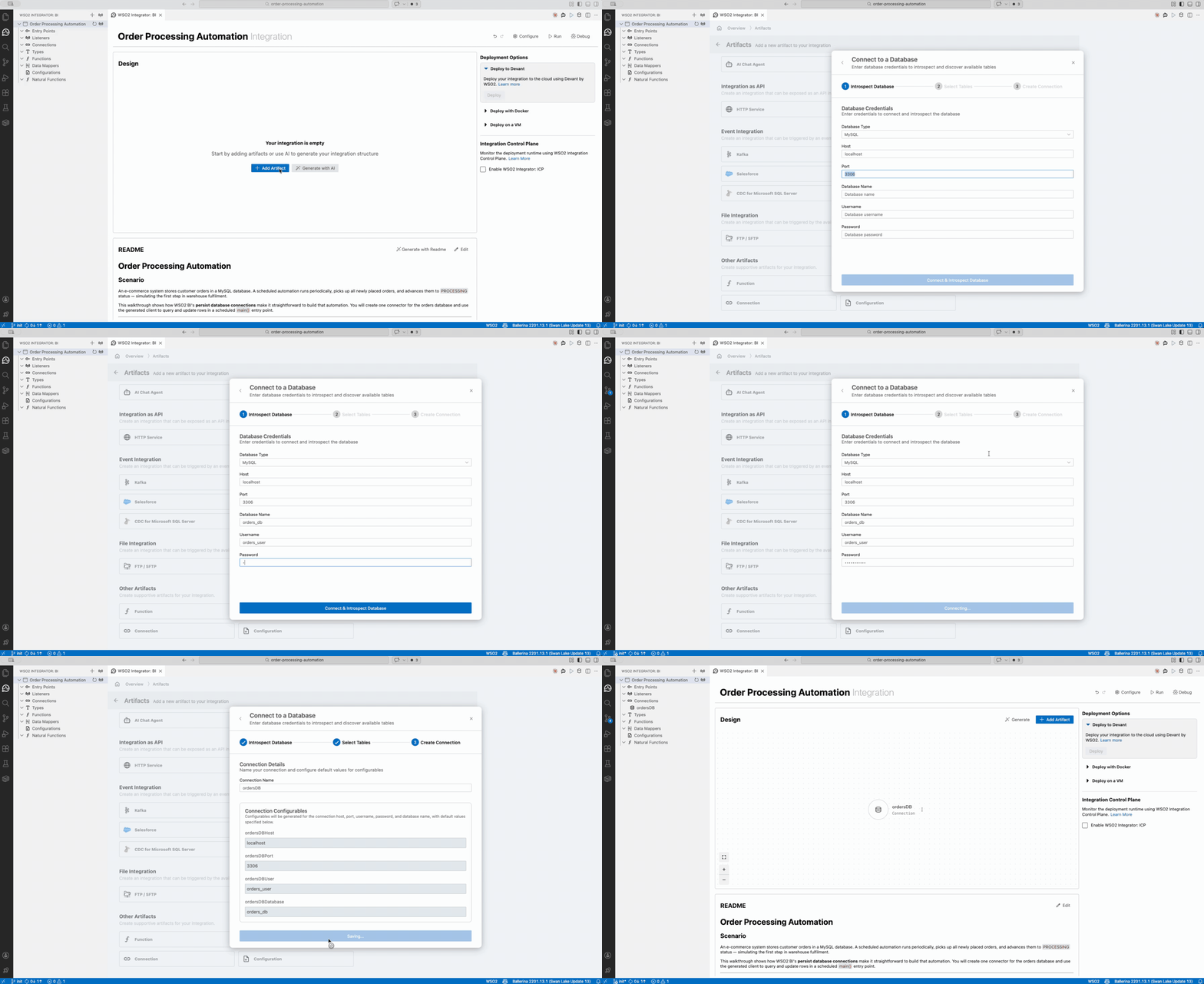
-
Select the created
ordersDBconnection and select View ER Diagram to verify the schema was introspected correctly.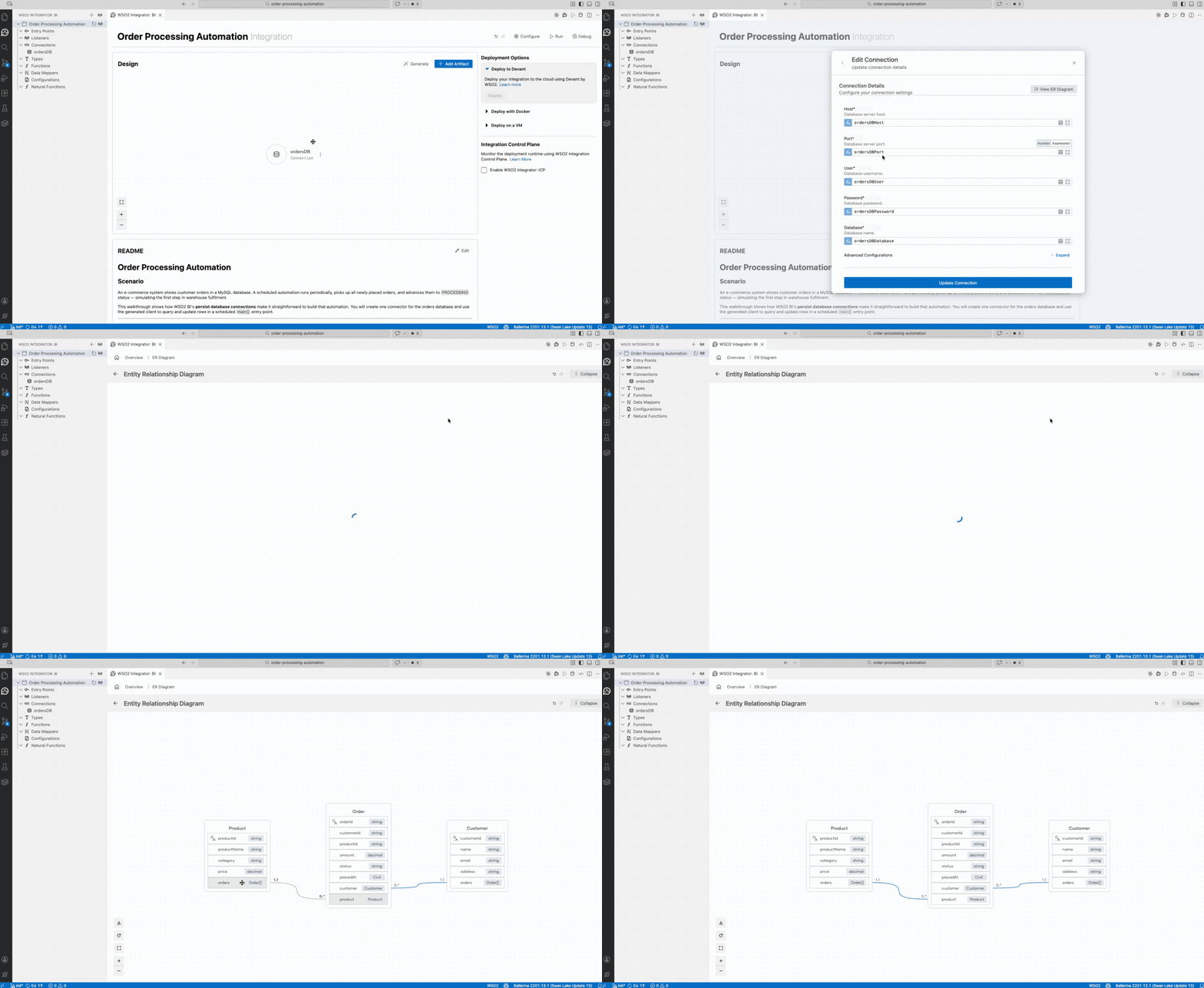
- Ensure the database user has
SELECTpermission (required for schema introspection and querying rows) andUPDATEpermission (required for advancing order status). - When you select a table, any tables with foreign key relationships to it are automatically included. This ensures all related tables are available in the generated client.
- The generated client exposes basic CRUD operations for the selected tables as typed methods, so you can interact with the database without writing raw SQL.
Troubleshooting connection errors
| Error | Message | Resolution |
|---|---|---|
| Connection failed | Communications link failure. The last packet sent successfully to the server was 0 milliseconds ago. | Verify the hostname and port, and ensure the database server is running. |
| Access denied | Access denied for user 'user'@'localhost' (using password: YES) | Check the username and password, and confirm the user has the required permissions. |
| Unknown database | Unknown database 'orders_db' | Verify the database name and ensure it has been created on the server. |
Step 2: Build the automation
- Select + Add Artifact and select Automation from Automation.
- Select Create.
Step 2.1: Get newly placed orders
-
Add a Get rows from orders action node from the
ordersDBconnection. Expand Advanced Configurations and set:Setting Value Where Clause status = "PLACED" -
Set the Result name to
placedOrders. -
From Target Type, select the fields
orderIdandstatus.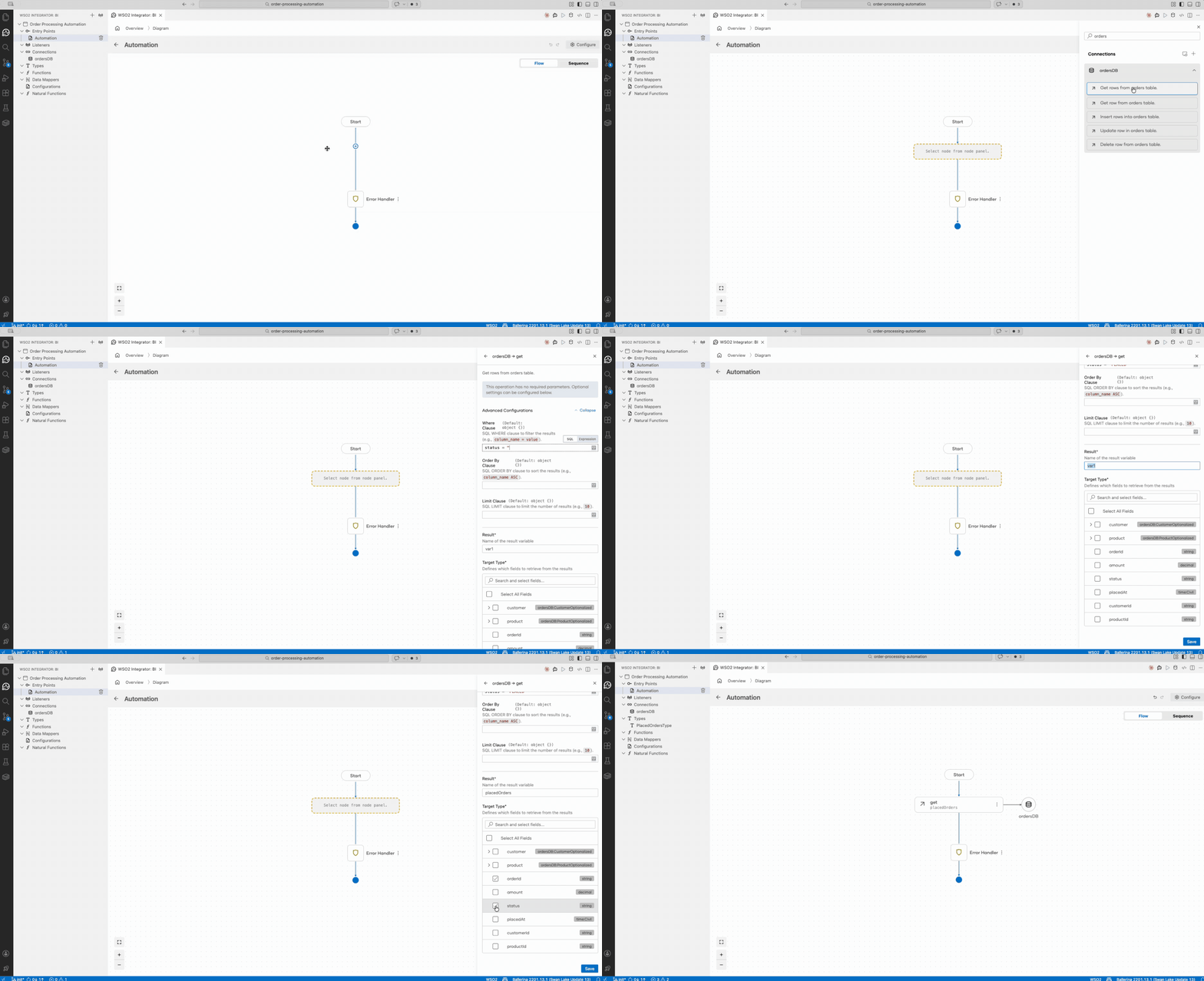
Step 2.2: Handle the case where no orders need processing
-
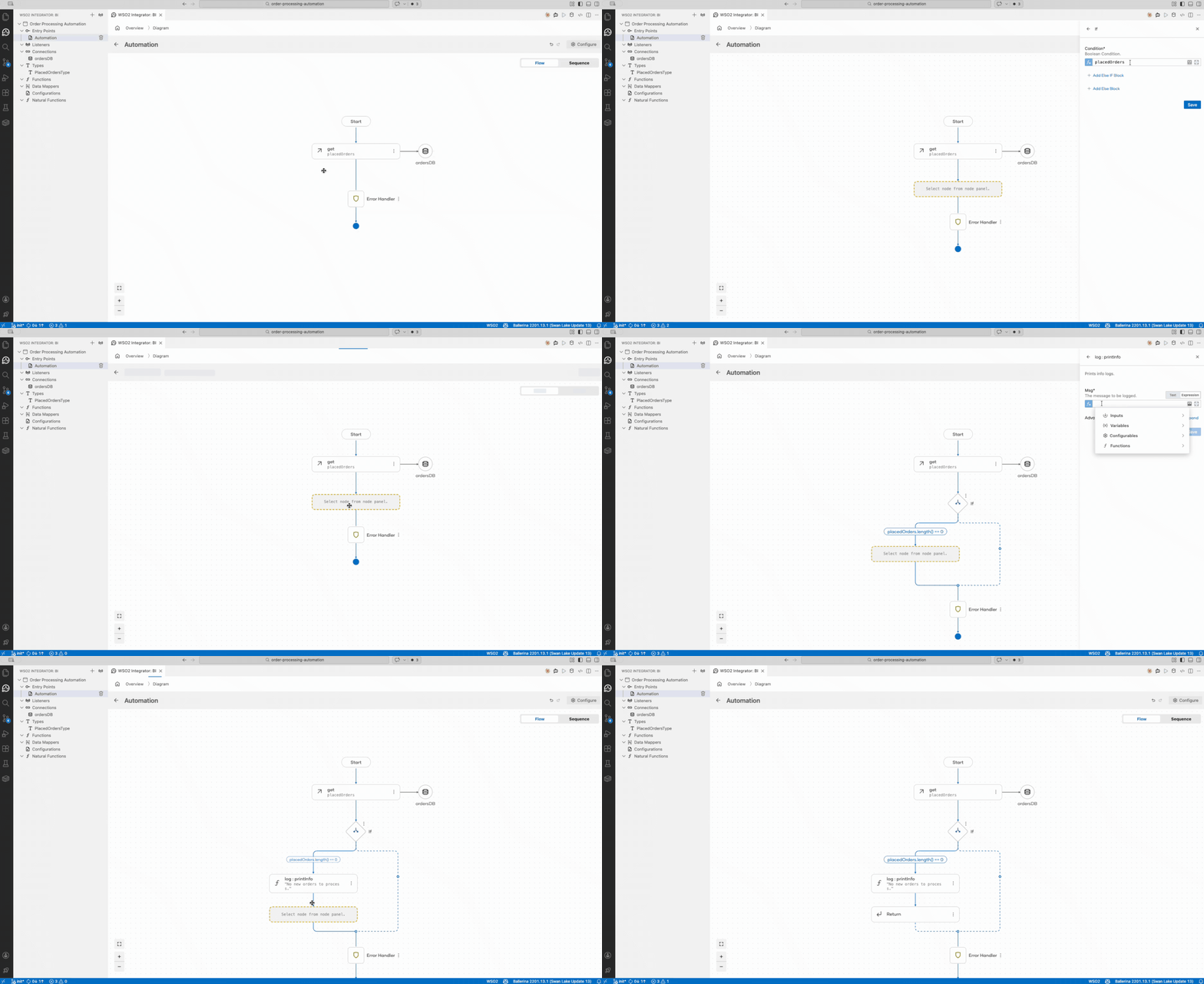
Add an If control node with the condition:
placedOrders.length() == 0 -
Inside the If block, add a Log Info statement node with the message:
No new orders to process. -
Add a Return control node to exit early.
Step 2.3: Loop and update each order
Add a Foreach control node:
- Set Collection to
placedOrders - Set the Result name to
placedOrder - Set Type to
PlacedOrdersType
Inside the Foreach block:
-
Add an Update row in orders action node from the
ordersDBconnection. SelectorderIdas the key, set its value toplacedOrder.orderId, set status to"PROCESSING", and set the Result name toupdatedOrder. -
Add a Log Info statement node with the message:
Order advanced to PROCESSINGUnder Advanced Configurations, set the following Additional Values:
Key Value orderIdupdatedOrder.orderId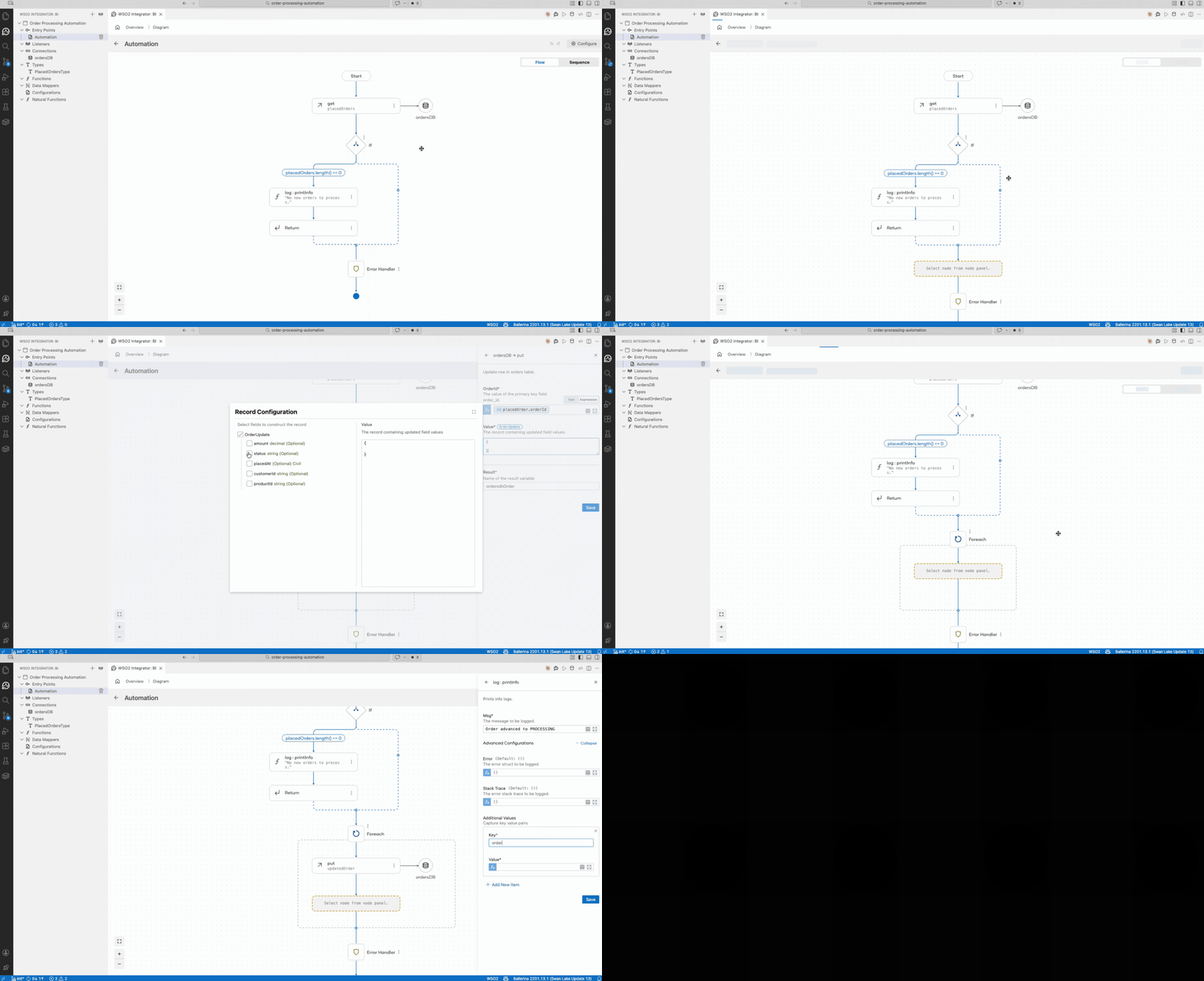
Step 2.4: Log the summary
After the Foreach block, add a Log Info statement node with the message:
Done — processed orders
Under Advanced Configurations, set the following Additional Values:
| Key | Value |
|---|---|
count | placedOrders.length() |
Run the automation
Select the Run button. WSO2 Integrator prompts you to create the necessary configuration. Select Create Config.toml and add the database password to the generated Config.toml file.
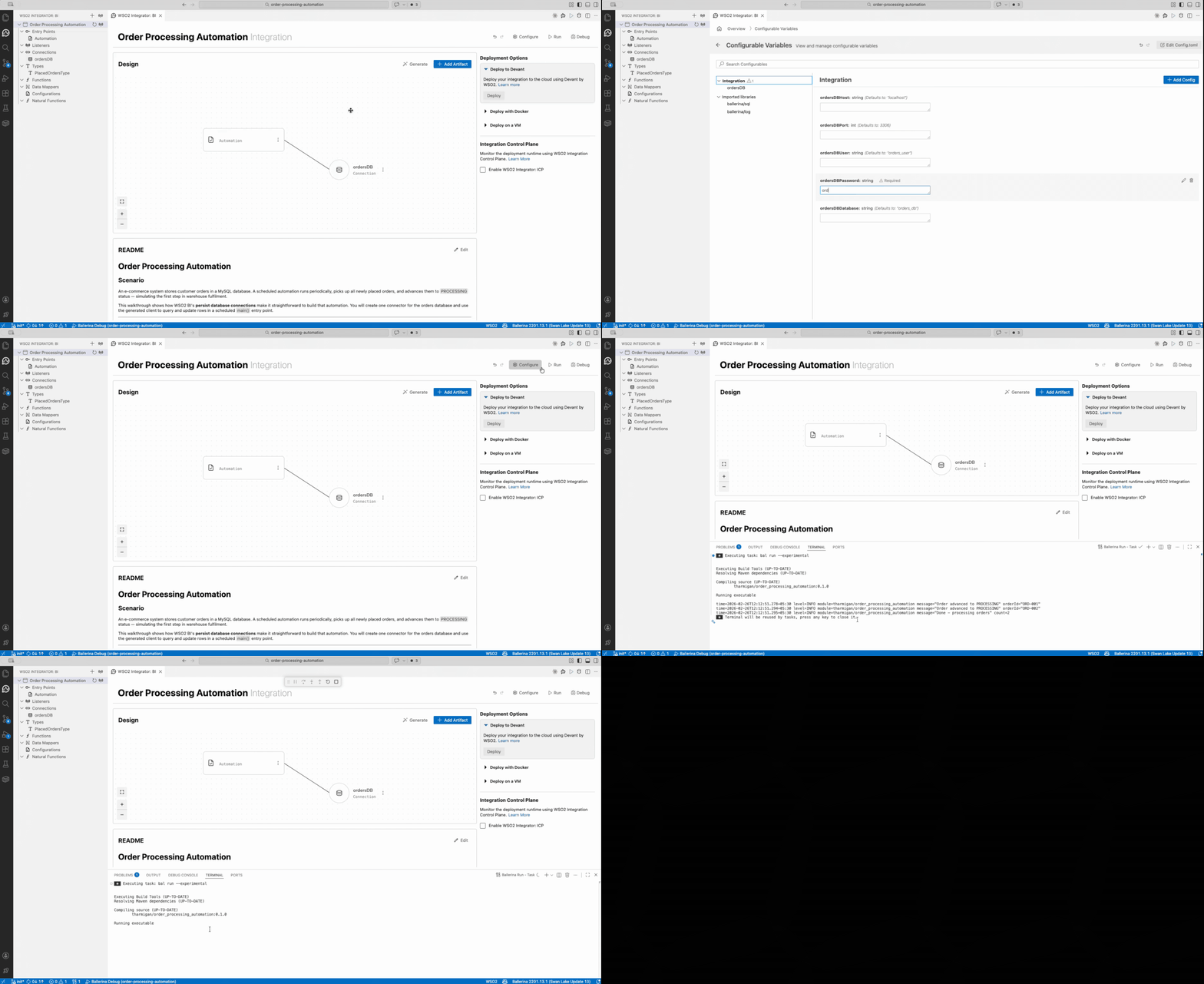
On first run (with ORD-001 and ORD-002 in PLACED status) you should see:
msg="Order advanced to PROCESSING" orderId="ORD-001"
msg="Order advanced to PROCESSING" orderId="ORD-002"
msg="Done — processed orders" count=2
Connect to MySQL and confirm both orders are now PROCESSING:
USE orders_db;
SELECT order_id, status FROM orders;
Run the automation again — all orders are already PROCESSING, so the early-exit path fires:
No new orders to process.
Seed data reference
| order_id | customer_id | product_id | amount | status |
|---|---|---|---|---|
| ORD-001 | CUST-001 | PROD-001 | 79.99 | PLACED |
| ORD-002 | CUST-002 | PROD-002 | 34.50 | PLACED |
| ORD-003 | CUST-003 | PROD-003 | 129.00 | PROCESSING |
| ORD-004 | CUST-004 | PROD-004 | 49.99 | PROCESSING |
Reset to a clean state
To re-run the automation from scratch, reset the seed data:
USE orders_db;
UPDATE orders SET status = 'PLACED' WHERE order_id IN ('ORD-001', 'ORD-002');
What's next
- Connections: Manage and reuse database and API connections across your project
- Automation: Schedule and trigger automations
- Configuration management: Manage database credentials per environment