XLSX Processing
Microsoft Excel files in the XLSX format are a common medium for reports, partner data exchange, and bulk import and export. Spreadsheets move tabular data between business users and systems, often with multiple sheets, typed columns such as dates and amounts, and structured Excel Tables.
WSO2 Integrator provides built-in support for XLSX through the ballerina/xlsx module, which binds spreadsheet rows to strongly typed Ballerina records. It combines a one-shot functional API (parseSheet, writeSheet, parseTable, writeTable) for single-sheet and single-table work with an object-based Workbook API for multi-sheet operations, byte-array I/O, and cell-level control.
All processing is local, with no external service dependency. The sections below progress from reading and writing a single sheet, through read options, Excel Tables, and typed columns such as dates and times, to less frequent needs: headerless and fail-safe reads, multi-sheet workbooks, large files, and edge cases.
The Workbook API for multi-sheet, byte-array, and cell-level work is not available from the visual designer's + menu. It only offers the four one-shot functions: parseSheet, writeSheet, parseTable, and writeTable.
Workbook API methods should be implemented in Ballerina code. Once they exist in the source, you can find them on the canvas to review and adjust the flow as needed.
Mapping spreadsheet columns to records
Declare a record type with the fields you want to extract. The xlsx:parseSheet() function matches Excel column headers to record field names, builds one record per row, and ignores any columns not declared in the record. The record drives what gets read, so you don't need to mirror the sheet column-for-column. Whether the source has 5 columns or 50, only the fields you declare are populated.
This flexibility is the foundation for everything that follows. Full row mapping, file and byte reading, multi-sheet operations, and tables all build on the same column-to-field matching rule.
- Visual Designer
- Ballerina Code
-
Define a record with only the columns you need. Navigate to Types and click +. Select Create from scratch, set Kind to Record, and name it
EmployeeSummary. Add only the fields you care about (for example,name(string) andsalary(decimal)). For details on creating types, see Types. -
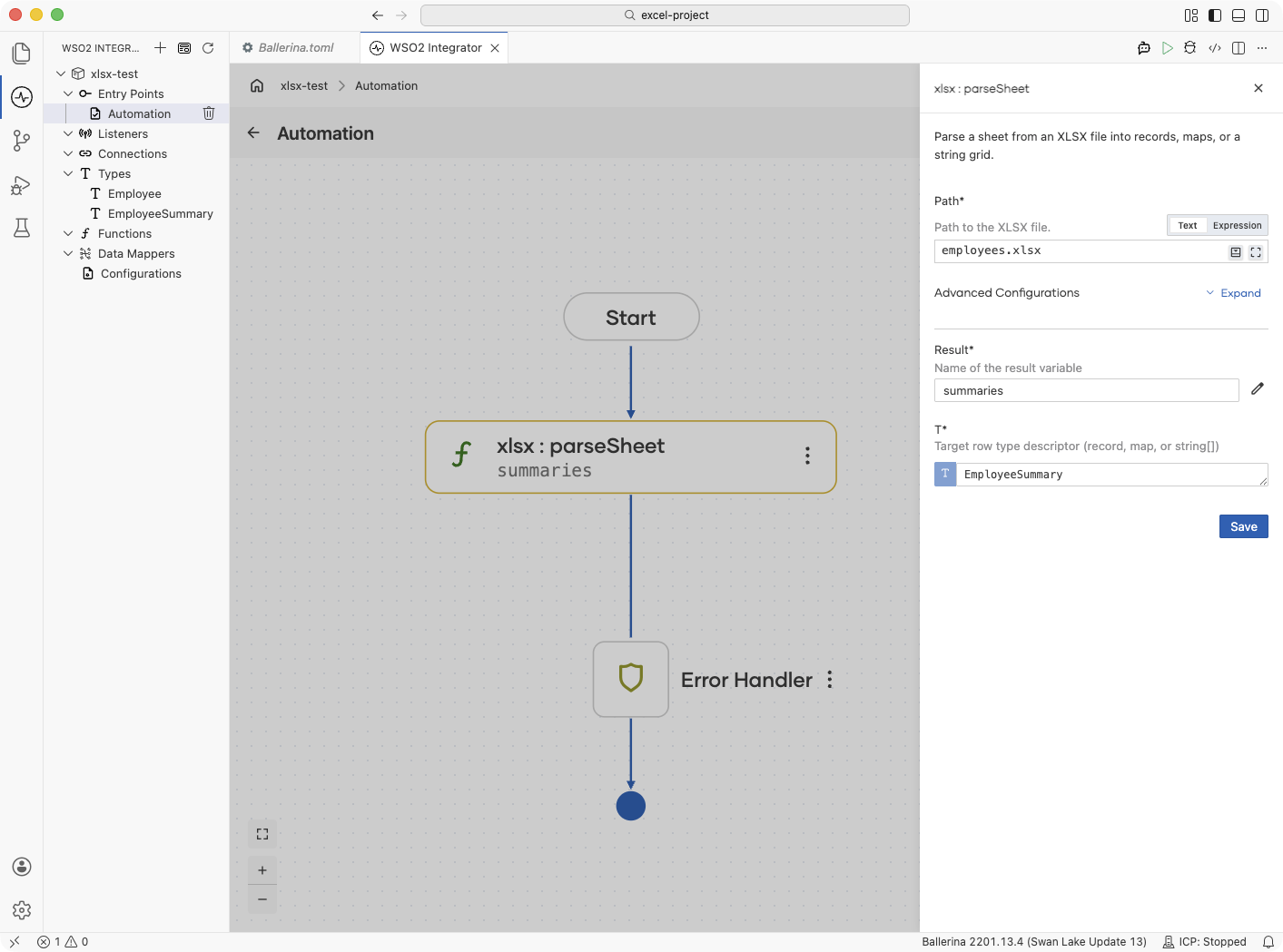
Parse the sheet. Click + and select Call Function. Search for
parseSheetand select it under xlsx. Configure:- Path*:
employees.xlsx - Result*:
summaries - T*:
EmployeeSummary[]
- Path*:
import ballerina/xlsx;

// The sheet has many columns; this record declares only the two we use.
// Every other column is silently ignored.
type EmployeeSummary record {|
    string name;
    decimal salary;
|};

public function main() returns error? {
    EmployeeSummary[] summaries = check xlsx:parseSheet("employees.xlsx");
}
Reading a sheet into records
When you do need every column, declare a record that includes all of them and iterate over the parsed array. The mapping rule is the same as in Mapping spreadsheet columns to records: this is just the case where the record covers the full row. By default parseSheet reads the first sheet (index 0). Pass a sheet name or a 0-based index as the second argument to choose another.
- Visual Designer
- Ballerina Code
-
Define the record type. Navigate to Types and click +. Select Create from scratch, set Kind to Record, and name it
Employee. Add fields using the + button:Field Type namestringdepartmentstringsalarydecimalyearsOfServiceintFor details on creating types, see Types.
-
Parse the sheet. Click + and select Call Function. Search for
parseSheetunder xlsx. Configure:- Path*:
employees.xlsx - Sheet:
"Staff"(a sheet name, or a 0-based index such as0) - Result*:
employees - T*:
Employee[]
- Path*:
-
Add a Foreach step. Click + and select Foreach under Control. Set the collection to
employees, the variable name toemp, and the variable type toEmployee. -
Add println inside the loop. Inside the Foreach body, click + and select Call Function. Search under standard library → io → select
println, and print the fields you need.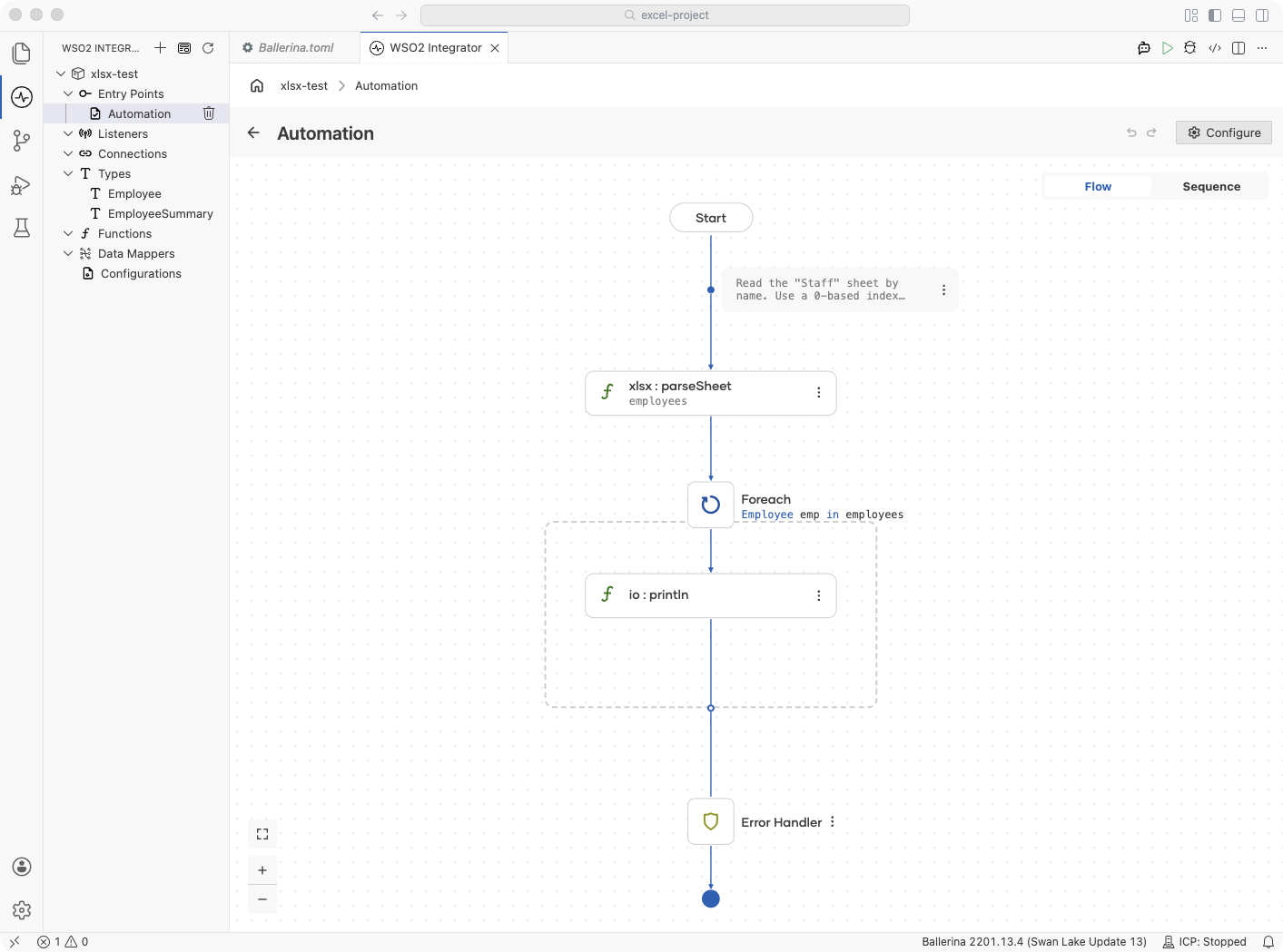
import ballerina/io;
import ballerina/xlsx;

type Employee record {|
    string name;
    string department;
    decimal salary;
    int yearsOfService;
|};

public function main() returns error? {
    // Read the "Staff" sheet by name. Use a 0-based index (for example, 0) to read by position.
    Employee[] employees = check xlsx:parseSheet("employees.xlsx", "Staff");

    foreach Employee emp in employees {
        io:println(string `${emp.name} (${emp.department}): ${emp.salary}`);
    }
}
Reading from files and bytes
Read a sheet directly from a file path with xlsx:parseSheet(), or open a workbook held in a byte array with xlsx:fromBytes(). The byte path suits payloads pulled from SFTP, an HTTP request, or a message queue, where the file never touches disk. Both paths use the same column-to-field mapping from Mapping spreadsheet columns to records.
The module loads each workbook fully into memory (the DOM model). There is no row-streaming API, so it does not read files incrementally. For very large workbooks, see Working with large workbooks.
- Visual Designer
- Ballerina Code
-
Define the record type. Create a record named
Orderwith fieldsid(int),customer(string), andamount(decimal). For details, see Types. -
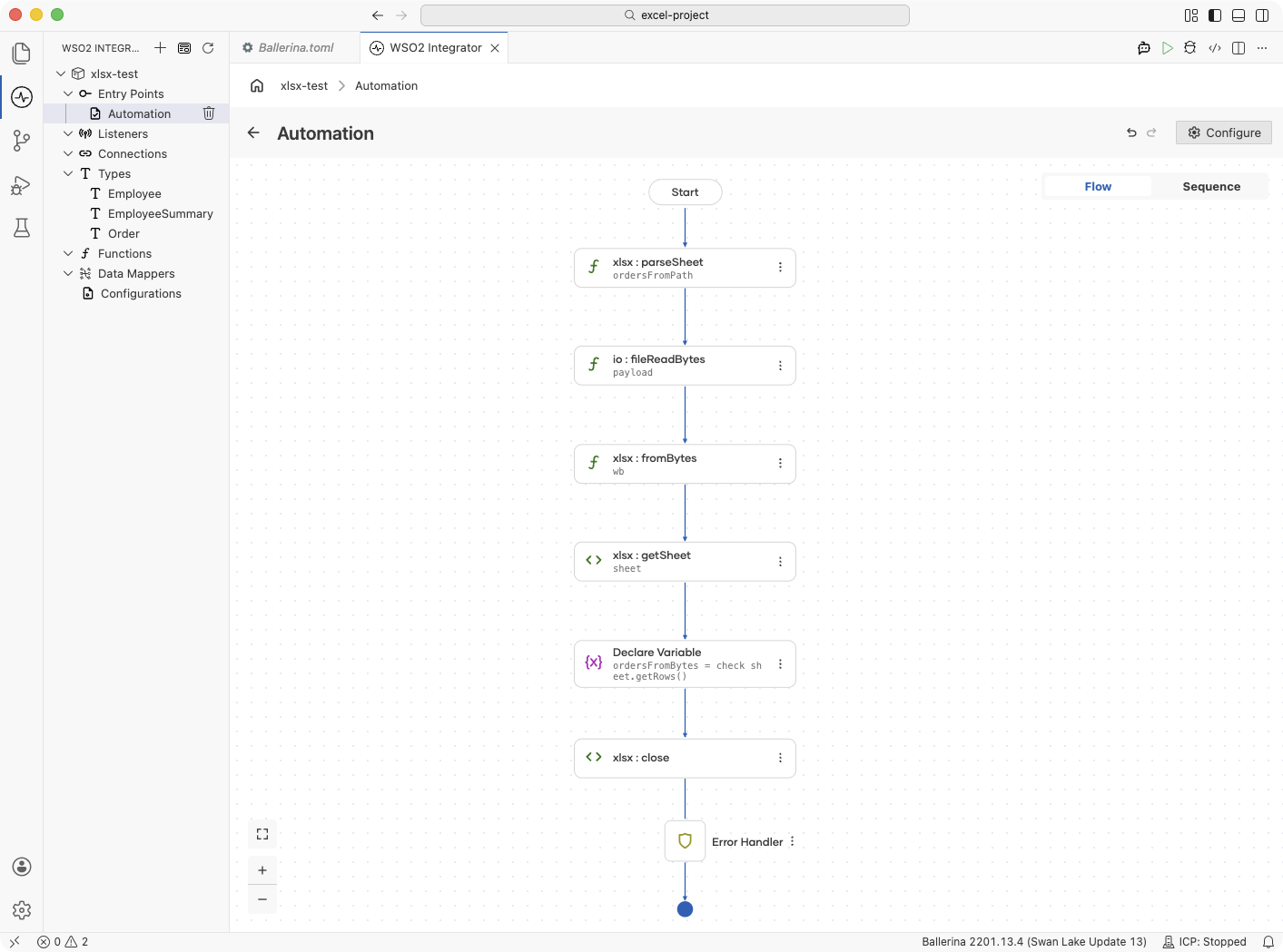
Read from a file path. Click + and select Call Function. Search for
parseSheetunder xlsx. Configure:- Path*:
orders.xlsx - Result*:
orders - T*:
Order[]
- Path*:
Reading from a byte array instead uses the Workbook API (fromBytes, getSheet, getRows, close), shown in the Ballerina Code tab. The + menu offers only the four one-shot functions.
import ballerina/io;
import ballerina/xlsx;

type Order record {|
    int id;
    string customer;
    decimal amount;
|};

public function main() returns error? {
    // From a file path.
    Order[] ordersFromPath = check xlsx:parseSheet("orders.xlsx");

    // From a byte array, for example a payload pulled from SFTP or an HTTP request.
    byte[] payload = check io:fileReadBytes("orders.xlsx");
    xlsx:Workbook wb = check xlsx:fromBytes(payload);
    xlsx:Sheet sheet = check wb.getSheet(0);
    Order[] ordersFromBytes = check sheet.getRows();
    check wb.close();
}
Writing a sheet
Write an array of records to a sheet with xlsx:writeSheet(). If the file already exists, it is opened and only the named sheet is affected, so every other sheet, table, and formula is preserved. The write is atomic, so a failed write never destroys the original file.
Writing rewrites only the cell values, so a parseSheet followed by writeSheet does not preserve the target sheet's formulas, formatting, or charts.
The sheetWriteMode option controls what happens when the target sheet already exists. The default, FAIL_IF_EXISTS, refuses to overwrite data by accident. Opt in to REPLACE to drop and recreate the sheet, or APPEND to add rows below the existing data.
- Visual Designer
- Ballerina Code
-
Define the record type. Create a record named
Productwith fieldsid(string),name(string),price(decimal), andstock(int). For details, see Types. -
Build the data. Add a variable named
productsof typeProduct[]with the rows to write. -
Write the sheet. Call
writeSheetunder xlsx. Configure:- Data*:
products - Path*:
catalog.xlsx - Sheet Name:
"Catalog"
- Data*:
-
(Optional) Choose a write mode. Under Advanced Configurations → Options, set
sheetWriteModetoREPLACEorAPPENDto write into a sheet that already exists.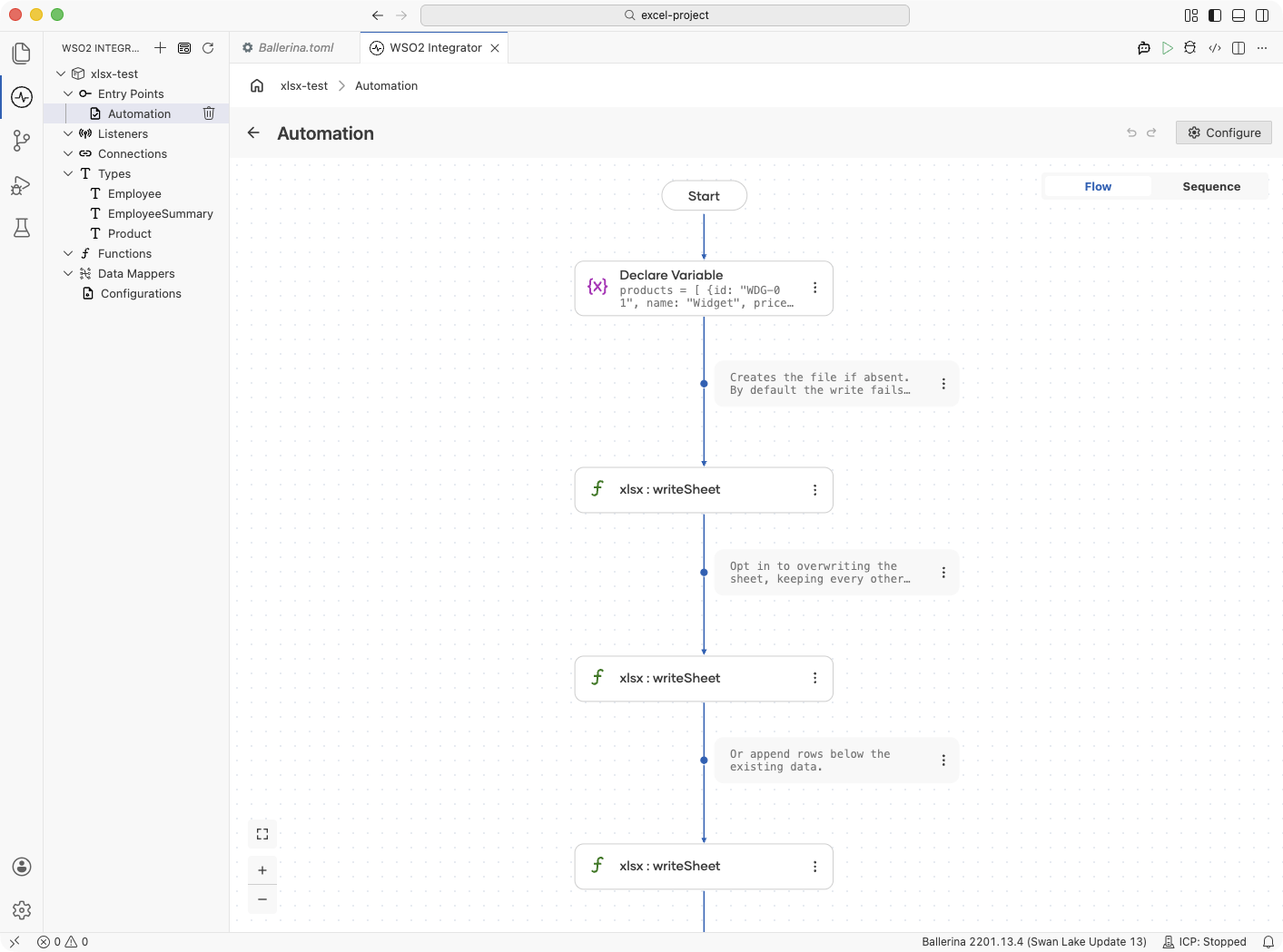
import ballerina/xlsx;

type Product record {|
    string id;
    string name;
    decimal price;
    int stock;
|};

public function main() returns error? {
    Product[] products = [
        {id: "WDG-01", name: "Widget", price: 29.99d, stock: 150},
        {id: "GDG-02", name: "Gadget", price: 49.99d, stock: 42}
    ];

    // Creates the file if absent. By default the write fails if the "Catalog" sheet
    // already exists, so existing data is never overwritten by accident.
    check xlsx:writeSheet(products, "catalog.xlsx", "Catalog");

    // Opt in to overwriting the sheet, keeping every other sheet in the file.
    check xlsx:writeSheet(products, "catalog.xlsx", "Catalog", sheetWriteMode = xlsx:REPLACE);

    // Or append rows below the existing data.
    check xlsx:writeSheet(products, "catalog.xlsx", "Catalog", sheetWriteMode = xlsx:APPEND);
}
Read options
All of the read functions (xlsx:parseSheet, xlsx:parseTable, Sheet.getRows, and the single-row and column readers) accept options that control how the input is interpreted. Use these to handle formula cells, match headers case-insensitively, locate the header and data rows, cap how many rows are read, validate against record constraints, or enable fail-safe processing.
In the visual designer, read options live under Advanced Configurations → Options on the parse step. The field is empty by default ({}), meaning all defaults apply.
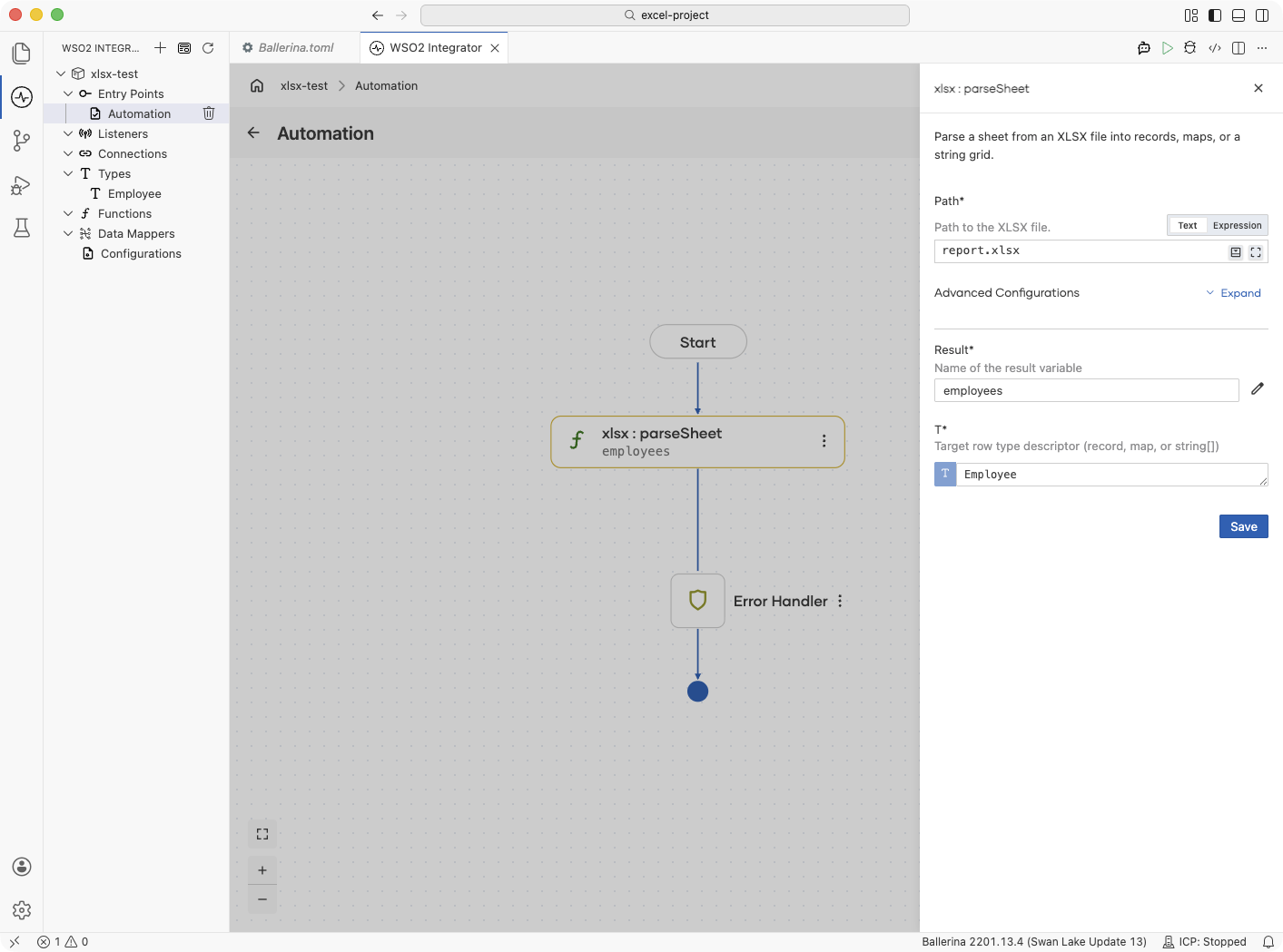
Click the Options field to open the Record Configuration helper. Tick the checkbox next to any option you want to set, fill in the value, and click Save.
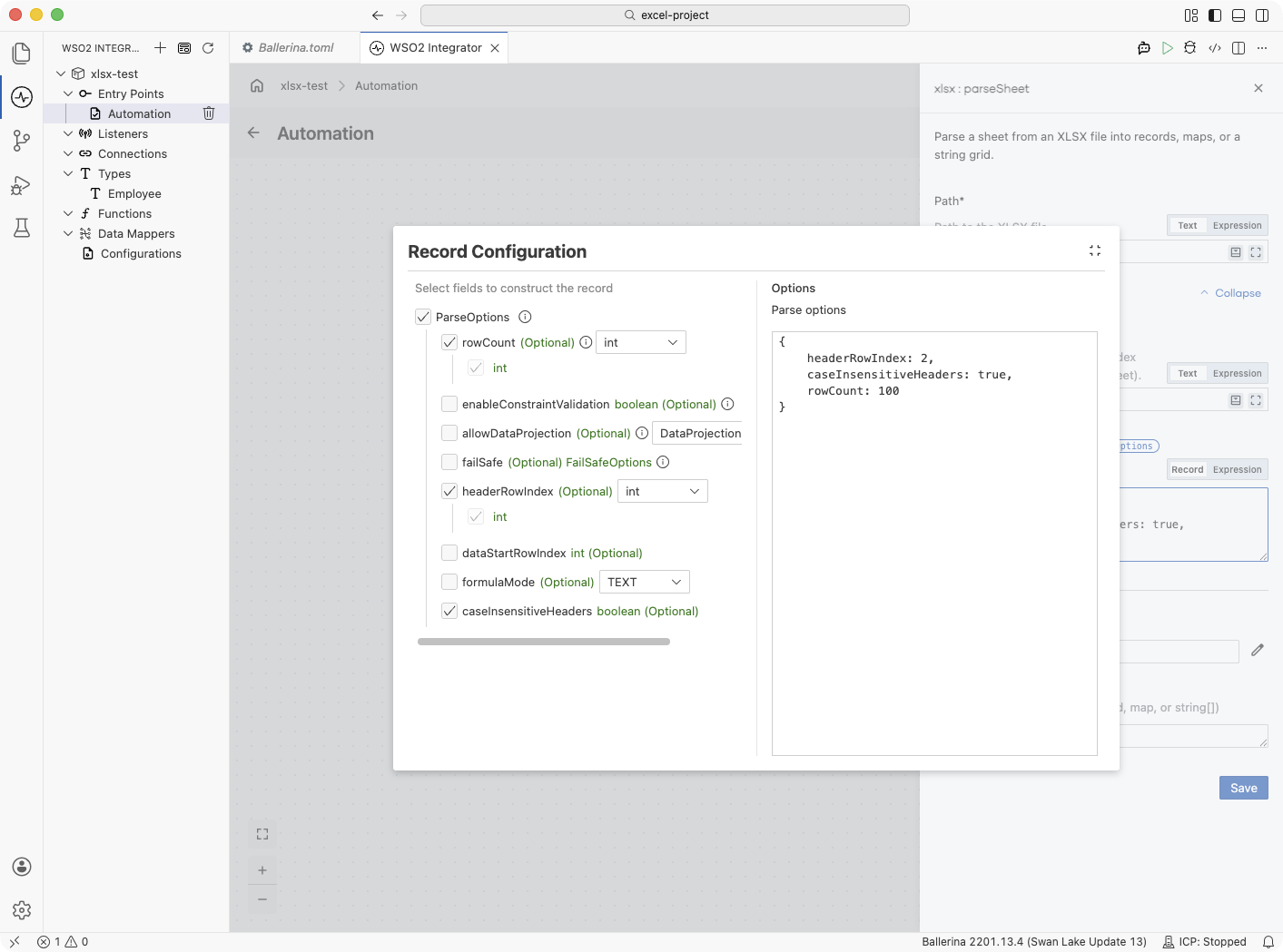
Available options
The fields below match the ParseOptions record used by sheet reads. Table reads use TableParseOptions, which omits the positional headerRowIndex and dataStartRowIndex fields because a table is self-describing.
| Option | Type | Description |
|---|---|---|
formulaMode | FormulaMode | How to read formula cells. CACHED (default) uses the last cached value; TEXT returns the formula string. See Formulas. |
caseInsensitiveHeaders | boolean | When true, header "Name" matches record field name or NAME. Default false. |
headerRowIndex | int? | 0-based index of the header row. Default 0. Set to () for input with no header row. See Headerless sheets. |
dataStartRowIndex | int | 0-based index where data starts. Defaults to headerRowIndex + 1. See Selecting a sheet and locating the header row. |
rowCount | int? | Maximum number of data rows to read. Default () reads all rows. |
allowDataProjection | record|false | Controls projection when the record covers only a subset of columns. Set to false to require an exact match. The record form has nilAsOptionalField and absentAsNilableType boolean fields. Default {}. |
enableConstraintValidation | boolean | When true, parsed records are validated against any @constraint annotations. Default true. |
failSafe | FailSafeOptions? | Skips and logs invalid rows instead of aborting the read. See Fail-safe processing. |
In Ballerina code, options are passed as the third argument to parseSheet, after the path and the sheet selector:
import ballerina/xlsx;

type Employee record {|
    string name;
    int age;
|};

public function main() returns error? {
    Employee[] employees = check xlsx:parseSheet("report.xlsx", "Staff", {
        headerRowIndex: 2,
        caseInsensitiveHeaders: true,
        rowCount: 100
    });
}
Reading and writing Excel tables
An Excel Table (ListObject) is a named, structured range with its own header and data region. Tables are unique by name across the entire workbook, so no sheet specifier is needed. For one-shot flows, use the tier-1 functions xlsx:parseTable() and xlsx:writeTable(). By default writeTable resizes the table's data range to fit the data exactly, growing or shrinking it.
- Visual Designer
- Ballerina Code
-
Define the record type. Create a record named
Employeewith fieldsname(string) andage(int). For details, see Types. -
Read the table. Click + and select Call Function. Search for
parseTableunder xlsx. Configure:- Path*:
data.xlsx - Table Name*:
EmployeeTable - Result*:
employees - T*:
Employee[]
- Path*:
-
Write the table back. Call
writeTableunder xlsx with the updated rows, the same path, and the table name. The data range resizes to fit.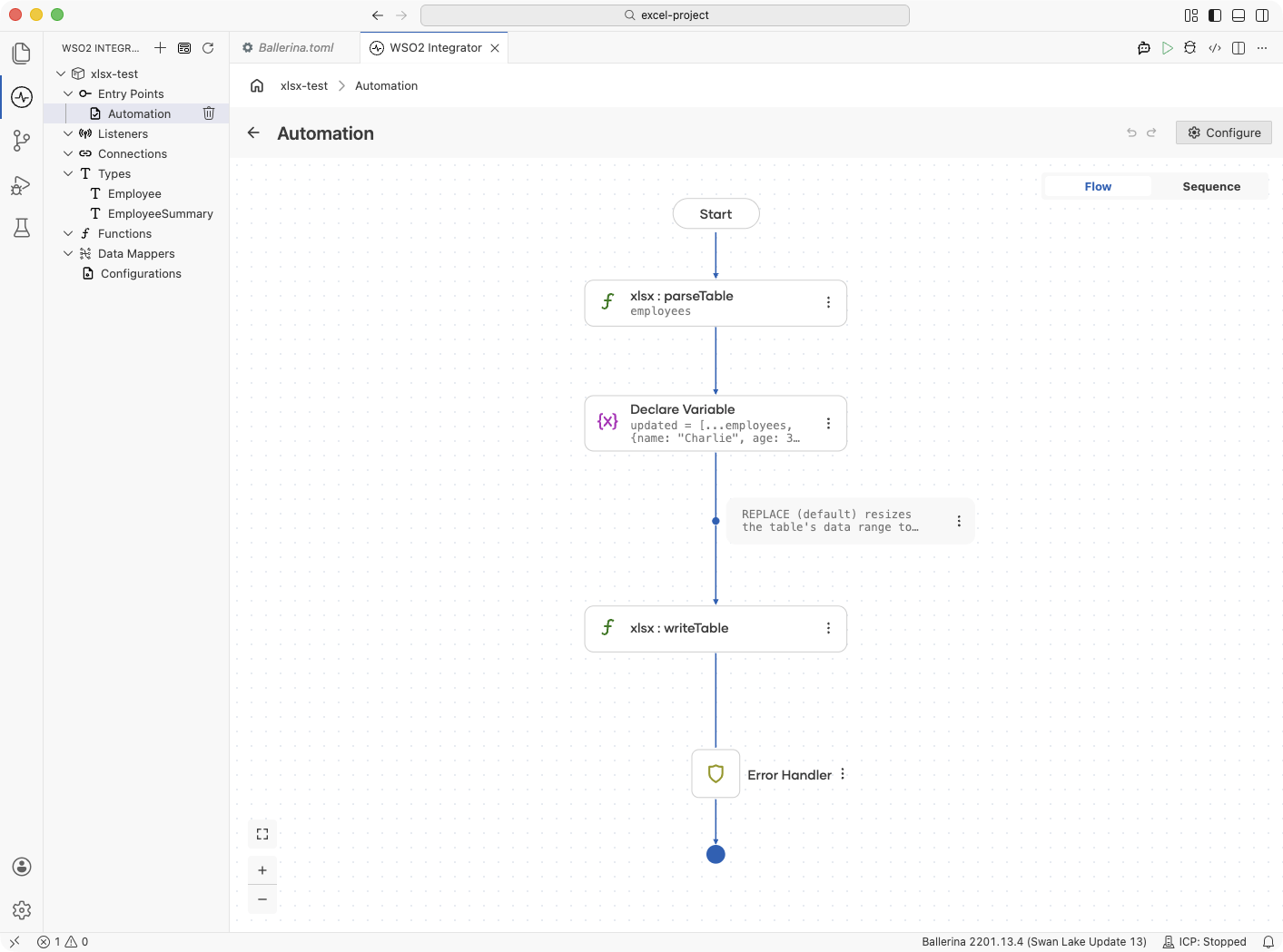
import ballerina/xlsx;

type Employee record {|
    string name;
    int age;
|};

public function main() returns error? {
    Employee[] employees = check xlsx:parseTable("data.xlsx", "EmployeeTable");

    Employee[] updated = [...employees, {name: "Charlie", age: 35}];
    // REPLACE (default) resizes the table's data range to fit the data.
    check xlsx:writeTable(updated, "data.xlsx", "EmployeeTable");
}
For richer operations, such as reading a totals row or renaming or resizing a table, reach the same table through the Workbook API and use the Table class. Write these in code (see Working with multiple sheets); the full method list is in the Table methods reference.
import ballerina/xlsx;

type Employee record {|
    string name;
    int age;
|};

public function main() returns error? {
    xlsx:Workbook wb = check xlsx:fromFile("data.xlsx");
    xlsx:Table empTable = check wb.getTable("EmployeeTable");

    Employee[] employees = check empTable.getRows();
    if check empTable.hasTotalRow() {
        map<xlsx:CellValue> totals = check empTable.getTotalRow();
        // Inspect the totals row.
    }

    Employee[] updated = [...employees, {name: "Charlie", age: 35}];
    check empTable.putRows(updated);

    check wb.save();
    check wb.close();
}
Selecting a sheet and locating the header row
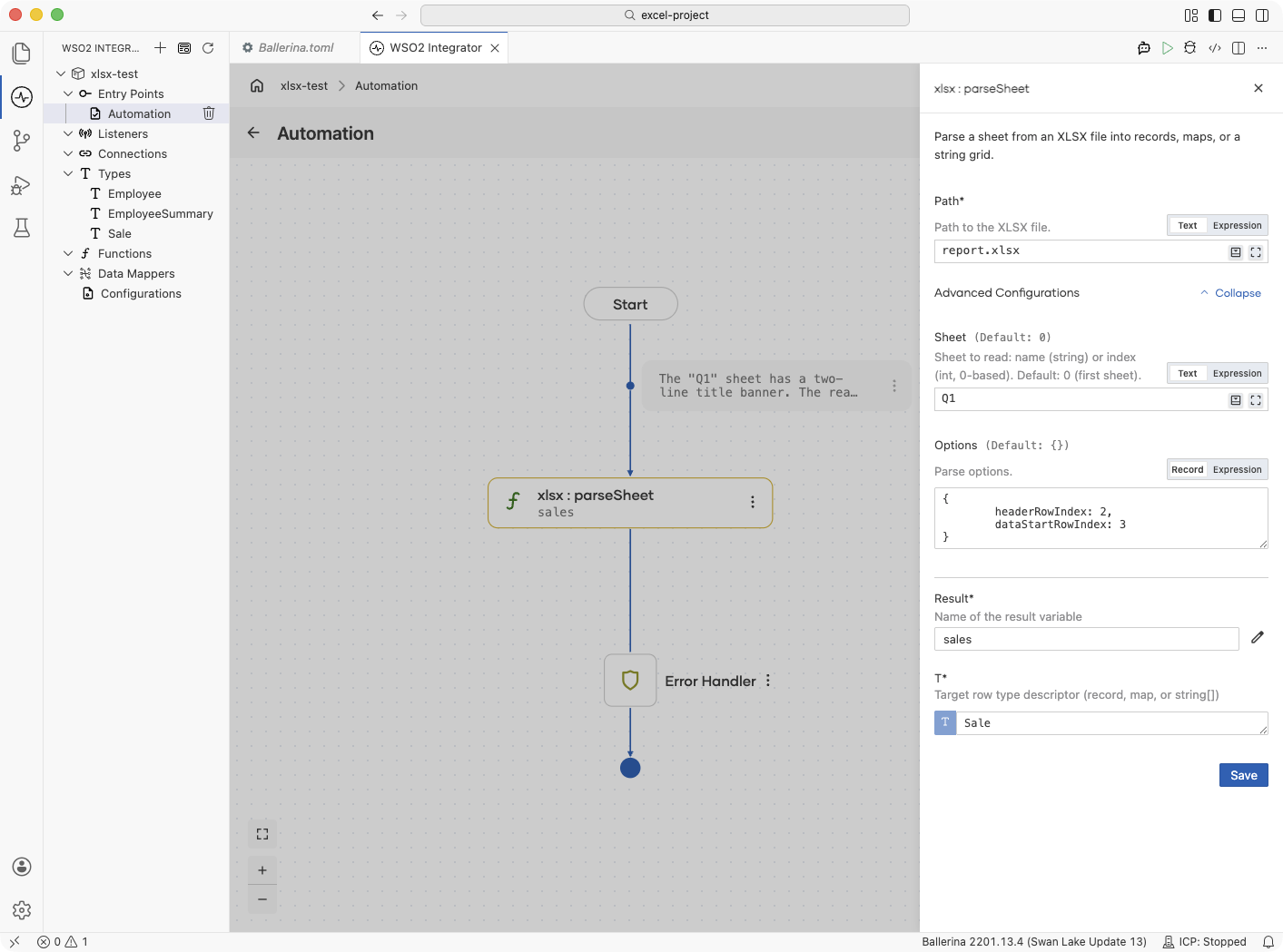
XLSX is a binary format, so there are no delimiters or encodings to configure. Instead, the controls that matter are which sheet to read and where the header and data rows sit. Pass a sheet name or a 0-based index as the second argument to parseSheet. When a sheet has a title banner or blank rows above the data, set headerRowIndex to the row that holds the column names and dataStartRowIndex to the first data row. Both are 0-based.
- Visual Designer
- Ballerina Code
-
Define the record type. Create a record named
Salewith fieldsproduct(string) andprice(decimal). For details, see Types. -
Select the sheet. Call
parseSheetunder xlsx and set Sheet to the sheet name (for example,"Q1") or a 0-based index. -
Point to the header and data rows. Under Advanced Configurations → Options (see Read options), set:
headerRowIndex:2dataStartRowIndex:3
import ballerina/xlsx;

type Sale record {|
    string product;
    decimal price;
|};

public function main() returns error? {
    // The "Q1" sheet has a two-line title banner. The real header is on row 2 (0-based),
    // and data starts on row 3.
    Sale[] sales = check xlsx:parseSheet("report.xlsx", "Q1", {
        headerRowIndex: 2,
        dataStartRowIndex: 3
    });
}
Reading and writing dates and times
The binder uses the target field type to decide what shape to produce for a date or time cell. Declare a field as time:Civil for a date-time value, time:Date for a date-only value, or time:TimeOfDay for a time-only value. Declare it as string to get an ISO 8601 string instead. Writing the records back produces date-formatted cells, not text cells.
- Visual Designer
- Ballerina Code
-
Define the record type. Create a record named
Transactionwith fieldsid(int),timestamp(time:Civil),settledOn(time:Date), andamount(decimal). For details, see Types. -
Parse the sheet. Call
parseSheetunder xlsx with the file path andTransaction[]as the target type. Date cells bind to the declaredtimetypes automatically. -
(Optional) Write back. Call
writeSheetunder xlsx with the same records to produce date-formatted cells.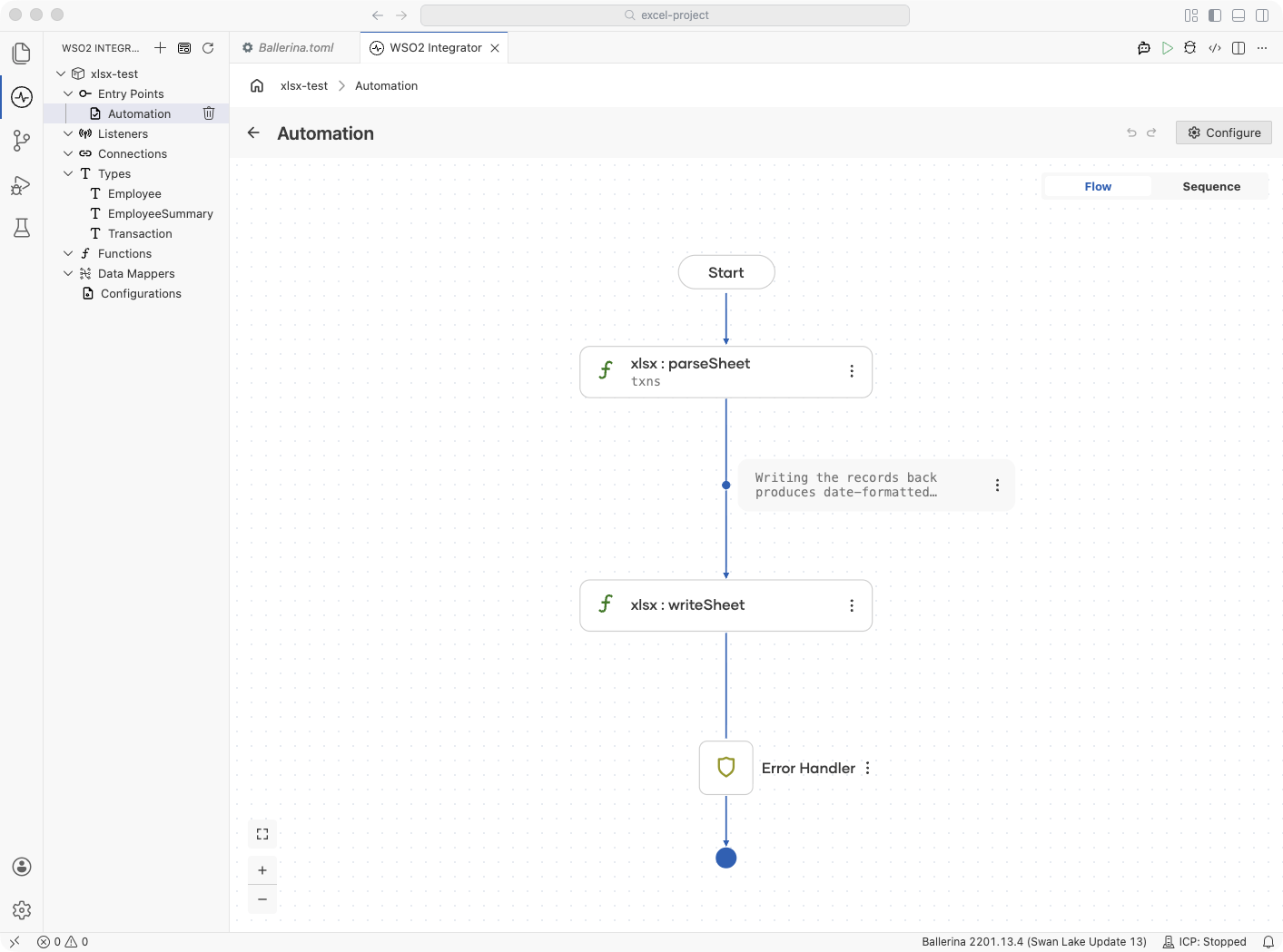
import ballerina/xlsx;
import ballerina/time;

type Transaction record {|
    int id;
    time:Civil timestamp;   // a date-time cell binds to time:Civil
    time:Date settledOn;    // a date-only cell binds to time:Date
    decimal amount;
|};

public function main() returns error? {
    Transaction[] txns = check xlsx:parseSheet("transactions.xlsx");

    // Writing the records back produces date-formatted cells, not text.
    check xlsx:writeSheet(txns, "transactions-out.xlsx");
}
Headerless sheets
At its most general, a sheet is just a grid of cells, and the universal representation of that grid is a 2D string array (string[][]): one inner array per row, one string per cell. The module supports this raw form directly, but the preferred representation is record[], which gives you typed fields and named columns instead of positional indexing.
When a sheet has no header row, you have two options:
- Read into
string[][]and access cells by index. Raw mode is lossless, so every row is returned as data. Use this when you don't have a fixed schema or the column order is unreliable. - Read into a typed
record[]by settingheaderRowIndexto(). The columns are then exposed ascol0,col1, and so on, which you map onto record fields with@xlsx:Name.
- Visual Designer
- Ballerina Code
-
Read as a raw grid. Call
parseSheetunder xlsx with T set tostring[][]. Every row, including any that look like a header, is returned as string cells you access by index. -
(Alternative) Read into typed records. Define a record whose fields use
@xlsx:Nameto map the generatedcol0,col1, and so on. Under Advanced Configurations → Options (see Read options), setheaderRowIndexto(), and set T to your record array.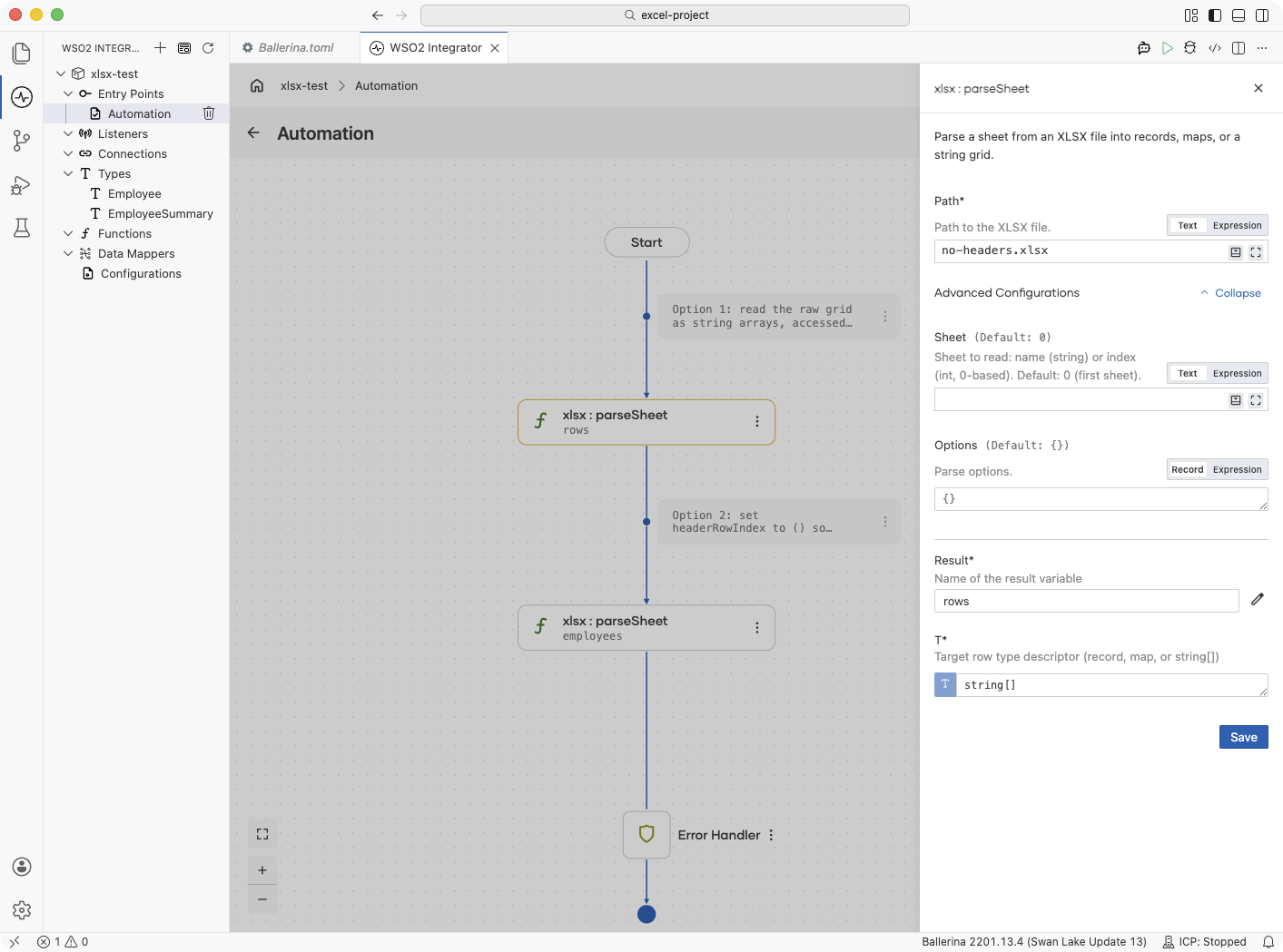
import ballerina/xlsx;

// Bind positionally by mapping fields to the generated column keys.
type Employee record {|
    @xlsx:Name {value: "col0"}
    string name;
    @xlsx:Name {value: "col1"}
    string department;
    @xlsx:Name {value: "col2"}
    int salary;
|};

public function main() returns error? {
    // Option 1: read the raw grid as string arrays, accessed by index.
    string[][] rows = check xlsx:parseSheet("no-headers.xlsx");

    // Option 2: set headerRowIndex to () so columns become col0, col1, ...,
    // then map them onto record fields with @xlsx:Name.
    Employee[] employees = check xlsx:parseSheet("no-headers.xlsx", 0, {
        headerRowIndex: ()
    });
}
Fail-safe processing
By default, xlsx:parseSheet() is strict. The read stops at the first row that doesn't match the target record type, such as a value that can't be coerced to the declared type, and returns an error. The whole batch is rejected, even if every other row would have parsed cleanly.
Fail-safe processing inverts that behavior. Bad rows are skipped, the offending row data and error are captured, and the read returns only the rows that parsed successfully. Use it for batch jobs and data integration pipelines where partial data is more useful than no data. Fail-safe applies to bulk reads only (parseSheet, parseTable, Sheet.getRows, Table.getRows); single-row reads are fail-fast.
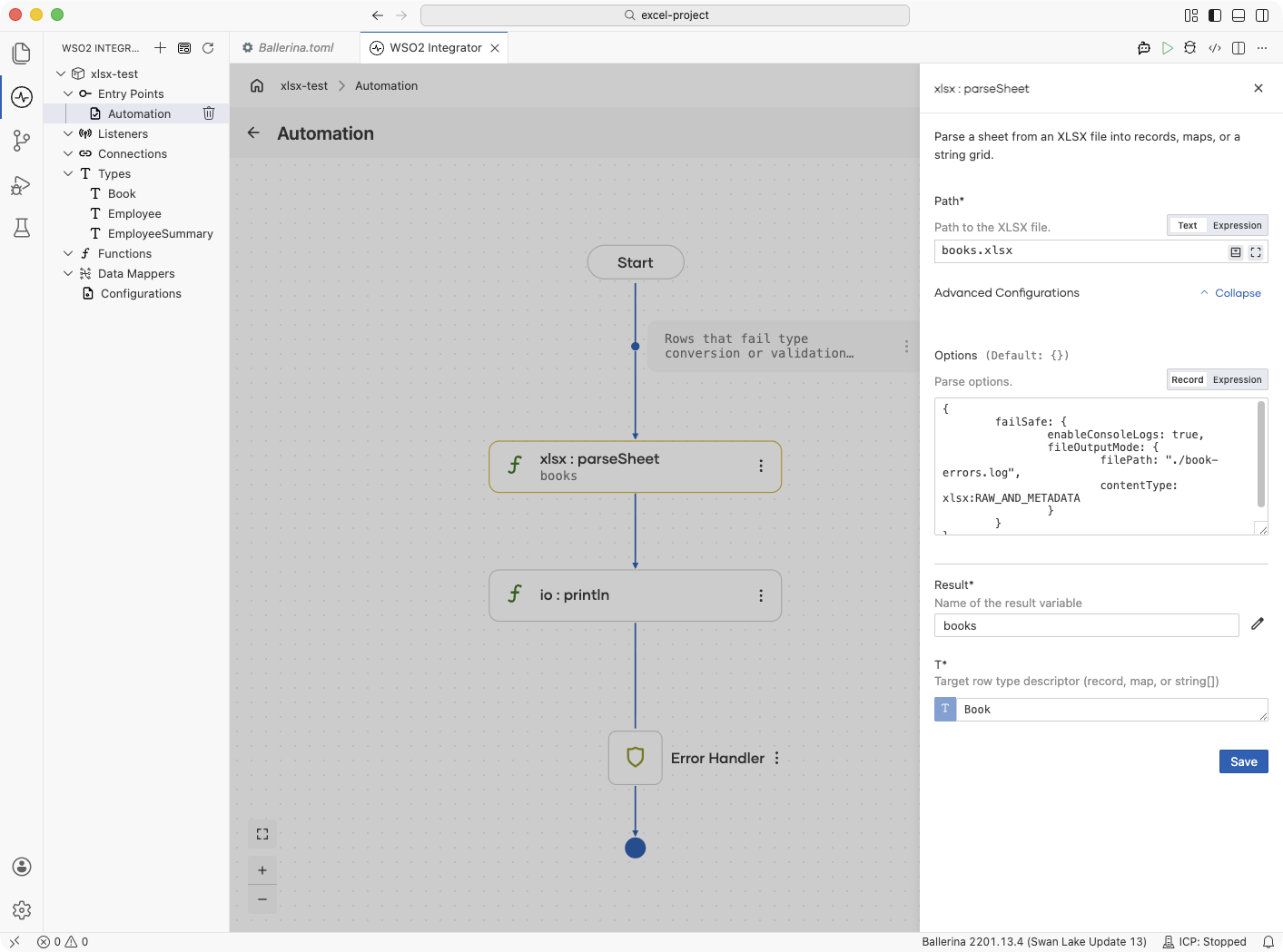
Enable fail-safe by setting the failSafe option. It can log to the console, to a file, or both, with control over what to record and whether to append or overwrite.
- Visual Designer
- Ballerina Code
-
Define the record type. Create a
Bookrecord with fieldsname(string),author(string),price(decimal), andpublishDate(string). -
Enable fail-safe options. Under Advanced Configurations → Options (see Read options), set:
{
    "failSafe": {
        "enableConsoleLogs": true
    }
}
import ballerina/io;
import ballerina/xlsx;

type Book record {|
    string name;
    string author;
    decimal price;
    string publishDate;
|};

public function main() returns error? {
    // Rows that fail type conversion or validation are skipped and logged;
    // the read returns only the rows that bound cleanly.
    Book[] books = check xlsx:parseSheet("books.xlsx", 0, {
        failSafe: {
            enableConsoleLogs: true,
            fileOutputMode: {
                filePath: "./book-errors.log",
                contentType: xlsx:RAW_AND_METADATA
            }
        }
    });

    io:println(string `Loaded ${books.length()} valid rows.`);
}
Working with multiple sheets
The Workbook API gives you a stateful workbook with an explicit lifecycle, so you can read from one sheet, create another, and save the whole file in a single flow. Open an existing file with xlsx:fromFile(), read or modify sheets, then save() and close(). Construct an empty workbook with new and use saveAs() to write it to a new path.
- Visual Designer
- Ballerina Code
These steps use the Workbook API (xlsx:fromFile, getSheet, getRows, createSheet, putRows, and save), which is not available from the + menu. Implement them using code from the Ballerina Code tab. Once they exist in the source, you can find the read, create-sheet, and save flow on the canvas.
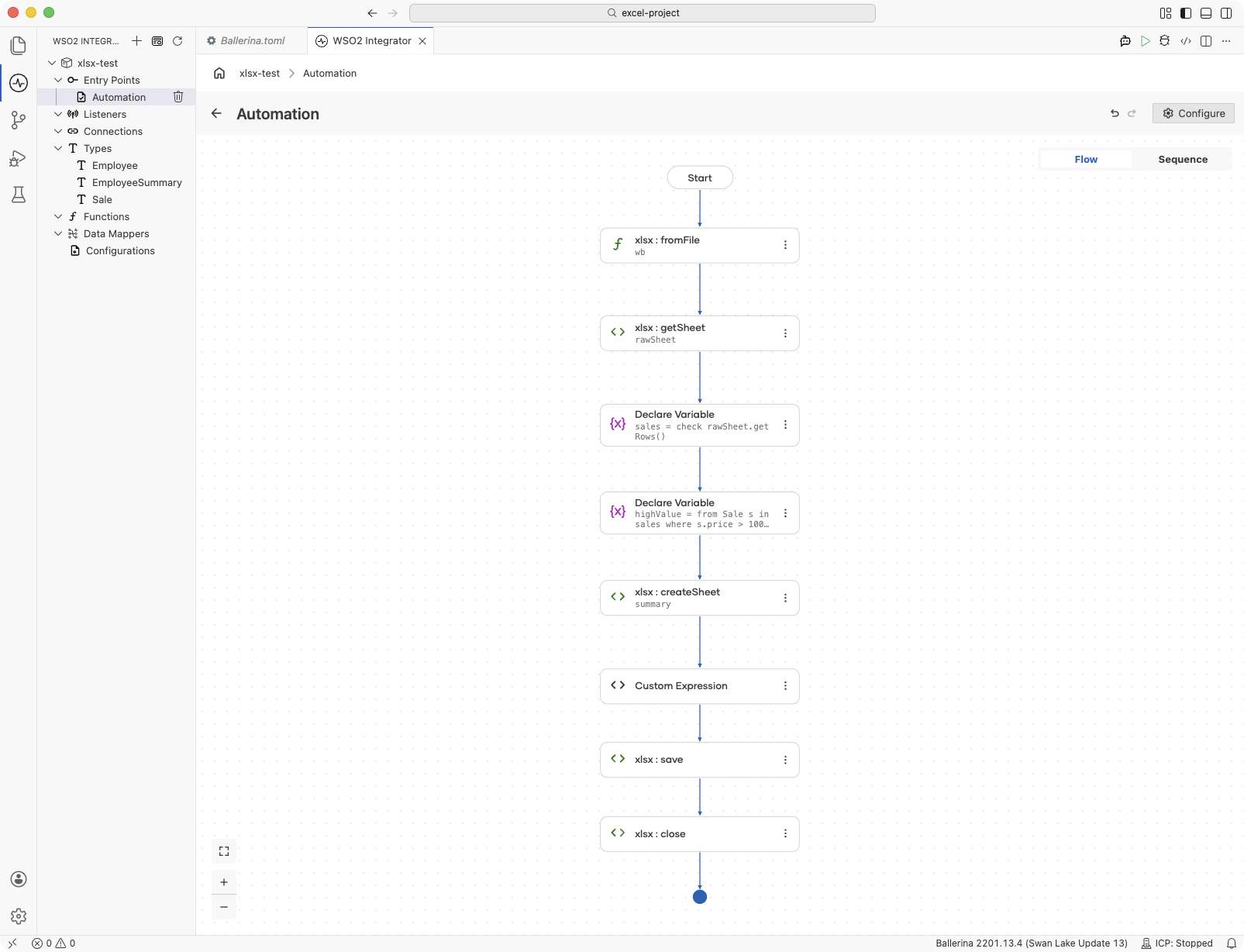
import ballerina/xlsx;

type Sale record {|
    string product;
    int quantity;
    decimal price;
|};

public function main() returns error? {
    xlsx:Workbook wb = check xlsx:fromFile("sales.xlsx");

    // Read from one sheet.
    xlsx:Sheet rawSheet = check wb.getSheet("Raw");
    Sale[] sales = check rawSheet.getRows();

    // Filter and write the result to a new sheet.
    Sale[] highValue = from Sale s in sales where s.price > 100d select s;
    xlsx:Sheet summary = check wb.createSheet("HighValue");
    check summary.putRows(highValue);

    check wb.save();
    check wb.close();
}
Working with large workbooks
The ballerina/xlsx module uses a DOM model. It loads the entire workbook into memory before returning, and there is no streaming or incremental-read API. For workbooks up to the tens of megabytes this is usually fine. For very large files, the memory footprint matters.
The file path and the byte path have different costs. Reading from a file path with xlsx:fromFile() runs at roughly the size of the workbook's in-memory representation. The byte path with xlsx:fromBytes() sustains roughly 1.5 to 2.5 times that, because the underlying parser inflates every zip entry up front and holds the source bytes for the workbook's lifetime. When a large payload arrives in memory, stage it to a temporary file and open it from the path (Workbook API, so write it in code) to keep the footprint close to the file-path cost.
import ballerina/file;
import ballerina/io;
import ballerina/xlsx;

type DataRow record {|
    int id;
    string value;
|};

// Stage a large in-memory payload to disk, then open it from the file path
// so memory stays close to the workbook's in-memory size.
function processLargePayload(byte[] payload) returns DataRow[]|error {
    string tempPath = "./staged-workbook.xlsx";
    check io:fileWriteBytes(tempPath, payload);

    xlsx:Workbook wb = check xlsx:fromFile(tempPath);
    xlsx:Sheet sheet = check wb.getSheet(0);
    DataRow[] rows = check sheet.getRows();
    check wb.close();

    // Remove the staged file once the data is read.
    check file:remove(tempPath);
    return rows;
}
Edge cases
Large integer identifiers
Excel stores numeric cells as IEEE-754 doubles, which represent integers exactly only up to 2^53 (about 9 followed by 15 digits). The module writes all integers as numeric cells, so an integer with an absolute value greater than 2^53 loses precision silently on write, the same behavior as Apache POI, openpyxl, and Excel itself.
To preserve a 16-digit-or-longer identifier such as an account number, order ID, or transaction reference, declare the field as string. The value is then written as a text cell and every digit round-trips exactly.
import ballerina/xlsx;

type Order record {|
    string orderId;   // a 19-digit ID, preserved exactly as text
    string customer;
    decimal amount;
|};

public function main() returns error? {
    Order[] orders = [
        {orderId: "4929187654321098765", customer: "Acme", amount: 99.99d}
    ];

    // Declaring orderId as string writes it as a text cell, so every digit round-trips.
    check xlsx:writeSheet(orders, "orders.xlsx");
}
Formulas
Formula cells are read according to the formulaMode option. CACHED (the default) returns the formula's last cached value, and TEXT returns the formula string such as "=SUM(A1:A10)". Formula authoring on write is not supported: a string that starts with = is written as plain text, not as a formula cell, and there is no formula re-evaluation mode.
What's next
- XLSX reference — Functions, options, and types for the
ballerina/xlsxmodule - CSV & Flat File Processing — Process delimited and fixed-width tabular data
- JSON Processing — Parse, construct, and transform JSON data