ZIP Archives
Package a directory into a ZIP before transferring it, read an archive's contents without unpacking it, and extract one into a target directory with limits that protect against hostile input. The ballerina/zip module provides three package-level functions — compress, listEntries, and decompress — and needs no client, no external tool, and no temporary staging.
Archive handling shows up wherever integrations move files in bulk: a partner drops a ZIP on an FTP server, a nightly job bundles generated reports before upload, or a service accepts a multi-file upload as a single attachment.
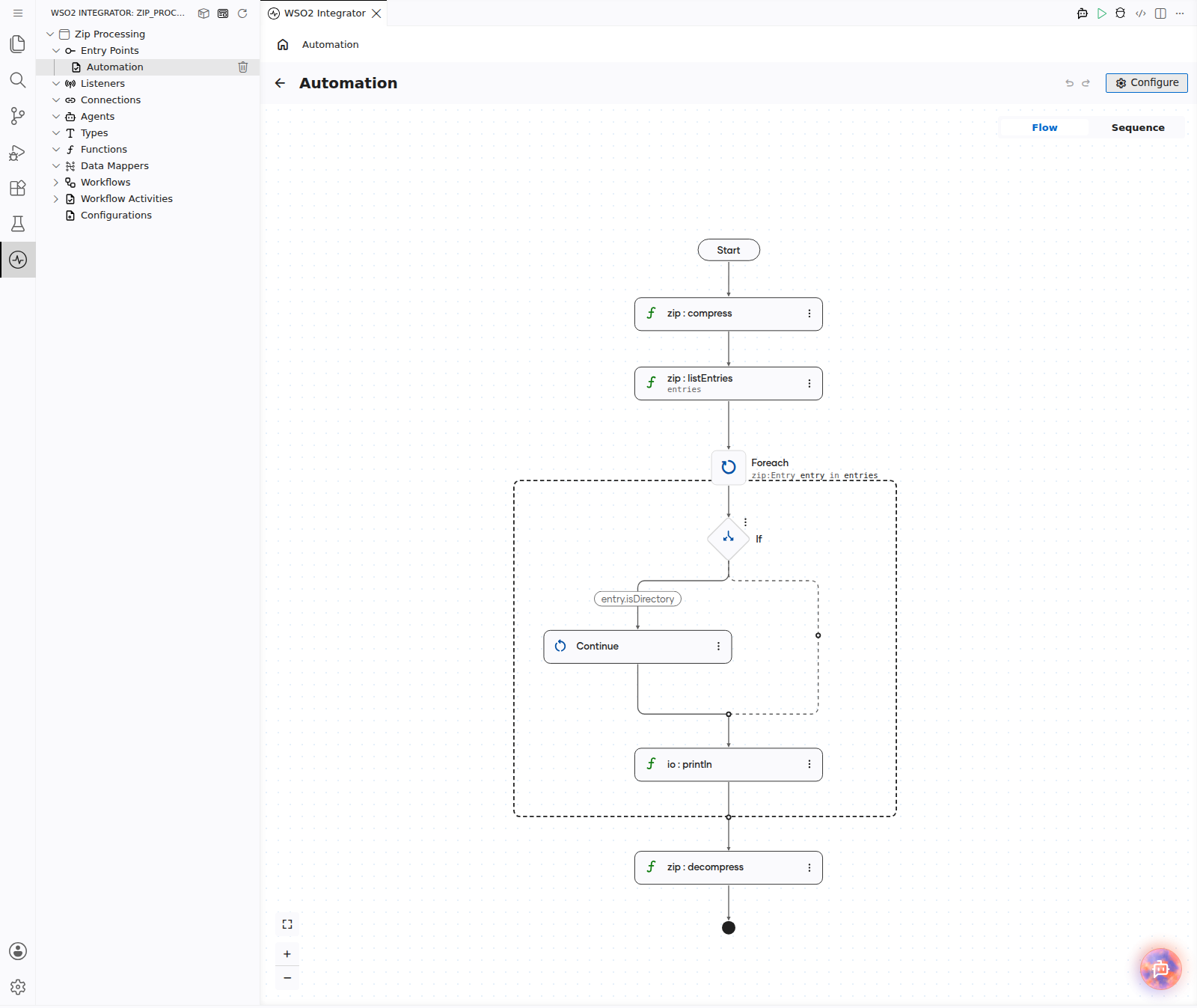
Creating an Archive
zip:compress writes a ZIP file from a source path. The source can be a single file or a directory — when it is a directory, the whole tree is archived recursively.
- Visual Designer
- Ballerina Code
-
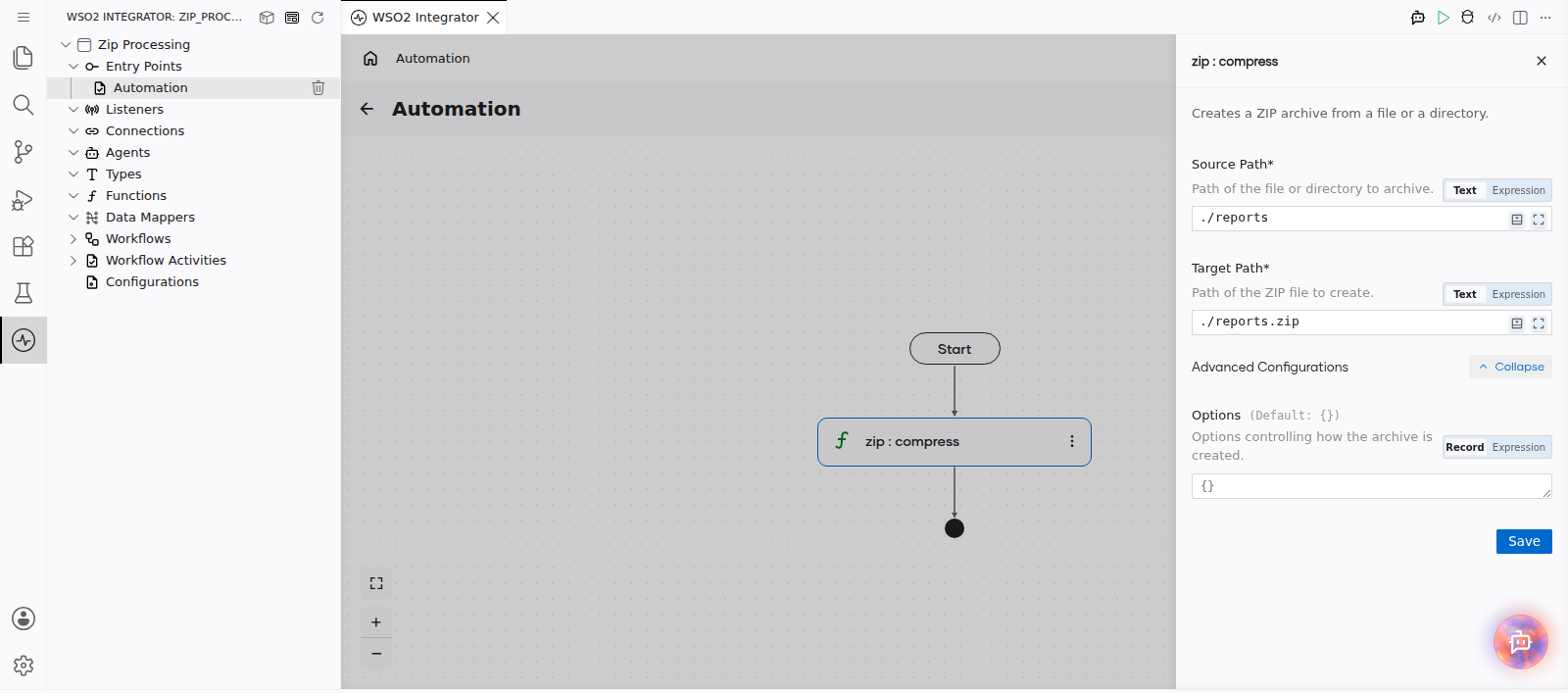
Add a Function Call step — In the flow designer, click + and select Statement → Call Function. In the function picker, search for
compressunder zip and configure:- Source Path*:
./reports— path of the file or directory to archive - Target Path*:
./reports.zip— path of the ZIP file to create
- Source Path*:
-
Handle the error return —
compressreturnszip:Error?. Either mark the enclosing functionreturns error?and let the call propagate, or wrap the step in an ErrorHandler block from the Error Handling section.
import ballerina/zip;

public function main() returns error? {
    check zip:compress("./reports", "./reports.zip");
}
Controlling the Archive Root
By default, the source directory itself becomes the root entry inside the archive. Compressing ./reports produces entries named reports/orders.csv, and extracting that archive recreates a reports directory at the target.
Set includeSourceDirectory to false when you want the directory's contents at the archive root instead — this is usually what a downstream consumer expects when the archive name already carries the context.
- Visual Designer
- Ballerina Code
-
Add a Function Call step — Click + and select Statement → Call Function, then search for
compressunder zip. -
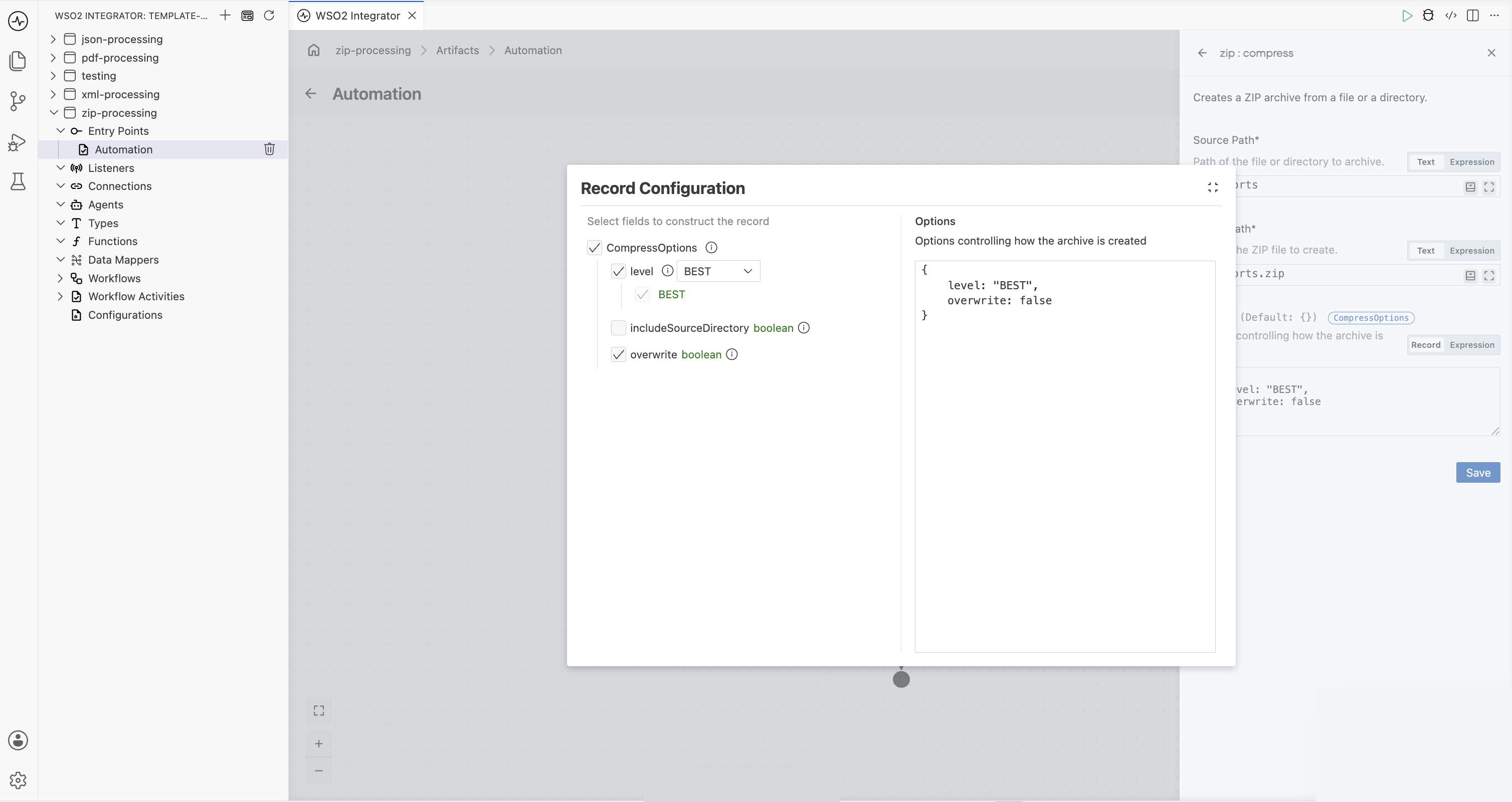
Apply Advanced Configurations — Select the Options field to open the Record Configuration for
CompressOptions, then set:- level:
BEST - includeSourceDirectory: unchecked (
false) - overwrite: checked (
true)
- level:
import ballerina/zip;

public function main() returns error? {
    check zip:compress("./reports", "./reports.zip", {
        includeSourceDirectory: false,
        level: zip:BEST,
        overwrite: true
    });
}
With includeSourceDirectory set to false, the same source produces entries named orders.csv and q1/summary.txt rather than reports/orders.csv and reports/q1/summary.txt.
Compression Level and Overwrite
level accepts zip:NONE, zip:FASTEST, zip:DEFAULT, or zip:BEST. Use zip:NONE for content that is already compressed — JPEGs, PNGs, or nested archives — where deflating costs CPU and saves nothing. Use zip:BEST when the archive crosses a slow or metered link and build time is not the bottleneck.
overwrite defaults to false, so writing to an existing target path fails rather than silently replacing a file:
a file is already at './reports.zip'; set 'overwrite' to replace it
Set overwrite to true for a job that regenerates the same archive on every run.
Inspecting an Archive
zip:listEntries returns metadata for every entry without extracting anything. Use it to validate an incoming archive before committing disk space to it — check the file count, confirm an expected entry is present, or compare compressed against uncompressed sizes.
- Visual Designer
- Ballerina Code
-
Add a Function Call step — Click + and select Statement → Call Function. In the function picker, search for
listEntriesunder zip and configure:- Path*:
./reports.zip— path of the ZIP file to read - Result*:
entries - Result Type* is fixed at
zip:Entry[]
- Path*:
-
Add a Foreach step — Click + and select Foreach under Control. Set the Collection to
entriesand the Variable Name toentryand set the variable type aszip:Entry. -
Read each entry inside the loop — Within the Foreach body, use
entry.name,entry.isDirectory, andentry.uncompressedSizeto decide how to handle each item. Skip directory entries with an If node, or pass the name straight to a downstream step.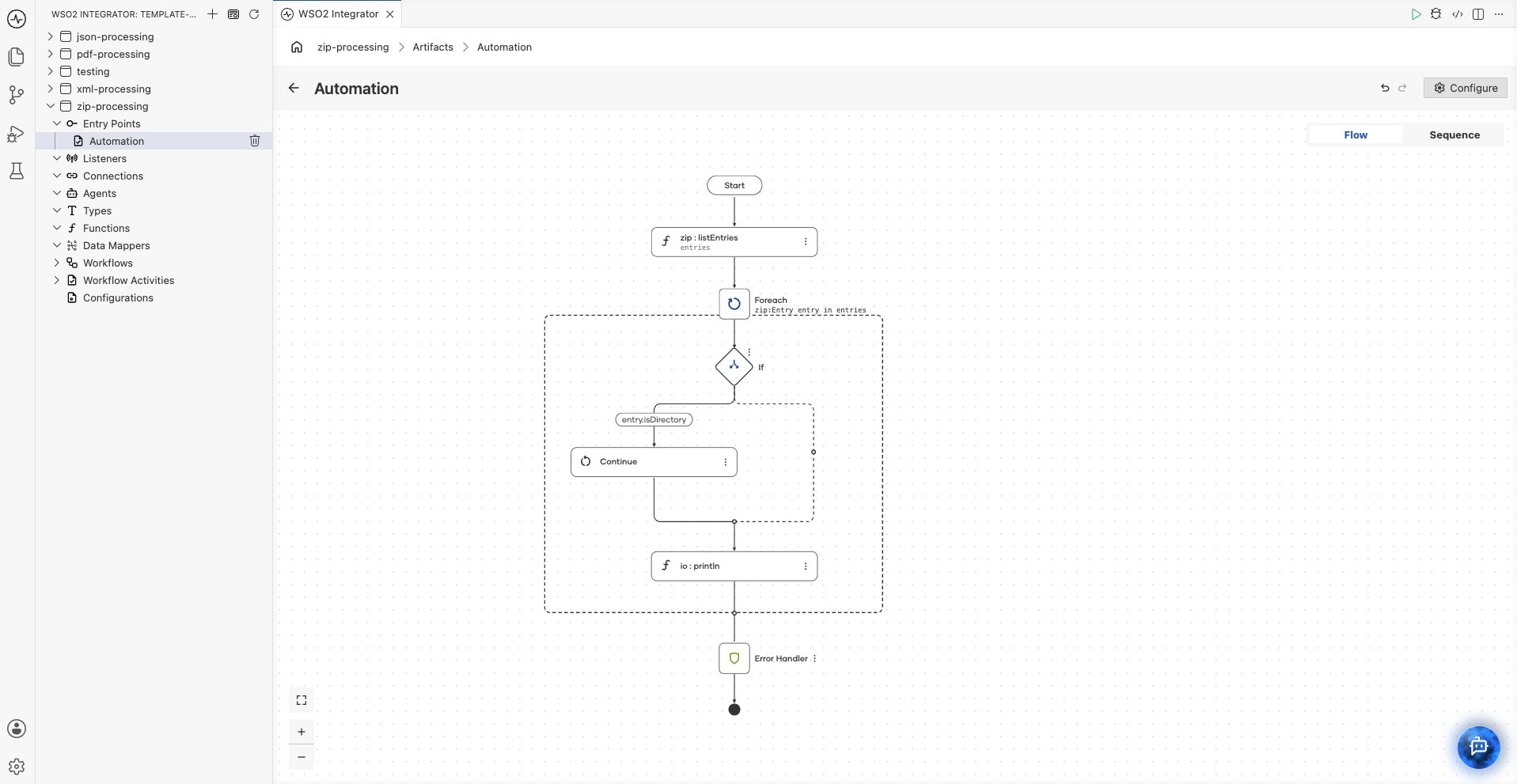
import ballerina/io;
import ballerina/zip;

public function main() returns error? {
    zip:Entry[] entries = check zip:listEntries("./reports.zip");

    foreach zip:Entry entry in entries {
        if entry.isDirectory {
            continue;
        }
        io:println(string `${entry.name} (${entry.uncompressedSize} bytes)`);
    }
}
Directory entries are listed alongside files — their name ends with /, isDirectory is true, and uncompressedSize is 0. Skip them unless you need to recreate the tree yourself.
Each zip:Entry also carries compressedSize, method, modifiedTime, crc32, isSymlink, and — when the archive records them — comment and unixMode. See the ballerina/zip API documentation for the full record.
Extracting an Archive
zip:decompress extracts every entry into a target directory, creating that directory if it does not exist.
- Visual Designer
- Ballerina Code
-
Add a Function Call step — Click + and select Statement → Call Function. In the function picker, search for
decompressunder zip and configure:- Source Path*:
./reports.zip— path of the ZIP file to extract - Target Path*:
./extracted— path of the directory to extract into, created if it is missing
- Source Path*:
-
Process the extracted files — Follow the call with the file-reading steps your integration needs. The target directory now holds the archive's tree exactly as
listEntriesreported it.
import ballerina/zip;

public function main() returns error? {
    check zip:decompress("./reports.zip", "./extracted");
}
Handling Files That Already Exist
fileWriteMode controls what happens when an entry's target path is already occupied. It defaults to zip:FAIL_IF_EXISTS, which stops the extraction and reports the conflicting path:
cannot extract entry 'orders.csv': file '/data/extracted/orders.csv' already exists
The alternatives are zip:REPLACE, which overwrites the existing file, and zip:SKIP, which leaves it in place and continues. Choose zip:SKIP for a retryable job that may re-process the same archive, and zip:REPLACE when the archive is the source of truth.
- Visual Designer
- Ballerina Code
-
Open the decompress step — Select the existing
zip:decompressnode in the flow to reopen its configuration form. -
Set the write mode in Options — Select Expand next to Advanced Configurations, then set Options to a
DecompressOptionsrecord carrying the mode you want:{fileWriteMode: zip:SKIP}Combine it with
limitsin the same record when the archive is also untrusted.
check zip:decompress("./reports.zip", "./extracted", {
    fileWriteMode: zip:SKIP
});
Guarding Against Hostile Archives
An archive from outside your own system is untrusted input. A small ZIP can expand to fill a disk, and a crafted entry name can try to write outside the directory you extracted into. Set limits on every extraction of an archive you did not create:
- Visual Designer
- Ballerina Code
-
Add a Function Call step — Click + and select Statement → Call Function, then search for
decompressunder zip. -
Open Advanced Configurations — Select Expand, then set Options to a
DecompressOptionsrecord carrying the nestedlimits:{limits: {maxEntries: 500, maxTotalSize: 104857600, maxCompressionRatio: 100}}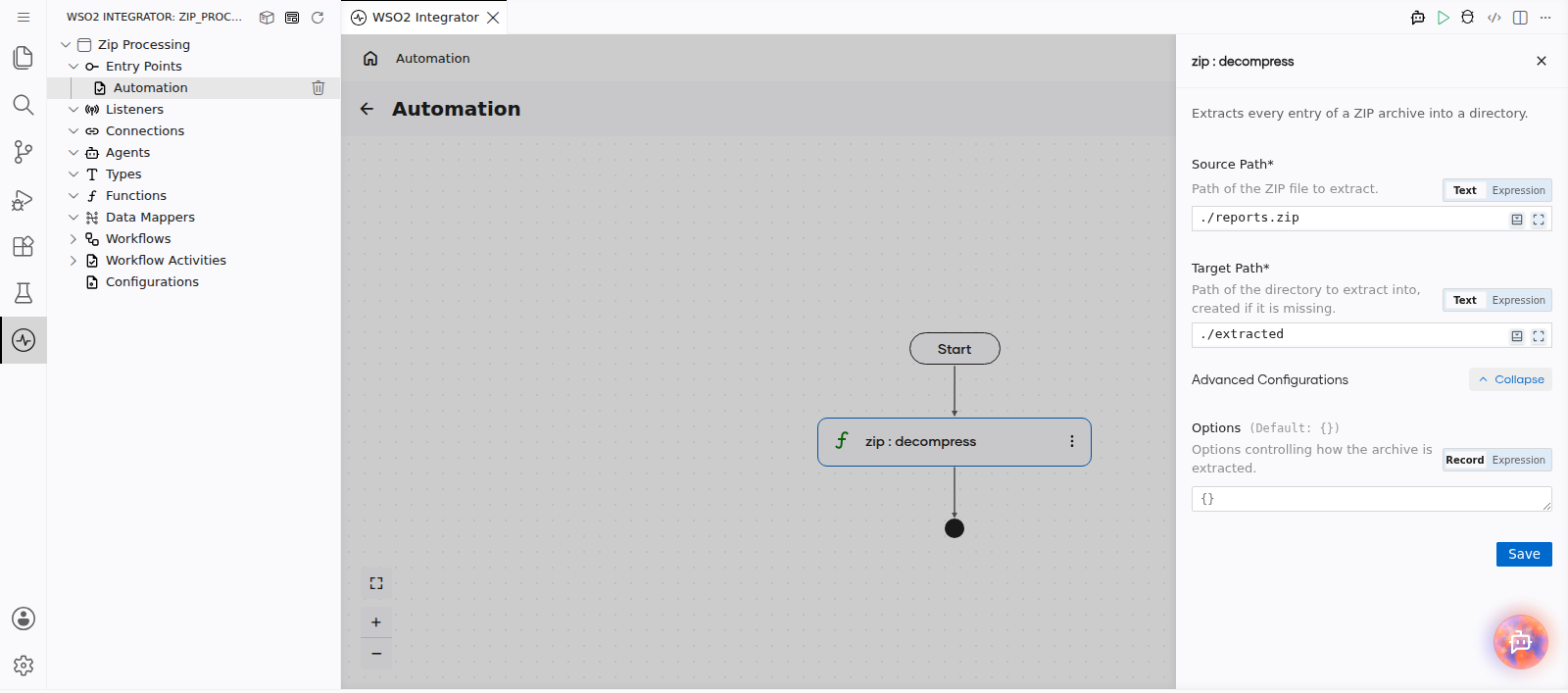
-
Handle the failure path — Wrap the step in an ErrorHandler block from the Error Handling section and route a
zip:LimitExceededErrorto your quarantine or alerting logic rather than retrying it.
import ballerina/zip;

public function extractUpload(string archivePath, string targetDir) returns error? {
    check zip:decompress(archivePath, targetDir, {
        limits: {
            maxEntries: 500,
            maxTotalSize: 104857600,  // 100 MB uncompressed
            maxCompressionRatio: 100
        }
    });
}
Each limit guards a different failure:
| Limit | Guards against | Reported as |
|---|---|---|
maxEntries | Archives with an unreasonable file count | zip:LimitExceededError |
maxTotalSize | Total expansion filling the target volume | zip:LimitExceededError |
maxCompressionRatio | A single entry that expands explosively — a ZIP bomb | zip:LimitExceededError |
An omitted field means no limit, so limits left at its default applies none of these. Path traversal is blocked independently of limits: an entry whose name would write outside the target directory always fails with zip:UnsafePathError.
Handling Errors
On failure, these functions return a subtype of zip:Error (compress/decompress: zip:Error?, listEntries: zip:Entry[]|zip:Error). Match on the specific type when the recovery differs — a corrupt archive is a dead letter, but a limit breach may be worth flagging to a human.
| Error | Raised when |
|---|---|
zip:InvalidArchiveError | The file is not a valid ZIP archive |
zip:FileSystemError | Reading or writing the file system failed |
zip:UnsafePathError | An entry name would write outside the target directory |
zip:LimitExceededError | An entry or the archive exceeds the configured limits |
zip:UnsupportedEntryError | An entry is encrypted or uses an unsupported compression method |
import ballerina/log;
import ballerina/zip;

public function safeExtract(string archivePath, string targetDir) returns error? {
    zip:Error? result = zip:decompress(archivePath, targetDir, {
        limits: {maxEntries: 500, maxTotalSize: 104857600}
    });

    if result is zip:LimitExceededError|zip:UnsafePathError {
        log:printWarn("archive rejected", archive = archivePath, reason = result.message());
        return;
    }
    return result;
}
Integration Example: Unpack an Incoming Batch
A partner uploads a ZIP of CSV files. The integration inspects it, rejects anything oversized, extracts it, and hands each CSV to the downstream processor.
- Visual Designer
- Ballerina Code
-
Create the automation — Add an Automation artifact so the integration starts from
main, or attach this logic to an existing file or FTP entry point. -
Add a Function Call step for inspection — Inside the error handler, call
zip:listEntrieson the incoming archive path (e.g.,"reports.zip") and assign the result toentries. -
Add an If step — Click + and select If under Control. Set the condition to
entries.length() < 500so the extraction only proceeds when the entry count is within the allowed limit. -
Add a Function Call step for extraction — Inside the
Iftrue branch, callzip:decompresswith the archive path, the staging directory ("./staging"), and thelimitsrecord described above. -
Add a Foreach step — Still inside the
Iftrue branch, add a Foreach under Control. Set the Collection toentriesand the Variable Name toentry. -
Filter non-CSV entries — Inside the Foreach body, add an If step with the condition
entry.isDirectory || !entry.name.endsWith(".csv")and place a Continue in its true branch to skip directory entries and non-CSV files. -
Process each CSV — After the filter, call
io:fileReadCsvwith the extracted file path and pass the result toio:println.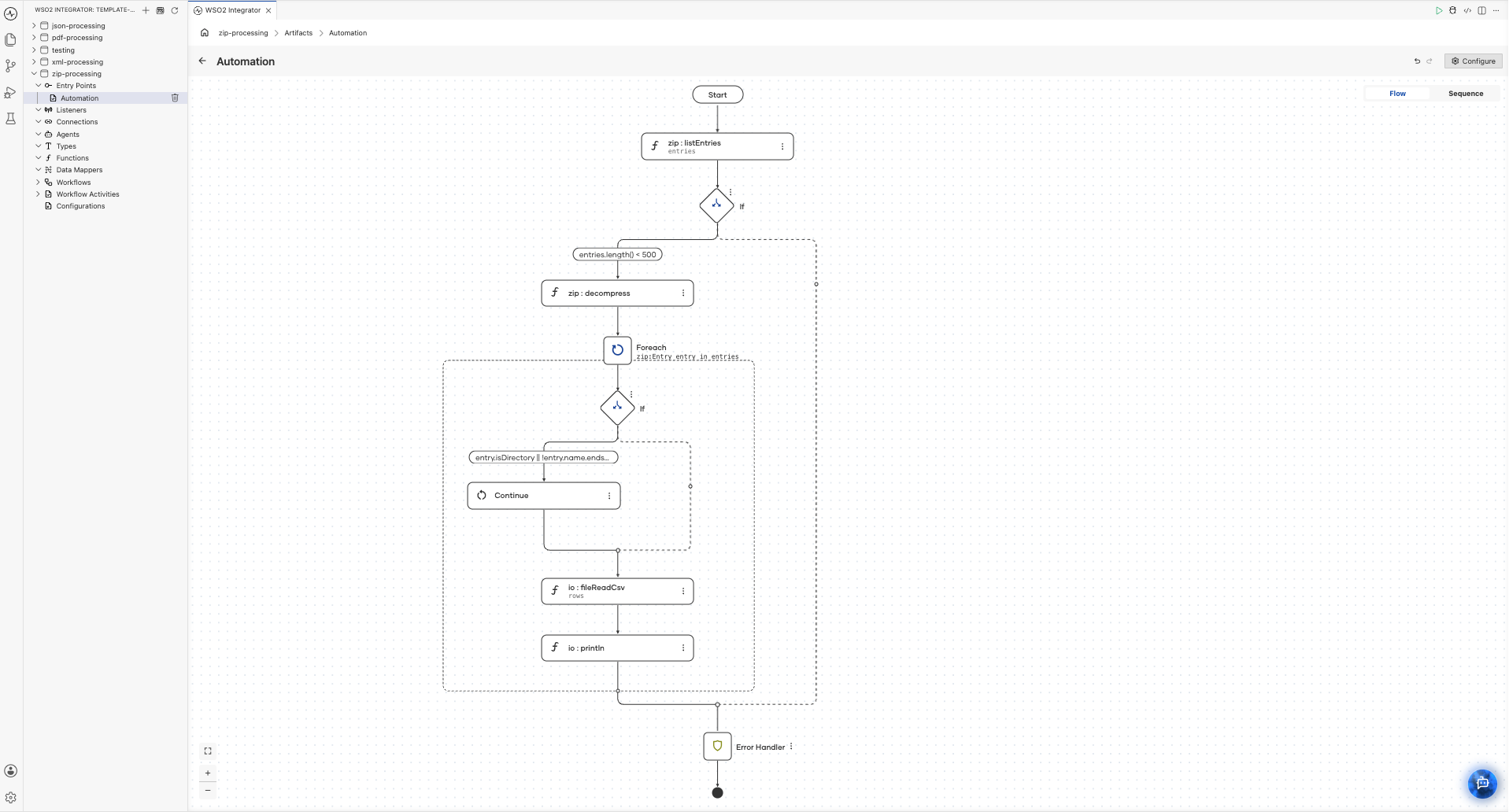
import ballerina/io;
import ballerina/log;
import ballerina/zip;

public function main() returns error? {
    do {
        zip:Entry[] entries = check zip:listEntries("reports.zip");
        if entries.length() < 500 {
            check zip:decompress("reports.zip", "./staging", {
                                                                 limits: {
                                                                     maxEntries: 500,
                                                                     maxTotalSize: 104857600,
                                                                     maxCompressionRatio: 100
                                                                 }
                                                             });
            foreach zip:Entry entry in entries {
                if entry.isDirectory || !entry.name.endsWith(".csv") {
                    continue;
                }
                string[][] rows = check io:fileReadCsv(string `staging/${entry.name}`);
                io:println(rows);
            }
        }
    } on fail error e {
        log:printError("Error occurred", 'error = e);
        return e;
    }
}
Inspecting before extracting means an archive that fails your own checks never touches the staging directory.
Best Practices
- Always set
limitson archives you did not create — an omitted limit is no limit. Uploads, FTP drops, and email attachments all qualify as untrusted. - Call
listEntriesbeforedecompressfor untrusted input — it costs one read of the central directory and lets you reject an archive on entry count, names, or declared sizes before writing anything. - Set
includeSourceDirectorydeliberately — the default nests the source directory inside the archive, which surprises consumers that expect files at the root. Decide which shape the receiver wants. - Use
zip:NONEfor already-compressed payloads — images, video, and nested archives gain nothing from deflate and cost CPU on every run. - Extract to a staging directory, not the final destination — move files into place only after processing succeeds, so a partial extraction never leaves half a batch where a downstream watcher can see it.
What's Next
- Local Files — trigger an integration when an archive lands in a watched directory.
- FTP/SFTP — pick up archives from a remote server and push generated ones back.
- CSV & Flat File Processing — parse the files an archive yields.
- Streaming Large Files — handle payloads too large to hold in memory.