XML Processing
XML is a flexible, text-based format used to store, transport, and structure data in a way that is both human-readable and machine-readable.
WSO2 Integrator provides built-in support for XML processing, making it easy to work with XML data in integration scenarios. You can create, read, query, modify, validate, and transform XML content without relying on external libraries. This native XML support simplifies integration development and helps efficiently process XML payloads exchanged between applications, services, and enterprise systems.
XML literals and construction
Create XML values directly in WSO2 Integrator using backtick templates. The xml type supports XML elements, text nodes, comments, and processing instructions, making it easy to construct structured XML payloads within integrations.
- Visual Designer
- Ballerina Code
-
Add a variable for the XML literal. Click + and select Declare Variable. Configure:
- Variable Name:
greeting - Variable Type:
xml - Expression:
xml `<greeting>Hello, World!</greeting>`
- Variable Name:
-
Add nested XML elements. Add another Declare Variable step for more complex XML. Configure:
- Variable Name:
orders - Variable Type:
xml - Expression: An XML backtick template with nested elements (for example,
xml `<order id="ORD-100"><customer>Acme Corp</customer></order>`)
- Variable Name:
-
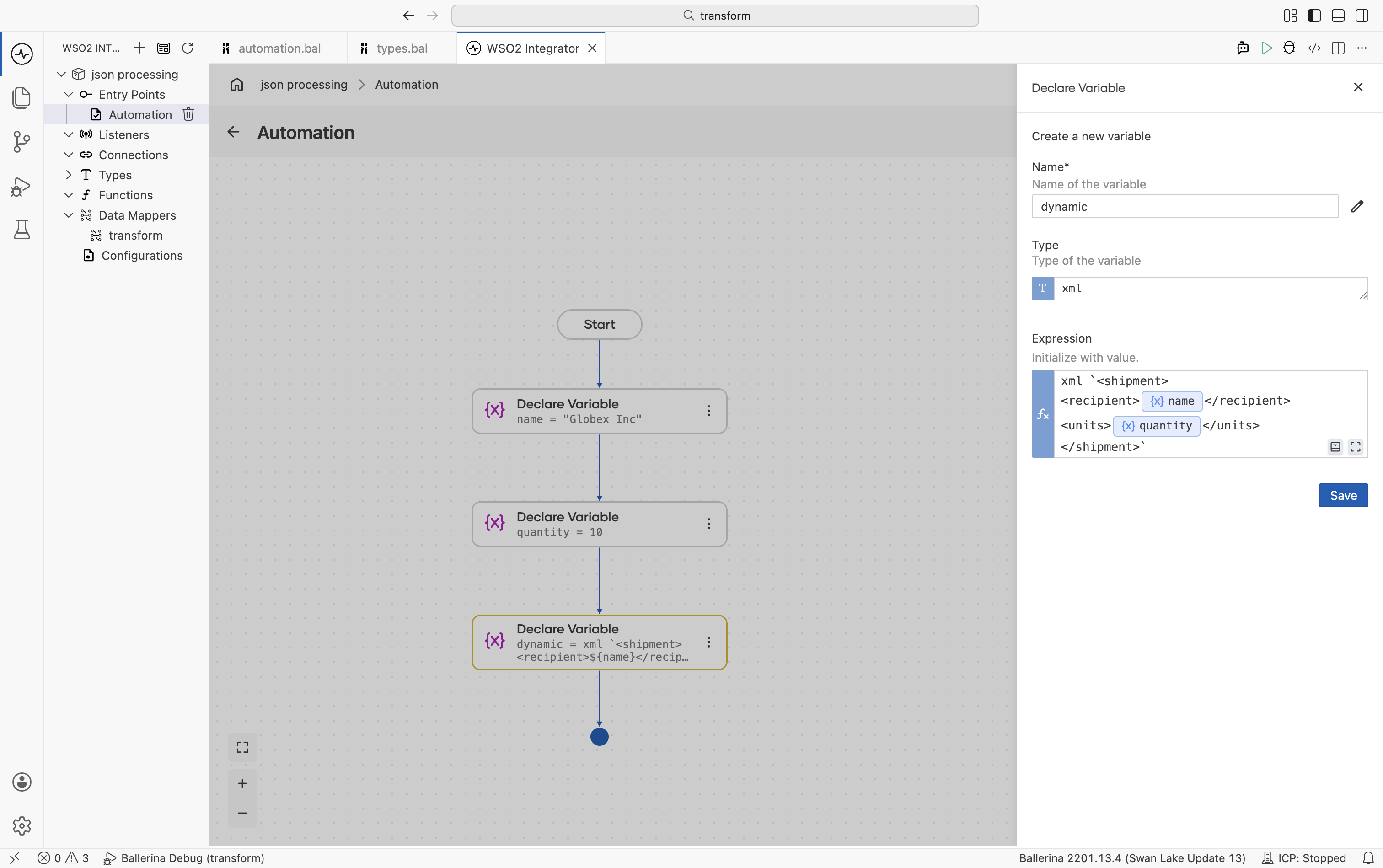
Use embedded expressions for dynamic values. To insert dynamic values into XML templates, use
${variableName}syntax inside the XML backtick template. First, add a Declare Variable step for each dynamic value (for example,nameof typestring), then add another Declare Variable with an XML expression that references those variables (for example,xml `<shipment><recipient>${name}</recipient></shipment>`). Each variable appears as a separate step in the flow.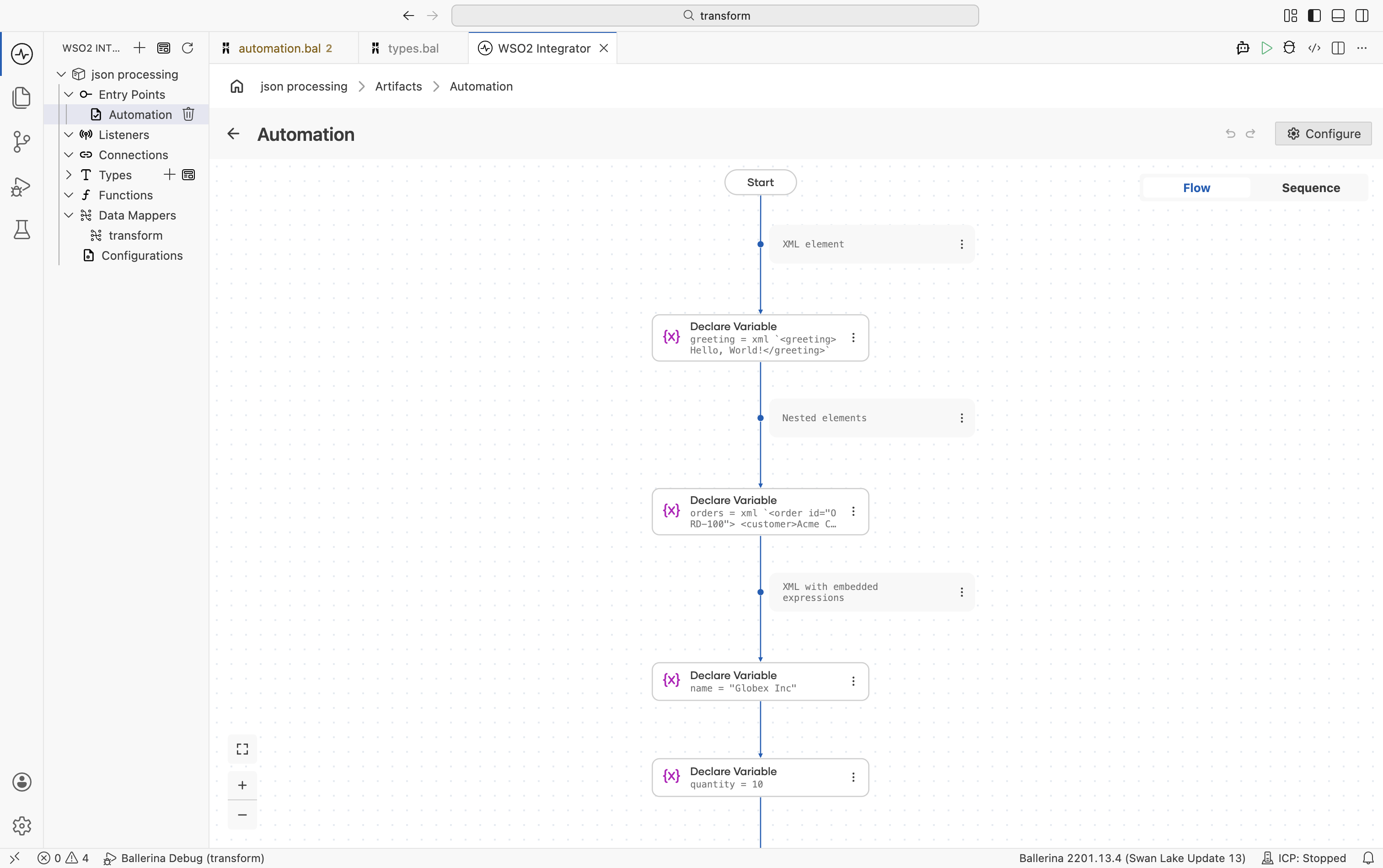
-
View or edit the expression. Click a variable node on the canvas to open the side panel, where you can view and modify the XML template expression.
import ballerina/io;

public function main() {
    // XML element
    xml greeting = xml `<greeting>Hello, World!</greeting>`;

    // Nested elements
    xml orders = xml `<order id="ORD-100">
        <customer>Acme Corp</customer>
        <items>
            <item sku="WDG-01" qty="5"/>
            <item sku="GDG-02" qty="2"/>
        </items>
    </order>`;

    // XML with embedded expressions
    string name = "Globex Inc";
    int quantity = 10;
    xml dynamic = xml `<shipment>
        <recipient>${name}</recipient>
        <units>${quantity}</units>
    </shipment>`;

    io:println(dynamic);
}
XML text and comments
Create XML text nodes, comments, and processing instructions directly using XML backtick templates. These XML node types can be stored in variables and used when building or transforming XML payloads.
- Visual Designer
- Ballerina Code
-
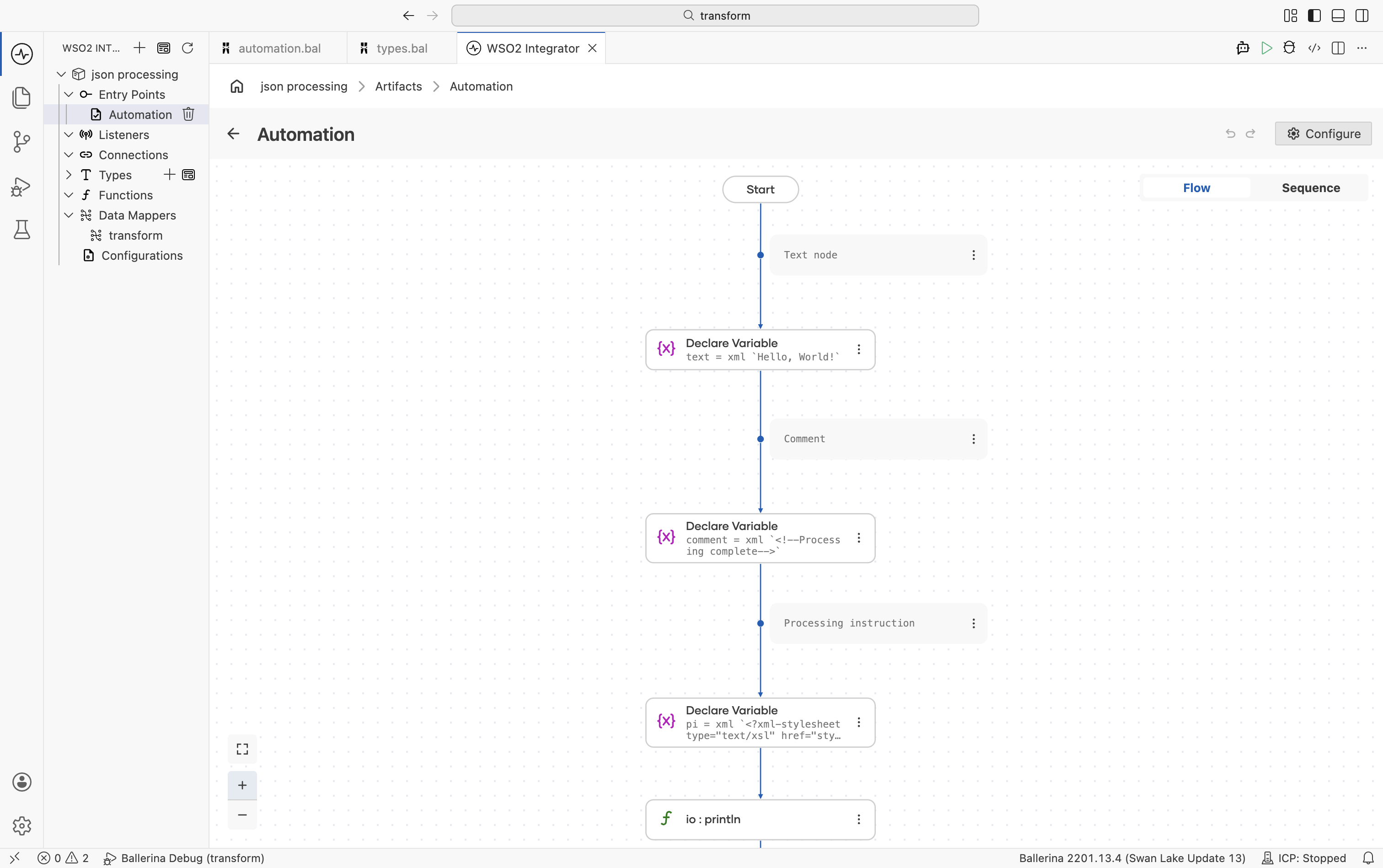
Add a text node. Click + and select Declare Variable. Configure:
- Variable Name:
text - Variable Type:
xml - Expression:
xml `Hello, World!`
- Variable Name:
-
Add a comment node. Add another Declare Variable step. Configure:
- Variable Name:
comment - Variable Type:
xml - Expression:
xml `<!--Processing complete-->`
- Variable Name:
-
Add a processing instruction. Add another Declare Variable step. Configure:
- Variable Name:
pi - Variable Type:
xml - Expression:
xml `<?xml-stylesheet type="text/xsl" href="style.xsl"?>`
Each XML node appears as an individual Declare Variable step in the integration flow.
- Variable Name:
import ballerina/io;

public function main() {
    // Text node
    xml text = xml `Hello, World!`;

    // Comment
    xml comment = xml `<!--Processing complete-->`;

    // Processing instruction
    xml pi = xml `<?xml-stylesheet type="text/xsl" href="style.xsl"?>`;

    io:println(text);
    io:println(comment);
    io:println(pi);
}
Navigating XML
Access child elements, attributes, and text content using XML navigation expressions in WSO2 Integrator. XML navigation makes it easy to query and extract specific parts of XML payloads during integration flows.
- Visual Designer
- Ballerina Code
-
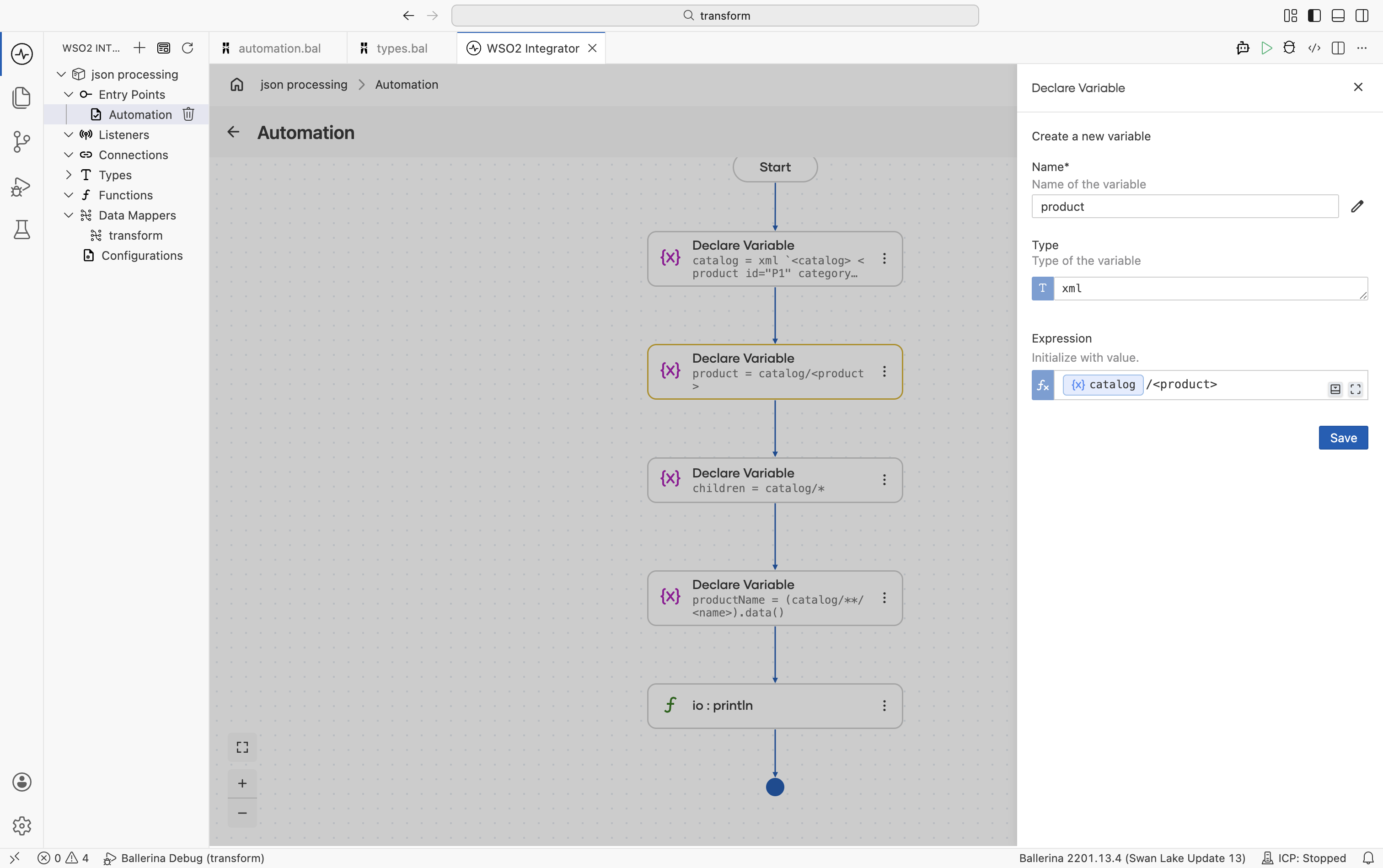
Define the XML input. Click + and select Declare Variable. Configure:
- Variable Name:
catalog - Variable Type:
xml - Expression: An XML backtick template containing the full catalog structure (see the Ballerina Code tab for the sample XML)
This variable is referenced in all subsequent navigation steps.
- Variable Name:
-
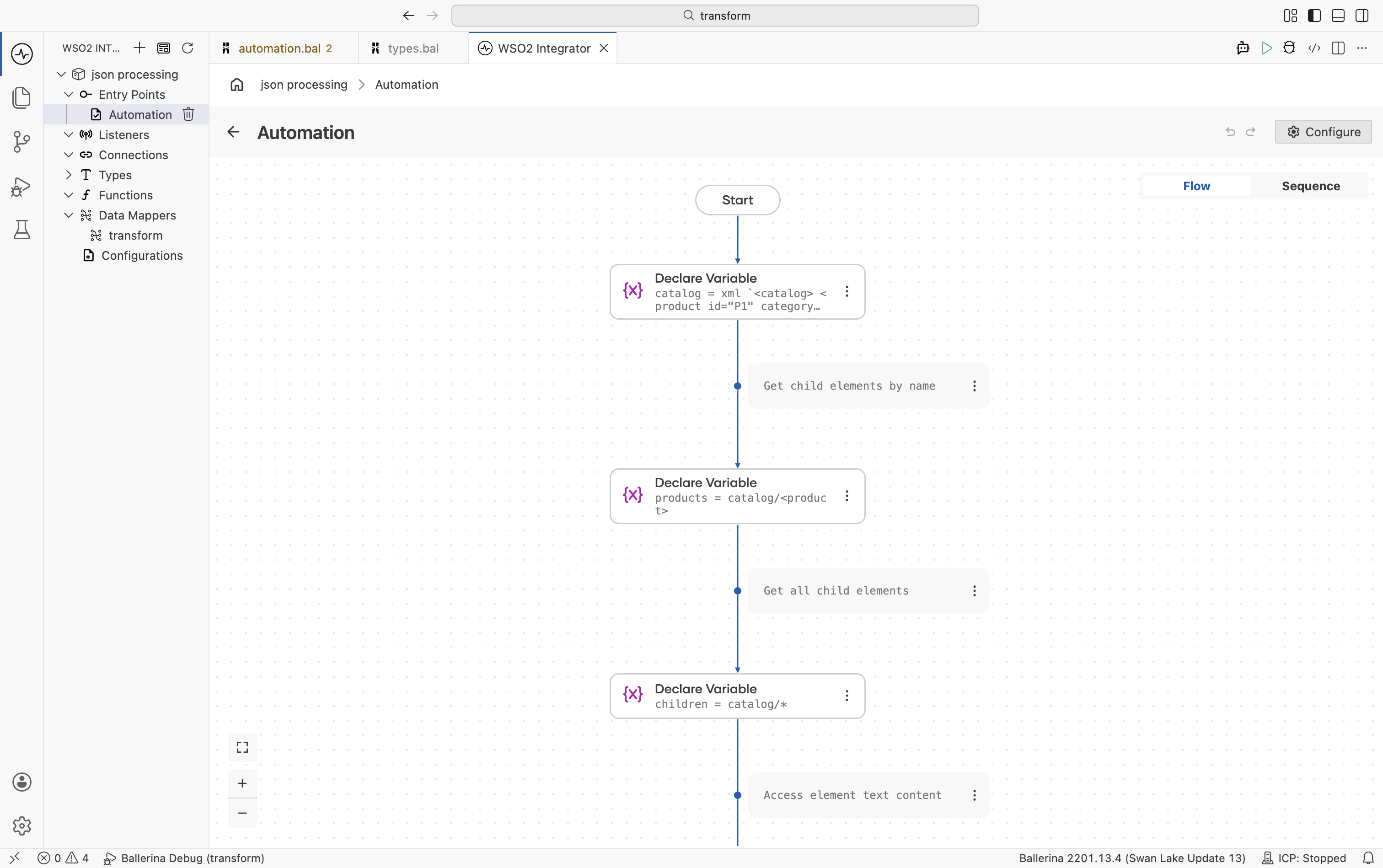
Navigate child elements by name. Add a Declare Variable step. Configure:
- Variable Name:
products - Variable Type:
xml - Expression:
catalog/<product>(selects all<product>children)
To retrieve all child elements regardless of name, use
catalog/*as the expression. - Variable Name:
-
Access text content. Add a Declare Variable step. Configure:
- Variable Name:
productName - Variable Type:
string - Expression:
(firstProduct/<name>).data()(extracts the text value of the<name>element)
- Variable Name:
-
Access attributes. Add a Declare Variable step. Configure:
- Variable Name:
id - Variable Type:
string? - Expression:
(<xml:Element>firstProduct).getAttributes()["id"](retrieves theidattribute value)
- Variable Name:
-
Filter descendants. Add a Declare Variable step. Configure:
- Variable Name:
names - Variable Type:
xml - Expression:
catalog/**/<name>(finds all<name>elements at any depth in the XML hierarchy)
- Variable Name:
-
View or edit expressions. Click a variable node on the canvas to open the side panel, where you can view and modify the XML navigation expression.
import ballerina/io;

public function main() {
    xml catalog = xml `<catalog>
        <product id="P1" category="electronics">
            <name>Widget</name>
            <price>29.99</price>
        </product>
        <product id="P2" category="tools">
            <name>Gadget</name>
            <price>49.99</price>
        </product>
    </catalog>`;

    // Get child elements by name
    xml products = catalog/<product>;

    // Get all child elements
    xml children = catalog/*;

    // Access element text content
    xml firstProduct = (catalog/<product>)[0];
    string productName = (firstProduct/<name>).data();
    io:println(productName); // Widget

    // Access attributes
    string? id = (<xml:Element>firstProduct).getAttributes()["id"];
    io:println(id); // P1

    // Filter descendant elements
    xml names = catalog/**/<name>;
    io:println(names);
    // <name>Widget</name><name>Gadget</name>
}
XML namespaces
Handle namespaced XML using xmlns declarations in Ballerina.
- Visual Designer
- Ballerina Code
xmlns namespace declarations cannot be added through the Visual Designer. Open the Ballerina source file directly and add the xmlns bindings at the top of the function or module before using namespace-prefixed expressions in the flow.
-
Add namespace declarations in code. Open the
.balfile and declare the required namespaces at the top of the function. For example:xmlns "http://example.com/orders" as ord;
xmlns "http://example.com/common" as cmn; -
Construct namespaced XML. Back in the flow designer, click + and select Declare Variable. Configure:
- Variable Name:
nsOrder - Variable Type:
xml - Expression: An XML backtick template using the declared namespace prefixes (for example,
xml `<ord:order><cmn:customer>Acme Corp</cmn:customer></ord:order>`)
- Variable Name:
-
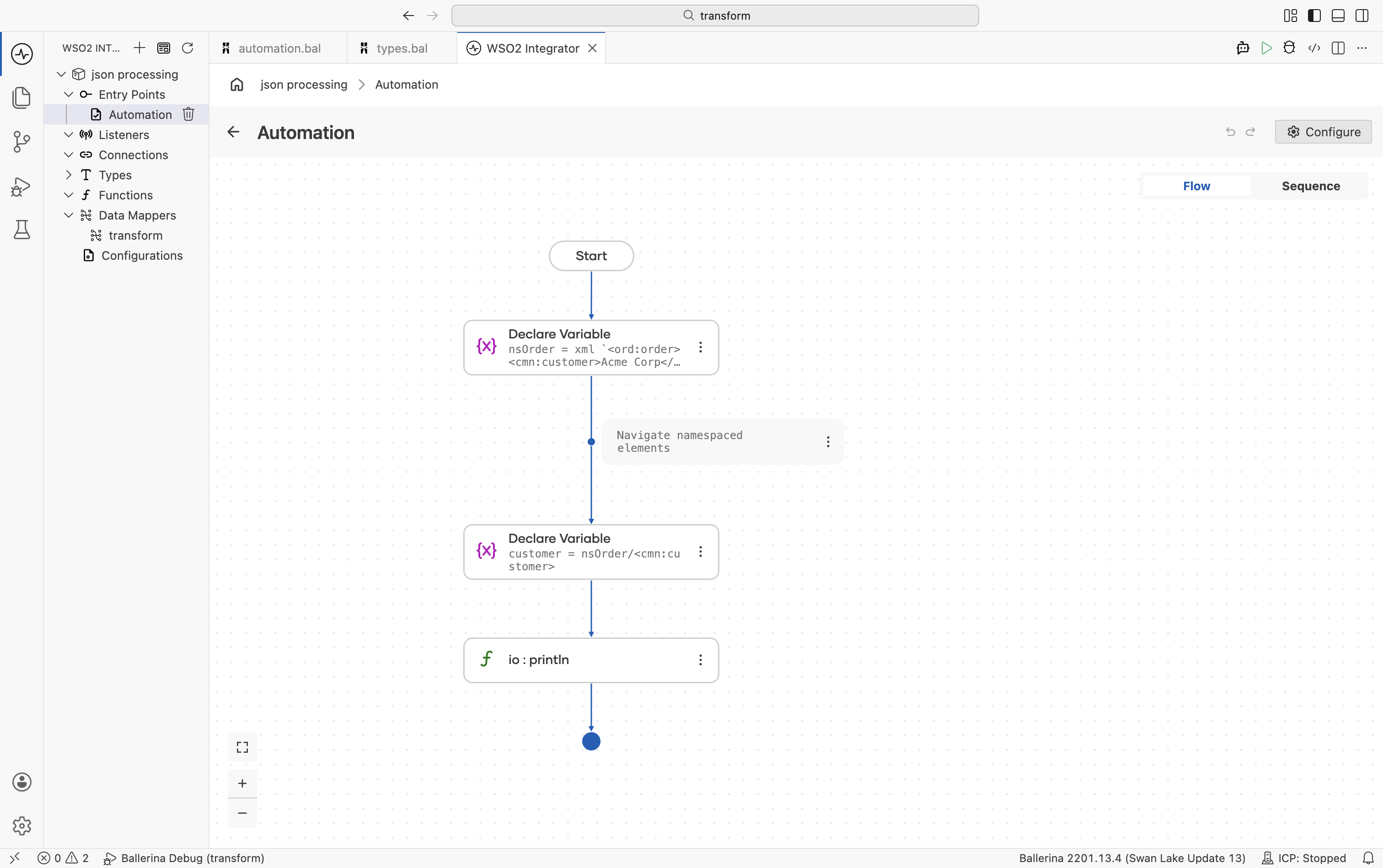
Navigate namespaced elements. Add another Declare Variable step. Configure:
- Variable Name:
customer - Variable Type:
xml - Expression:
nsOrder/<cmn:customer>(uses the namespace prefix to select the child element)
- Variable Name:
import ballerina/io;
public function main() {
xmlns "http://example.com/orders" as ord;
xmlns "http://example.com/common" as cmn;
xml nsOrder = xml `<ord:order>
<cmn:customer>Acme Corp</cmn:customer>
<ord:total>1500.00</ord:total>
</ord:order>`;
// Navigate namespaced elements
xml customer = nsOrder/<cmn:customer>;
io:println(customer);
}
Iterating over XML
Use foreach loops or query expressions to process XML sequences in WSO2 Integrator. XML iteration is useful for reading, filtering, and transforming repeating XML elements such as lists of items, records, or orders.
- Visual Designer
- Ballerina Code
-
Define the XML input. Click + and select Declare Variable. Configure:
- Variable Name:
items - Variable Type:
xml - Expression: An XML backtick template containing the items to iterate over (see the Ballerina Code tab for the sample XML)
- Variable Name:
-
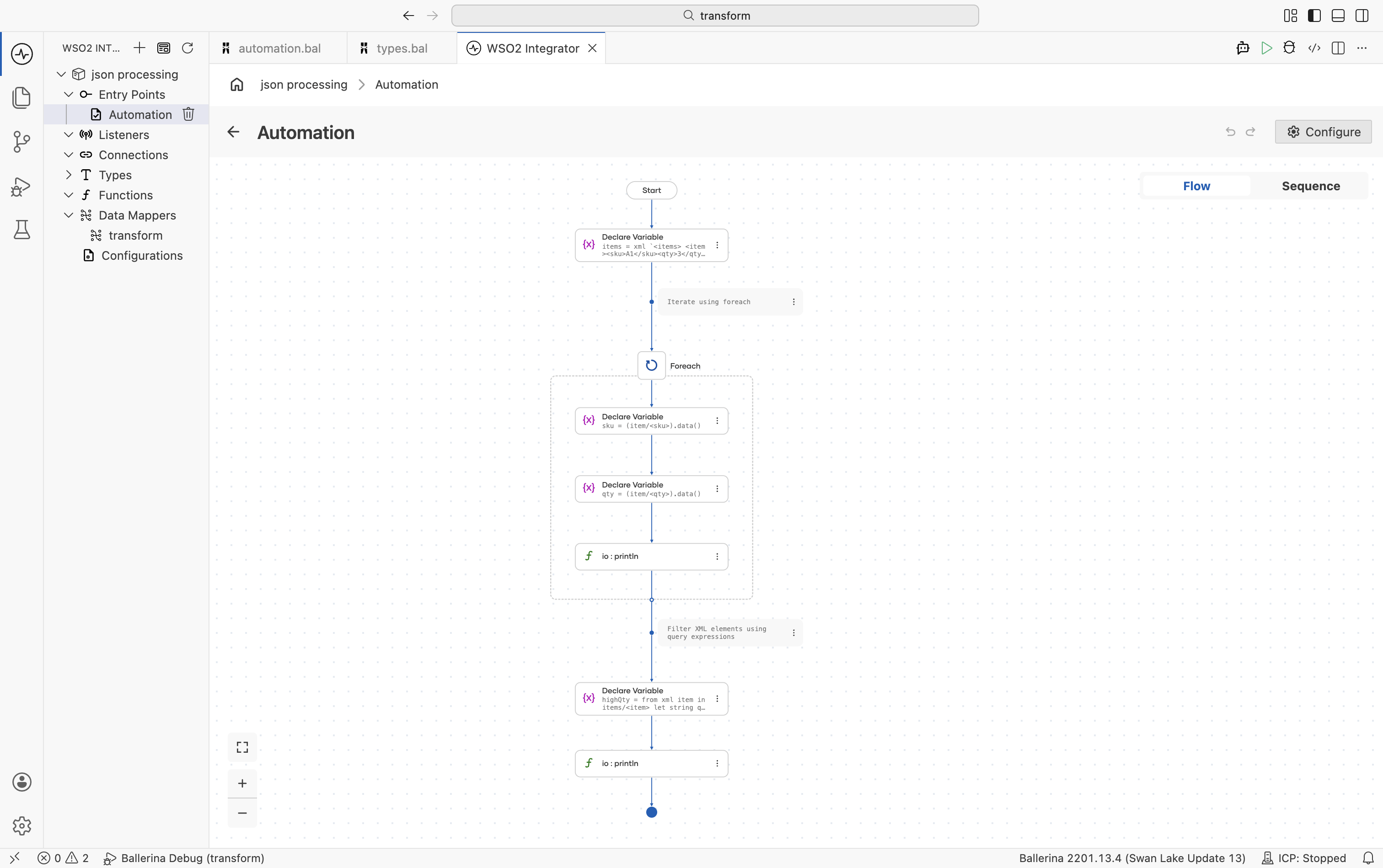
Add a Foreach step. Click + and select Foreach under Control. Configure:
Field Value Collection items/<item>Variable Name itemVariable Type xml -
Extract values inside the loop. Inside the Foreach body, click + and select Declare Variable for each value to extract. For example:
- Variable Name:
sku, Variable Type:string, Expression:(item/<sku>).data() - Variable Name:
qty, Variable Type:string, Expression:(item/<qty>).data()
- Variable Name:
-
Use query expressions for filtering. To filter or transform XML sequences based on conditions, add a Declare Variable step outside the loop. Configure:
- Variable Name:
highQty - Variable Type:
xml - Expression: A query expression that filters elements (for example,
from xml item in items/<item> let string qtyStr = (item/<qty>).data() let int qty = check int:fromString(qtyStr) where qty > 2 select item)
- Variable Name:
import ballerina/io;

public function main() returns error? {
    xml items = xml `<items>
        <item><sku>A1</sku><qty>3</qty></item>
        <item><sku>B2</sku><qty>7</qty></item>
        <item><sku>C3</sku><qty>1</qty></item>
    </items>`;

    // Iterate using foreach
    foreach xml item in items/<item> {
        string sku = (item/<sku>).data();
        string qty = (item/<qty>).data();
        io:println(string `SKU: ${sku}, Quantity: ${qty}`);
    }

    // Filter XML elements using query expressions
    xml highQty = from xml item in items/<item>
        let string qtyStr = (item/<qty>).data()
        let int qty = check int:fromString(qtyStr)
        where qty > 2
        select item;
    io:println(highQty);
}
XML mutation
Modify XML structures by updating child elements or attributes. XML mutation is useful when transforming payloads, enriching messages, or updating XML content dynamically during integration flows.
- Visual Designer
- Ballerina Code
-
Define the XML element. Click + and select Declare Variable. Configure:
- Variable Name:
doc - Variable Type:
xml:Element - Expression:
xml `<order><status>pending</status></order>`
- Variable Name:
-
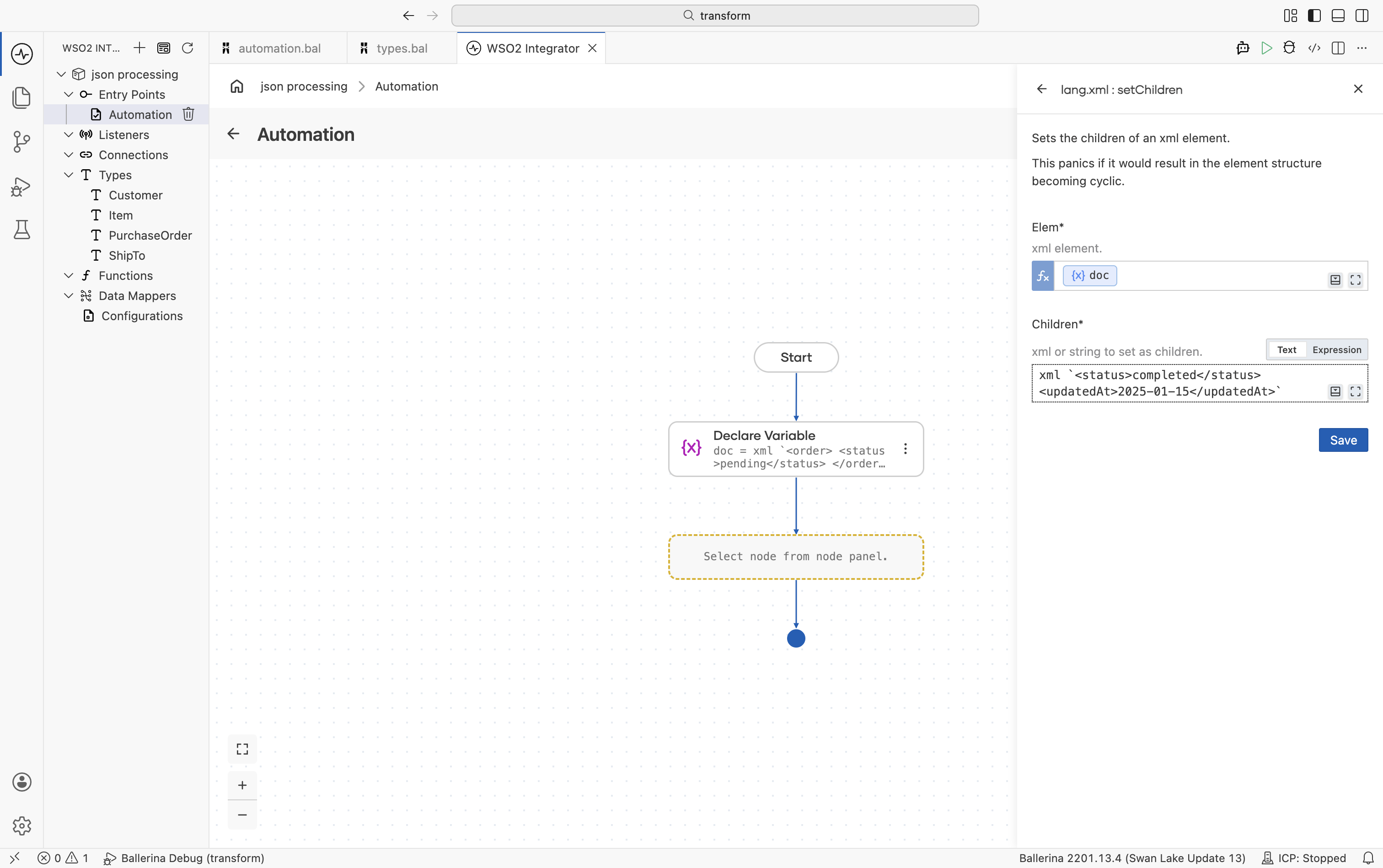
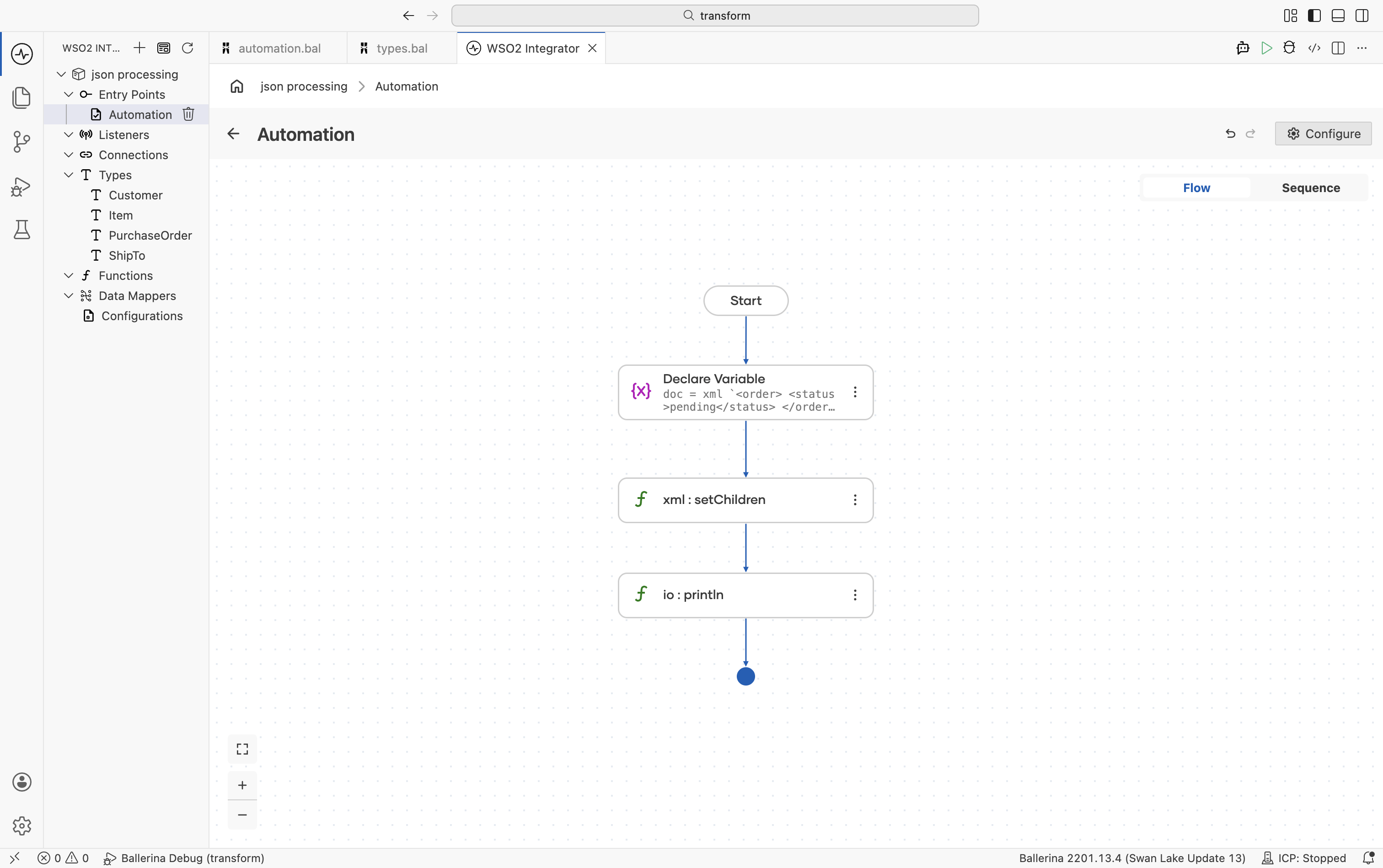
Mutate the XML element. Click + and select Call Function. In the right-side panel, search for
setChildrenand select it from thelang.xmlmodule. Configure:- Target:
doc - Children (argument): The replacement XML literal (for example,
xml `<status>completed</status><updatedAt>2025-01-15</updatedAt>`)
- Target:
import ballerina/io;

public function main() {
    xml:Element doc = xml `<order>
        <status>pending</status>
    </order>`;

    // Replace child elements
    doc.setChildren(xml `
        <status>completed</status>
        <updatedAt>2025-01-15</updatedAt>
    `);

    io:println(doc);
}
XML to record conversion
Use the data.xmldata module to convert XML data into typed Ballerina records for type-safe access and easier manipulation. Converting XML into records simplifies validation, transformation, and field access within integration flows.
- Visual Designer
- Ballerina Code
-
Define the target record types. Navigate to Types in the sidebar and click +. Select Create from scratch, set Kind to Record, and create the following types:
PurchaseOrder— add these fields using the + button:Field Type orderDatestringshipToShipToitemItem[]ShipTo— add these fields:Field Type namestringstreetstringcitystringItem— add these fields:Field Type partNumstringproductNamestringquantityintpricedecimalFor details on creating types, see Types.
infoThe
@xmldata:Attributeannotation marks a record field as an XML attribute. This annotation cannot be added through the Visual Designer. After creating theItemtype, open the generated.balfile and add@xmldata:Attributemanually above thepartNumfield definition. -
Define the XML input. Click + and select Declare Variable. Configure:
- Variable Name:
product - Variable Type:
xml - Expression: An XML backtick template containing the purchase order XML (see the Ballerina Code tab for the sample XML)
- Variable Name:
-
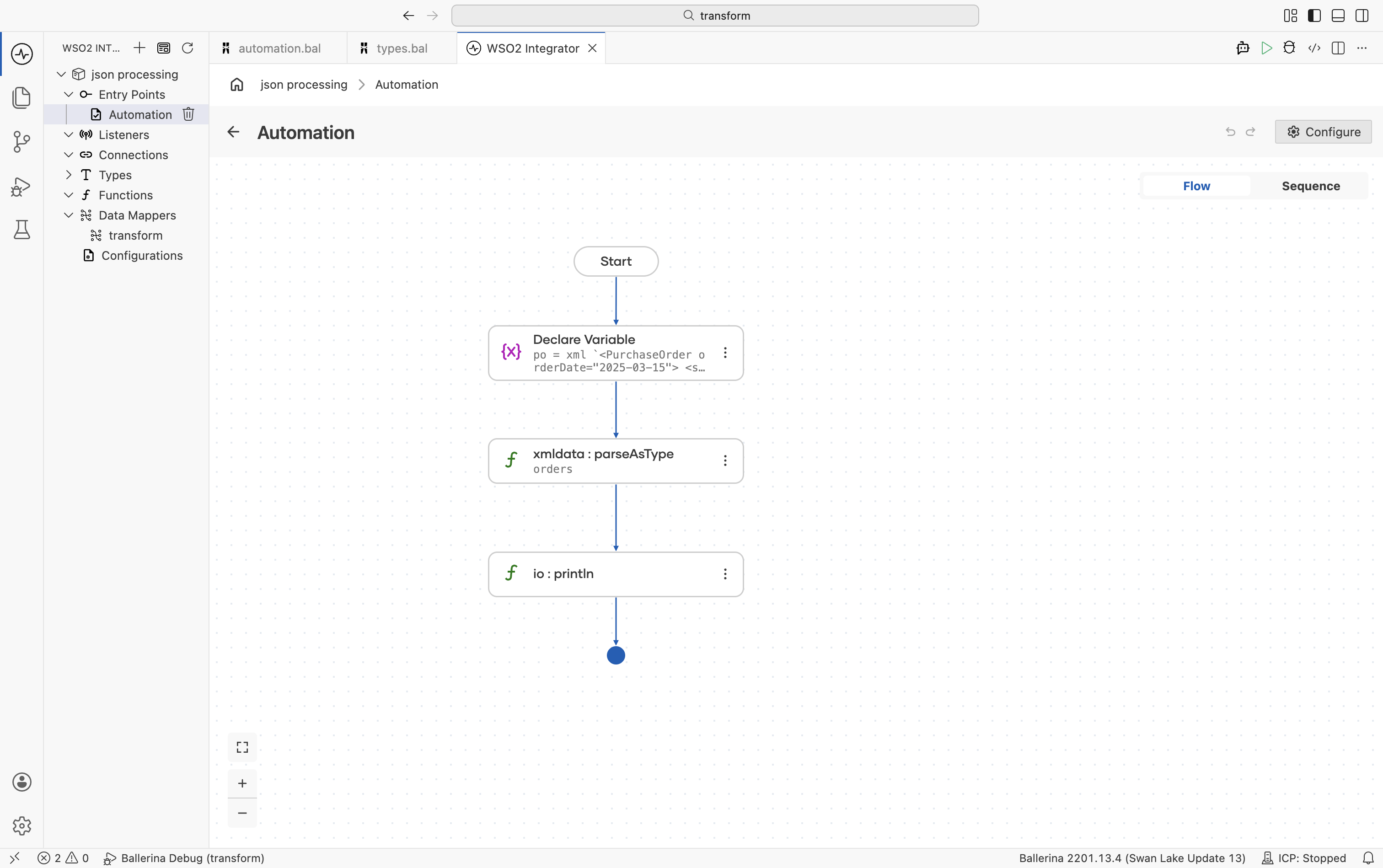
Parse XML into the record type. Click + and select Call Function. In the right-side panel, search for
parseAsTypeand select it from thedata.xmldatamodule.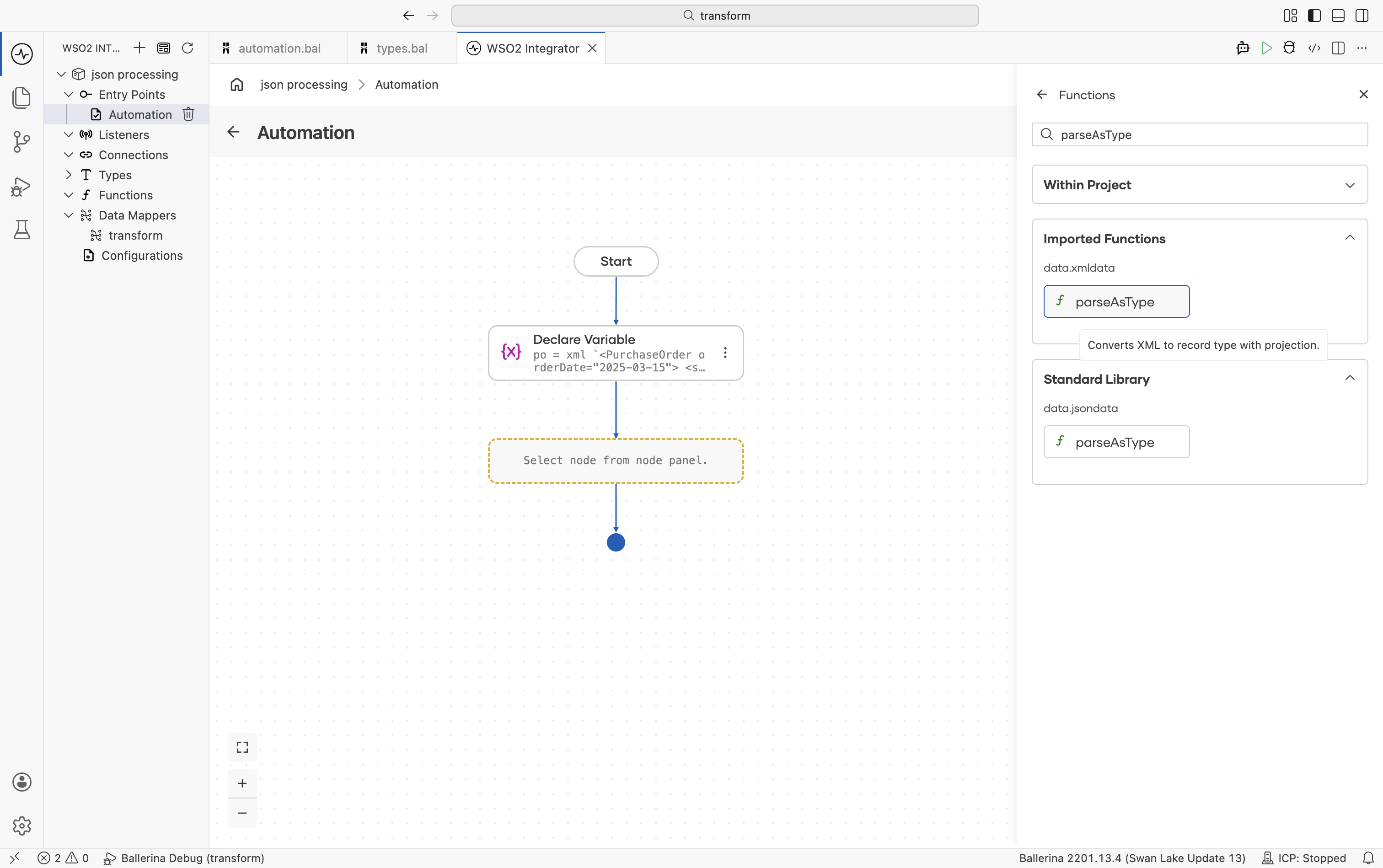
Configure the function call:
- XML Value (argument):
product - Result:
orders - T:
PurchaseOrder
- XML Value (argument):
import ballerina/data.xmldata;
import ballerina/io;

type PurchaseOrder record {|
    string orderDate;
    ShipTo shipTo;
    Item[] item;
|};

type ShipTo record {|
    string name;
    string street;
    string city;
|};

type Item record {|
    @xmldata:Attribute
    string partNum;
    string productName;
    int quantity;
    decimal price;
|};

public function main() returns error? {
    xml product = xml `<PurchaseOrder orderDate="2025-03-15">
        <shipTo>
            <name>Acme Corp</name>
            <street>123 Main St</street>
            <city>Springfield</city>
        </shipTo>
        <item partNum="WDG-01">
            <productName>Widget</productName>
            <quantity>10</quantity>
            <price>29.99</price>
        </item>
    </PurchaseOrder>`;

    PurchaseOrder orders = check xmldata:parseAsType(po);
    io:println(orders.shipTo.name); // Acme Corp
}
Record to XML conversion
Convert Ballerina records into XML using the data.xmldata module. Record-to-XML conversion is useful when generating XML payloads for APIs, external systems, or XML-based integrations.
- Visual Designer
- Ballerina Code
-
Define the record type. Navigate to Types in the sidebar and click +. Select Create from scratch, set Kind to Record, and name it
Invoice. Add the following fields using the + button:Field Type invoiceIdstringcustomerstringtotaldecimalFor details on creating types, see Types.
-
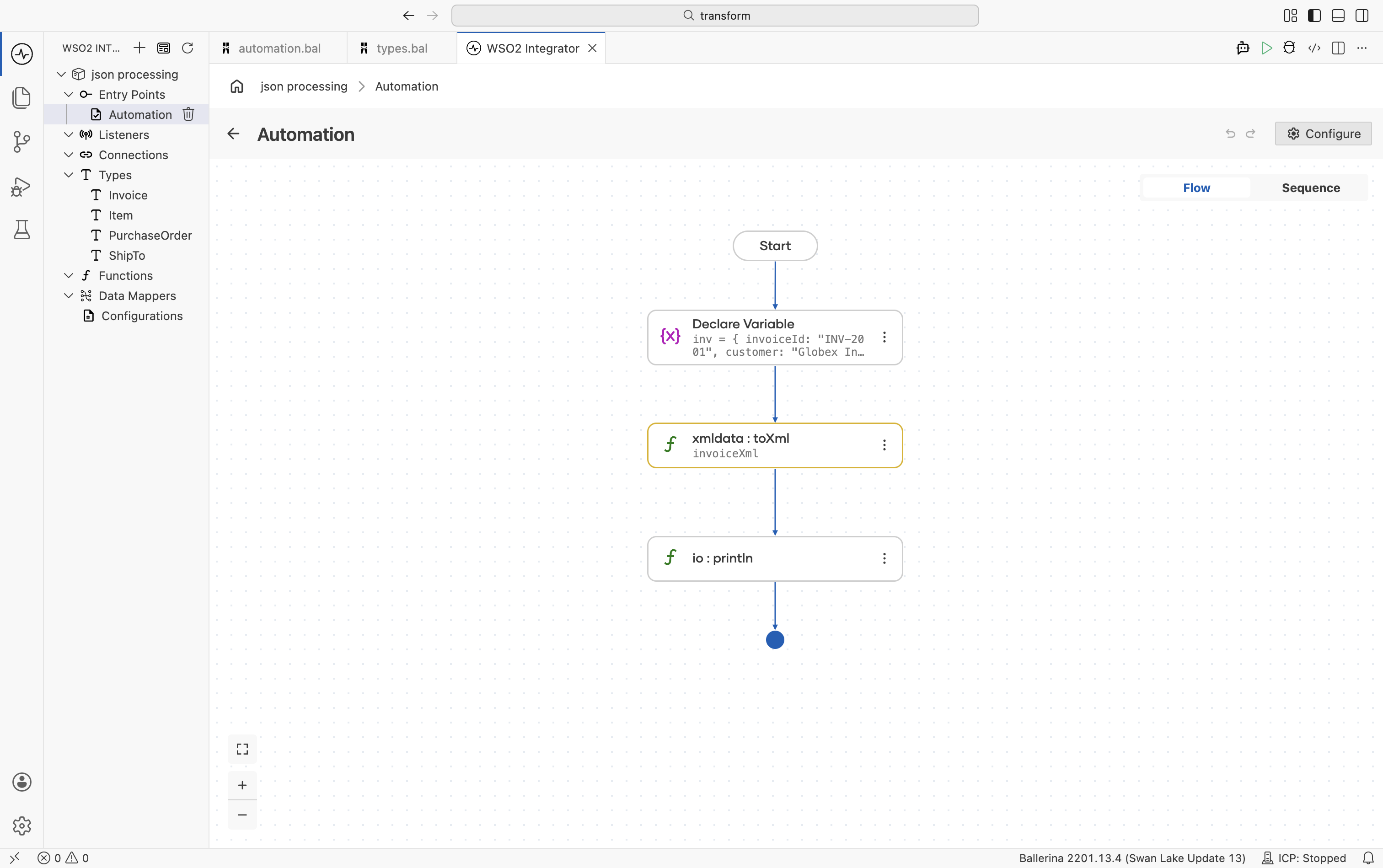
Create the record value. Click + and select Declare Variable. Configure:
- Variable Name:
inv - Variable Type:
Invoice - Expression:
{invoiceId: "INV-2001", customer: "Globex Inc", total: 1500.00}
- Variable Name:
-
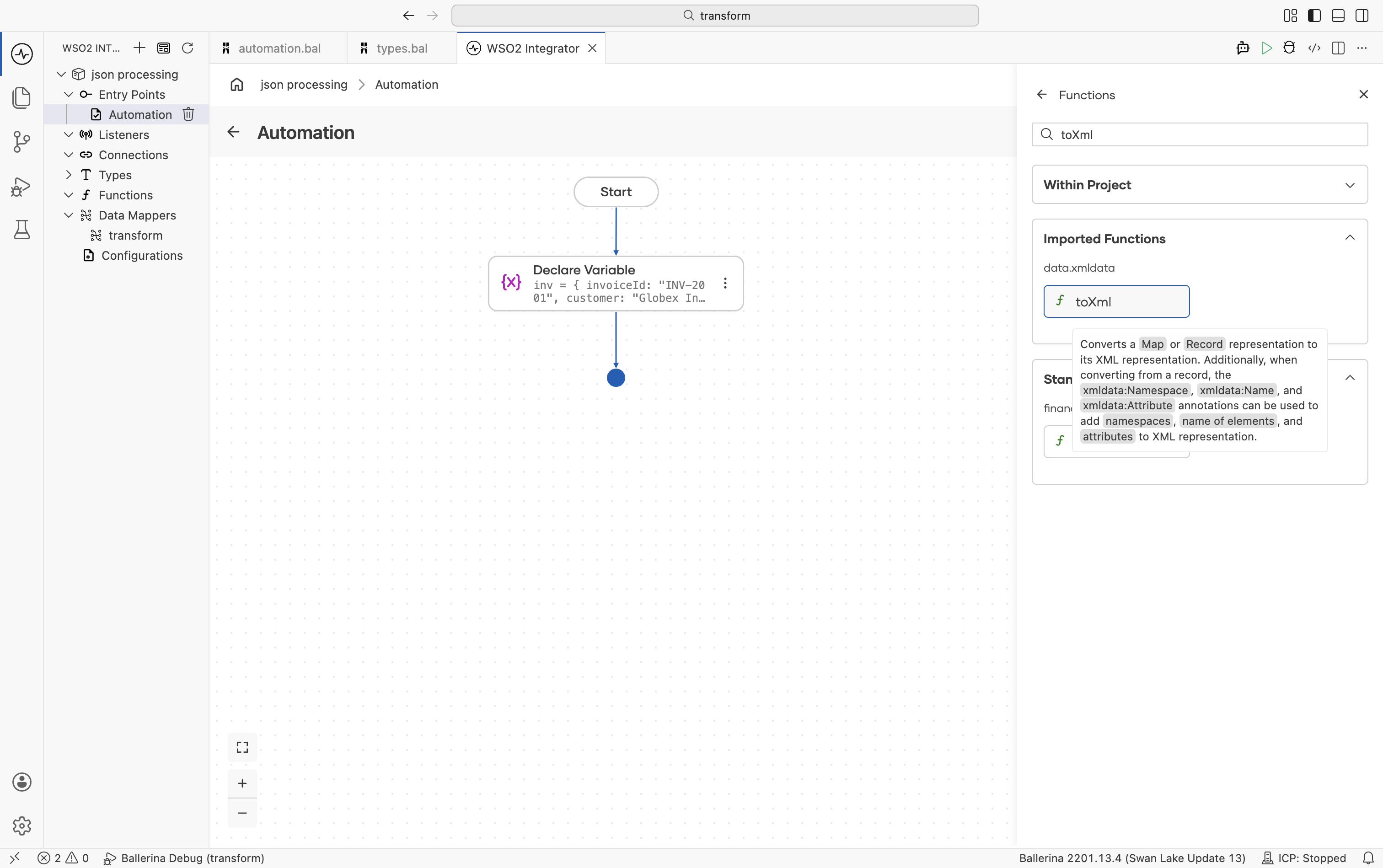
Convert the record to XML. Click + and select Call Function. In the right-side panel, search for
toXmland select it from thedata.xmldatamodule. Configure:- Value (argument):
inv - Result:
invoiceXml - Return Type:
xml
- Value (argument):
- Use the generated XML. The resulting
invoiceXmlvalue can be returned from a service, sent to external systems, or further transformed within the integration flow.
import ballerina/data.xmldata;
import ballerina/io;

type Invoice record {|
    string invoiceId;
    string customer;
    decimal total;
|};

public function main() returns error? {
    Invoice inv = {
        invoiceId: "INV-2001",
        customer: "Globex Inc",
        total: 1500.00
    };

    xml invoiceXml = check xmldata:toXml(inv);

    io:println(invoiceXml);
    // <Invoice><invoiceId>INV-2001</invoiceId>...</Invoice>
}
XML to JSON conversion
Convert XML data to JSON by first parsing the XML into a typed record using the data.xmldata module, then converting the record to JSON using the built-in toJson() method from lang.value. To convert JSON back to XML, use xmldata:fromJson from data.xmldata. These conversions are useful when integrating XML-based systems with JSON-based APIs and services.
- Visual Designer
- Ballerina Code
-
Define the record types. Navigate to Types in the sidebar and click +. Select Create from scratch, set Kind to Record, and create a record matching your XML structure. For example, create a
Customerrecord with fieldsname(string) andemail(string). For details on creating types, see Types. -
Define the XML input. Click + and select Declare Variable. Configure:
- Variable Name:
customers - Variable Type:
xml - Expression: An XML backtick template containing the customer XML (see the Ballerina Code tab for the sample XML)
- Variable Name:
-
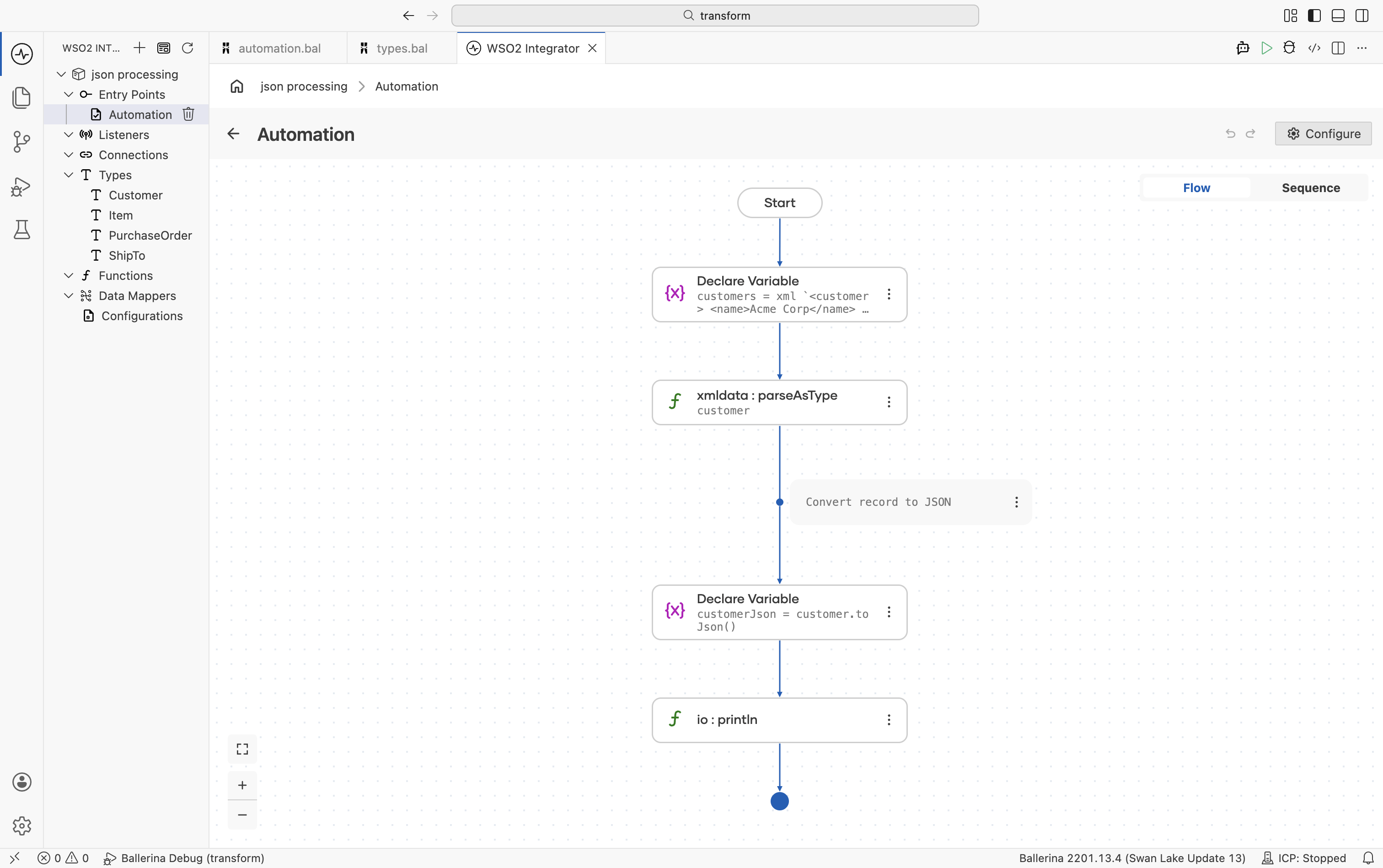
Parse XML into a record. Follow the steps in XML to record conversion to parse the XML value into a typed record using
parseAsTypefrom thedata.xmldatamodule. -
Convert the record to JSON. Click + and select Call Function. In the right-side panel, search for
toJsonand select it from thelang.valuemodule. Configure:- Value (argument):
customer(the parsed record) - Result:
customerJson - Return Type:
json
- Value (argument):
-
(Optional) Map fields visually. Use the Visual Data Mapper to map or transform fields between record structures before converting the result into JSON.
import ballerina/data.xmldata;
import ballerina/io;

public function main() returns error? {
    xml customers = xml `<customer>
        <name>Acme Corp</name>
        <email>[email protected]</email>
    </customer>`;

    // Convert XML to a typed record
    record {|
        string name;
        string email;
    |} customer = check xmldata:parseAsType(customers);

    // Convert record to JSON
    json customerJson = customer.toJson();
    io:println(customerJson);

    // Convert JSON back to XML
    xml result = check xmldata:fromJson(customerJson);
    io:println(result);
}
What's next
- JSON Processing - Parse, construct, transform, and validate JSON data
- Visual Data Mapper - Map fields between record types visually
- Types - Define record types for type-safe data handling