Await Human Task
Real processes wait on people: a manager approves an expense, a reviewer checks documents, an HR lead assigns a new joiner to a team. A Human Task step stops the workflow at exactly that point, hands a task to a role, and resumes the moment someone submits a decision, whether that takes a minute or a month. While it waits, it holds no threads and no connections.
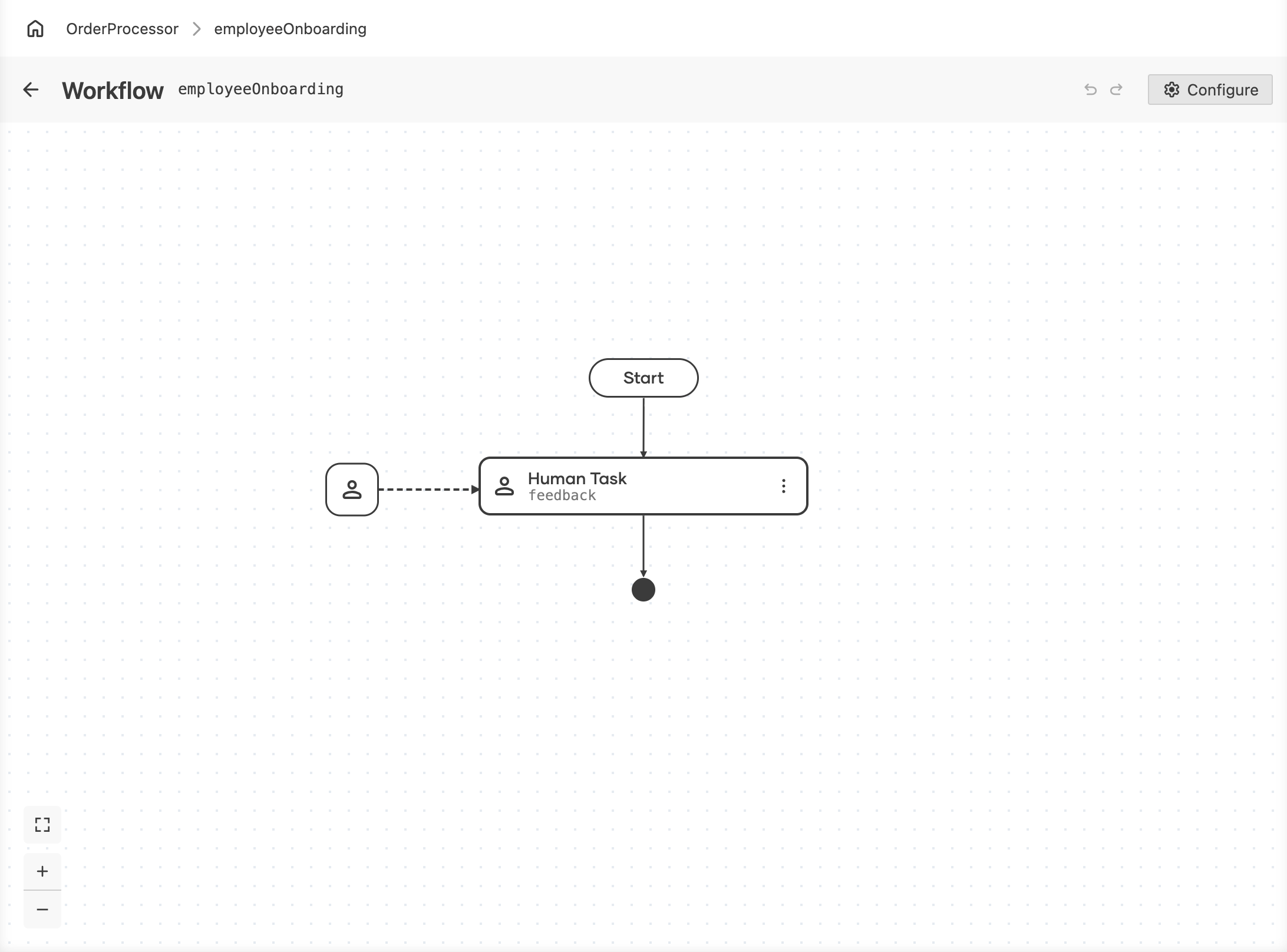
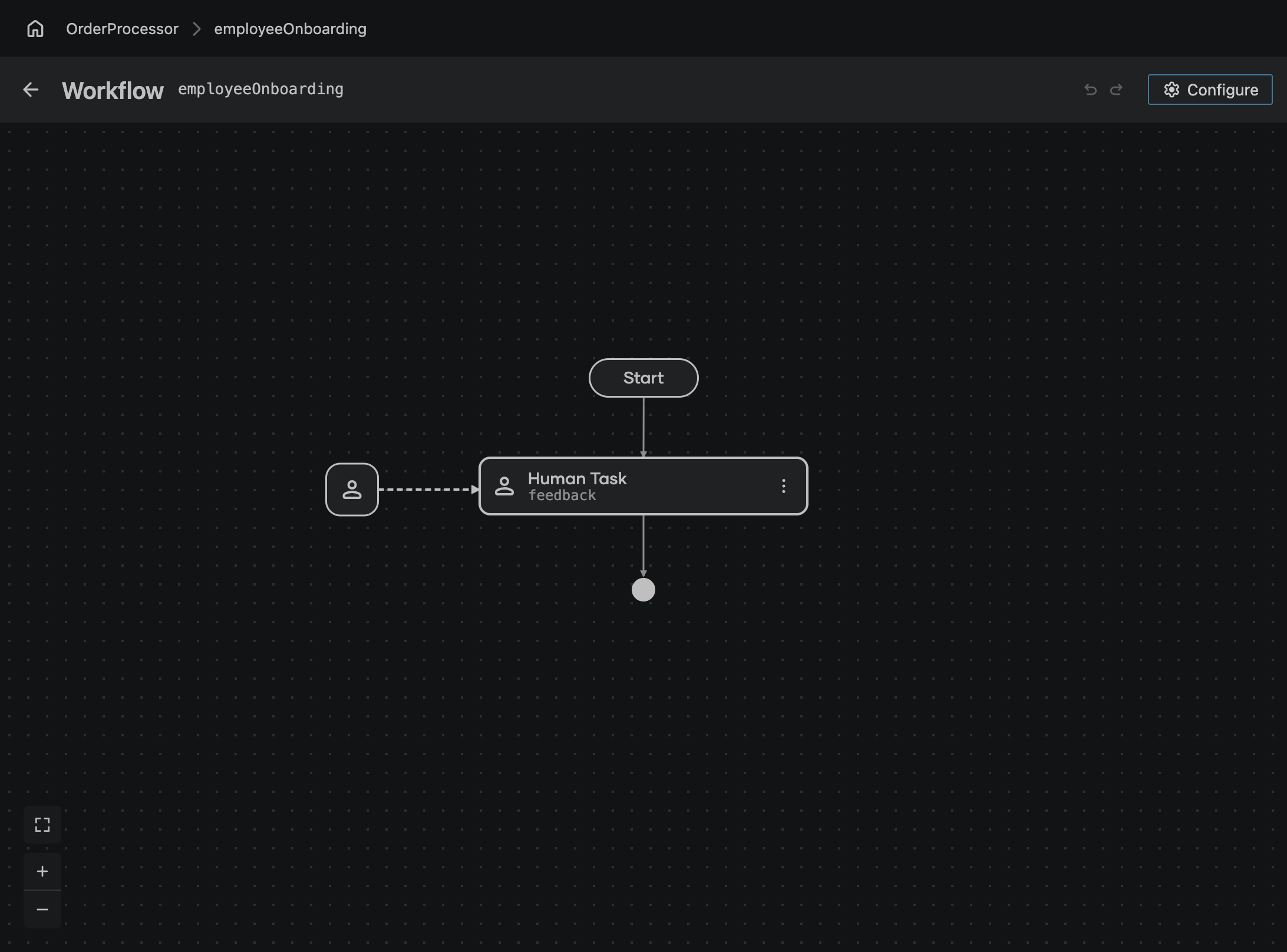
Add the step
The steps below follow one example: an onboarding workflow where an HR lead assigns a new joiner to a team. The task lands in the Control Plane inbox of the matching role, as a form rendered with the information needed to answer it. The workflow starts with the employee's details, so its input type is an EmployeeDetails record:
| Field | Type |
|---|---|
id | string |
name | string |
-
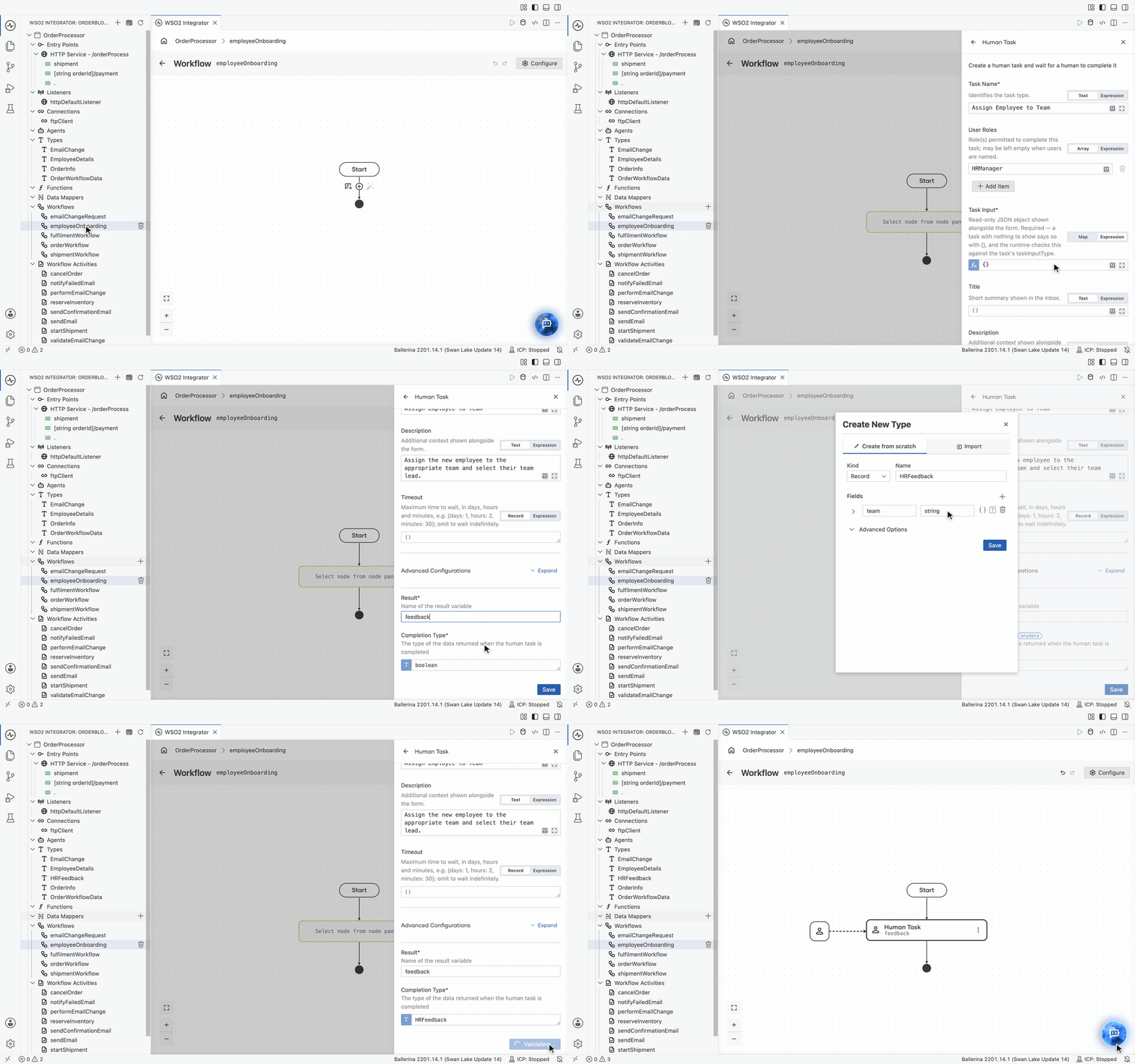
On the workflow diagram, click + where the workflow should wait.
-
In the node panel, under Workflow > Steps, click Human Task.
-
Fill in the form:
Field Required Description Task Name Yes Identifies the task type, for example Assign Employee to Team.User Roles Yes One or more roles permitted to complete this task, for example HRManager. Only users holding a matching role see the task. It can be left empty only when Users names the people who may complete it; the form refuses a task that names nobody.Task Input Yes Read-only information shown alongside the form to help the user make the decision. Enter {}when there is nothing to show. See Show the decider what they need.Title No Short summary shown in the inbox, for example Assign Employee to Team.Description No Additional context shown alongside the form, for example Assign the new employee to the appropriate team and select their team lead.Timeout No Maximum time to wait. Omit it to wait indefinitely. Result Yes Name of the variable that receives the decision. Completion Type Yes The type of the data returned when the task is completed. Defaults to boolean. See Type the decision. -
Click Save.
The workflow suspends at this step, and the task appears in the Integration Control Plane inbox for every user holding one of the roles you named.
Show the decider what they need
Task Input is the information the person needs to understand the task. It is shown as read-only information alongside the form and answers the question “What am I deciding about?”, which the decision form itself cannot.
In the onboarding example that is the employee, so Task Input is set to the workflow's input, the EmployeeDetails record. The new joiner's ID and name then appear alongside the form when the task is completed in the Control Plane.
The task input is only there to provide context. It is not returned to the workflow. The value the person submits is determined by the Completion Type below.
Type the decision
Completion Type is what the workflow gets back. When it is a record, it is also what the Control Plane renders the form from. Any other type, such as a plain boolean for an approve or reject, has no form: the decider types the value, for example true, into a JSON box. Use a record whenever the decider should fill in a form.
For the onboarding task, the HR lead answers with a team and a team lead:
| Field | Type |
|---|---|
team | string |
lead | string |
That record produces a two-field form in the inbox, and the workflow resumes with those values as an ordinary typed record. Records created this way are ordinary types, editable later from Types in the sidebar. See Types for the type editor and the kinds it supports.
Whatever you put in the completion type is exactly what the decider fills in. Keep it small: an action, a comment, maybe a corrected value. Use an enum for a fixed set of choices, and the Control Plane renders it as a dropdown.
Bound the wait
Timeout limits how long the task can sit unanswered. When it expires the wait returns an error, which the workflow can handle: escalate to another role, send a reminder, or end the process. Omit it and the task waits indefinitely.
Decision or data?
Use a human task when a person is making a decision the Control Plane should render as a form. When the workflow needs content instead, such as an uploaded document or a partner system's confirmation, await a data event, which suspends the same way but is filled by whoever holds the workflow ID.
How these tasks are completed
A workflow never exposes its own endpoint for finishing a task. Completion happens outside the workflow:
- Complete human tasks in the Integration Control Plane, where the task appears in the inbox of everyone holding a matching role, rendered as a form built from the completion type with the task input shown beside it. This is the route for the people actually deciding.
- Management API, whose
POST /human-tasks/{taskId}/completeaccepts the same decision as JSON, for building your own portal or automating a decision.
Next steps
- Complete human tasks — decide a waiting task from the Control Plane inbox.
- Await data events — wait for data delivered by a system or a person instead of a decision.
- Error handling and review activities — approvals attached to activities rather than free-standing tasks.