Error Handling and Review Activities
Failures and risky steps are where durable workflows earn their keep. Instead of scattering try/catch blocks and retry loops through your flow, you attach a retry policy to each activity call — and for the steps that matter most, you put a human review in front of the step or behind its failure.
Retry policies
Every activity call takes a Retry Policy, which says what the workflow should do after a failed attempt to execute that activity.
| Policy | What happens on failure |
|---|---|
| No Retry (default) | The activity call returns the error from its first failed attempt, and with Check Error selected the workflow fails with it. |
| Auto Retry | The engine re-executes the activity with configurable attempts, delay, and backoff. |
| Human Review | A review task is created for the roles you name. The reviewer can retry as-is, retry with corrected input, or fail the step. |
| Retry, then Review | The engine retries first, as with Auto Retry, and raises the review only when the last attempt fails. Max Retries is required here. |
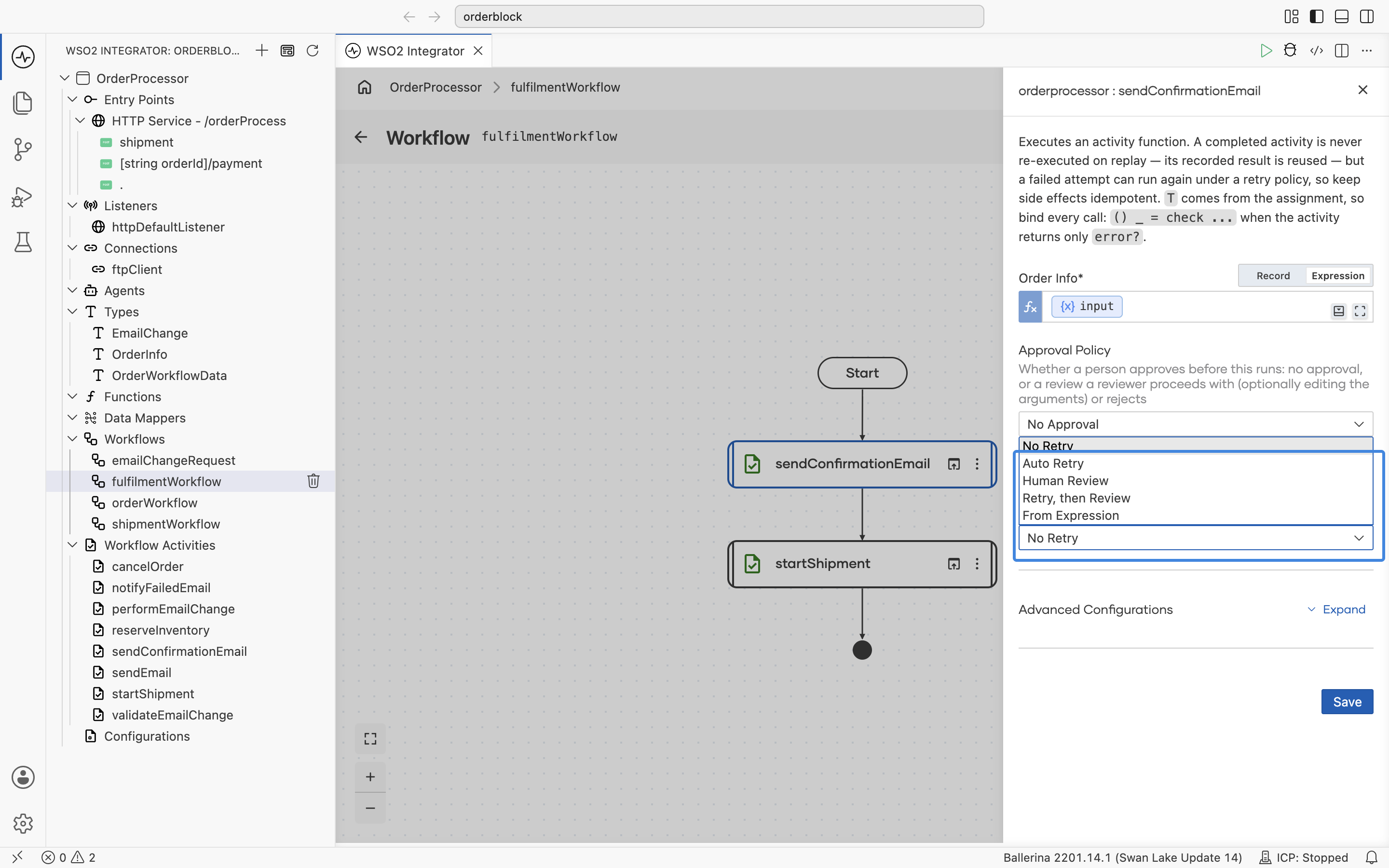
Auto retry — for transient failures
Choosing Auto Retry adds the backoff fields to the form. Every one of them is optional, and a field left empty falls back to its default.
| Field | Required | Description |
|---|---|---|
| Max Retries | No | Maximum retry attempts. Defaults to 3. |
| Retry Delay | No | Initial delay in seconds before the first retry. Defaults to 1.0. |
| Retry Backoff | No | Multiplier applied to the delay after each retry. Defaults to 2.0. |
| Max Retry Delay | No | Cap on the delay between retries, in seconds. Left empty, the delay keeps growing by the multiplier. |
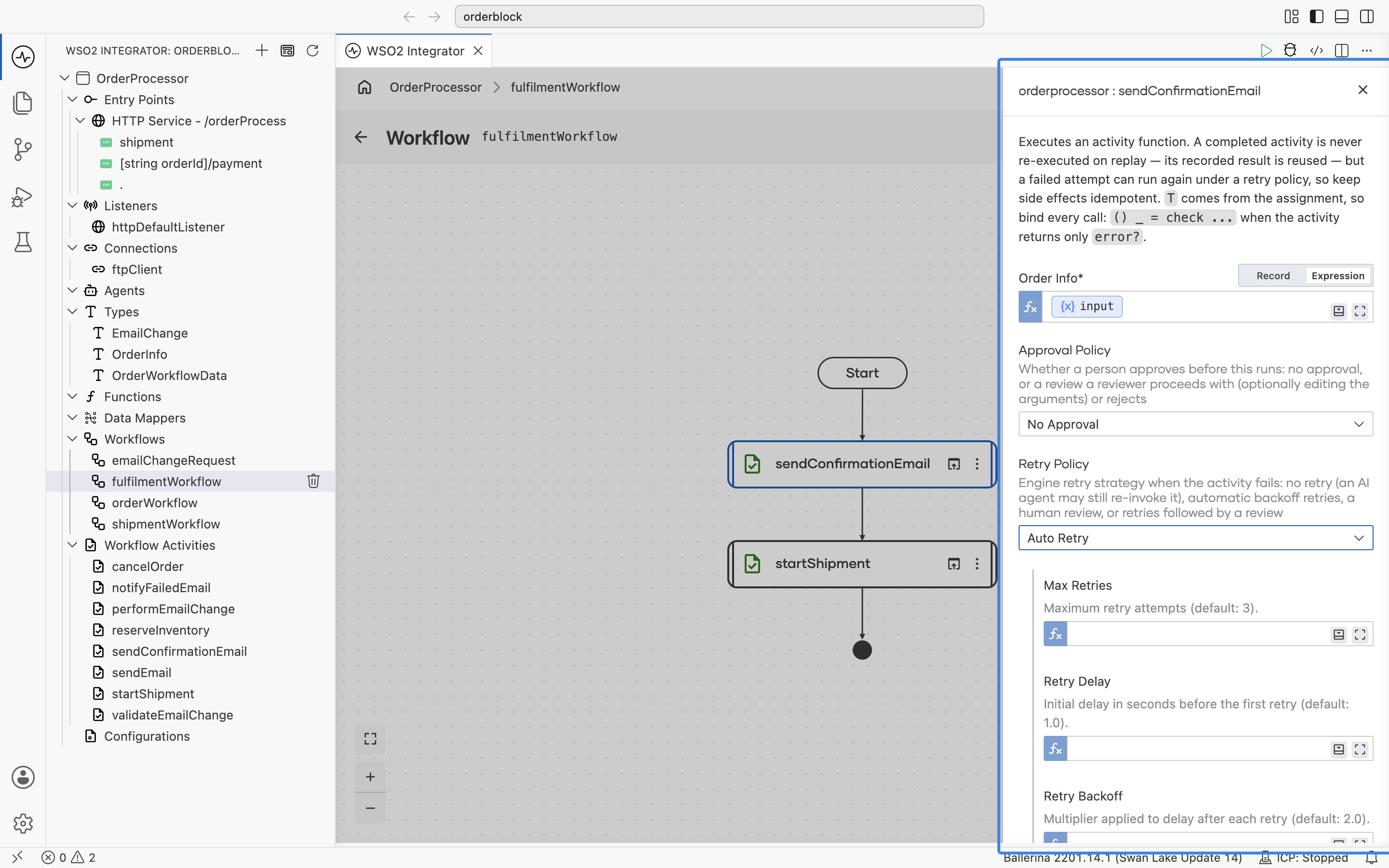
Human review — when a person should fix it
Choosing Human Review hands a failure to a person instead of to the engine. The workflow does not fail along with the activity, and the engine does not retry on its own: the run parks at that step, and a review task is raised carrying the failing input and the error it produced. The task takes its name from the activity being called, so there is nothing to name in the form.
The review is listed on the Human Tasks page of the Control Plane for the roles you name below, matched by exact role name. Until one of them decides it, the run waits there durably and holds no threads or connections, the same as any other durable wait. The decision is what resumes it.
| Field | Required | Description |
|---|---|---|
| Reviewer Roles | Yes | One or more roles permitted to decide the review, for example Finance. It can be left empty only when Reviewers names the users who may decide; the form refuses a review that names nobody. |
| Title, Description, Timeout | No | How the review reads in the inbox and how long it may wait. Left empty, the title and description are worded from the activity and its failure, and the review waits indefinitely. |
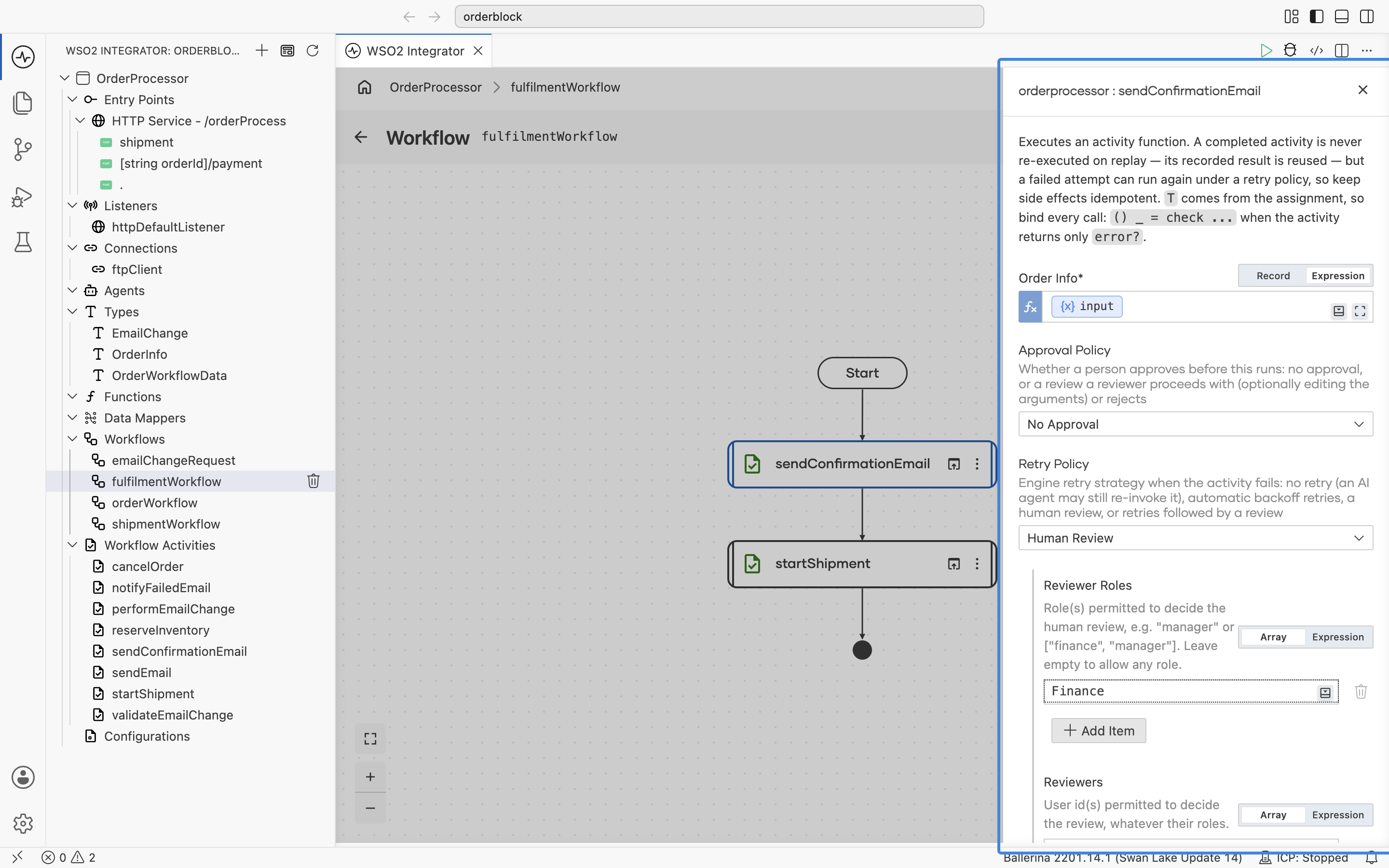
Approval gates — review before the step runs
Some steps should never run without sign-off, even when nothing has failed. A gate like that is the Approval Policy of the activity call. It is on the Call Activity form of a workflow, and on the form where a durable agent registers the activity as one of its capabilities.
| Field | Required | Description |
|---|---|---|
| Approval Policy | Yes | No Approval (the default) runs the activity unattended. Human Approval gates it behind an approval review. |
| Reviewer Roles | Yes | Shown for Human Approval. One or more roles permitted to decide the approval, for example Finance. It can be left empty only when Reviewers names the users who may decide. |
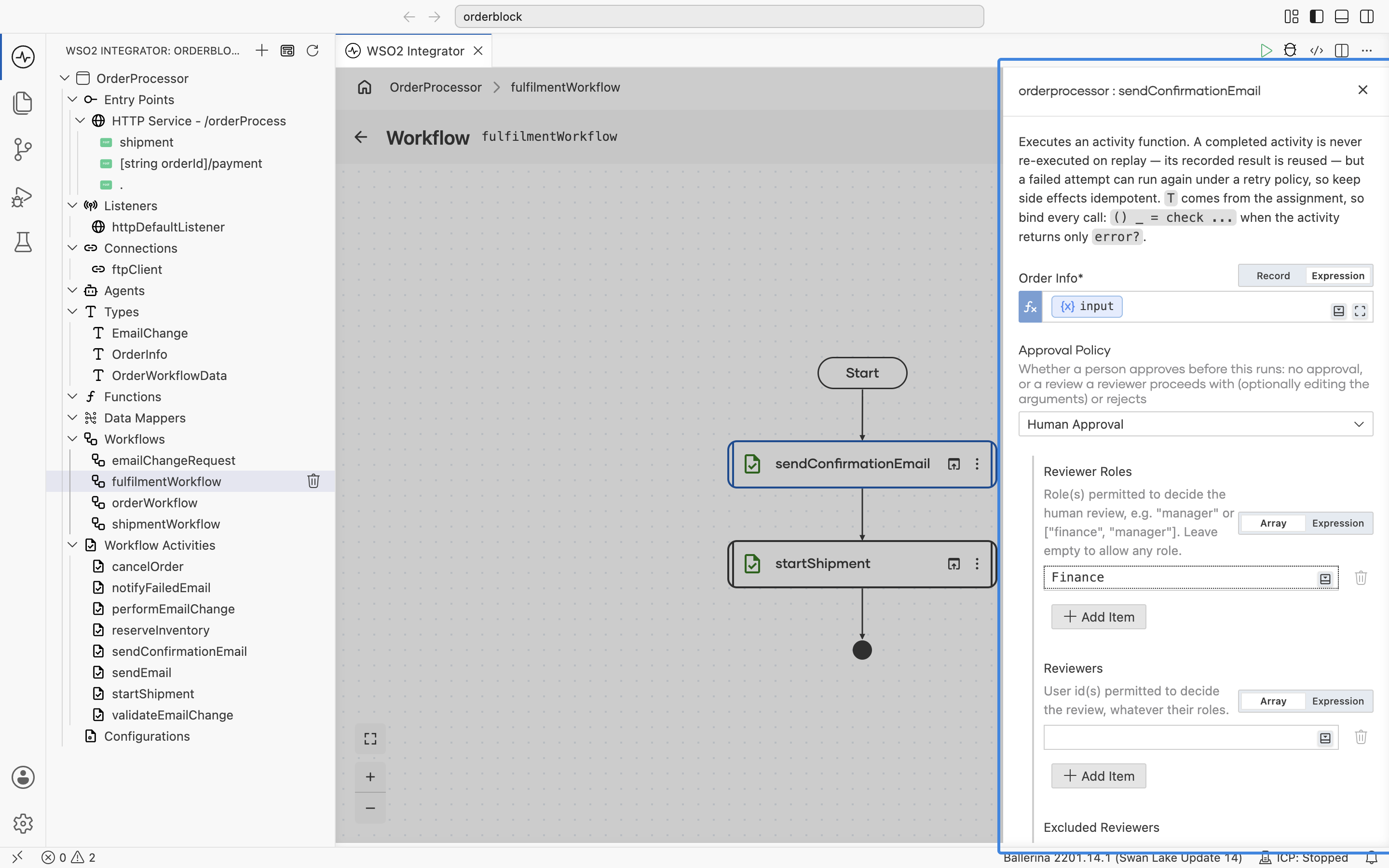
With the gate on, the run suspends durably before every call to that activity and raises a review activity showing the arguments it proposes. The reviewer proceeds, proceeds with edited arguments, or rejects. Gates are decided on the Human Tasks page of the Control Plane. See Decide a review activity.
Error handling in the workflow logic
Retry policies handle the step; your workflow logic handles the outcome. Clearing Check Error on an activity call hands the failure back to the workflow as a value instead of propagating it out of the workflow, and from there you branch on it like on any other value.
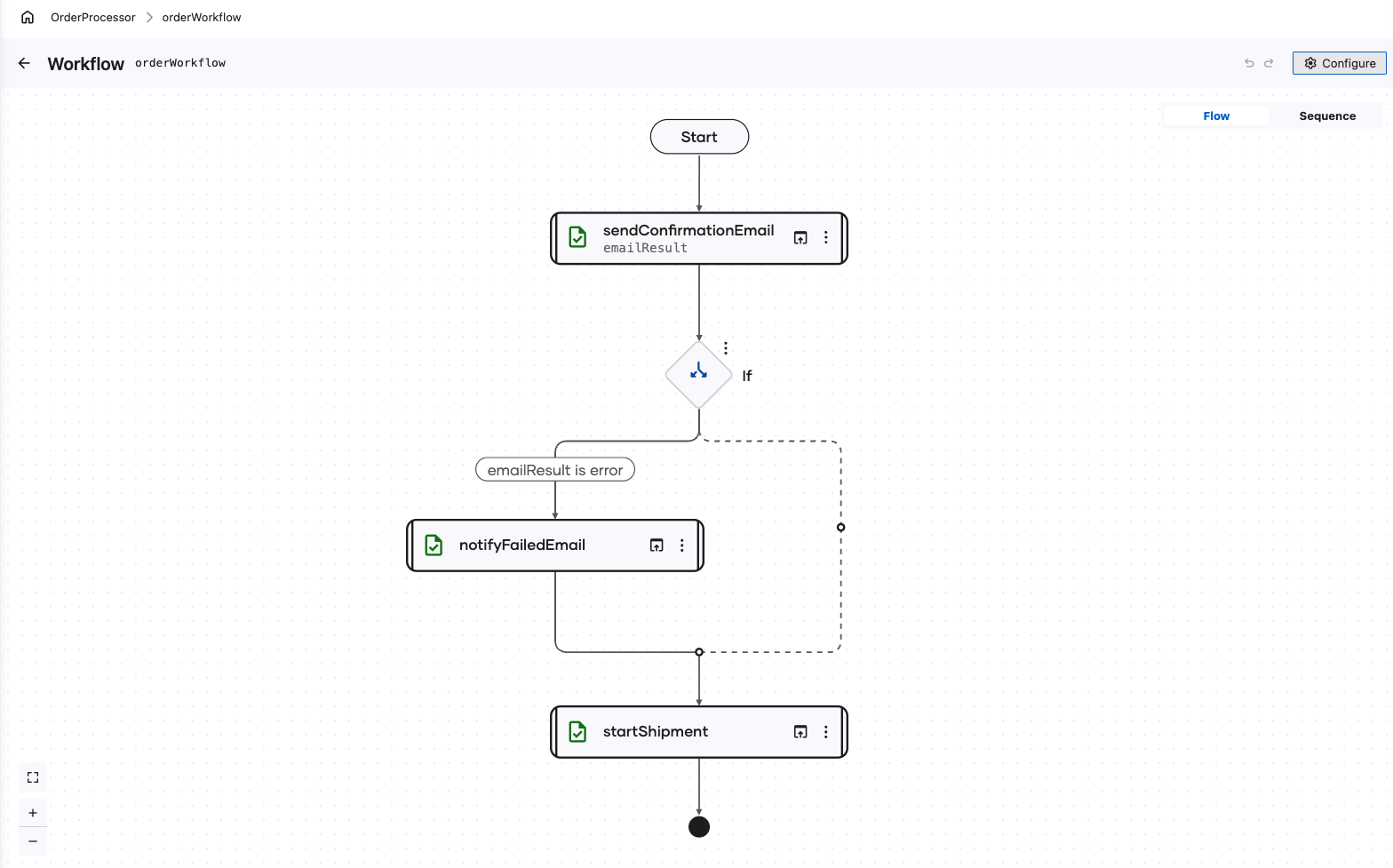
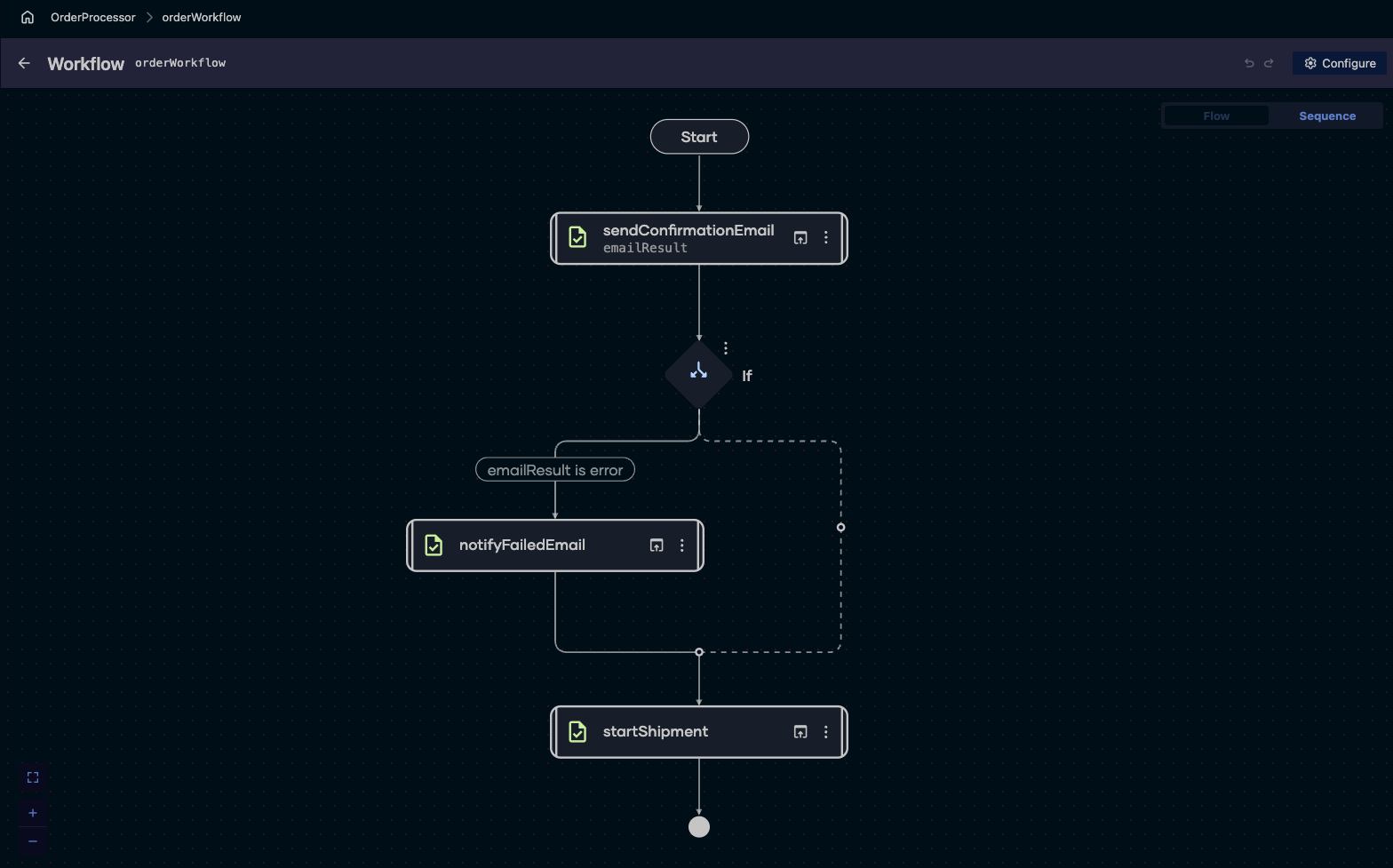
To handle an activity failure inside the workflow, as in the diagram above:
-
On the workflow diagram, click the activity call whose failure you want to handle,
sendConfirmationEmailhere. -
Expand Advanced Configurations and clear Check Error. A Result field appears.
-
Name the Result variable, for example
emailResult, and click Save. The variable holds the error the activity failed with, or nil when it succeeded, and the node now shows the variable under the activity name.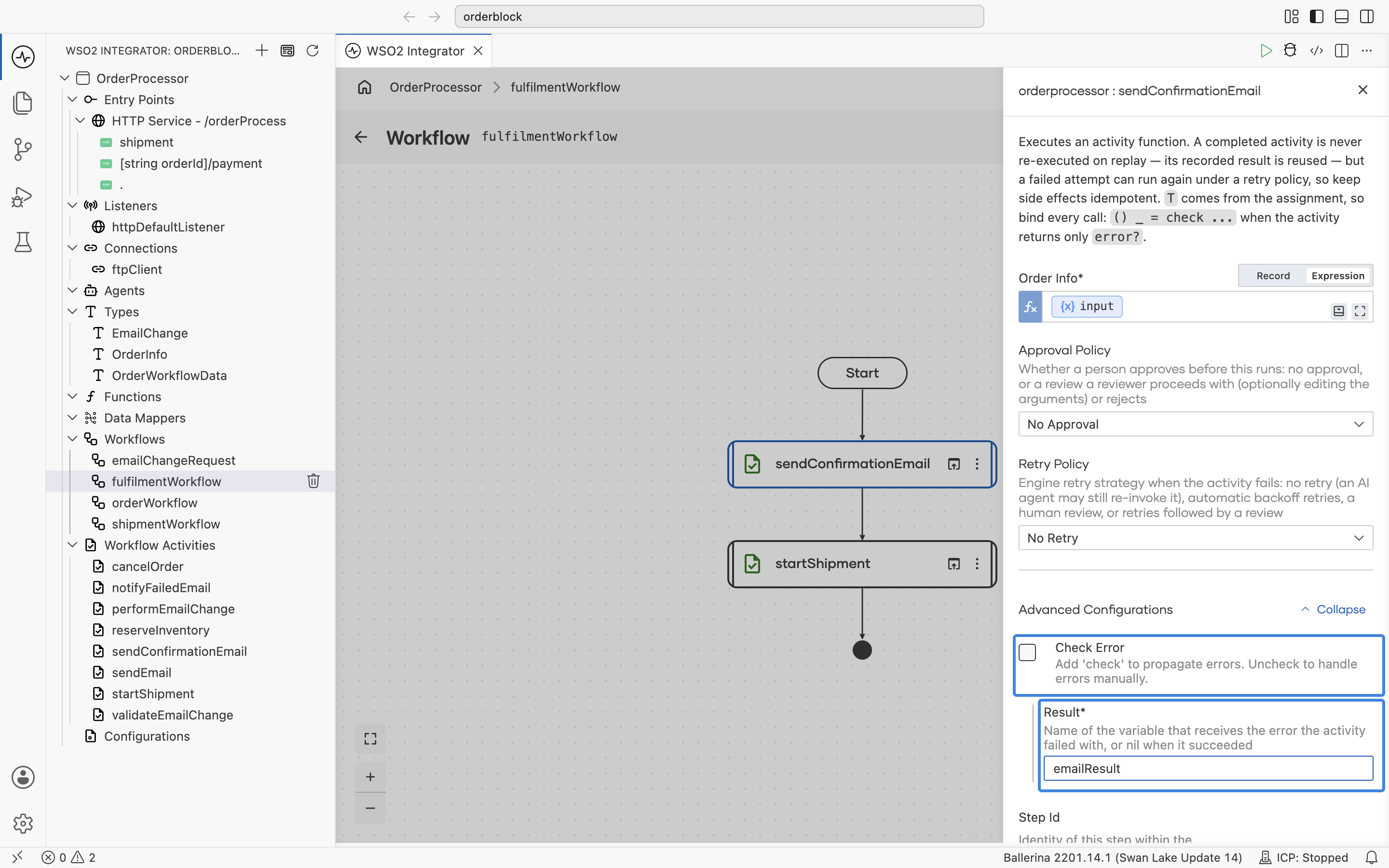
-
Click + below the activity and, in the node panel under Control, click If.
-
In Condition, write the error check,
emailResult is error. Selecting the variable under Variables in the expression helper saves typing it. Click Save. -
Click + on the branch taken when the condition holds and add the steps that deal with the failure, here a Call Activity step calling
notifyFailedEmail. Click Save.
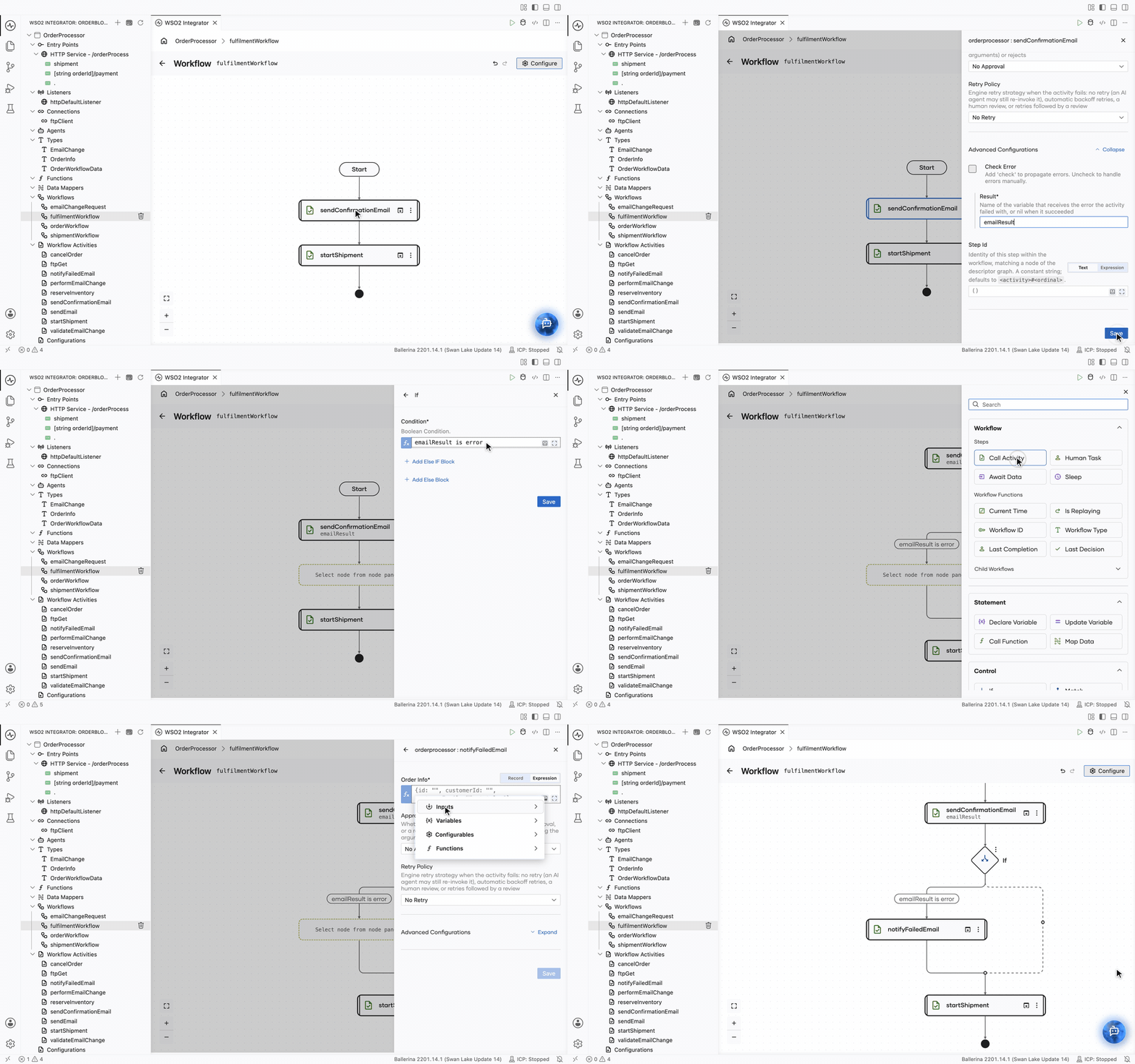
Both branches rejoin the flow after the If, so startShipment runs whether or not the email failed. Leave the else branch empty when there is nothing to do on success.
Choosing a policy
| Situation | Policy |
|---|---|
| Flaky downstream, safe to repeat | Auto Retry |
| Bad input a person could correct | Human Review |
| Flaky downstream that may still need a person | Retry, then Review |
| Risky or irreversible step (payments, deletions) | Approval gate (Approval Policy set to Human Approval) |
| Business-level failure with a fallback path | No Retry + workflow logic |
Crash recovery
Everything above rests on one guarantee: the engine writes down the outcome of every step as that step completes. When a run resumes after a crash, a restart, or a redeploy, the workflow function replays, and each step that already finished is read back from the record instead of being run again.
| Step | What is read back on replay |
|---|---|
| An activity call | The value the activity returned, so the card is not charged and the email is not sent a second time. |
| A data event wait | The value that was delivered, so the run does not wait for it again. |
| A human task wait | The decision the person submitted. |
| A durable timer | The original deadline, so an elapsed wait does not restart its clock. |
| Current time | The instant the run first reached that step. The workflow always works with the time at which it first got there. |
This is why a durable workflow needs no state management of its own. You write no checkpoint rows, no status columns, and no resume logic, and you do not reload progress when a run picks back up: the variables in the workflow body are rebuilt from the record, so the code after a wait sees exactly what the code before it left behind. The recorded events for a run are listed in its Event History in the Control Plane, which opens from the debug-information icon on the execution's Execution card.
What this asks of you in return is a deterministic workflow body, since that is the part that runs again on every replay. See Activities.
Next steps
- Await human task — free-standing decisions and external data.
- Create a Durable Agent — the same policies applied to an AI agent's activities.