Await Data Events
Sometimes a workflow needs data, not a decision — the employee submits the supporting bills, a partner system posts a shipping confirmation, a scanner returns a document. A data event is a named slot the workflow waits on. The instance suspends until something delivers a value into that slot, then resumes with the value as an ordinary typed result.
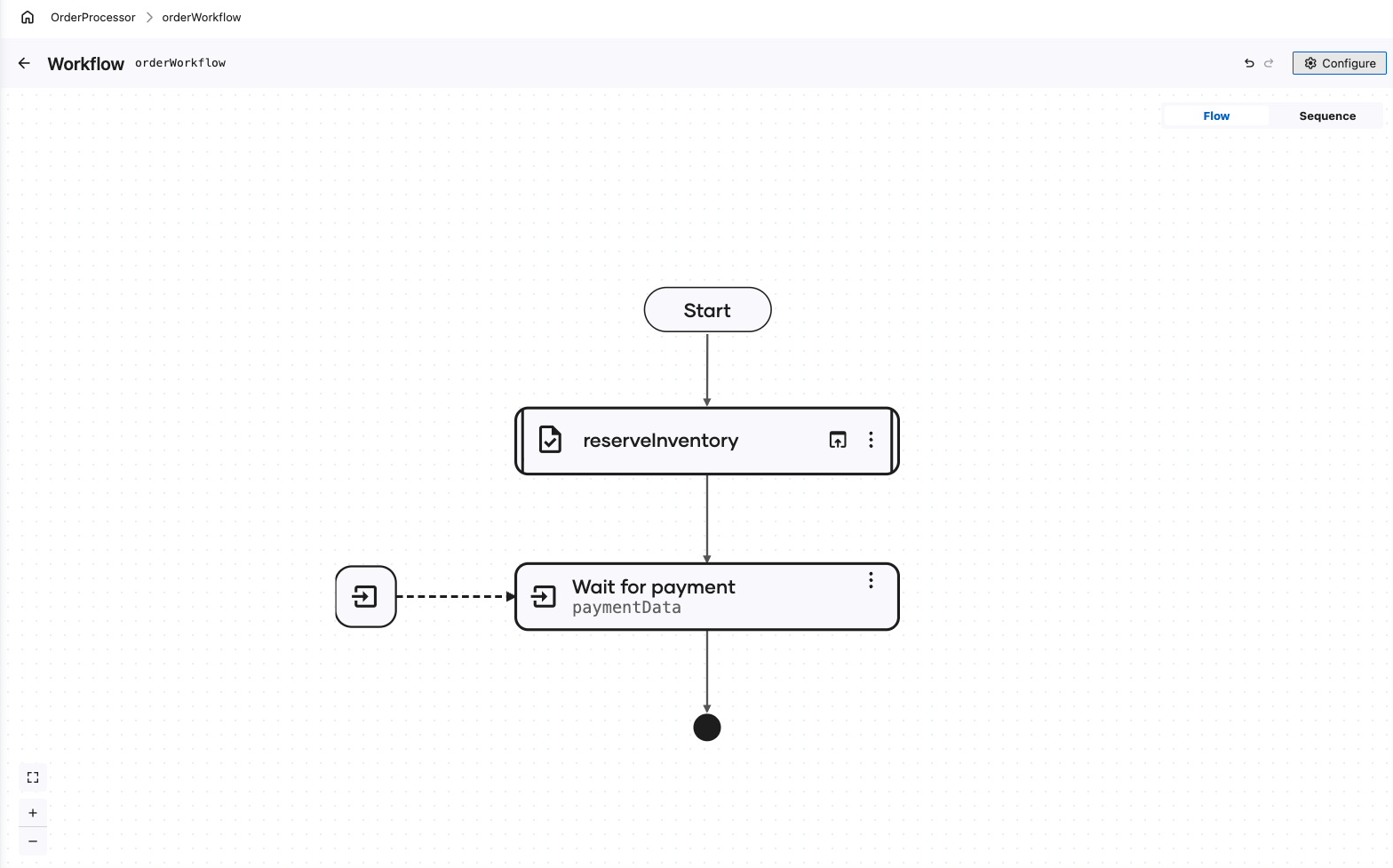
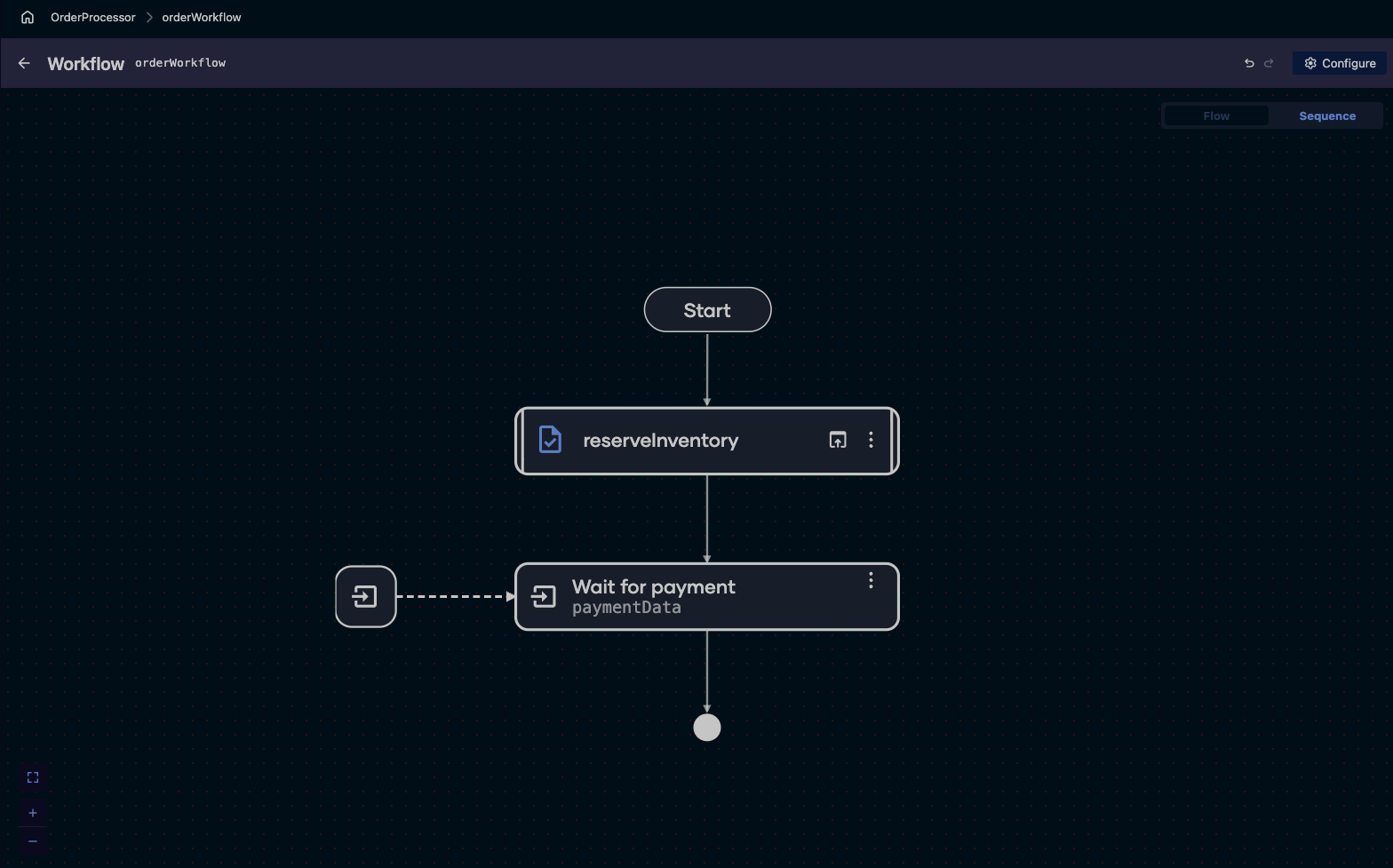
Like every other durable wait, it holds no thread and no connection while it waits, and it survives a restart.
Pause a workflow for a data event
-
On the workflow diagram, click + where the workflow should wait.
-
In the node panel, under Workflow > Steps, click Await Data Event. The Await Data form opens.
-
Fill in the form:
Field Required Description Data Receive Variable Name Yes The variable that receives the value once it arrives. Data Type Yes The type of the value the workflow expects. Pick an existing type, or create one from the list. Data Name Yes The name used when sending the data into this workflow. Min Count No Under Advanced Configurations. How many of the awaited events must arrive before the workflow continues. Defaults to all of them. Timeout No Under Advanced Configurations. The longest the workflow waits, as a duration record. The wait returns an error when the timeout expires, which your workflow can handle. Timeout opens a Record Configuration editor: select the units you want, such as minutes, and fill in their values. Switch the field to Expression to write the record yourself instead.
-
Click Add to commit the Data Waits entry. It collapses to a row showing its type and variable. Use + Add Data Waits to wait on more than one event.
-
Click Save.
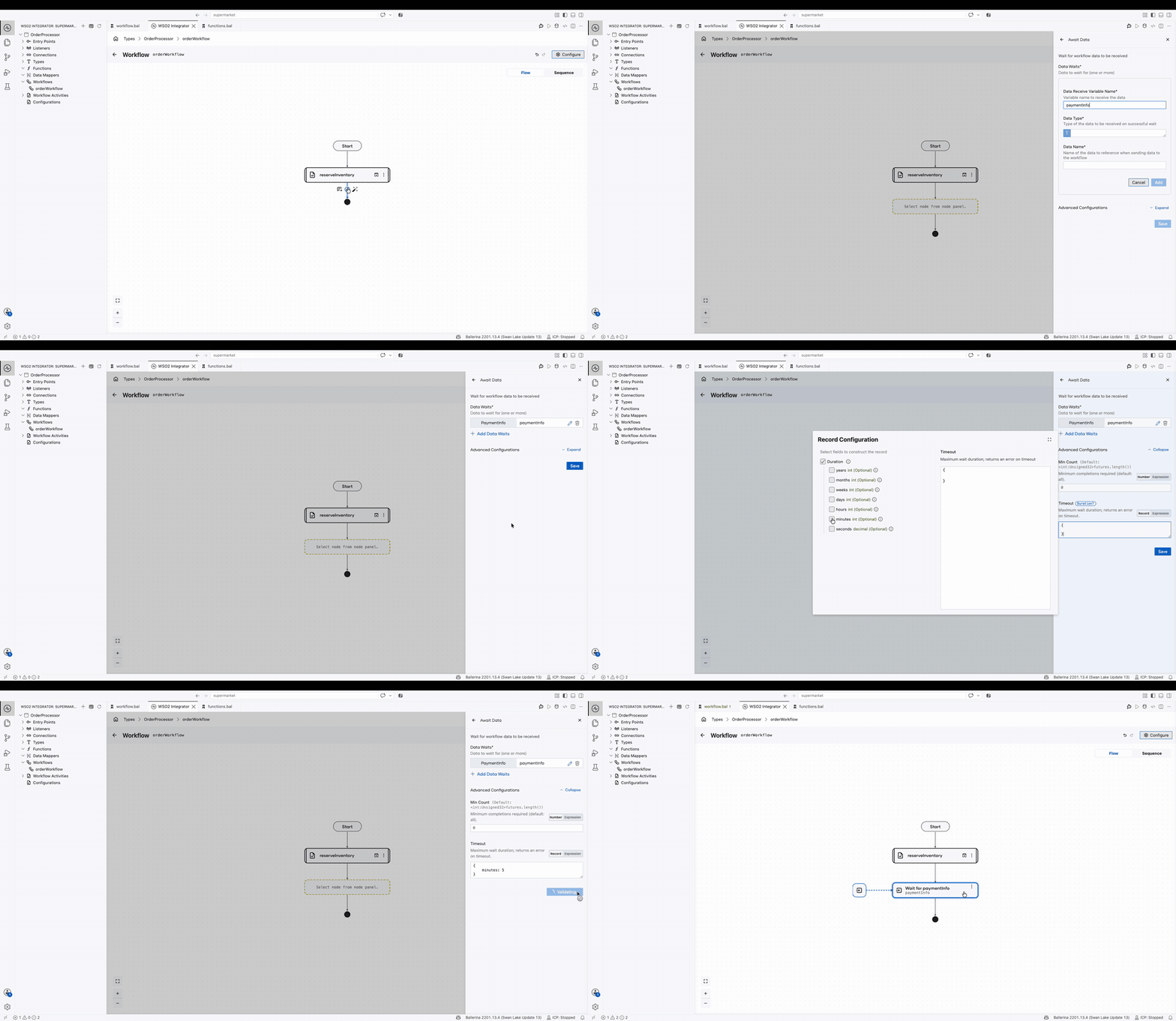
The diagram gains a wait node, drawn with an arrow arriving from outside the flow, and the workflow now suspends there.
Use a data event when a system or a person is submitting content the workflow will process. Use a human task when a person is making a decision the Control Plane should render as a form in their inbox.
Watching a waiting workflow
While the workflow waits, the execution graph in the Integration Control Plane marks the halt point as a DATA node named after the event, with status WAITING — so anyone can see exactly what the process is blocked on rather than guessing that it is stuck. The same graph is available over the Management API.
Next steps
- Send a data event — the delivery half: fill the event and resume the run.
- Await human task — pause for a person's decision instead of their data.
- Durable timers — waiting on the clock instead of an event.
- Activities — the recorded steps that process the data once it arrives.