WhatsApp Business
WhatsApp Business event integrations receive webhook notifications from the WhatsApp Business Cloud API and trigger handler functions as messages arrive and account, template, or phone number state changes occur. Use them to build chatbots, automate customer replies, and track message delivery and template quality in real time.
The WhatsApp Business webhook listener must be reachable from the internet. For local development, use a tunneling tool such as ngrok to create a public URL for your local port. In production, deploy the integration to a publicly accessible host.
After starting the integration, configure the webhook in the Meta App Dashboard under WhatsApp → Configuration → Webhooks: set the Callback URL to your listener's public URL, set a Verify token matching verifyToken, and subscribe to the fields you want to receive.
Creating a WhatsApp Business listener
- Visual Designer
- Ballerina Code
-
Click + Add Artifact in the canvas or click + next to Entry Points in the sidebar.
-
In the Artifacts panel, select WhatsApp Business under Event Integration.
-
In the creation form, fill in the following fields:
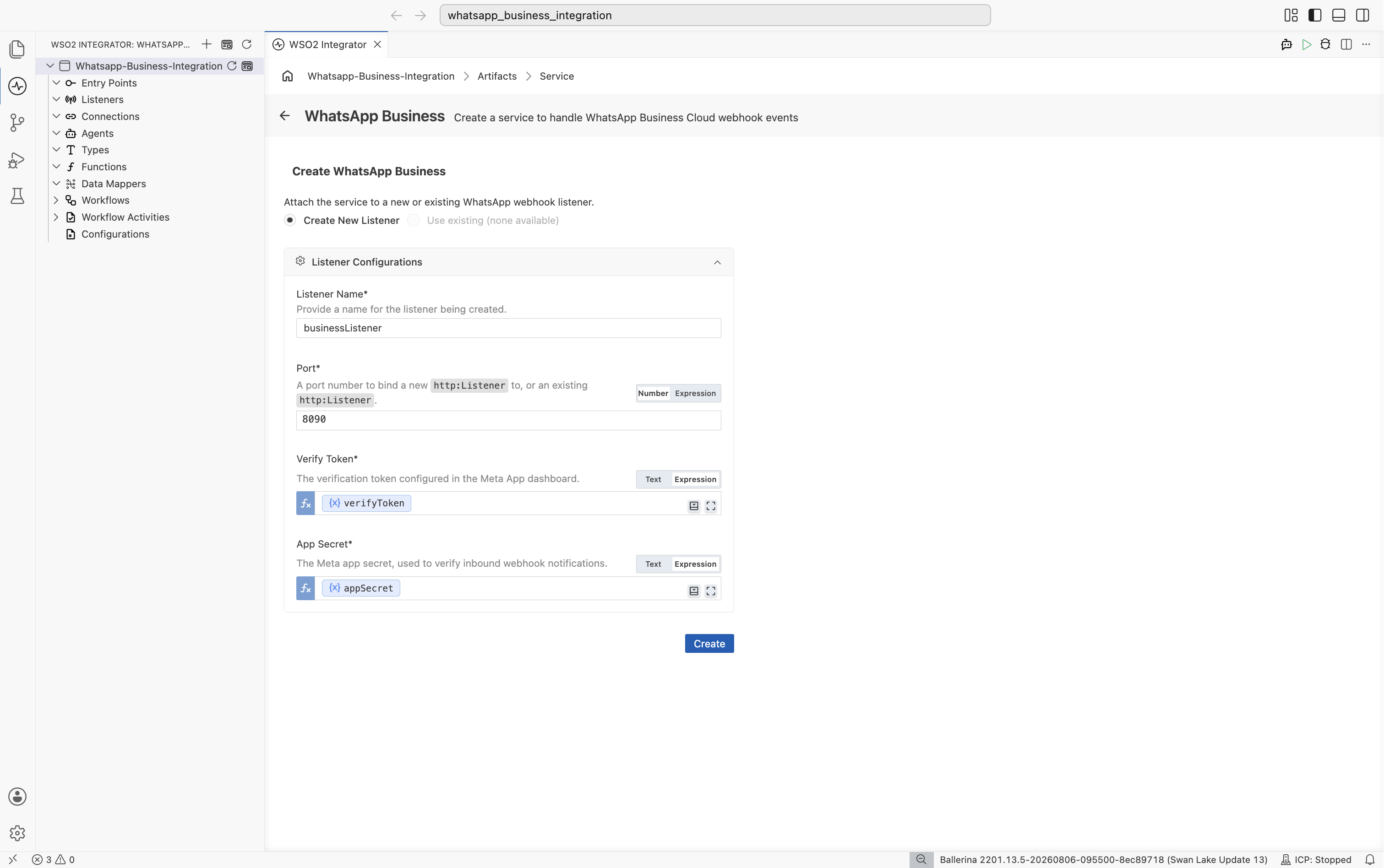
Field Description Default Listener Name Identifier for the listener created with this service. businessListenerPort The port on which the webhook listener accepts incoming HTTP requests. 8090Verify Token The verification token configured in the Meta App dashboard. Required App Secret The Meta app secret, used to verify inbound webhook notifications via X-Hub-Signature-256.Required -
Click Create.
-
WSO2 Integrator opens the service in the Service Designer. The canvas shows the attached listener pill and an empty Event Handlers section.
-
Click + Add Handler to define how incoming events are processed.
import ballerinax/whatsapp.business as business;
import ballerina/log;

configurable string verifyToken = ?;
configurable string appSecret = ?;
configurable int listenerPort = 8090;

listener business:Listener businessListener = new (listenerPort, verifyToken = verifyToken, appSecret = appSecret);

service business:WhatsAppService on businessListener {

    remote function onMessages(business:MessagesNotification notification) returns error? {
        if notification is business:Messages {
            foreach business:InboundMessage message in notification.messages {
                log:printInfo("Inbound WhatsApp message received", sender = message.'from, messageId = message.messageId);
            }
        } else {
            foreach business:MessageStatusUpdate statusUpdate in notification.statuses {
                log:printInfo("WhatsApp message status update", messageId = statusUpdate.messageId, status = statusUpdate.status);
            }
        }
    }

    remote function onAccountUpdate(business:AccountUpdate update) returns error? {
        log:printInfo("WhatsApp account update received", wabaId = update.wabaId, event = update.event);
    }
}
Save this as main.bal and run bal run from the project directory. Configure your Meta app's webhook callback URL to point at the listener and use the same verifyToken and appSecret values in the Meta App Dashboard.
Service configuration
Service configuration controls the service name and the WhatsApp Business listener it is attached to.
- Visual Designer
- Ballerina Code
In the Service Designer, click Configure to open the WhatsApp Business Configuration panel.
The panel shows a Service Configuration field for the service's acknowledgement behavior, and an Attached Listeners list. Pick a listener under Attached Listeners to configure its connection settings.
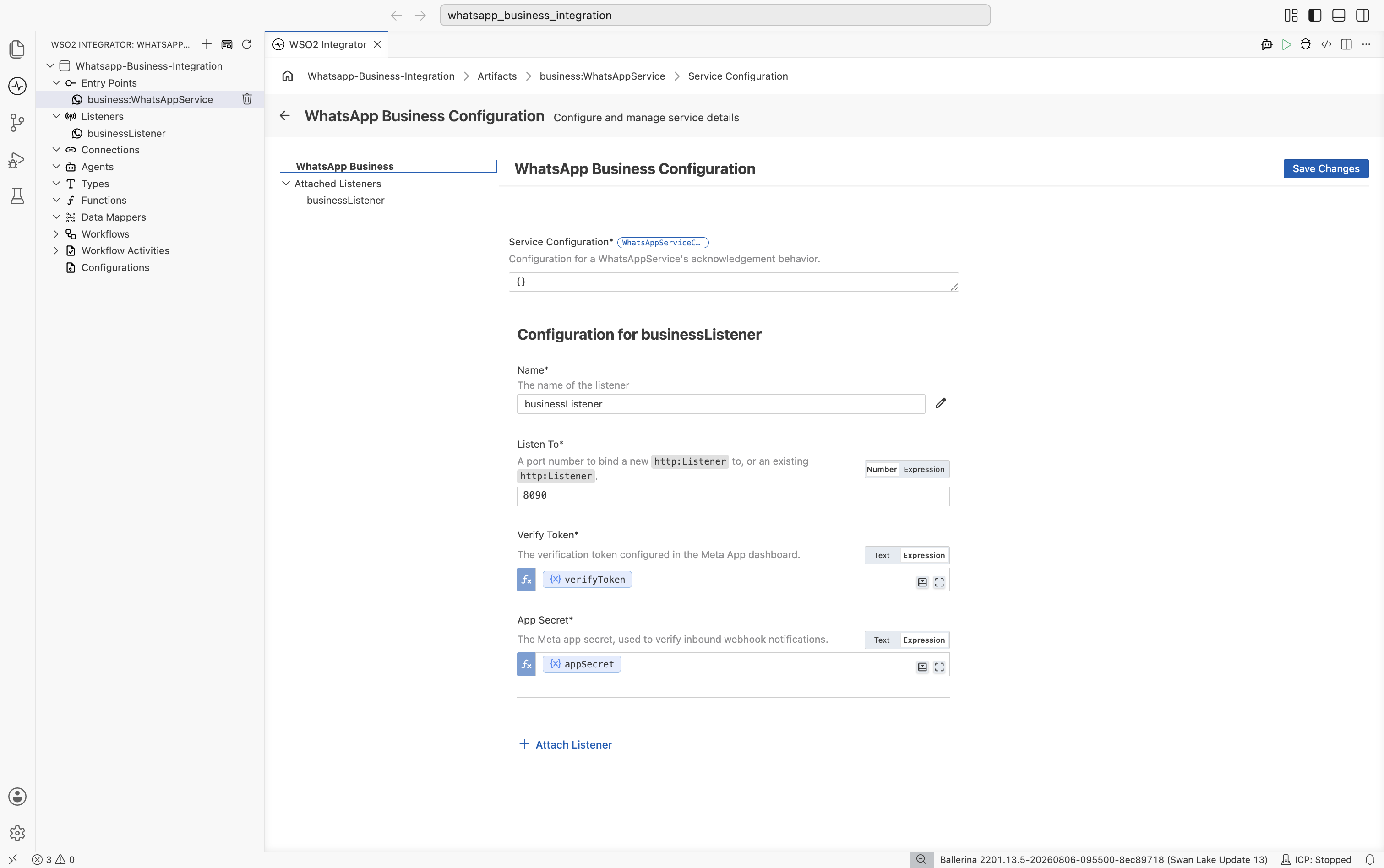
Service configuration
| Field | Description |
|---|---|
| Service Configuration | Advanced acknowledgement settings as a @business:ServiceConfig record expression (e.g., { autoAck: false }). Defaults to autoAck: true, acknowledging automatically. See Manual acknowledgement. |
Main configurations
| Field | Description |
|---|---|
| Name | The name of the listener. Required. |
| Listen To | A port number to bind a new http:Listener to, or an existing http:Listener. Required. |
| Verify Token | The verification token configured in the Meta App dashboard. Required. |
| App Secret | The Meta app secret, used to verify inbound webhook notifications. Required. |
Click Attach Listener to attach an additional listener to the same service.
Click Save Changes to apply updates.
The listener is constructed with a port number or an existing http:Listener (listenTo) plus the business:ListenerConfig fields. The @business:ServiceConfig annotation placed before the service declaration sets the acknowledgement mode:
listener business:Listener businessListener = new (
    8090,
    verifyToken = verifyToken,
    appSecret = appSecret
);

@business:ServiceConfig {
    autoAck: false
}
service on businessListener {
    // handlers
}
Listener constructor parameters (listenTo followed by the business:ListenerConfig fields):
| Field | Type | Default | Description |
|---|---|---|---|
listenTo | int|http:Listener | Required | A port number to bind a new http:Listener to, or an existing http:Listener. Passed as the first positional argument. |
verifyToken | string | Required | The verification token configured in the Meta App dashboard. |
appSecret | string | Required | The Meta app secret, used to verify the X-Hub-Signature-256 header on inbound webhook notifications. |
@business:ServiceConfig fields:
| Field | Type | Default | Description |
|---|---|---|---|
autoAck | boolean | true | When false, notifications must be manually acknowledged using business:Caller. See Manual acknowledgement. |
Event handlers
An event handler is a remote function that WSO2 Integrator calls for each WhatsApp Business Cloud webhook event received.
Adding an event handler
- Visual Designer
- Ballerina Code
In the Service Designer, click + Add Handler. A Select Handler to Add panel opens on the right listing the available event types.
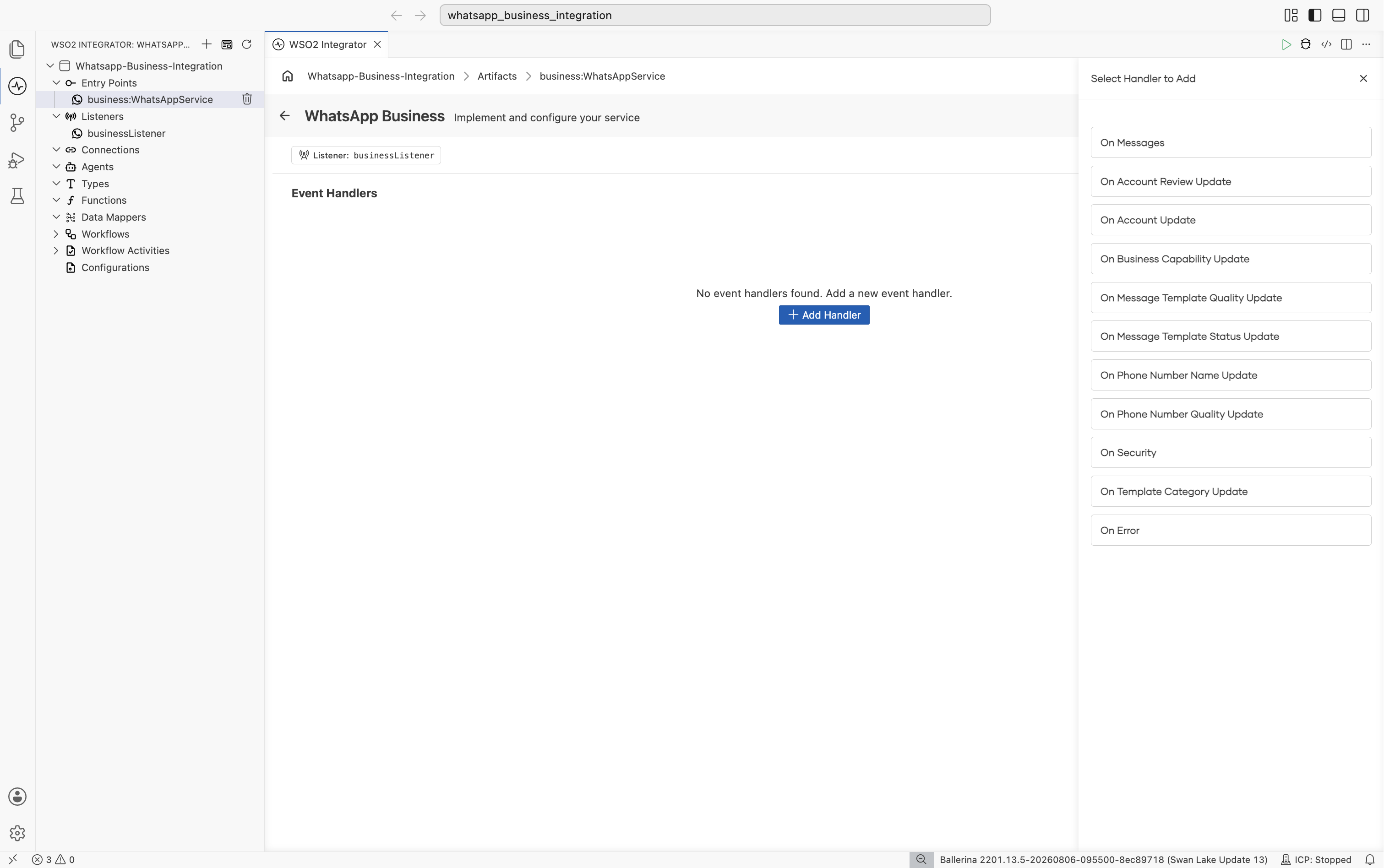
Pick On Messages, then click Save. This opens the Flow Designer for onMessages.
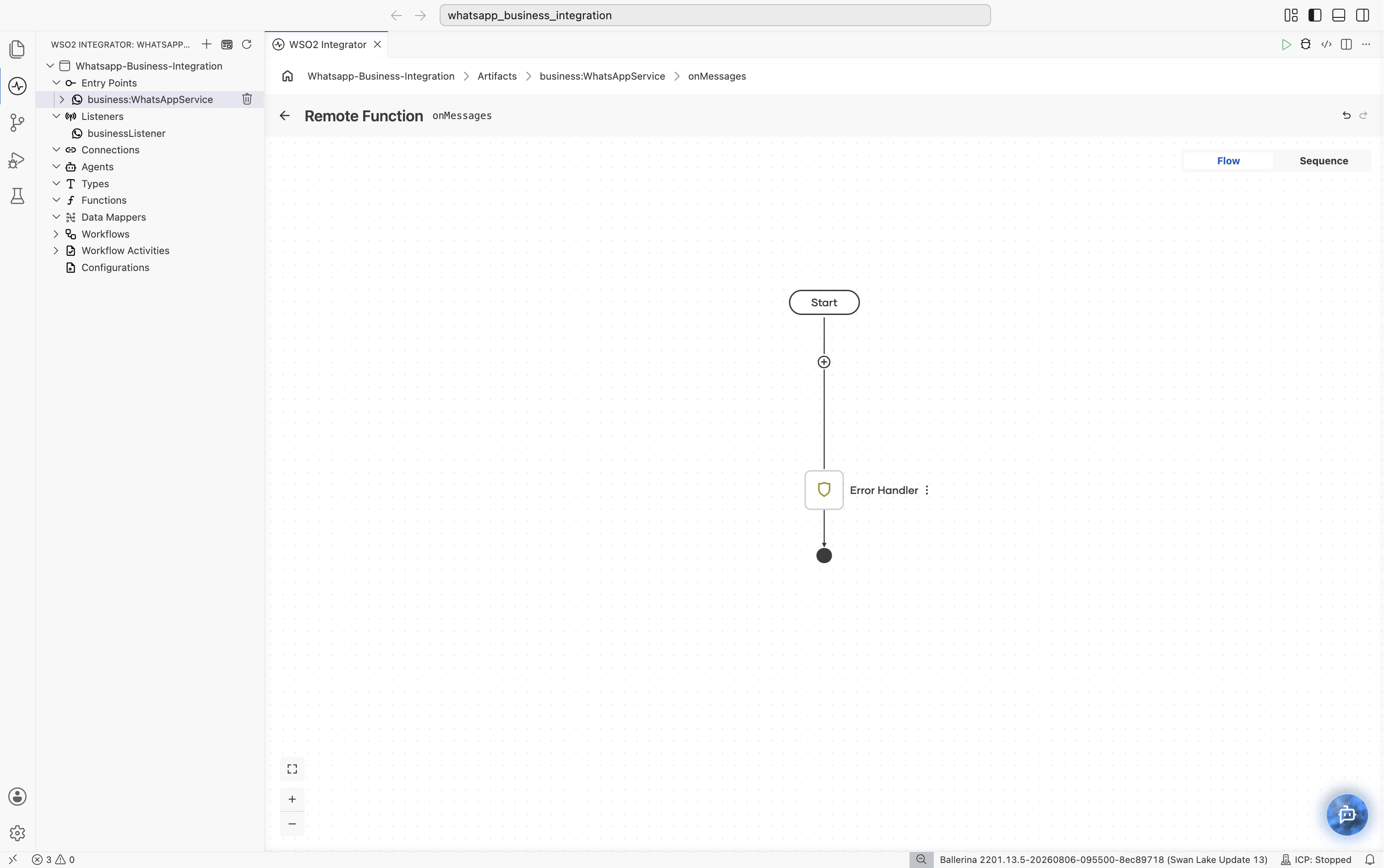
Use the flow canvas to add integration steps such as database writes, HTTP calls, and transformations. Repeat these steps to add the other handlers you need.
onMessages handler — called for each inbound message or message status update:
service business:WhatsAppService on businessListener {

    remote function onMessages(business:MessagesNotification notification) returns error? {
        if notification is business:Messages {
            foreach business:InboundMessage message in notification.messages {
                log:printInfo("Inbound WhatsApp message received", sender = message.'from, messageId = message.messageId);
            }
        } else {
            foreach business:MessageStatusUpdate statusUpdate in notification.statuses {
                log:printInfo("WhatsApp message status update", messageId = statusUpdate.messageId, status = statusUpdate.status);
            }
        }
    }
}
onError handler — called when a handler returns an error while being dispatched:
service business:WhatsAppService on businessListener {

    remote function onError(business:HandlerError handlerError) returns error? {
        log:printError("Failed to process a WhatsApp webhook event",
            'error = handlerError.'error, 'field = handlerError.'field);
    }
}
Manual acknowledgement
By default, the listener acknowledges (200 OK) each notification automatically, before any handler runs. Meta requires a fast 2xx and retries otherwise, so this is the safe default for slow handlers. Annotate the service @business:ServiceConfig {autoAck: false} to decide exactly when a notification is acknowledged instead, and declare a handler's optional second parameter as a business:Caller:
@business:ServiceConfig {
    autoAck: false
}
service business:WhatsAppService on businessListener {

    remote function onMessages(business:MessagesNotification notification, business:Caller caller) returns error? {
        check persistNotification(notification);
        check caller->complete();
    }
}
With autoAck: false, if a handler never calls caller->complete(), the listener responds 500 Internal Server Error for that request, and Meta treats it like any other failed delivery and may retry it. With the default autoAck: true, the notification is already acknowledged before the handler runs, so calling caller->complete() is a no-op. Meta may redeliver a notification if the acknowledgement is slow, dropped, or never sent, under either autoAck setting, not just false, so make handler processing idempotent, or deduplicate using InboundMessage.messageId (wamid) for messages, or MessageStatusUpdate.messageId plus status for status updates.
Handler types
The listener supports ten WhatsApp Business Cloud webhook fields, one per WhatsAppService handler, plus an eleventh onError handler that fires whenever one of the ten returns an error while being dispatched. Declare only the handlers you need. Notifications for any other webhook field, or for a field whose handler you didn't declare, are logged and dropped.
| Handler | Webhook field | Triggered when |
|---|---|---|
onMessages | messages | An inbound message or an outbound message status update arrives. Narrow the MessagesNotification parameter with notification is Messages to tell the two apart. |
onAccountReviewUpdate | account_review_update | A WhatsApp Business Account (WABA) review decision changes. |
onAccountUpdate | account_update | An account-lifecycle or compliance change occurs. |
onBusinessCapabilityUpdate | business_capability_update | A WABA's messaging or phone-number capability limits change. |
onMessageTemplateQualityUpdate | message_template_quality_update | A message template's quality score changes. |
onMessageTemplateStatusUpdate | message_template_status_update | A message template's status changes (approved, rejected, disabled, and so on). |
onPhoneNumberNameUpdate | phone_number_name_update | A phone number's display-name review outcome is available. |
onPhoneNumberQualityUpdate | phone_number_quality_update | A phone number's messaging throughput or quality tier changes. |
onSecurity | security | A two-step-verification PIN change or reset request occurs for a phone number. |
onTemplateCategoryUpdate | template_category_update | A message template's category changes, or is about to change. |
onError | N/A | Any of the handlers above returned an error while being dispatched. |
What's next
- Telegram — react to Telegram Bot API webhook updates
- Google Chat — react to Google Chat interaction events
- Connections — reuse WhatsApp Business credentials across services
- WhatsApp Business connector reference — full connector API reference
- WhatsApp Business setup guide — create a Meta app and configure the webhook