Voice Agent
A Voice Agent Service exposes an AI agent over a voice channel instead of a chat endpoint. WSO2 Integrator hosts the voice connection for you. Your service receives the caller's speech as transcribed text and returns a text reply. WSO2 Cloud converts that reply to speech and plays it back to the caller, so you never handle audio yourself.
How it differs from a Chat Agent Service
| Chat Agent Service | Voice Agent Service | |
|---|---|---|
| Transport | HTTP (REST) | WebSocket |
| Listener | ai:Listener | integration:CloudVoiceListener |
| Service type | ai:ChatService | integration:VoiceService |
| Handler | resource function post chat | remote function onChatMessage |
| Input | ai:ChatReqMessage (the user's message, with a session ID) | integration:ChatMessage (the transcribed speech, with a session ID) |
| Output | ai:ChatRespMessage | string, spoken back to the caller through text-to-speech |
Both expose the same ai:Agent. They differ only in the transport and message format.
Create a Voice Agent Service
- Open your integration project in WSO2 Integrator.
- Open the Artifacts page: on the Design tab, select Add Artifact manually below the WSO2 Integrator Copilot's quick-start cards, or select + Add Artifact in the top-right corner if your project already has artifacts.
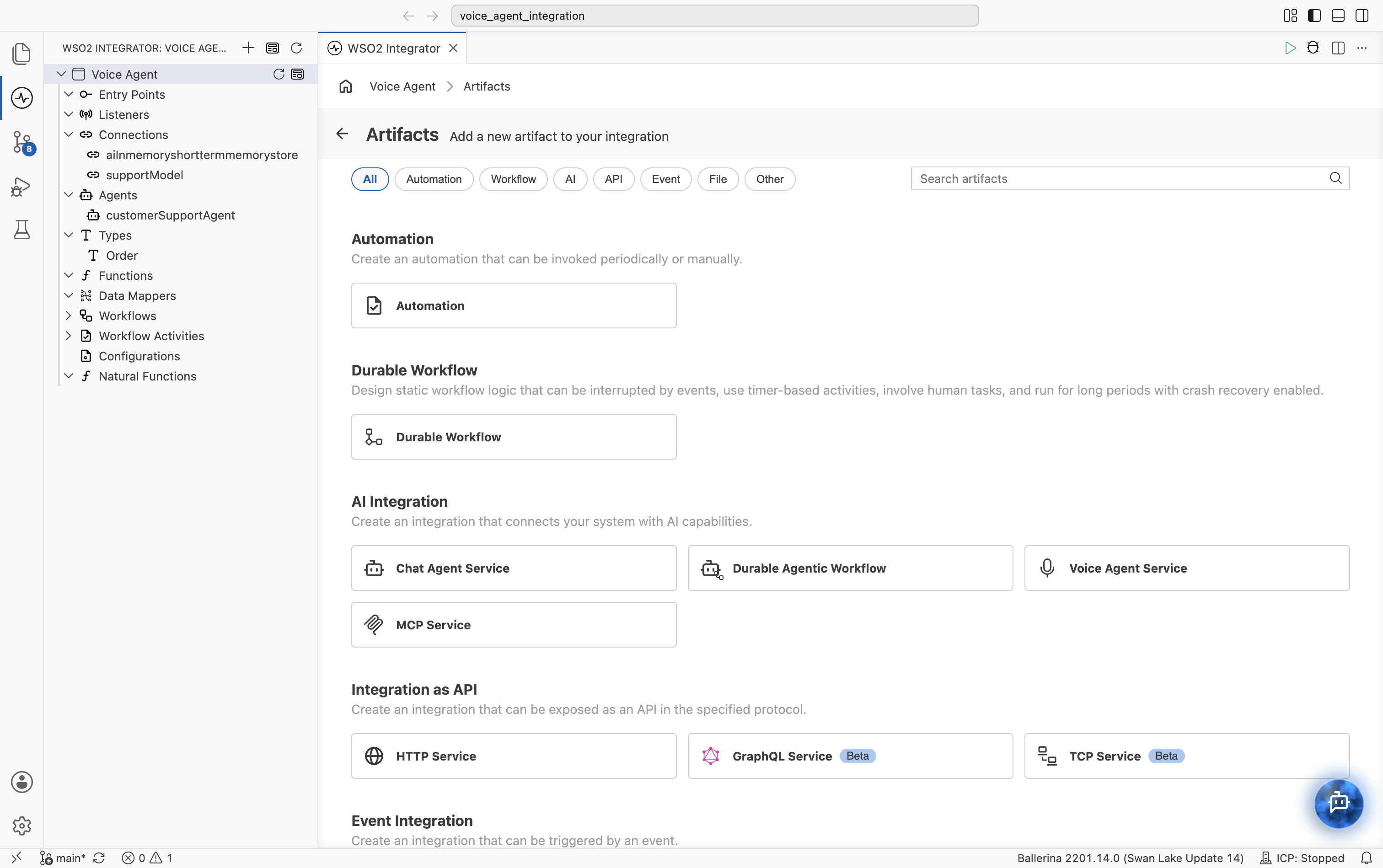
- Under AI Integration, select Voice Agent Service.
- Attach the service to a new or existing cloud voice listener.
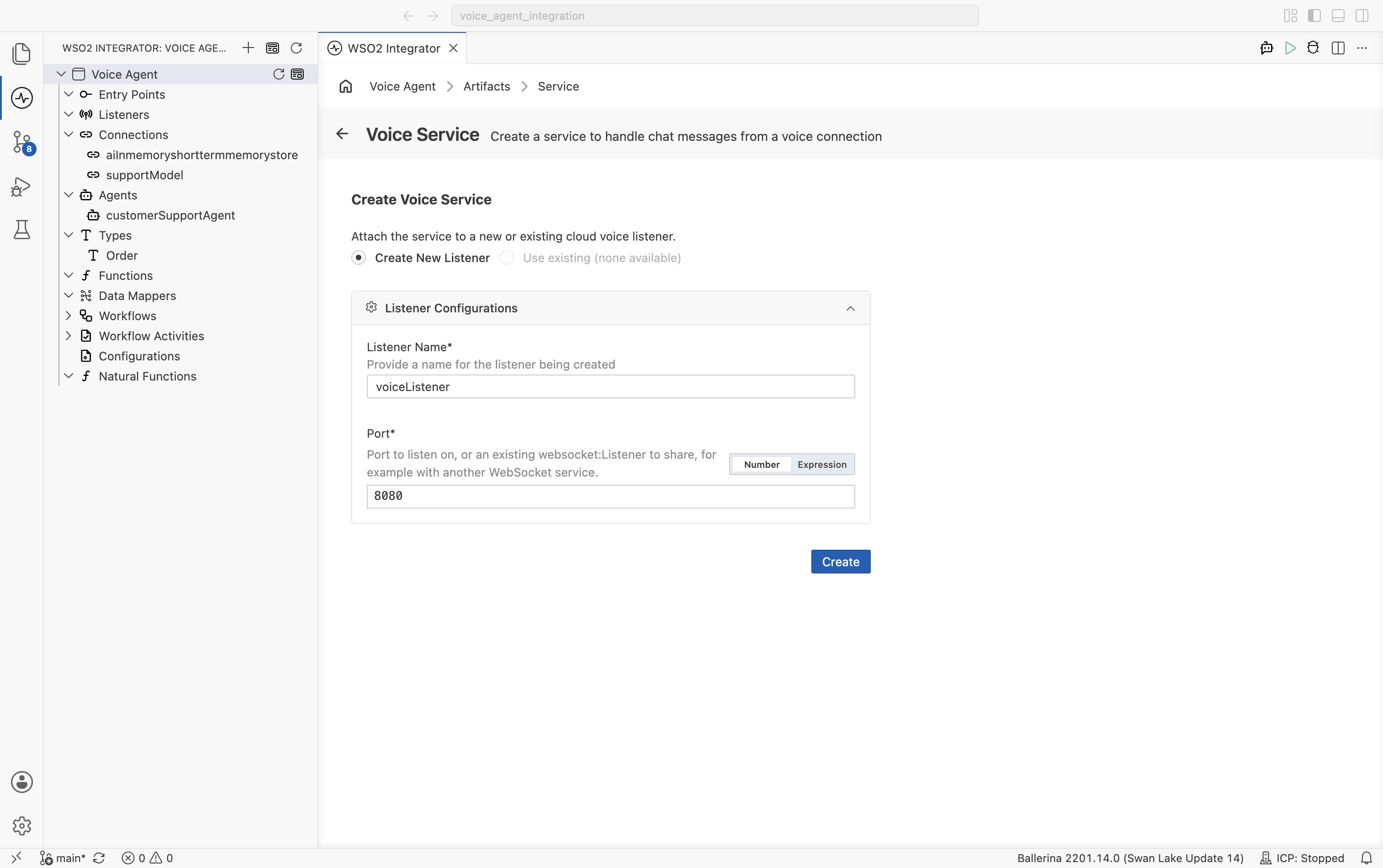
| Field | Required | Description |
|---|---|---|
| Listener Name | Yes | Identifier for the voice listener, for example voiceListener. Reuse an existing listener instead if you already have one. |
| Port | Yes | The port the listener runs on, as a number or an expression that shares a port with another WebSocket service. |
- Click Create. WSO2 Integrator generates an
integration:VoiceServicewith one event handler,onChatMessage.
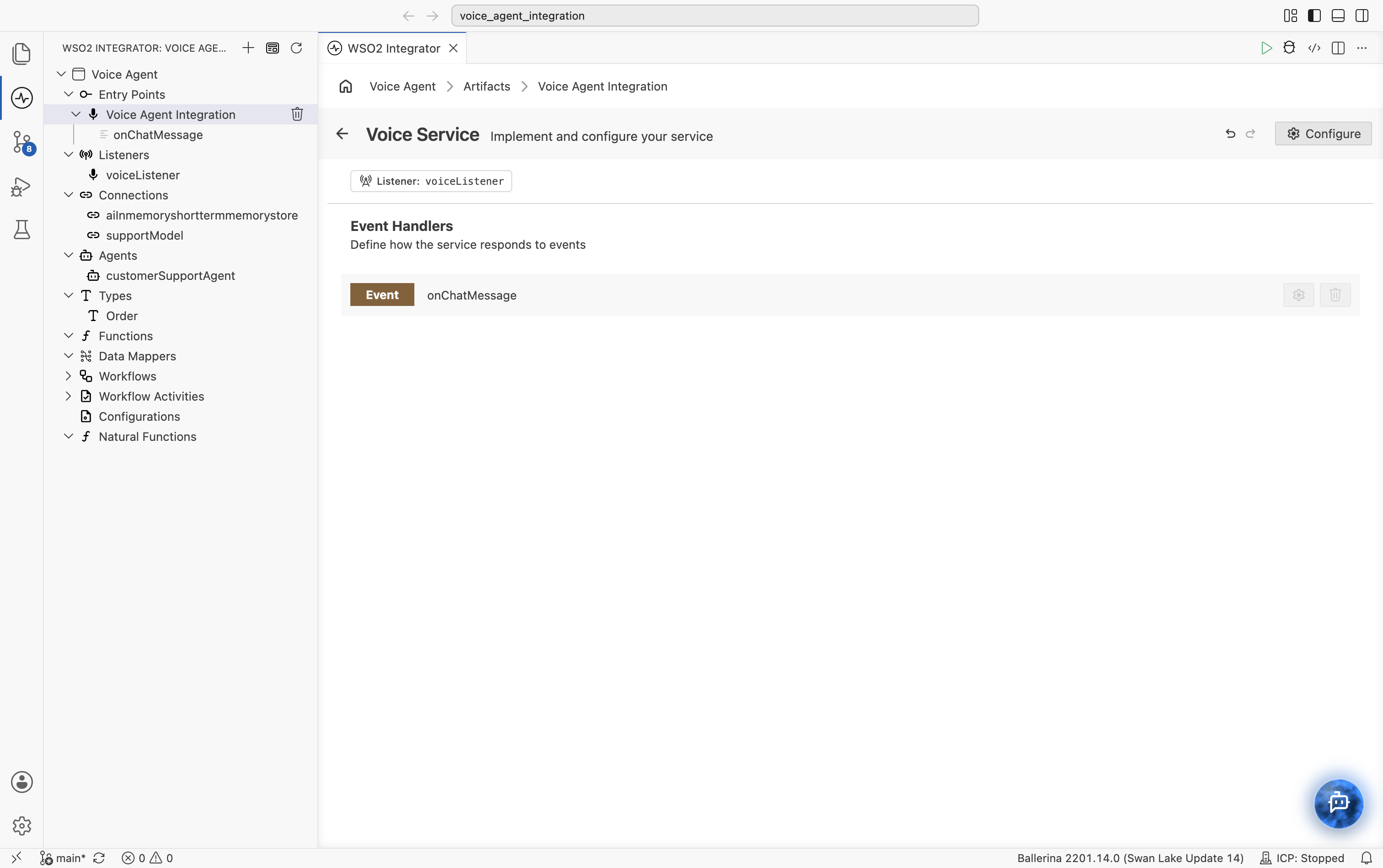
Opening onChatMessage shows an empty flow: Start connected directly to Return error("Not Implemented"). You wire the agent into this flow next.
Wire an agent into onChatMessage
onChatMessage receives an integration:ChatMessage (the transcribed speech, with a session ID for the call) and must return the text to speak back to the caller.
This example uses customerSupportAgent, a customer support agent that's already built in the project. It checks order status, explains the return policy, and creates support tickets.
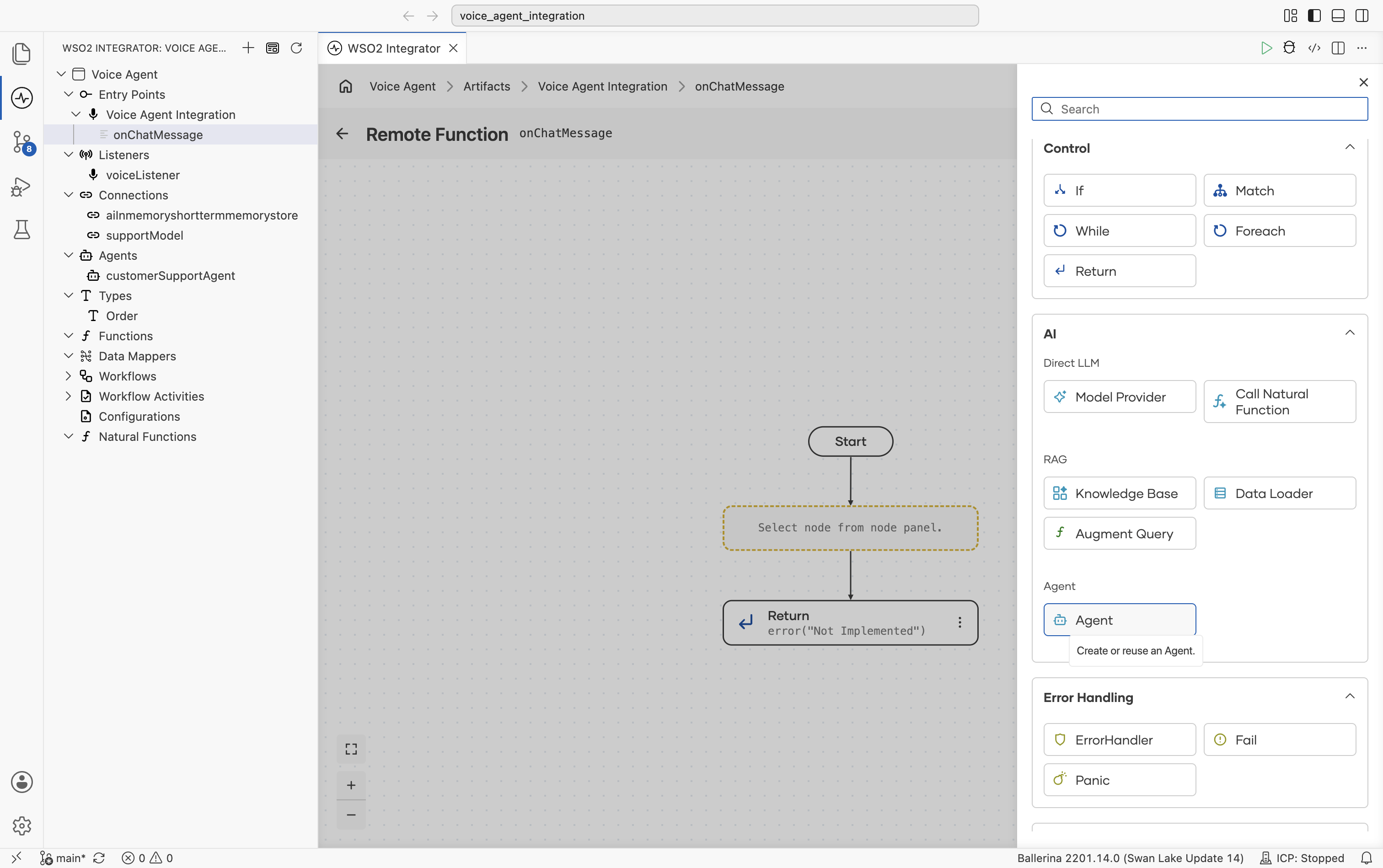
- On the
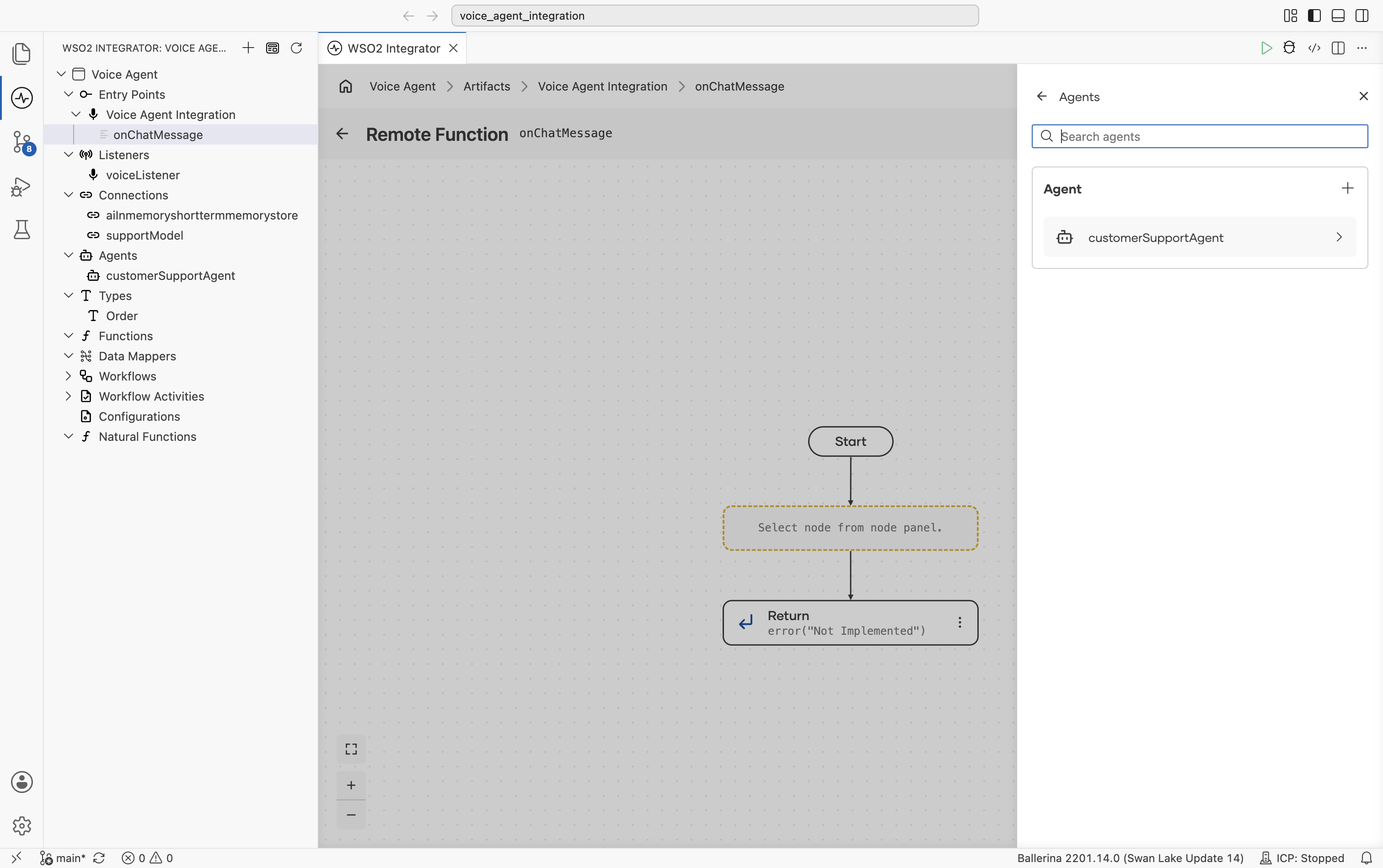
onChatMessageflow, open the node panel and select Agent under the AI section.
- Select an existing agent from the list, or create a new one. You can reuse an agent you already expose through a Chat Agent Service. The steps for configuring the system prompt, tools, and memory are the same for voice agents. See Creating an Agent for instructions. For end-to-end examples, see the Build a Hotel Finder Agent and Build a Customer Care Agent with MCP guides.
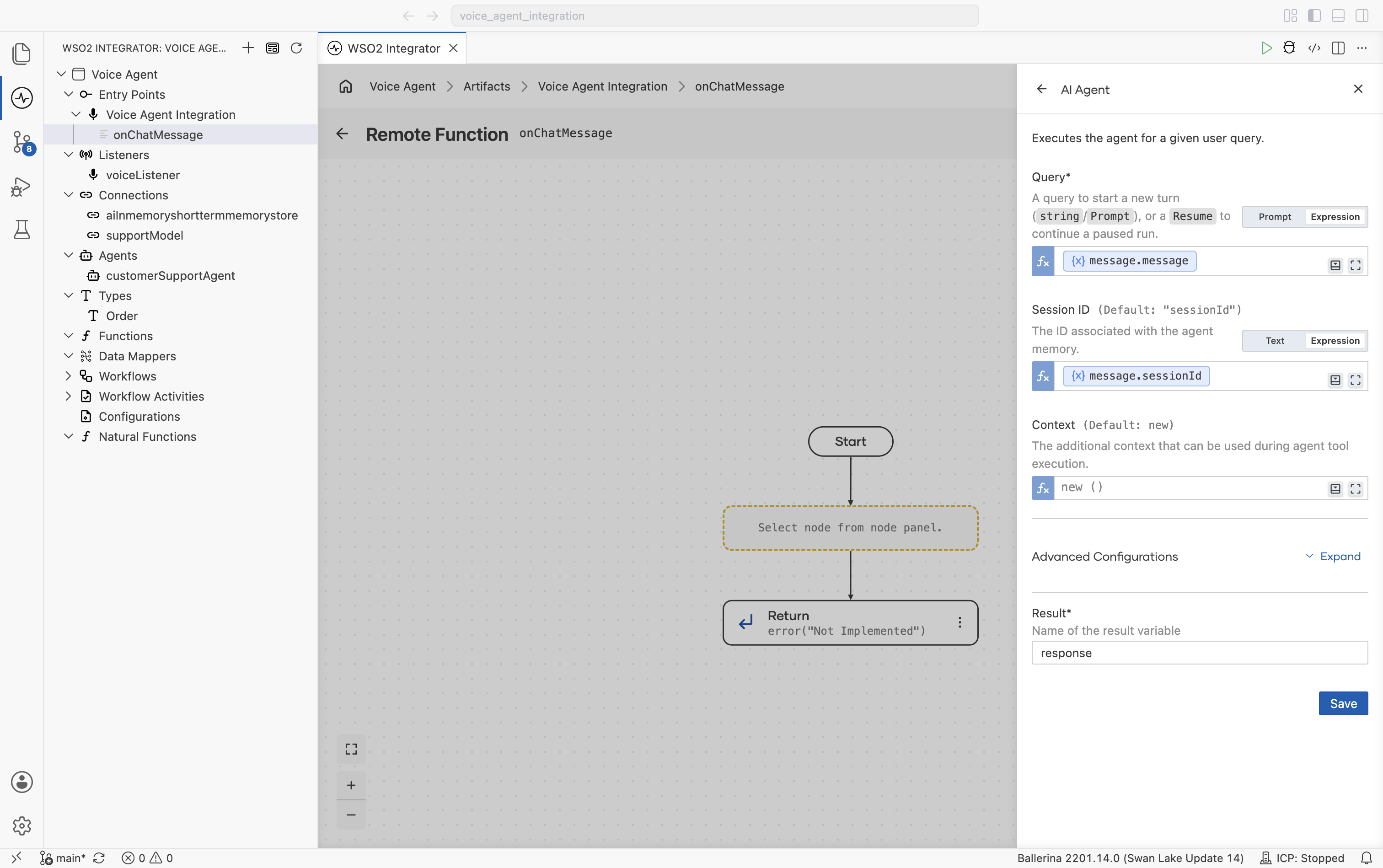
- Configure the AI Agent node: bind Query to the incoming message, Session ID to the call's session, and name the Result.
- Return the Result from the flow instead of the placeholder error.
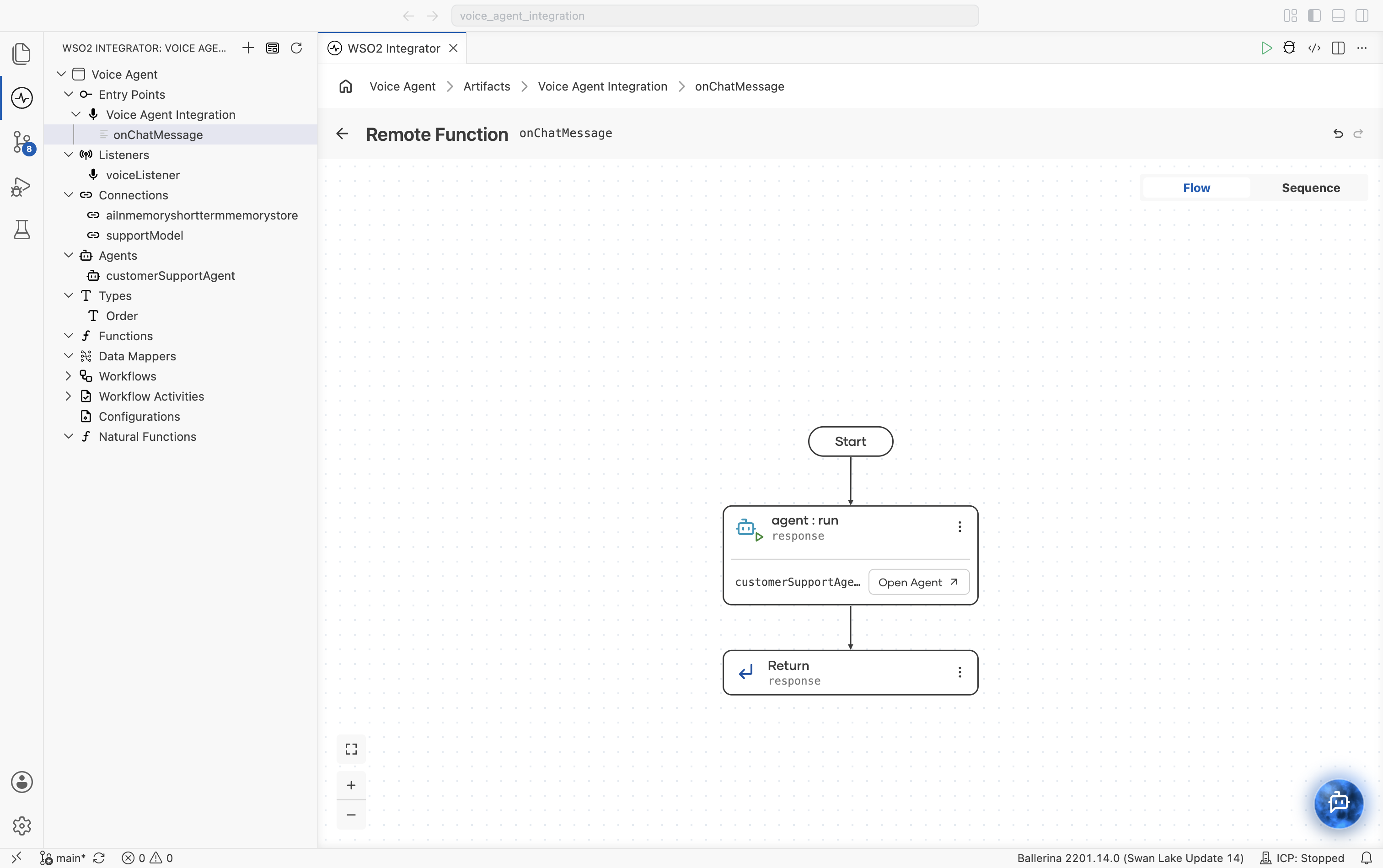
The generated main.bal is similar to the following:
import ballerinax/ai.wso2.integration;

listener integration:CloudVoiceListener voiceListener = new (8080);

isolated service integration:VoiceService on voiceListener {
    isolated remote function onChatMessage(integration:ChatMessage message) returns string|error {
        string response = check customerSupportAgent.run(message.message, message.sessionId);
        return response;
    }
}
Pass message.sessionId as the session key so the agent's memory tracks each call separately. Without it, every caller shares the same conversation history.
Deploy to WSO2 Cloud
The voice listener only accepts calls once it's deployed. From the project overview, under Deployment Options, the wired integration shows voiceListener connected to the Voice Service, which is connected to the agent's model provider:
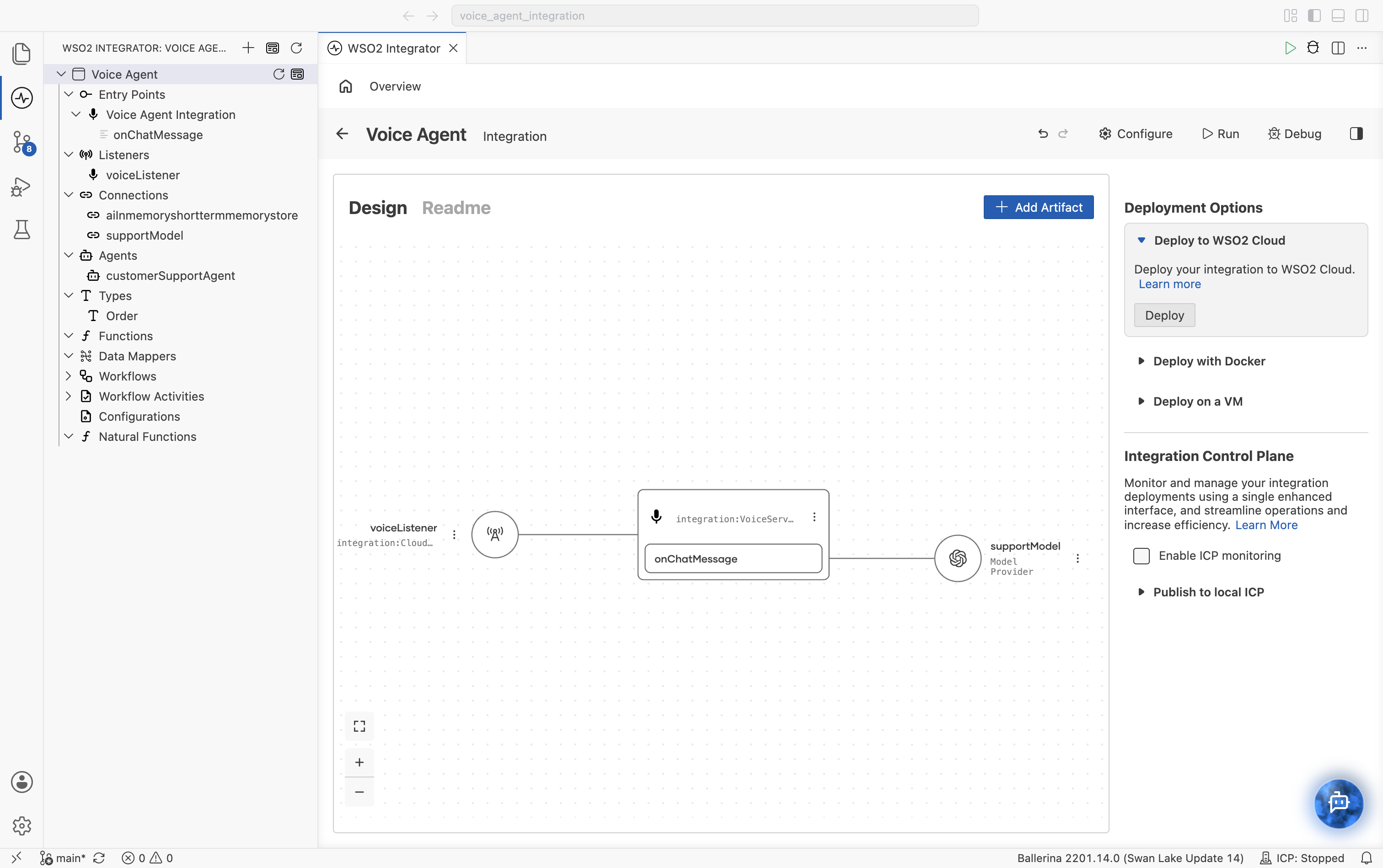
Click Deploy under Deploy to WSO2 Cloud, pick the organization and project, and connect a Git remote if the project doesn't have one yet. This flow is identical for every artifact type — see Deploy to WSO2 Cloud from WSO2 Integrator for the full walkthrough.
Once deployed, enable voice for the integration in WSO2 Cloud. WSO2 Cloud runs the voice pipeline for you: callers connect over WebRTC, their speech is transcribed and sent to onChatMessage, and the reply is converted back to speech. You choose the speech-to-text and text-to-speech providers when you set it up. See Voice Agents in the WSO2 Cloud documentation to configure and test the voice pipeline.
The voice pipeline is available only on WSO2 Cloud. Deploying with Docker or on a VM runs the service, but callers can't reach it by voice.
Common pitfalls
| Symptom | Likely cause | Fix |
|---|---|---|
| Caller hears silence or a generic error. | onChatMessage still returns error("Not Implemented"). | Add the Agent node and return its result, as shown above. |
| Agent forgets earlier turns in the same call. | message.sessionId isn't passed to agent.run(), or no memory is attached. | Pass the session ID as the session key and attach a memory store. |
| Callers can't connect to the agent. | The integration isn't deployed to WSO2 Cloud, or voice isn't enabled for it. | Deploy to WSO2 Cloud and enable voice for the integration. |
What's next
- Voice Agents on WSO2 Cloud — Configure the voice pipeline and test the agent with your voice.
- Creating an Agent — System prompt, tools, and memory shared by every agent type.
- Build a Hotel Finder Agent — Build an agent with custom tools, step by step.
- Build a Customer Care Agent with MCP — Build an agent that uses an MCP server as a tool.
- Tools — Add functions, connectors, and integrations to the agent.
- Memory — Configure conversational and persistent memory.
- Observability — Monitor traces, logs, and execution details.