Knowledge Bases
A Knowledge Base is a managed store of documents that your integration can index and query. It provides a consistent interface for adding content, retrieving the most relevant chunks for a given query, and removing stale content, regardless of the underlying storage technology.
In WSO2 Integrator, a Knowledge Base is the single object the RAG ingest, retrieve, and delete-by-filter nodes talk to. It uses three pluggable parts (a Vector Store, an Embedding Provider, and a Chunker) and exposes a small surface for indexing chunks and retrieving the most relevant ones.
Available actions
Every Knowledge Base exposes the same three actions in the right-side Knowledge Bases panel.
| Action | What it does | Required parameters | Optional parameters |
|---|---|---|---|
| Ingest | Takes documents (or chunks), runs them through the configured Chunker, embeds each chunk via the Embedding Provider, and persists the vectors in the Vector Store. | Documents (a single document, an array of documents, or an array of chunks). | None. |
| Retrieve | Returns the chunks most similar to a query, optionally filtered by metadata. The everyday read action. | Query (the search text). | Top K (default 10, use -1 for all). Filters (metadata filter). |
| Delete By Filter | Removes every chunk whose metadata matches the given filter. The standard way to evict an old version of a document before re-ingesting. | Filters (the metadata filter). | None. |
Each Retrieve result has the matched chunk and a similarityScore. RAG flows usually pass the result list straight to ai:augmentUserQuery, which packages it together with the user's question into a single message ready for generate.
Where to find knowledge bases
Two places, both equivalent:
- Add Node panel > AI > RAG > Knowledge Base.
- Right-side Knowledge Bases panel > + Add Knowledge Base.
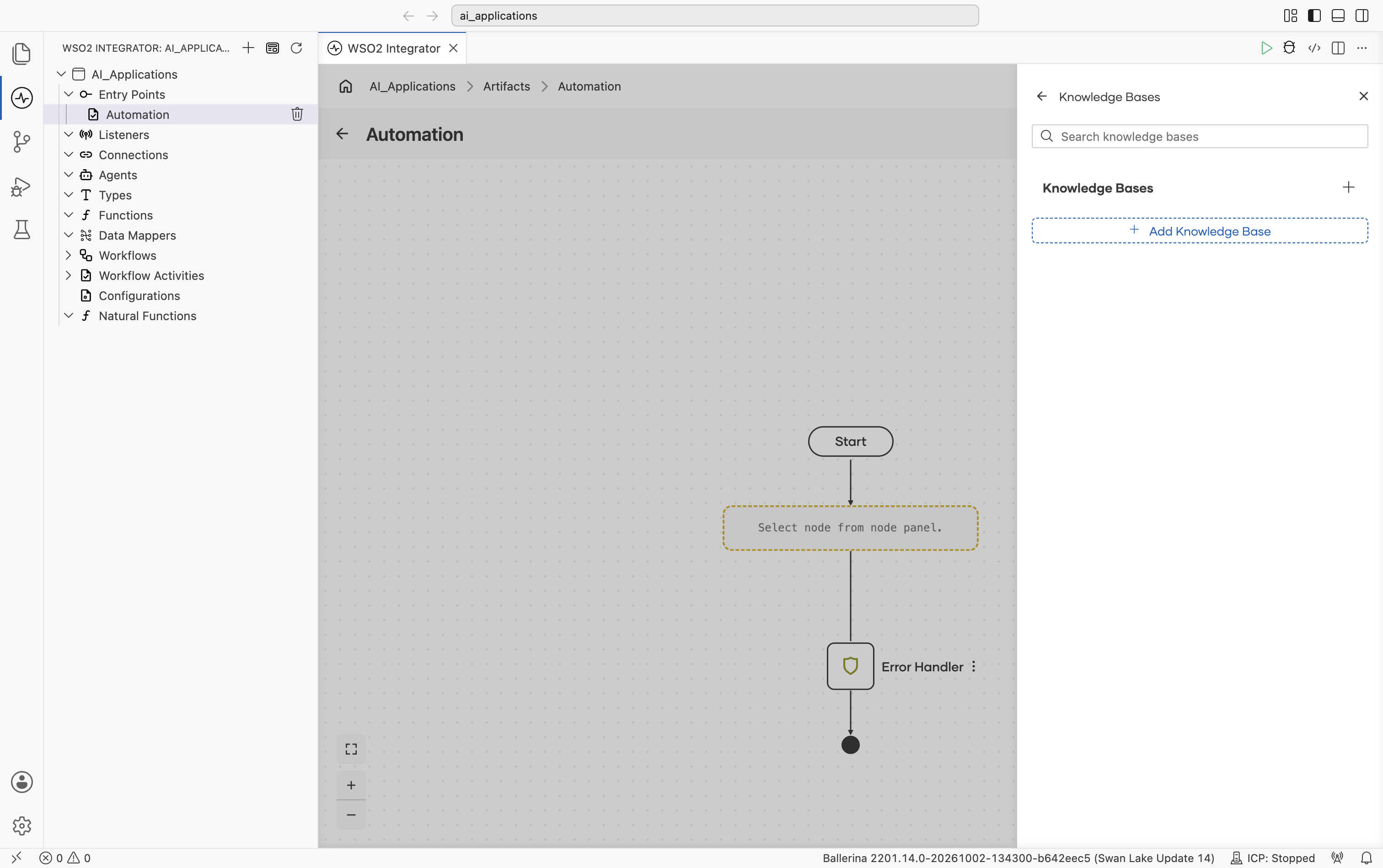
Either one opens the Select Knowledge Base picker, listing all supported types with a search bar at the top:
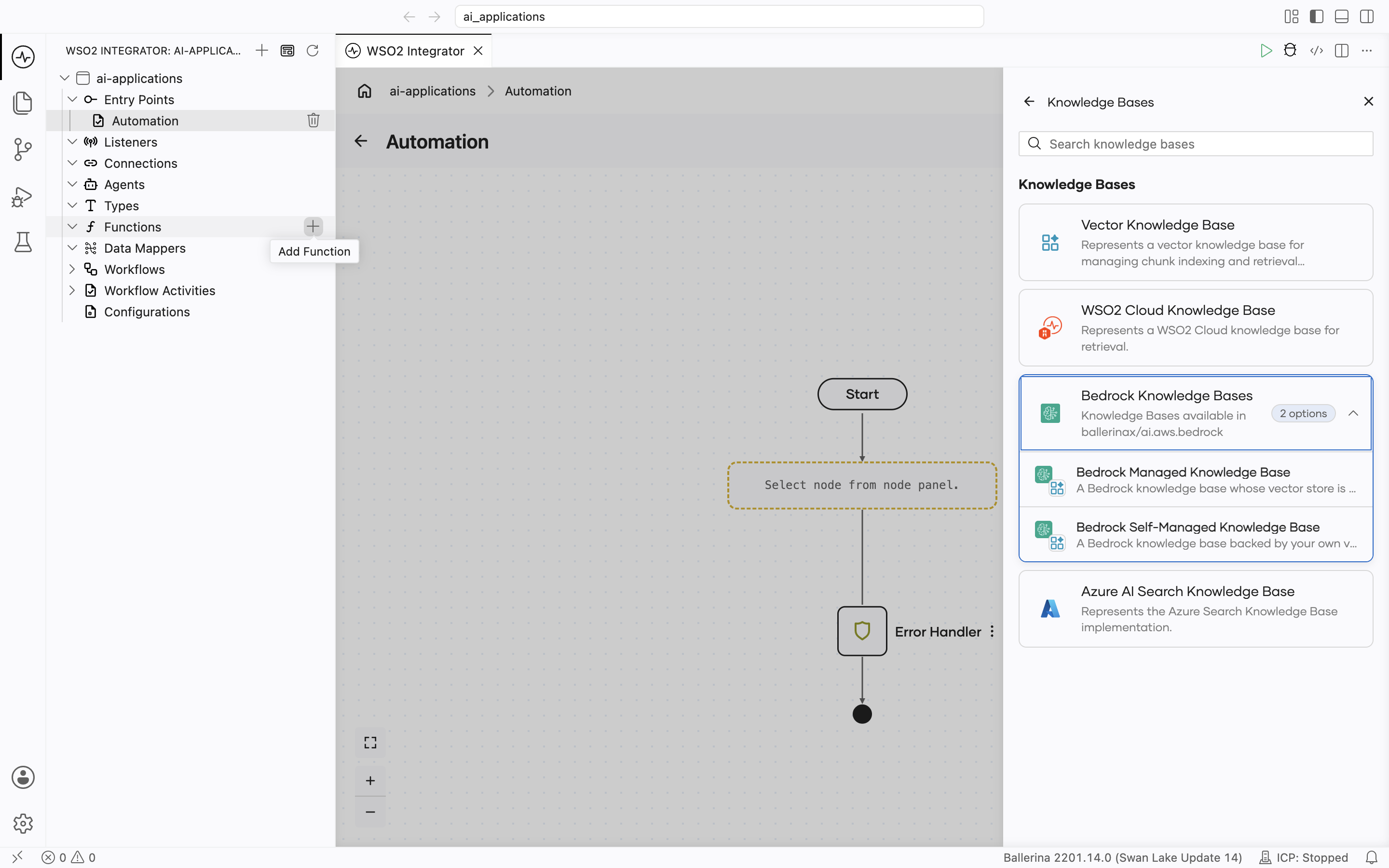
Supported knowledge bases
| Knowledge Base | Module | Storage |
|---|---|---|
| Vector Knowledge Base | ballerina/ai | Any Vector Store |
| AWS Bedrock (Managed and Self-Managed) | ballerinax/ai.aws.bedrock | An Amazon Bedrock knowledge base |
| Azure AI Search Knowledge Base | ballerinax/ai.azure | Azure AI Search index |
| WSO2 Cloud Knowledge Base | ballerinax/ai.wso2.integration | Knowledge base service in WSO2 Cloud |
Vector Knowledge Base
The default implementation. You combine a Vector Store, an Embedding Provider, and a Chunker into a single connection that the rest of your RAG flows share.
Create form
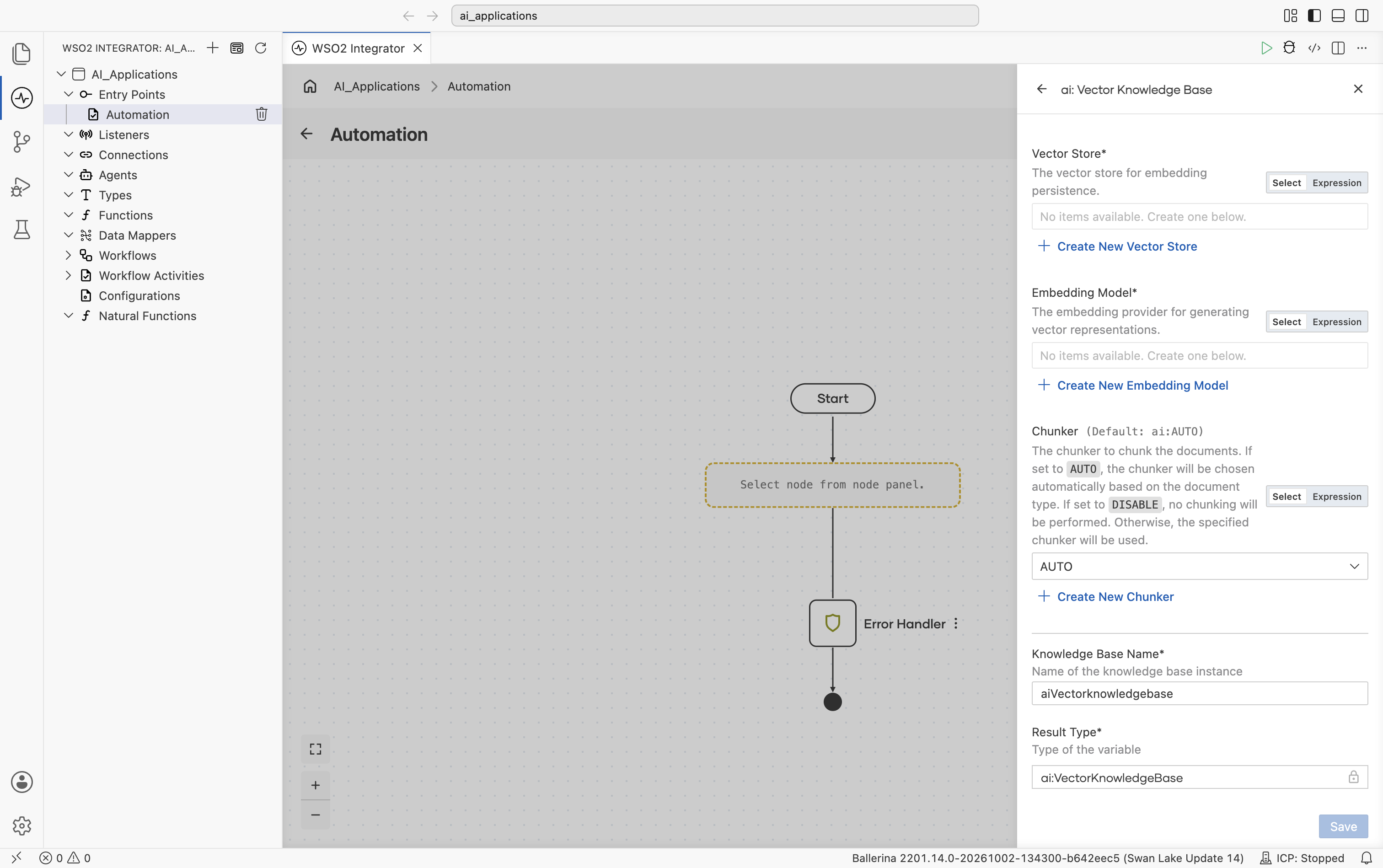
| Field | Required | Default | Available values |
|---|---|---|---|
| Vector Store | Yes | N/A | Any saved Vector Store connection. Click + Create New Vector Store to make one inline. |
| Embedding Model | Yes | N/A | Any saved Embedding Provider connection. Use the same provider on ingest and retrieve. Embeddings from different providers are not interchangeable. |
| Chunker | No | ai:AUTO | ai:AUTO (chunker chosen automatically based on document type), ai:DISABLE (no chunking; each document becomes one chunk), or any saved Chunker connection. |
There are no Advanced Configurations on the Vector Knowledge Base itself. Every knob lives on the underlying Vector Store, Embedding Provider, or Chunker connection.
AWS Bedrock
An Amazon Bedrock knowledge base stores, chunks, embeds, and searches your documents inside your own AWS account and region. The package ships two knowledge bases, one for each kind of Bedrock knowledge base:
| Knowledge base | Vector store | When to use |
|---|---|---|
| Bedrock Managed Knowledge Base | Run by Bedrock. Nothing to provision. Search is always hybrid (keyword and semantic). | You don't want to run a vector store. |
| Bedrock Self-Managed Knowledge Base | Your own, already provisioned: Amazon OpenSearch Serverless, Amazon OpenSearch Service managed cluster, Amazon S3 Vectors, Amazon Aurora PostgreSQL, Amazon Neptune Analytics, Pinecone, Redis Enterprise Cloud, or MongoDB Atlas. | You already run one of these stores, or you need control over indexing and ranking. |
In the Select Knowledge Base picker, both are grouped under one Bedrock Knowledge Bases card.
Official website: Amazon Bedrock Knowledge Bases.
Unlike the Vector Knowledge Base above, neither Bedrock knowledge base takes a Vector Store or Embedding Model connection: Bedrock embeds the documents and talks to the vector store itself.
Both knowledge bases work in one of two ways:
- Attach by ID. Pass the ID of a knowledge base you already set up in AWS, for example
KB12345678. Retrieve searches every data source on it, including content that AWS connectors such as Amazon S3, SharePoint, or Confluence sync in. Ingest and Delete By Filter also need the knowledge base to have a Custom data source; creating the connection fails, with a message saying why, if it has none. - Find or create by name. Pass a definition record. If a knowledge base with that name exists, the connection attaches to it, after checking that its role, embedding model, and storage match the definition. If none exists, the connection creates the knowledge base and a Custom data source. If more than one has that name, creating the connection fails and lists their IDs.
Find or create is meant for a single instance, a local run, or a first-time setup. If two instances of your integration start at the same moment, both can create a knowledge base with the same name, and every later start then fails until you delete one. For a deployment with replicas or restarts, create the knowledge base once and pass its ID.
Create form
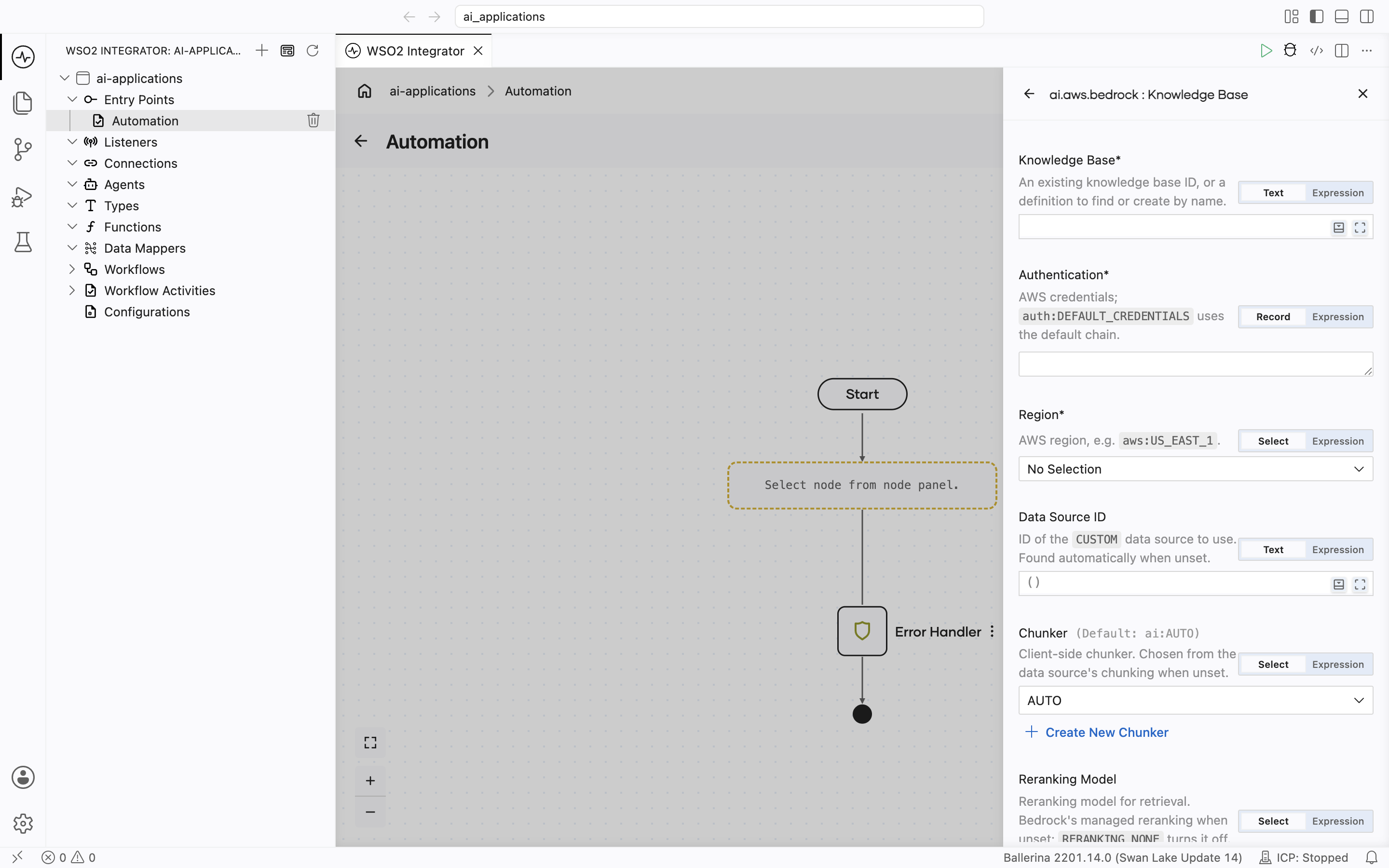
Both AWS Bedrock knowledge bases have the same create form fields, except reranking: Reranking Model on the Managed form, Reranking on the Self-Managed form.
| Field | Required | Default | Available values |
|---|---|---|---|
| Knowledge Base | Yes | — | A knowledge base ID (10 characters, for example KB12345678; an ARN is not accepted), or a definition record to find or create by name: ManagedKnowledgeBaseDefinition (Managed) or SelfManagedKnowledgeBaseDefinition (Self-Managed). See Definition records. The knowledge base must be ACTIVE, and of the matching kind: a Managed connection can't attach to a self-managed knowledge base, or the other way round. |
| Authentication | Yes | — | auth:DEFAULT_CREDENTIALS, or one of the records in AWS authentication options except Bedrock API key. |
| Region | Yes | — | The AWS region the knowledge base is in, for example us-east-1. There is no default. |
| Data Source ID | No | () (detected) | The ID of the Custom data source that Ingest writes to and Delete By Filter deletes from. Leave empty when the knowledge base has exactly one Custom data source. Leave it empty also when a definition creates a new knowledge base; the new one gets its data source from the definition. |
| Chunker | No | () (detected) | ai:AUTO, ai:DISABLE, or any saved Chunker connection. Client-side chunking before Ingest. Leave empty to follow the data source: ai:DISABLE when Bedrock chunks the documents, ai:AUTO when the data source's chunking strategy is NONE. Setting a chunker when Bedrock chunks the documents fails, because Bedrock would split them again. |
| Reranking Model (Managed only) | No | () (Bedrock default: managed reranking) | RERANKING_NONE, RERANKING_MANAGED. Whether Bedrock reranks the results with its managed reranker. Managed reranking is not available on a knowledge base created with your own embedding model. |
| Reranking (Self-Managed only) | No | () (no reranking) | modelArn, optional numberOfRerankedResults. Reranks the results with a Bedrock reranker model. numberOfRerankedResults can't be higher than Number Of Results; creating the connection fails if it is. |
| Endpoint Configuration | No | () (derived from Region) | fips (AWS offers FIPS endpoints for knowledge bases only in us-east-1 and us-west-2), customEndpoint. A customEndpoint is used for both Bedrock knowledge base endpoints, so it suits a mock or a single gateway. For a VPC endpoint, enable private DNS and leave this empty. dualstack is not supported. |
| Ingest Timeout | No | 300 | Seconds. How long Ingest waits for the documents to be indexed. |
Knowledge bases don't accept Bedrock API keys. AWS doesn't allow API keys on the Agents for Amazon Bedrock APIs that knowledge bases use, so the Authentication field has no API key option. See Use an Amazon Bedrock API key.
The identity needs bedrock:Retrieve for Retrieve, and the direct ingestion permissions for Ingest and Delete By Filter. Without them, these actions fail with AccessDenied.
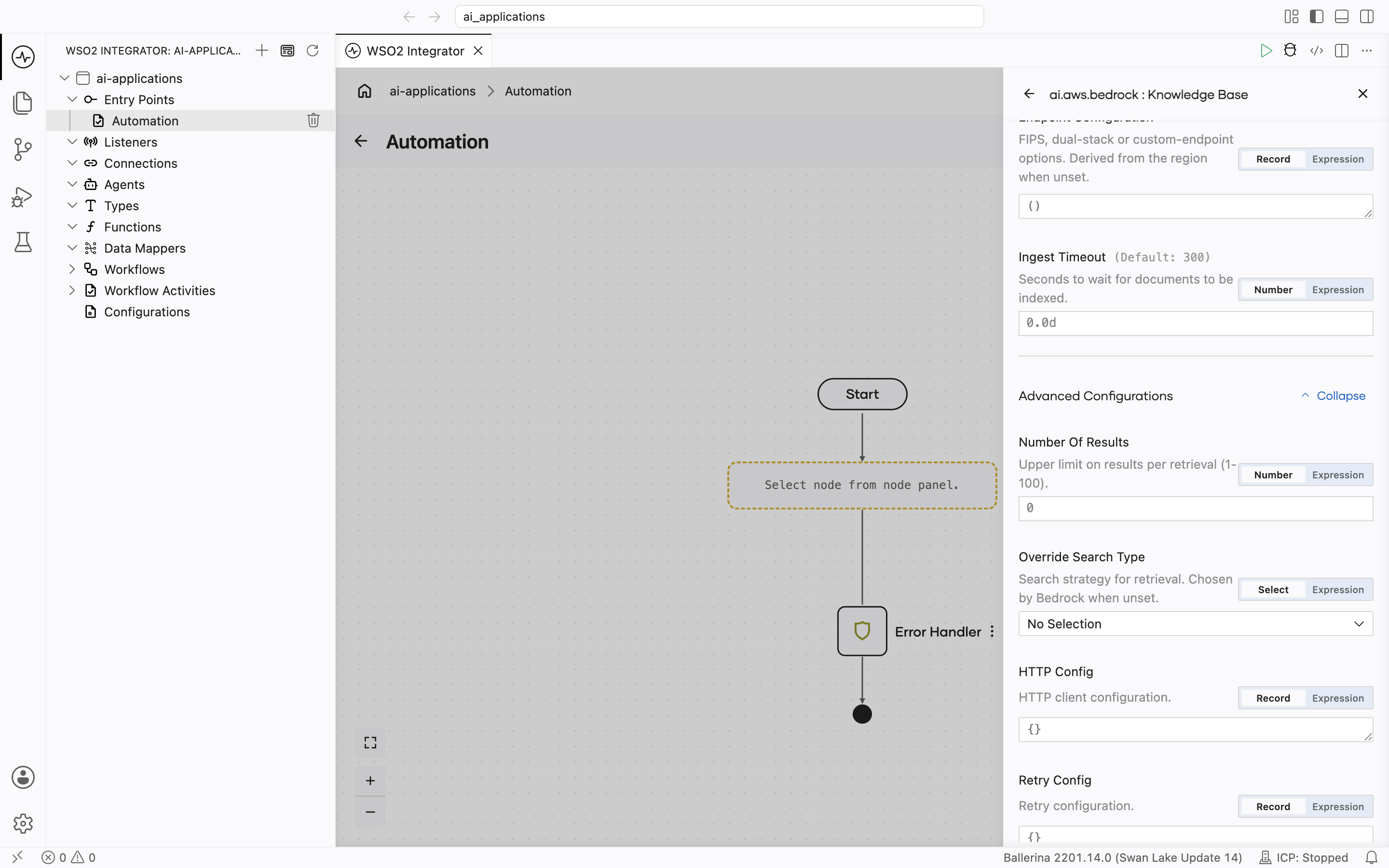
Advanced configurations
| Field | Knowledge base | Default | Available values | What it controls |
|---|---|---|---|---|
| Number Of Results | Both | () (follows Top K, up to 100) | 1 to 100 | The most results Bedrock returns per search request. Bedrock can return fewer. Top K on the Retrieve action still limits the total. |
| Override Search Type | Self-Managed | () (Bedrock chooses) | SEARCH_SEMANTIC, SEARCH_HYBRID | Vector-only or hybrid (vector and keyword) search. Hybrid search needs a store with a filterable text field. The AWS API reference lists only OpenSearch Serverless; the AWS user guide also lists Aurora PostgreSQL and MongoDB Atlas. Leave empty unless your store supports it. |
| Retry Config | Both | maxRetries 3, initialDelay 1.0, maxDelay 20.0, backoffFactor 2.0 | Record | Backoff for throttling and transient errors (408, 429, 500, 502, 503, 504). |
| HTTP Config | Both | () | Record | The Standard HTTP advanced configurations, grouped in one record. There is no Service URL; use Endpoint Configuration. |
Definition records
Use a definition record in Knowledge Base to find or create a knowledge base by name.
ManagedKnowledgeBaseDefinition (Bedrock Managed Knowledge Base):
| Field | Required | Default | What it controls |
|---|---|---|---|
name | Yes | — | Knowledge base name, and the lookup key. Letters and digits, optionally separated by single _ or - characters. |
serviceRoleArn | Yes | — | ARN of the IAM role Bedrock uses to manage the knowledge base. |
description | No | () | Description. |
dataSource | No | {name: "ballerina-custom-source"} | The Custom data source created with the knowledge base: name, optional description. |
embeddingModel | No | () (Bedrock's own model) | Your own embedding model, as embeddingModelArn. The connection always sets 1024 dimensions and FLOAT32, which AWS requires for a managed knowledge base. Supported models: Amazon Titan Text Embeddings V2, Cohere Embed English v3, Cohere Embed Multilingual v3, Cohere Embed v4, and Amazon Nova Multimodal Embeddings. This can't be changed later, and rules out RERANKING_MANAGED. |
kmsKeyArn | No | () (AWS managed key) | A customer-managed KMS key for the stored data. |
readyTimeout | No | 300 | Seconds to wait for a new knowledge base and data source to become ready. |
SelfManagedKnowledgeBaseDefinition (Bedrock Self-Managed Knowledge Base):
| Field | Required | Default | What it controls |
|---|---|---|---|
name | Yes | — | Knowledge base name, and the lookup key. Letters and digits, optionally separated by single _ or - characters. |
serviceRoleArn | Yes | — | ARN of the IAM role Bedrock uses to manage the knowledge base. It also needs access to your vector store. See Knowledge base permissions. |
description | No | () | Description. |
embeddingModelArn | Yes | — | ARN of the Bedrock embedding model, for example arn:aws:bedrock:us-east-1::foundation-model/amazon.titan-embed-text-v2:0. |
embeddingModel | No | () (model defaults) | dimensions and embeddingDataType (EMBEDDING_FLOAT32, or EMBEDDING_BINARY on OpenSearch only). dimensions must match your vector index. |
storageConfiguration | Yes | — | Your vector store, as one of OpenSearchServerlessStorage, OpenSearchManagedClusterStorage, S3VectorsStorage, RdsStorage, NeptuneAnalyticsStorage, PineconeStorage, RedisEnterpriseCloudStorage, or MongoDbAtlasStorage. The store must already exist. |
dataSource | No | {name: "ballerina-custom-source"} | The Custom data source: name, optional description, chunkingStrategy (FIXED_SIZE or NONE), and for FIXED_SIZE, maxTokens (300) and overlapPercentage (20). Set NONE to chunk with a Chunker instead. The strategy can't be changed later. |
readyTimeout | No | 300 | Seconds to wait for a new knowledge base and data source to become ready. |
The vector store must already exist. AWS can create a vector store for you only from the console, not through the API. Create it with the console, Terraform, or AWS CDK first, then reference it in storageConfiguration.
Action behavior
- Ingest waits until every document is indexed, or until Ingest Timeout passes, so a Retrieve right after it finds the documents. It accepts text only. A document with an
idin its metadata replaces the earlier document with the sameid. When the connection splits a document into several chunks, the chunks get the IDs<id>#0,<id>#1, and so on. - Retrieve filter support depends on the vector store. AWS notes that
inandninfilters are best supported on OpenSearch Serverless and Neptune Analytics, and that MongoDB Atlas needs filters configured in its vector index before filtering works. See Manual metadata filtering. - Delete By Filter needs at least one filter condition, so it can't delete everything by accident. It deletes only from the connection's own Custom data source (the one Ingest writes to); content in other data sources is left alone. It searches that data source to find the matching documents, so use it for cleanup rather than on every request. If some documents can't be deleted or confirmed, it still deletes the rest and returns an error that names them. Running it again usually deletes the rest.
Azure AI Search Knowledge Base
A Knowledge Base that stores chunks directly in Azure AI Search and uses Azure's hybrid (vector + keyword + semantic) retrieval. Use this when your team already runs Azure AI Search or when you want Azure's semantic ranker on top of vector search.
Official website: Azure AI Search.
Unlike the Vector Knowledge Base, this one talks to Azure AI Search directly. There is no separate Vector Store connection. The Embedding Provider is optional because Azure can do its own integrated vectorization.
Create form
The form opens with Service URL, API Key, Index, Embedding Model, Chunker, and the start of Verbose:
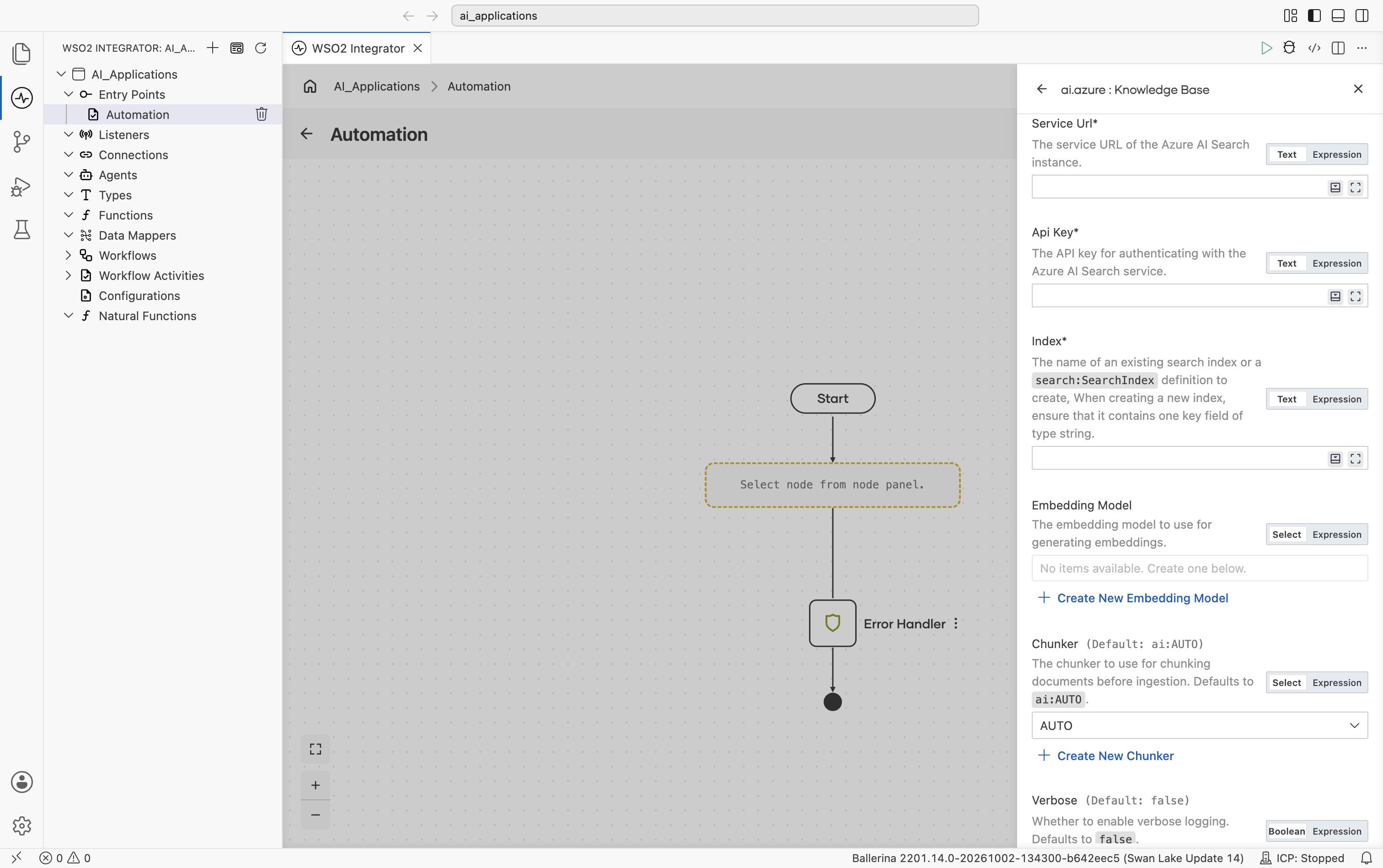
| Field | Required | Default | Available values |
|---|---|---|---|
| Service URL | Yes | N/A | Service URL of your Azure AI Search instance. |
| API Key | Yes | N/A | API key for authenticating with the Azure AI Search service. |
| Index | Yes | N/A | The name of an existing search index, or a search:SearchIndex definition (a record describing the index schema). When creating a new index, ensure it contains one key field of type string. |
| Embedding Model | No | () | Any saved Embedding Provider connection. Used for query and ingest if provided. Leave empty to rely on Azure AI Search's integrated vectorization. |
| Chunker | No | ai:AUTO | ai:AUTO, ai:DISABLE, or any saved Chunker connection. |
Scrolling further shows Verbose, API Version, Content Field Name, Search Client Connection Config, Index Client Connection Config, and Semantic Configuration Name:
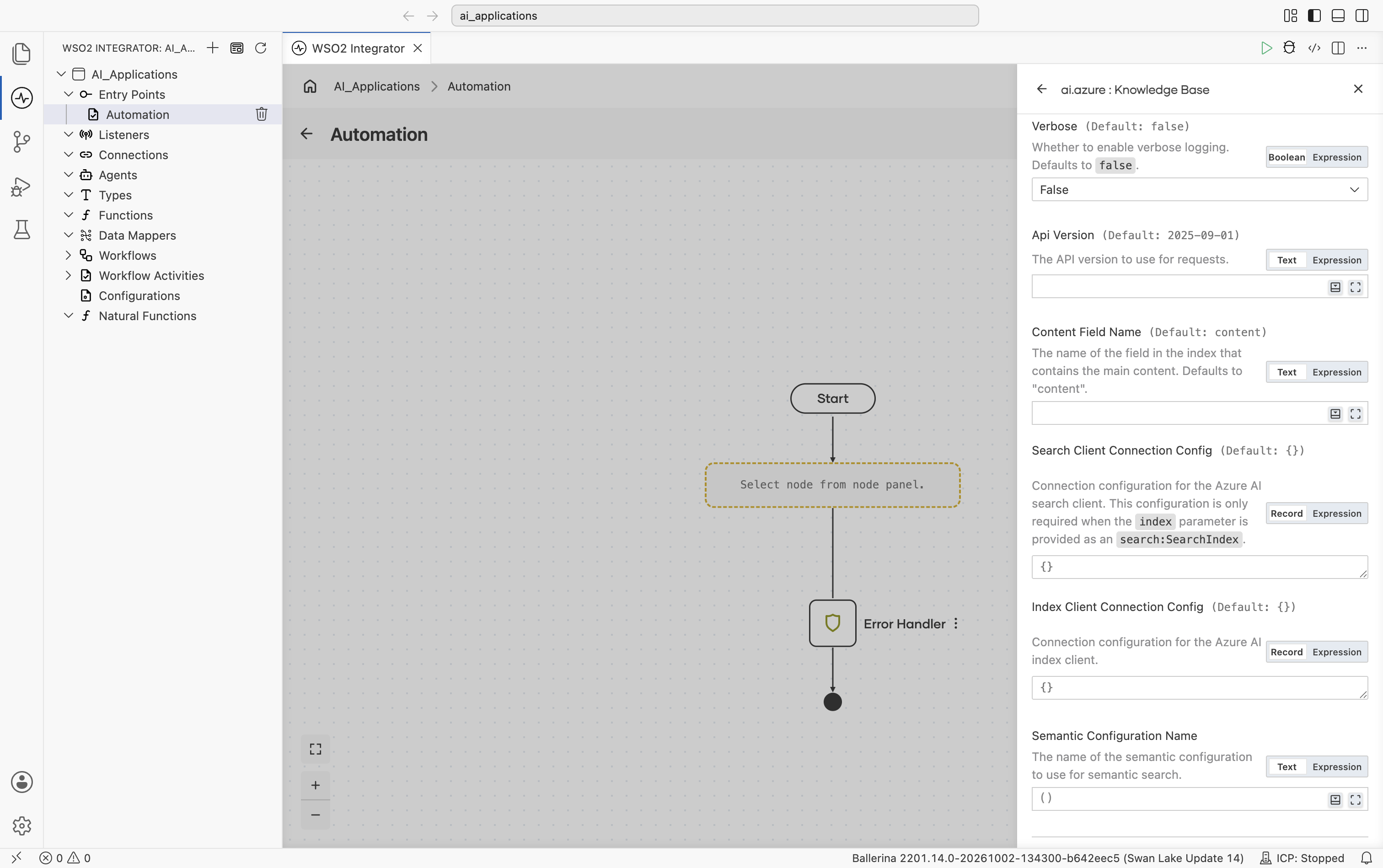
| Field | Default | Available values | What it controls |
|---|---|---|---|
| Verbose | false | true, false | Whether to enable verbose logging during ingest and retrieve. Useful when debugging. |
| API Version | 2025-09-01 | Azure AI Search API version string | The Azure AI Search REST API version to use. |
| Content Field Name | "content" | String | The name of the field in the index that contains the main chunk content. |
| Search Client Connection Config | {} | Record | Connection configuration for the Azure AI Search service client. Required only when Index is provided as a search:SearchIndex definition (i.e. when the connector creates the index for you). See Standard HTTP Advanced Configurations for available knobs. |
| Index Client Connection Config | {} | Record | Connection configuration for the Azure AI Search index client. See Standard HTTP Advanced Configurations for available knobs. |
| Semantic Configuration Name | () | String or empty | The name of the semantic configuration to use for semantic search. Leave empty for plain vector / keyword search. |
Scrolling to the bottom shows Knowledge Base Name and Result Type:
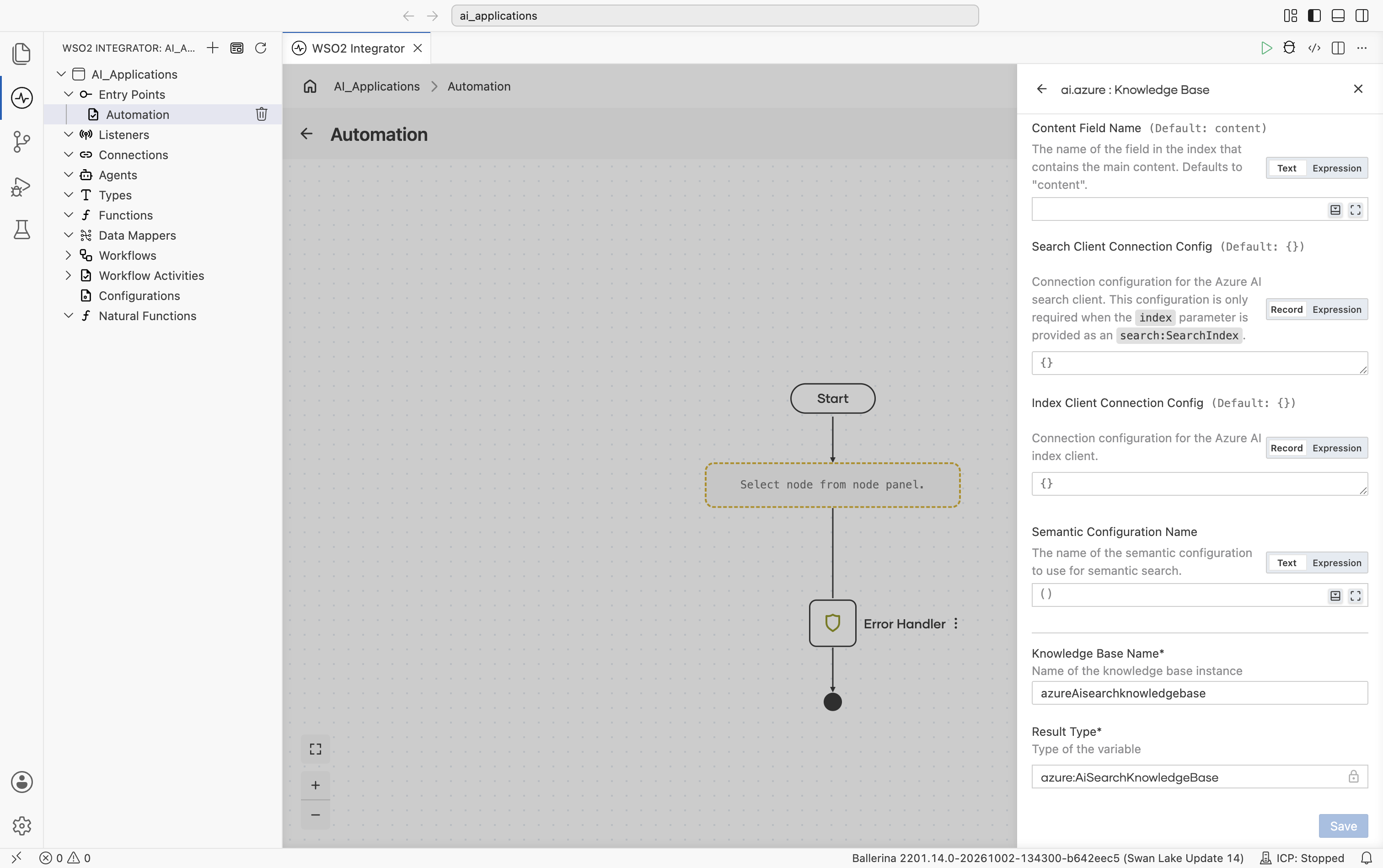
The connector analyzes the index schema on init: it identifies the key field, every vector field, and verifies the content field exists. If you use Azure AI Search's integrated vectorization, you don't need to provide an Embedding Model.
WSO2 Cloud Knowledge Base
A Knowledge Base that's deployed in WSO2 Cloud. If you don't already have a WSO2 Cloud Knowledge Base deployed in your organization, create the knowledge base in WSO2 Cloud first. It is provisioned and managed there.
Connect to an existing knowledge base
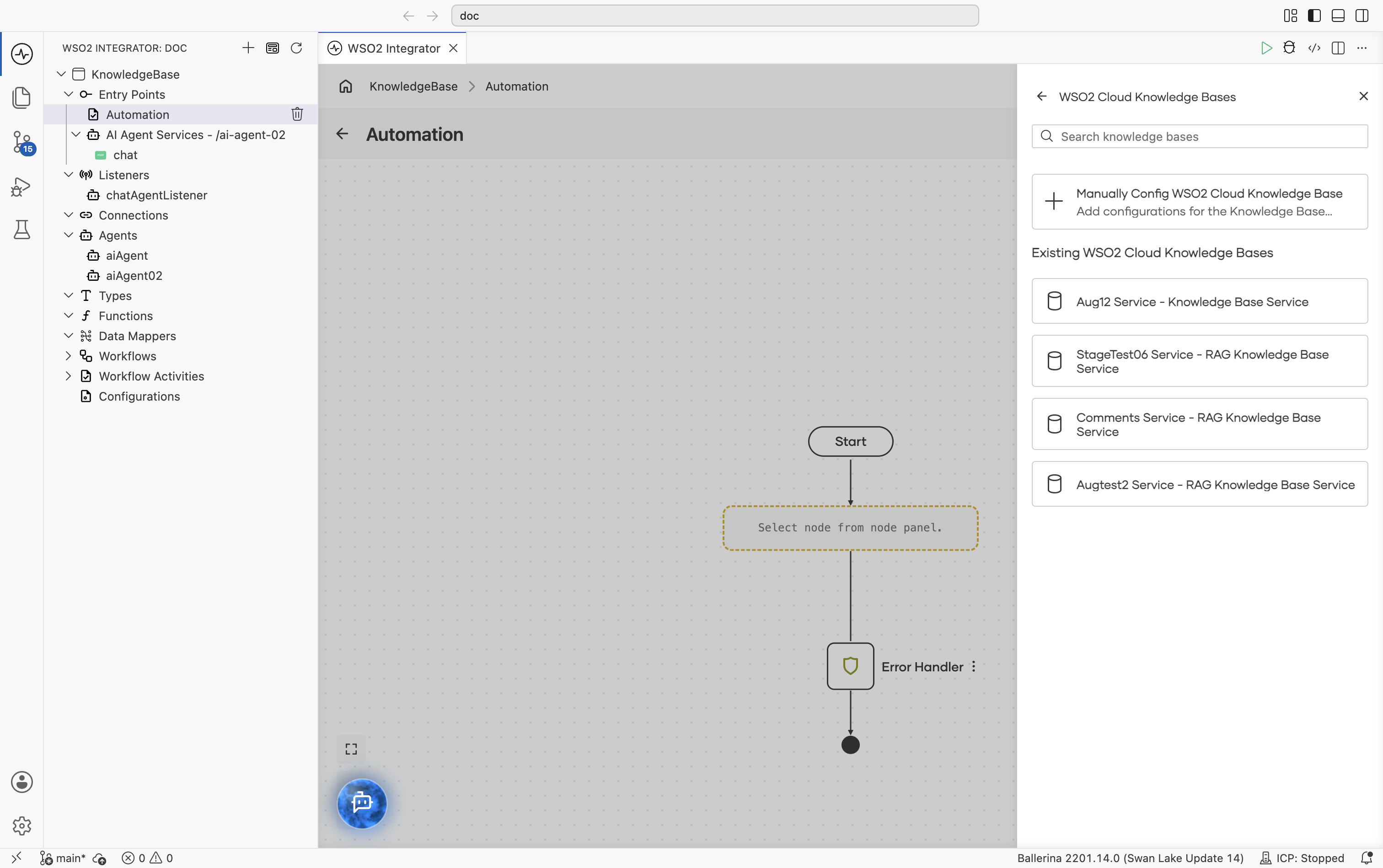
Selecting WSO2 Cloud Knowledge Base lists the knowledge bases available in your WSO2 Cloud organization, above a Manually Config WSO2 Cloud Knowledge Base card. You need to be signed in to WSO2 Cloud with a project selected for the list to appear; if none exist yet, only the manual-config card is shown:
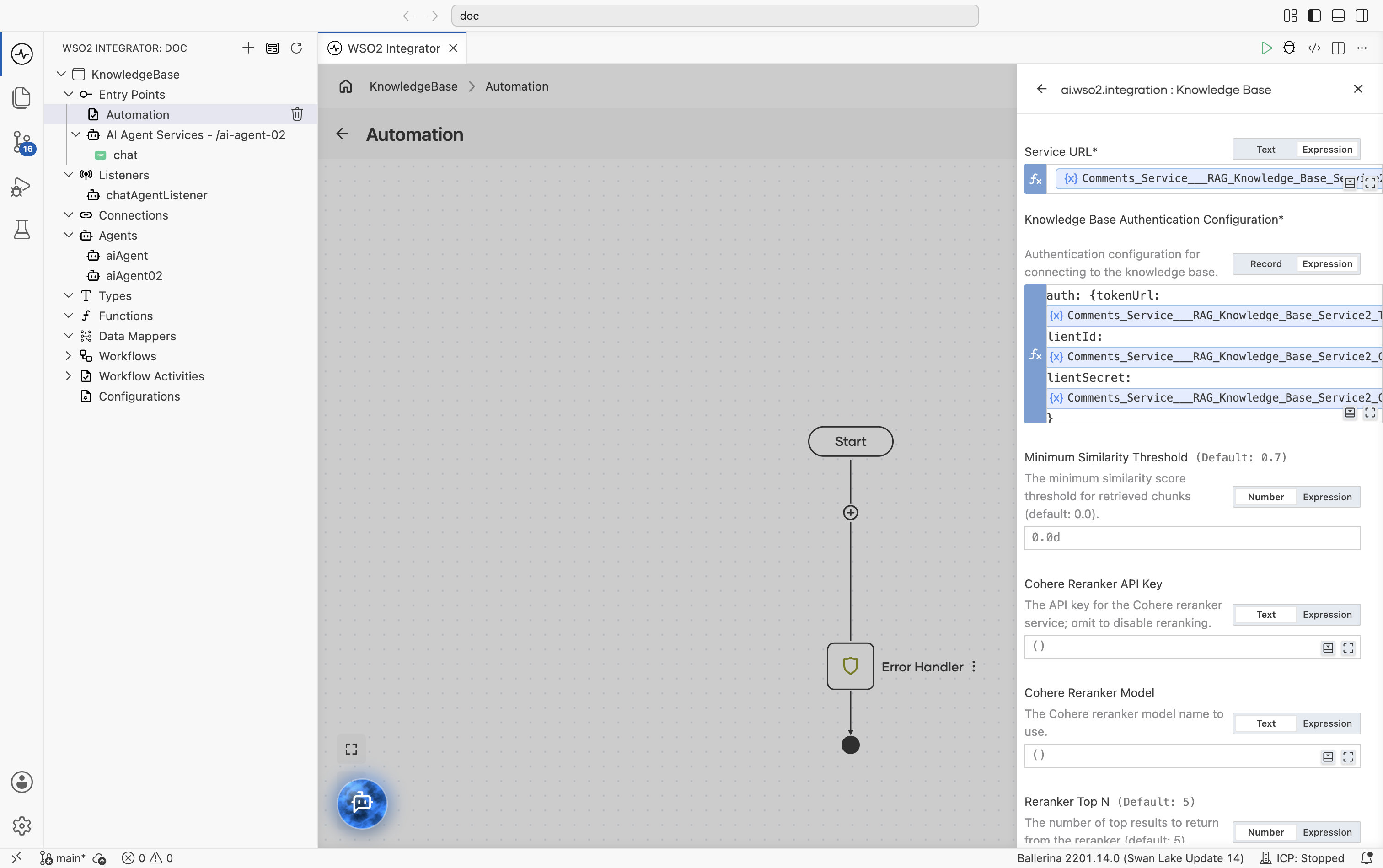
Choosing an existing knowledge base opens the create form with its service URL and credentials already filled in; the credentials are supplied by the environment when the integration runs, so no secrets are stored in your project:
Configure manually
Choose Manually Config WSO2 Cloud Knowledge Base to open a blank form and enter the details yourself. The form opens with Service URL, Knowledge Base Authentication Configuration, Minimum Similarity Threshold, Cohere Reranker API Key, Cohere Reranker Model, Reranker Top N, and the start of HTTP Version:
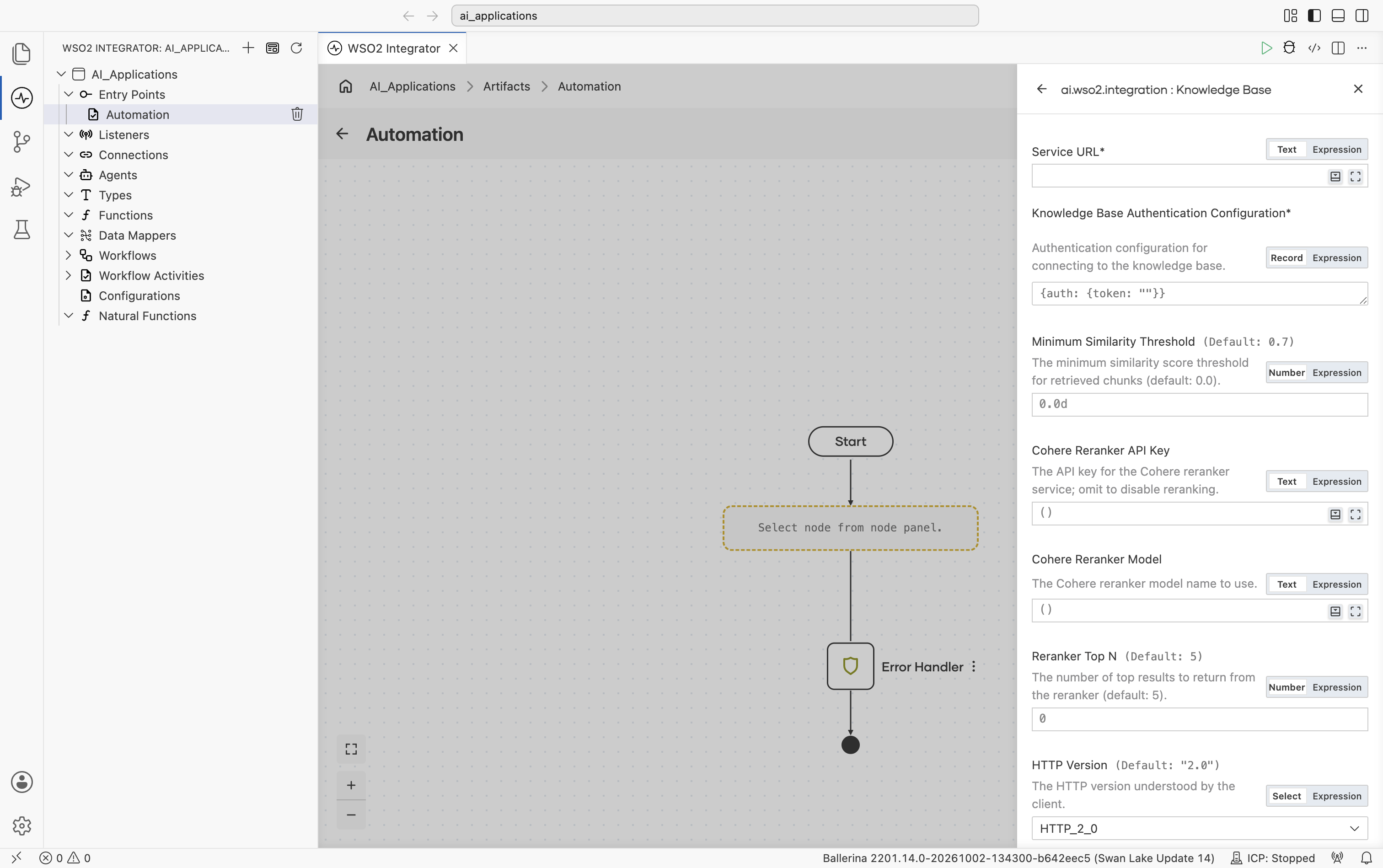
| Field | Required | Default | Available values |
|---|---|---|---|
| Service URL | Yes | N/A | The endpoint of the knowledge base service in WSO2 Cloud. |
| Knowledge Base Authentication Configuration | Yes | N/A | A bearer token, or OAuth2 client credentials (Token URL, Client ID, Client Secret). Knowledge bases connected from WSO2 Cloud use OAuth2 client credentials. |
| Minimum Similarity Threshold | No | 0.7 | Decimal 0–1. The lowest similarity score a chunk can have and still be returned by Retrieve. |
| Cohere Reranker API Key | No | () | String or empty. API key for the Cohere reranker. Leave empty to skip reranking. |
| Cohere Reranker Model | No | () | String or empty. The Cohere reranker model to use when reranking is enabled. |
| Reranker Top N | No | 5 | Integer. The number of chunks to keep after reranking. |
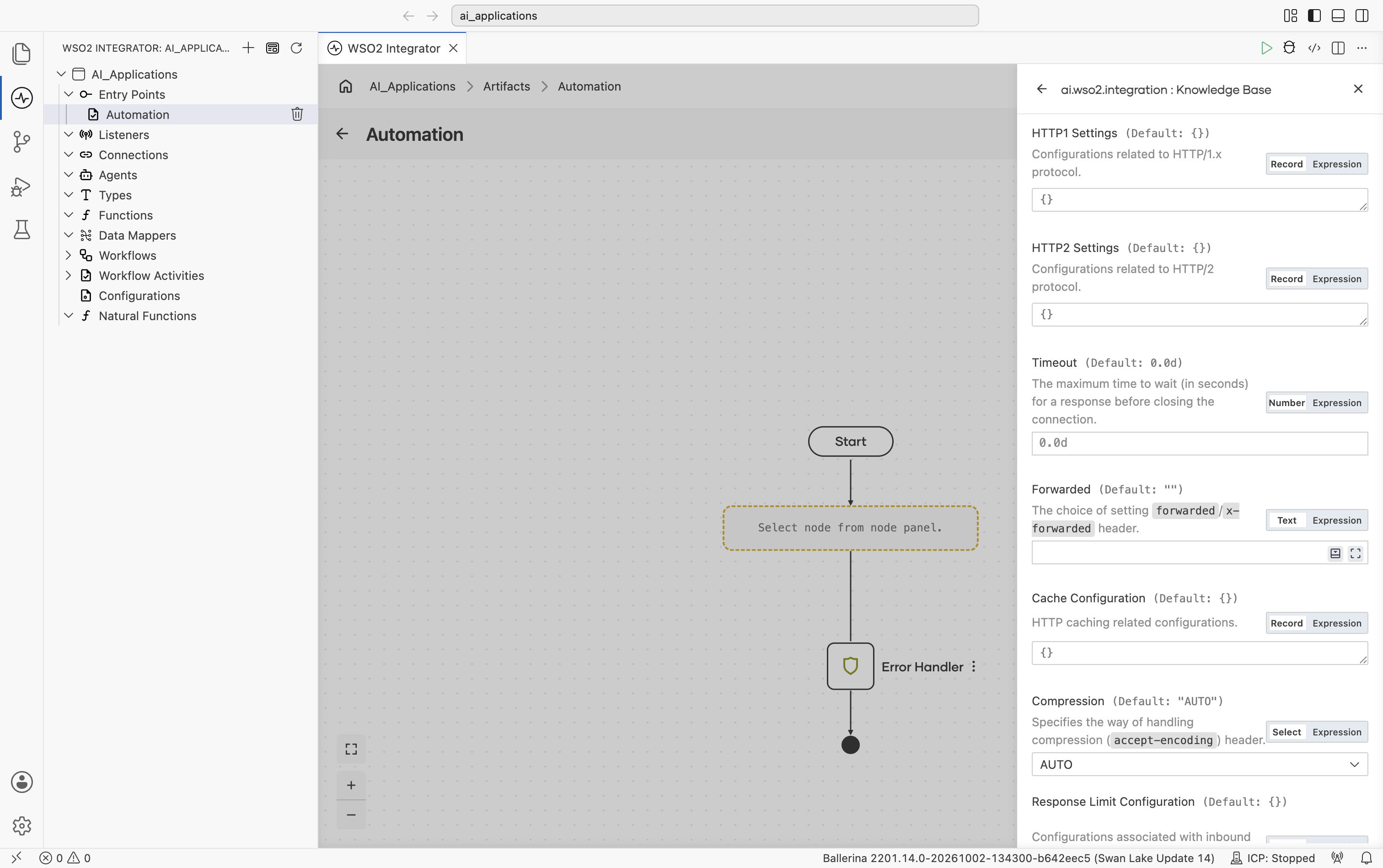
Scrolling further shows the standard HTTP inline fields: HTTP1 Settings, HTTP2 Settings, Timeout, Forwarded, Cache Configuration, and the start of Compression:
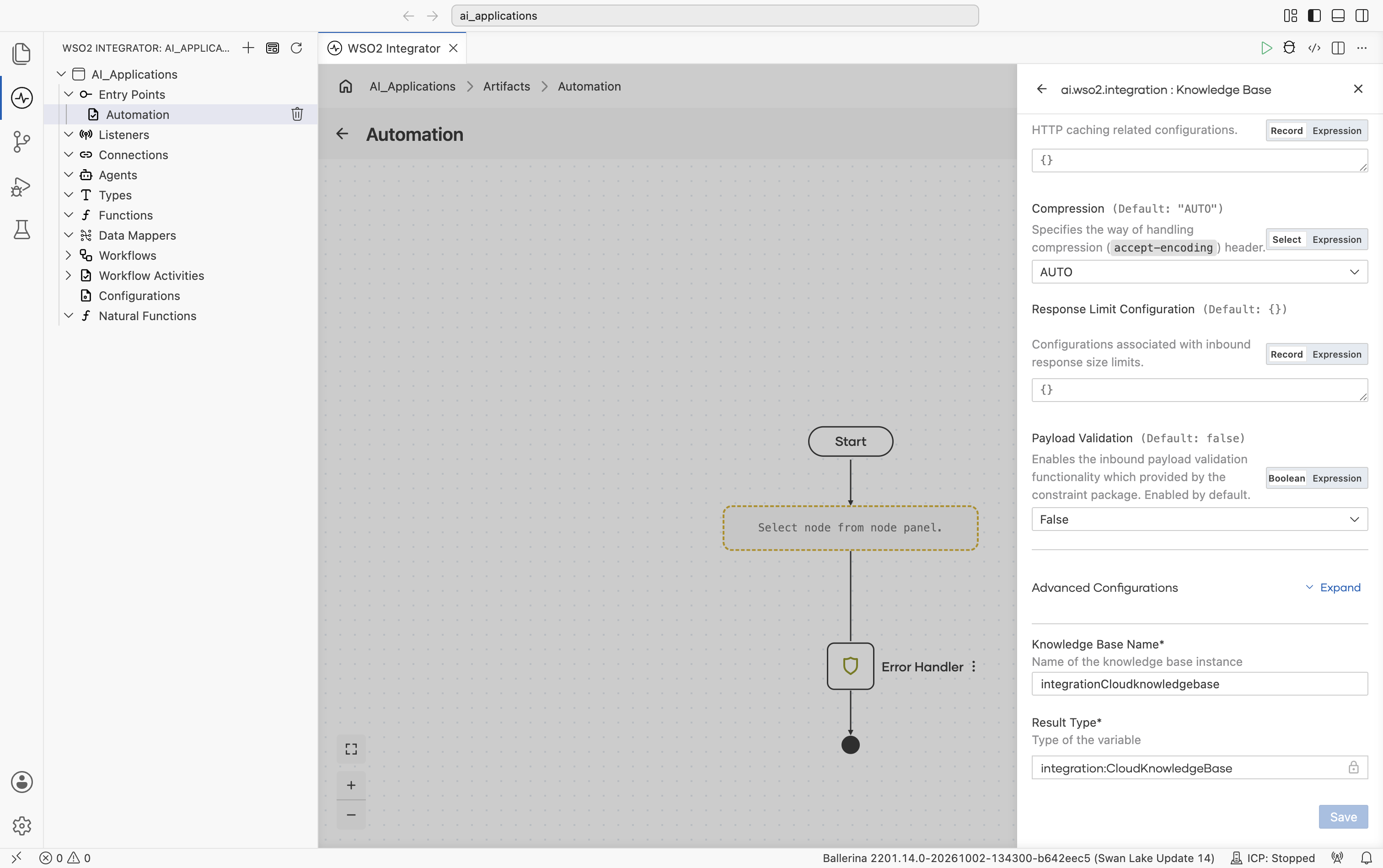
Continuing the scroll shows Response Limit Configuration and Payload Validation, then the collapsed Advanced Configurations toggle, and finally Knowledge Base Name and Result Type:
Advanced configurations
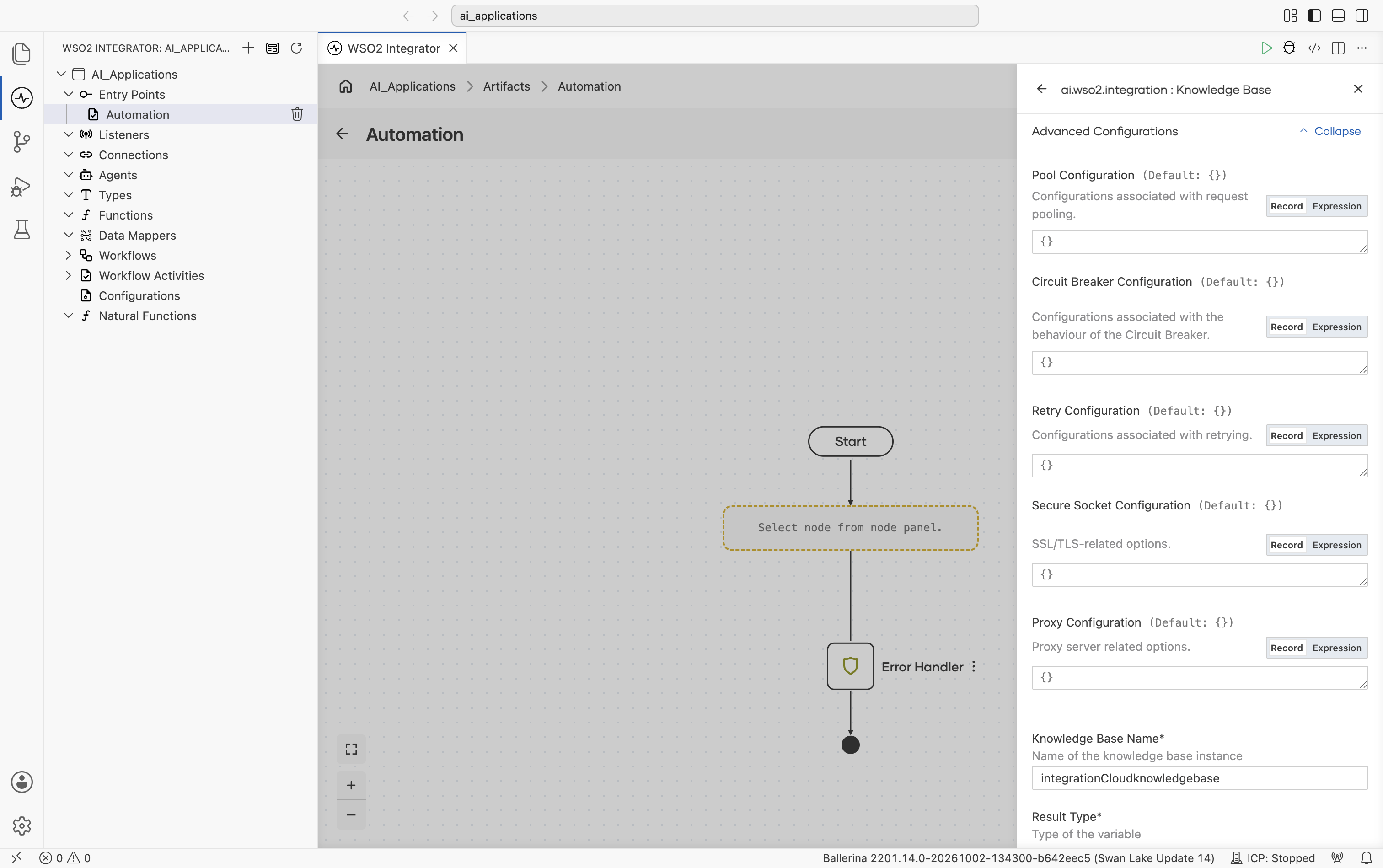
Expanding Advanced Configurations shows Pool Configuration, Circuit Breaker Configuration, Retry Configuration, Secure Socket Configuration, and Proxy Configuration, the same fields as the Standard HTTP advanced configurations section on the Model Providers page:
Selecting a knowledge base
| Situation | Recommended |
|---|---|
| Most projects, especially new ones | Vector Knowledge Base with In-Memory (dev) or Pinecone / Pgvector / Weaviate / Milvus (prod). |
| Already on AWS, or want AWS to handle chunking and embedding | AWS Bedrock: Managed if you don't want to run a vector store, Self-Managed if you already run one. |
| Knowledge base provisioned and managed in WSO2 Cloud | WSO2 Cloud Knowledge Base. |
| Already running Azure AI Search; need keyword + vector + semantic ranker | Azure AI Search Knowledge Base. |
| Need a custom retrieval source (search engine, graph DB, hand-rolled) | Implement the ai:KnowledgeBase contract yourself; the rest of the integration won't change. |
What's next
- Chunkers — How documents are split before ingest.
- Direct LLM Calls — One-shot generate calls without an agent loop.
- Natural Functions — Ballerina functions whose body is plain English, evaluated at runtime by an LLM.