Set up an AI Gateway
An AI Gateway is the runtime component that processes and routes requests between your applications and large language model (LLM) providers. Create and manage AI gateways in AI Workspace, then deploy your LLM providers and proxies to them.
Prerequisites
-
A user whose token carries the scopes these steps need:
ap:gateway:readto view gateways.ap:gateway:manageto add, edit, or delete a gateway.ap:gateway:token:manageto issue a registration token.ap:gateway:managecovers the token operations on its own.
The built-in role-to-scope mapping assigns these scopes as follows:
ap_adminandap_operatorgrant all three scopes.ap_viewerandap_publishergrantap:gateway:readonly, so they can view gateways but not change them.
View AI gateways
- Navigate to AI Gateways in the left navigation menu.
The AI Gateways page displays a list of all configured gateways with the following details:
| Column | Description |
|---|---|
| Name | The gateway name |
| Description | A brief description of the gateway |
| Status | The gateway status, either Active or Not Active |
| Last Updated | Timestamp of the most recent change |
| Actions | Edit and delete options |
Add an AI gateway
-
Navigate to AI Gateways in the left navigation menu.
-
Click + Add AI Gateway.
-
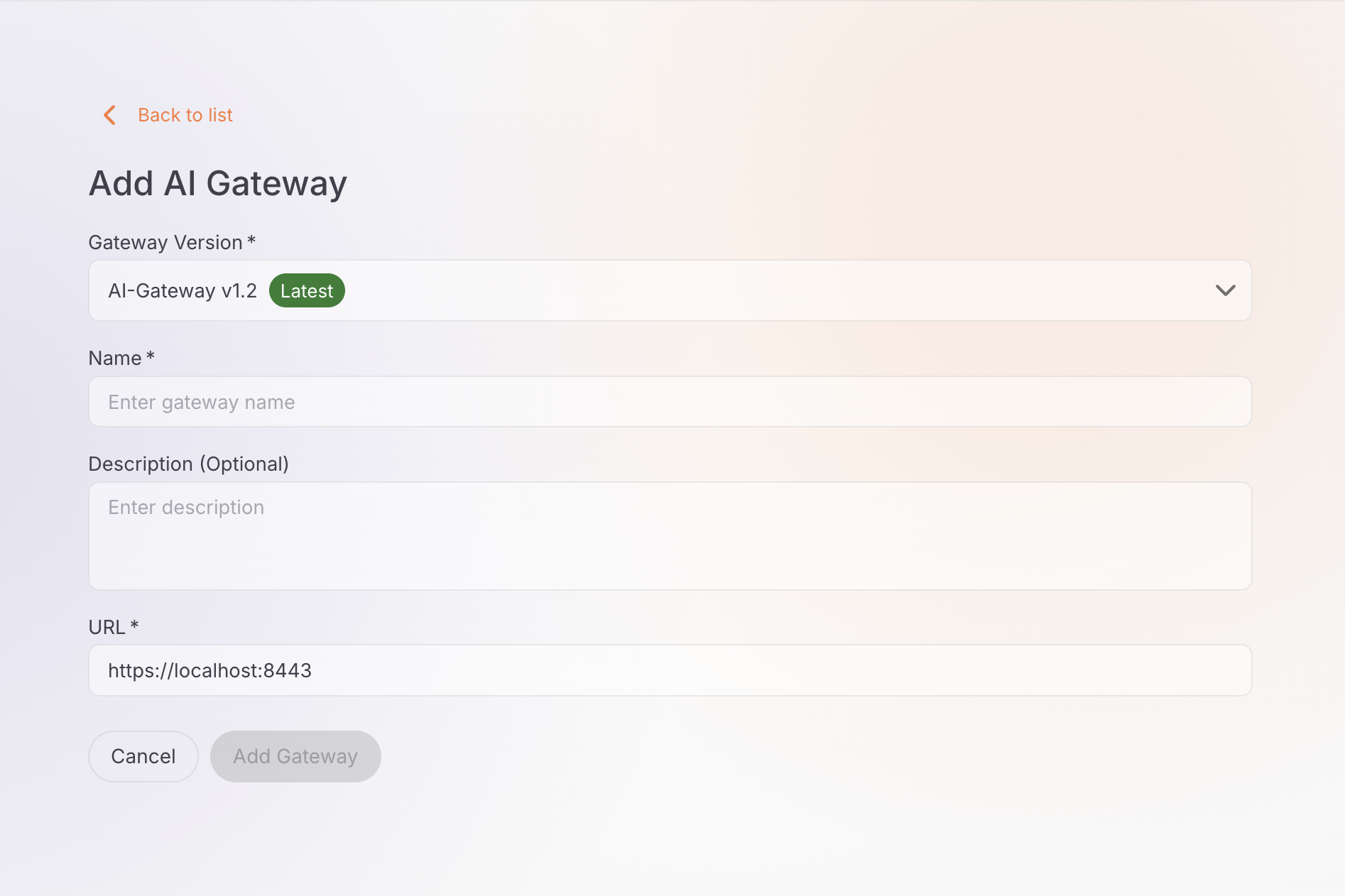
Fill in the gateway details:
- Name (required): a unique name for the gateway, for example
production-gatewayordev-gateway. - Description (optional): a brief description that identifies the gateway's purpose.
- URL (required): the gateway URL, for example
https://localhost:8443. This is the endpoint where the gateway runtime is accessible.
The Add AI Gateway form collects the name, description, and URL:
- Name (required): a unique name for the gateway, for example
-
Click Add Gateway to create the gateway.
-
The gateway detail page opens showing the gateway name, status (Not Active initially), vhost, and creation timestamp.
Set up the gateway runtime
After creating an AI gateway, you need to set up the gateway runtime. The detail page provides a Get Started section with setup instructions.
Gateway registration token
A Gateway Registration Token is displayed at the top of the Get Started section. This token is required to connect your gateway runtime to the control plane.
Important
The token is shown only once. Save it securely before you leave this page.
Lost your token?
The registration token is single-use. If you need to reconfigure the gateway, click the Reconfigure button to generate a new token. The new token revokes the old one and disconnects the gateway from the control plane.
Installation methods
The Get Started section provides setup instructions for multiple deployment options.
Where the control plane address comes from
Every method below needs two values from the Get Started section: the control plane address the gateway connects to, and this gateway's registration token.
Self-hosted AI Workspace fills that address into the commands it shows from [ai_workspace.gateway] controlplane_host in its own config.toml. The key is display-only, and AI Workspace never connects to it. The address has to be reachable from the machine running the gateway, not from the workspace. If the commands carry an address your gateway can't reach, correct that key and reload the page rather than editing the value into the gateway. For the Helm method, put the hostname in controlPlane.host and any port in controlPlane.port. See Two keys that aren't interchangeable.
Gateway version
AI Workspace works with gateway v1.2 and above. Those gateways provision their keys and certificates with ./scripts/setup.sh and take their configuration from api-platform.env, which Compose loads through the env_file: directive. The Get Started section offers the gateway versions AI Workspace supports and shows the commands for the version you register.
Prerequisites:
- cURL installed
- unzip installed
- Docker installed and running
Step 1: Download the gateway
Run this command in your terminal to download the gateway:
curl -sLO https://github.com/wso2/api-platform/releases/download/ai-gateway/v1.2.0-rc/wso2apip-ai-gateway-1.2.0-rc.zip && \
unzip wso2apip-ai-gateway-1.2.0.zip
Step 2: Set up the gateway
Run the one-time setup script. It provisions the AES-256 at-rest encryption key, the router HTTPS listener certificate, the gateway-controller admin credentials, and api-platform.env — all required before the first start (the gateway has no demo mode and fails closed if a required key, certificate, or credential is missing). The admin password is printed once — copy it:
On Windows, use the PowerShell setup script instead — it takes the same flags and provisions the same files:
Step 3: Configure the gateway
Append the control plane host and your registration token to api-platform.env:
cat >> api-platform.env << 'ENVFILE'
APIP_GW_CONTROLLER_CONTROLPLANE_HOST=<control-plane-host>
APIP_GW_CONTROLLER_CONTROLPLANE_TOKEN=<your-gateway-token>
ENVFILE
Replace both placeholders with the values the Get Started section shows: the control plane address, as host:port with no scheme, and this gateway's registration token.
Step 4: Start the gateway
Start the gateway. api-platform.env is loaded automatically via the Compose env_file: directive:
Prerequisites:
- cURL installed
- unzip installed
- A Docker-compatible container runtime such as:
- Docker Desktop (Windows / macOS)
- Rancher Desktop (Windows / macOS)
- Colima (macOS)
- Docker Engine + Compose plugin (Linux)
Ensure docker and docker compose commands are available:
Step 1: Download the gateway
Run this command in your terminal to download the gateway:
curl -sLO https://github.com/wso2/api-platform/releases/download/ai-gateway/v1.2.0-rc/wso2apip-ai-gateway-1.2.0-rc.zip && \
unzip wso2apip-ai-gateway-1.2.0.zip
Step 2: Set up the gateway
Run the one-time setup script. It provisions the AES-256 at-rest encryption key, the router HTTPS listener certificate, the gateway-controller admin credentials, and api-platform.env — all required before the first start (the gateway has no demo mode and fails closed if a required key, certificate, or credential is missing). The admin password is printed once — copy it:
On Windows, use the PowerShell setup script instead — it takes the same flags and provisions the same files:
Step 3: Configure the gateway
Append the control plane host and your registration token to api-platform.env:
cat >> api-platform.env << 'ENVFILE'
APIP_GW_CONTROLLER_CONTROLPLANE_HOST=<control-plane-host>
APIP_GW_CONTROLLER_CONTROLPLANE_TOKEN=<your-gateway-token>
ENVFILE
Replace both placeholders with the values the Get Started section shows: the control plane address, as host:port with no scheme, and this gateway's registration token. The token is single-use — if you need to reconfigure, click Reconfigure to generate a new token (this revokes the old token and disconnects the gateway).
Step 4: Start the gateway
Start the gateway. api-platform.env is loaded automatically via the Compose env_file: directive:
Prerequisites:
- cURL installed
- unzip installed
Step 1: Download the gateway
Run this command in your terminal to download the gateway:
curl -sLO https://github.com/wso2/api-platform/releases/download/ai-gateway/v1.2.0-rc/wso2apip-ai-gateway-1.2.0-rc.zip && \
unzip wso2apip-ai-gateway-1.2.0.zip
Step 2: Set up the gateway
Run the one-time setup script. It provisions the AES-256 at-rest encryption key, the router HTTPS listener certificate, the gateway-controller admin credentials, and api-platform.env — all required before the first start (the gateway has no demo mode and fails closed if a required key, certificate, or credential is missing). The admin password is printed once — copy it:
On Windows, use the PowerShell setup script instead — it takes the same flags and provisions the same files:
Step 3: Configure the gateway
Append the control plane host and your registration token to api-platform.env:
cat >> api-platform.env << 'ENVFILE'
APIP_GW_CONTROLLER_CONTROLPLANE_HOST=<control-plane-host>
APIP_GW_CONTROLLER_CONTROLPLANE_TOKEN=<your-gateway-token>
ENVFILE
Replace both placeholders with the values the Get Started section shows: the control plane address, as host:port with no scheme, and this gateway's registration token. The token is single-use — if you need to reconfigure, click Reconfigure to generate a new token (this revokes the old token and disconnects the gateway).
Step 4: Start the gateway
Start the gateway. api-platform.env is loaded automatically via the Compose env_file: directive:
Prerequisites:
- cURL installed
- unzip installed
- Kubernetes 1.32+
- Helm 3.18+
The registration token is a one-time generated token for this gateway. If you need to install or update the gateway chart again, first reconfigure this gateway to generate a new registration token. Reconfiguring revokes the previous token.
Create the encryption key secret
At-rest encryption is mandatory and fail-closed — nothing is auto-generated, and the chart doesn't render without an AES-256 key Secret. Create it in the install namespace before installing the chart:
openssl rand 32 > default-aesgcm256-v1.bin
kubectl create secret generic gateway-encryption-keys \
  --from-file=default-aesgcm256-v1.bin=default-aesgcm256-v1.bin
rm default-aesgcm256-v1.bin   # don't leave the plaintext key on disk
Install the chart
Run this command to install the gateway chart with the encryption key and control plane configurations:
helm install gateway oci://ghcr.io/wso2/api-platform/helm-charts/gateway --version 1.2.0 \
--set gateway.controller.encryptionKeys.enabled=true \
--set gateway.controller.encryptionKeys.secretName=gateway-encryption-keys \
--set gateway.controller.controlPlane.host="<control-plane-host>" \
--set gateway.controller.controlPlane.port=<control-plane-port> \
--set gateway.controller.controlPlane.token.value="<your-gateway-token>"
Use the Helm chart version that matches the gateway version shown on this page's Get Started section, not necessarily 1.2.0.
Replace the placeholders with the values the Get Started section shows. Split the control plane address across the two flags: the hostname in controlPlane.host, its port in controlPlane.port. <your-gateway-token> is this gateway's registration token.
Once the gateway runtime is running and connected, the gateway status changes from Not Active to Active.
Manage AI gateways
Edit a gateway
-
In the AI Gateways list, click the edit icon next to the gateway you want to modify.
-
Update the gateway details as needed.
-
Click Save to apply the changes.
Delete a gateway
-
In the AI Gateways list, click the delete icon next to the gateway you want to remove.
-
Confirm the deletion when prompted.
Irreversible action
Deleting a gateway is permanent, and it undeploys every provider and proxy on that gateway immediately.
Next steps
- Configure an LLM provider: set up an LLM provider and deploy it to your gateway
- Configure an App LLM proxy: create a specialized proxy for a GenAI application or agent and deploy it to your gateway