Configure an LLM provider
An LLM provider connects an AI service platform such as OpenAI or Anthropic to AI Workspace. Once you configure a provider, deploy it and call it directly through the managed gateway.
Note
App LLM proxies are optional. Use one when you want app-specific or agent-specific guardrails, authentication, or resource exposure on top of the same provider.
Prerequisites
-
A user whose token carries the scopes these steps need:
ap:llm_provider:manageto add and edit providers.ap:llm_provider:deployment:manageto deploy a provider.ap:gateway:readto choose the target gateway.ap:secret:createbecause AI Workspace stores the upstream API key as an encrypted secret on your behalf.
Of the roles the role-to-scope mapping ships,
ap_admingrants all four. -
At least one AI Gateway created and set up.
- API credentials for your LLM provider, such as an API key or an access token.
Add a new provider
- Navigate to AI Workspace in your API Platform dashboard.
- Select LLM Providers from the menu.
- Click + Add New Provider and choose your provider type, for example OpenAI or Anthropic. Any custom LLM provider templates you have created also appear in the picker.
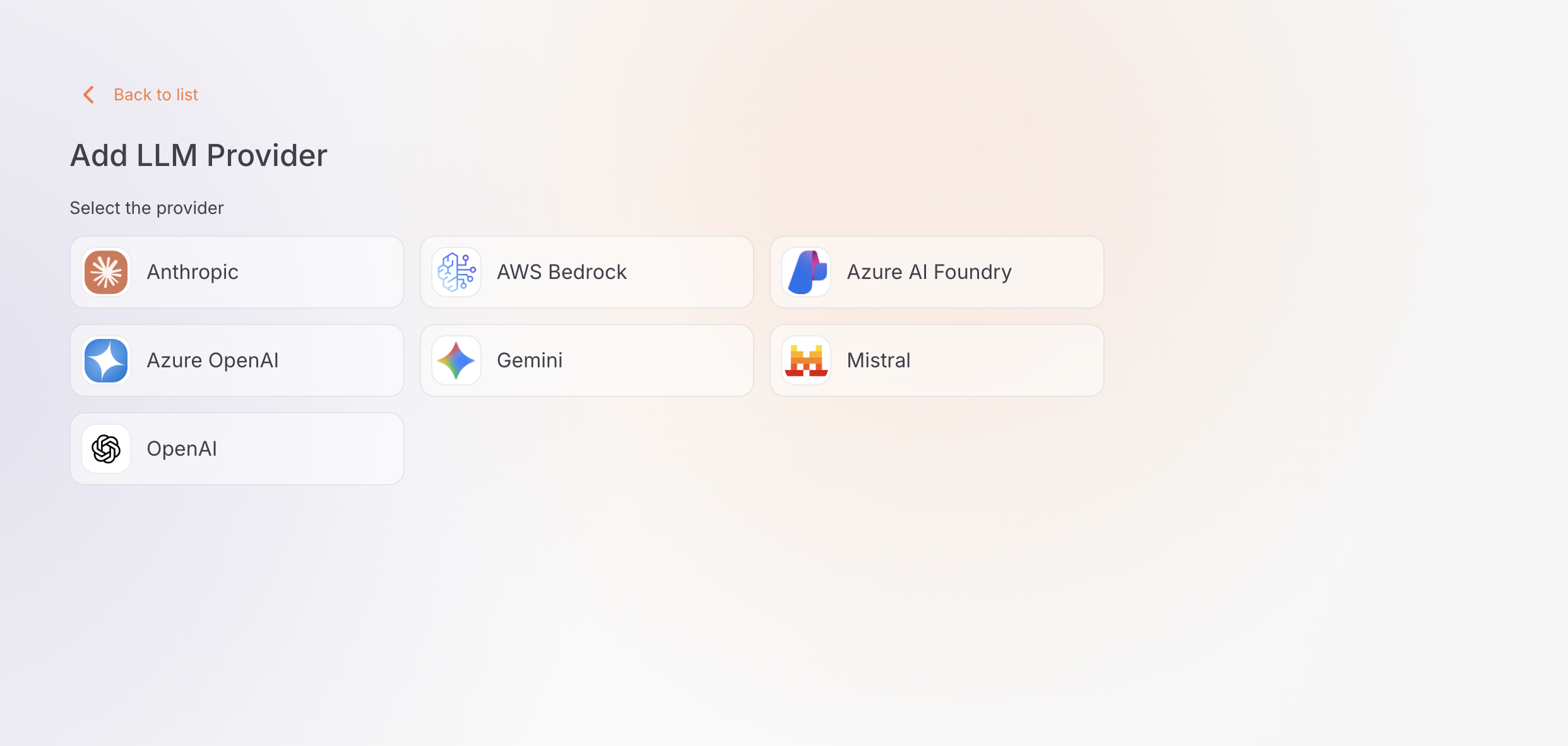
- If the selected template has more than one version, select a version and click Continue. A single version is selected automatically.
Configure provider details
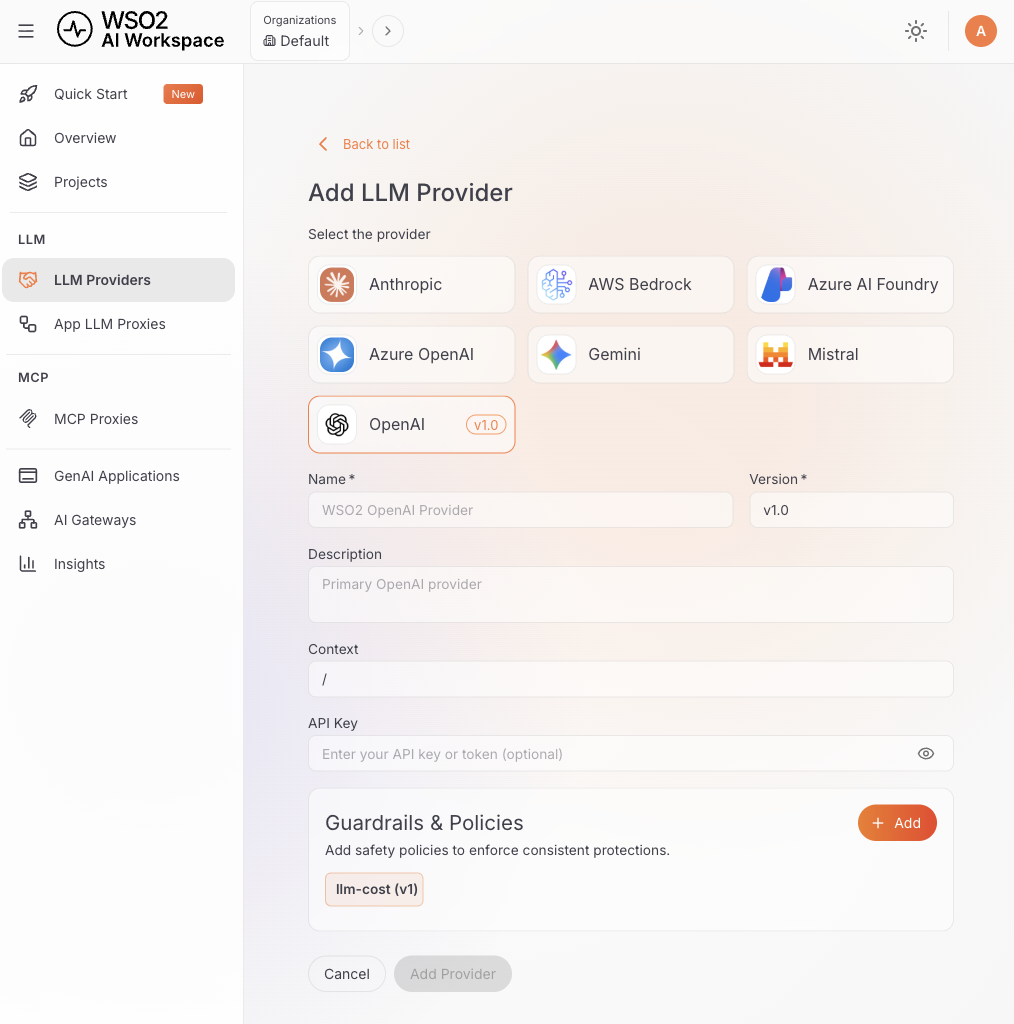
After selecting your provider type, fill in the provider configuration form:
Basic information
-
Name (required): Enter a unique name for the provider (for example,
openai-production,anthropic-dev). -
Version (required): The version is pre-filled (for example,
v1.0). You can edit this if needed. -
Description (optional): Add a description to identify the provider's purpose.
-
Context (optional): Enter the context path (default:
/). This is the base context for the provider.
Authentication
The authentication fields vary depending on the provider you selected:
API Key (required): Enter your OpenAI API key (starts with sk-proj- or sk-).
Info
OpenAI's endpoint URL is pre-configured automatically.
API Key (required): Enter your Anthropic API key (starts with sk-ant-).
Info
Anthropic's endpoint URL is pre-configured automatically.
API Key (required): Enter your Google AI API key.
Info
Gemini's endpoint URL is pre-configured automatically.
API Key (required): Enter your Mistral AI API key.
Info
Mistral AI's endpoint URL is pre-configured automatically.
- Upstream URL (required): Enter your Azure OpenAI resource endpoint (for example,
https://your-resource.openai.azure.com/). - API Key (required): Enter your Azure OpenAI API key.
- Upstream URL (required): Enter your Azure AI Foundry endpoint URL.
- API Key (required): Enter your Azure AI Foundry API key.
- Upstream URL (required): Enter the Bedrock runtime endpoint for your region, in the form
https://bedrock-runtime.<region>.amazonaws.com(for example,https://bedrock-runtime.us-east-1.amazonaws.com). - API Key (required): Enter your Amazon Bedrock API key. Paste the raw key. AI Workspace adds the
Bearerprefix followed by a space, and sends the credential asAuthorization: Bearer <key>.
Info
Bedrock's endpoint isn't pre-configured, because the runtime host is region-specific. Use the region your model access lives in. If you use a short-term Bedrock API key, it's scoped to the region that issued it and doesn't work against another region's endpoint. A long-term key, which is backed by service-specific Identity and Access Management (IAM) credentials, isn't tied to a single region.
How the API key is stored
AI Workspace stores the upstream API key as an encrypted secret and keeps only a {{ secret "handle" }} reference in the provider configuration. The plaintext key never lands in the provider configuration or in an API response. See Secrets management.
Custom provider templates
If you're adding a provider from a custom LLM provider template (Settings > LLM Provider Templates), the Authentication Type can also be set to other (no credentials stored — use a policy to handle upstream auth) or none (no upstream authentication sent), in addition to api-key.
Add guardrails (optional)
Attach policies and guardrails that apply to every request this provider serves:
-
In the Guardrails section of the form, click + Add Guardrail.
-
A sidebar opens showing the available guardrails and policies.
-
Click a guardrail to select it and configure its settings.
-
Click Add to attach it to the provider.
Advanced settings
Each guardrail includes advanced configuration options for fine-tuning its behavior. After selecting a guardrail, configure these settings before you attach it to the provider.
Info
Learn more about available guardrails in the Policies overview. For the full list of policies and their specifications, visit the Policy Hub.
Save provider
-
After configuring all settings and adding guardrails (if needed), click Add Provider.
-
A confirmation message reports that the provider was created.
-
The provider appears in the providers list.
Deploy provider to gateway
After creating your provider, you must deploy it to a gateway before it can be used.
Required step
The provider isn't functional until you deploy it to at least one gateway.
-
Click the Deploy to Gateway button in the top right corner.
-
Click Deploy on one or more gateways from the available list.
-
Wait for the deployment to complete. The status changes to Deployed.
Get started
Once the provider is deployed, the provider details page shows the Invoke URL on the left and a Get Started panel on the right.
Invoke URL
Select a gateway from the Gateways dropdown to see the base URL for accessing this provider through that gateway.
API keys
Generate an API key to authenticate requests to the deployed gateway.
- Click Generate API Key in the Get Started panel.
- Copy and save your API key immediately.
Important
An API key is displayed only once. Store it in a secure location immediately, because you can't retrieve it again.
Deployed gateways
The Deployed Gateways section lists all gateways this provider is deployed to, along with the host address and deployment status.
Next steps
- Configure an App LLM proxy: configure and deploy a specialized proxy endpoint for a GenAI application or agent that uses your provider
- Manage an LLM provider: configure access control, security, rate limiting, and more