Agents as Tools
An agent can be attached to another agent as a tool. The calling agent then treats it like any other tool: it decides when to invoke it, passes it a task, and uses what comes back.
This page describes how to attach an agent as a tool and how to configure the result. For guidance on whether to split work across agents at all, see Multi-Agent Systems.
Open the agent node
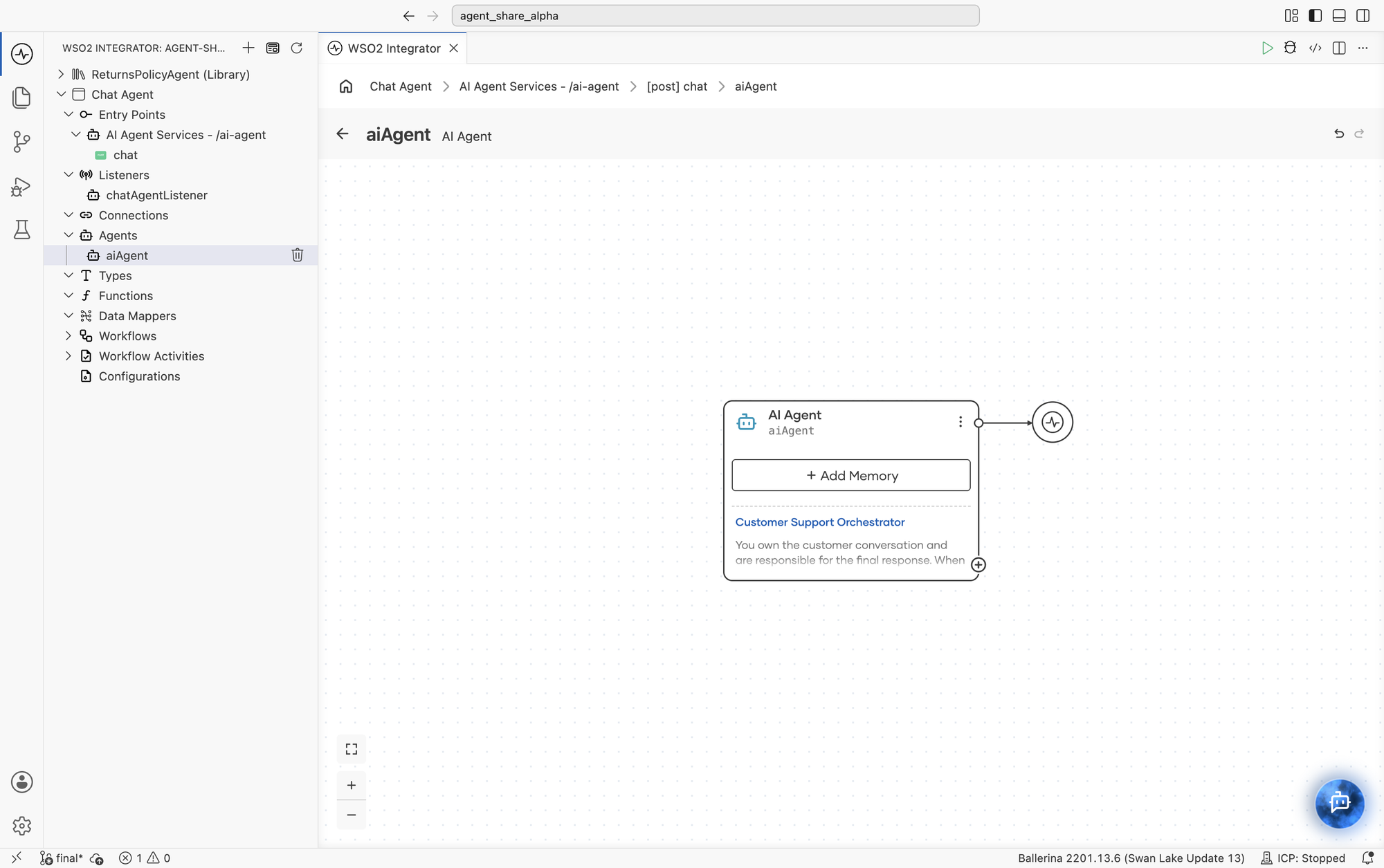
Tools are attached from the agent node, so start by creating an agent or opening an existing one. Select the agent under Agents in the project tree to open its canvas.
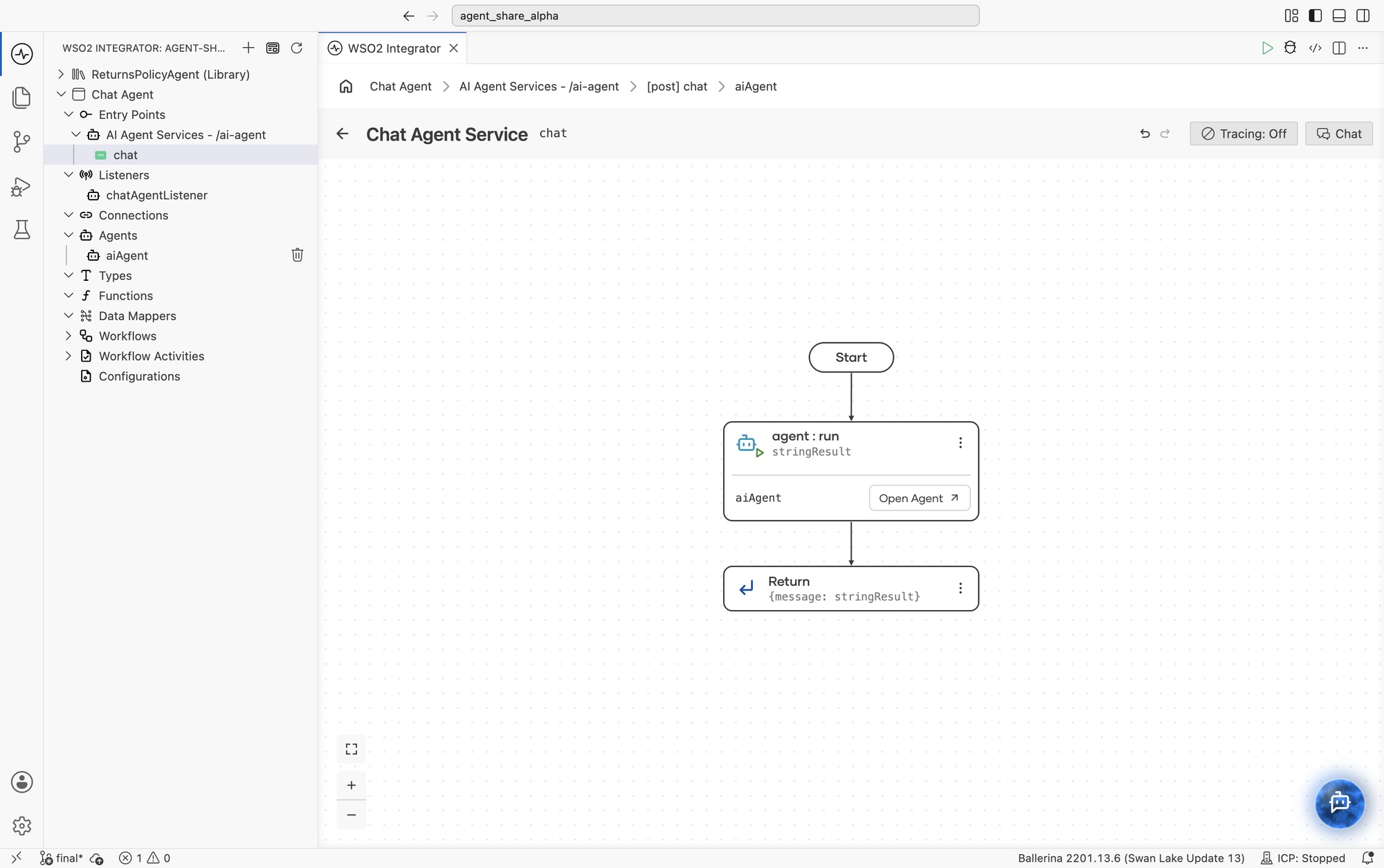
If the canvas shows an agent:run node, you are looking at the integration flow that uses the agent, not the agent node itself. Click Open Agent on the to get there.
Attach an agent as a tool
- Click the + button on the AI Agent node. The Add Tool panel opens with the available tool types.
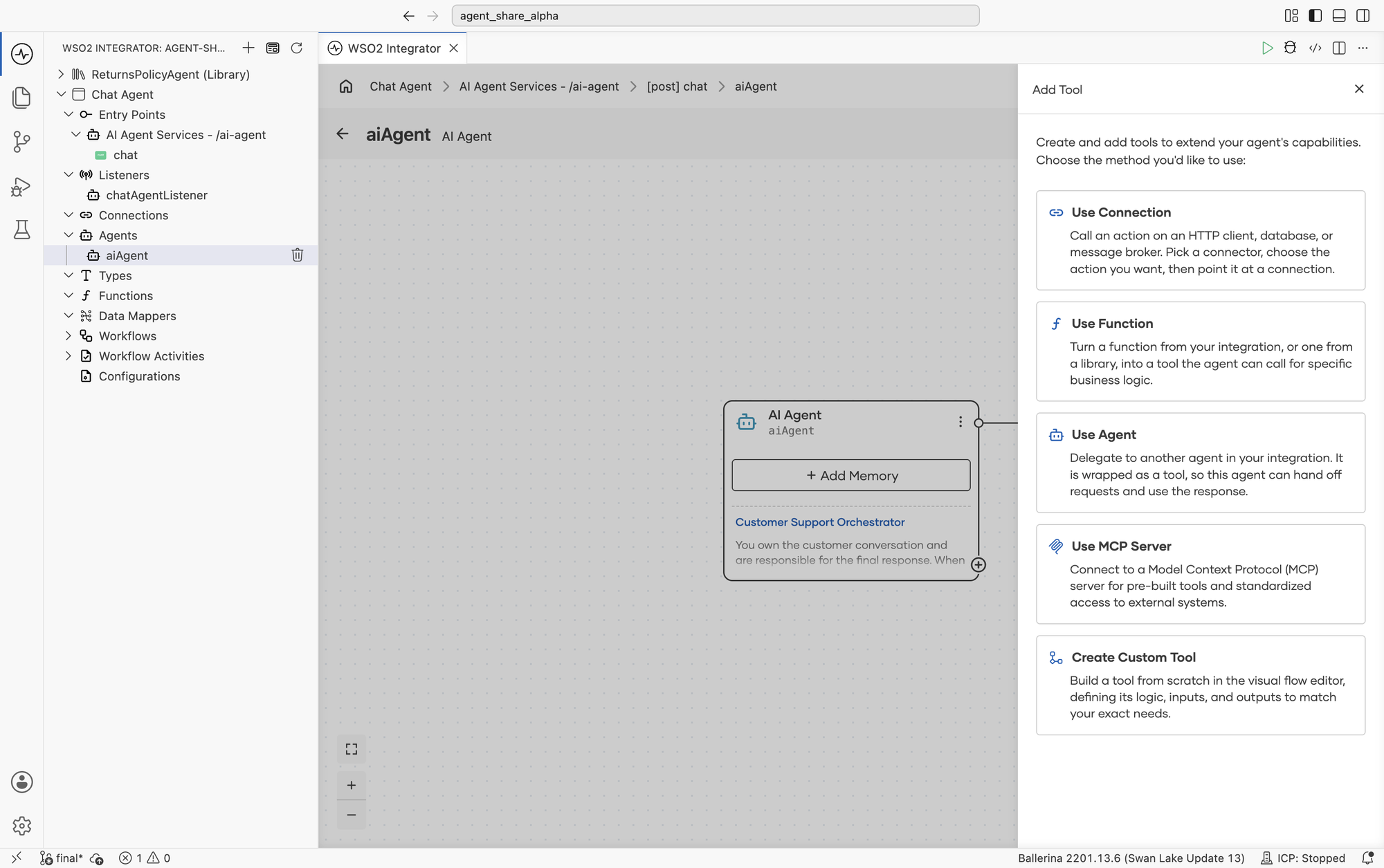
- Select Use Agent, which delegates to another agent in your integration by wrapping it as a tool. For the other tool types, see Tools.
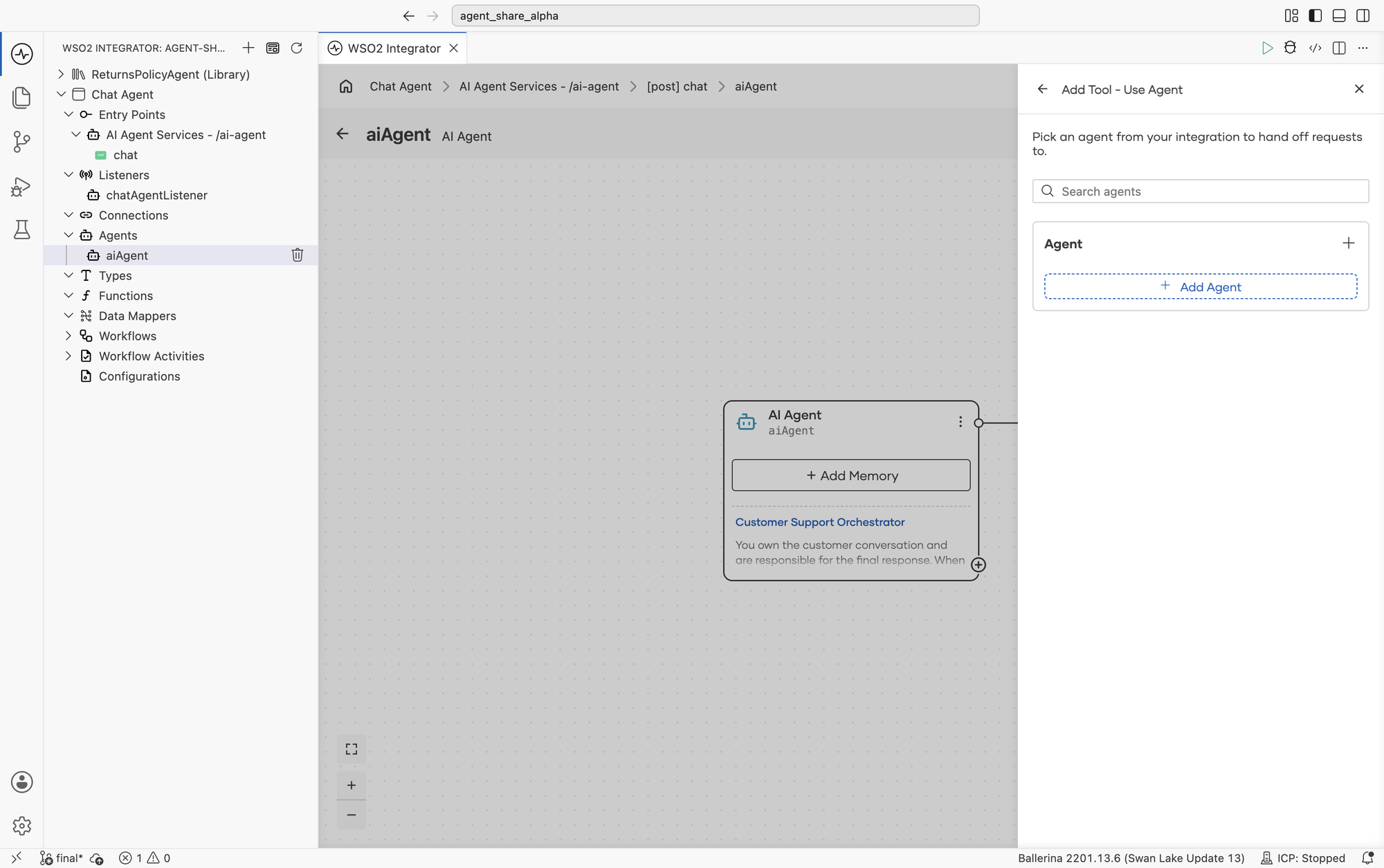
Agents already instantiated in the integration are listed here and can be attached directly.
- If the agent you want doesn't exist yet, click + Add Agent and choose where the new agent comes from.
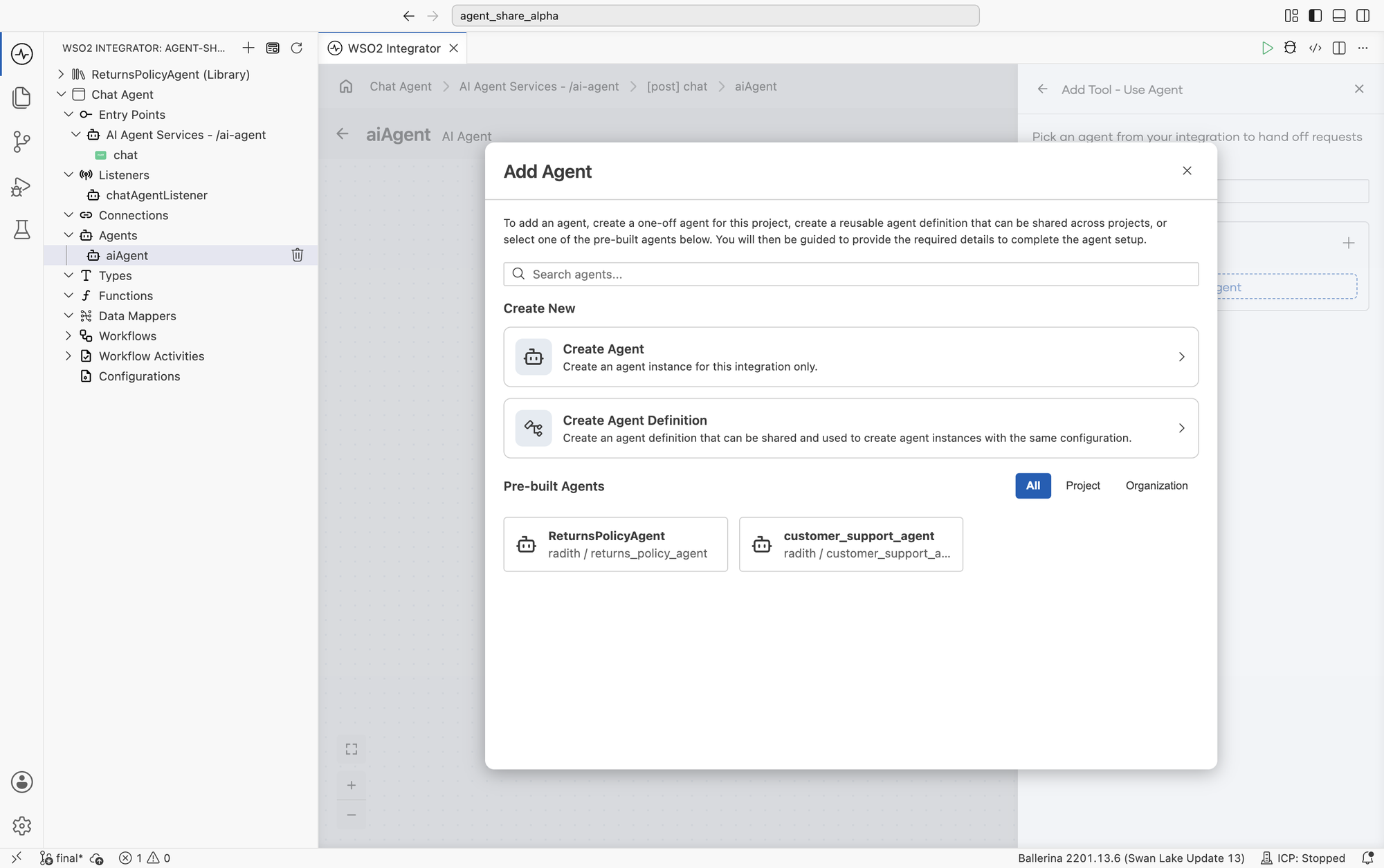
The options are the same as when adding an agent as an artifact:
| Option | Result |
|---|---|
| Create Agent | An agent instance created for this integration and used only here. |
| Create Agent Definition | A reusable definition, and an instance of it attached as the tool. |
| Pre-built Agents | An instance of a definition that already exists in this project or your organization. |
For the fields in each path, see Create an agent definition.
Reuse an instance or create a new one
If an instance of the agent you want already exists in the project, you can attach it rather than creating another.
| Reuse an existing instance | Create a new instance | |
|---|---|---|
| Configuration | Shared with every other user of that instance | Independent |
| Memory and session | Shared | Isolated, if configured with its own memory |
| Cost | One agent to maintain | Another agent to maintain |
| Use it when | The callers should behave identically and can share state | The sub-agent needs its own memory scope or configuration |
Reuse is the simpler default. Create a new instance when the callers must not see each other's conversation state.
Configure the tool
Once an agent is selected, configure how the calling agent sees and invokes it.
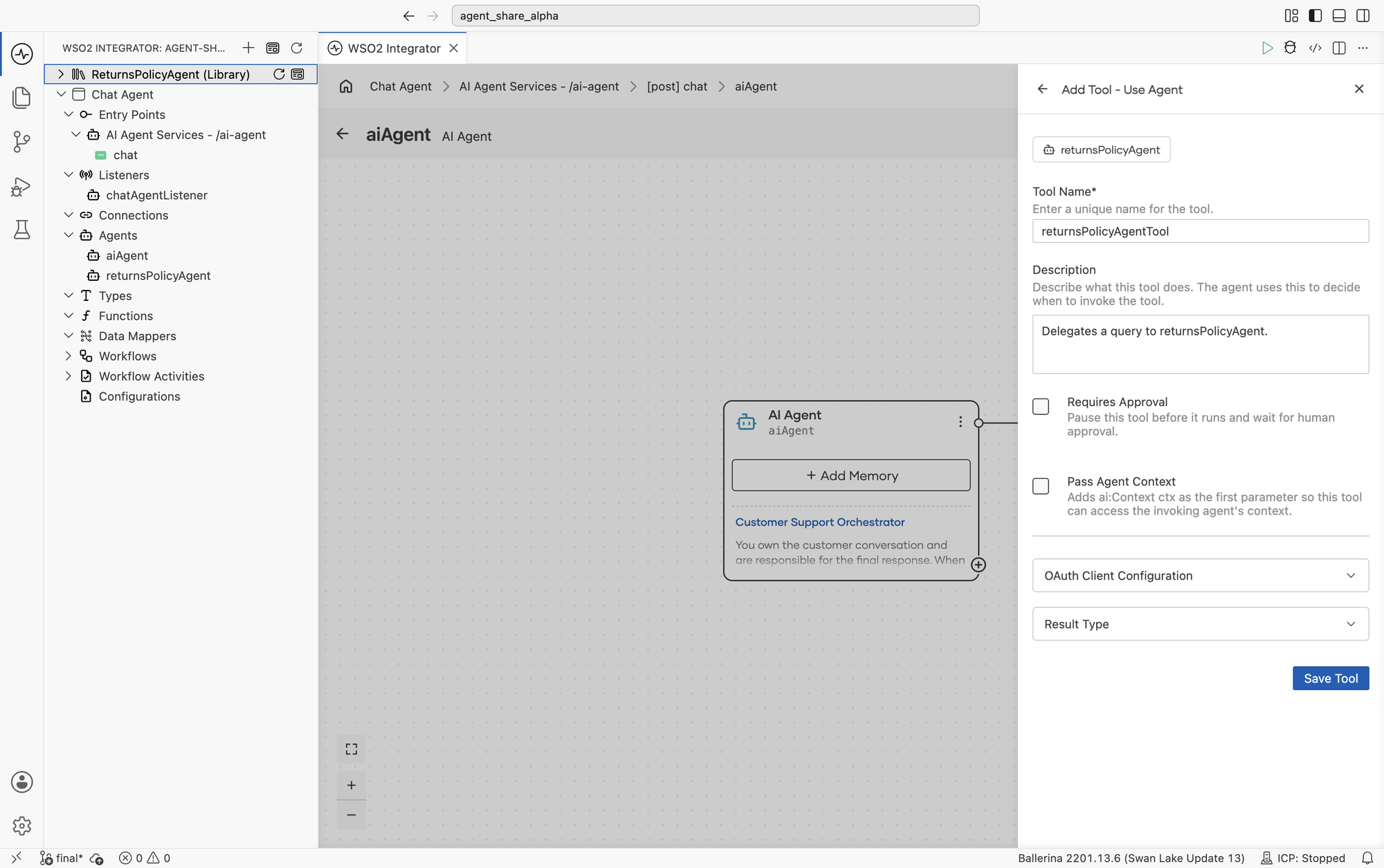
| Field | Required | Description |
|---|---|---|
| Tool Name | Yes | A unique name for the tool, such as returnsPolicyAgentTool. |
| Description | No | What the tool does. The calling agent uses this to decide when to invoke it. |
| Requires Approval | No | Pauses the tool before it runs and waits for a person to approve the delegation. See HITL. |
| Pass Agent Context | No | Gives the sub-agent access to the calling agent's ai:Context. See Sharing values with the sub-agent. |
| OAuth Client Configuration | No | Credentials the tool uses when calling external authorization servers. The fields are the same as for any other tool. See Tools. |
| Result Type | No | The type the tool returns to the calling agent. See What the sub-agent returns. |
Click Save Tool to attach it.
Sharing values with the sub-agent
ai:Context is a key-value store that travels with a run, not the conversation history or anything the model sees. Enabling Pass Agent Context adds it as the first parameter of the generated tool, so the sub-agent's own tools can read values the calling agent put there, such as a tenant identifier, a user ID, or a result from an earlier step.
The model never sees these values and cannot supply them, so anything the sub-agent's reasoning needs still belongs in the task description.
Write the description for the caller, not the agent
An agent attached as a tool has two descriptions, and they are not the same thing:
| Written for | Purpose | |
|---|---|---|
| Tool name and description | The calling agent's LLM | Deciding whether to delegate, and when |
| Role and instructions | The sub-agent's own LLM | Deciding how to do the work once delegated |
Write the tool description around the trigger condition, meaning the situations in which the calling agent should hand off, rather than around the sub-agent's capabilities. This is where delegation most often fails: a description that reads like a job title tells the calling agent nothing about when to use it.
What the sub-agent returns
The value the calling agent receives is determined by the sub-agent's response type. This is the Response Type of an agent definition, or the Type Descriptor in the advanced configuration of an agent created directly in an integration.
A narrow response type makes the sub-agent easier for the calling agent to use, because the result needs no further interpretation. A string response gives the calling agent prose it must reason about again.
Execution behavior
Failures are recoverable. A failing sub-agent does not fail the calling agent's run. The error comes back as a tool result the calling agent can react to. Say in its instructions what to do when a delegation fails.
Iteration budgets compound. Each agent enforces its own Maximum Iterations, defaulting to its tool count or 10, whichever is larger. A delegating agent's worst case is its own budget multiplied by its sub-agents'. Nesting is not otherwise bounded, so keep hierarchies shallow. See Advanced configuration.
Delegations can run in parallel. Tool calls from one response run concurrently by default, so two delegations can be in flight at once. This matters if they share memory. See Memory posture for sub-agents.
Common pitfalls
| Symptom | Likely cause | Fix |
|---|---|---|
| The sub-agent is never called. | The description is still the generated default, which names the agent but says nothing about the situations it handles. | Replace it with the conditions that should trigger a hand-off. |
| The calling agent re-answers what the sub-agent already answered. | The response type is string and the result reads as advice. | Narrow the response type, and say in the instructions that the result is authoritative. |
| Two callers see each other's conversation. | A single instance with shared memory is attached to both. | Create a separate instance for each caller. |
What's next
- Multi-Agent Systems — Topologies, cost, and when not to delegate.
- Agent Definitions — Build a specialist once and reuse it.
- Tools — The other tool types available to an agent.
- Observability — Trace a delegated call end to end.