

Unlocking Seamless Integration with MCP Servers on Choreo

- Janaka Sandaruwan
- Senior Software Engineer, WSO2

Model Context Protocol (MCP) is an open protocol that standardizes how applications provide context to large language models (LLMs). It’s becoming a foundational layer in many AI-native workflows, especially when working with real-time or continuously updating data sources.
We're excited to announce that Choreo now supports the deployment of MCP servers, empowering developers to integrate AI capabilities more efficiently into their applications. This enhancement simplifies the process of connecting AI models with external tools and data sources, streamlining the development of intelligent, context-aware applications.
In this blog post, we'll explore the key features of Choreo's MCP server component and demonstrate how you can leverage it to enhance your AI-driven workflows.
Why Choose Choreo to Deploy MCP Servers
While many community-built MCP servers are publicly available, most of which are standard I/O based servers, they can be challenging for developers to host and manage.
Choreo simplifies the deployment and management of MCP servers by:
- Providing a managed environment: Choreo offers a platform where MCP servers can be deployed with minimal configuration, reducing setup time and complexity.
- Exposing standard I/O based MCP servers as SSE endpoints: Choreo enables the transformation of standard I/O based MCP servers into SSE endpoints, allowing seamless integration with web clients and services that support SSE. This enhances real-time communication capabilities without the need for extensive modifications to existing MCP servers.
- Facilitating API management capabilities: Choreo provides built-in API management features, including authentication and authorization, API discovery, and etc. These capabilities enable developers to expose MCP server functionalities as managed APIs, ensuring secure interactions.
Getting Started: Deploying an MCP Server in Choreo
Deploying an MCP Server on Choreo is quick and straightforward. You can deploy an MCP Server in Choreo in three easy steps.
Step 1: Select the MCP server component type
Navigate to the component creation wizard and select the MCP server component type.

Figure 1 - Select the MCP Server component type
Step 2: Add your MCP server package details
Select the appropriate package registry for your MCP server package and specify the package name in the MCP Server metadata section.

Figure 2 - Add component creation details
You have now successfully created the server. Choreo will now prepare your MCP server for deployment. This might take a few moments.
Step 3: Deploy the MCP server component
Click Configure and Deploy and follow the on-screen instructions. Add configurations based on your MCP server's requirements.
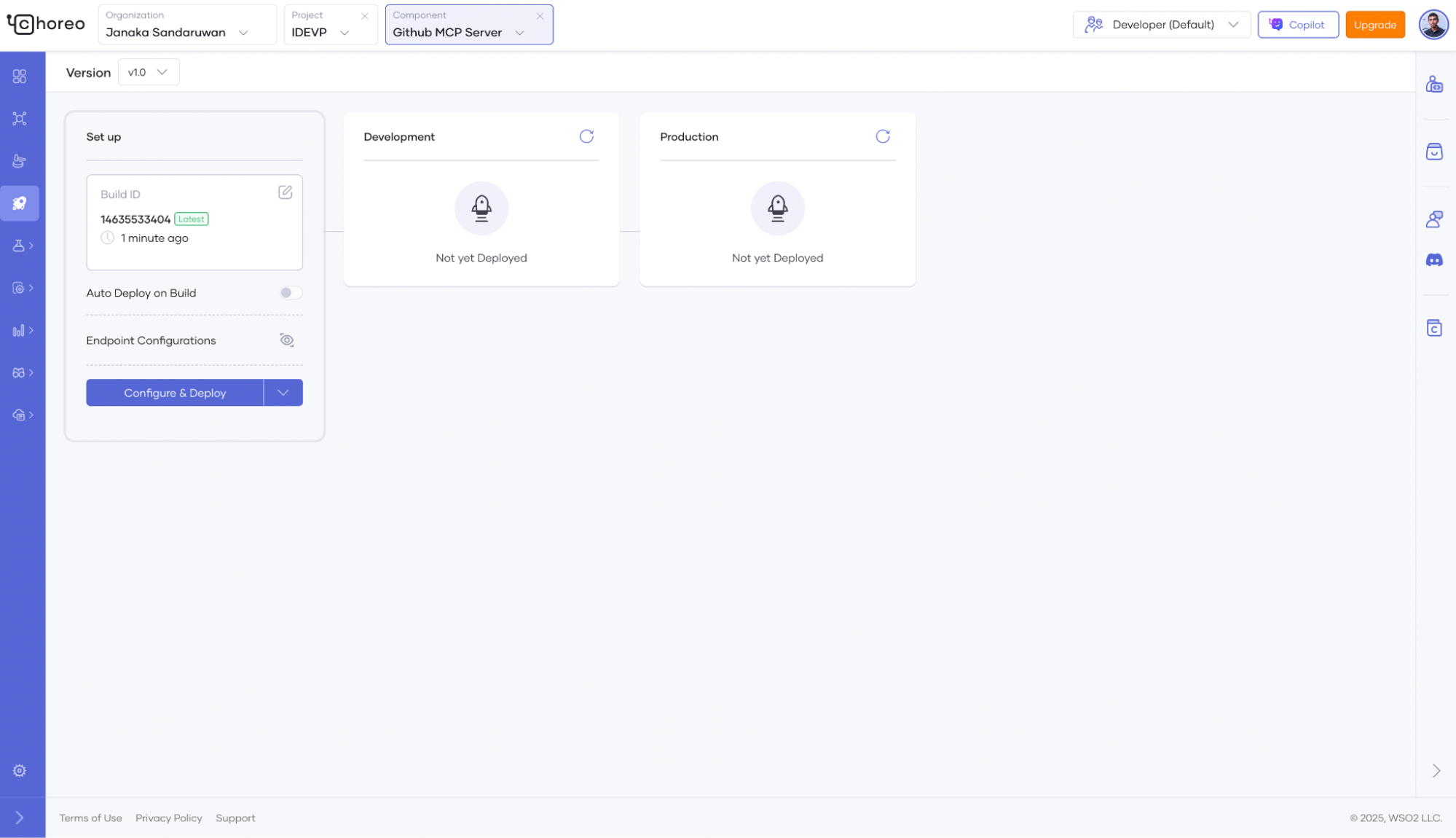
Figure 3 - Deploy the MCP server
Once your MCP server is successfully deployed, you can view the invoke URL details from the Overview tab in the left navigation menu.

Figure 4 - Endpoint details of the MCP server
You can test the deployed MCP server using the inspector client application. Paste the copied invoke URL into the URL field of the inspector client, then click the Connect button.

Figure 5 - Test with inspector client application
Refer to our documentation for more information on setting up an MCP server in Choreo.
Conclusion
Choreo makes deploying and managing your MCP servers in the cloud easy. With built-in monitoring, configuration management, inherent APIM capabilities, and security features, you can focus on building great applications while we handle the heavy lifting.
In the coming weeks, we hope to introduce a list of common MCP servers you can quickly pick and deploy, in addition to the current mechanism of getting package details. Beyond that, we will bring the ability for you to deploy your own MCP server as well.
Sign up for free and explore how you can transform your applications with Choreo today.