Reusable Data Mapper
Create a reusable data mapper from the Artifacts page or the left sidebar. Configure the inputs and the output type, then open the data mapper view.
-
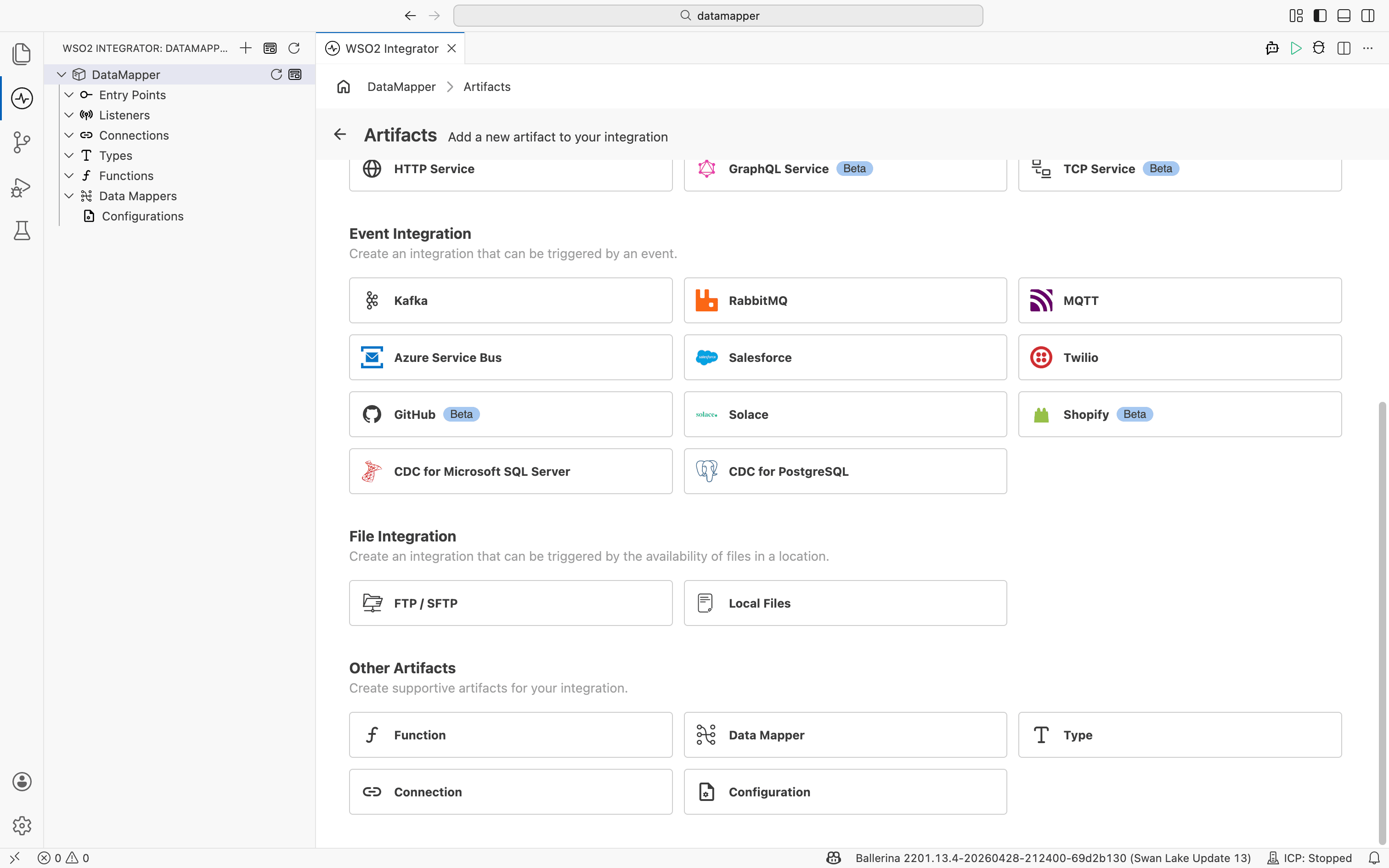
Open the Artifacts page and select Data Mapper under Other Artifacts, or select + next to Data Mappers in the left sidebar.
-
Fill in the Create New Data Mapper form.
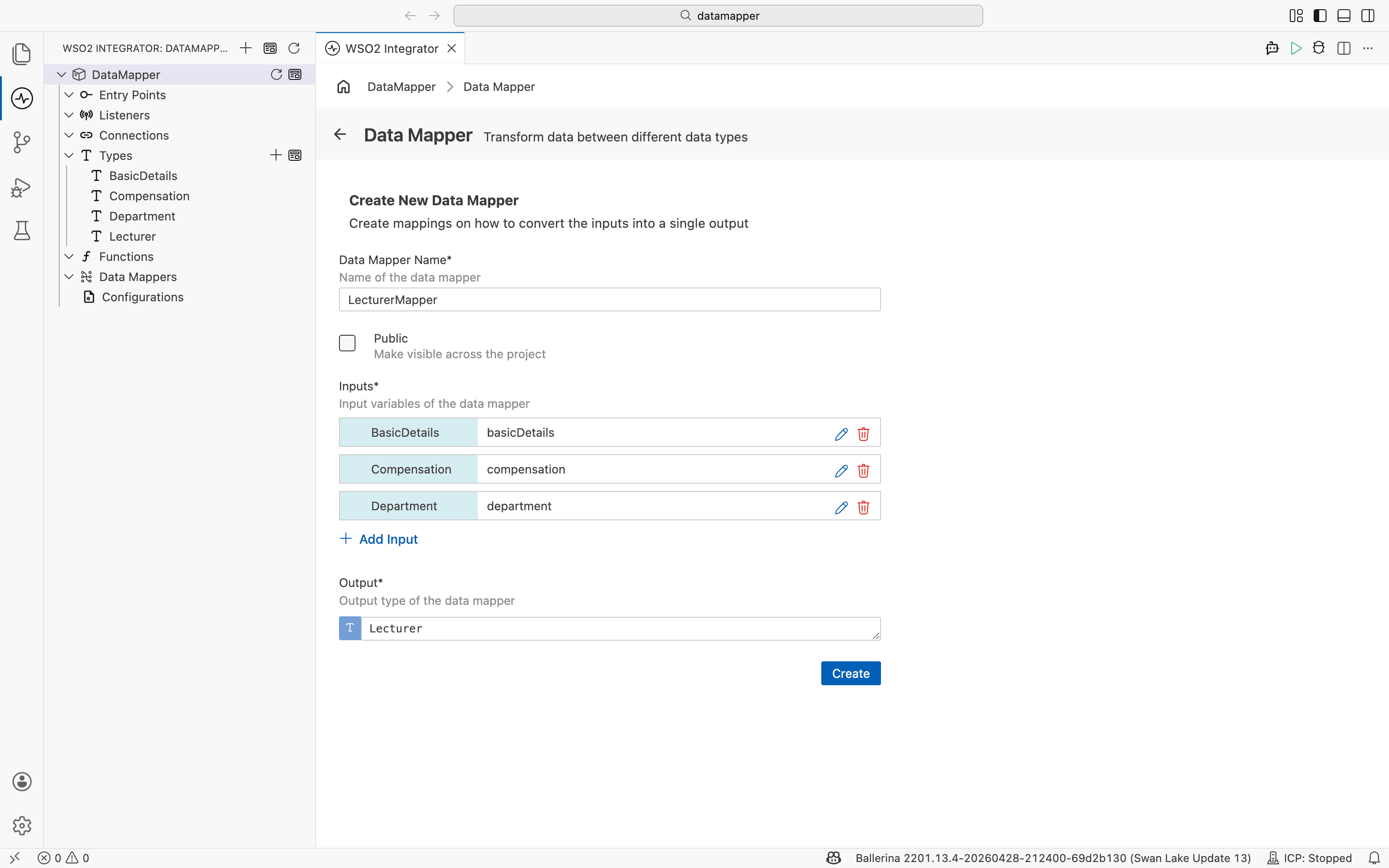
Field Description Data Mapper Name A unique name for the mapping function (for example, transform).Public Select Make visible across the project to use this mapper from other integrations. Inputs Select + Add Input to define one or more source variables. Each input has a name and a type. Output The target type that the mapper produces. -
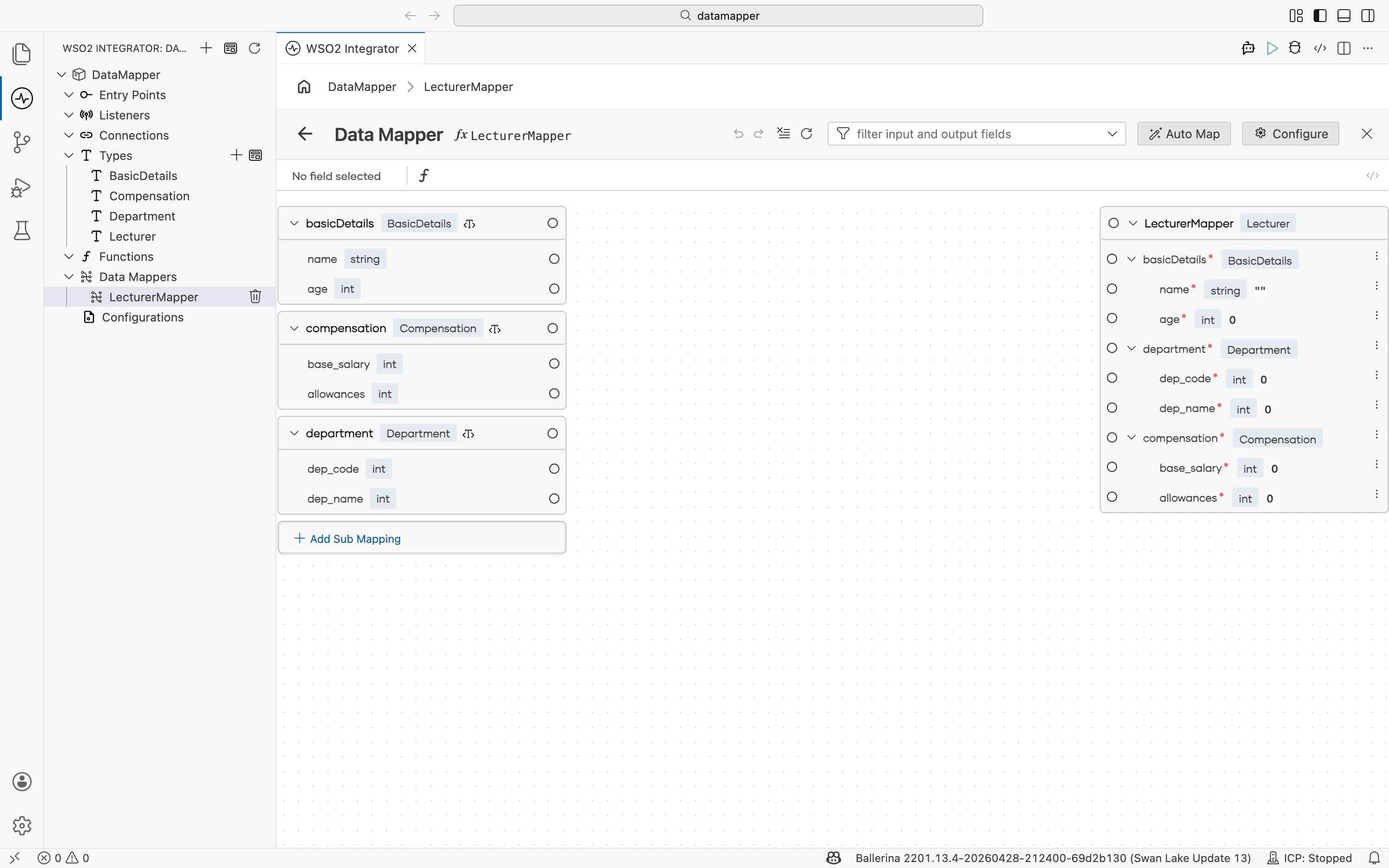
Select Create. The data mapper canvas opens with input fields on the left and output fields on the right.
-
Use the data mapper canvas to map fields. See Mapping capabilities for connecting fields, writing expressions, and AI-assisted mapping.
What's next
- Inline data mapper — Open the data mapper from a Declare Variable or Update Variable node.
- Mapping capabilities — Connect fields, write expressions, and use AI-assisted mapping.
- Array mappings — Map between arrays using iteration, joins, and aggregation.