Run Evaluations
Once an evaluation is configured, you can run it and review the results in the Evaluation Report. Run history is preserved so you can track quality over time and see exactly which code changes affected each run.
Run an evaluation
In the Test Explorer, hover over the evaluation name and click the run icon next to it.
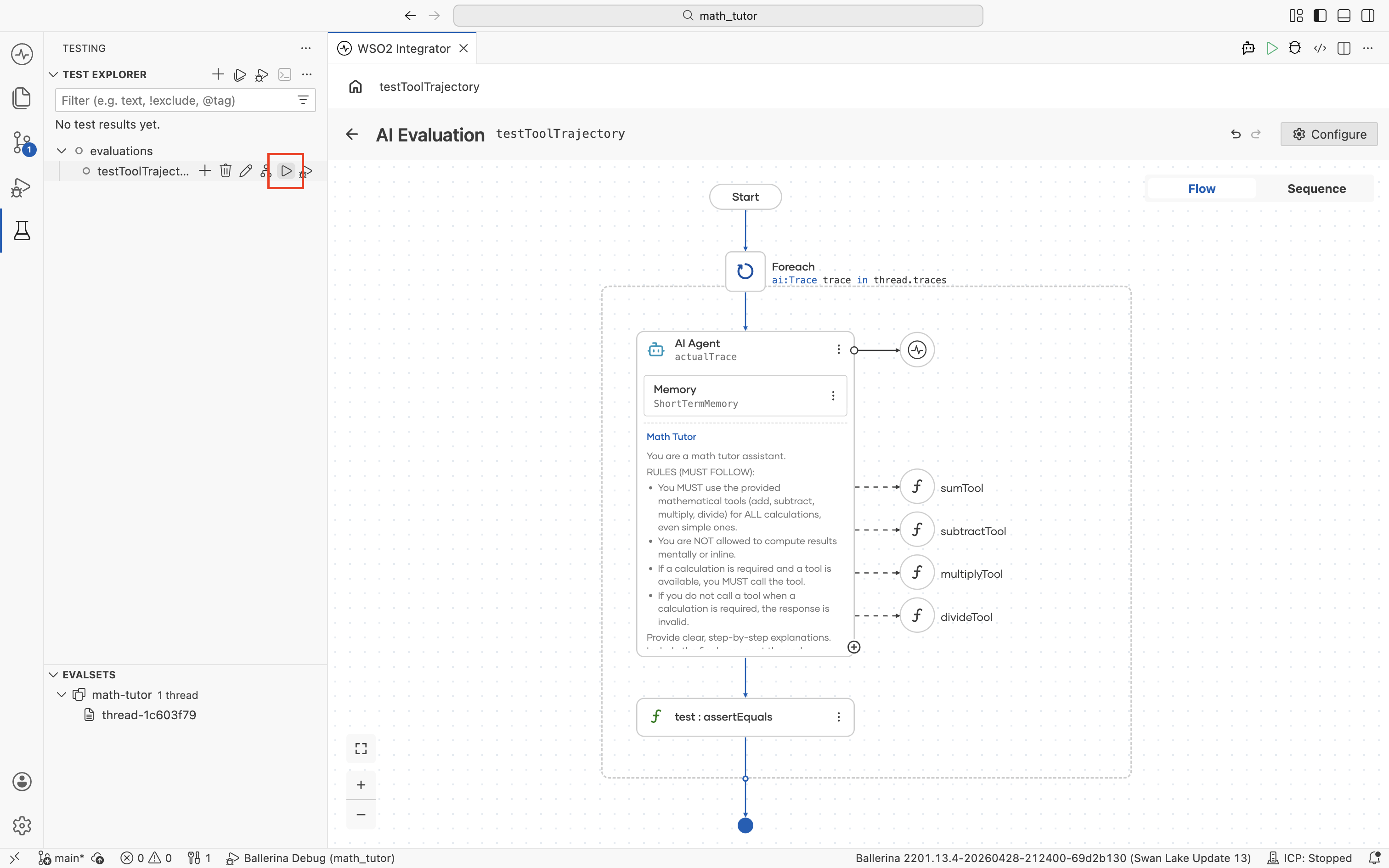
The evaluation iterates over every case in the selected evalset and records the pass rate against the target threshold.
Review the report
The Evaluation Report opens automatically after a run.
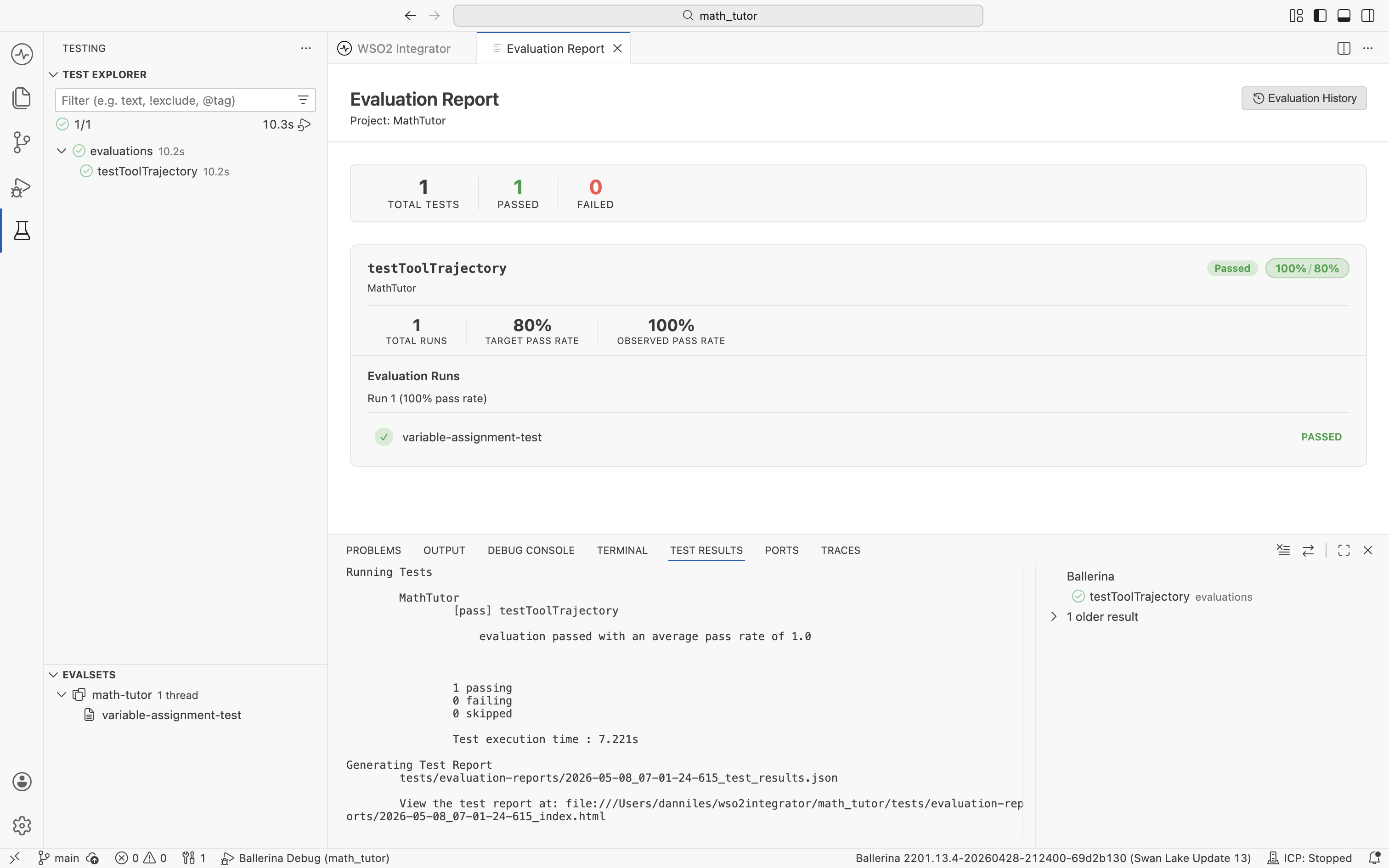
| Section | What it shows |
|---|---|
| Top counters | Total tests, passed, and failed across every evaluation in the project. |
| Evaluation card | Per-evaluation stats: total runs, target pass rate, observed pass rate, and a Passed or Failed badge. |
| Evaluation Runs | The most recent run with each evalset case listed and its pass or fail status. |
| Test Results panel | The terminal-style log of the run, including paths to the JSON results file and the generated HTML report. |
Track runs over time
To compare runs across days or commits, open Evaluation History. There are two entry points: the Evaluation History button at the top right of the report, and the history icon next to evaluations in the Test Explorer.
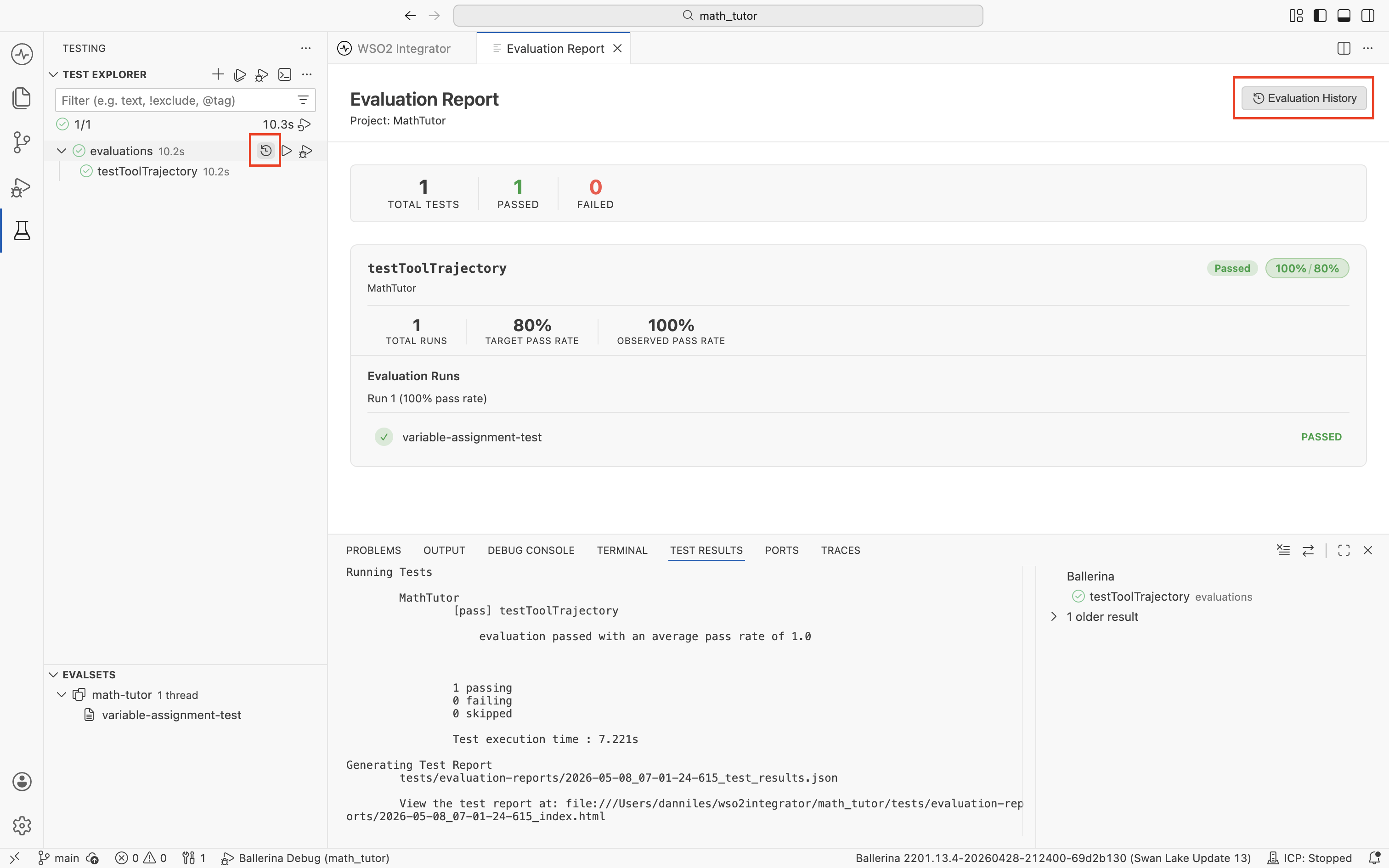
Either entry point opens the Evaluation History view.
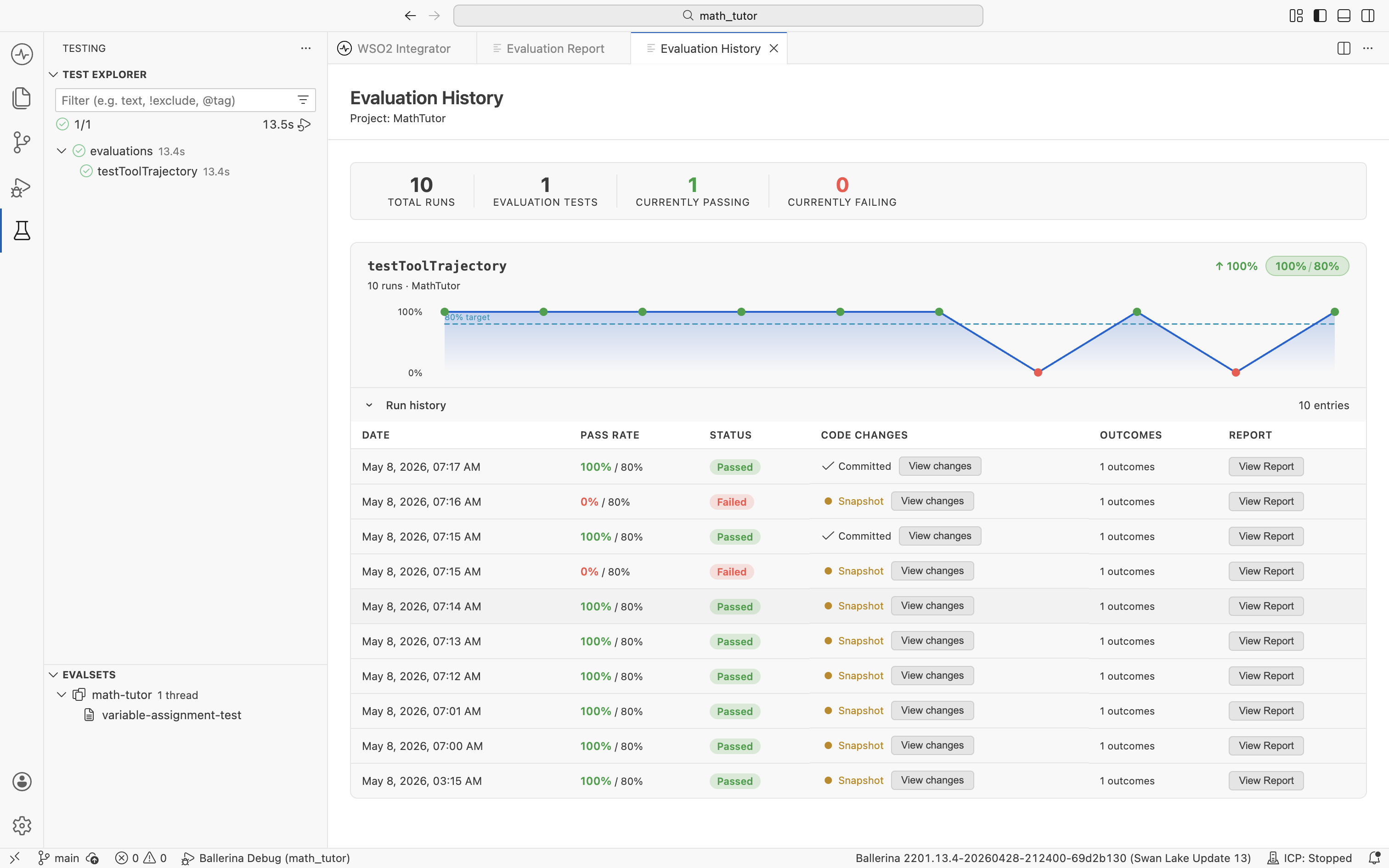
The trend chart shows the pass rate over time. The Run History table lists every recorded run.
| Column | What it shows |
|---|---|
| Date | When the run was triggered. |
| Pass Rate | Observed pass rate against the target. |
| Status | Whether the run met the target (Passed or Failed). |
| Code Changes | Whether the project was committed or had local edits at the time of the run. View changes opens the diff against the current state. |
| Outcomes | Number of cases evaluated. |
| Report | Opens the full report for that run. |
Inspect code changes for any run
Click View changes on any row to see what changed between that run and the current project state.
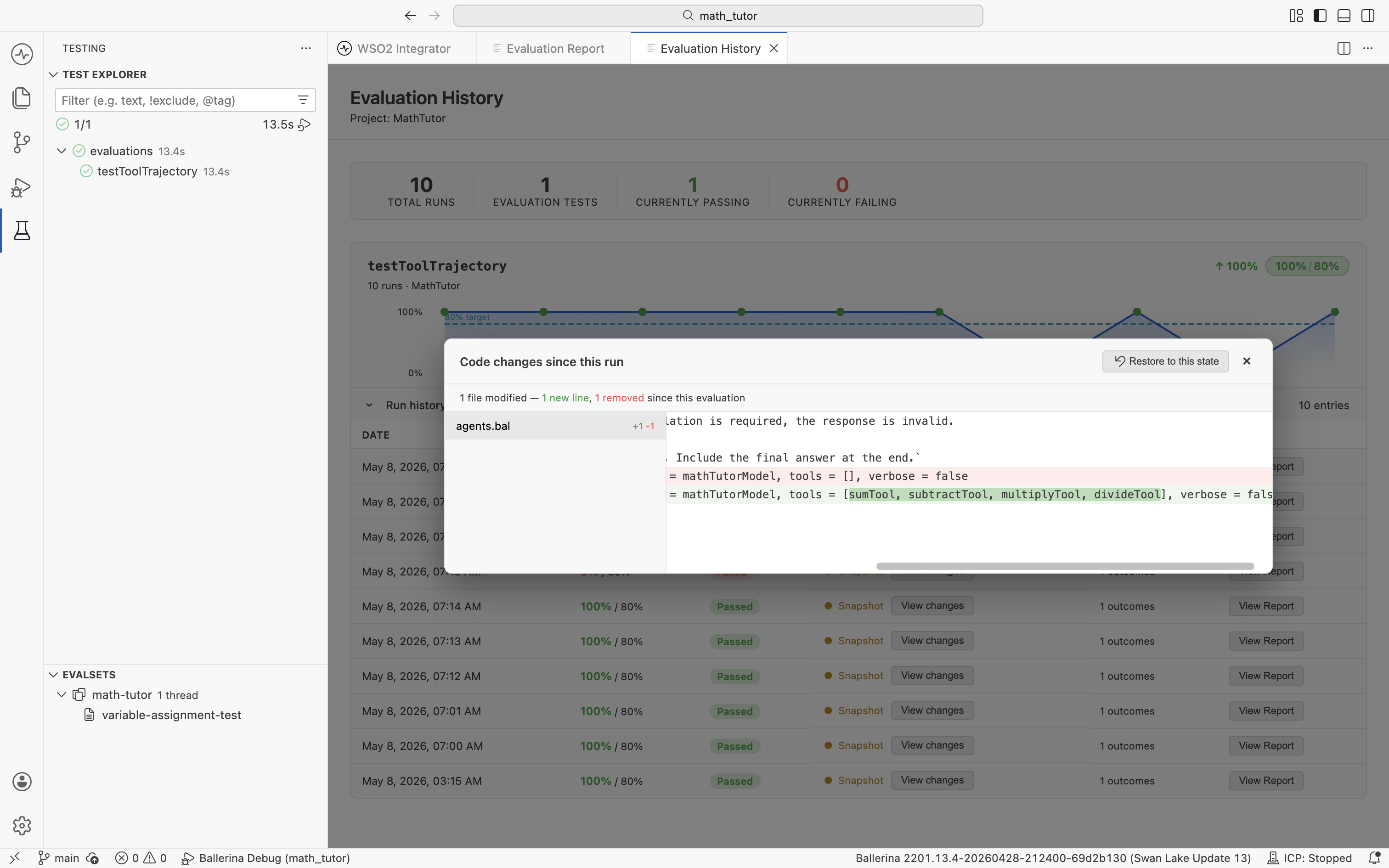
This makes it easy to correlate a regression with a specific change. Restore to this state rolls the project back to the state at that run, replacing the current project files. The IDE prompts for confirmation before restoring; commit or stash any work you want to keep first.
What's next
- Observability — Trace a single failed case to see exactly what the agent did.
- Create evalsets — Expand coverage by adding new cases.
- Create evaluations — Add new checks or LLM-as-judge scoring.