Create Custom Evaluations
A custom evaluation is an evaluation function whose logic you build yourself. You start by filling a short form, and WSO2 Integrator opens the rest of the configuration in the visual designer. Use a custom evaluation when none of the prebuilt evaluation templates fits the check you need.
The example on this page scores the agent against an evalset, so have at least one evalset in your project. See Create evalsets to capture or import one. A custom evaluation with No evalset does not need one.
Start a new evaluation
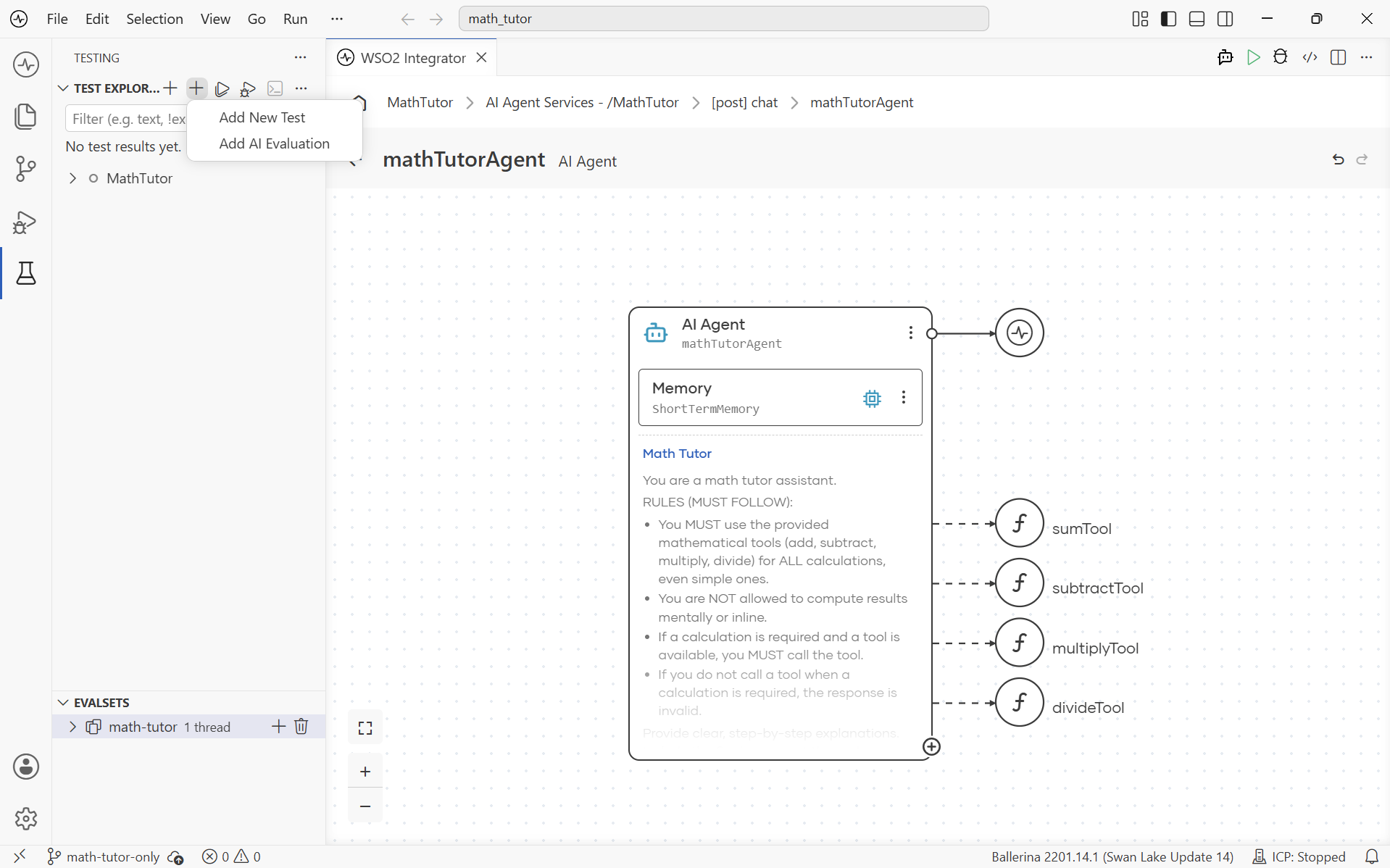
- Open the Test Explorer by clicking the test beaker icon in the activity bar.
- Click Add Test at the top of the Test Explorer and choose Add AI Evaluation.
- In the Create New AI Evaluation form, under How would you like to build this evaluation?, select Custom.
- Under Use an evalset?, select Use evalset, then pick the evalset in Evalset File.
- Fill the rest of the form and click Save.
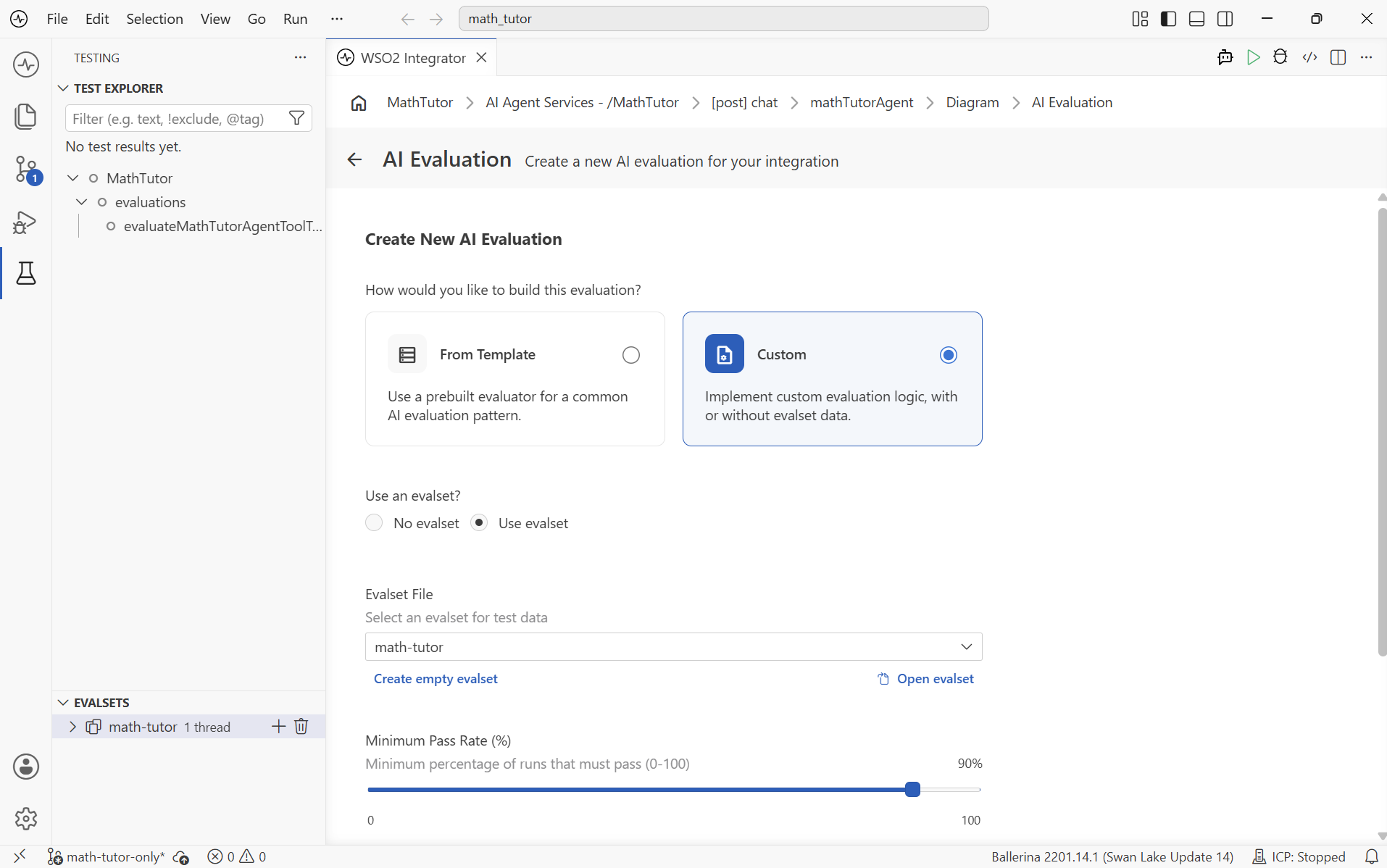
Form fields
| Field | What it does |
|---|---|
| AI Evaluation Name | A unique name for the evaluation. |
| How would you like to build this evaluation? | Pick Custom to build your own evaluation logic. To start from a prebuilt evaluator instead, see Create evaluations from templates. |
| Use an evalset? | Pick Use evalset to score the agent against an evalset, or No evalset to define the evaluation without one. |
| Evalset File | The evalset to use. Shown when Use evalset is selected. Create empty evalset creates a new evalset, and Open evalset opens the selected one in the Evalset Viewer. |
| Minimum Pass Rate (%) | The percentage of evalset cases that must pass for the run to succeed. |
Consider lowering the Minimum Pass Rate below 100%. Agent responses are non-deterministic, so a small amount of run-to-run variation is expected even when the agent is behaving correctly. A threshold around 80–90% tolerates that variance while still catching real regressions.
When to use an evalset
- Use evalset. Score the agent against the conversations captured in an evalset. Best when you have a representative dataset to replay. The rest of this page uses this option.
- No evalset. Define the evaluation entirely with your own logic. Use this for custom behaviour that does not fit the conversation-trace format, or when you do not have an evalset yet.
After you click Save, the evaluation opens in the visual designer for further configuration. To reopen it later, click the flow icon next to the evaluation in the Test Explorer.
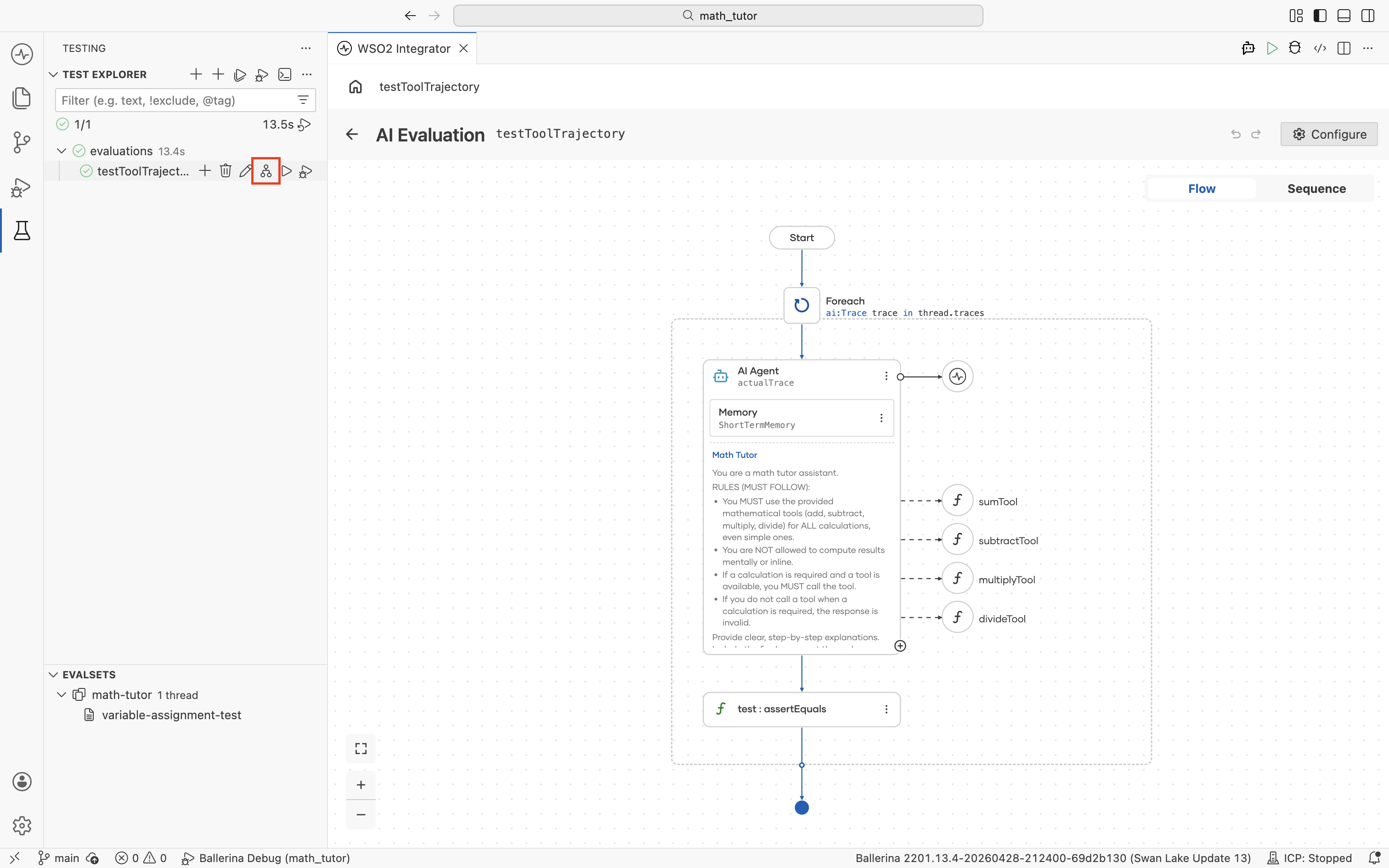
Build the evaluation logic
The evaluation opens in the visual designer with a Start node. It receives a thread input, which is one ai:ConversationThread per evalset entry. Most evaluations iterate over its captured turns.
Available inputs
| Field | Type | What it holds |
|---|---|---|
thread.id | string | Session ID of the captured conversation. |
thread.traces | ai:Trace[] | The list of turns captured in the evalset. |
Each entry in thread.traces is an ai:Trace:
| Field | Type | What it holds |
|---|---|---|
trace.userMessage.content | string | The user input that triggered the turn. |
trace.toolCalls | array | Tool calls the agent made during this turn. |
trace.output | record | The agent's final response, with content and toolCalls. |
trace.tools | array | Tools available to the agent at the time. |
Iterate over each trace
Add a Foreach node from the Control group in the node panel.
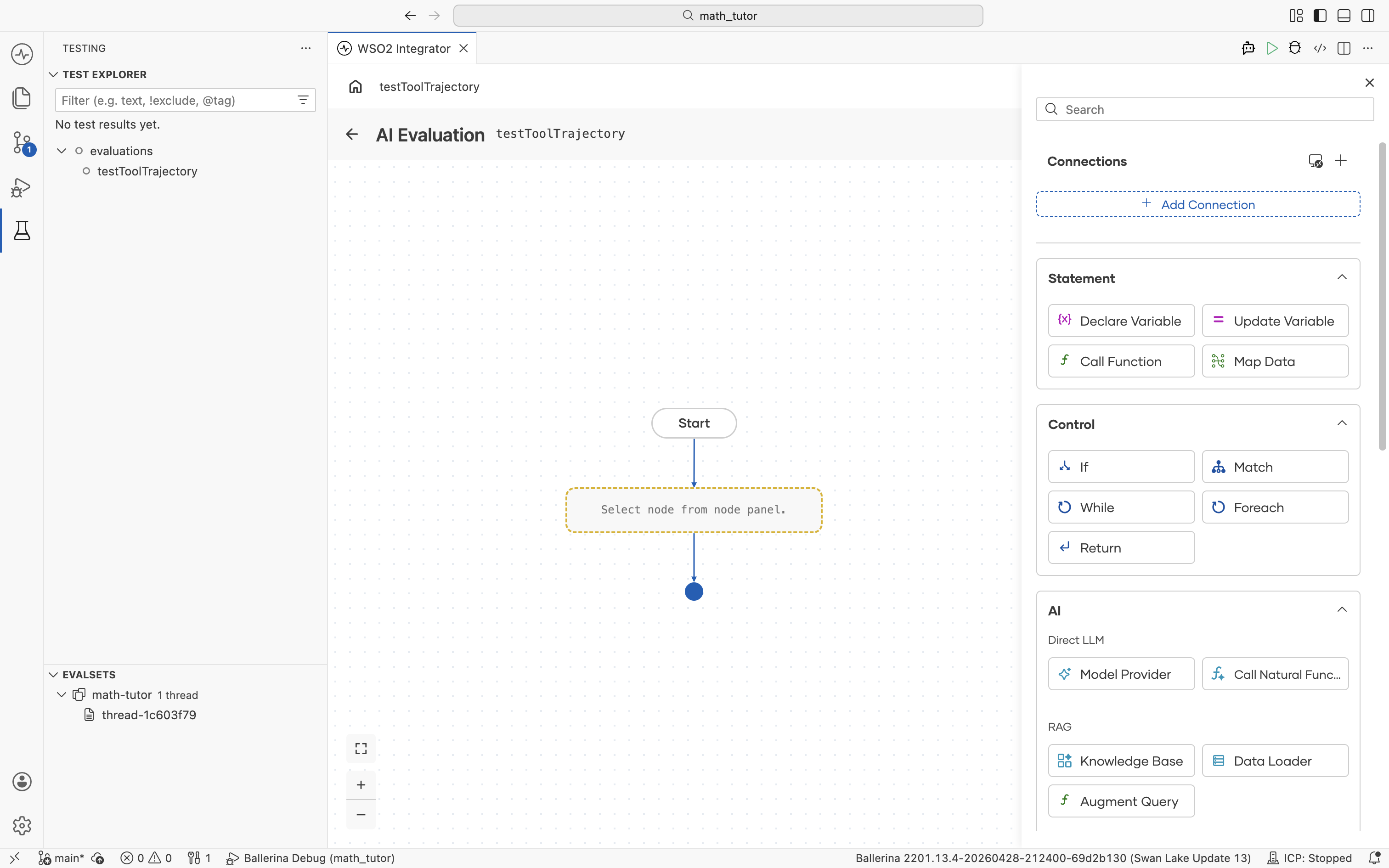
Configure it to walk through the trace list:
- Collection.
thread.traces. Use the helper pane to navigate Inputs → thread → traces. - Variable Name. A name for the loop variable, for example,
trace. - Variable Type.
ai:Trace.
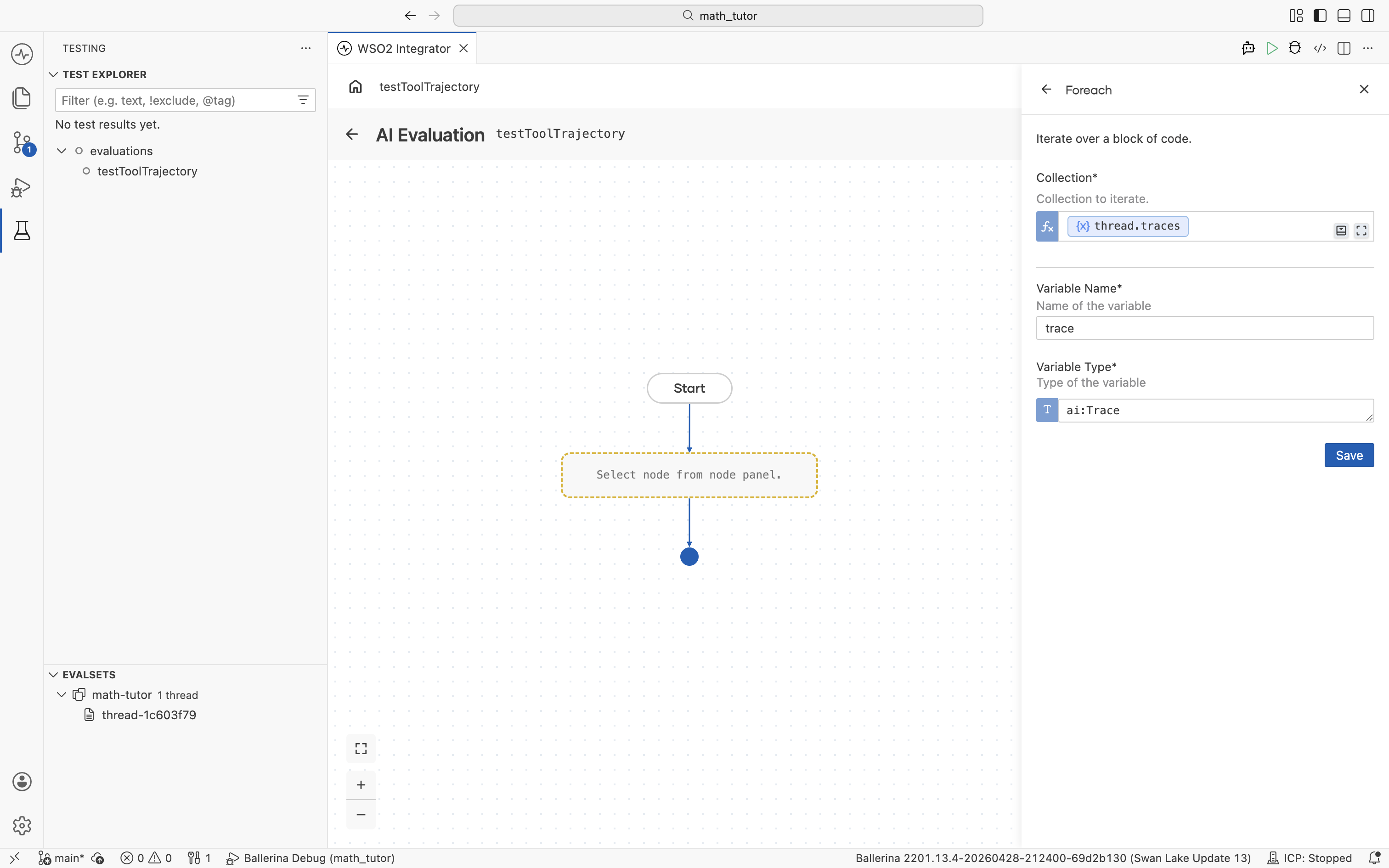
The loop body runs once per trace, ready for the agent call and any checks inside.
Run the agent on each trace
Inside the Foreach, add an Agent node from the AI group in the node panel.
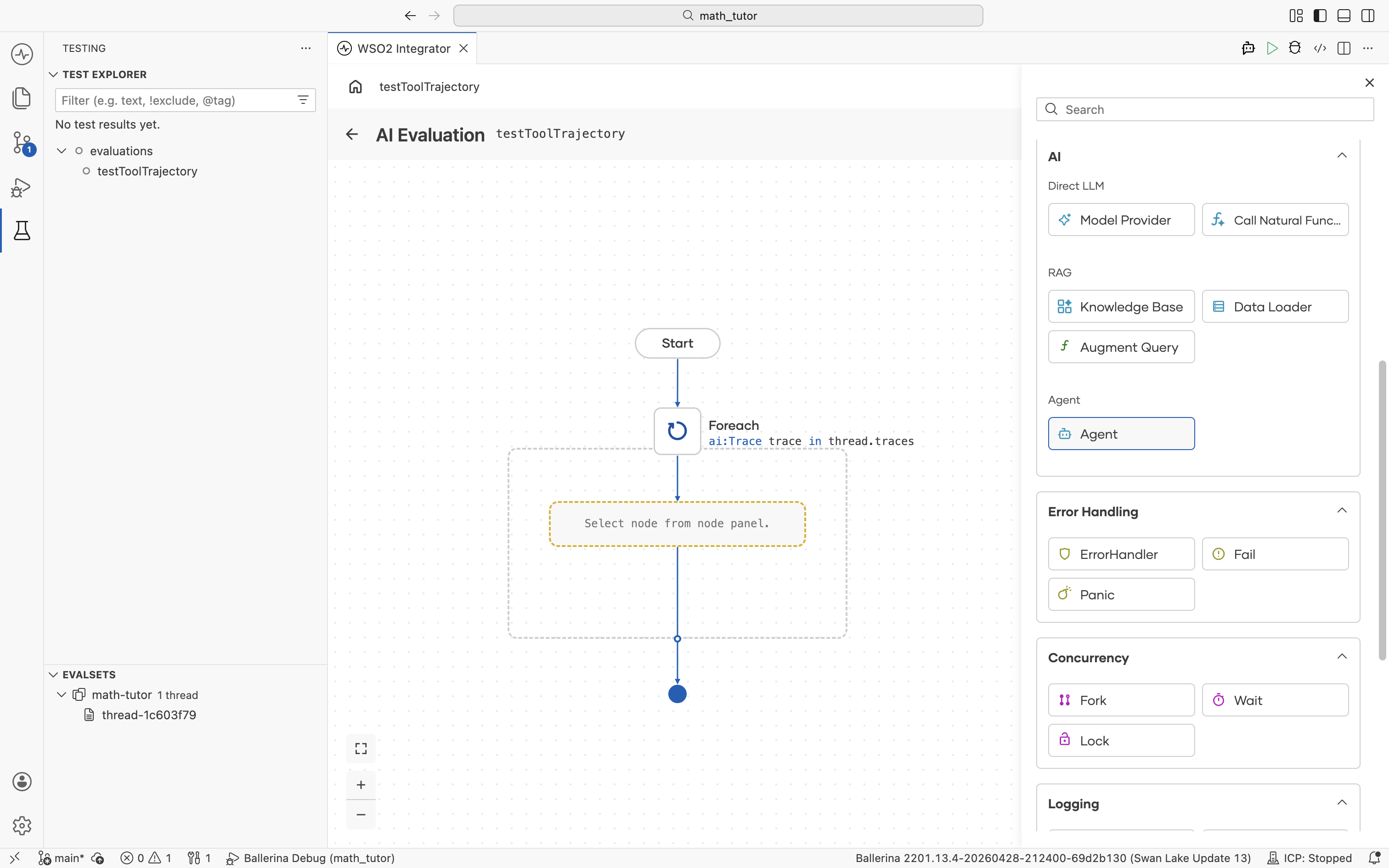
The Agents picker opens, listing every agent in the project. Select the one you want to evaluate.
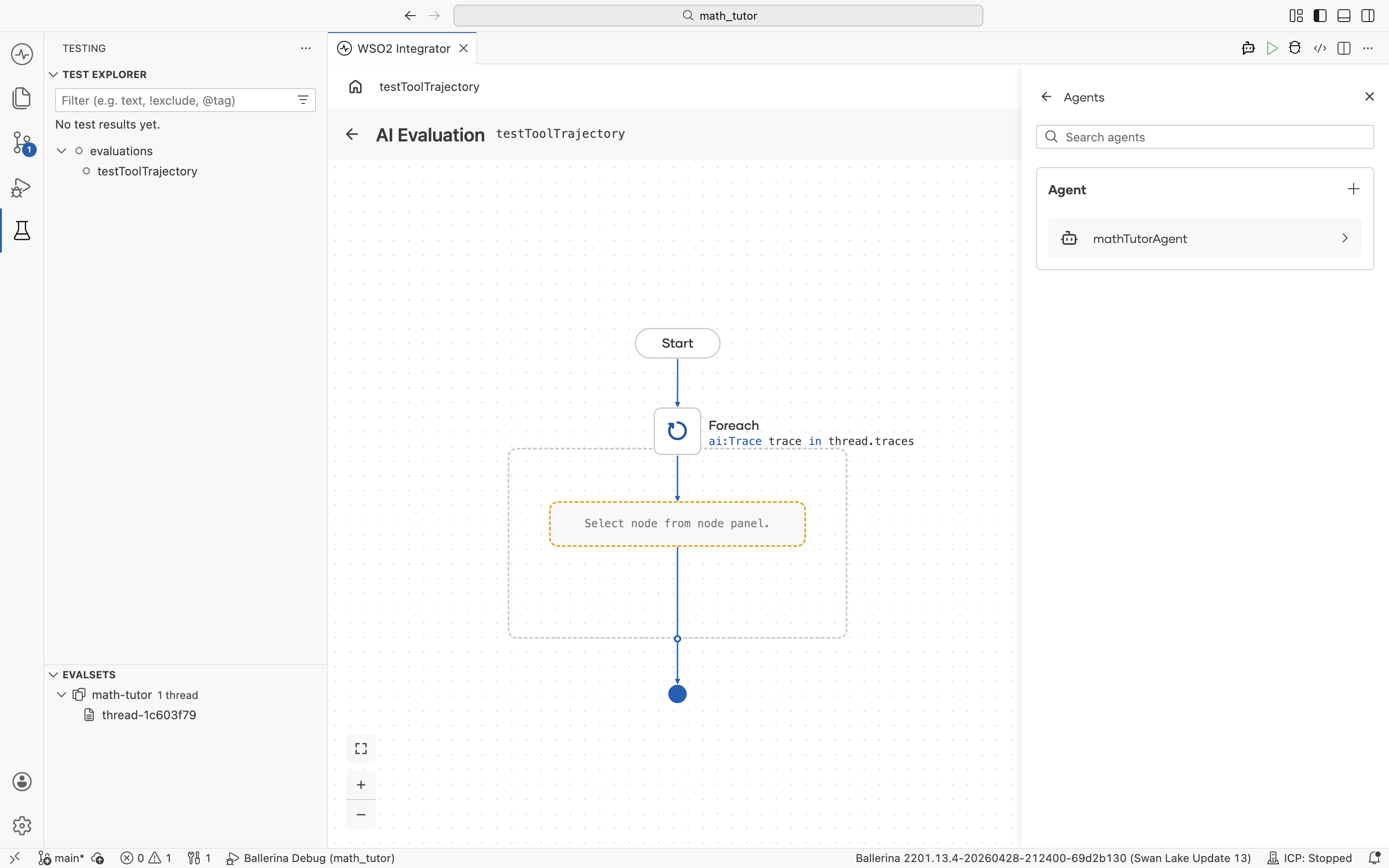
This replays each trace's original input against the current agent build and captures the response for comparison. The AI Agent form has the following key fields.
| Field | Value | Notes |
|---|---|---|
| Query | trace.userMessage.content.toString() | Replays the user input from the loop's trace variable. |
| Session ID | thread.id | Runs the agent in the same session as the original conversation. Under Advanced Configurations. |
| Type Descriptor | ai:Trace | Sets the expected return format. Under Advanced Configurations. |
| Result | actualTrace (or any name) | The variable the agent's response is stored in. |
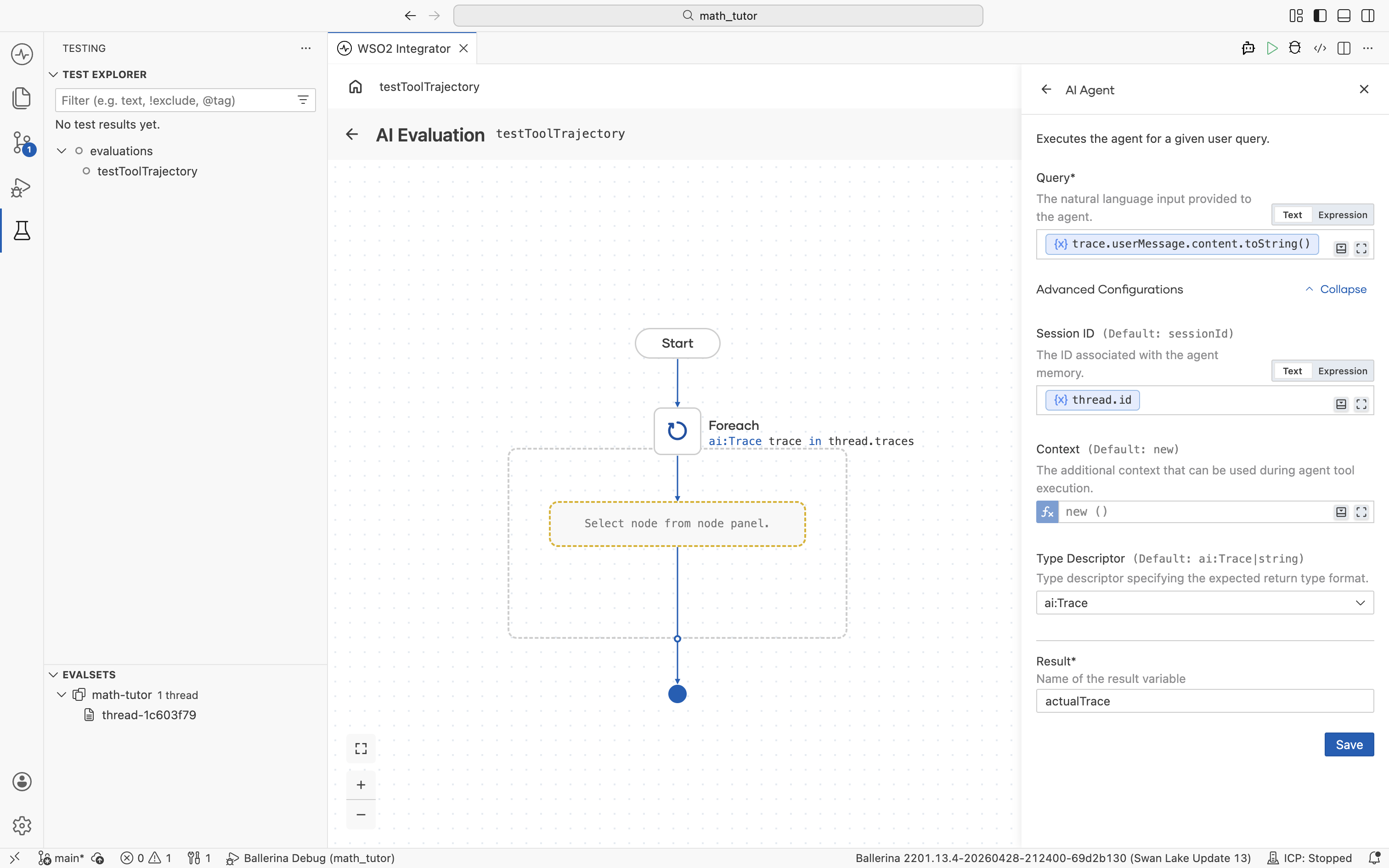
The agent runs once per trace and stores its response in actualTrace, which the rest of the evaluation can compare against the expected trace.
Compare the result with the expected trace
trace holds the expected behaviour recorded in the evalset, while actualTrace holds what the current agent run produced. The job of this step is to compare the two with assertion nodes.
Use the assertion nodes under Test in the node panel to score each trace. Available checks include assertTrue, assertFalse, assertEquals, assertNotEquals, assertExactEquals, assertNotExactEquals, assertFail, and mock.
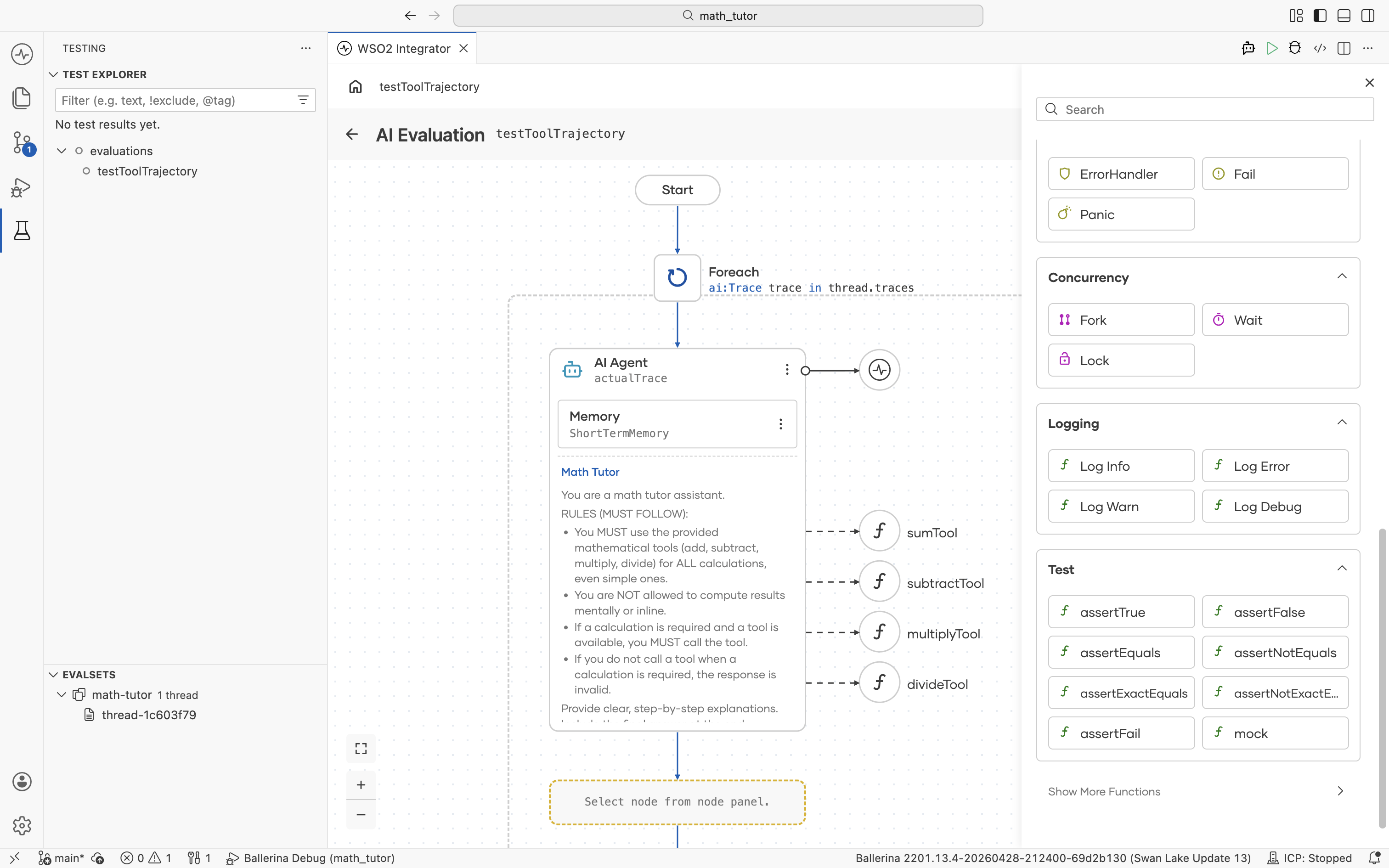
For tool-selection regressions, assertEquals is the most common choice. It verifies the agent picked the same tools, in the same order, with the same arguments.
| Field | Value | Notes |
|---|---|---|
| Actual | actualTrace.toolCalls | Tool calls from the current agent run, captured by the Agent node above. |
| Expected | trace.toolCalls | Tool calls recorded in the evalset for this trace. |
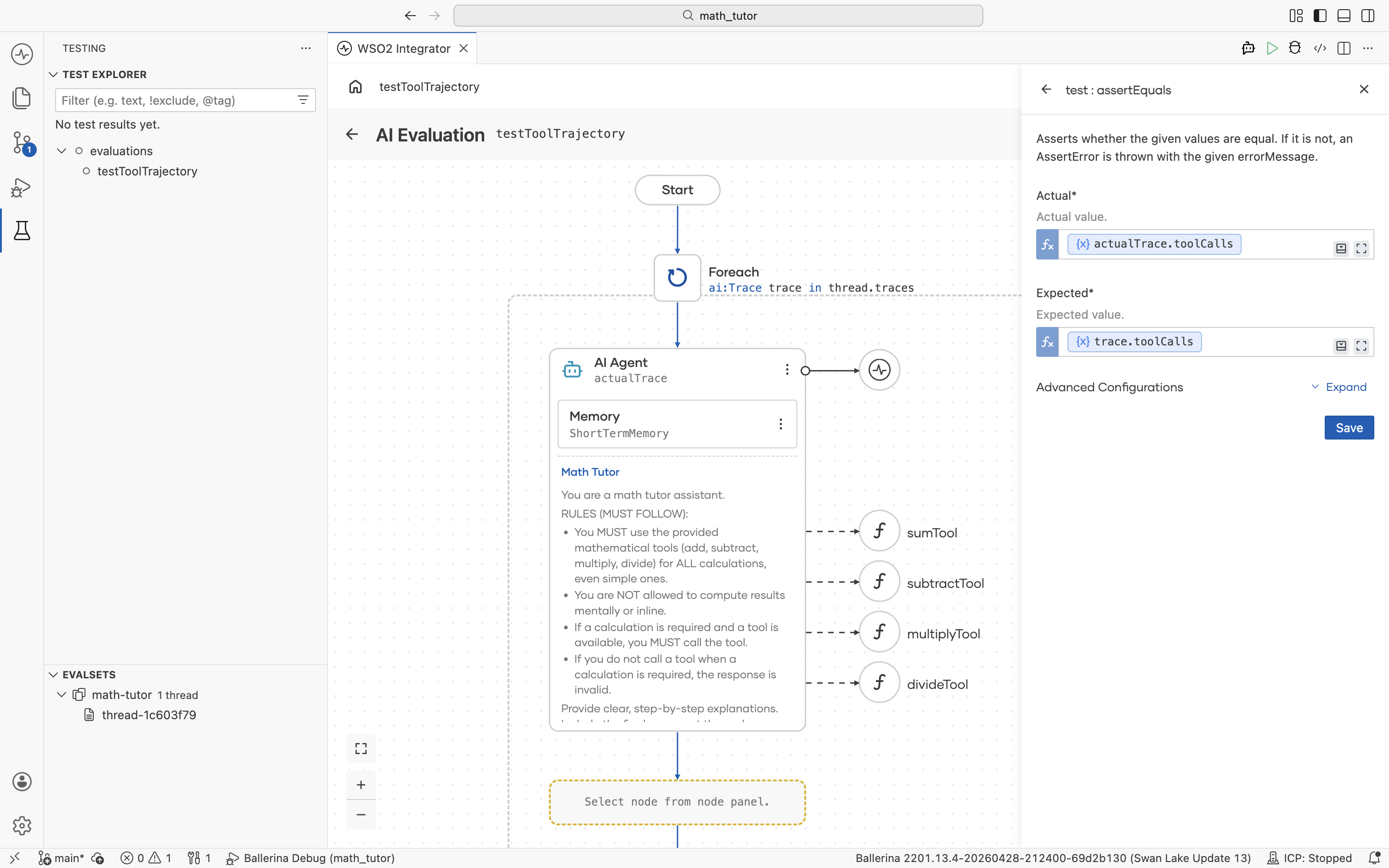
Add more asserts inside the loop for any other dimension you want to score, such as response content, tool count, or structured output fields.
Comparing tool calls against an evalset is also available as the prebuilt Tool Trajectory template, with no flow to build. See Create evaluations from templates.
What's next
- Run evaluations — Execute the evaluation and open the report.
- Create evaluations from templates — Start from a prebuilt evaluator instead.
- Create evalsets — Add more evalsets to broaden coverage.