Create Evalsets
An evalset is a set of sample conversations that you have reviewed and approved. Because you trust them, they work as a reference, often called a golden dataset, for testing the agent. Each turn pairs a user input with the expected agent behaviour, including the tool calls the agent should make and the response it should produce. Evaluations that replay conversations use an evalset as their test data.
Each evalset is stored as a file that holds one or more threads. A thread is one conversation with the agent. Each turn in a thread, a user message and the agent's reply, is stored as a trace. When you run an evaluation, each thread is one test case that passes or fails as a whole.
The fastest way to create an evalset is to chat with your agent in the editor and export the session traces.
Make sure tracing is enabled on the agent before you start chatting, so each turn is captured and available to export. See Enable tracing for the steps.
- If your integration is already running when you enable tracing, restart it. Tracing starts with the next run.
- The Session Traces button appears only when tracing is on and the chat has at least one agent reply with a trace.
Export a session into an evalset
1. Chat with the agent
On the design canvas, click the chat resource of your chat agent to open its flow. Then click Chat at the top right to open the Agent Chat panel on the right. Send the messages you want to capture as test cases. Each turn produces a trace.
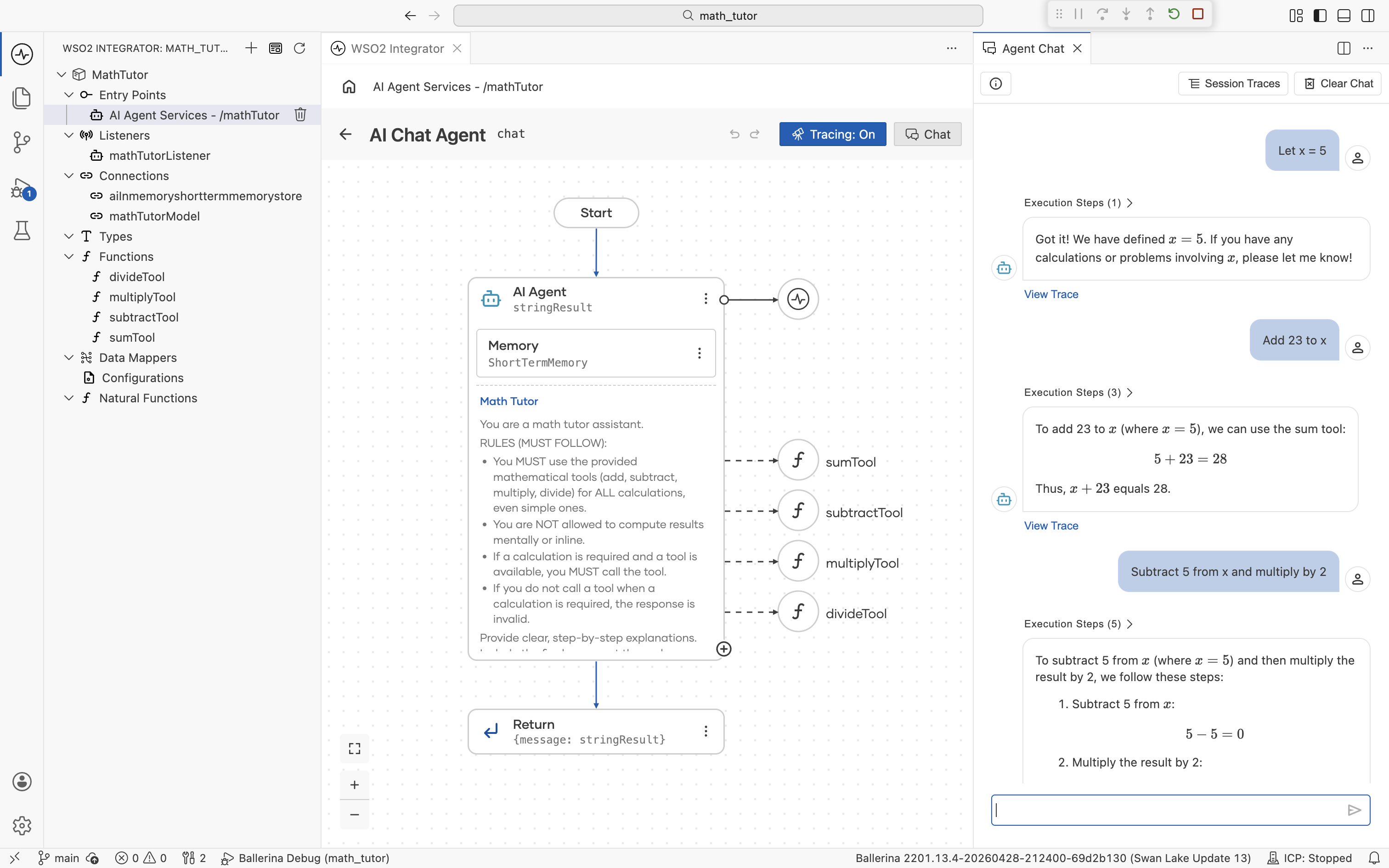
2. Open the session traces
Click Session Traces at the top of the Agent Chat panel. The Session Traces view opens in a new editor tab. It lists every turn in the current session with its timestamp, trace ID, input, and output.
3. Export as an evalset
In the Session Traces view, click Export and choose Export as Evalset.
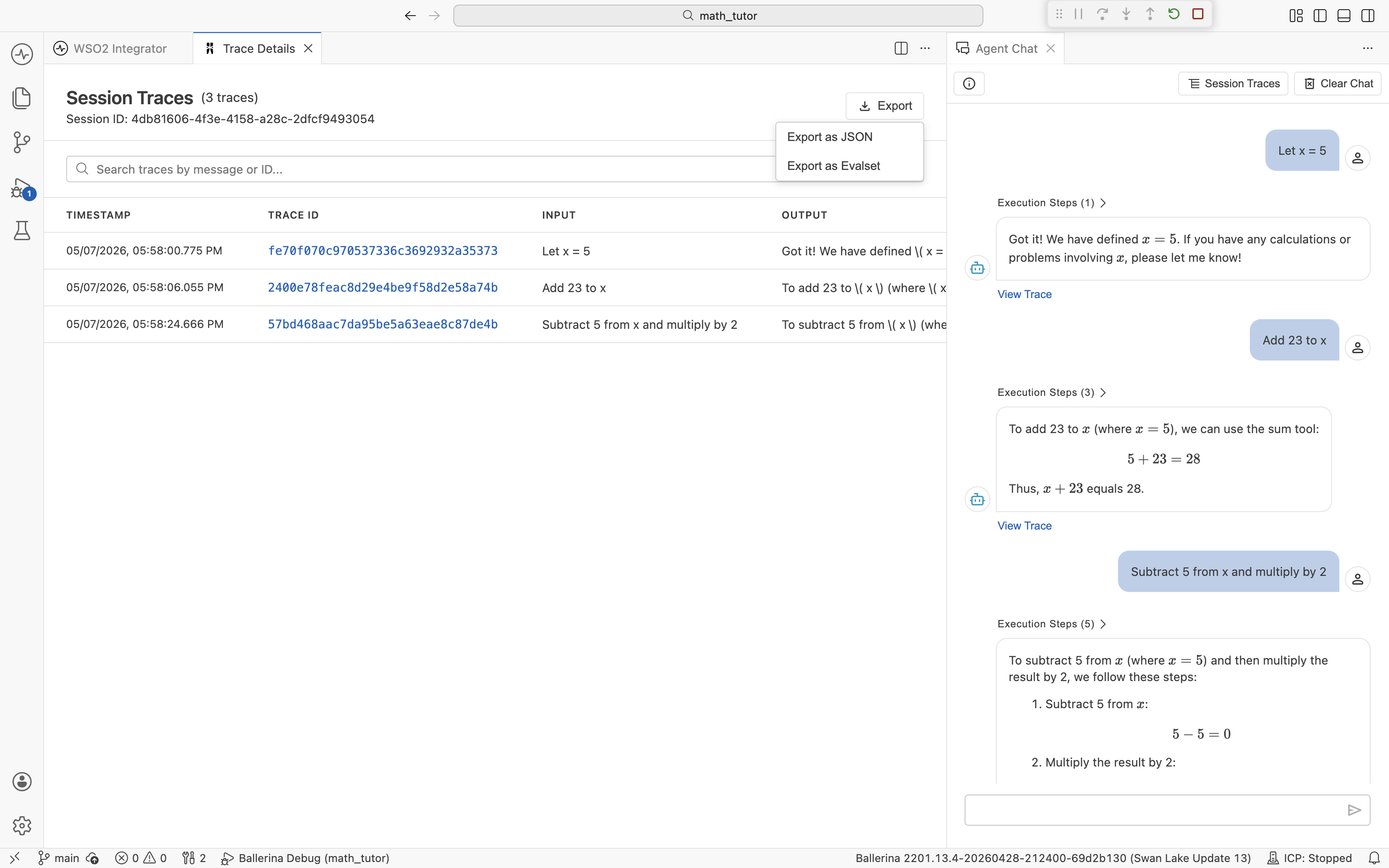
Export as JSON writes the raw traces to a JSON file. Use it when you want a full debug snapshot rather than an evalset.
To turn a single turn into an evalset, export one trace instead. See Export a single trace.
4. Choose create or append
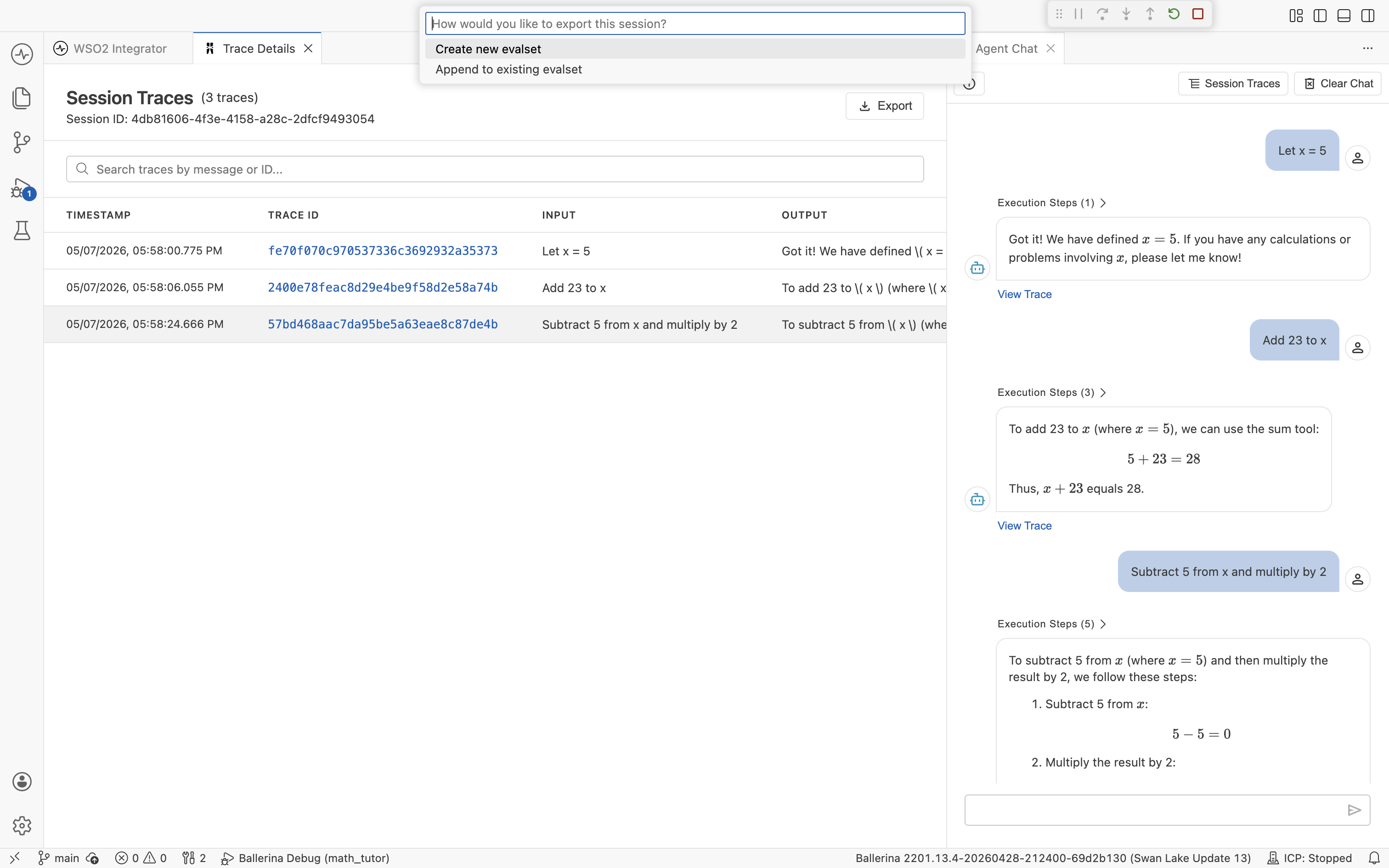
Pick how to save the session.
- Create new evalset. Start a new evalset file with this session as the first thread.
- Append to existing evalset. Add this session as a new thread in an evalset you've already built.
If your project contains more than one integration, you also select the integration to save the evalset in.
5. Name the evalset or thread
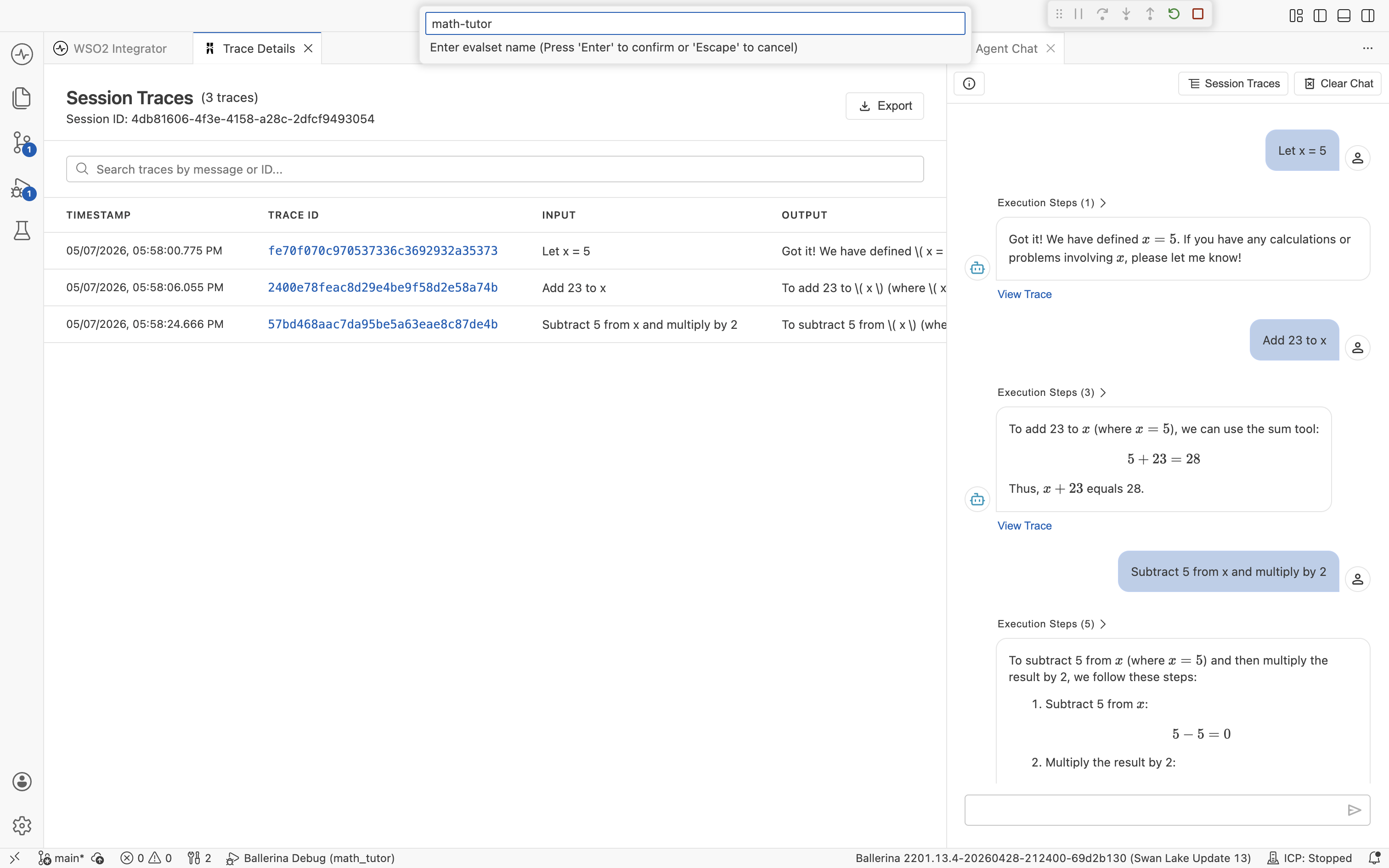
If you chose Create new evalset, enter a name and press Enter. The name box is pre-filled with session- followed by the first eight characters of the session ID. You can keep it or enter your own.
A confirmation message appears once the file is written. The session is saved as the first thread in the new evalset.
If you chose Append to existing evalset, select the evalset from the list, then choose how to name the new thread.
- Auto-generate thread name. The thread is named
thread-followed by the first eight characters of the session ID. - Enter custom thread name. Type a name and press Enter.
A confirmation message appears once the thread is saved. If there are no evalsets yet, create a new one first.
Evalsets are saved as <name>.evalset.json under tests/resources/evalsets/ in the project.
An evalset records what the agent did during the chat. It becomes a golden dataset only after you verify it. Review each thread and fix any wrong replies or tool calls in the Evalset Viewer before you use it as a baseline.
Browse your evalsets
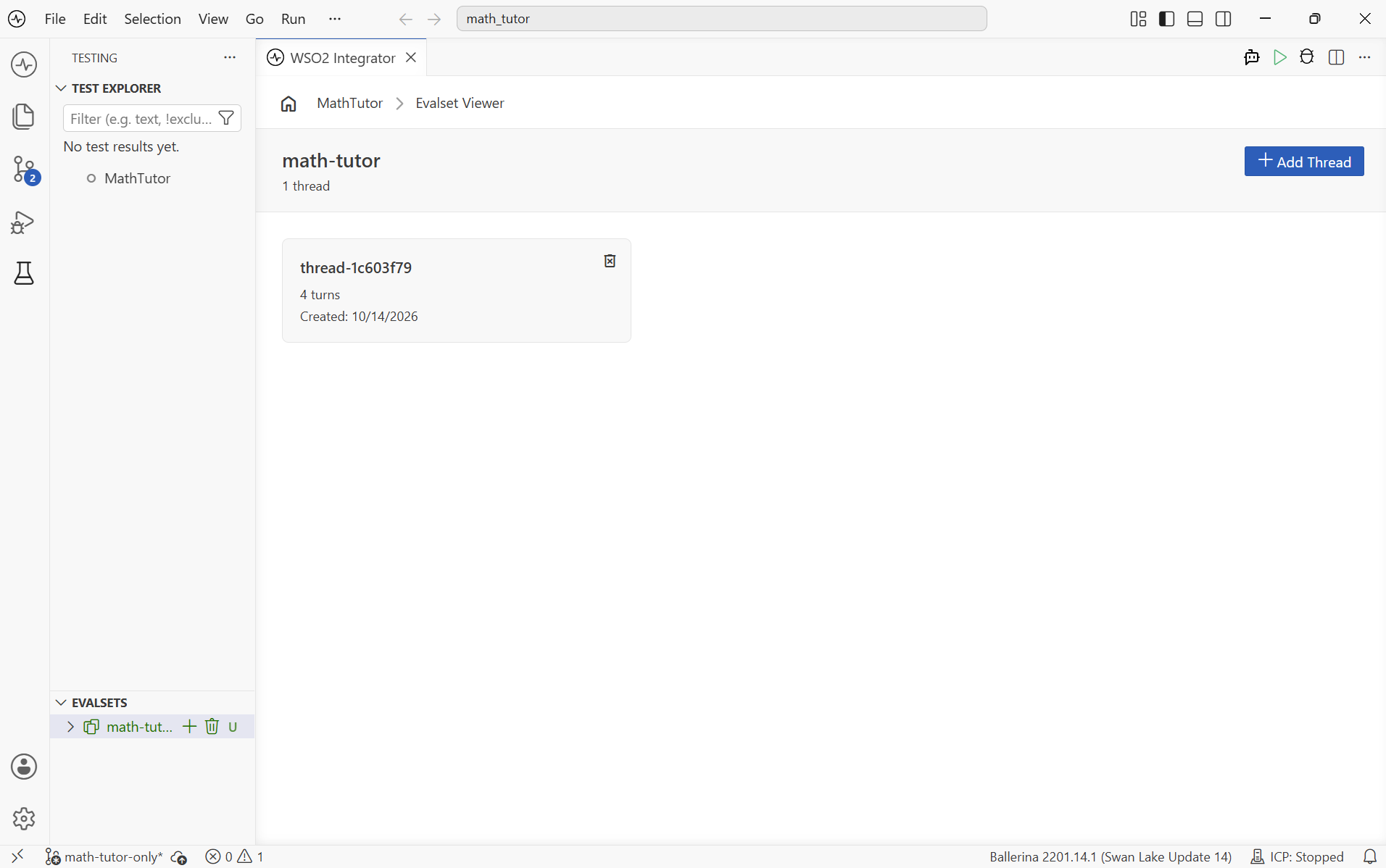
Open the Test Explorer by clicking the test beaker icon in the activity bar on the left. The Evalsets panel lists every evalset in the project. Click an evalset to open it in the Evalset Viewer, which lists its threads. Expand an evalset in the panel to see its threads, then click a thread to open it.
Edit an evalset
In the Evalset Viewer, each entry shows the user input, agent response, and tool executions from the original session.
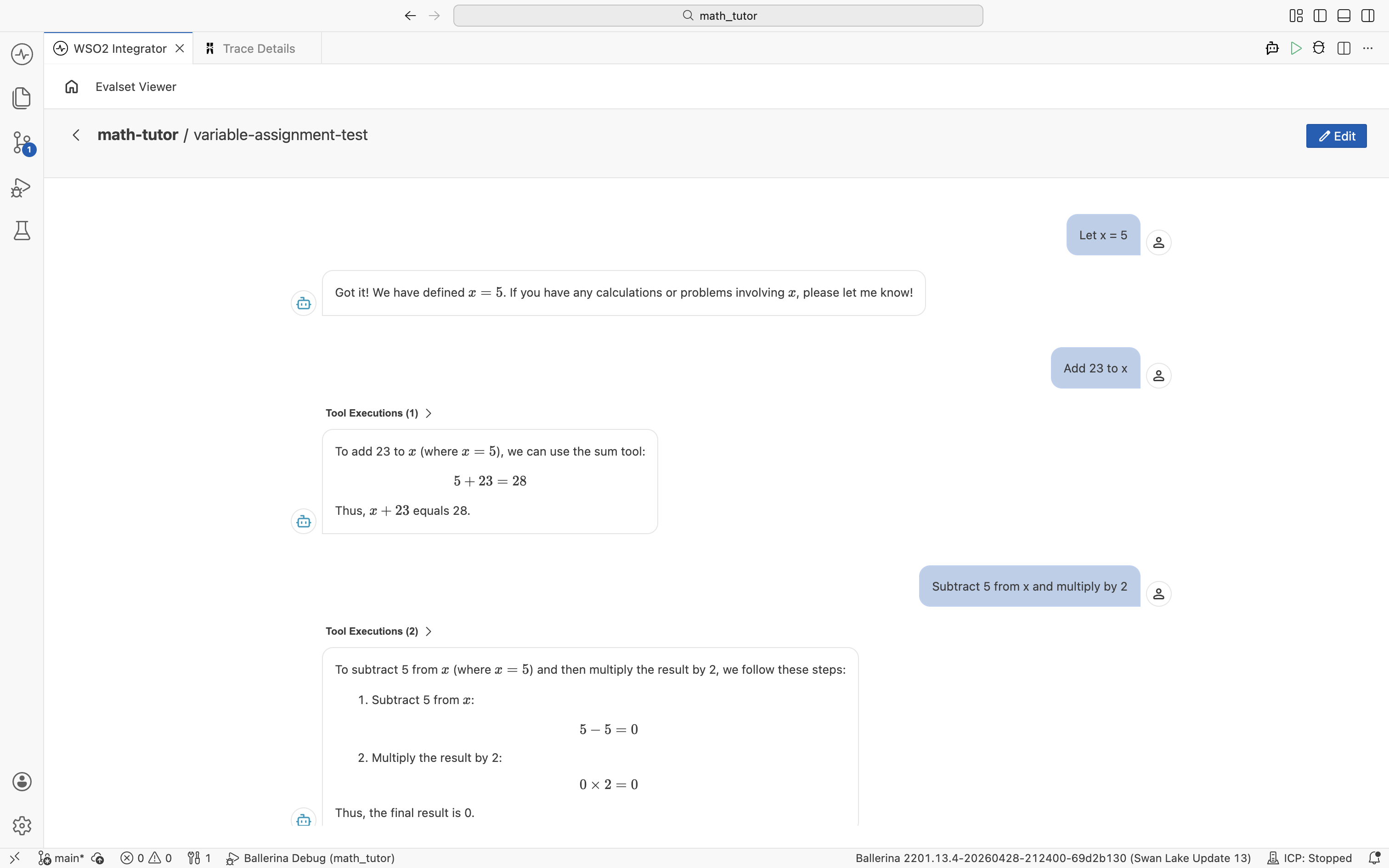
To rename a thread, hover over its title and edit it directly.
Enter Edit Mode
Click Edit at the top right to switch to Edit Mode. A banner explains what you can do: hover over a message to edit it, drag traces to reorder, hover between traces to add a new turn, or hover over an agent message to add a tool execution.
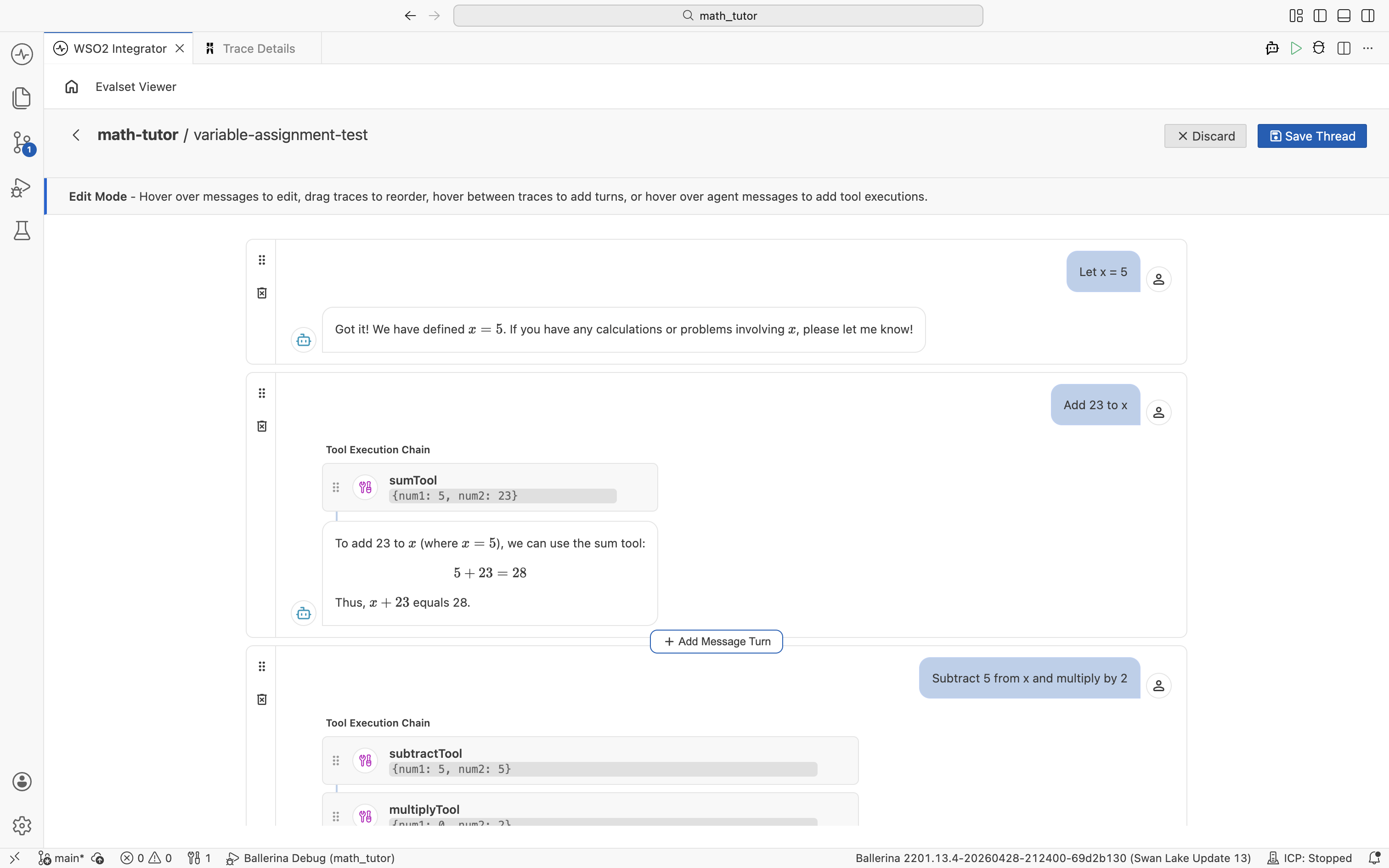
In Edit Mode you can:
- Edit user and agent messages.
- Reorder turns by dragging them.
- Add or remove a turn anywhere in the thread.
- Add or remove tool executions on an agent message.
- Edit a tool call's name and input arguments.
Edit a tool call
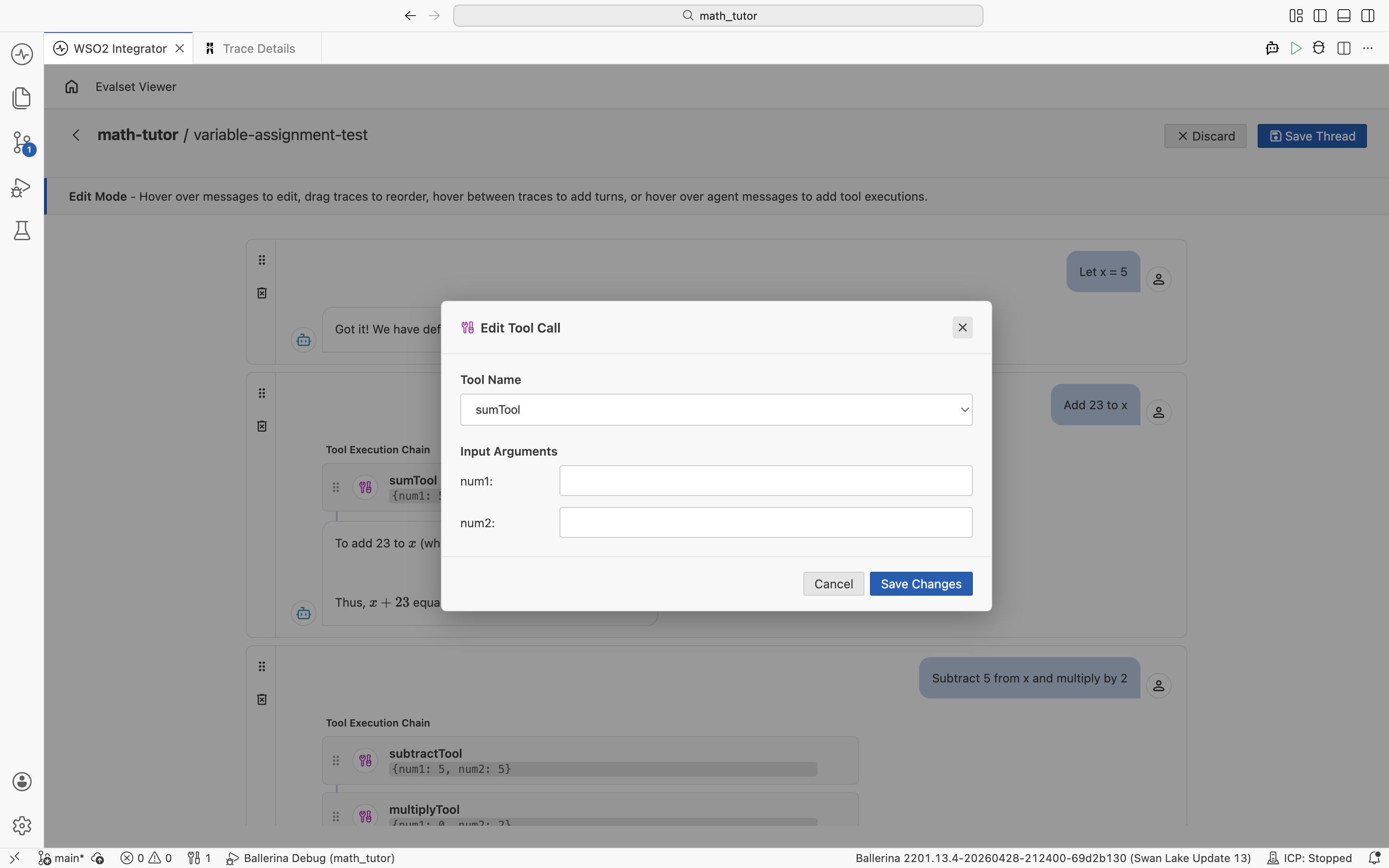
Click a tool execution to open the Edit Tool Call dialog. Pick the tool from the Tool Name list and update the Input Arguments, then click Save Changes.
Save or discard
Click Save Thread to keep your changes, or Discard to revert and leave Edit Mode.
Create and manage evalsets by hand
You don't have to capture a chat to get an evalset. In the Test Explorer, the Evalsets panel also lets you build and clean up evalsets directly.
- Create an empty evalset. Click the + icon in the Evalsets panel title bar, enter a name, and press Enter.
- Add a thread. Click the + (Add Thread) icon next to an evalset, or click Add Thread in the evalset's thread list. Enter a name and press Enter. The new thread starts with one placeholder turn. Open it and use Edit Mode to write the conversation.
- Delete an evalset or a thread. Click the trash icon next to it, then confirm.
There is no import option. To bring in an evalset from elsewhere, copy the <name>.evalset.json file into tests/resources/evalsets/ in your project. It appears in the Evalsets panel.
What's next
- Create evaluations from templates — Rerun the agent and compare its behaviour with this evalset using a prebuilt evaluation template.
- Create custom evaluations — Build custom evaluation functions that use this evalset.
- Run evaluations — Replay the evalset against the current agent build.