Durable Timers
Long-running processes spend most of their life waiting: a cooling-off period before a sensitive change takes effect, a settlement delay before a payout, a reminder three days after a request. A durable timer is how a workflow waits. The instance suspends, the runtime remembers when to wake it, and nothing is held open in the meantime.
Add a Sleep step
Some waits are policy rather than plumbing. Take a rule a support team might be held to:
Changes to a customer's email address must have a 24-hour cooling-off period.
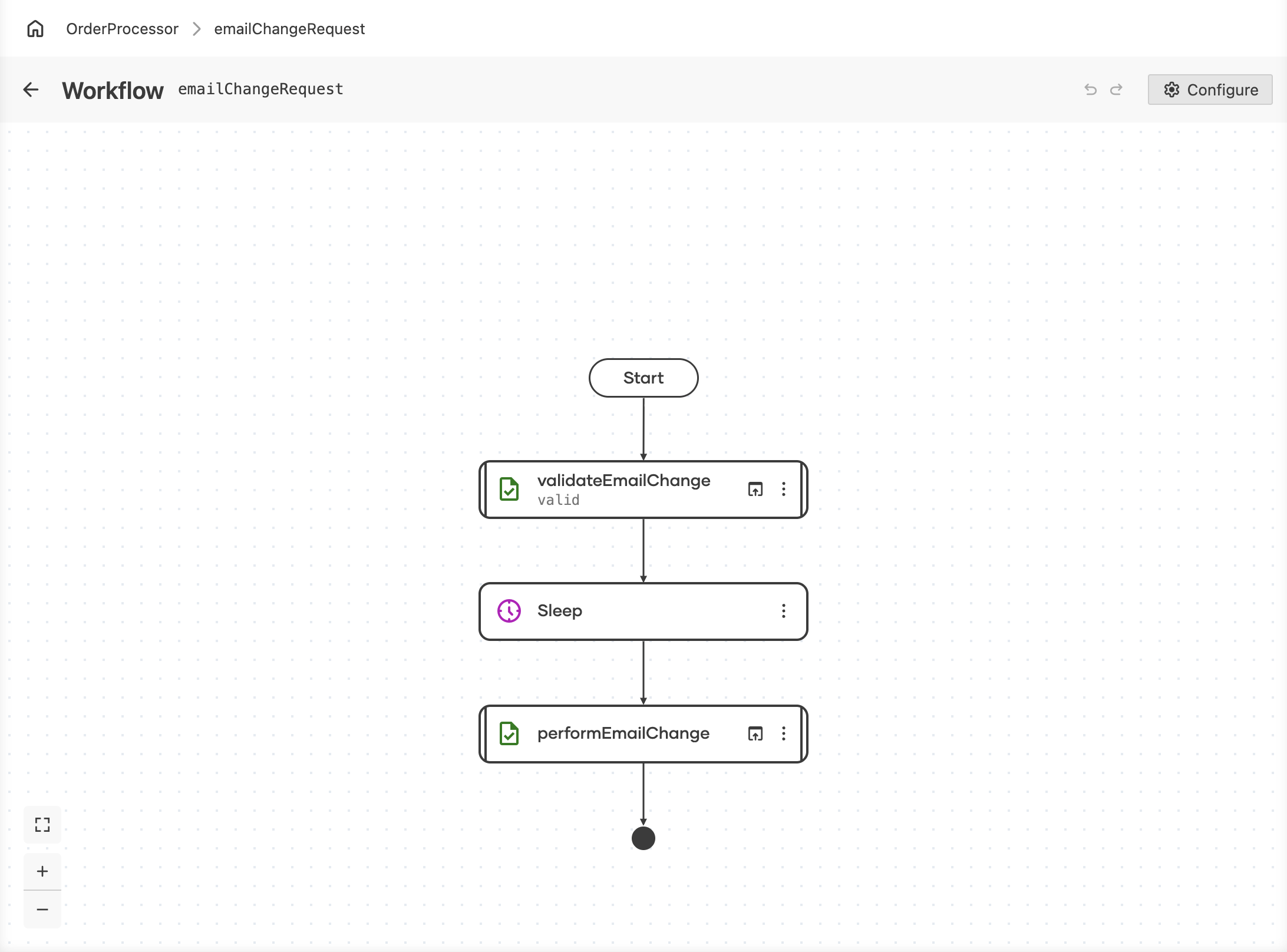
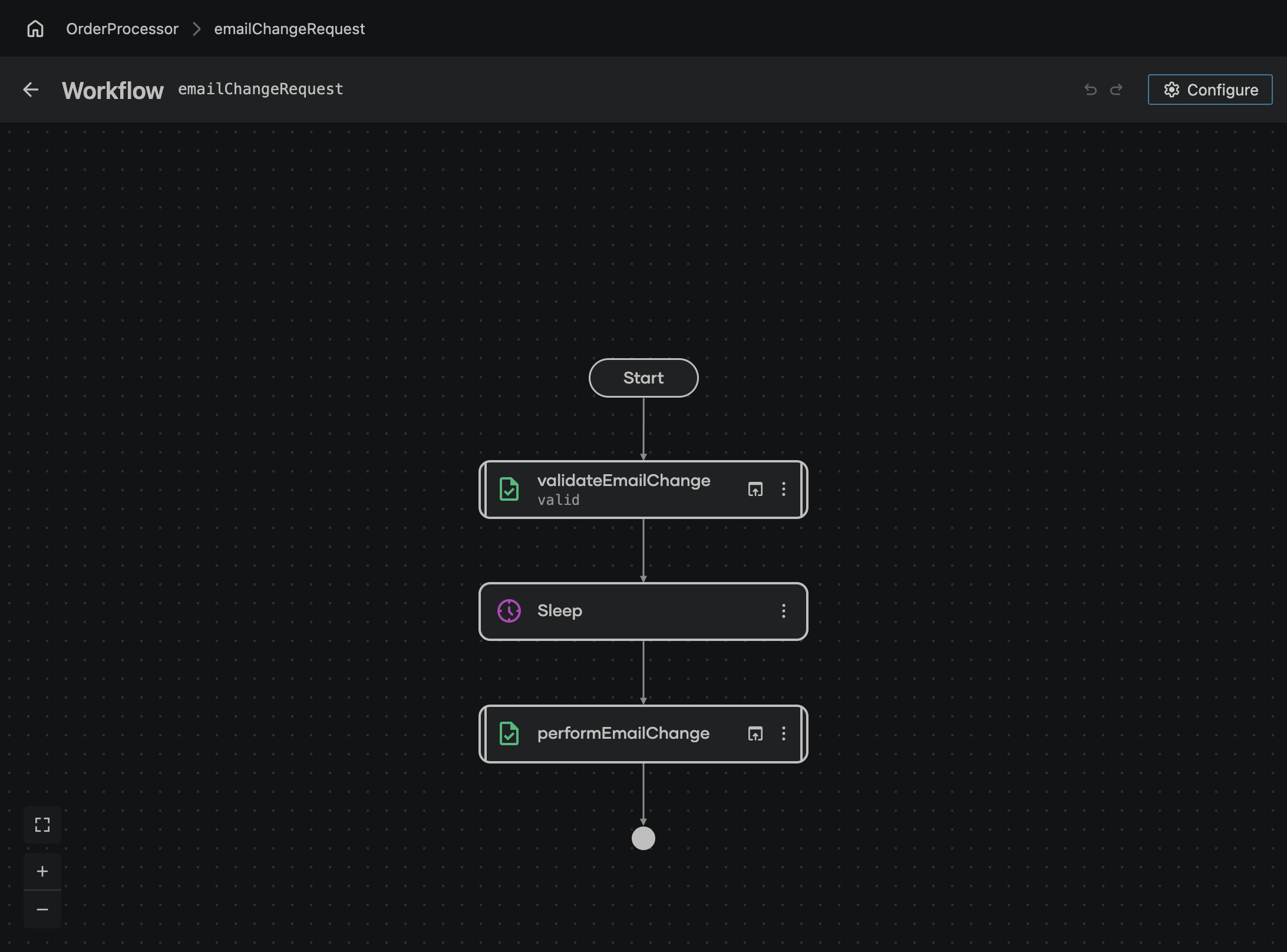
The emailChangeRequest workflow puts that rule in one place. It validates the request, waits out the cooling-off period, and only then applies the change, so a hijacked account has a day in which the real owner can still intervene:
-
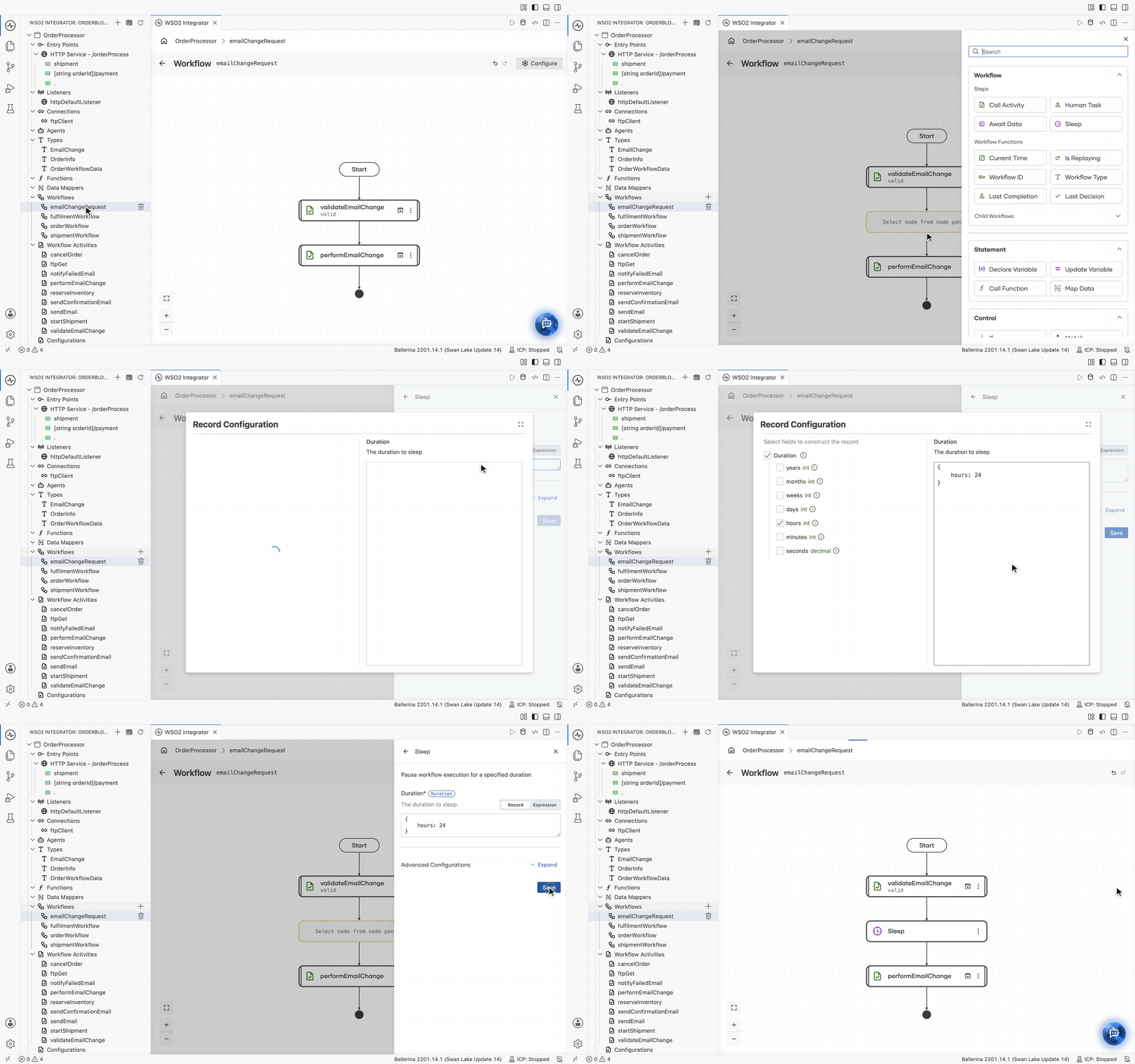
On the workflow diagram, click + where the workflow should wait, between
validateEmailChangeandperformEmailChange. -
In the node panel, under Workflow > Steps, click Sleep. The Sleep form opens.
-
Fill in the form:
Field Required Description Duration Yes How long to wait. Keep the field on Record to build the duration from units in a form, or switch it to Expression to write the record yourself, for example to take the period from a configurable. -
On Record, click the field to open the Record Configuration editor, select the units the wait is expressed in, and fill in their values. The cooling-off period here is one day, so hours is selected and set to
24. -
Click Save.
Duration units
Record Configuration offers one field per unit, all optional, so a duration names only the units it needs. A Sleep step counts only hours, minutes, and seconds; the larger units apply to timeouts, not to Sleep:
| Unit | Type |
|---|---|
years | int |
months | int |
weeks | int |
days | int |
hours | int |
minutes | int |
seconds | decimal |
Express a Sleep in hours, minutes, and seconds: a one-day cooling-off period is hours set to 24, and a week is hours set to 168.
What makes it durable
A durable sleep is not a blocked thread. When the workflow reaches the timer:
- The instance suspends. It consumes no thread and no connection while waiting, so thousands of accounts can sit out their cooling-off period at once. What stays behind is the run's recorded state in the workflow engine, which is what a restart replays from.
- The deadline is recorded. Restart the integration, redeploy it, or lose the process to a crash, and the timer still fires at its original time.
- On crash recovery, an already-elapsed timer does not wait again. Like a completed activity, it is read back from the record, so a restart never restarts the clock.
Never use a regular sleep, such as runtime:sleep, inside a workflow. It blocks a thread, it is invisible to the runtime, and the wait is lost on restart, so the workflow resumes with the delay silently skipped or repeated. Always use the workflow context's durable sleep.
Timers versus task timeouts
A timer and a timeout look similar but answer different questions:
| What it does | |
|---|---|
| Durable timer | Waits a fixed duration, then continues. Nothing can cut it short. |
| Human task timeout | Bounds a wait for a person or an event. It ends early when the task is answered, and fails with a timeout error if nobody answers in time. |
Use a timer for a delay you always want, and a timeout when you are waiting on something that may or may not arrive. The email change rule is the first kind: the 24 hours pass whether or not anyone objects. Giving the owner a way to cancel within the window is the second kind, an await human task or an await data event bounded by a timeout.
Watching timers
A pending timer appears as a TIMER node in the instance's execution graph in the Integration Control Plane, so a workflow that looks stalled can be identified as simply waiting, and you can see what it is waiting for and until when. The same graph is available over the Management API.
Next steps
- Activities — the recorded steps a timer sits between.
- Await human task — waiting on people and external events instead of the clock.
- Build an order processing workflow — a timer in a complete flow.