Apply Advanced Settings on Mediation Policies
Advanced settings for mediation policies are available for proxy components with an attached mediation policy. For details on attaching a mediation policy to a proxy component, see Attach and Manage Policies.
The approach to applying advanced settings depends on whether the proxy component is deployed or not.
Mediation policy advanced settings
| Setting | Purpose | How to apply | Impact |
|---|---|---|---|
| HTTP version | By default, Choreo supports HTTP 1.1. If necessary, you can change to HTTP 1.0 or HTTP 2.0. | Specify the required HTTP version in the Advanced Settings field. 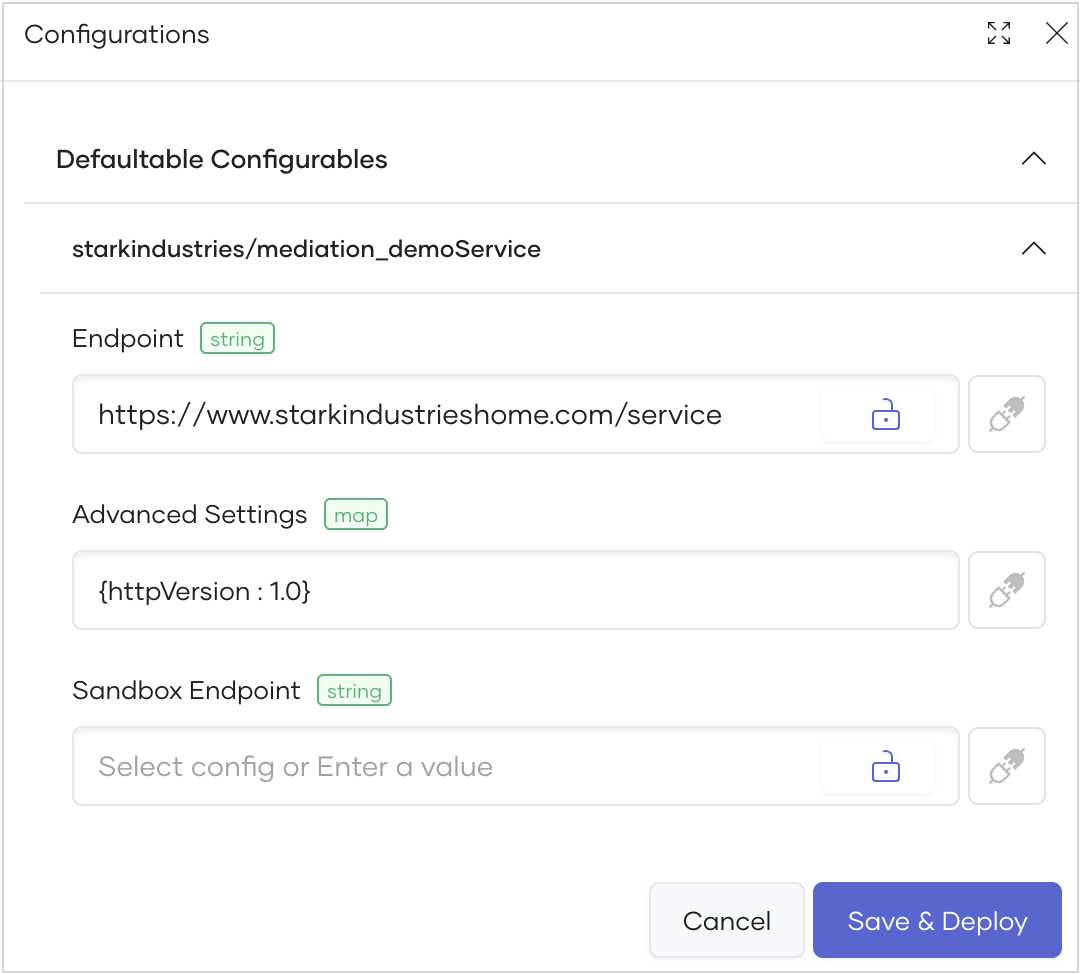 |
The mediation application will use the specified HTTP version when interacting with backend services. |
| Hostname verification | Choreo enables hostname verification by default when using mTLS. You can disable it if necessary. | Set the verifyHostname parameter to false in the Advanced Settings field. 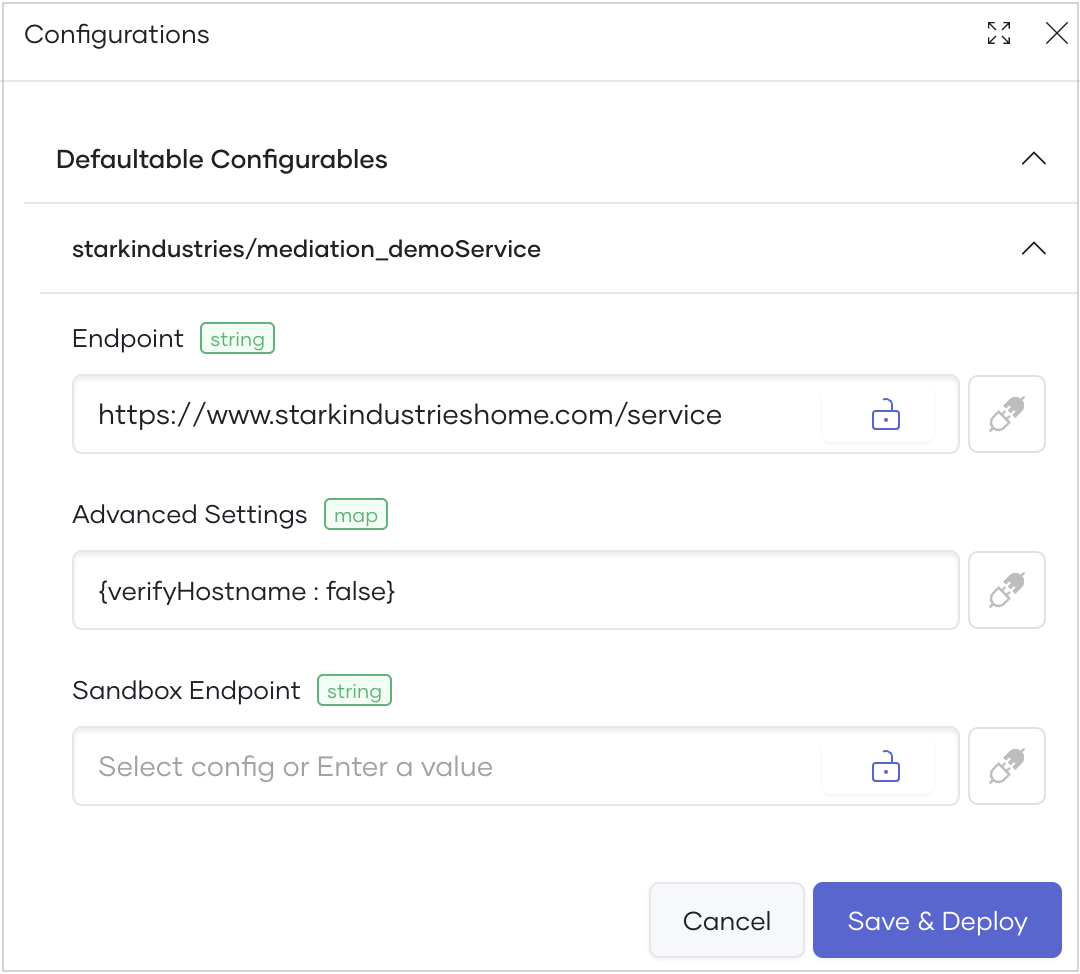 |
Hostname verification will be skipped during mTLS interactions. |
| Minimum evictable idle time | Determines how long (in seconds) an outgoing connection remains idle before eviction. The default is 300 seconds. | Set the required idle time in the Advanced Settings field. 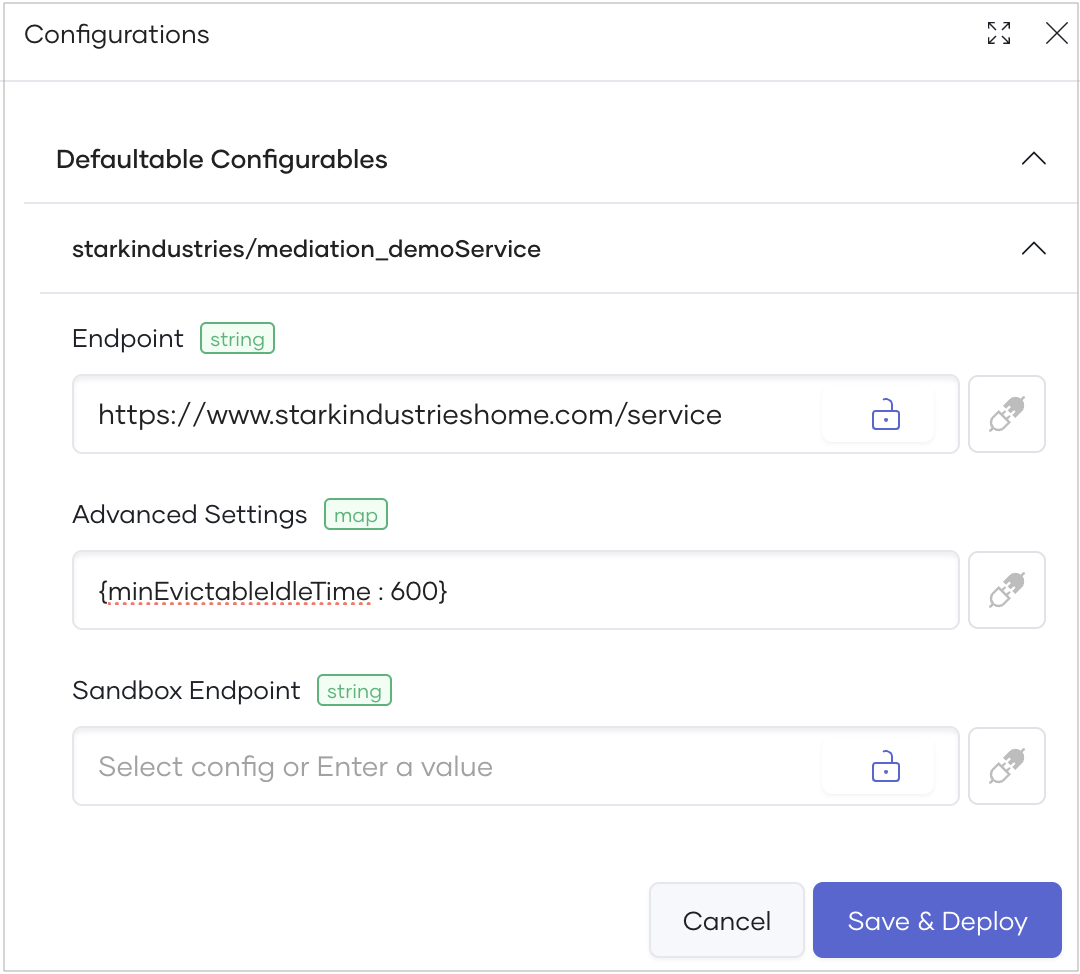 |
Idle connections will be closed and evicted after the defined period. |
| Detailed access log | By default, logs related to the mediation application are generated and can be viewed as runtime logs. You can disable these logs if necessary. | Set the detailedAccessLog parameter in the Advanced Settings field. 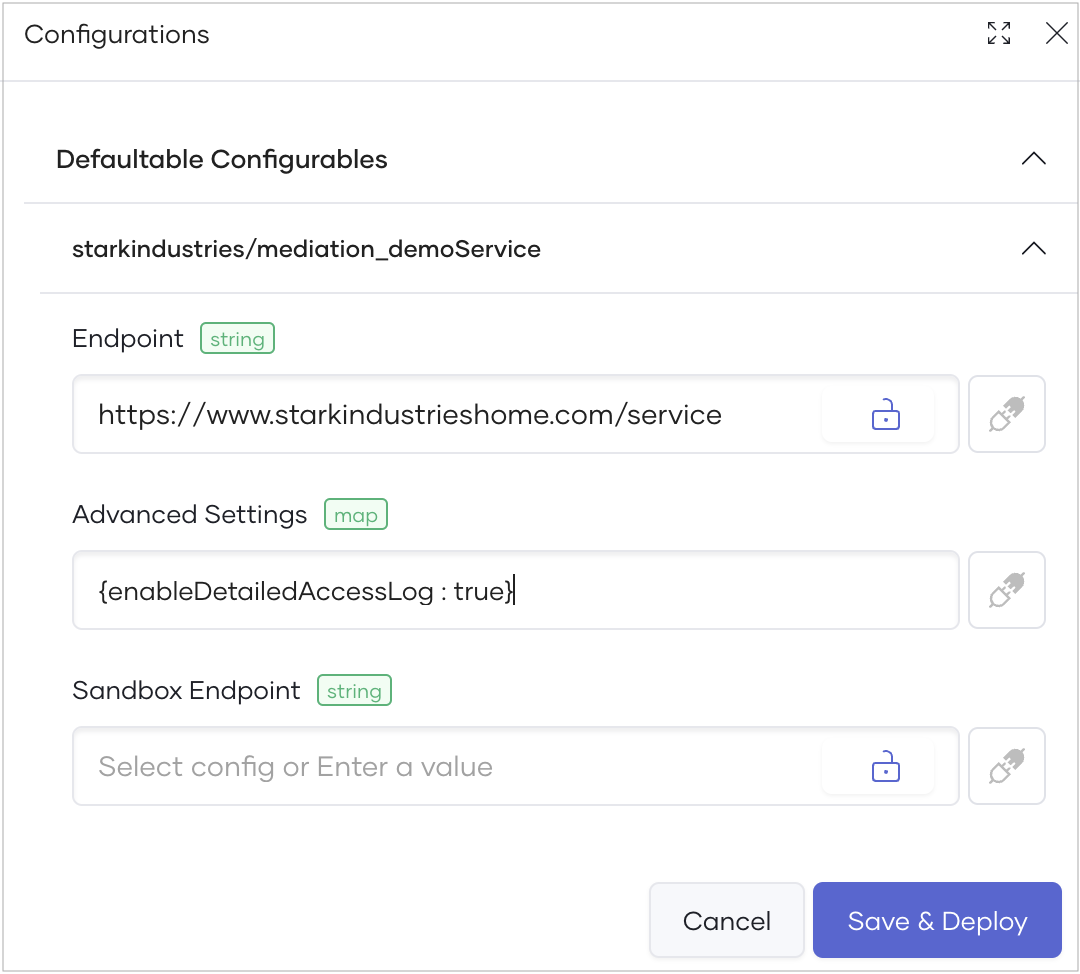 |
Logs related to the mediation application will not be generated. |
| Max Header Size | Determines the maximum header size (in bytes) allowed by the mediation application. The default value is 8192 bytes. | Set the maxHeaderSize parameter in the Advanced Settings field. 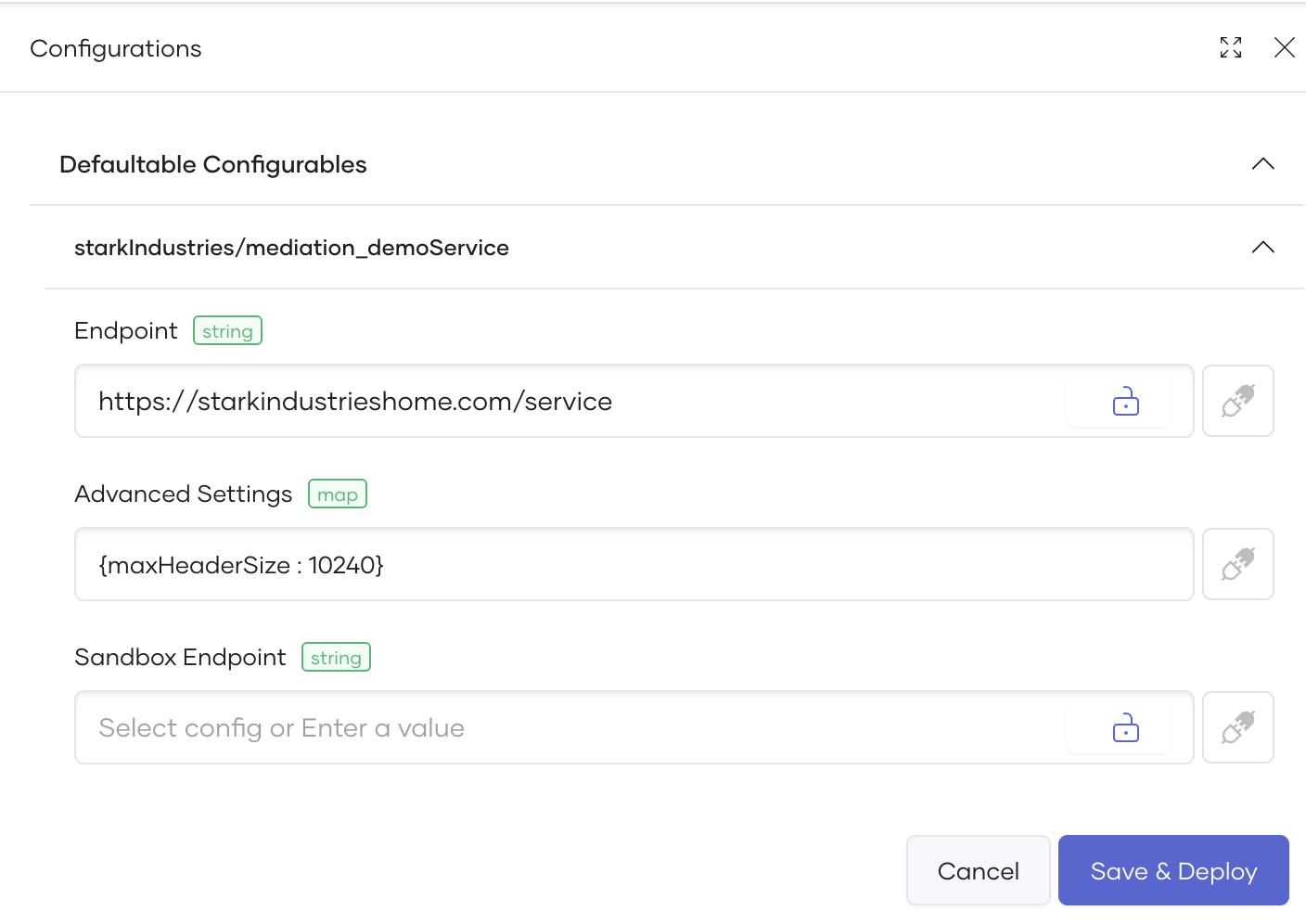 |
The mediation service will accept request headers up to the configured size. Requests with headers exceeding this limit will be rejected with an HTTP 431 Request Header Fields Too Large status code. |
Configure advanced settings for a proxy component
To configure advanced settings for a proxy component with an attached mediation policy, follow these steps:
- Sign in to the Choreo Console.
- In the Component Listing pane, click on the REST API Proxy component for which you want to configure advanced settings.
- In the left navigation menu, click Deploy.
- Depending on the deployment status of the proxy component, follow one of these steps:
- If the proxy component is not deployed, go to the Set Up card and click Configure & Deploy.
- If the proxy component is already deployed, go to the respective environment card depending on the environment you want to apply advanced settings, and then click the Environment Variables icon.
- In the Configurations pane that opens, expand the Defaultable Configurables section.
- In the Advanced Settings field, configure the necessary settings as described in the Mediation policy advanced settings section.
- Click Save & Deploy.