Solace
Solace event integrations consume messages from a Solace PubSub+ queue or topic and trigger event handlers as each message arrives. Use them for high-performance event streaming in financial services, IoT, and real-time analytics workloads that require guaranteed or direct message delivery.
Creating a Solace events service
- Visual Designer
- Ballerina Code
-
Click + Add Artifact in the canvas or click + next to Entry Points in the sidebar.
-
In the Artifacts panel, select Solace under Event Integration.
-
In the creation form, fill in the following fields:
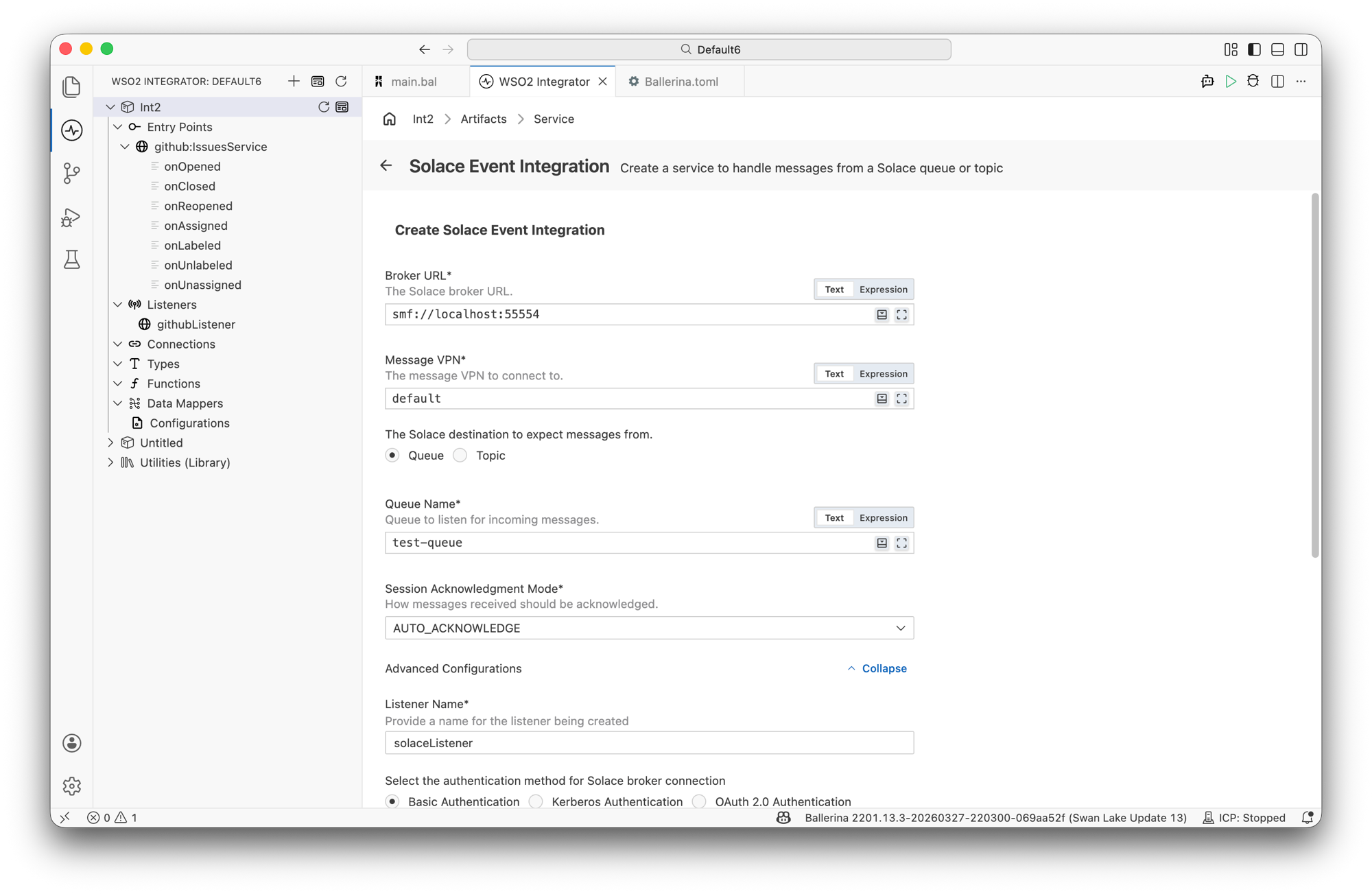
Field Description Default Broker URL The Solace broker URL. smf://localhost:55554Message VPN The message VPN to connect to. defaultDestination Whether to consume from a Queue or a Topic. QueueWhen Destination is Queue:
Field Description Default Queue Name Queue to listen for incoming messages. test-queueSession Acknowledgment Mode How received messages are acknowledged. Options: AUTO_ACKNOWLEDGE,CLIENT_ACKNOWLEDGE,DUPS_OK_ACKNOWLEDGE,SESSION_TRANSACTED.AUTO_ACKNOWLEDGEWhen Destination is Topic:
Field Description Default Topic Name Topic to listen for incoming messages. test/topicSubscriber Name Name to use for the subscription. defaultDurable Subscriber When enabled, persists the subscription when the client disconnects. — Session Acknowledgment Mode How received messages are acknowledged. Options: AUTO_ACKNOWLEDGE,CLIENT_ACKNOWLEDGE,DUPS_OK_ACKNOWLEDGE,SESSION_TRANSACTED.AUTO_ACKNOWLEDGEExpand Advanced Configurations to set the listener name and authentication method.
Field Description Default Listener Name Identifier for the listener created with this service. solaceListenerAuthentication method How to authenticate with the Solace broker. Select Basic Authentication, Kerberos Authentication, or OAuth 2.0 Authentication. Basic AuthenticationBasic Authentication fields:
Field Description Username Username for broker authentication. Password Password for broker authentication. Secure Socket SSL/TLS configuration for a secure connection. Kerberos Authentication fields:
Field Description Default Service Name Kerberos service name. solaceJAAS Login Context JAAS login context name. SolaceGSSMutual Authentication Enable Kerberos mutual authentication. Enabled JAAS Config Reload Enable automatic JAAS configuration reload. — Secure Socket SSL/TLS configuration for a secure connection. — OAuth 2.0 Authentication fields:
Field Description Default Issuer OAuth 2.0 issuer identifier URI. https://auth.example.comAccess Token OAuth 2.0 access token for authentication. — OIDC Token OpenID Connect ID token for authentication. — Secure Socket SSL/TLS configuration for a secure connection. — -
Click Create.
-
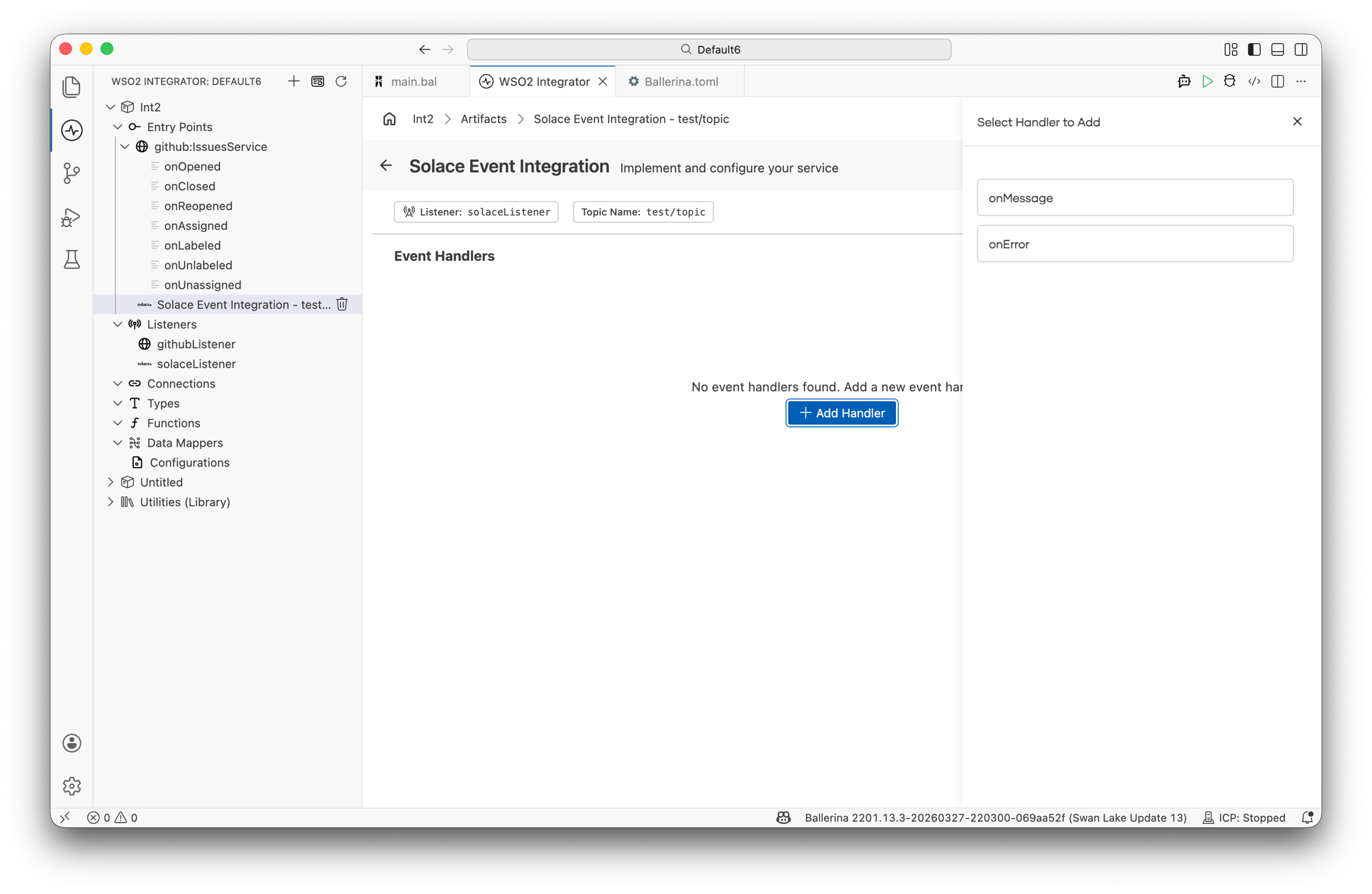
WSO2 Integrator opens the service in the Service Designer. The canvas shows the attached listener pill, the destination name pill, and an empty Event Handlers section.
-
Click + Add Handler to add event handlers.
import ballerinax/solace;
import ballerina/log;

configurable string brokerUrl = "smf://localhost:55554";
configurable string msgVpn = "default";
configurable string username = "admin";
configurable string password = "admin";

listener solace:Listener solaceListener = check new (
    url = brokerUrl,
    messageVpn = msgVpn,
    auth = {
        username: username,
        password: password
    }
);

@solace:ServiceConfig {
    queueName: "test-queue",
    sessionAckMode: "AUTO_ACKNOWLEDGE"
}
service on solaceListener {

    remote function onMessage(solace:Message message) returns error? {
        log:printInfo("Message received", content = message.toString());
    }

    remote function onError(solace:Error err) returns error? {
        log:printError("Solace error", 'error = err);
    }
}
Service configuration
In the Service Designer, click the Configure icon in the header to open the Solace Event Integration Configuration panel. Select Solace Event Integration in the left panel.
- Visual Designer
- Ballerina Code
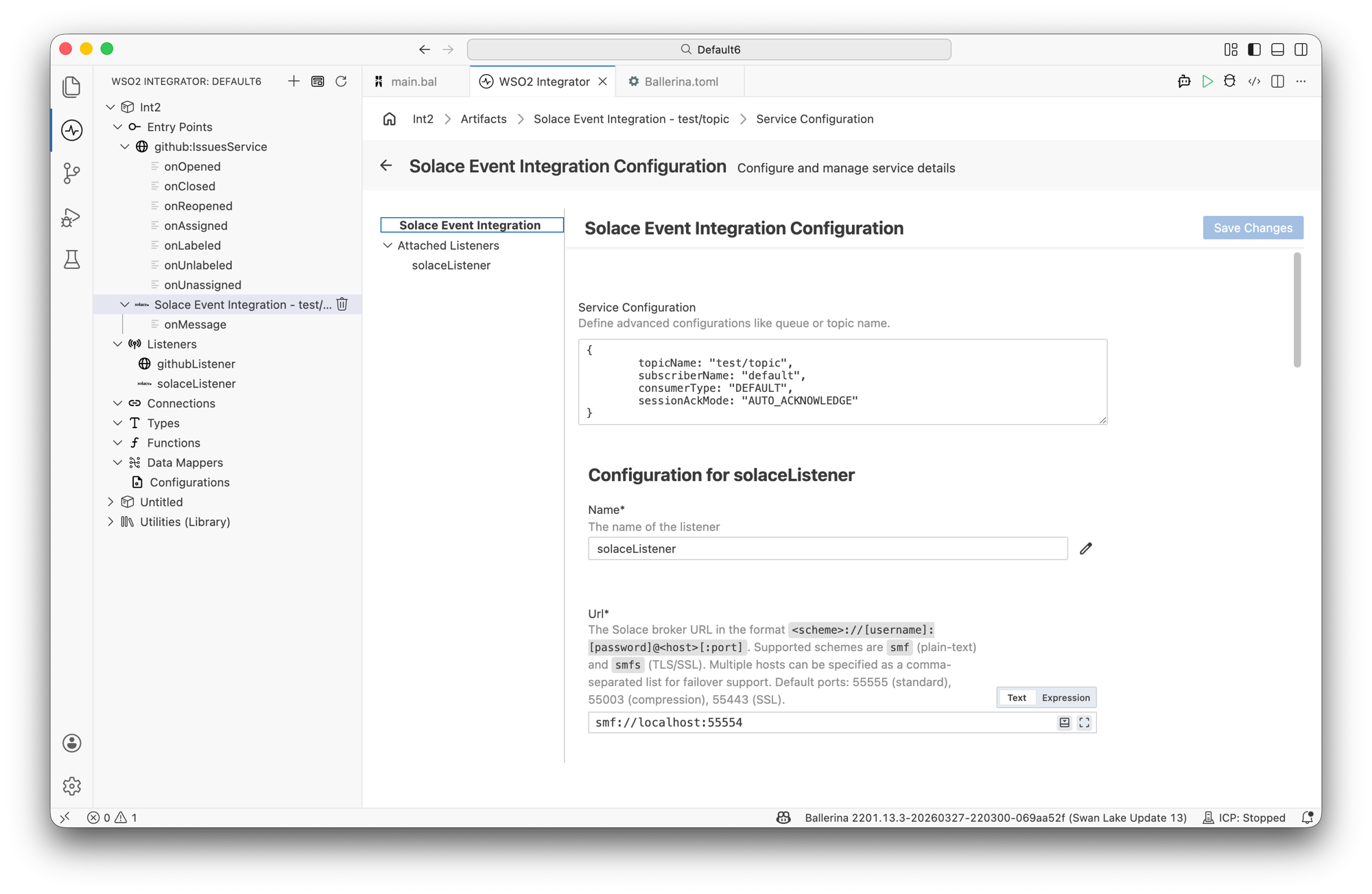
The Service Configuration field accepts a record expression that sets the destination and message handling options.
Queue service configuration fields:
| Field | Description | Default |
|---|---|---|
| queueName | Name of the queue to consume from. | Required |
| sessionAckMode | Message acknowledgment mode. | AUTO_ACKNOWLEDGE |
Topic service configuration fields:
| Field | Description | Default |
|---|---|---|
| topicName | Name of the topic to subscribe to. | Required |
| subscriberName | Name to use for the subscription. | default |
| consumerType | Consumer type for the subscription (DEFAULT or DURABLE). | DEFAULT |
| sessionAckMode | Message acknowledgment mode. | AUTO_ACKNOWLEDGE |
// Queue subscription
@solace:ServiceConfig {
    queueName: "orders",
    sessionAckMode: "CLIENT_ACKNOWLEDGE"
}
service on solaceListener { }

// Topic subscription
@solace:ServiceConfig {
    topicName: "trades/>",
    subscriberName: "trade-subscriber",
    consumerType: "DURABLE",
    sessionAckMode: "AUTO_ACKNOWLEDGE"
}
service on solaceListener { }
Listener configuration
In the Solace Event Integration Configuration panel, select solaceListener under Attached Listeners to configure the listener.
- Visual Designer
- Ballerina Code
| Field | Description | Default |
|---|---|---|
| Name | Identifier for the listener. | solaceListener |
| Url | The Solace broker URL in the format <scheme>://[username]:[password]@<host>[:<port>]. Supported schemes: smf (plain-text) and smfs (TLS/SSL). Comma-separate multiple hosts for failover. Default ports: 55555 (standard), 55003 (compression), 55443 (SSL). | smf://localhost:55554 |
| Message VPN | The name of the message VPN to connect to. | default |
| Auth | Authentication configuration. Supports basic authentication, Kerberos, and OAuth 2.0. For client certificate authentication, configure the secureSocket.keyStore field. | {username: "default"} |
| Secure Socket | SSL/TLS configuration for secure connections. | {} |
| Transacted | Enables transacted messaging. When true, messages are sent and received within a transaction context requiring explicit commit or rollback. Must be false for XA transactions. | — |
| Client Id | Client identifier. If not specified, a unique client ID is auto-generated. | — |
| Client Description | Human-readable description of the client connection. | — |
| Allow Duplicate Client Id | Whether to allow the same client ID across multiple connections. | — |
| Enable Dynamic Durables | Enables automatic creation of durable queues and topic endpoints on the broker. | — |
| Direct Transport | When true, uses direct (at-most-once) delivery. When false, uses guaranteed (persistent) delivery. Must be false for transacted sessions. | — |
| Direct Optimized | Optimizes message delivery in direct transport mode by reducing protocol overhead. Only applicable when Direct Transport is true. | — |
| Localhost | Local interface IP address to bind for outbound connections. | — |
| Connect Timeout | Maximum time in seconds permitted for a JNDI connection attempt. Set to 0 to wait indefinitely. | 0.0 |
| Read Timeout | Maximum time in seconds permitted for reading a JNDI lookup reply from the host. | 0.0 |
| Compression Level | ZLIB compression level. Valid range is 0–9, where 0 disables compression. Higher values improve compression at the cost of throughput. | 0 |
| Retry Config | Retry configuration for connection and reconnection attempts. | {} |
| Additional Values | Key-value pairs for additional connection configuration. | {} |
Click + Attach Listener to attach an additional listener to the same service.
Click Save Changes to apply updates.
listener solace:Listener solaceListener = check new (
    url = "smf://localhost:55554",
    messageVpn = "default",
    auth = {
        username: username,
        password: password
    },
    clientId = "my-client",
    transacted = false,
    directTransport = false,
    compressionLevel = 0
);
solace:ListenerConfiguration fields:
| Field | Type | Default | Description |
|---|---|---|---|
| url | string | Required | Solace broker URL |
| messageVpn | string | "default" | Message VPN name |
| auth | solace:BasicAuthConfig|solace:KerberosConfig|solace:OAuth2Config | — | Authentication configuration |
| secureSocket | solace:SecureSocket? | — | SSL/TLS configuration |
| transacted | boolean? | — | Enable transacted messaging |
| clientId | string? | — | Client identifier |
| clientDescription | string? | — | Client description |
| allowDuplicateClientId | boolean? | — | Allow duplicate client IDs |
| enableDynamicDurables | boolean? | — | Auto-create durable endpoints |
| directTransport | boolean? | — | Use direct (at-most-once) delivery |
| directOptimized | boolean? | — | Optimize direct transport delivery |
| localhost | string? | — | Local interface IP address |
| connectTimeout | decimal | 30.0 | Connection timeout in seconds |
| readTimeout | decimal | 10.0 | Read timeout in seconds |
| compressionLevel | int | 0 | ZLIB compression level (0–9) |
| retryConfig | solace:RetryConfig? | — | Retry configuration |
Event handlers
Adding an event handler
- Visual Designer
- Ballerina Code
In the Service Designer, click + Add Handler. The Select Handler to Add panel lists onMessage and onError.
onMessage — opens a configuration panel before saving:
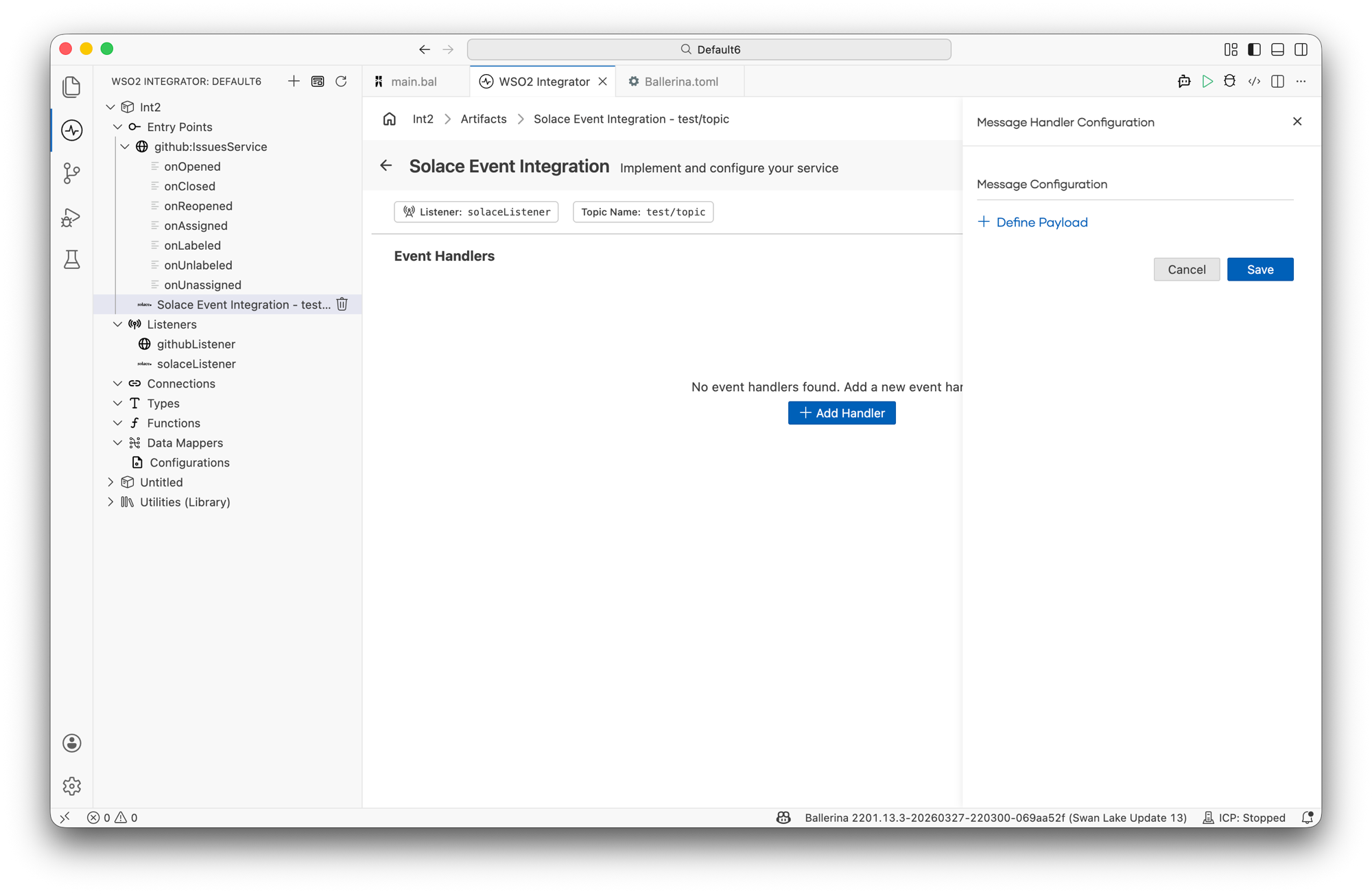
| Option | Description |
|---|---|
| + Define Payload | Define the expected content type of the incoming message (e.g., a typed record). |
Click Save to add the handler.
onError — added directly without additional configuration.
onMessage handler — called for each message received:
type TradeEvent record {|
    string tradeId;
    string symbol;
    decimal price;
    int quantity;
|};

@solace:ServiceConfig {
    queueName: "trades",
    sessionAckMode: "CLIENT_ACKNOWLEDGE"
}
service on solaceListener {

    remote function onMessage(solace:Message message) returns error? {
        TradeEvent trade = check message.payload.ensureType();
        log:printInfo("Trade received",
                      tradeId = trade.tradeId,
                      symbol = trade.symbol);
        check executeTrade(trade);
    }
}
onError handler — called when message retrieval or processing fails:
service on solaceListener {

    remote function onError(solace:Error err) returns error? {
        log:printError("Solace error", 'error = err);
    }
}
Handler types
| Handler | Triggered when | Use when |
|---|---|---|
onMessage | A new message arrives from the queue or topic | Processing incoming messages |
onError | A message retrieval or processing error occurs | Logging failures and triggering alerts |
What's next
- Kafka — consume messages from Apache Kafka topics
- RabbitMQ — consume messages from RabbitMQ queues
- Connections — reuse Solace connection credentials across services