Statement
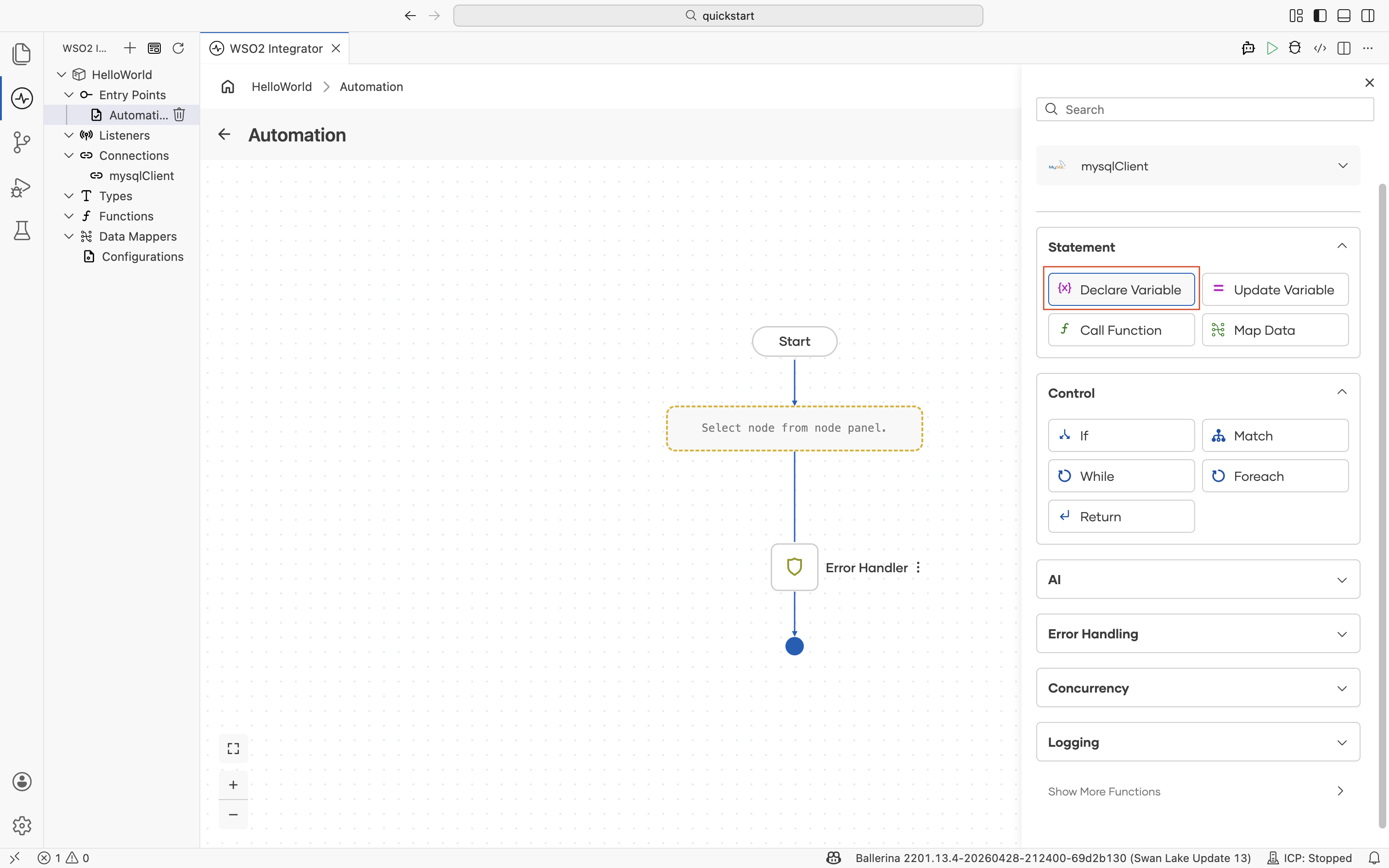
The Statement section of the node panel covers the workhorse operations of an integration flow: declaring and updating variables, calling functions, and transforming records. It sits at the top of the categories list, just below the project's Connections.
Declare Variable
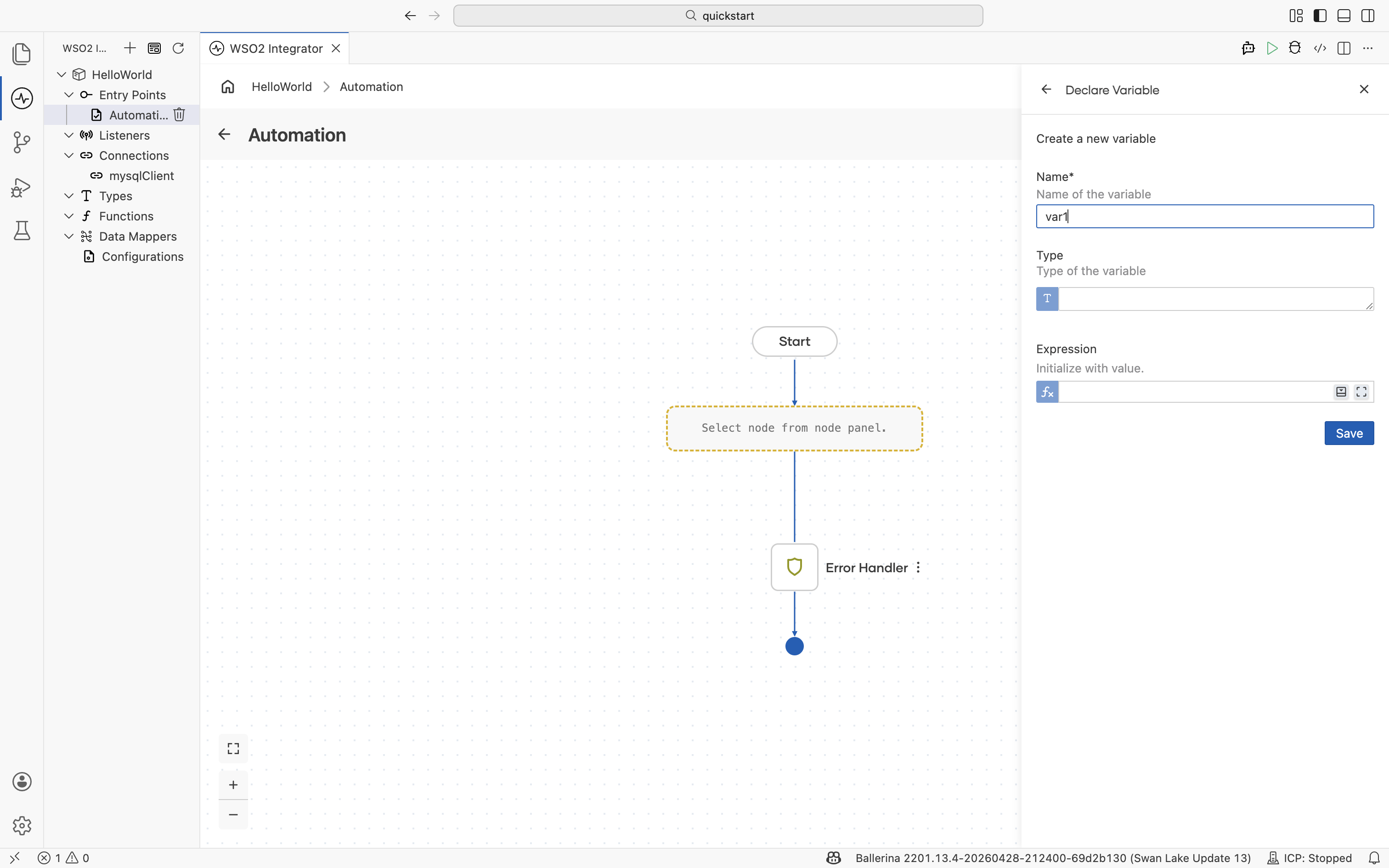
Creates a typed variable in the current flow scope. Use it whenever a downstream node needs a named value that does not come directly from a previous step's result.
| Field | Description |
|---|---|
| Name | Name of the variable. |
| Type | Type of the variable. Use a record, enum, primitive, or json. Define new types inline with the Type editor. |
| Expression | Initialize with a value. Author the expression with assistance in the Expression editor. Leave it empty to declare an unbound variable. |
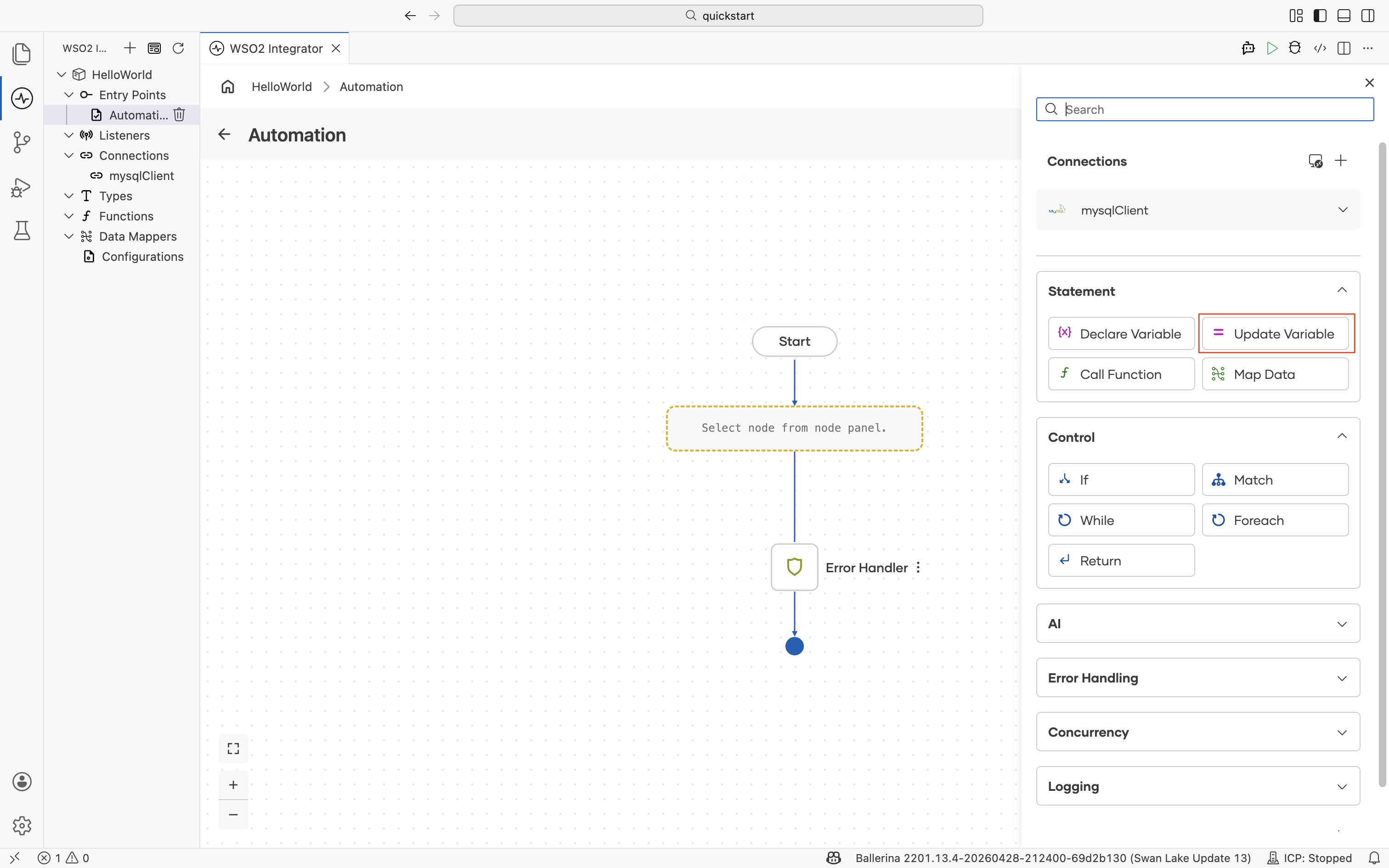
Update Variable
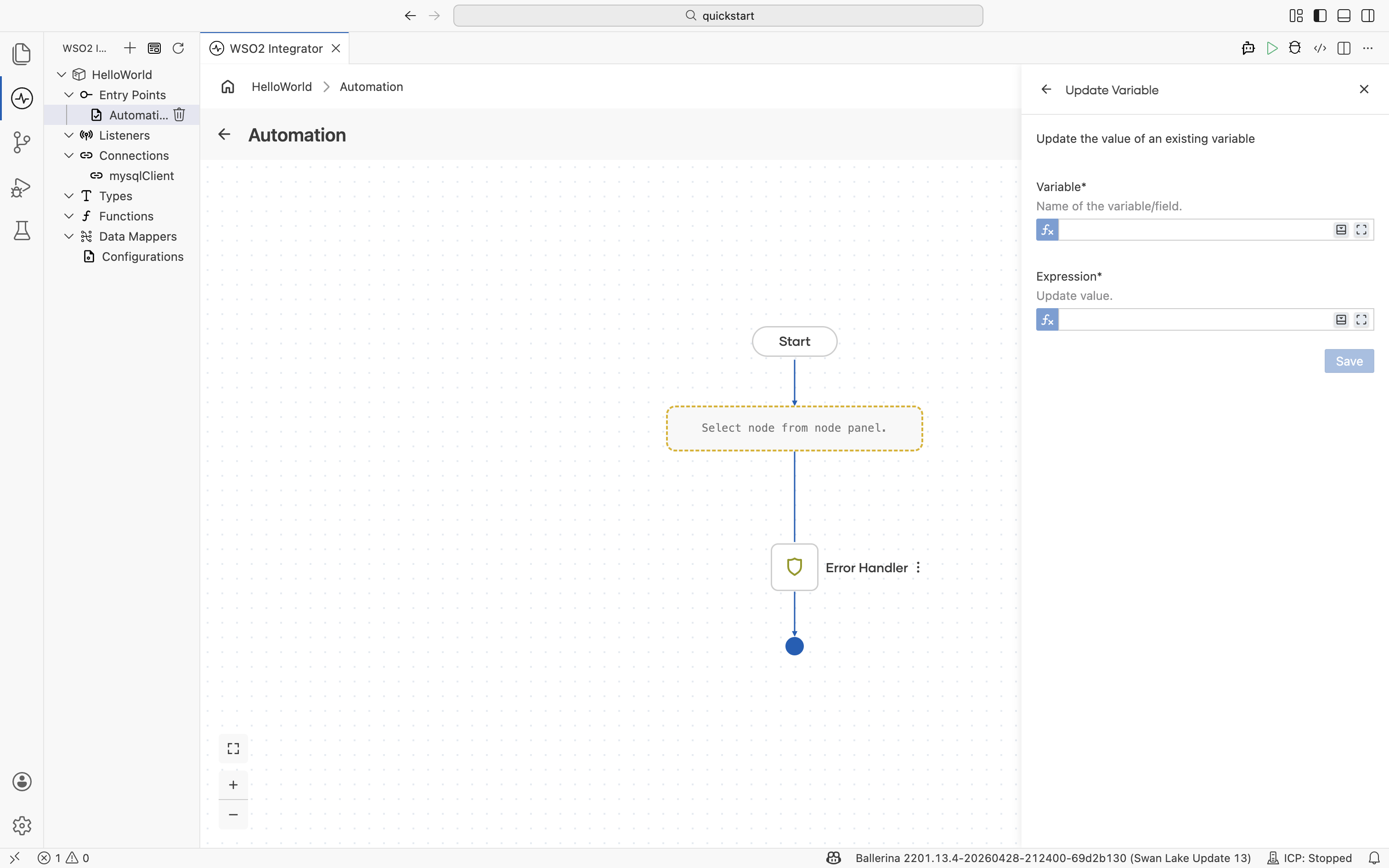
Assigns a new value to an existing variable.
| Field | Description |
|---|---|
| Variable | Name of the variable or field to update. |
| Expression | The new value. Use the Expression editor for type-aware suggestions. |
Call Function
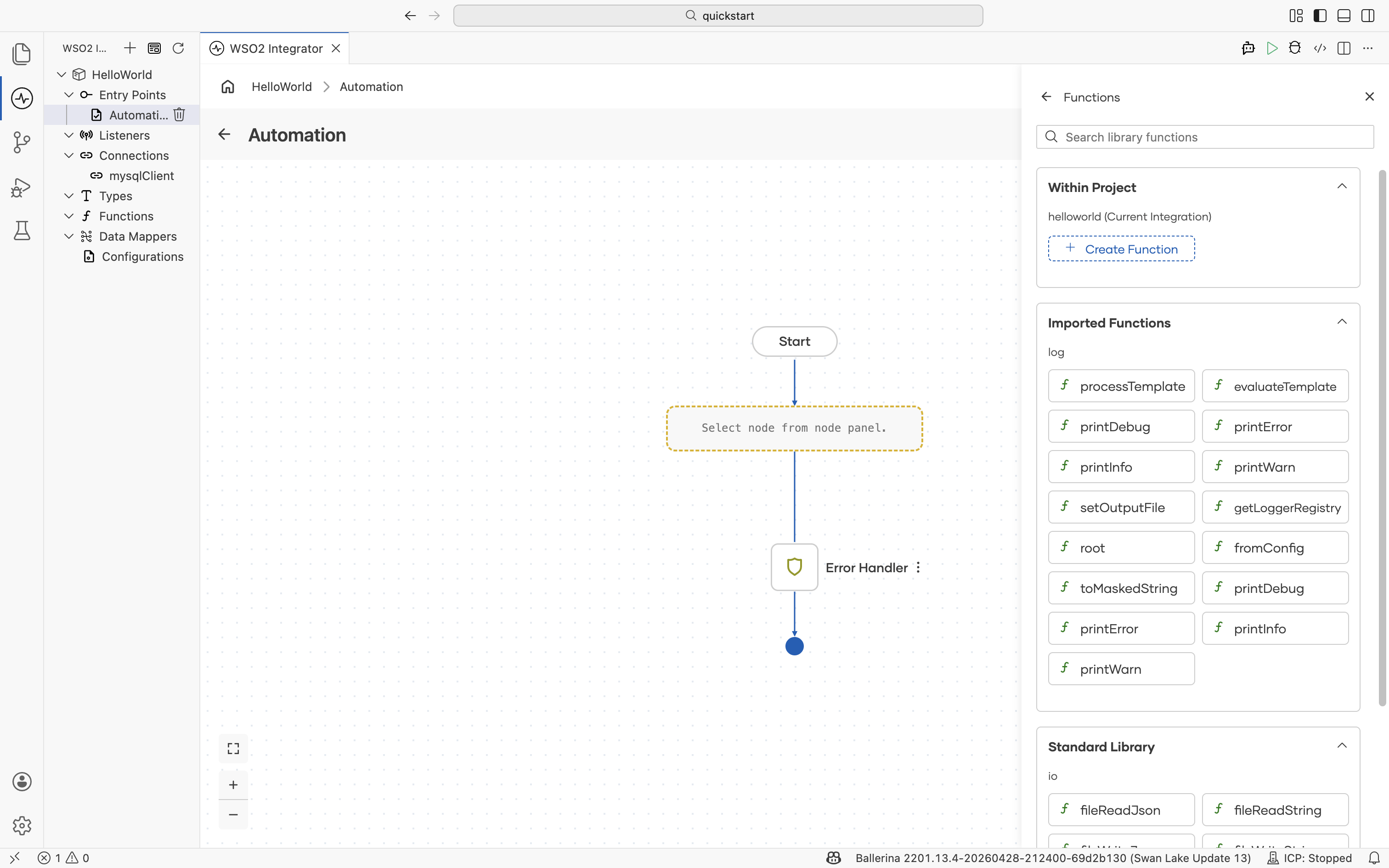
Calls a function defined in the project, an imported library, or the Ballerina standard library. Use it to reuse logic across the integration without copying expressions into every node.
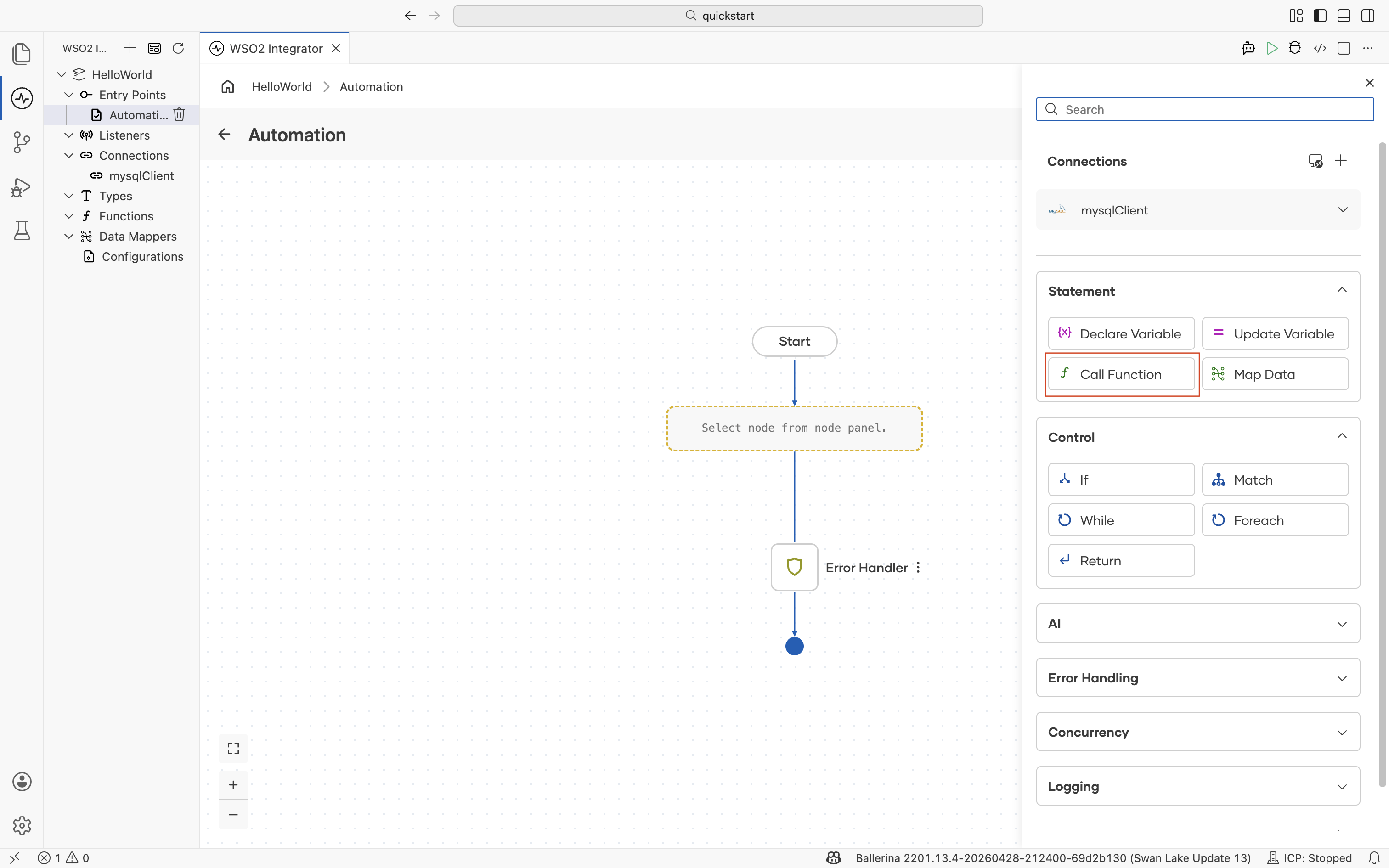
The function picker lists functions in three sections: Within Project, Imported Functions (functions from imported libraries such as log), and Standard Library. Select Create Function under Within Project to define a new function inline.
For details on creating, organizing, and reusing functions across artifacts, see the Functions reference.
Map Data
Adds a data mapper call that transforms data from one record shape to another. Use it whenever the source data and the downstream consumer expect different record types.
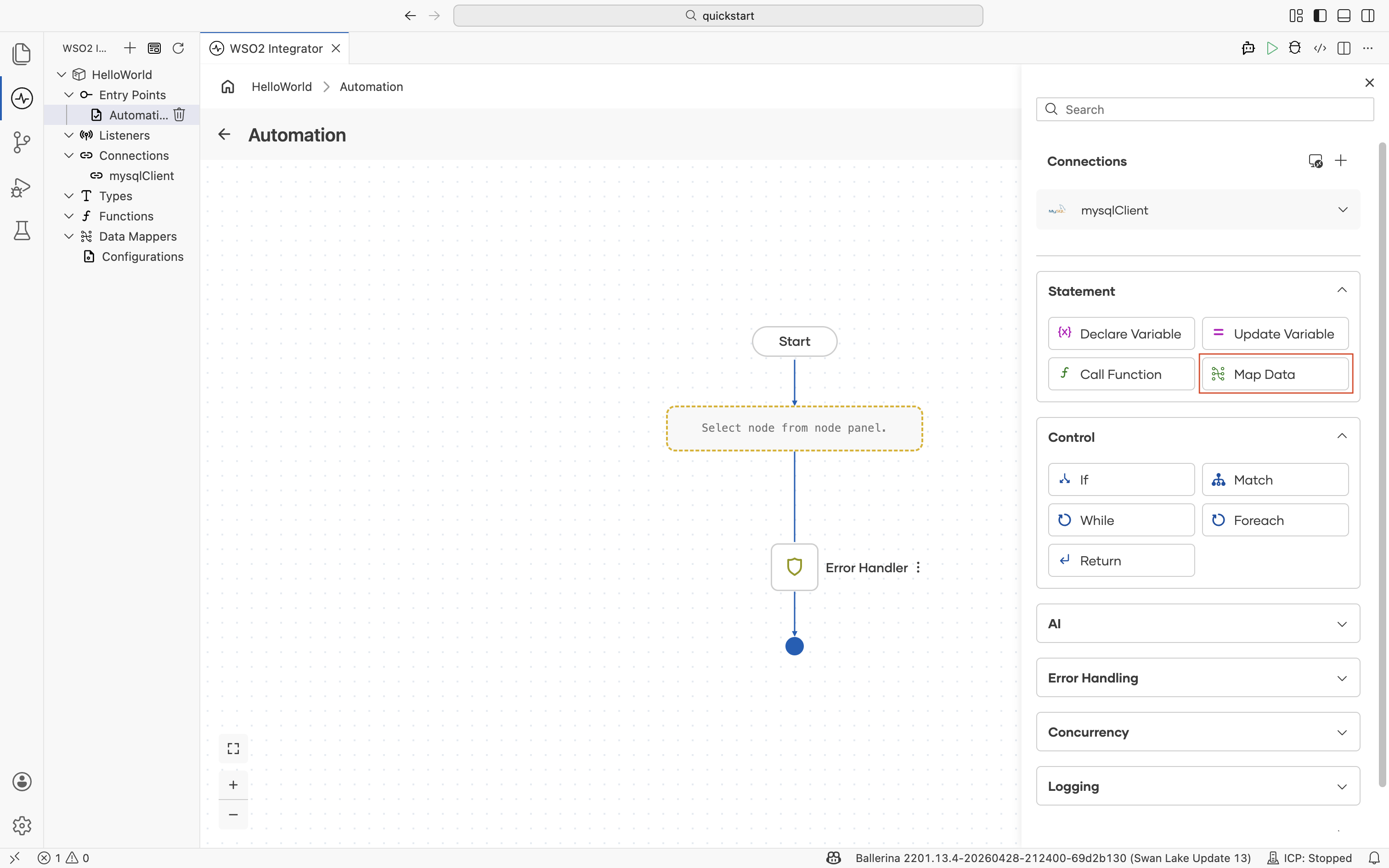
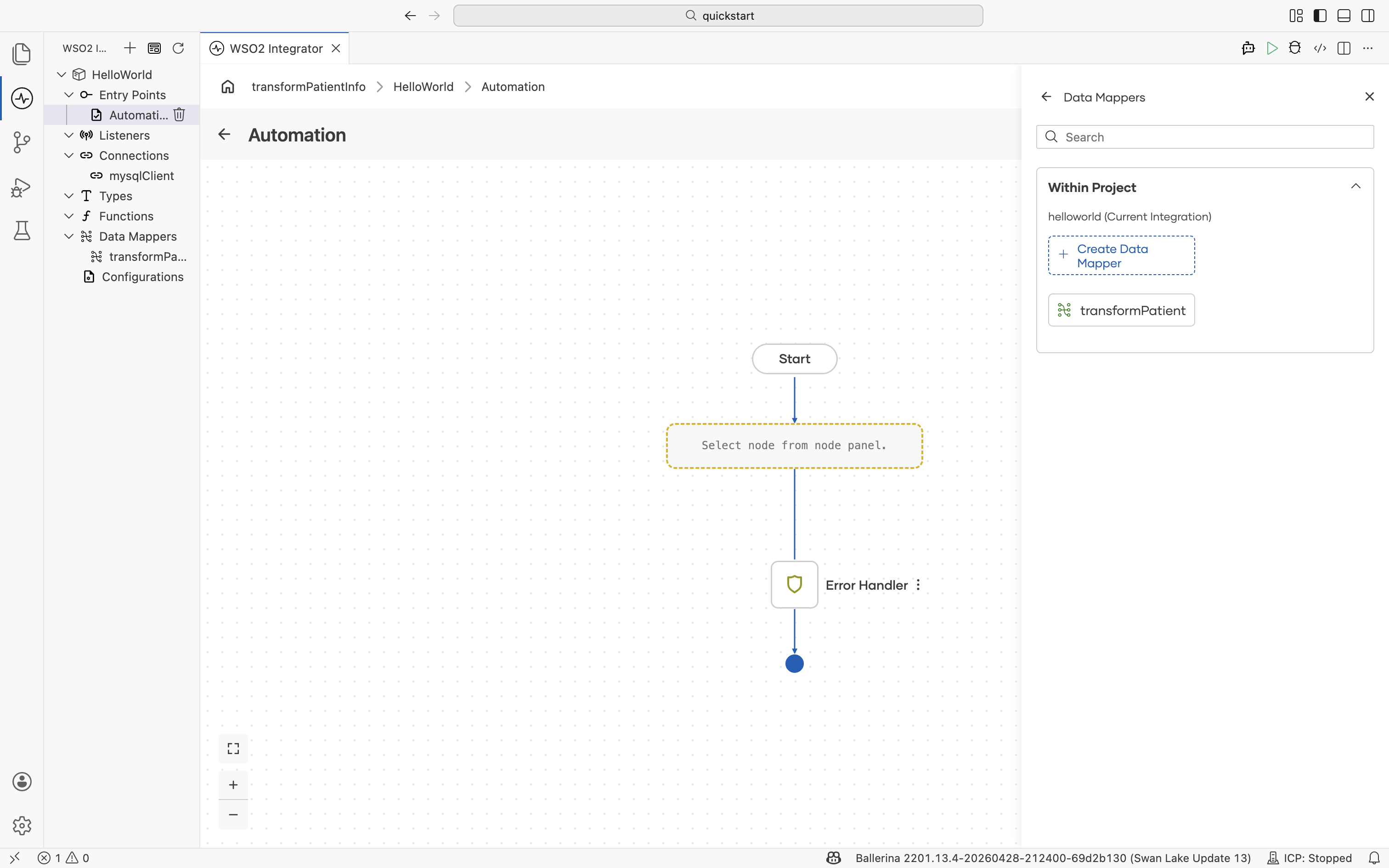
The picker lists every data mapper in the project under Within Project. Select an existing mapper to invoke it from the flow, or select Create Data Mapper to define a new one. New and existing mappers open in the Data Mapper editor, where you draw connections between source and target fields, write inline expressions, or use Auto Map.
For mapping capabilities, array handling, and submappings, see the Data mapper reference.
What's next
- Connections — Invoke actions on configured clients.
- Control — Branch, loop, and return inside the flow.
- AI — Call models, build RAG pipelines, and run agents.
- Logging — Emit log messages at different severities.