Create a Workflow
A durable workflow is an artifact in your integration, the same as a service or an automation. You create it once, give it the shape of the data it starts with, and then design its steps on a diagram.
Launch the wizard
-
In the design view, click + Add Artifact.
-
On the Artifacts page, under Durable Workflow, click Durable Workflow.
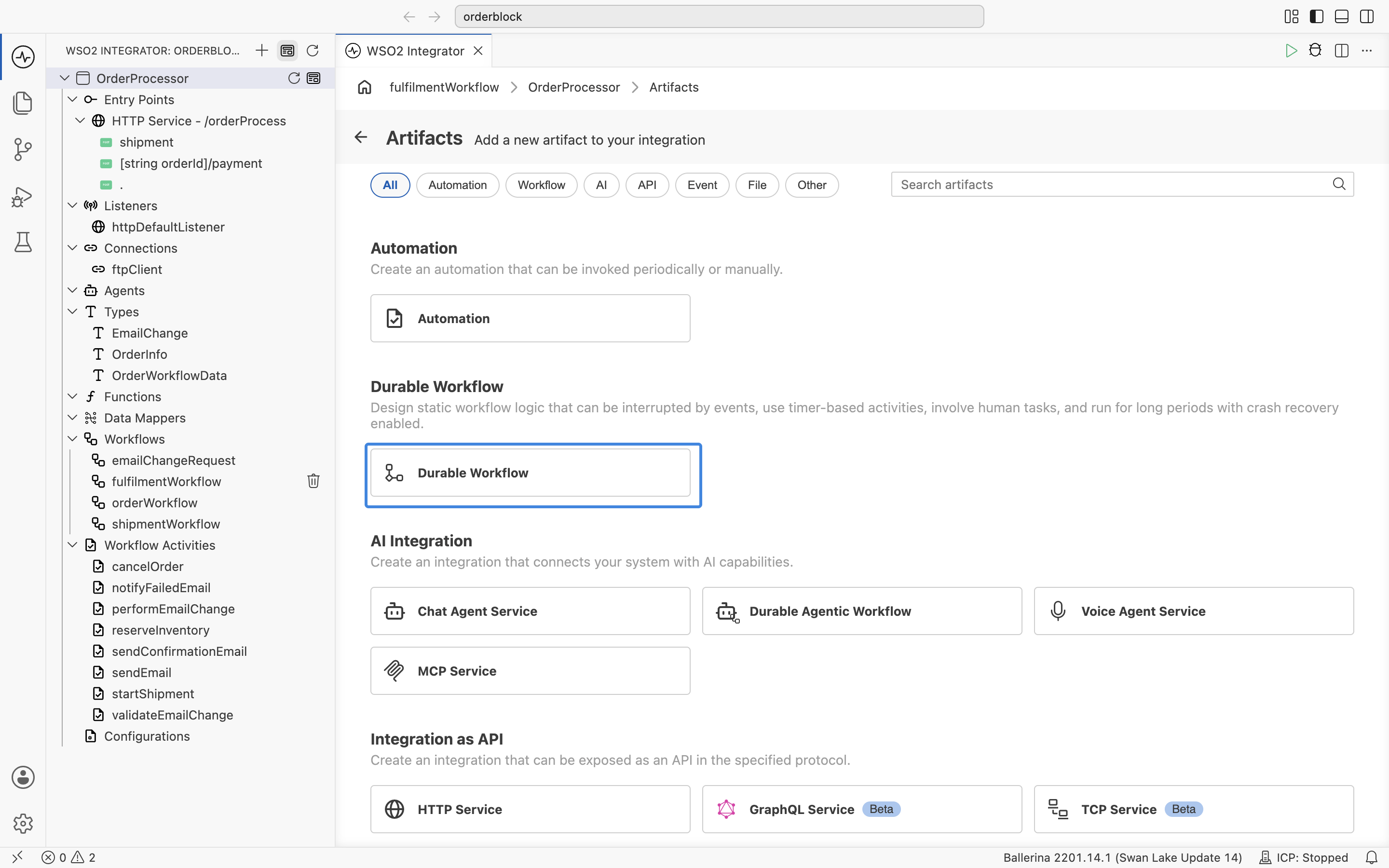
Durable Agentic Workflow, under AI Integration on the same page, produces the same kind of artifact, but you describe the goal and let a model choose the steps instead of wiring them yourself. See Create a Durable Agent.
-
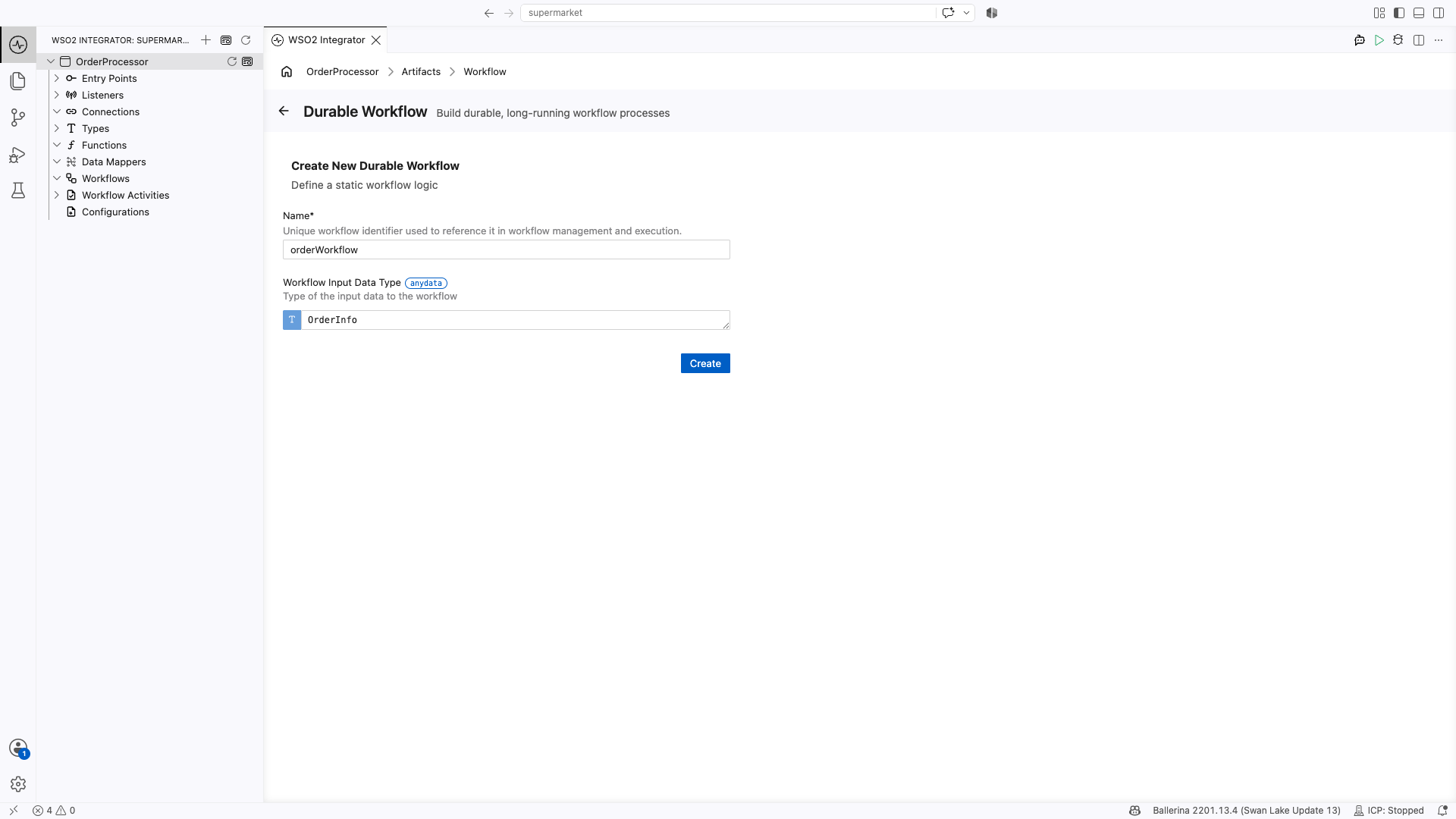
Fill in the Create New Durable Workflow form:
Field Required Description Name Yes The workflow's identifier. It is how the workflow is referenced when it is started, and the name it appears under in workflow management. Workflow Input Data Type No The type of the data the workflow starts with, usually a record. See Types. Design it for the launcherWhatever you put in this type is what every caller has to supply, including the form the Integration Control Plane generates for starting a run by hand. Keep it to the data the process actually needs.
-
Click Create.
The workflow opens on its own diagram with a single Start node and appears under Workflows in the sidebar.
For a worked example that fills this in end to end, see Build an order processing workflow.
Design the steps
The workflow diagram is the same flow diagram used everywhere else in WSO2 Integrator, with a group of durable steps added to the node panel:
| Group | What it holds |
|---|---|
| Workflow > Steps | Call Activity, Human Task, Await Data, and Sleep. |
| Workflow > Workflow Functions | Replay-safe helpers: current time, whether the run is replaying, the run's own ID and type, and who completed the last human task or decided the last review. |
| Workflow > Child Workflows | Start another workflow as a child of this one, wait for it, or send it data. |
| Statement, Control, Error Handling | The ordinary building blocks: variables, function calls, if, while, foreach, and error handling. |
Next steps
- Start a workflow — launch a run from a service, an automation, or the console.
- Activities — the recorded units of work a workflow calls.
- Build an order processing workflow — the whole flow, step by step.