Implement login using the Device Authorization flow
See the instructions given below to implement login with OpenID Connect in your application by using the device authorization flow.
Refer how the device authorization flow work for more information.
Prerequisites
-
You need to have an application registered in WSO2 Identity Platform. If you don't already have one, register a standard-based OIDC application.
-
Create a user account.
Get the required codes
First, your app must initiate a login request to the authorization endpoint of WSO2 Identity Platform. After redirecting to WSO2 Identity Platform, the user should be prompted with a login page if the user is not authenticated.
Device authorization endpoint
Request format
curl -k -X POST
-H 'Content-Type: application/x-www-form-urlencoded'
--data-urlencode 'client_id=<CLIENT_ID>'
https://api.asgardeo.io/t/{organization_name}/oauth2/device_authorize
Request sample
Upon successful execution of the request, the WSO2 Identity Platform returns the user_code, device_code and the verification_uri to the client device.
Sample response
{
    "user_code":"s2DqSN",
    "device_code":"d3fe0db1-2334-48fa-b7d9-821ecfad10d5",
    "interval":5000,
    "verification_uri_complete":"https://api.asgardeo.io/t/bifrost/authenticationendpoint/device.do?user_code=s2DqSN",
    "verification_uri":"https://api.asgardeo.io/t/bifrost/authenticationendpoint/device.do",
    "expires_in":3600
}
Authorize the client device
The client device shows the received codes and the verification URI to the user.
To authorize the client device:
- The user accesses the
verification_urithrough a device with no input constraints. -
The user enters the
user_codeon the prompted window.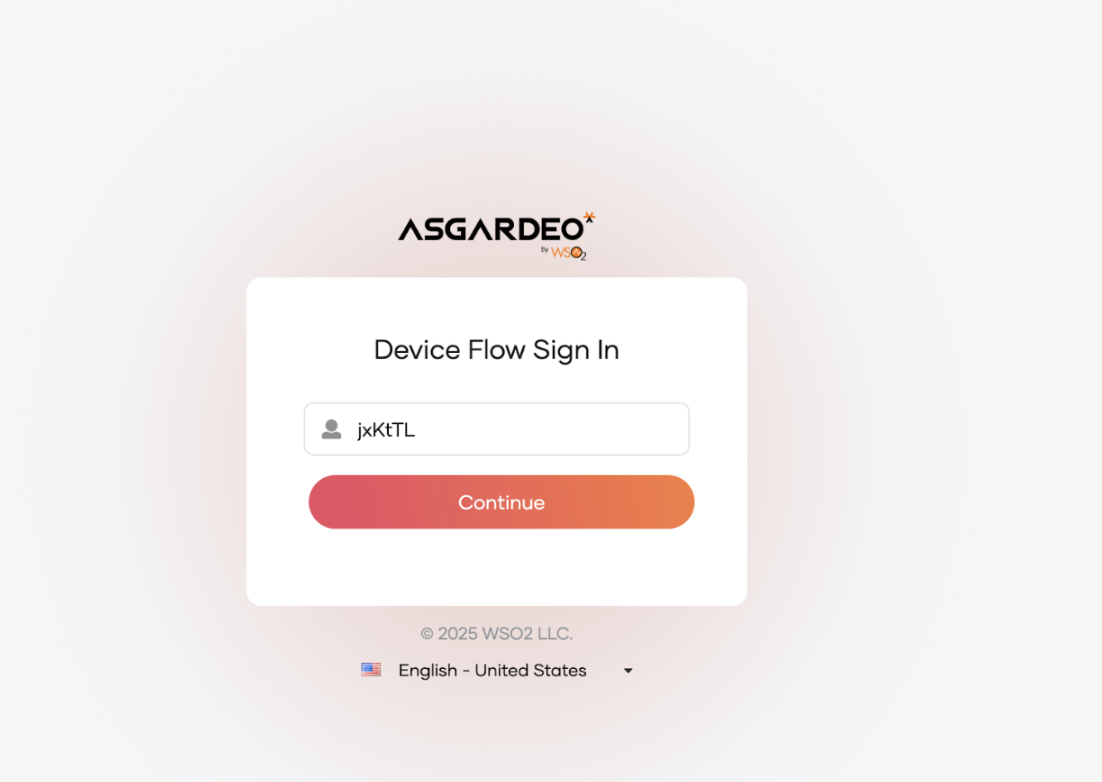
Note
The user code is for one-time use only. If your code is expired or if you have entered a wrong user code, get a new user code by following the previous steps.
-
If step 2 is successful, the user will be prompted to enter credentials. Enter credentials and click Continue.
Once you log in successfully, the user will be redirected to the configured callback URL of the service provider.
Get access token
While the user reviews the authorization request, the client device keeps polling the token endpoint.
Use the following cURL to obtain an access token
Token endpoint
Request format
curl -k -X POST
-H 'Content-Type: application/x-www-form-urlencoded'
--data-urlencode 'grant_type=urn:ietf:params:oauth:grant-type:device_code'
--data-urlencode 'client_id=<CLIENT_ID>'
--data-urlencode 'device_code=<DEVICE_CODE>'
https://api.asgardeo.io/t/{organization_name}/oauth2/token
Request sample
curl -k -X POST
-H 'Content-Type: application/x-www-form-urlencoded'
--data-urlencode 'grant_type=urn:ietf:params:oauth:grant-type:device_code'
--data-urlencode 'client_id=bbwJEayR_OMwPkAgm9VOMzLnYLga'
--data-urlencode 'device_code=7411f395-2f3a-4cb5-8562-d7059d69c66f'
https://api.asgardeo.io/t/bifrost/oauth2/token
Sample response
{
    "access_token":"74d610ab-7f4a-3b11-90e8-279d76644fc7",
    "refresh_token":"fdb58069-ecc7-3803-9b8b-6f2ed85eff19",
    "token_type":"Bearer",
    "expires_in":3042
}
Note
Find the default values related to the device authorization flow in the WSO2 Identity Platform.
| The length of the user code | 6 |
| The expiry time of the user code and the device code | 10 min |
| The minimum delay of the client between each polling request to the token endpoint | 5 seconds |
| The set of characters that is used to generate the user code | BCDFGHJKLMNPQRSTVWXYZbcdfghjklmnpqrstvwxyz23456789 |