Migrate passwords to WSO2 Identity Platform
You may use one of the following two ways to migrate user passwords to WSO2 Identity Platform.
Migrate with password reset
This method involves the least administrative effort but causes the most friction for users. With a password reset, users will receive an email prompting them to set a password for their new WSO2 Identity Platform accounts. Until they set a password, their user accounts will remain locked to prevent unauthorized access. Additionally, this method allows you to immediately terminate operations on your previous IdP once the user accounts are successfully migrated to WSO2 Identity Platform.
If you wish to migrate user passwords using this method, inform the WSO2 Identity Platform team along with your request to migrate users.
Migrate with on-demand silent migration
Compared to the password reset method above, on-demand silent password migration involves more effort to set up but provides the user with a seamless password migration experience. The following are the high level steps involved with this method.
-
The user attempts to log in to the application.
-
The application redirects the user to the WSO2 Identity Platform login screen.
-
The user enters the usual credentials for the legacy IdP.
-
If user's password is already migrated, the user is logged in. If not, WSO2 Identity Platform makes an authentication request to the legacy IdP with the user provided credentials.
-
WSO2 Identity Platform redirects the user to a waiting page until the legacy IdP completes the authentication.
-
Once the process is complete, the user is redirected back to the application and WSO2 Identity Platform silently migrates the password for the user.
-
The user is successfully logged in and may now continue using the usual credentials to log in to the application with WSO2 Identity Platform.
Note
If you wish to migrate users with this method, it is crucial to note the following:
- The legacy IdP should run for a set period to facilitate user migration.
- Have a contingency plan to migrate any accounts that were not migrated while the legacy IdP is active.
- Users who were not migrated must contact the administrators to initiate a password reset process, facilitating a smooth and complete transition.
The following guides go into detail on implementing on-demand silent password migration.
How it works
The following diagram provides a general idea on the components involved with the on-demand silent password migration.
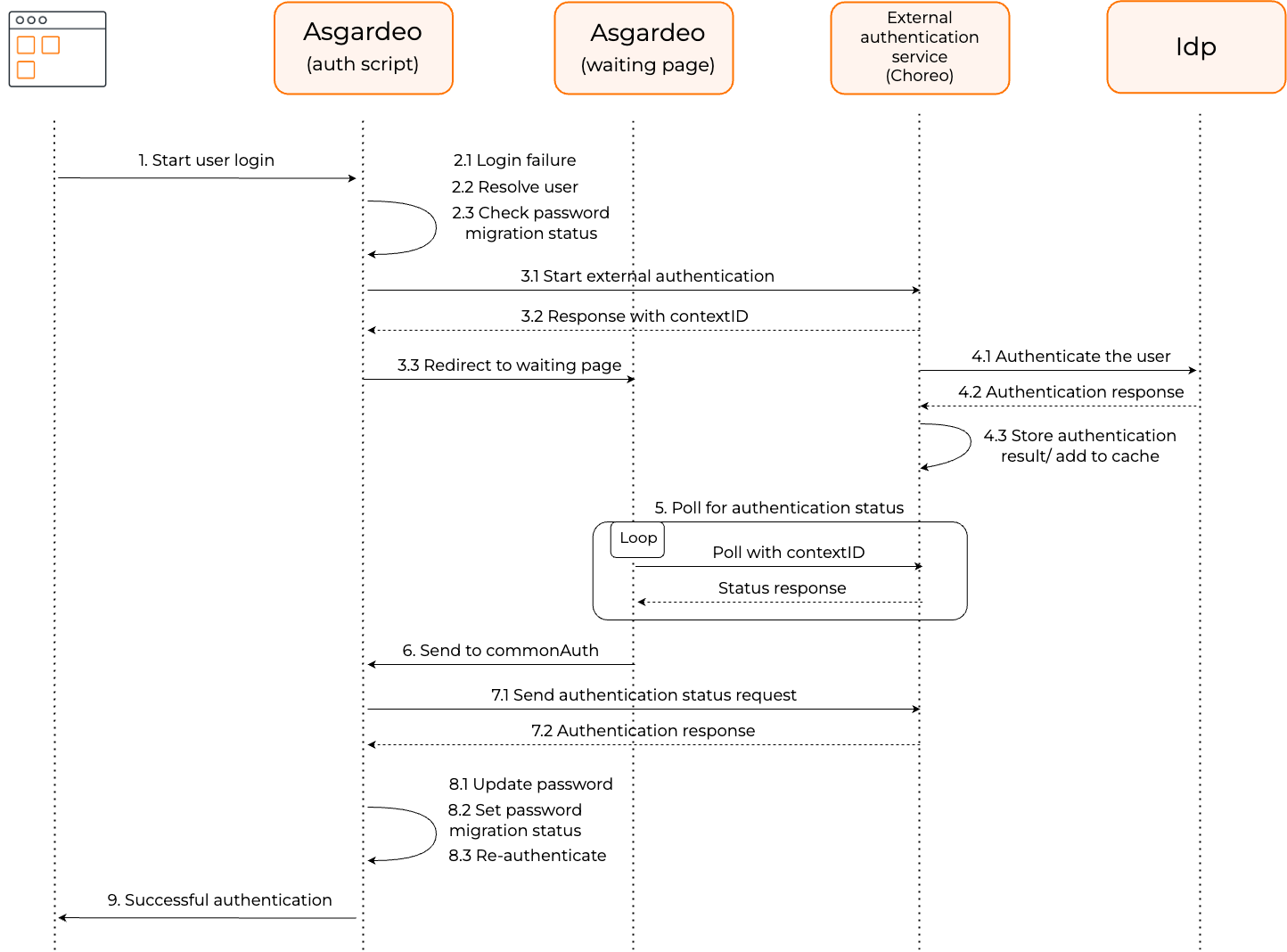
Let's look at the diagram in detail:
- The user starts the authentication by entering the credentials used for the legacy IdP.
-
If WSO2 Identity Platform has not already migrated the user account,
- User's login fails.
- WSO2 Identity Platform attempts to find a user corresponding to the provided login identifier.
- If found, WSO2 Identity Platform then checks for the user's migration status value which is stored in a user attribute.
-
If user's migration status is not set to true,
- WSO2 Identity Platform starts authentication with the legacy IdP by invoking the start authentication API.
- This API responds with a unique ID for the process called the
contextID. - The user is redirected to a waiting page until external authentication completes.
Note
This API is part of an authentication service deployed in WSO2 Developer Platform, WSO2's integration platform. The service is designed to facilitate authentication against the legacy IdP.
-
The authentication service will then interact with the legacy IdP and attempt to authenticate the user. A result will be returned once authentication is complete.
- In the meantime, the polling API, another API of the authentication service, keeps polling to check if the authentication process is complete. This API uses the
contextIDreturned in 3 to track the specific process. - Once 4 completes, the polling API in 5 stops and the user is redirected back to the login page.
- WSO2 Identity Platform then calls the authentication status endpoint, the third API of the authentication service, to retrieve the authentication result.
-
If the result is a success, this means the user was successfully authenticated against the external IdP. Hence, WSO2 Identity Platform will
- migrate the user's password to WSO2 Identity Platform.
- set the migration status attribute of the user to true.
- authenticate the user to the application.
-
The user is seamlessly logged into the application without being prompted to enter the credentials again.
Prerequisites
Before you begin, ensure the following are fulfilled.
- Migrate user accounts to WSO2 Identity Platform.
-
Ensure your legacy IdP provides means to perform basic user authentication (i.e. username and password authentication). For example, a SCIM2/Me REST API endpoint that could be authenticated with username and password.
-
You need to have a GitHub repository to host the authentication service.
- Download Ballerina, the programming language used to define the external authentication service.
Step 1: Develop the authentication service
In this section, we will develop an authentication service that will communicate with the legacy IdP to authenticate users.
Note
You may find a sample Ballerina authentication service here.
-
Create a new Ballerina package. Learn how to do so in the Ballerina documentation.
-
Write a RESTful service that communicates with the legacy authentication system to perform user authentication. Your service should expose the following REST API endpoints.
Tip
External authentication may require additional processing time depending on the legacy IdP and network delays. Therefore it is recommended to perform the external authentication asynchronously without holding an active connection until the external authentication completes.
-
Start authentication endpoint - to initiate the authentication process with the legacy system. This endpoint should accept the request, return a response with a unique random identifier (preferably a UUID) and then start the external authentication process.
-
Authentication status endpoint - to retrieve and return the completed authentication result.
-
Polling endpoint - to return the completion status of the external authentication task. This should be an open endpoint that doesn’t require any authentication.
Adding logs
We highly recommend adding sufficient logging when developing the REST service. However, ensure no sensitive information or Personally Identifiable Information (PII) are included in the logs.
-
-
Commit your changes and push the code to your remote GitHub repository.
Step 2: Create and deploy the RESTful service in WSO2 Developer Platform
We will now deploy the developed authentication service in WSO2 Developer Platform, WSO2's integration platform. To do so,
-
Go to the WSO2 Developer Platform Console and login with the SAME email address you used to create your WSO2 Identity Platform organization.
Note
An organization with the same name as your WSO2 Identity Platform organization will be created for you in WSO2 Developer Platform.
-
On the top of the Console, create a new project or select an existing one.
-
On the left panel, select Components and click Create.
-
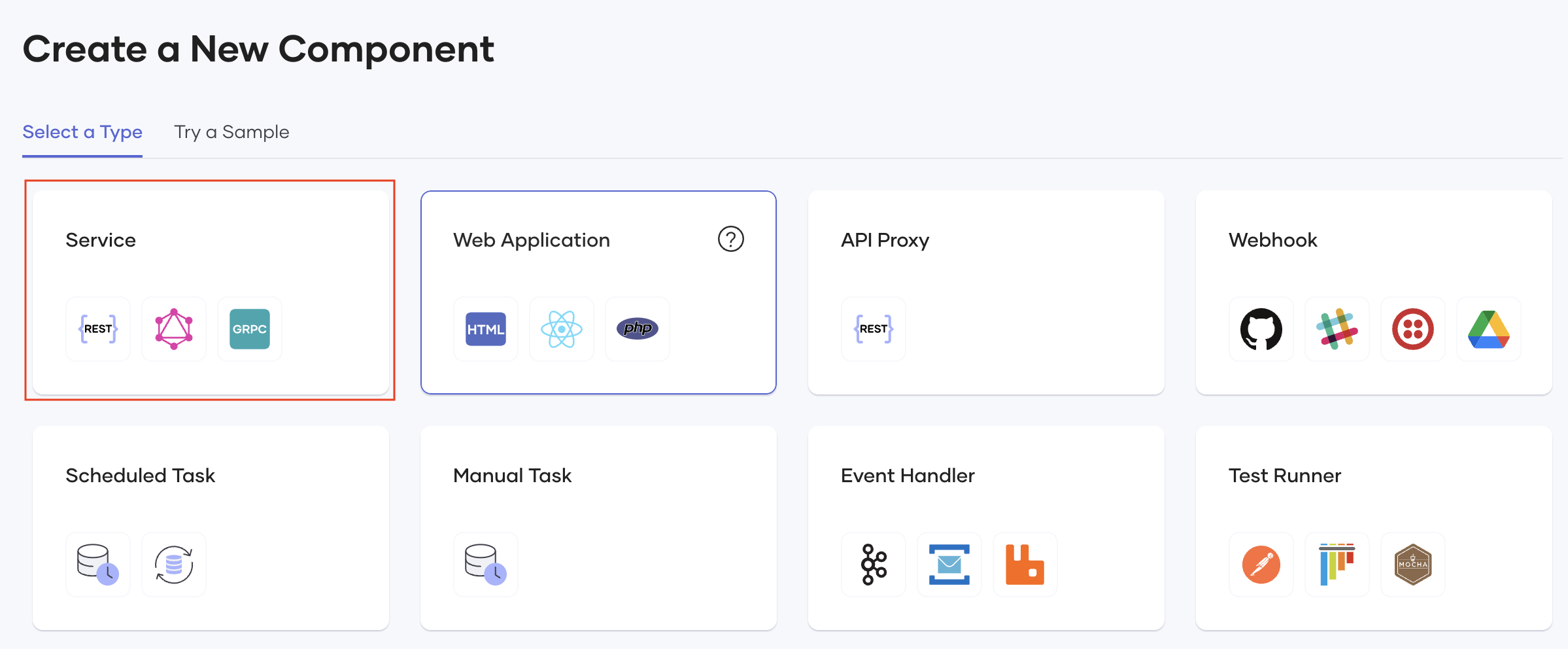
On the Select a type tab, select Service.
Note
Learn more about service components in the WSO2 Developer Platform documentation
-
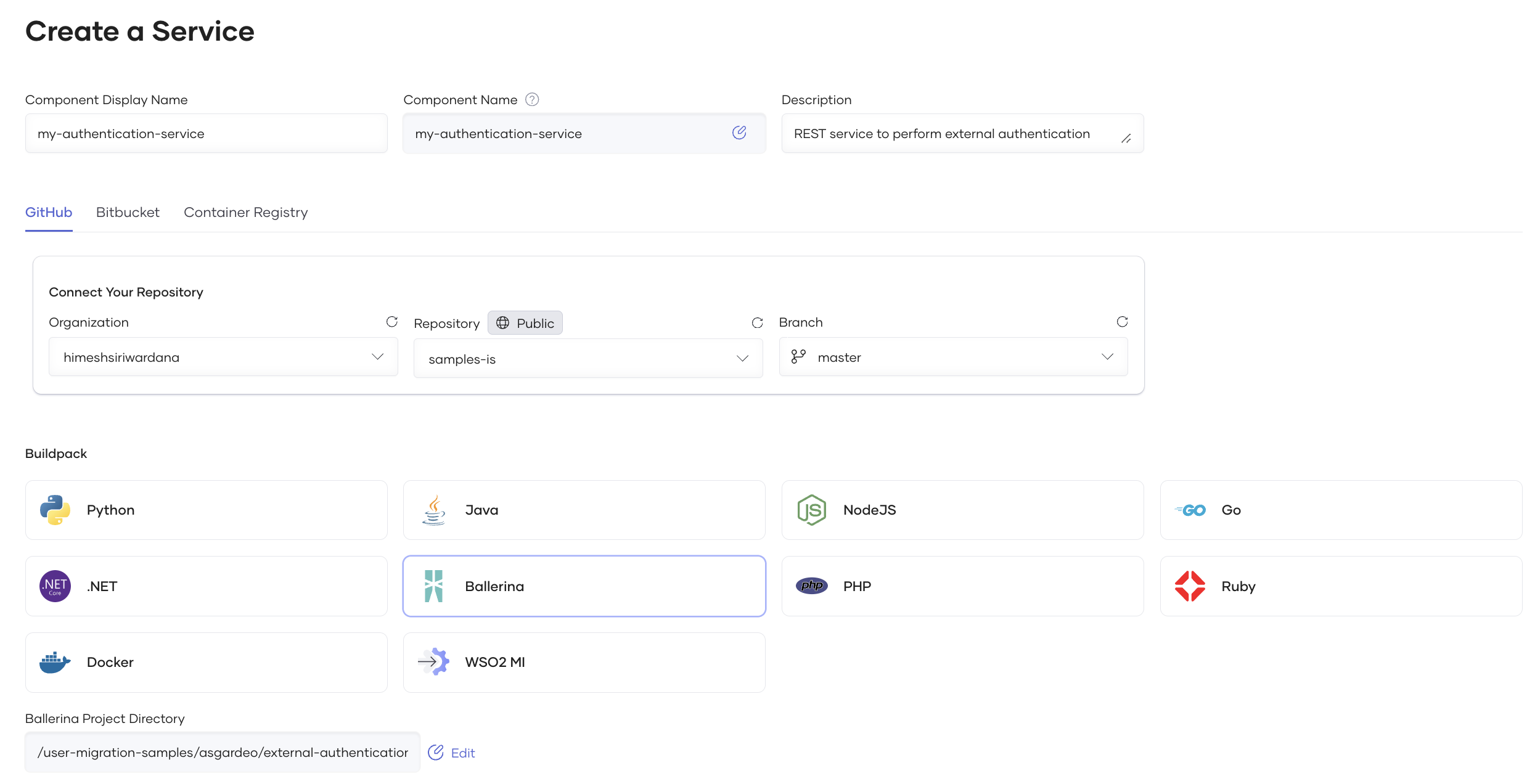
Enter a name and description for your service.
-
Click Authorize with GitHub and connect the relevant organization, repository and the branch for the developed authentication service in step 1.
-
Select Ballerina to be the buildpack and select the Ballerina project directory from your GitHub repository.
-
Click Create.
-
Build and deploy the service. See WSO2 Developer Platform documentation for instructions.
Note
If you are using the sample authentication service, be sure to provide values for the necessary configurations before you deploy the service.
-
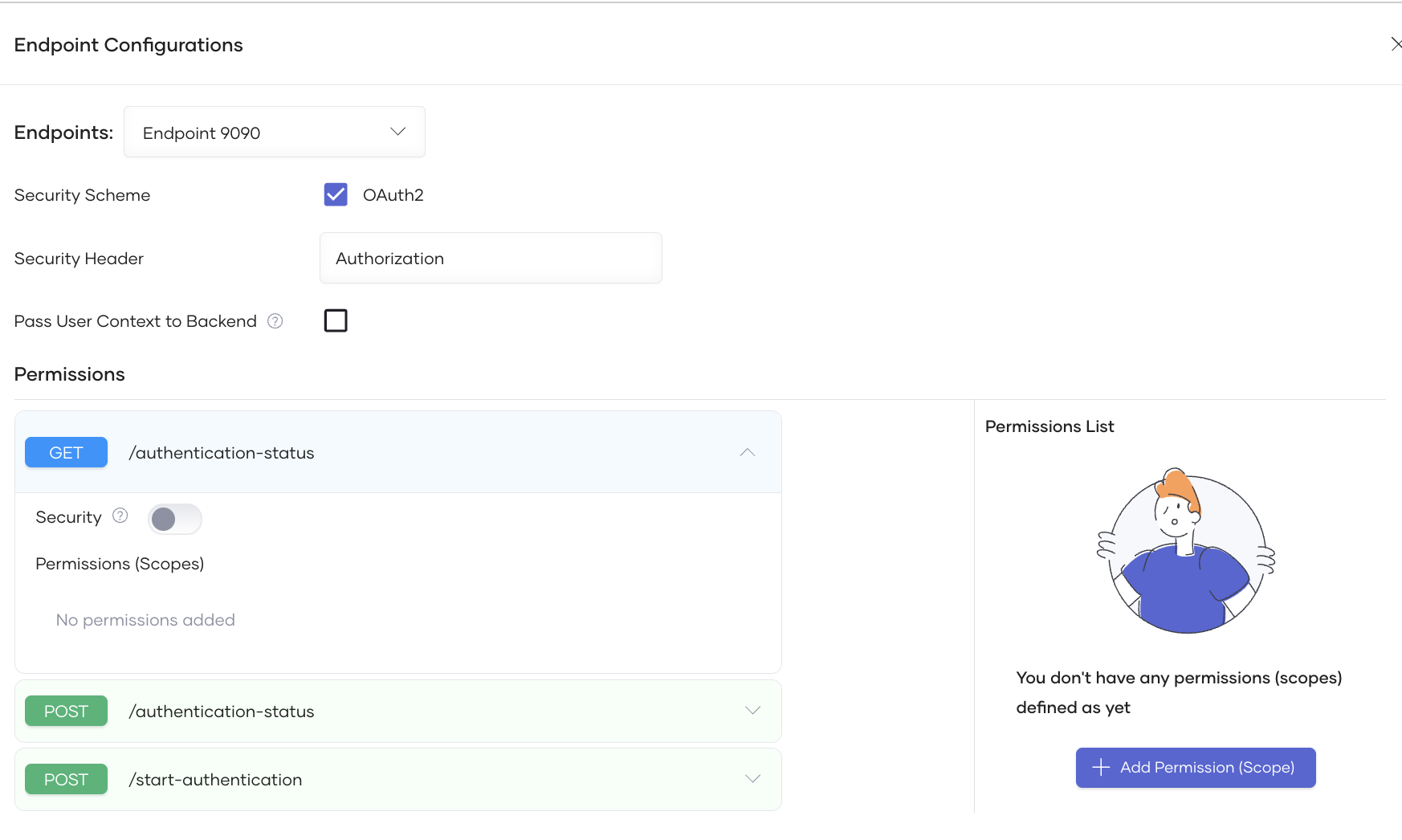
As discussed earlier, the polling endpoint should be an open endpoint. Follow the steps below to configure this.
-
Go to Deployment and in the Set up card, click Endpoint Configurations.
-
In the window that appears, under Permissions, expand the polling endpoint and turn the Security toggle off.
-
Click Apply to save the changes.
-
-
On the left navigation, go to Manage > Lifecycle and click Publish.
Step 3: Create a WSO2 Developer Platform application to consume the APIs
After the RESTful service is deployed, follow the steps below to create an application in WSO2 Developer Platform and subscribe it to the REST API. This application will later be used to integrate the REST APIs with the WSO2 Identity Platform application.
-
Sign in to the WSO2 Developer Platform Developer Portal with the same email address you used to log in to the WSO2 Developer Platform Console in step 2.
-
On the top navigation, go to Applications and click Create Application.
-
Provide a name and a description for the application and click Create.
-
On the left navigation, go to Credentials and click Generate Credentials.
-
Take note of the generated consumer key and consumer secret as you will need it later.
-
On the left navigation, go to Subscriptions and click Add APIs.
-
Click Add corresponding to the API that you created in step 2.
Note
To learn more about applications in WSO2 Developer Platform, refer to the WSO2 Developer Platform documentation.
Step 4: Configure an attribute in WSO2 Identity Platform to hold the migration status
WSO2 Identity Platform should have means to check whether a user's password is migrated or not. This can be achieved by creating a user attribute in WSO2 Identity Platform to hold the migration status. To do so,
-
On the WSO2 Identity Platform Console, go to User Attributes & Stores > Attributes and click on Attributes.
-
Click New Attribute and enter the following details:
Attribute name is_migrated Attribute Display Name Password migration status -
Click Finish to create the attribute.
Step 5: Configure the login flow of the WSO2 Identity Platform application
You are now ready to configure your application for on-demand silent password migration. To do so,
-
On the WSO2 Identity Platform Console, click Applications.
-
Select the application and go to its Login Flow tab.
-
Configure the login flow using your preferred editor:
To configure the login flow using the classic editor:
-
Click Start with default configuration or add the Username & Password authenticator to the first step of the flow.
-
Turn on Conditional Authentication by switching on the toggle.
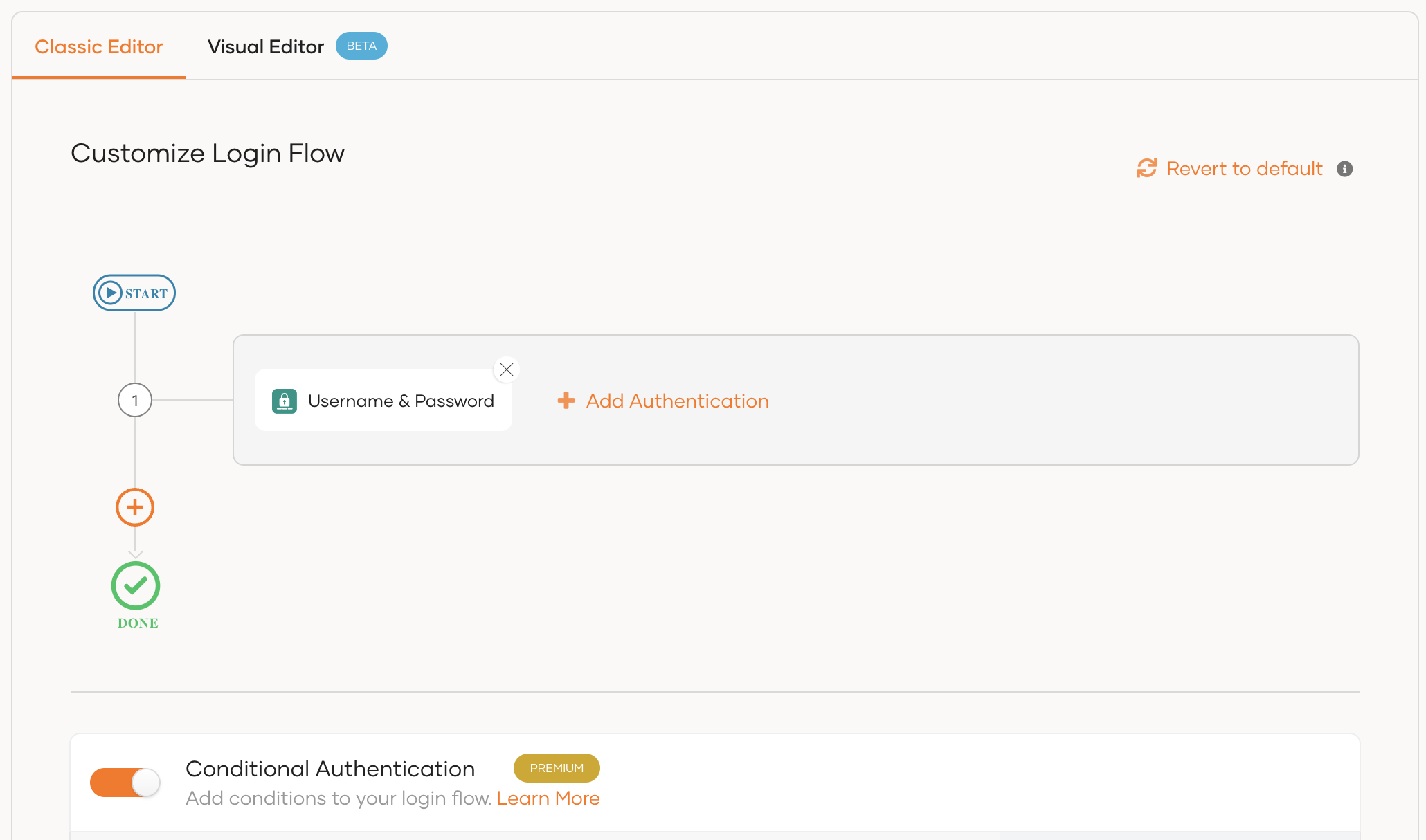
-
Replace any existing code with this conditional authentication script.
To configure the login flow using the visual editor:
-
Switch to the Visual Editor tab.
-
If Username & Password authentication is not set, go to Predefined flows > Basic Login Flows > Add Basic Login and select it to add to the login flow.
-
Turn on Conditional Authentication by switching on the toggle.
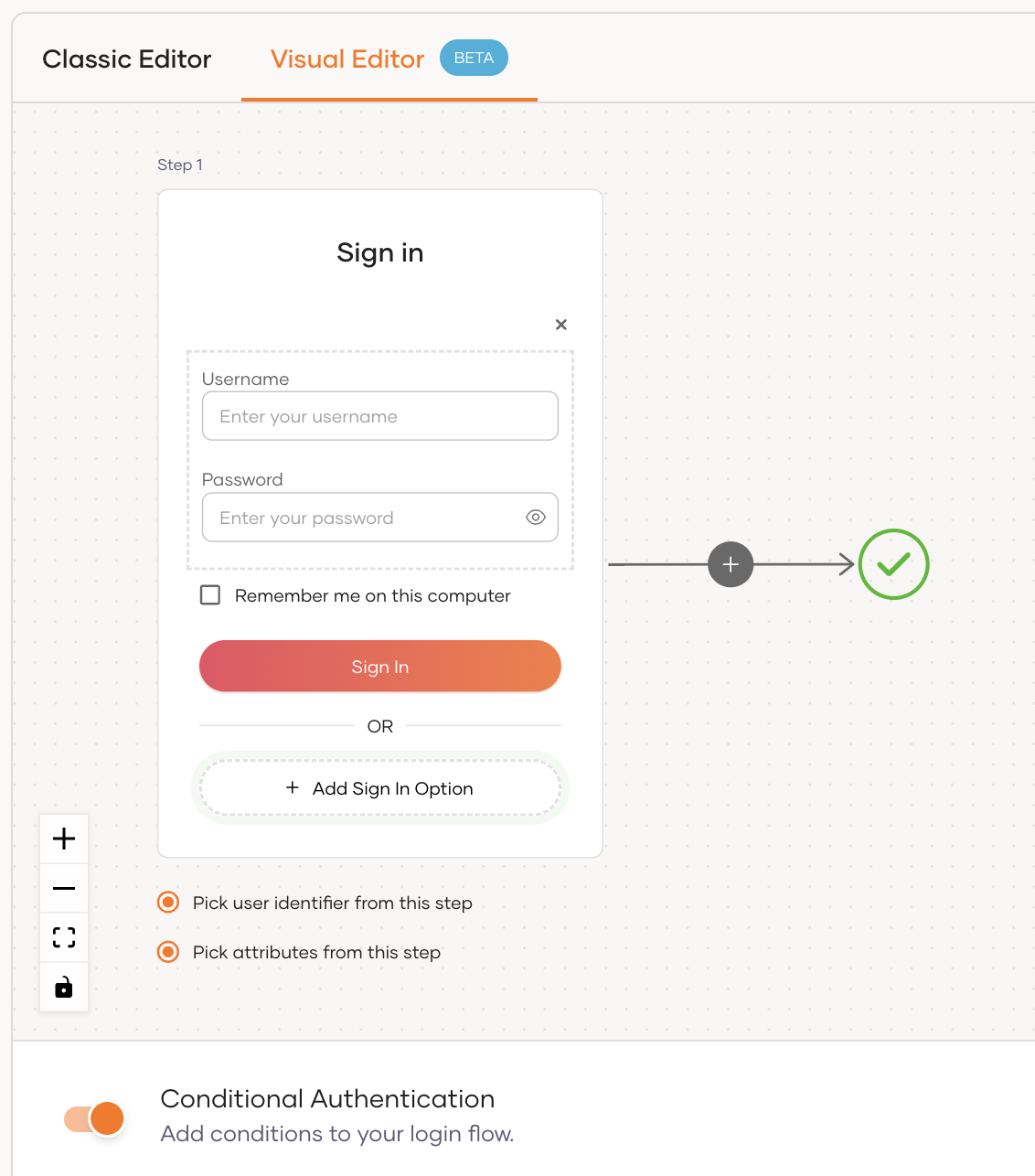
-
Replace any existing code with this conditional authentication script.
-
-
Click Update to save the changes.
Try it out
Follow the steps below to try out on-demand silent password migration for a migrated user account.
-
Access the application URL.
-
Log in to WSO2 Identity Platform with the user credentials used for the legacy IdP.
-
If the user's password is not yet migrated, you'll be redirected to a waiting page as follows.
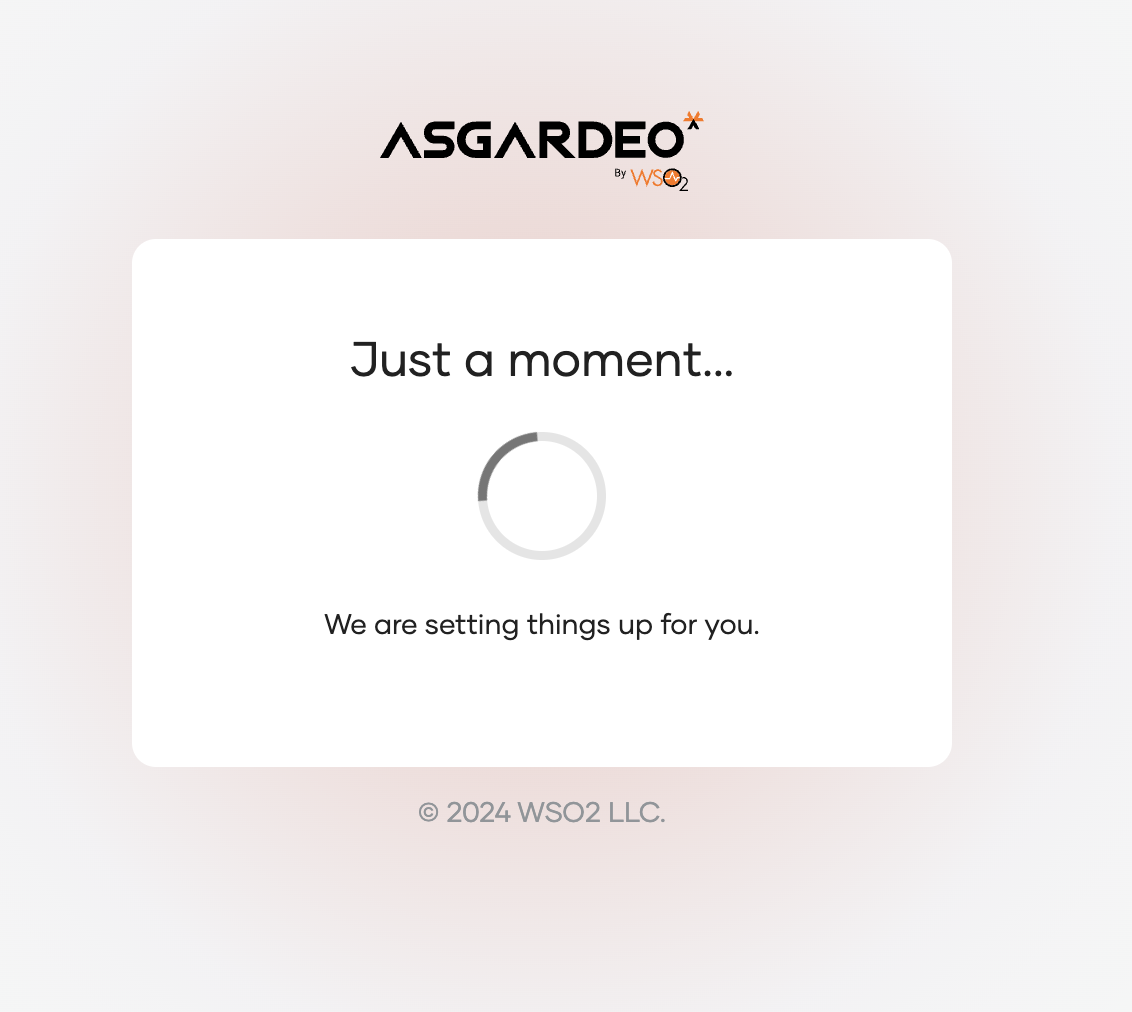
-
WSO2 Identity Platform will migrate the password and log the user in once the external authentication is successful.