Enable customer data service
The Customer Data Service is disabled by default. Enable it for your organization from the Customer Data page in the console.
Enable customer data service
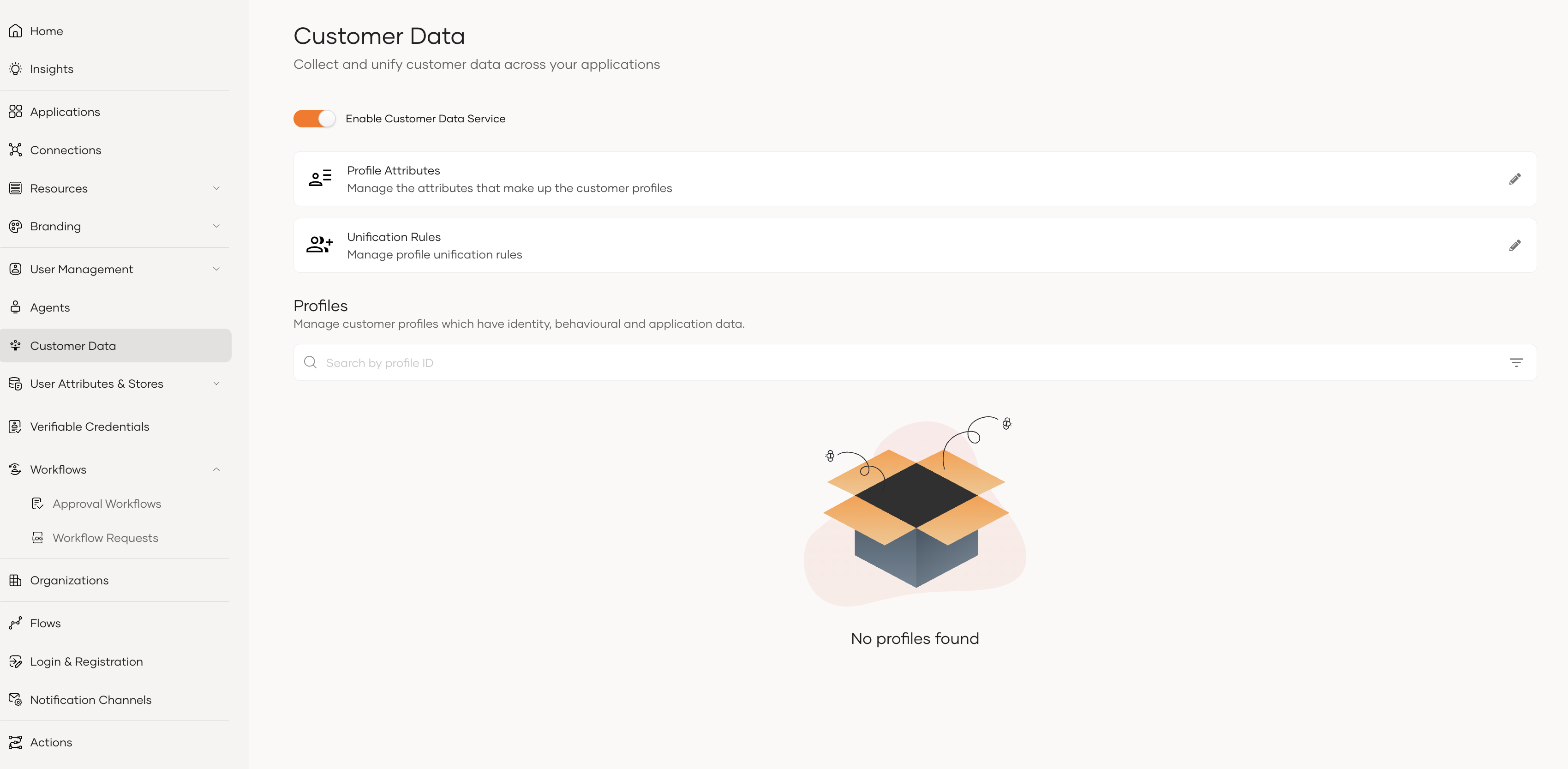
- On the console, go to Customer Data in the left navigation pane.
- Turn on the Enable Customer Data Service toggle.
Once enabled, the page shows the profiles collected for your organization, along with the Profile Attributes and Unification Rules configurations.
Disable customer data service
To turn the feature off again,
- On the console, go to Customer Data in the left navigation pane.
- Turn off the Enable Customer Data Service toggle.
Existing profile, attribute, and unification rule data is preserved while the feature is disabled.
Next steps
- Learn what a Profile is and how anonymous activity gets attached to a user.
- Review the Profile attributes defined for your organization.
- Configure Unification rules that decide when two profiles should be merged.