Configure enterprise login for the WSO2 Identity Platform Console
Enterprise login allows administrators to sign in to the WSO2 Identity Platform Console using credentials from an external Identity Provider (IdP). Instead of maintaining separate WSO2 Identity Platform accounts, your administrators can authenticate through your organization's existing SAML or OIDC-based enterprise IdP.
This guide walks you through configuring enterprise login for the WSO2 Identity Platform Console by setting up an enterprise connection and mapping external IdP groups to WSO2 Identity Platform Console roles.
Prerequisites
- You need to have an WSO2 Identity Platform organization with administrator access.
- You need to have an external enterprise IdP (SAML or OIDC) configured in your organization. The external IdP must support sending group information in its claims/assertions.
Step 1: Configure the enterprise IdP
First, register your external enterprise IdP as a connection in WSO2 Identity Platform.
-
Set up an enterprise connection by following the relevant guide:
-
After creating the connection, configure the following settings:
Setting Description IdP groups Configure the groups on the connection that match the group names sent by your external IdP. These group names must exactly match the groups your external IdP includes in its authentication response. Just-in-Time (JIT) provisioning Enable JIT provisioning for the connection. This ensures that user accounts are automatically created in WSO2 Identity Platform when users sign in through the enterprise IdP for the first time. Groups claim mapping Add a claim mapping from the external IdP's groups claim to the local groups claim. This ensures that group information from the external IdP is correctly mapped to WSO2 Identity Platform. Groups scope Request the groupsscope in the connection settings. This ensures that group information is included in the authentication response from the external IdP.Note
Both SAML and OIDC connections are supported for enterprise login. Choose the protocol that your external IdP supports.
Step 2: Configure enterprise login in Console settings
After setting up the enterprise connection, configure it for Console login.
-
On the WSO2 Identity Platform Console, go to Console Settings > Enterprise Login.
-
Under Enterprise Connection, select the enterprise IdP connection that you configured in Step 1.
-
Under Group-Role Mappings, click Add Mapping to map IdP groups to WSO2 Identity Platform Console roles.
-
For each mapping, configure the following:
Field Description Console Role Select the WSO2 Identity Platform Console role to assign. For example, select Administrator to grant full administrative access. Connection Group Select or type the IdP group name that should map to the selected console role. For example, map the admin-groupfrom your external IdP to the Administrator role.Info
Add additional mappings for any other console roles you want to assign to your enterprise users. Each mapping links an external IdP group to a specific WSO2 Identity Platform Console role.
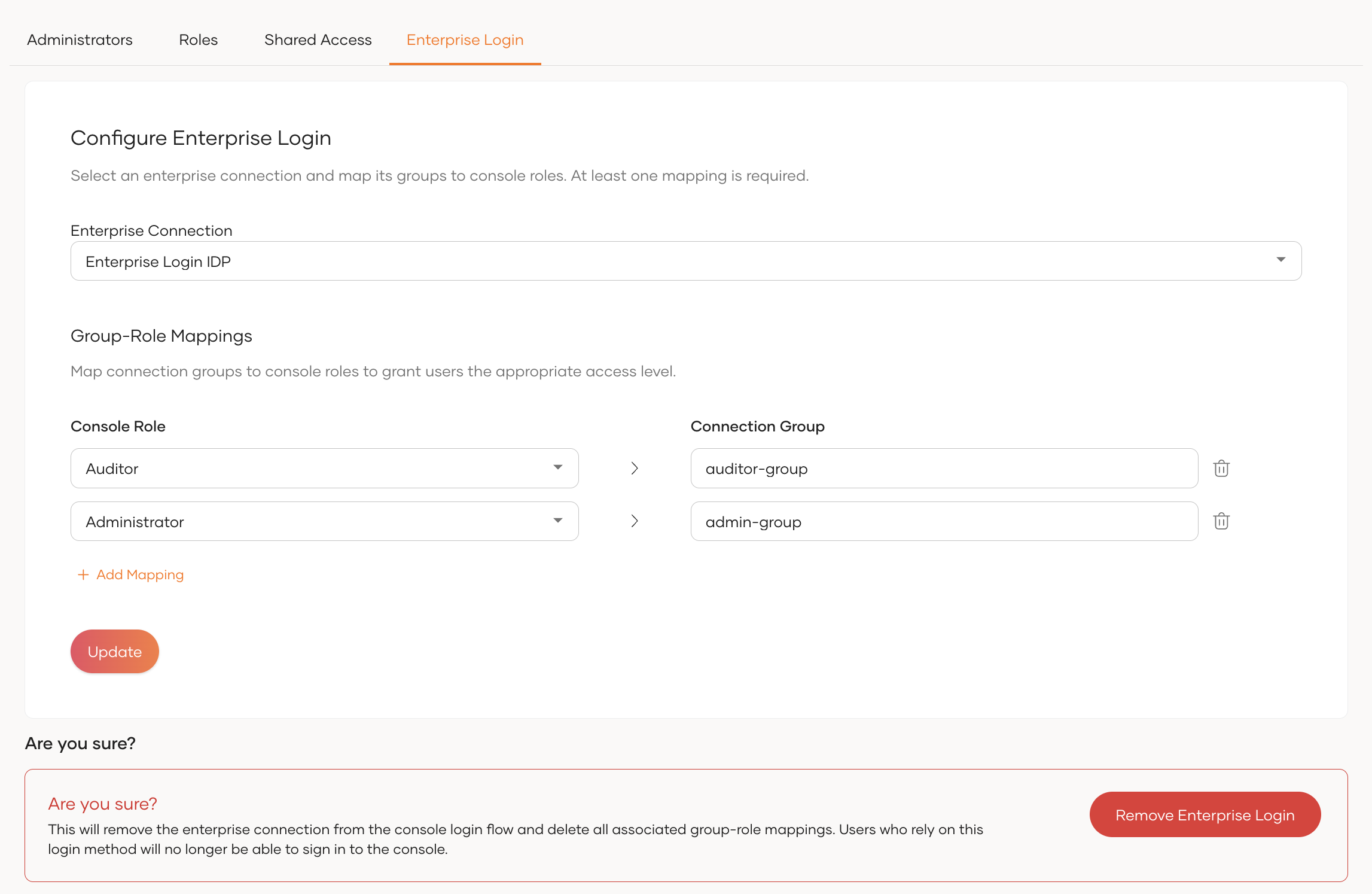
-
Click Save to apply the enterprise login configuration.
After you save the configuration, users who belong to the mapped IdP groups can sign in to the WSO2 Identity Platform Console using your enterprise IdP.
Sign in with enterprise login
After you configure enterprise login, users can sign in to the WSO2 Identity Platform Console through the enterprise IdP from the standard WSO2 Identity Platform login page.
Direct Console access
If you want users to access the console directly through the enterprise IdP without going through the standard login page, configure a Home Realm Identifier for your enterprise connection.
-
Go to the connection settings of your enterprise IdP in WSO2 Identity Platform.
-
Under the connection's general settings, configure the Home Realm Identifier value.
-
Share the following URL with your enterprise users for direct access:
Replace the following placeholders:
Placeholder Description <organization-name>Your WSO2 Identity Platform organization name. <home-realm-identifier>The Home Realm Identifier value configured in the enterprise IdP connection settings. Users who navigate to this URL go directly to the enterprise IdP's sign-in page and are redirected to the WSO2 Identity Platform Console after successful authentication.
Troubleshooting
If enterprise login does not work as expected, check the following common issues:
| Issue | What to check |
|---|---|
| Users from the enterprise IdP cannot sign in | Verify that the enterprise connection is selected under Console Settings > Enterprise Login > Enterprise Connection and that the configuration is saved. |
| Groups are not mapped correctly | Confirm that the group names configured in WSO2 Identity Platform exactly match the group names sent by your external IdP in its authentication response. Group names are case-sensitive. |
| JIT provisioning is not creating user accounts | Verify that JIT provisioning is enabled on the enterprise connection. Check the WSO2 Identity Platform provisioning logs for error details. |
| Group information is missing from the authentication response | Confirm that the groups claim mapping is configured on the connection and that the groups scope is included in the connection's requested scopes. |
| The Home Realm Identifier URL does not redirect to the enterprise IdP | Verify that the Home Realm Identifier value in the connection settings matches the value used in the direct access URL. |
| Login fails after setting up enterprise login | Your browser may have a cached session that conflicts with the new configuration. Clear your browser cookies and try again, or sign in using a private or incognito browser tab. |
Next steps
After you configure enterprise login, consider the following actions:
- Verify that enterprise users can sign in with the expected Console roles by testing with a user from each mapped IdP group.
- Monitor sign-in activity in the WSO2 Identity Platform Console audit logs to detect any authentication issues.
- Document the claim format used by your external IdP, including the groups claim name and value format, for future reference.
- Share the direct access URL with your enterprise administrators so they can access the WSO2 Identity Platform Console directly through your enterprise IdP.
Remove enterprise login
To remove the enterprise login configuration:
-
On the WSO2 Identity Platform Console, go to Console Settings > Enterprise Login.
-
Under the Danger Zone, click Remove Enterprise Login.
-
Confirm the action.
Warning
Removing enterprise login revokes console access for all users who rely on the enterprise IdP to sign in. Ensure that alternative administrator accounts exist before removing the configuration.