Add identity verification with Daon TrustX
Daon TrustX is an identity verification platform that verifies a person against a government-issued identity document such as a passport, driver's license, or national ID card, combined with facial biometrics and liveness detection.
By integrating Daon TrustX with WSO2 Identity Platform, you can verify a user's identity against a document when their account gets created, populate or validate their profile with the verified attributes, and later re-verify the same person with a live biometric check when they sign in to a sensitive application or recover their password.
How it works
WSO2 Identity Platform connects to Daon TrustX as a federated OpenID Connect (OIDC) connection.
-
When a user's account gets created, WSO2 Identity Platform redirects the user to Daon TrustX, where they capture their identity document, take a selfie, and complete a liveness check. This creates an enrollment for the user.
-
Daon TrustX returns the attributes it read from the document as OIDC verified claims. Depending on the flow, WSO2 Identity Platform either writes these attributes to the user's profile or uses Daon TrustX to confirm that they match the profile an administrator created.
-
Later, when the enrolled user signs in to an application or resets their password, WSO2 Identity Platform redirects them to Daon TrustX again to confirm, with a live biometric check, that they are the same person who enrolled.
Daon TrustX uses two connection types in WSO2 Identity Platform:
| Connection | Purpose | Configuration it holds |
|---|---|---|
| Daon TrustX Identity Verifier | Enrolls users during account creation. | OIDC client credentials, endpoints, scopes, the enroll process definition, and the attribute mappings. |
| Daon TrustX Authenticator | Re-verifies enrolled users at login and during password recovery. | The Daon TrustX Identity Verifier connection to use and a login process definition. |
You configure the Daon TrustX OIDC client once, on the Identity Verifier connection. A Daon TrustX Authenticator connection only needs you to select that Identity Verifier, and it can re-verify any user enrolled through it. This lets you create several authenticator connections, for example, one per application with a different login process definition, on top of a single set of enrollments.
The following table lists the supported use cases.
| Use case | Flow | Connection to use |
|---|---|---|
| Self-registration with verified onboarding | Self registration | Daon TrustX Identity Verifier |
| Invited user registration with profile validation | Invited user registration | Daon TrustX Identity Verifier |
| Step-up identity verification at login | Application login flow | Daon TrustX Authenticator |
| Identity verification for password recovery | Password recovery | Daon TrustX Authenticator |
Enrollment is only supported for newly created accounts
Currently, a user can only enroll with Daon TrustX while their account gets created, through the self-registration or invited user registration flow. Progressive enrollment, which enrolls existing users later, for example during login, isn't supported yet.
As a result, login re-verification and password recovery with Daon TrustX work only for users who enrolled when their account got created. Users who existed before you set up Daon TrustX, or who registered through a flow without the Daon TrustX step, can't use these flows and fail with the DAON-60001 error.
Prerequisites
Before you begin, ensure you have the following:
-
A Daon TrustX tenant with administrator access. To get one, contact Daon.
-
At least one enroll process definition and one login process definition in your Daon TrustX tenant.
-
WSO2 Identity Platform Account: Access to your WSO2 Identity Platform Console with administrative privileges.
Register an OIDC client in Daon TrustX
WSO2 Identity Platform communicates with Daon TrustX through an OIDC client. To register one,
-
Log in to the Daon TrustX administration console.
-
Create a confidential OIDC client.
-
Enable the
openid,profile, anddocumentscopes for the client. -
Take note of the following details:
- The client ID and client secret of the client.
- The authorization endpoint and token endpoint URLs.
- The name and version of the enroll process definition and the login process definition, each in the
<ProcessDefinitionName>:<Version>format. For example,EnrolProcess:1andLoginProcess:1.
You will add the redirect URIs to this Daon TrustX client later, after you create the connection in WSO2 Identity Platform. See Add the redirect URIs to the Daon TrustX client.
Create a Daon TrustX Identity Verifier connection
The Daon TrustX Identity Verifier connection enrolls users during account creation. To create one,
-
On the WSO2 Identity Platform Console, go to Connections and click New Connection.
-
Find the Daon TrustX Identity Verifier card and click Create.
-
Enter a name for the connection and the following details:
Field Description Client ID The client ID of the OIDC client you registered in Daon TrustX. Client Secret The client secret of the OIDC client. Authorization Endpoint URL The authorization endpoint of your Daon TrustX tenant. For example, https://<tenant>.<region>.trustx.com/auth/realms/<tenant>/protocol/openid-connect/authToken Endpoint URL The token endpoint of your Daon TrustX tenant. For example, https://<tenant>.<region>.trustx.com/auth/realms/<tenant>/protocol/openid-connect/tokenScopes The scopes to request. Use openid profile document.Enroll Process Definition The enroll process definition in the <ProcessDefinitionName>:<Version>format. -
Click Create.
Create only one Identity Verifier connection
An enrollment belongs to the Identity Verifier connection that the user enrolled through. A user enrolled through one Identity Verifier connection can only be verified by Daon TrustX Authenticator connections that use the same Identity Verifier. There is no sharing or migration of enrollments between Identity Verifier connections.
In most cases, create exactly one Identity Verifier connection and create as many Daon TrustX Authenticator connections as you need on top of it. Create a second Identity Verifier only if you need two separate groups of enrolled users, for example, for a different Daon TrustX tenant or OIDC client.
Add the redirect URIs to the Daon TrustX client
Daon TrustX only redirects users back to URIs registered on its OIDC client, so register the WSO2 Identity Platform redirect URIs on the client in Daon TrustX.
-
Log in to the Daon TrustX administration console and open the OIDC client you registered earlier.
-
Add the WSO2 Identity Platform redirect URI as a redirect URI of the client.
-
If you use Daon TrustX in registration or password recovery flows hosted on your own portal, add the callback URL of that portal as a redirect URI of the same client.
-
Save the client.
Map the Daon TrustX attributes
The attribute mappings of the Identity Verifier connection decide which attributes WSO2 Identity Platform requests from Daon TrustX and how it stores the verified attributes that Daon TrustX returns.
-
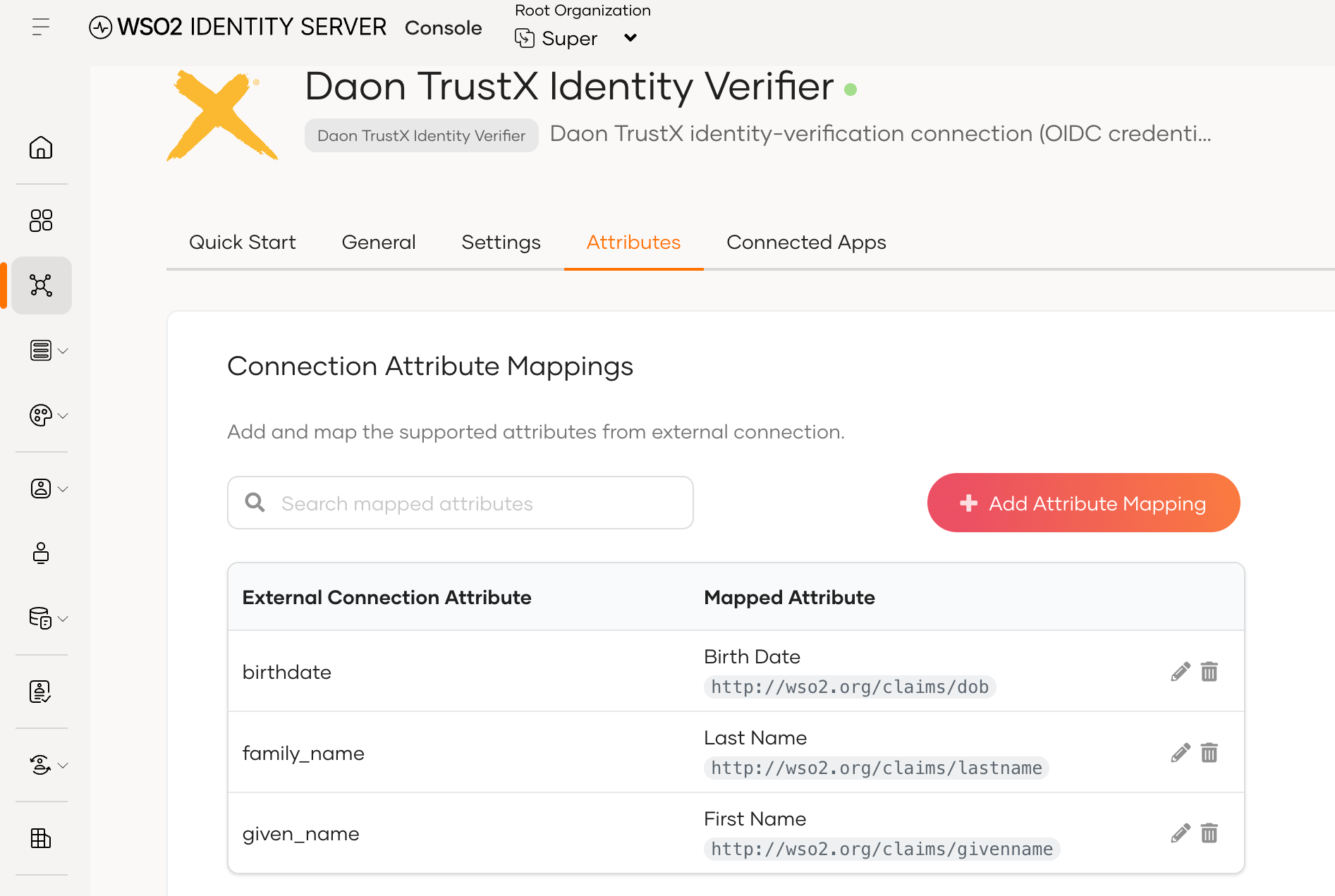
Open the created Daon TrustX Identity Verifier connection and go to its Attributes tab.
-
Click Add Attribute Mapping, enter the Daon TrustX claim name, and select the corresponding WSO2 Identity Platform user attribute.
-
Click Update to save the changes.
When a user enrolls, WSO2 Identity Platform handles each mapped attribute as follows:
-
If the flow already knows the attribute's value, for example, because the user entered it earlier in the registration flow or an administrator set it on the user's profile, WSO2 Identity Platform sends the value to Daon TrustX to compare against the document.
-
If the flow doesn't know the attribute's value yet, WSO2 Identity Platform asks Daon TrustX to read it from the document and return it.
WSO2 Identity Platform never sends unmapped attributes to Daon TrustX. If the connection has no attribute mappings, WSO2 Identity Platform doesn't request any verified claims.
Create a Daon TrustX Authenticator connection
The Daon TrustX Authenticator connection re-verifies enrolled users at login and during password recovery. To create one,
-
On the WSO2 Identity Platform Console, go to Connections and click New Connection.
-
Find the Daon TrustX Authenticator card and click Create.
-
Enter a name for the connection and the following details:
- Daon Identity Verifier: Select the Daon TrustX Identity Verifier connection you created earlier. You don't need to enter client credentials or endpoints, because the connection uses the ones configured on the selected Identity Verifier.
- Login Process Definition: The login process definition in the
<ProcessDefinitionName>:<Version>format.
-
Click Create.
You can create as many authenticator connections as you need, for example, one per application with a different login process definition. All of them can select the same Identity Verifier connection and re-verify the users enrolled through it.
Note
- A Daon TrustX Authenticator connection and the Identity Verifier connection you select for it must belong to the same organization.
- Users enrolled through a different Identity Verifier connection can't be verified by this connection.
Add Daon TrustX to your flows
The following table summarizes where to add each connection.
| Flow | Connection to add | Placement |
|---|---|---|
| Self registration | Daon TrustX Identity Verifier | After the attribute collection step, before the password step. |
| Invited user registration | Daon TrustX Identity Verifier | Before the set password step. |
| Application login | Daon TrustX Authenticator | A step after the user gets identified, for example, step 2. |
| Password recovery | Daon TrustX Authenticator | Where the identity check belongs in the recovery flow. |
In the flow builder, Daon TrustX appears as the Daon TrustX Verification component.
Self-registration
Use this flow to onboard a new user whose profile gets populated from a verified identity document instead of from the values they typed in.
To configure the flow,
-
On the WSO2 Identity Platform Console, go to Flows and select Self Registration.
-
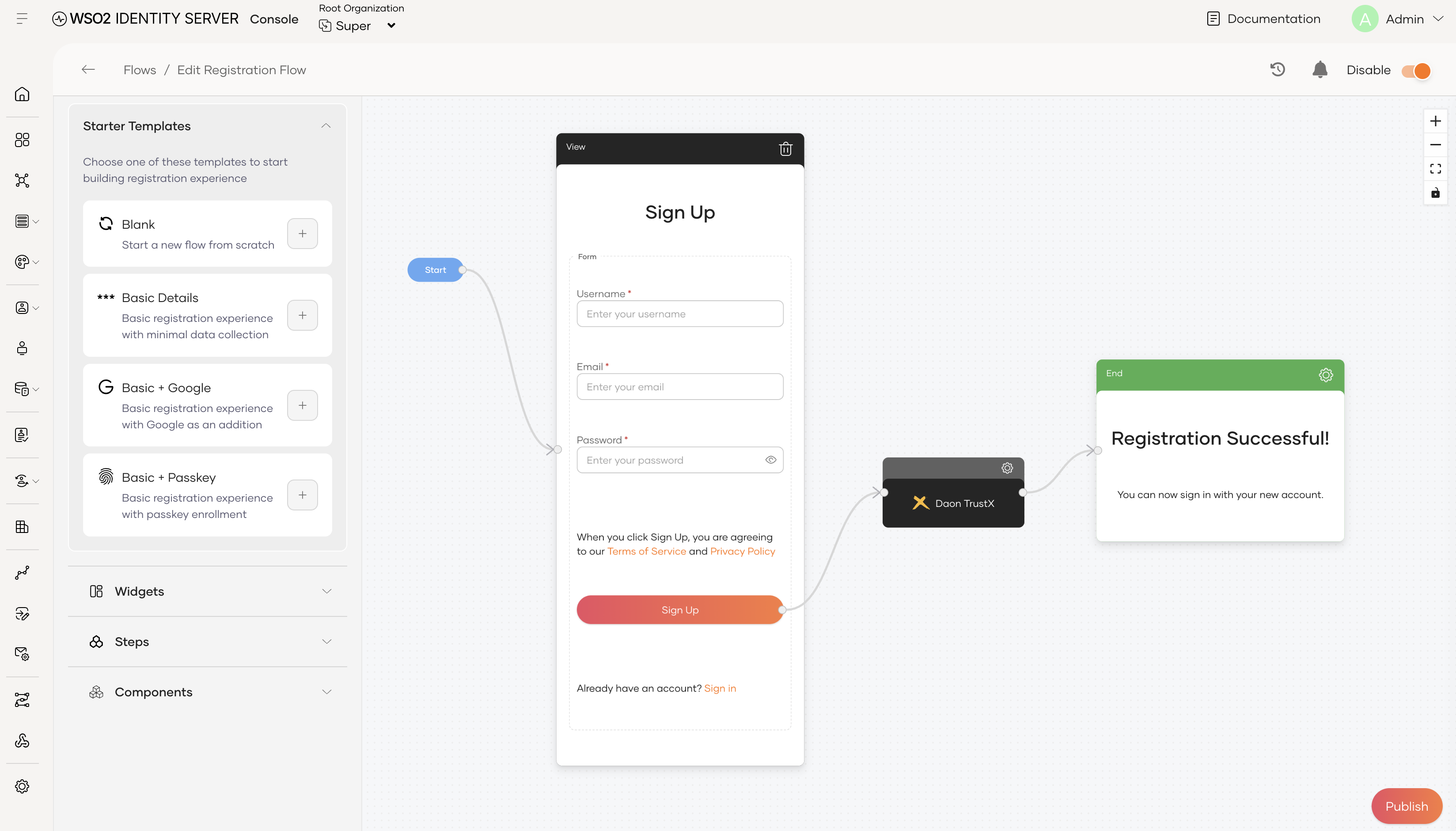
Add the Daon TrustX Verification component after the step that collects the user's attributes and before the password step.
-
Select your Daon TrustX Identity Verifier connection for the component.
-
Save and enable the flow.
When a user registers, the following happens:
-
WSO2 Identity Platform redirects the user to Daon TrustX with the enroll process definition. For each mapped attribute, it either sends the value the user already entered for Daon TrustX to compare against the document, or asks Daon TrustX to read the value from the document.
-
The user captures their identity document, takes a selfie, and completes the liveness check.
-
Daon TrustX redirects the user back to WSO2 Identity Platform with the verified claims.
-
WSO2 Identity Platform overwrites the attributes the user entered with the values read from the document and links the user's account to their Daon TrustX enrollment.
Note
- Placement matters. WSO2 Identity Platform only sends an attribute for comparison if it's both mapped on the Identity Verifier connection and collected before the Daon TrustX step runs.
- Values read from the document replace any mapped attribute the user entered. Users can't correct a misread document field during registration.
Invited user registration
Use this flow when an administrator creates a user account and fills in the profile. Daon TrustX proves that the person accepting the invitation is the person the profile describes.
To configure the flow,
-
On the WSO2 Identity Platform Console, go to Flows and select Invited User Registration.
-
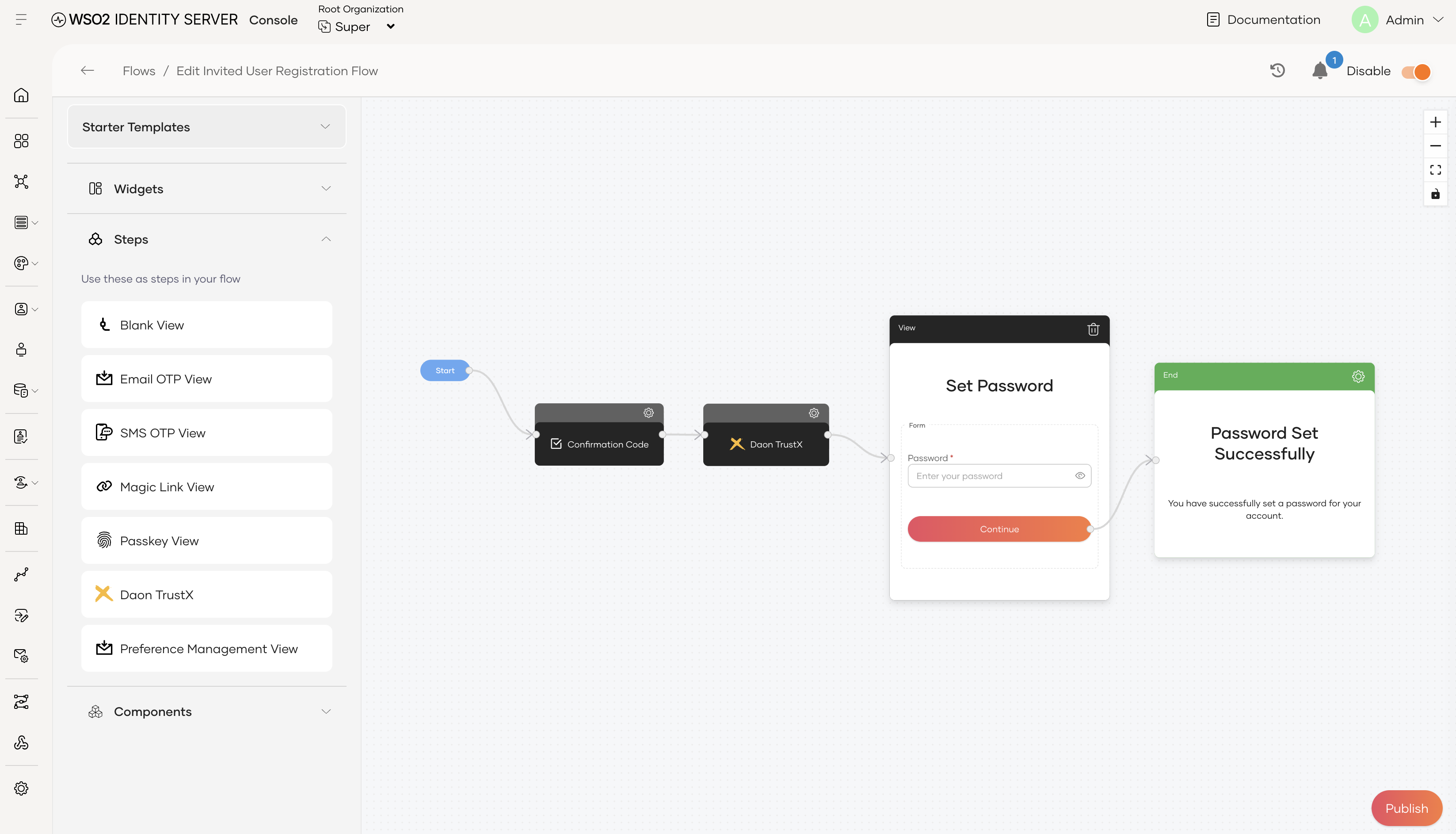
Add the Daon TrustX Verification component before the set password step.
-
Select your Daon TrustX Identity Verifier connection for the component.
-
Save and enable the flow.
When an invited user accepts the invitation, the following happens:
-
WSO2 Identity Platform reads the mapped attributes from the profile the administrator created and sends them to Daon TrustX for comparison against the document.
-
The user captures their identity document, takes a selfie, and completes the liveness check.
-
Daon TrustX compares the profile attributes against the document. If they match, the user proceeds to set their password and WSO2 Identity Platform links the account to the user's Daon TrustX enrollment.
Note
- This flow validates the profile but doesn't update it. The profile stays as the administrator created it.
- At least one document-verifiable attribute (
given_name,family_name,family_name_and_given_name,birthdate,document_number, ordocument_personal_number) must be mapped and set on the user's profile. Otherwise, the step doesn't run and fails with theDAON-65023error. - Daon TrustX performs the comparison. If an attribute doesn't match, the step fails with the
DAON-60003error, but doesn't indicate which attribute failed.
Login re-verification
Use this flow to re-verify an enrolled user before they access a sensitive application. The login process definition of the Daon TrustX Authenticator connection determines the check the user completes. If you require a live biometric check, select a login process definition that performs one.
To configure the login flow,
-
On the WSO2 Identity Platform Console, go to Applications and select your application.
-
Go to its Login Flow tab.
-
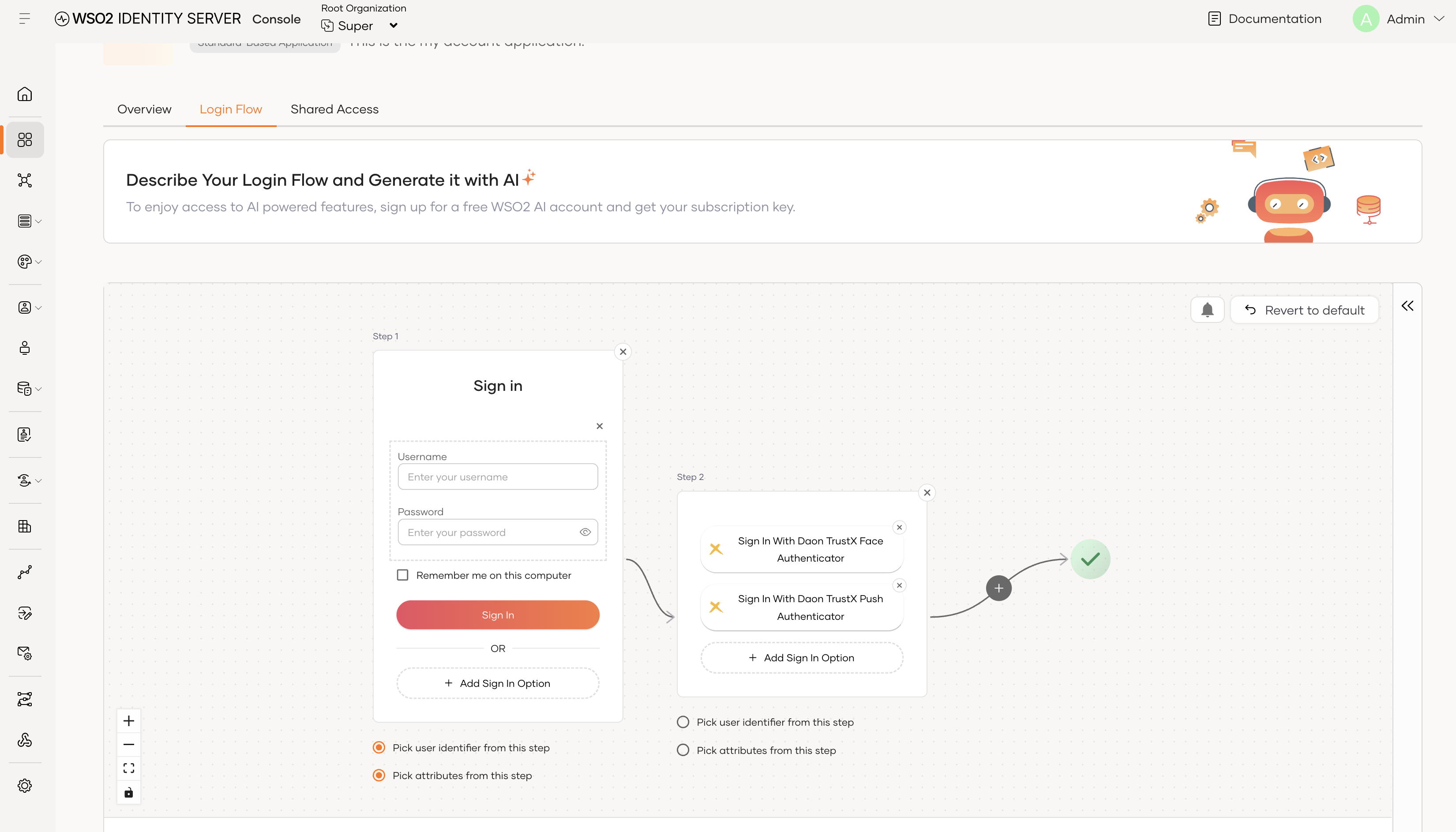
Keep a first step that identifies the user, such as Username & Password, and click + to add a second step.
-
Add your Daon TrustX Authenticator connection to the second step.
-
Click Update to save the changes.
When a user signs in, the following happens:
-
After the first step identifies the user, WSO2 Identity Platform looks up the user's Daon TrustX enrollment and redirects the user to Daon TrustX with the login process definition.
-
The user completes the check defined by the login process definition.
-
WSO2 Identity Platform confirms that the user Daon TrustX verified is the same user it requested. This prevents a user from passing the step by verifying their own identity for another account.
Note
- The Daon TrustX step can't be the first step of the login flow. It's a step-up mechanism, not a login mechanism.
- The login step doesn't enroll users. Users who haven't enrolled fail with the
DAON-60001error and see the login retry page. - WSO2 Identity Platform only records that a user is enrolled. It doesn't track when the verification happened or how long it's valid, so you need to enforce policies such as "verified within the last 12 months" outside WSO2 Identity Platform.
Password recovery
Use this flow to prove that the person resetting the password is the enrolled account holder.
To configure the flow,
-
On the WSO2 Identity Platform Console, go to Flows and select Password Recovery.
-
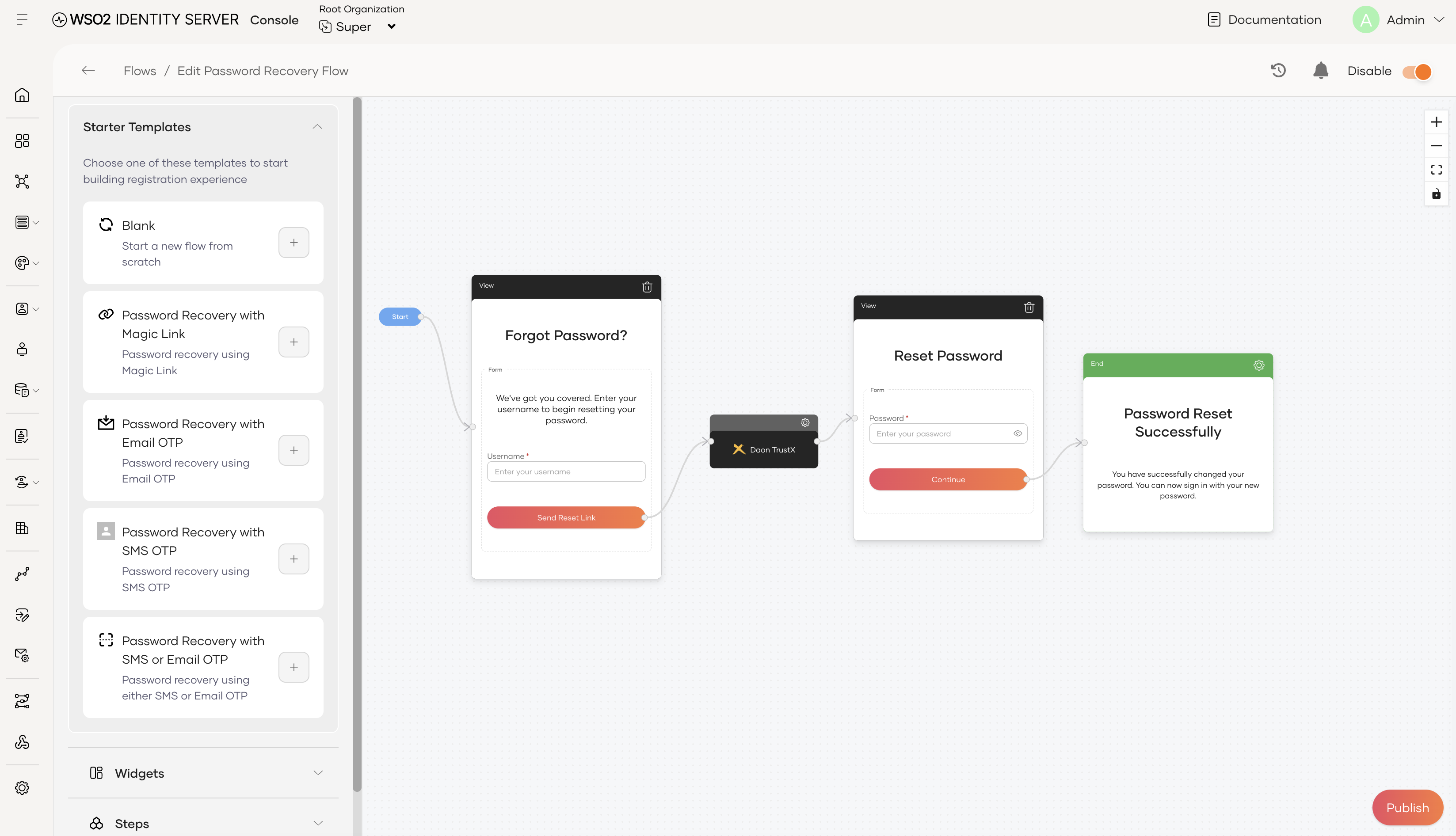
Add the Daon TrustX Verification component where you want the identity check to happen.
-
Select your Daon TrustX Authenticator connection for the component.
-
Save and enable the flow.
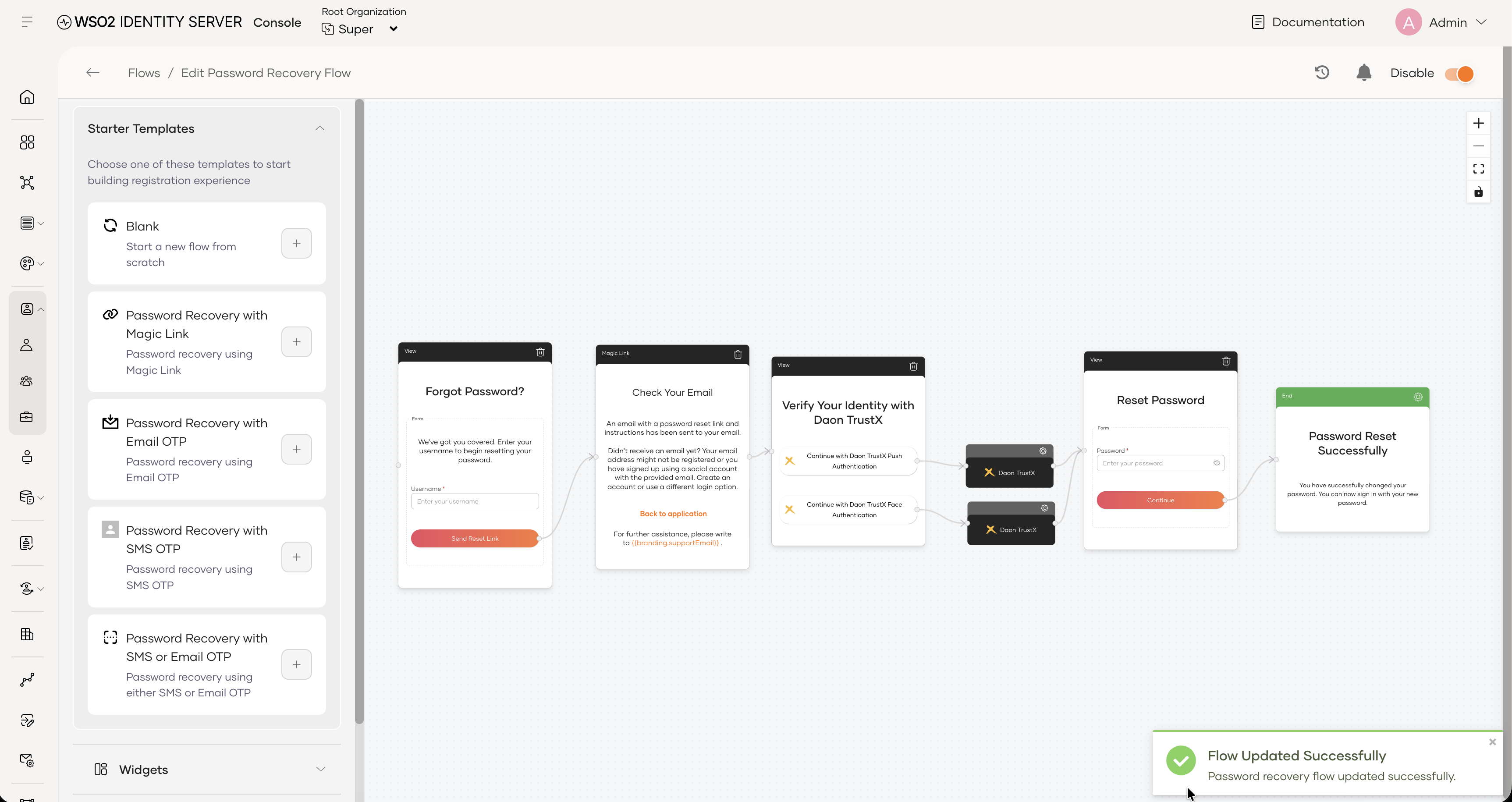
You can also offer more than one Daon TrustX Authenticator connection in the same flow. In the following example, after the emailed link, the user chooses between a push notification and a face verification, and each option routes to its own Daon TrustX Verification component.
When a user recovers their password, the following happens:
-
WSO2 Identity Platform looks up the account's Daon TrustX enrollment and redirects the user to Daon TrustX with the login process definition.
-
The user completes the check defined by the login process definition.
-
WSO2 Identity Platform confirms that the user Daon TrustX verified is the account holder and lets the user reset their password.
Note
- This flow is an identity check only. WSO2 Identity Platform doesn't read or update any profile attributes.
- Accounts that haven't enrolled, or that enrolled through a different Identity Verifier connection, fail immediately with the
DAON-60001error without being redirected to Daon TrustX.