Add identity verification with Incode
Incode is an identity verification platform that verifies a person against a government-issued identity document such as a passport, driver's license, or national ID card, combined with a selfie and liveness detection.
This guide explains how you can use Incode to verify a user's identity when their account gets created in WSO2 Identity Platform, and to re-verify the same person with Incode face authentication when they sign in to an application or recover their password.
Prerequisites
Before you begin, ensure you have the following:
-
An Incode account with access to the Incode Dashboard. To get one, contact Incode.
-
WSO2 Identity Platform Account: Access to your WSO2 Identity Platform Console with administrative privileges.
Configure Incode via the dashboard
WSO2 Identity Platform connects to Incode through two OpenID Connect (OIDC) clients:
- An onboarding client, which verifies users when their accounts get created.
- An authentication client, which re-verifies users with face authentication at login and during password recovery.
To create them,
-
On the Incode Dashboard, create the workflow or flow you want to use for onboarding. It must create an identity for the verified person, so that Incode returns the
identity_idandauth_overall_statusclaims. -
On the Incode Dashboard, go to Manage > Configurations and open the Authorization tab.
-
Create a new OIDC authorization client for onboarding. Select the onboarding workflow or flow you created, and add the following redirect URI:
https://accounts.asgardeo.io/t/{organization_name}/accounts/register
-
Create another OIDC authorization client for authentication. Select Face authentication, and add the following redirect URIs:
https://api.asgardeo.io/t/{organization_name}/commonauth, for login.https://accounts.asgardeo.io/t/{organization_name}/accounts/recovery, for password recovery.
-
Take note of the client ID and client secret of each client, and the authorization endpoint and token endpoint URLs of your Incode environment.
Note
If your organization uses a custom domain, use it in the redirect URIs in place of the default host.
If you configured custom Self Signup or Recovery Portal URLs in the advanced branding preferences, the flows redirect to those URLs instead. Register them in place of the /accounts/register and /accounts/recovery redirect URIs:
- The onboarding client needs the Self Signup URL for self-registration and the Recovery Portal URL for invited user registration.
- The authentication client needs the Recovery Portal URL for password recovery.
Create the Incode attributes in WSO2 Identity Platform
WSO2 Identity Platform stores the Incode identity ID, interview ID, and onboarding status on the user's profile, and uses the identity ID to link the account to the verified person. Create these attributes before you add the connections, because the connection template maps the Incode claims to them.
-
On the WSO2 Identity Platform Console, go to User Attributes & Stores > Attributes.
-
Under Manage Attributes, click Attributes, and then click New Attribute.
-
Enter
incodeIdentityIdas the Attribute Name. -
Under Protocol Mappings, click the edit icon next to OpenID Connect, change the value to
identity_id, and confirm the change.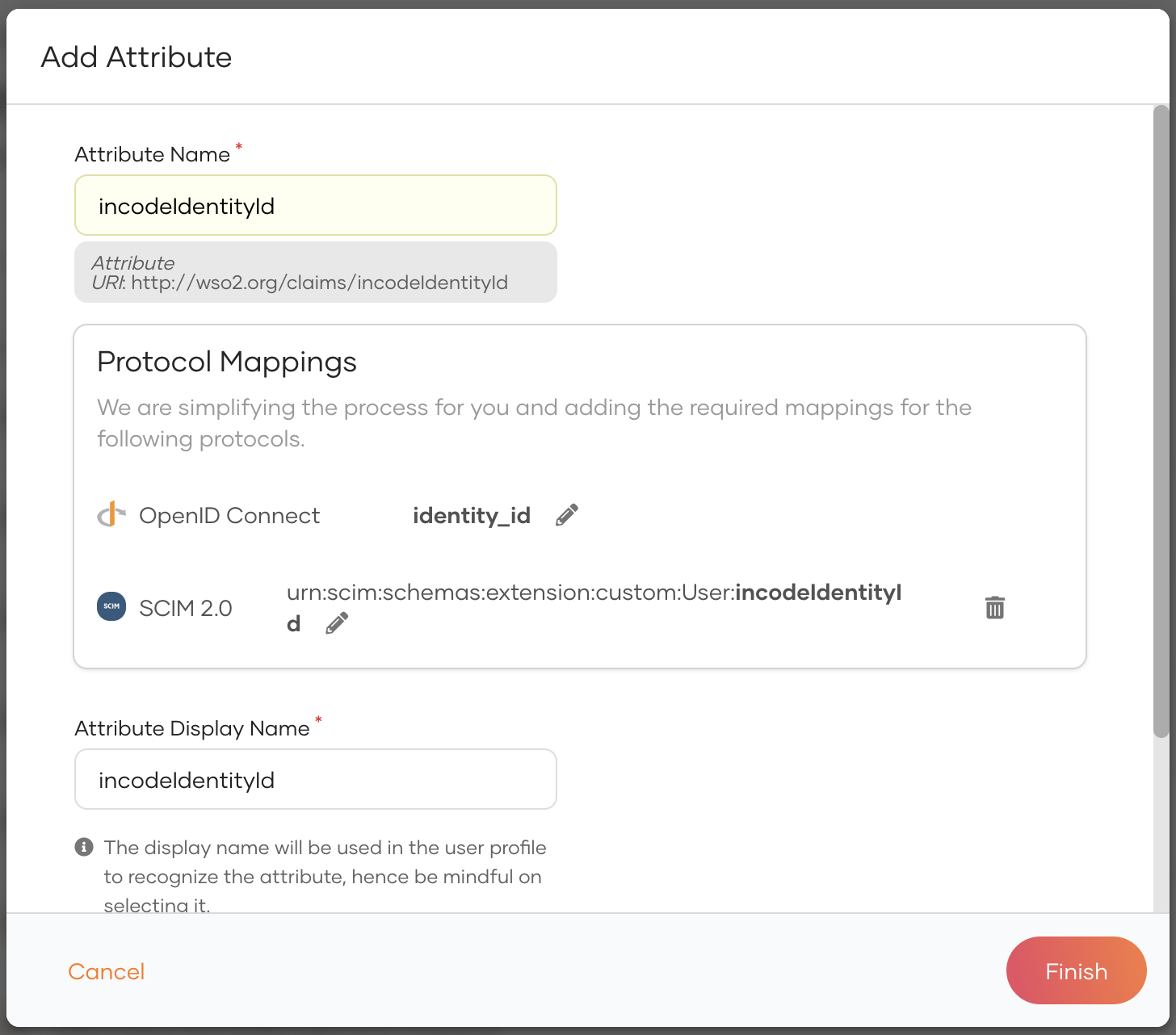
-
Enter an Attribute Display Name, for example,
Incode Identity ID, and click Finish. -
Repeat steps 2 to 5 for the
incodeInterviewIdandincodeOnboardingStatusattributes. Keep their generated protocol mappings.
Learn more in Add custom attributes.
Note
WSO2 Identity Platform links the account to the Incode identity ID through the OpenID Connect attribute identity_id, so it must map to the incodeIdentityId attribute. An attribute can have only one OpenID Connect mapping. If you already created incodeIdentityId with the generated mapping, go to User Attributes & Stores > Attributes > OpenID Connect, delete the generated attribute, and add an OpenID Connect attribute named identity_id that maps to incodeIdentityId.
Add Incode as a connection in WSO2 Identity Platform
Create one connection for each Incode client, for example, Incode Onboarding and Incode Authentication. To create a connection,
-
On the WSO2 Identity Platform Console, go to Connections and click New Connection.
-
Select Incode Identity Verification from the available templates.
-
Enter the following details:
Field Description Name A unique name for the connection. Client ID The client ID of the Incode onboarding or authentication client. Client secret The client secret of the Incode client. Authorization Endpoint URL The authorization endpoint of your Incode environment. Token Endpoint URL The token endpoint of your Incode environment. 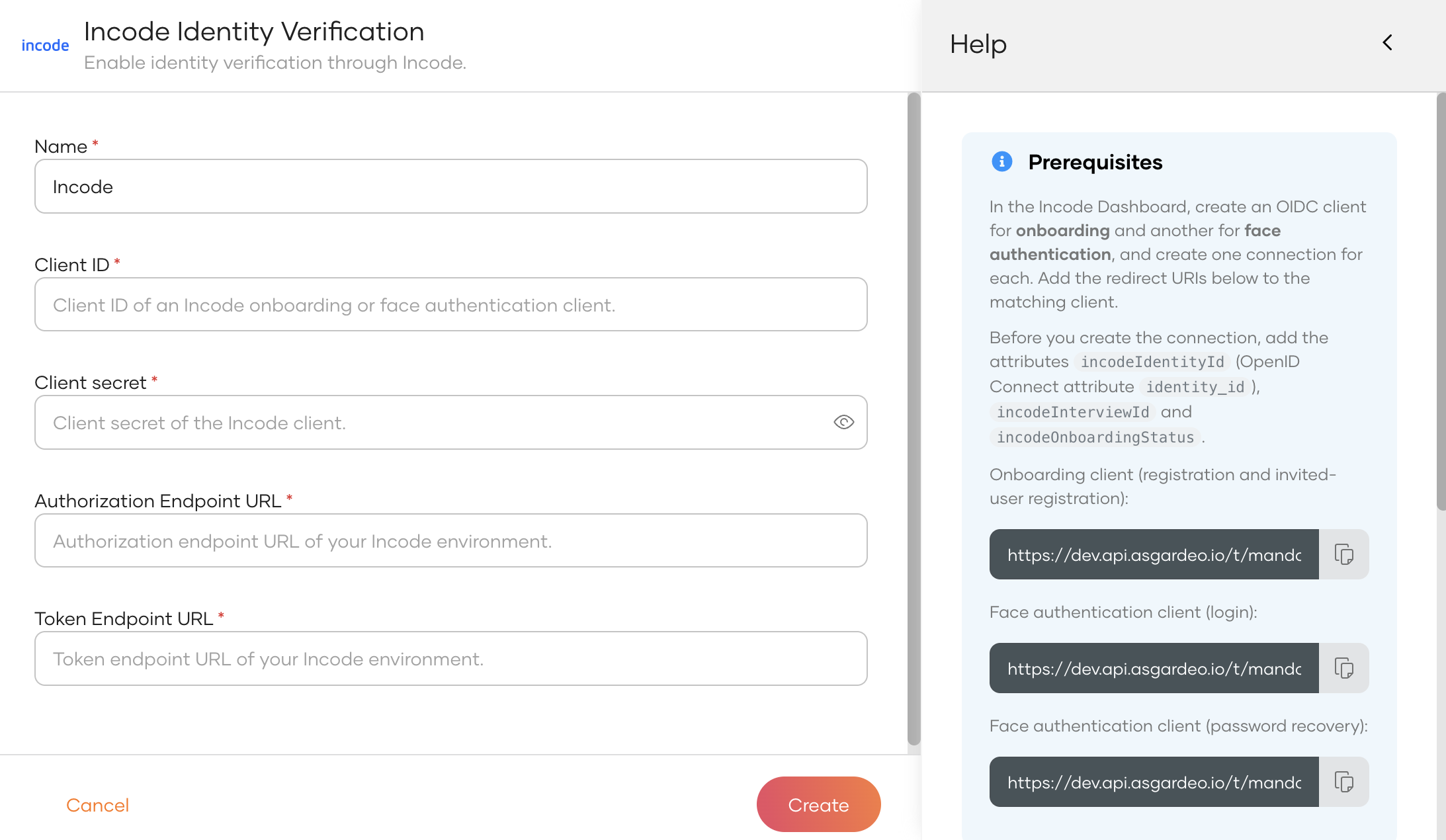
-
Click Create.
-
Repeat the steps for the other Incode client.
Verify the attribute mappings in WSO2 Identity Platform
The template configures the attribute mappings of each Incode connection. To verify them,
-
On the WSO2 Identity Platform Console, go to Connections and select your Incode connection.
-
Go to the Attributes tab.
-
Verify that the Incode claims
auth_overall_status,identity_id, andinterview_idmap to theincodeOnboardingStatus,incodeIdentityId, andincodeInterviewIdattributes, and that the Subject Attribute isidentity_id.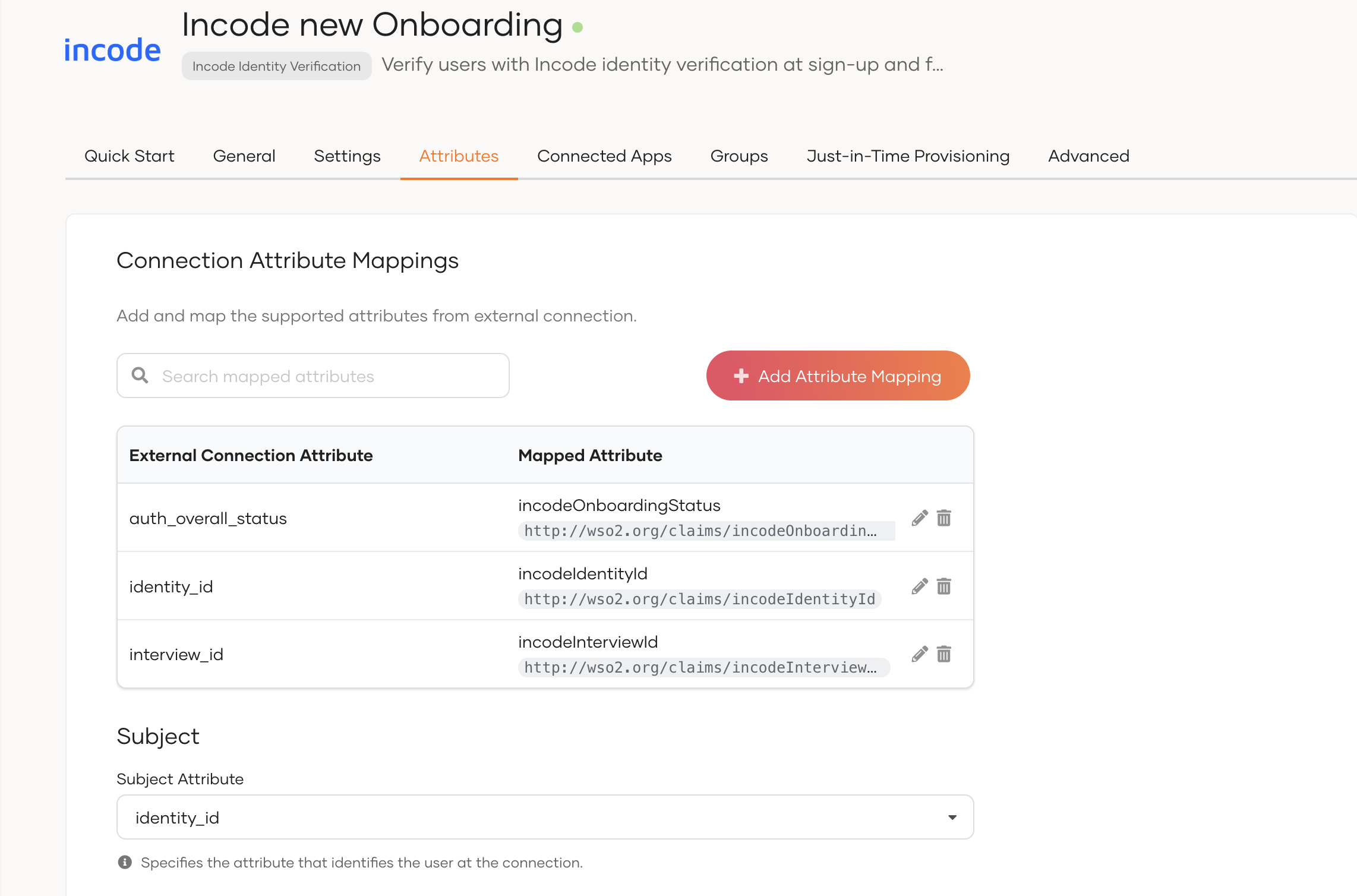
Warning
Don't change the subject attribute or the identity_id mapping of an Incode connection, and keep just-in-time user provisioning off. If WSO2 Identity Platform can't link the account to the Incode identity ID, registration fails with the INCODE-65011 error.
Integrate Incode into your flows
The following table summarizes where to add each connection.
| Flow | Connection to add | Placement |
|---|---|---|
| Self registration | Onboarding connection | Before or after the step that collects the user's username and password. |
| Invited user registration | Onboarding connection | Before the step that sets the password. |
| Application login | Authentication connection | A step after the first step that identifies the user, for example, step 2. |
| Password recovery | Authentication connection | After the step that identifies the user. |
In the flow builder, Incode appears as the Incode Verification step under Steps.
Only accounts created with Incode are linked
A user's account gets linked to an Incode identity only when it gets created through a self-registration or invited user registration flow that has the Incode step. Login and password recovery with Incode work only for these users.
Users who existed before you set up Incode, or who registered through a flow without the Incode step, fail with the INCODE-60001 error at login and the INCODE-60005 error during password recovery.
Self-registration
Use this flow to onboard a new user only after Incode verifies their identity.
To configure the flow,
-
On the WSO2 Identity Platform Console, go to Flows and select Self Registration.
-
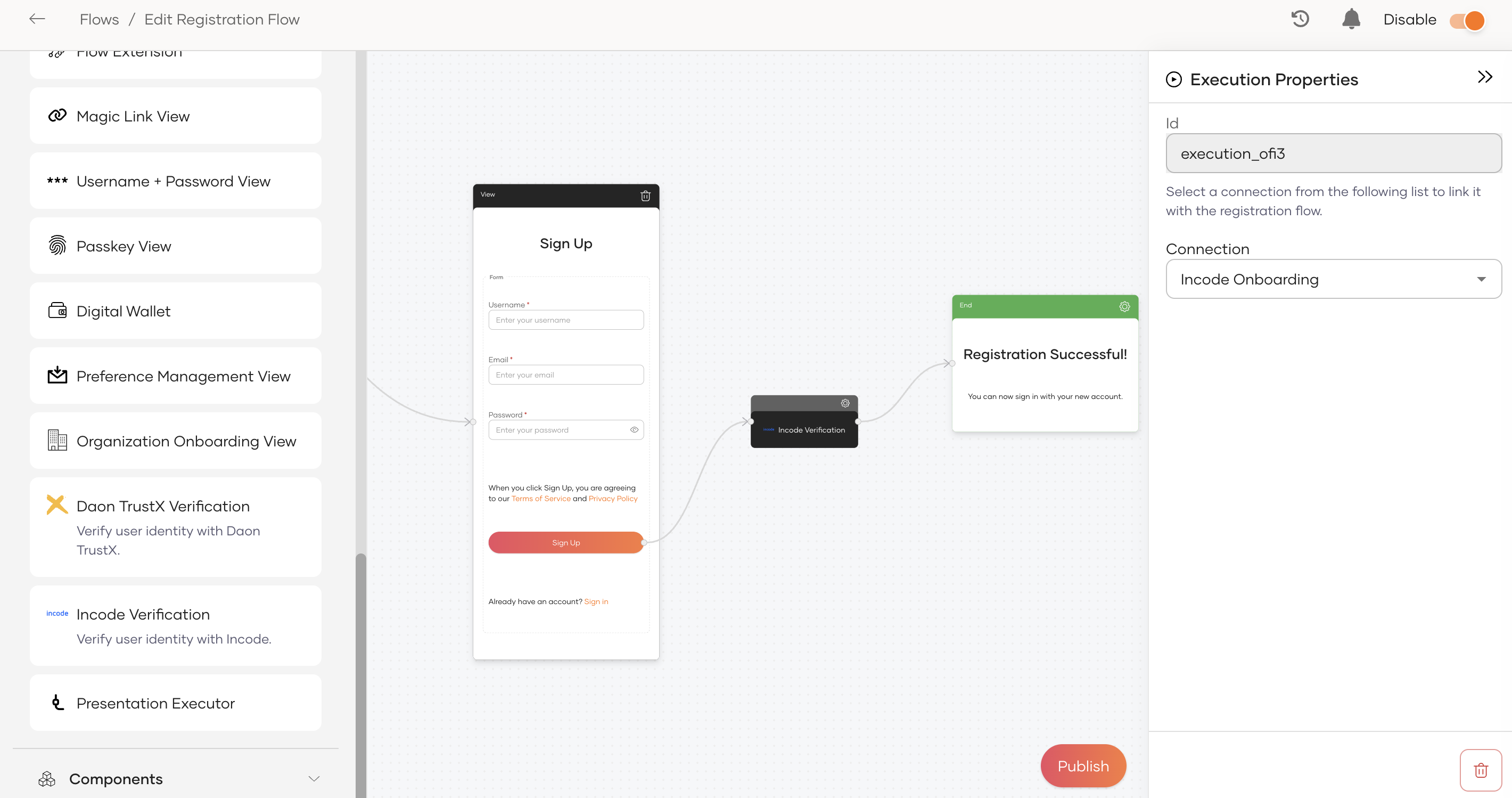
From Steps, add the Incode Verification step before or after the step that collects the user's username and password.
-
Select the Incode Verification step, and under Execution Properties, select your onboarding connection as the Connection.
-
Click Publish and enable the flow.
When a user registers, the following happens:
-
WSO2 Identity Platform redirects the user to Incode onboarding.
-
The user captures their identity document and takes a selfie.
-
Incode redirects the user back to WSO2 Identity Platform with the verification result.
-
WSO2 Identity Platform checks the result and that no other account is linked to the same identity. It then creates the account with the Incode attributes, and links the account to the Incode identity ID.
The following table lists the possible outcomes.
| Incode result | Outcome |
|---|---|
| Verification accepted, including after a manual review | The account gets created and linked to the identity ID. |
| Verification needs a manual review | Registration fails with the INCODE-60004 error. |
| Verification failed | Registration fails with the INCODE-60003 error. |
| The identity is already linked to an account | Registration fails with the INCODE-60009 error before the account gets created. |
| The user cancelled, or Incode didn't complete the verification | Registration fails with the INCODE-60002 error. |
Note
The username the user enters in the flow is kept. Incode doesn't change it.
Invited user registration
Use this flow when an administrator creates a user account and invites the user. Incode verifies the person who accepts the invitation and links the account to their identity.
To configure the flow,
-
On the WSO2 Identity Platform Console, go to Flows and select Invited User Registration.
-
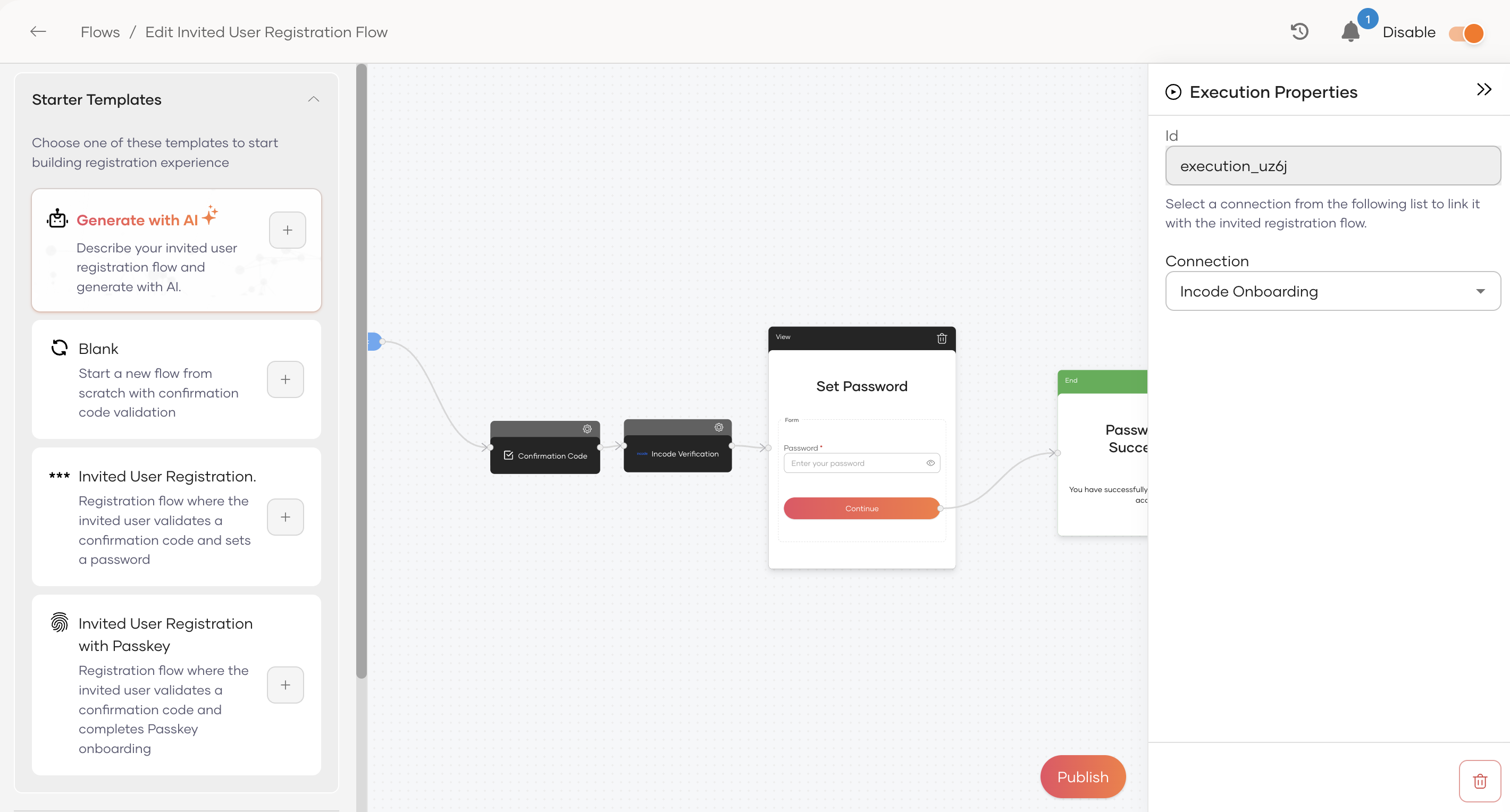
From Steps, add the Incode Verification step before the step that sets the password.
-
Select the Incode Verification step, and under Execution Properties, select your onboarding connection as the Connection.
-
Click Publish and enable the flow.
When an invited user accepts the invitation, the following happens:
-
WSO2 Identity Platform redirects the user to Incode onboarding.
-
The user captures their identity document and takes a selfie.
-
If Incode accepts the verification, WSO2 Identity Platform links the account to the Incode identity ID, stores the Incode attributes, and lets the user set their password.
Note
- The outcomes are the same as in self-registration.
- The username the administrator set is kept.
- Incode doesn't compare the identity document with the profile the administrator created. The step verifies the person and links the account.
Login face authentication
Use this flow to re-verify a linked user with face authentication before they access an application.
To configure the login flow,
-
On the WSO2 Identity Platform Console, go to Applications and select your application.
-
Go to its Login Flow tab.
-
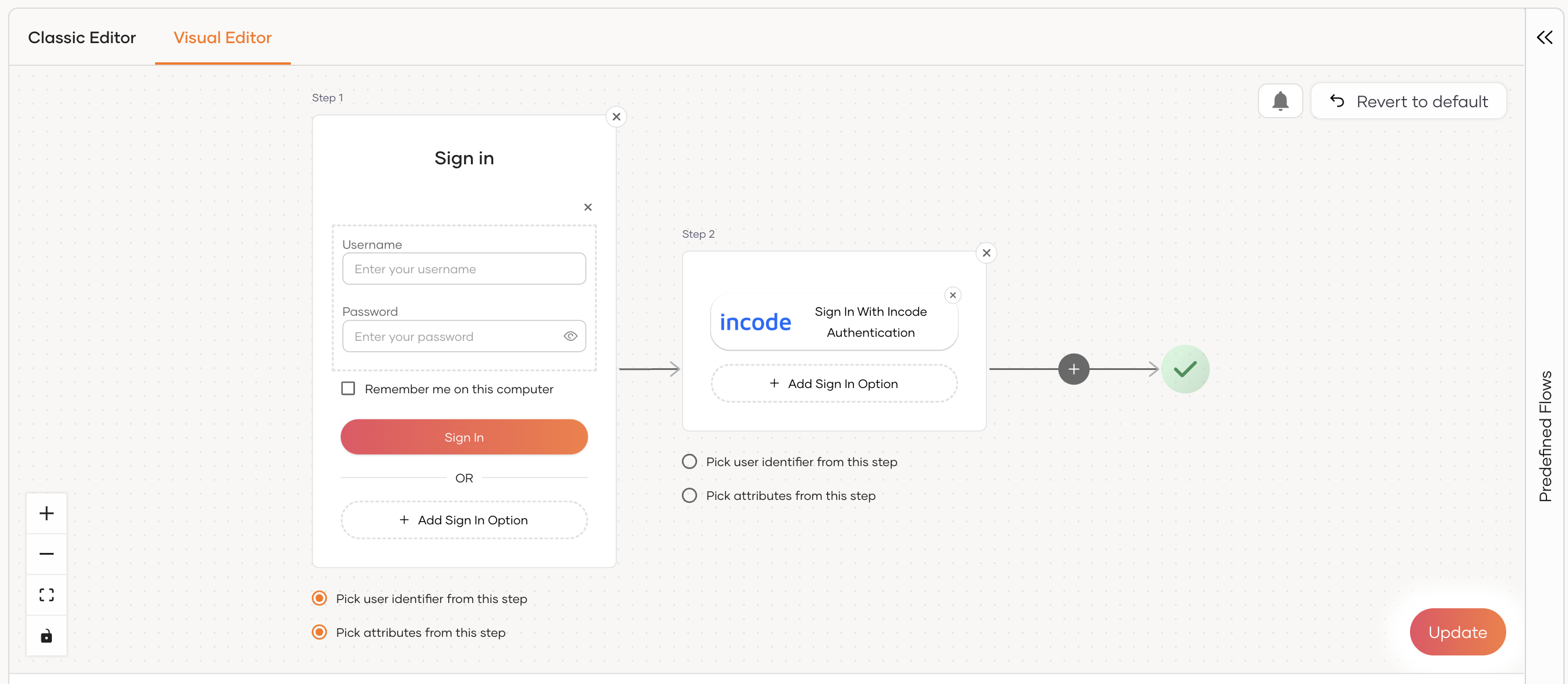
Keep a first step that identifies the user, such as Username & Password, with Pick user identifier from this step selected.
-
Click + to add a second step, click Add Sign In Option, and select your authentication connection.
-
Click Update to save the changes.
When a user signs in, the following happens:
-
After the first step identifies the user, WSO2 Identity Platform reads the Incode identity linked to the account and redirects the user to Incode face authentication for that identity.
-
The user completes face authentication.
-
WSO2 Identity Platform confirms that Incode verified the same identity. This prevents a user from passing the step with another person's face.
The following table lists the possible outcomes.
| Result | Outcome |
|---|---|
| Incode verified the linked identity | The user signs in. |
| The user cancelled, or Incode didn't verify the user | The application receives the INCODE-60002 error. |
| Incode returned another error, for example, because the session expired | The application receives the INCODE-60005 error. |
| Verification failed, or Incode didn't return a result | The application receives the INCODE-60003 error. |
| Incode verified a different identity | The application receives the INCODE-60008 error. |
| The request to Incode failed, for example, because of a wrong client secret | The application receives the standard login_required error. |
| The account isn't linked to an Incode identity | Login stops on an error page with the INCODE-60001 error, before the user goes to Incode. |
The application receives these errors at its redirect URL as a standard OAuth 2.0 error response. The error parameter carries the error code and the error_description parameter carries a message that you can show to the user, for example, with an option to sign in again. If the login flow has a conditional authentication script, it can handle the failure in onFail.
Note
- The Incode step must come after a step that identifies the user, and the user identifier must come from that earlier step. Otherwise, login stops on an error page with the
INCODE-65001orINCODE-60010error. - The login step doesn't link accounts.
- You don't need a conditional authentication script for this flow.
Password recovery
Use this flow to prove that the person resetting the password is the account holder.
To configure the flow,
-
On the WSO2 Identity Platform Console, go to Flows and select Password Recovery.
-
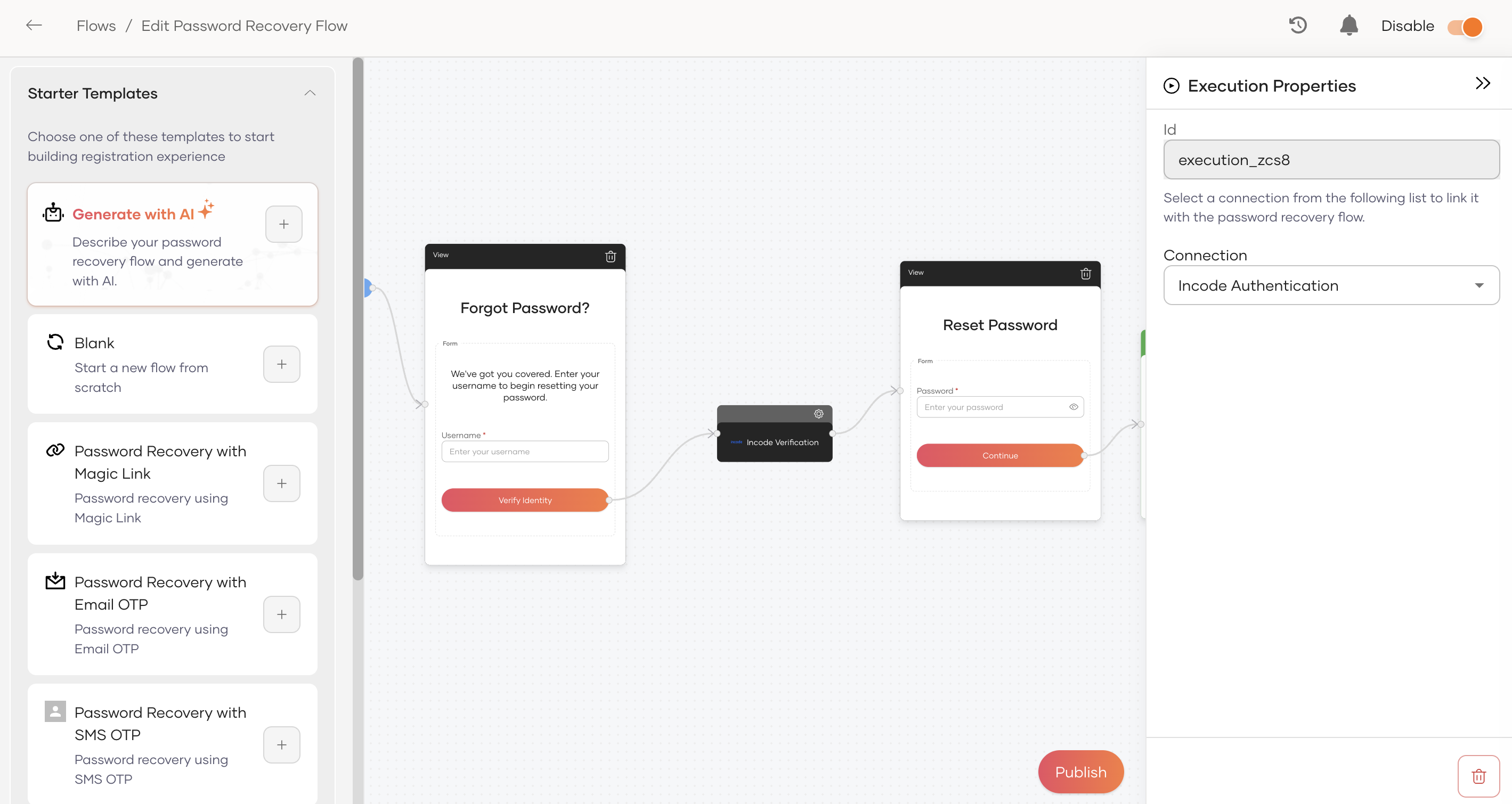
From Steps, add the Incode Verification step after the step that identifies the user.
-
Select the Incode Verification step, and under Execution Properties, select your authentication connection as the Connection.
-
Click Publish and enable the flow.
When a user recovers their password, the following happens:
-
WSO2 Identity Platform reads the Incode identity linked to the account and redirects the user to Incode face authentication for that identity.
-
The user completes face authentication.
-
WSO2 Identity Platform confirms that Incode verified the same identity and lets the user reset their password.
Note
- This flow is an identity check only. WSO2 Identity Platform doesn't change the profile or the link.
- Accounts that aren't linked fail with the
INCODE-60005error without being redirected to Incode. In the example above, the Incode step directly follows the step where the user enters their username. To avoid revealing whether an account is linked, add a step that verifies the user, such as an emailed link or code, before the Incode step.
Reference
The following sections provide more details on how WSO2 Identity Platform works with Incode.
How it works
WSO2 Identity Platform connects to Incode as a federated OpenID Connect connection.
-
When a user's account gets created, WSO2 Identity Platform redirects the user to Incode, where they capture their identity document and take a selfie. Incode returns the verification result and an identity ID that identifies the verified person.
-
WSO2 Identity Platform creates the account only if Incode accepts the verification, and links the account to the Incode identity ID.
-
Later, when the user signs in to an application or resets their password, WSO2 Identity Platform redirects them to Incode face authentication for the identity linked to their account. The step succeeds only if Incode verifies the same identity.
The two Incode connections have the following roles.
| Connection | Purpose | Used in |
|---|---|---|
| Onboarding connection | Verifies users and links their accounts when the accounts get created. | Self registration, invited user registration |
| Authentication connection | Re-verifies linked users with face authentication. | Application login, password recovery |
Account linking
When a user completes the Incode step in the self-registration or invited user registration flow, WSO2 Identity Platform stores the Incode identity ID as a federated association of the user, against the onboarding connection. Login and password recovery use this association to identify the user at Incode, even though they use the authentication connection.
Users can't create or change this association.
Warning
The incodeIdentityId, incodeInterviewId, and incodeOnboardingStatus attributes are for display only. Users can update their profile attributes, so don't use these attributes for authorization decisions. WSO2 Identity Platform itself relies only on the association.
Authorization request parameters
At login and during password recovery, WSO2 Identity Platform extends the standard OIDC authorization request with the following parameters.
| Parameter | Value |
|---|---|
login_hint |
The Incode identity ID linked to the account. |
prompt |
login |
WSO2 Identity Platform handles the token exchange, state, and claim mapping in the same way as any other OIDC connection.
Limitations
-
Linking through registration. Accounts get linked during self-registration or invited user registration. Existing accounts can't be linked through a flow; an administrator can add the link through the user federated associations API.
-
Supported flow types. The Incode Verification step is only available in the self-registration, invited user registration, and password recovery flows. For login, add the authentication connection to the application's login flow.
-
Duplicate check per organization. WSO2 Identity Platform refuses an identity that is already linked through any Incode connection of the organization. The same identity can register once in each organization.
-
Sub-organizations. Registration and password recovery in a sub-organization redirect to the sub-organization's own
/accounts/registerand/accounts/recoveryURLs, for example.../t/{root-organization}/o/{sub-organization-id}/accounts/register. If you share the Incode connections with sub-organizations, register these URLs on the Incode clients as well. Login doesn't need an extra redirect URI. -
App-native authentication. The Incode login step doesn't support app-native authentication.
-
Results on redirect only. WSO2 Identity Platform receives the verification result when Incode redirects the user back. It can't pick up a verification that completes later, for example, after a manual review.
Error codes
The following are the common errors you may encounter.
| Error code | Description |
|---|---|
INCODE-60001 |
The account isn't linked to an Incode identity. |
INCODE-60002 |
The user cancelled the verification, or Incode didn't complete it. Incode reports both the same way. |
INCODE-60003 |
The verification failed. |
INCODE-60004 |
The verification needs a manual review. |
INCODE-60005 |
The verification couldn't be completed. During password recovery, this also means the account isn't linked to an Incode identity. |
INCODE-60007 |
The verification response is invalid or expired. |
INCODE-60008 |
Incode verified a different identity than the one linked to the account. |
INCODE-60009 |
The identity is already linked to another account. |
INCODE-60010 |
No user was identified before the Incode login step. |
INCODE-65001 |
The user identifier comes from the Incode login step instead of a step before it. |
INCODE-65004 |
The OpenID Connect exchange with Incode failed during registration or password recovery. |
INCODE-65009 |
The Incode response doesn't include an identity or a verification result. |
INCODE-65010 |
The Incode identity linked to the account couldn't be read. |
INCODE-65011 |
The account couldn't be linked to the Incode identity ID. |
Troubleshooting
| Symptom | Cause |
|---|---|
Registration fails with the INCODE-65011 error. |
The OpenID Connect attribute identity_id is missing or doesn't map to incodeIdentityId, or the subject attribute or attribute mappings of the connection were changed. |
Registration fails with the INCODE-65009 error. |
The onboarding workflow or flow selected on the Incode onboarding client doesn't create an identity. |
Login fails with the INCODE-60001 error. |
The user registered through a flow without the Incode step. |
Incode rejects the login_hint. |
The Incode authentication client doesn't use Face authentication. |
| Incode shows a redirect URI error. | The redirect URIs registered on the Incode client don't match the ones listed in Configure Incode via the dashboard. |