Share identity providers with organizations
Share a parent organization's identity provider with its child organizations so that child organization users can log in to applications through it. You configure the identity provider only once, in the parent organization.
Without sharing, each child organization must create and maintain its own copy of an identity provider to offer the same login option. When you share an identity provider, child organizations reuse the configuration of the parent organization's identity provider. The credentials of the identity provider stay in the parent organization and aren't exposed to child organizations.
How identity provider sharing works
When you share an identity provider with an organization:
- The identity provider appears in the organization's Connections list with a Shared label.
- Organization administrators can add the shared identity provider to the login flows of applications in their organization.
- At login, WSO2 Identity Platform uses the complete configuration of the parent organization's identity provider. Organization administrators can't view sensitive details such as client credentials, endpoints, and certificates.
- Updates that you make to the identity provider in the parent organization apply to all organizations it's shared with.
Note
Unlike application sharing, identity provider sharing doesn't involve roles. You only choose which organizations receive the identity provider.
Sharing policies
When you share an identity provider, you select a policy that determines which organizations receive it.
| Policy | Behavior |
|---|---|
SELECTED_ORG_ONLY |
Shares the identity provider with only the selected organization. |
SELECTED_ORG_WITH_ALL_EXISTING_AND_FUTURE_CHILDREN |
Shares the identity provider with the selected organization and all its existing and future child organizations. |
ALL_EXISTING_AND_FUTURE_ORGS |
Shares the identity provider with all existing organizations and any organizations created in the future. |
Example
Your platform (root organization) has an OIDC IDP identity provider. You share it with a business (child organization) using SELECTED_ORG_WITH_ALL_EXISTING_AND_FUTURE_CHILDREN, so that the business and all its regional offices can use the same identity provider in the login flows of their applications.
Share an identity provider
Follow these steps to share an identity provider:
-
On the WSO2 Identity Platform Console, go to Connections.
-
Select the identity provider you want to share and click Set up.
-
Go to the Shared Access tab.
-
Choose a sharing option:
- Do not share with any organization - Unshares the identity provider from all organizations.
- Share with all organizations - Shares the identity provider with all existing and future organizations.
- Share with selected organizations - Shares the identity provider with the organizations you select and, optionally, their child organizations.
-
Click Update to save your configurations.
Info
WSO2 Identity Platform processes sharing requests in the background. It might take a few moments before the identity provider appears in all the organizations.
Tip
Once you have shared the identity provider with an organization, check that the organization can use it.
-
Switch to the organization and verify that the identity provider is listed in the Connections section with the Shared label. Learn how to switch to an organization.
-
While in the organization, add the shared identity provider to the login flow of the application that users log in to.
Unshare an identity provider from all organizations
Select Do not share with any organization to unshare the identity provider from all organizations.
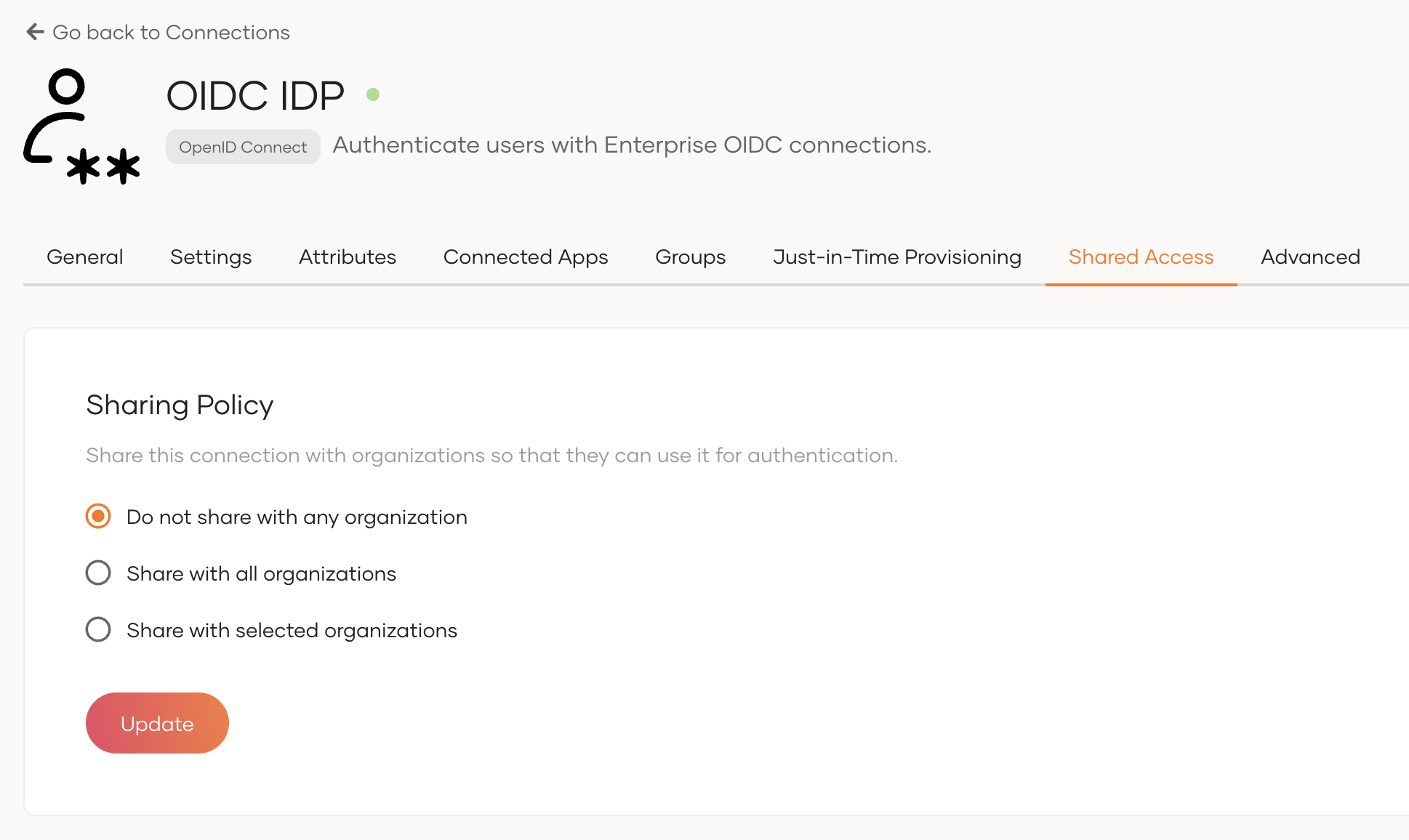
Why use this option? When child organizations no longer need the identity provider. You must also unshare an identity provider from all organizations before you can delete it.
Warning
When you unshare an identity provider, users of the child organizations can no longer log in with it. WSO2 Identity Platform removes the identity provider from the login flows of their applications.
Share an identity provider with all organizations
Select Share with all organizations to share the identity provider with all existing and future organizations. New organizations automatically receive the identity provider.
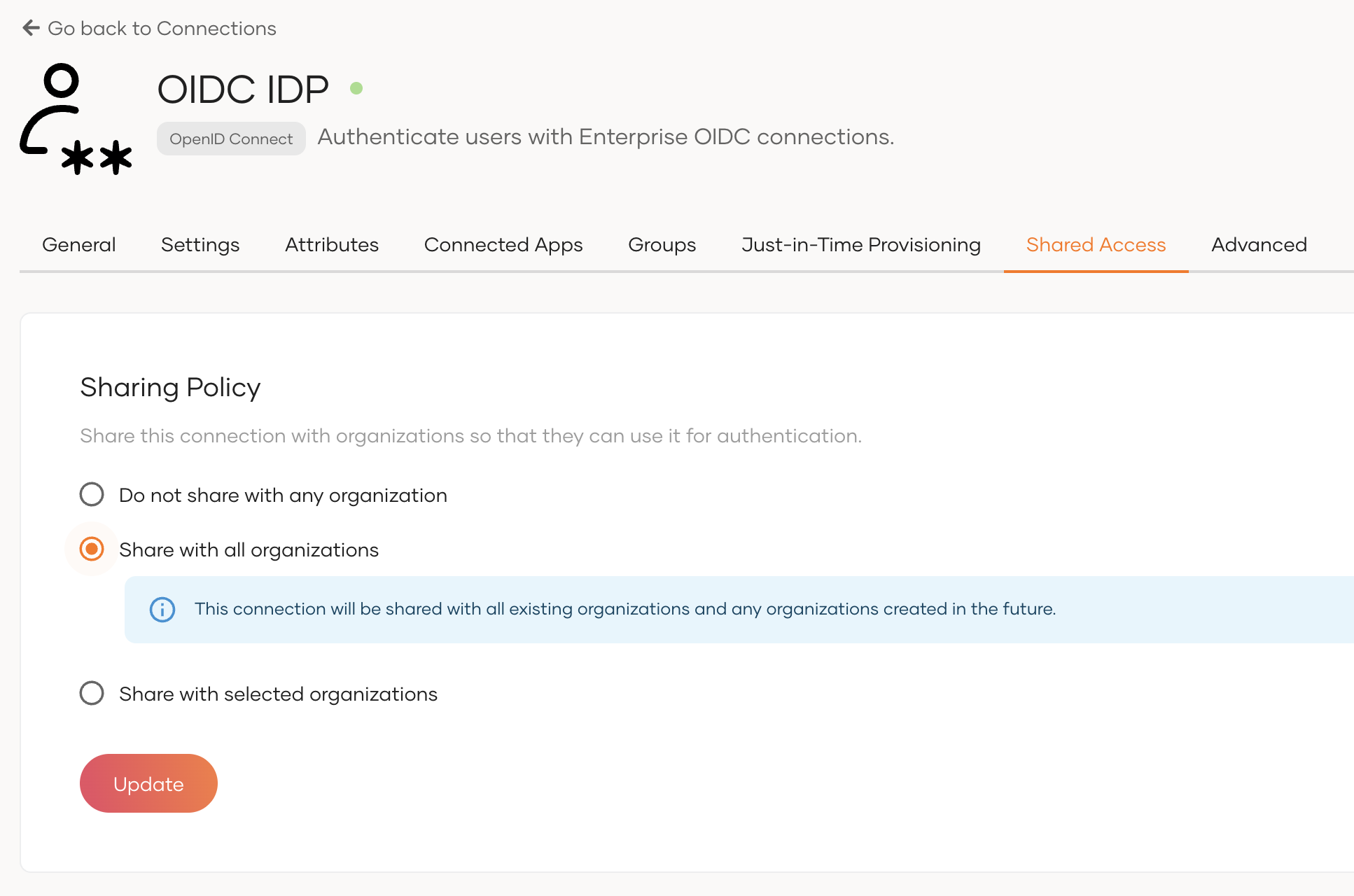
Why use this option? When every organization needs the same login option without any restrictions.
When you click Update, WSO2 Identity Platform asks you to confirm the action. Select Please confirm your action. and click Confirm.
Share an identity provider with selected organizations
Select Share with selected organizations to share the identity provider with specific organizations only. This gives you granular control over which organizations can use the identity provider.
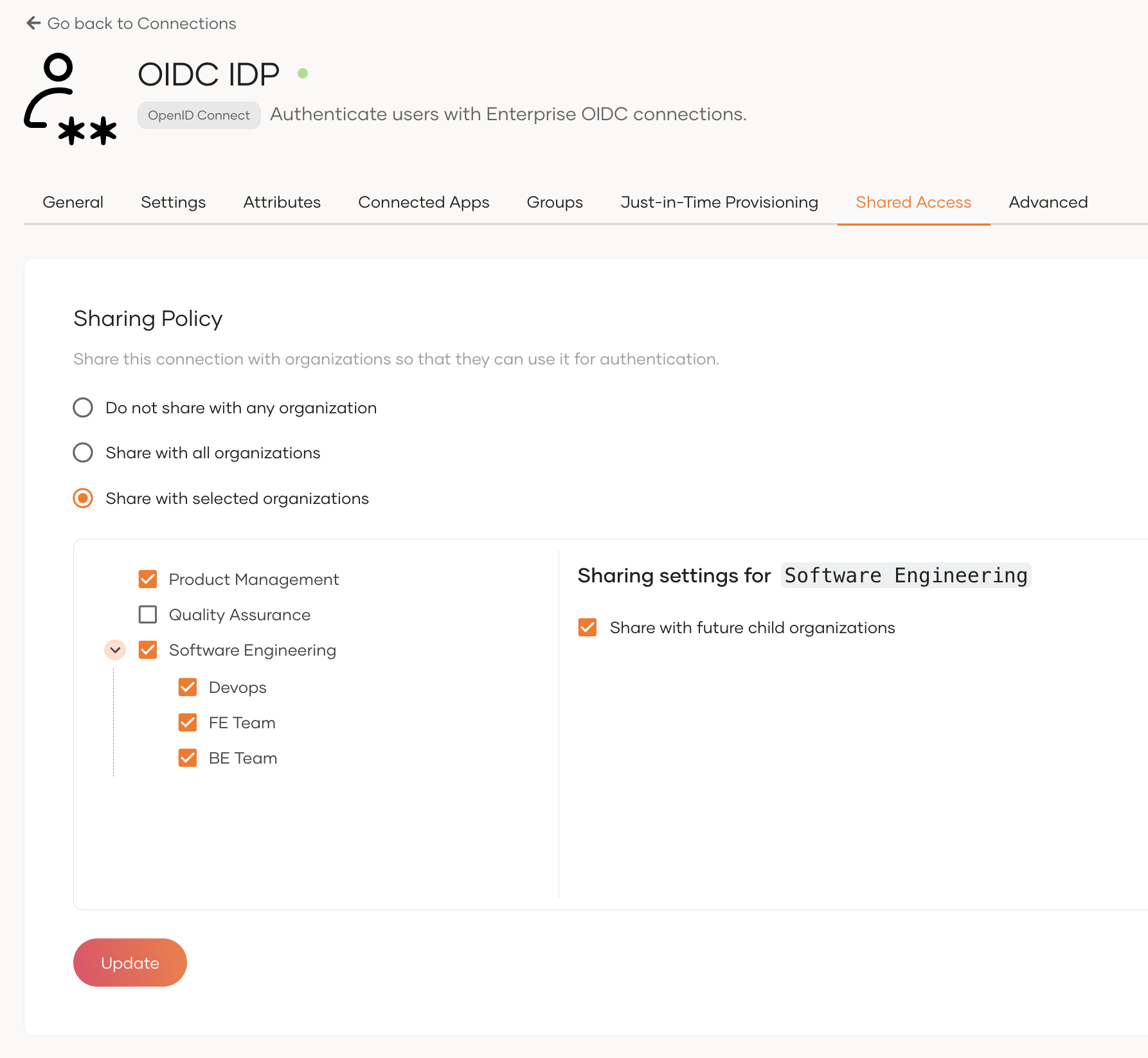
Why use this option? Control exactly which organizations can offer the login option to their users.
Select the organizations from the organization tree. To also share the identity provider with the existing and future child organizations of an organization, select the organization and enable Share with future child organizations.
Keep these rules in mind when you select organizations:
- An identity provider must be shared with a parent organization before it can be shared with its child organizations. When you select an organization, WSO2 Identity Platform also selects its parent organizations.
- When you clear an organization, WSO2 Identity Platform also clears its child organizations.
Switch from all organizations to selected organizations
If you change an identity provider that is shared with all organizations to Share with selected organizations, WSO2 Identity Platform asks how to proceed:
- Preserve current sharing - Keep the identity provider shared with the existing organizations and continue with selective sharing.
- Reset to default - Unshare the identity provider from all organizations and start selective sharing from scratch.
Warning
Reset to default unshares the identity provider as soon as you click Confirm. Users of those organizations can no longer log in with the identity provider.
Add a shared identity provider to the login flow
Organization administrators can add a shared identity provider to the login flows of applications in their organization.
-
Switch to the organization on the WSO2 Identity Platform Console.
-
Go to Applications and select the application.
-
Go to the Login Flow tab and add an authentication option to a step.
-
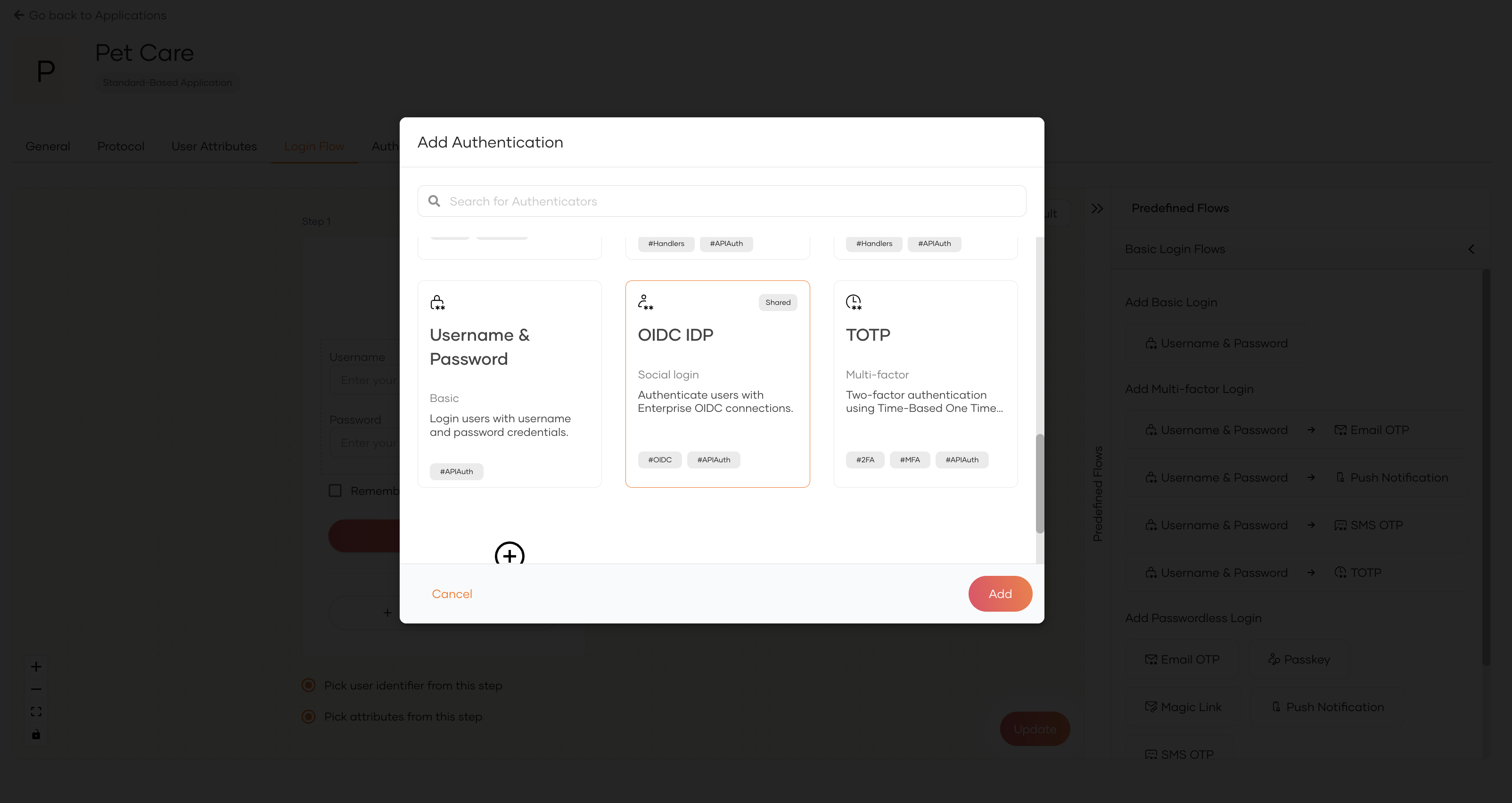
In the Add Authentication dialog, select the shared identity provider. Shared identity providers have a Shared label.
-
Click Add, and then click Update to save the login flow.
Use a shared identity provider for outbound provisioning
If the identity provider has an outbound provisioning connector in the parent organization, child organizations can use the shared identity provider to provision their users to the external system. Child organizations inherit the connector configuration from the parent organization.
In a child organization, the Outbound Provisioning tab of the shared identity provider lists the enabled connectors in read-only mode. Organization administrators can't add connectors or change their configurations.
To enable outbound provisioning with a shared identity provider in a child organization:
-
Switch to the organization on the WSO2 Identity Platform Console.
-
Add a provisioner at the required level:
- Organization-level - Go to Login & Registration. Under Provisioning Settings, click Outbound Provisioning Configuration and click New Provisioner.
- Application-level - Go to Applications, select the application, and go to its Provisioning tab. Under Outbound Provisioning Configuration, click New Provisioner.
-
Select the shared identity provider as the Connection and the relevant outbound connector as the Provisioning Connector. Shared identity providers have a Shared label.
-
Click Finish.
To provision only the users of selected groups, go to the Outbound Provisioning tab of the shared identity provider, select the groups under Outbound Provisioning Groups, and click Update.
Learn more about setting up outbound provisioning and group-based provisioning.
Manage shared identity providers in child organizations
Organization administrators manage a shared identity provider within the limits that the parent organization sets.
Organization administrators can:
- Add the shared identity provider to the login flows of applications in their organization.
- Enable or disable the shared identity provider for their organization. They can't enable it while it's disabled in the parent organization.
- Update the attribute mappings and just-in-time (JIT) provisioning settings of the shared identity provider. These changes apply only to their organization.
- Assign the groups of the shared identity provider to roles in their organization.
- Use the shared identity provider for outbound provisioning, and select the groups to provision under Outbound Provisioning Groups.
Organization administrators can't:
- Update the general details of the identity provider, such as its name, description, and image.
- View or update the protocol settings, certificates, or advanced settings of the identity provider.
- Add or update the groups of the identity provider. These are inherited from the parent organization.
- Add or update the outbound provisioning connectors of the identity provider. These are inherited from the parent organization.
- Delete the shared identity provider. It's removed only when the parent organization unshares it.
- Share the identity provider with their own child organizations. Share it from the parent organization instead.
Identity providers that can't be shared
You can't share the following identity providers:
- Trusted token issuers.
- Identity providers that use custom authenticators.
- Identity providers that are shared with the organization from a parent organization.
Use the API
You can share and unshare identity providers, and view the organizations an identity provider is shared with, using the Identity Provider Sharing API. Organizations can share identity providers using the Organization Identity Provider Sharing API.